


 Chuyển đổi video Ultimate
 Trình ghi màn hình
 Sửa chữa video
 Tải xuống an toàn
3 cách phát DVD trên PC chạy Windows 10/8/7
Tại sao DVD của tôi không phát được trên Windows Media Player?
Nếu bạn đang sử dụng Windows 7 hoặc Windows 8, bạn có thể dễ dàng xem phim DVD bằng trình phát mặc định, Windows Media Player. Tuy nhiên, Microsoft đã lược bỏ chức năng của WMP trong Windows 10. Vì vậy, bạn không còn có thể mở trực tiếp đĩa DVD trên Windows Media Player nữa.

Bài viết này sẽ hướng dẫn bạn cách phát DVD trên Windows Media Player. Dù bạn đang dùng máy tính chạy Windows 10, Windows 8, Windows 7 hay phiên bản sớm hơn, bạn đều có thể dùng 3 trình phát DVD để xem DVD một cách dễ dàng.
Phần 1. Cách phát DVD trên Windows Media Player
Windows Media Player được cài sẵn và cung cấp cho các máy tính dùng Windows. Nó chủ yếu được sử dụng để phát video, âm thanh và xem hình ảnh trong hệ thống Windows. Ngoài ra, nó còn hỗ trợ phát các đĩa CD âm thanh, CD dữ liệu, VCD và DVD trên Windows 7 và Windows 8. Phần này sẽ hướng dẫn cách phát DVD trên Windows Media Player.
Bước 1. Trước tiên, bạn cần mở Windows Media Player trên PC của mình. Bạn có thể nhấn phím Windows để hiện hộp tìm kiếm, nhập WMP hoặc Windows Media Player để tìm công cụ phát. Windows Media Player sẽ xuất hiện ở lựa chọn đầu tiên. Tại đây bạn có thể nhấn phím Enter, hoặc nhấp đúp vào lựa chọn đó để mở.
Bước 2. Đưa đĩa DVD vào ổ đĩa của máy tính. Do hầu hết laptop hiện đại không còn trang bị ổ DVD, bạn có thể cần kết nối ổ đĩa gắn ngoài.
Bước 3. Video DVD sẽ tự động bắt đầu phát. Nếu không, bạn có thể mở Windows Media Player, chọn đĩa DVD trong phần Thư viện trình phát (Player Library). Tại đây, bạn có thể chọn tiêu đề (title) hoặc tên chương (chapter) của DVD. Sau đó trình phát sẽ tự động chuyển sang chế độ Đang phát (Now Playing).
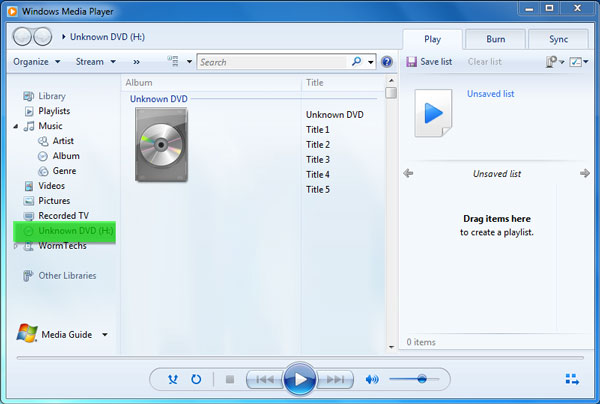
Bạn cần có ổ đĩa DVD và bộ giải mã (decoder) DVD tương thích để phát DVD trên Windows Media Player. Nếu thấy thông báo lỗi, bạn có thể vào Trợ giúp trên Web (Web Help) để tìm cách lấy bộ giải mã phù hợp. Lưu ý, Windows Media Player chỉ có thể phát DVD trên máy tính Windows 7 và Windows 8.
Phần 2. Cách tốt hơn để phát DVD trong PC Windows 10/8/7
Như đã đề cập ở trên, bạn không còn có thể phát DVD trong Windows 10 bằng Windows Media Player. Thay vào đó, bạn cần mua ứng dụng Windows DVD Player có giá $15 để phát DVD. Chắc chắn bạn sẽ thích một cách miễn phí để phát DVD trên máy tính hơn.
FVC Free DVD Player là một công cụ phát DVD hoàn toàn miễn phí cho phép bạn xem mọi đĩa DVD, thư mục DVD và tập tin ảnh ISO trên máy tính Windows 10/8/7 và Mac. Thực chất đây là một trình phát DVD trực tuyến. Bạn có thể sử dụng trực tiếp trên bất kỳ trình duyệt web nào như IE, Chrome, Firefox và Safari. Với công nghệ mã hóa video tiên tiến, nó có thể phát phim DVD mượt mà với chất lượng cao. Hơn nữa, nó hỗ trợ DTS-HD và Dolby TrueHD để mang lại hiệu ứng âm thanh không suy hao.

Bước 1. Mở trình duyệt và truy cập trang web trình phát DVD miễn phí này. Nhấp nút Play Now để nhanh chóng cài đặt một tập tin khởi chạy dung lượng nhỏ phục vụ việc phát DVD. Sau đó cửa sổ phát DVD chính sẽ xuất hiện trên màn hình.
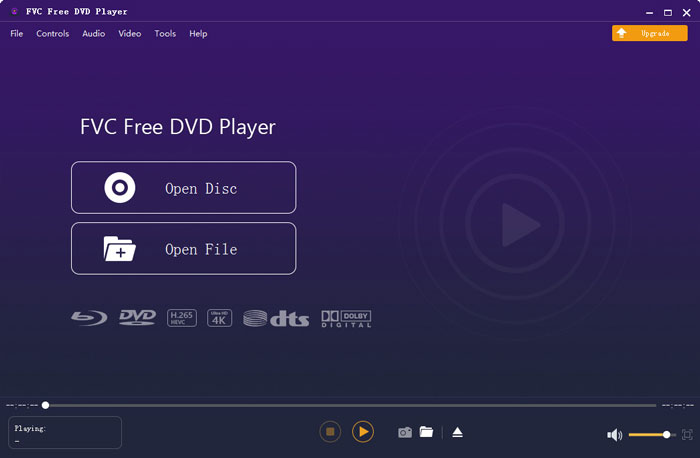
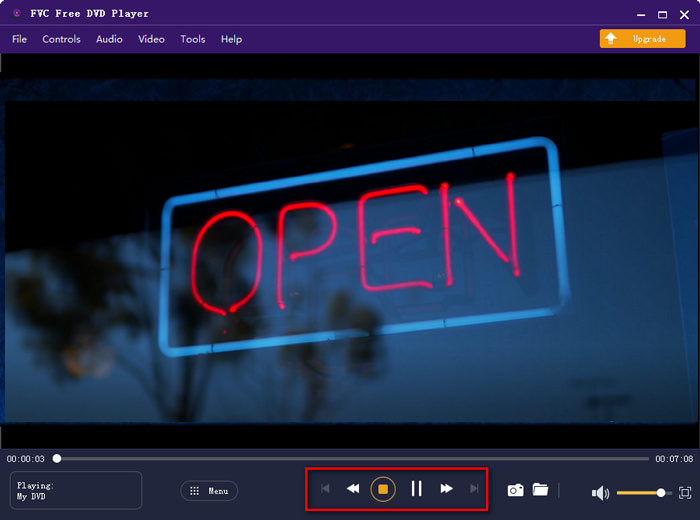
Bước 2. Đưa đĩa DVD vào ổ đĩa của máy tính. Sau đó nhấp nút Open Disc để định vị và phát phim DVD của bạn. Bạn có toàn quyền điều khiển quá trình phát. Ví dụ, bạn có thể phát, tạm dừng, tua lùi, tua tới, điều chỉnh âm lượng và kích thước cửa sổ phát theo ý muốn.
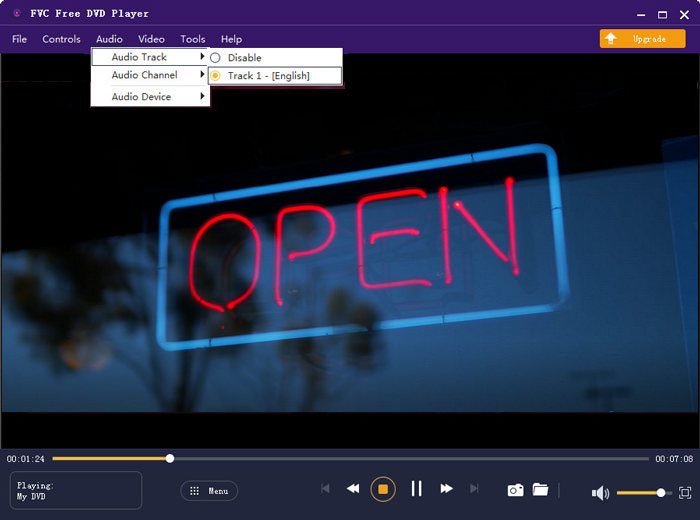
Bước 3. Bên cạnh chức năng phát cơ bản, trình phát DVD miễn phí này còn cho phép bạn thêm và thay đổi phụ đề, đường tiếng. Ngoài ra, bạn có thể chụp ảnh màn hình tại bất kỳ thời điểm nào trong quá trình phát DVD.
Phần 3. Cách xem DVD trên PC Windows 10/8/7 với VLC Media Player
VLC media player là một trong những trình phát video phổ biến nhất hiện nay, đồng thời cũng hỗ trợ phát DVD. Là trình phát đa nền tảng, VLC cho phép bạn phát DVD trên máy tính Windows 10/8/7, macOS và Linux. Nó có khả năng phát DVD, VCD và CD âm thanh. Khi phát video DVD, VLC có thể dễ dàng truy cập menu DVD, các chương và những nội dung liên quan khác. Ngoài DVD, VLC cũng hỗ trợ đĩa Blu-ray.
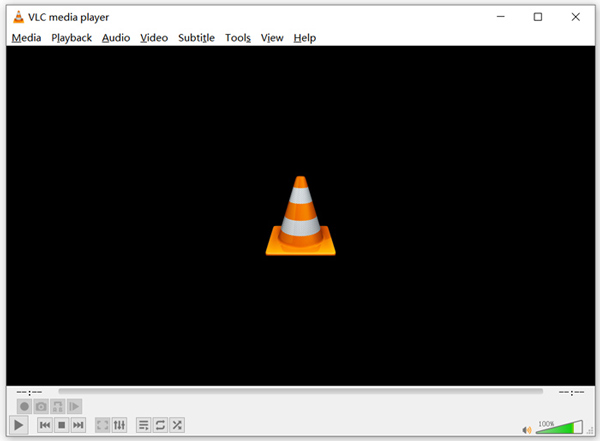
Bước 1. Trước hết, bạn cần tải miễn phí phiên bản VLC phù hợp cho máy tính của mình. Đưa đĩa DVD vào ổ đĩa trên laptop.
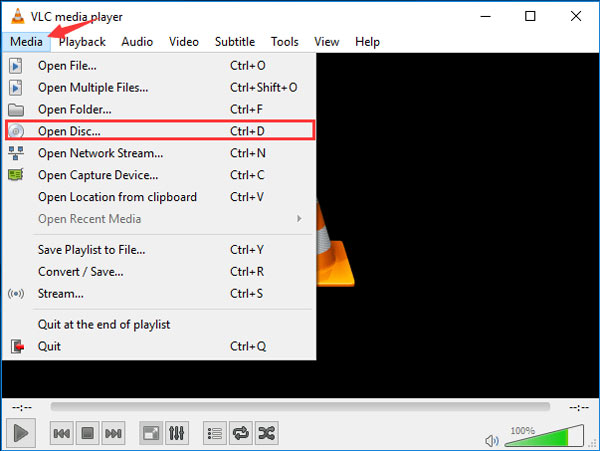
Bước 2. Mở VLC media player rồi nhấp vào mục Media trên thanh menu phía trên. Từ danh sách thả xuống, chọn tùy chọn Open Disc.
Bước 3. Trong cửa sổ Open Media mới, nhấp vào thẻ Disc, chọn DVD rồi nhấp nút Browse để chọn và tải phim DVD bạn muốn phát.
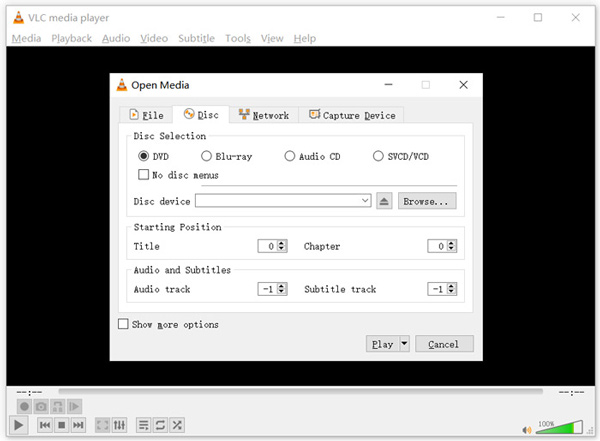
Sau các thao tác này, bạn có thể thủ công xem phim DVD trên PC hoặc Mac chạy Windows 10/8/7 bằng trình phát phương tiện VLC.
Phần 4. Câu hỏi thường gặp về Cách phát DVD trên Windows Media Player
Câu hỏi 1. Làm cách nào để trích xuất đĩa CD trong Windows Media Player?
Để trích xuất đĩa CD trong Windows Media Player, bạn nên đưa đĩa CD vào ổ đĩa của máy tính. Mở Windows Media Player và chọn CD trong danh sách Thư mục. Bây giờ bạn có thể chọn tách đĩa CD với cài đặt mặc định. Tại đây bạn cũng có thể tùy chỉnh cài đặt Rip dựa trên nhu cầu của mình.
Câu hỏi 2. Tại sao tôi không thể phát DVD trên Windows 10?
Microsoft đã loại bỏ hỗ trợ phát DVD tích hợp trong Windows 10. Vì vậy, bạn không thể mở trực tiếp phim DVD trên PC chạy Windows 10.
Câu hỏi 3. Làm thế nào để trích xuất một đĩa DVD sang MP4?
Để trích xuất DVD sang video kỹ thuật số như MP4, MOV hoặc AVI, bạn có thể tải DVD converter để rip DVD mà không làm giảm chất lượng.
Phần kết luận
Tại sao DVD không phát được trên Windows Media Player? Nếu bạn đang dùng PC chạy Windows 10, bạn có thể dựa vào Free DVD Player được khuyên dùng hoặc VLC để xem phim DVD. Với người dùng Windows 8 hoặc Windows 7, bạn có thể phát DVD trực tiếp bằng Windows Media Player. Nếu vẫn còn bất kỳ thắc mắc nào về việc phát DVD trên Windows 10/8/7, bạn có thể để lại lời nhắn cho chúng tôi.
-
 10 trình phát nhạc MP3 miễn phí tốt nhất năm 2025
 Máy nghe nhạc MP3 tốt nhất là gì? Làm cách nào để đưa nhạc vào máy nghe nhạc MP3? Làm thế nào để tải xuống máy nghe nhạc MP3? Bài đăng này cung cấp cho bạn đánh giá chi tiết về 10 máy nghe nhạc MP3 miễn phí tốt nhất cho Windows PC và Mac.
-
 7 trình phát Xvid tốt nhất cho Windows và Mac
 Tải xuống FVC Free Video Player - trình phát Xvid tốt nhất cho mọi nền tảng. Ở đây chúng tôi cũng đã đề cập đến 6 trình phát Xvid khác dành cho Windows và Mac.
-
 5 trình phát VOB tốt nhất cho PC Windows 10/8/7 và Mac năm 2025
 Làm thế nào để phát tệp VOB trên Windows 10? Trình phát VOB tốt nhất là gì? Bài đăng này đánh giá 5 trình phát VOB tốt nhất dành cho máy tính Windows 10 và Mac.
