


 Chuyển đổi video Ultimate
 Trình ghi màn hình
 Sửa chữa video
 Tải xuống an toàn
5 cách khắc phục Windows Media Player không hoạt động trên Windows 7/8/10
Windows Media Player đã ngừng hoạt động. Đã xảy ra sự cố khiến chương trình ngừng hoạt động bình thường. Nó cũng sẽ phát âm thanh nhưng không phát video. Làm thế nào để khắc phục sự cố này?
Khi Windows Media Player ngừng hoạt động, bạn có thể nhận được lỗi “Window Media Player đã ngừng hoạt động” mà không có bất kỳ thông tin cụ thể nào về nó hoặc bạn được thông báo rằng “Loại tệp không được hỗ trợ”. Ngay cả khi không có lời nhắc, và các nhấp chuột của bạn không hoạt động.
Có rất nhiều nguyên nhân khiến Windows Media Player không hoạt động. Vấn đề phổ biến nhất là tệp không được hỗ trợ, dẫn đến việc phát video nhưng không có hình ảnh, hoặc không có âm thanh, hoặc không có phụ đề. Ngoài ra, nguyên nhân cũng rất đa dạng mà không có thông báo cụ thể. Trong trường hợp này, bạn phải kiểm tra tất cả các vấn đề được liệt kê trong bài viết sau để khắc phục lỗi phức tạp này. Nhưng bạn cũng có thể chọn cách tốt nhất là dùng một trình phát video thay thế để xem bất kỳ video nào mà không gặp sự cố hay giới hạn nào.

Phần 1: Trình phát đa phương tiện thay thế tốt nhất mà bạn không nên bỏ lỡ
Để tránh tình trạng Windows Media Player không hoạt động, tốt hơn hết bạn nên chọn một trình phát thay thế chuyên nghiệp. FVC Free Video Player là một trình phát video trực tuyến miễn phí có thể giải quyết tất cả các vấn đề bạn có thể gặp phải khi dùng Windows Media Player. Công cụ này hỗ trợ phát video mà không bị giới hạn về định dạng và độ phân giải. Và bạn có thể phát mượt mọi định dạng video mà không cần tải thêm bất kỳ phần mềm nào khác.
- 1. Hỗ trợ chơi hầu hết các định dạng, bao gồm FLV, MKV, RMVB và các tệp DVD hoặc Blu-ray.
- 2. Phát video với chất lượng cao đạt độ phân giải 4K.
- 3. Có thể điều chỉnh các bản âm thanh và phụ đề bằng các ngôn ngữ khác nhau.
- 4. Chụp ảnh màn hình bất cứ lúc nào khi phát video.
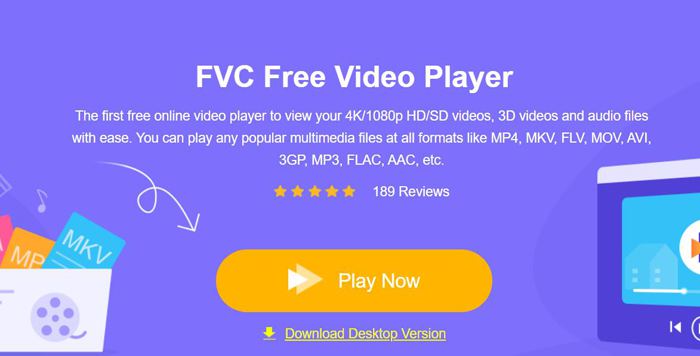
Bước 1: Truy cập trang web của FVC Free Video Player trên bất kỳ trình duyệt nào. Sau đó nhấp vào nút Play Now để cài đặt trình khởi chạy. Sau vài phút, nhấp lại vào nút Play Now để khởi chạy FVC Free Video Player.
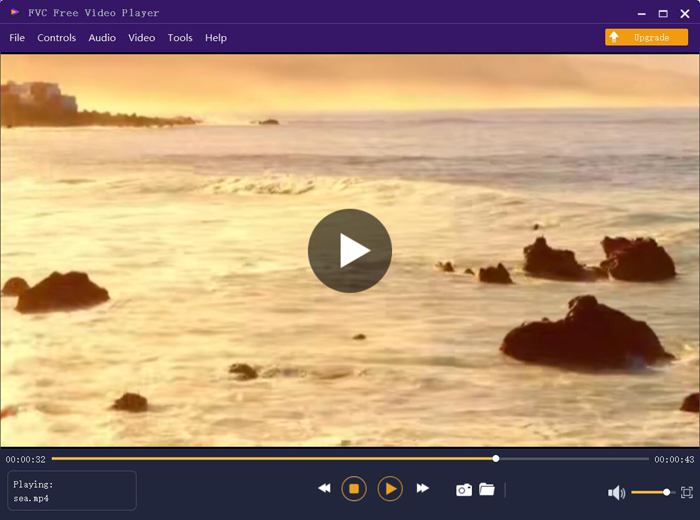
Bước 2: Nhấp vào nút Open Files để chọn video mong muốn. Sau đó video sẽ tự động được phát. Trong menu Control, bạn có thể xem các phím tắt để điều chỉnh âm lượng. Bạn cũng có thể chọn các đường âm thanh hoặc video theo nhu cầu. Hơn nữa, nếu bạn nhấp vào nút Tools và chọn tùy chọn Effect, bạn còn có thể điều chỉnh sắc độ, độ sáng, độ tương phản, độ bão hòa và gamma.
Phần 2: Cách khắc phục Window Media Player không hoạt động trên Windows 7/8/10
Như đã đề cập trước đây, nhiều lý do có thể khiến Windows Media Player không hoạt động và có 3 phương pháp để khắc phục sự cố này trong các trường hợp khác nhau.
Phương pháp 1: Khởi chạy trình khắc phục sự cố của Window Media Player
Khi Windows Media Player của bạn không phản hồi sau khi nhấp chuột, cách này sẽ giúp bạn giải quyết vấn đề đó.
Bước 1: Nhấn đồng thời các phím Windows và R trên bàn phím để mở chương trình Run. Sau đó bạn hãy sao chép và dán msdt.exe -id WindowsMediaPlayerConfigurationDiagnostic vào thanh tìm kiếm. Nhấp vào nút OK để đi đến trình gỡ rối Windows Media Player Settings. Sau đó nhấp vào nút Next để bắt đầu.
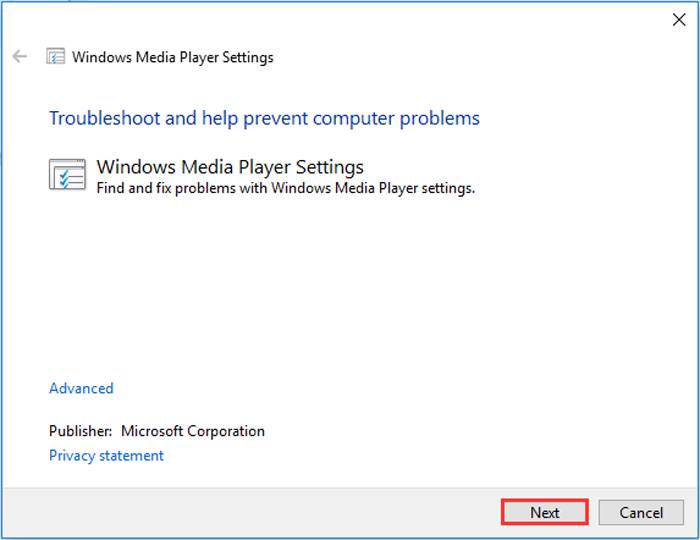
Bước 2: Sau khi cửa sổ hiện lên, nhấp vào nút Apply this fix để đặt lại Windows Media Player về cài đặt mặc định. Sau đó bạn có thể thử khởi động lại Windows Media Player.
Phương pháp 2: Cài đặt các bộ giải mã khác trên Windows Media Player
Nếu Windows Media Player của bạn không hoạt động với một số video hoặc âm thanh đặc biệt, bạn có thể tải xuống bộ giải mã phản hồi để phát các video này.
Bước 1: Mở Microsoft Store trên máy tính của bạn. Nhấp vào nút Search, rồi nhập Video Extension vào thanh tìm kiếm. Bạn có thể tải về gói mở rộng video mong muốn trên máy tính.
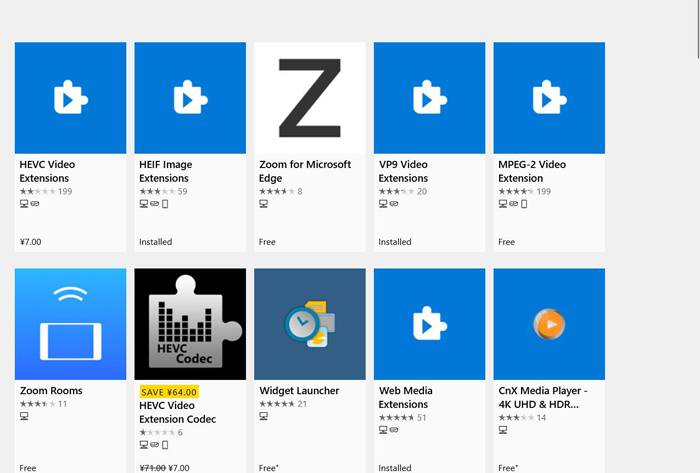
Bước 2: Sau khi cài đặt xong, hãy mở lại video bằng Windows Media Player. Tuy nhiên, bạn cần lưu ý vẫn còn nhiều định dạng không được hỗ trợ, bao gồm FLV, RMVB, v.v.
Phương pháp 3: Cài đặt lại Windows Media Player.
Nếu phương pháp được đề cập không hoạt động, bạn nên thử cài đặt lại phần mềm khi Windows Media Player ngừng hoạt động.
Bước 1: Nhấn các phím Windows và R trên bàn phím để mở chương trình Run. Sau đó nhập optionalfeatures.exe vào thanh tìm kiếm. Nhấp vào nút OK để mở hoặc tắt một tính năng. Sau đó bạn có thể bỏ dấu chọn ở Windows Media Player.
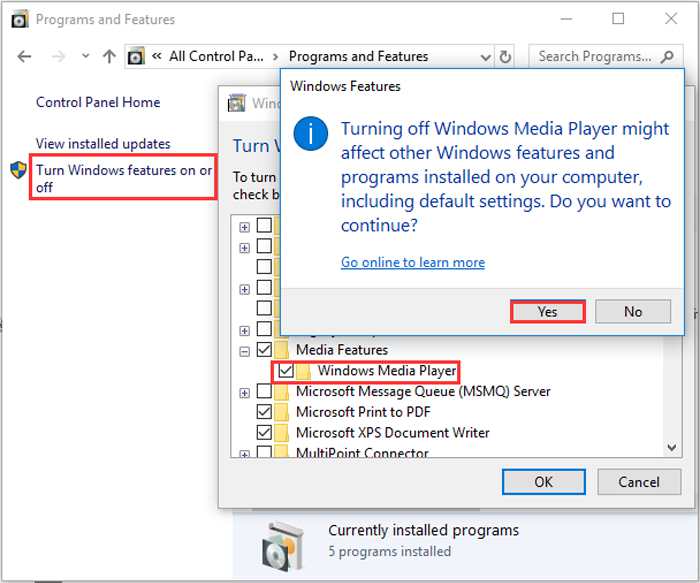
Bước 2: Khởi động lại máy tính và lặp lại thao tác trước đó. Sau đó đánh dấu chọn lại Windows Media Player. Tiếp theo, khởi động lại máy tính một lần nữa, và phần mềm sẽ được cài đặt tự động trên máy của bạn.
Ngoại trừ những vấn đề này, Windows Media Player cũng có nhiều nhược điểm. Bạn không thể điều chỉnh tốc độ phát lại video và các phím nóng luôn vô dụng. Vì vậy, tại sao không chọn trình phát video trực tuyến miễn phí để giải quyết tất cả các vấn đề?
Phần 3: Câu hỏi thường gặp về Windows Media Player không hoạt động
1. Tại sao các tệp video FLV không thể phát trên Windows Media Player?
Mặc dù Windows Media Player hỗ trợ cài đặt nhiều bộ giải mã (decoder) để phát lại video ở một số định dạng ít gặp, nhưng định dạng FLV vẫn không được hỗ trợ. Trong trường hợp này, bạn có thể thử tải xuống các phần mềm thay thế cho Windows Media Player hoặc chuyển đổi định dạng video.
2. Tại sao Window Media Player của tôi không hoạt động sau khi cập nhật Windows 10?
Có thể Windows Media Player bị hỏng sau khi cập nhật. Bạn có thể thử phương pháp 3 đã đề cập để cài đặt lại Windows Media Player.
3. Làm thế nào để chọn các bản nhạc phụ đề trên Window Media Player?
Thật không may, không có tùy chọn để chọn phụ đề, video và các bản âm thanh khác nhau trên Windows Media Player. Bạn có thể chọn các lựa chọn thay thế khác để phát video.
Phần kết luận
Nguyên nhân khiến Windows Media Player không hoạt động sẽ rất phức tạp, điều này gây khó khăn cho việc khắc phục sự cố này. Do đó, bạn chỉ cần tải xuống trình phát media thay thế tốt nhất - FVC Free Video Player để phát video mượt mà với chất lượng cao. Bằng cách này, bạn có thể ngăn Windows Media Player không hoạt động mãi mãi.
-
 Cách phát DVD trên Windows Media Player vào năm 2021
 Tại sao DVD của tôi không phát trên Windows Media Player? Làm cách nào để phát DVD trên trình phát đa phương tiện Windows 7? Bài đăng này chia sẻ 3 cách để phát DVD có hoặc không có WMP.
-
 6 giải pháp đã được xác minh để sửa video không phát trên Chrome
 Để khắc phục sự cố video không phát trên Chrome, tất cả những gì bạn cần làm là đọc cách khắc phục sự cố của chúng tôi và thực hiện từng giải pháp đã được xác minh.
-
 5 giải pháp làm việc 100% để sửa video không phát trên iPad
 Video của bạn không phát trên iPad? Dưới đây là năm giải pháp giúp bạn thoát khỏi vấn đề này và sau đó bạn có thể thưởng thức các video yêu thích của mình trên thiết bị cầm tay một cách dễ dàng.
