


 Chuyển đổi video Ultimate
 Trình ghi màn hình
 Sửa chữa video
Hướng dẫn toàn diện về cách chuyển đổi AMV sang WMV với các bước [Đã giải quyết]
Want to enjoy watching AMV video files on your Windows or use it for online streaming? If so, you must read this article to know how to convert AMV to WMV, improve the quality, and make it compatible. In this list, you will learn the software you can use to convert your AMV files. So without further ado, you must now fasten your seatbelt and learn a lot more about AMV and WMV format.

Phần 1. Chuyển đổi AMV sang WMV với FVC Video Converter Ultimate
FVC Video Converter Ultimate is our first choice for converting AMV to WMV because it allows you to transcode media and device-specific formats. And more, it is capable of converting not only one, two, or three files simultaneously but more. Furthermore, this converter is dedicated to its users to provide nothing but greatness on their conversion. Want to know why? Then read the key features below.

FVC Video Converter Ultimate
4.355.888+ lượt tải xuống- Nó có thể giúp bạn giải quyết vấn đề chuyển đổi AMV sang WMV, AVI, FLV, SWF, MP4, AVI.
- Nó hỗ trợ chuyển đổi cực nhanh để chuyển đổi định dạng nhanh hơn.
- Chỉnh sửa video AMV của bạn với các tính năng chỉnh sửa độc đáo mà công cụ này cung cấp.
- Giúp bạn trở thành chuyên gia trong vòng vài cú nhấp chuột.
- Nó hỗ trợ tất cả các nền tảng như Windows và macOS.
Tải xuống miễn phí cho Windows 7 trở lên. Tải xuống an toàn.
Tải xuống miễn phí cho MacOS 10.7 trở lên. Tải xuống an toàn.
Bạn có ngạc nhiên về các tính năng của công cụ không? Nếu vậy, hãy đọc quy trình chuyển đổi tệp AMV và sao chép các bước để chuyển đổi thành công.
Step 1. Download the FVC Video Converter Ultimate on your computer drive by clicking the download button presented below. Proceed on clicking the installer to install and press Start Now to launch the tool.
Tải xuống miễn phí cho Windows 7 trở lên. Tải xuống an toàn.
Tải xuống miễn phí cho MacOS 10.7 trở lên. Tải xuống an toàn.
Step 2. After launching the software, you can add one or more files by clicking the Add Files option. The computer folder will show on your screen, select the AMV file, and press Open to upload it.
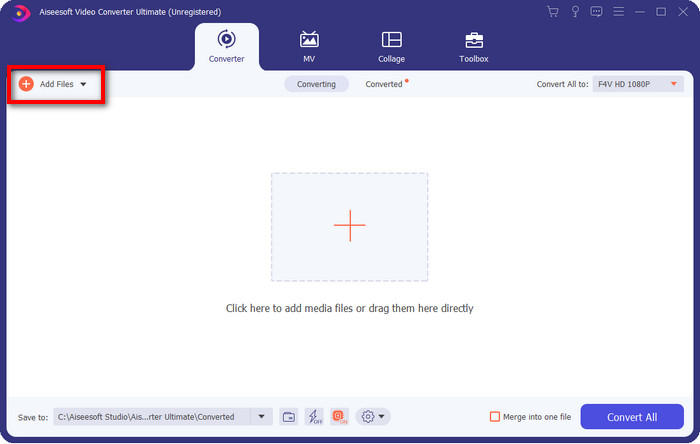
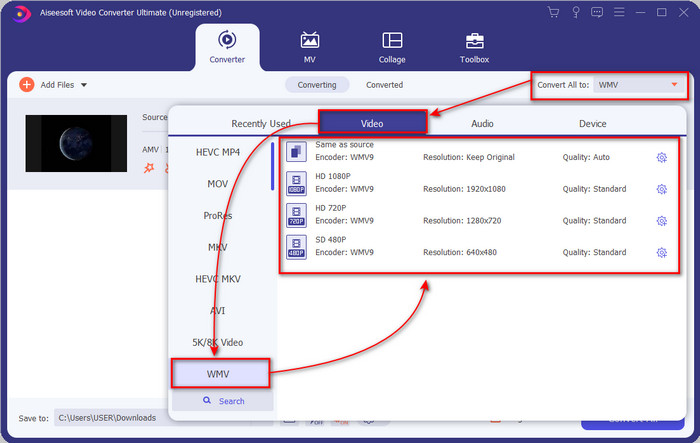
Step 3. By clicking the Convert All to option, a format list will show. Find the WMV format and choose the resolution, encoder, and quality you want to have.
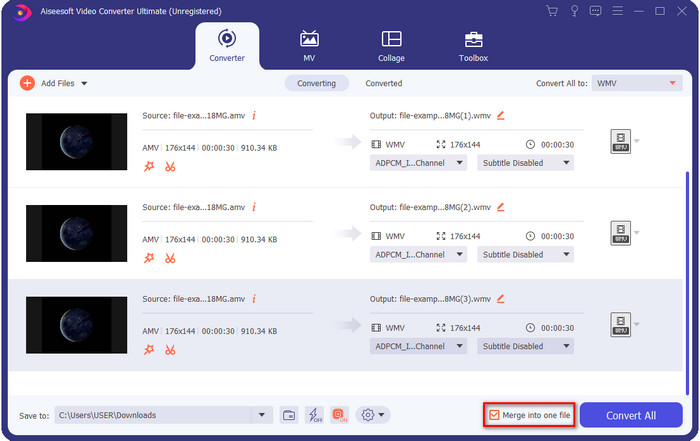
Optional. Want to make your AMV files into one WMV format? Then it would help if you ticked the box saying merge into one file.
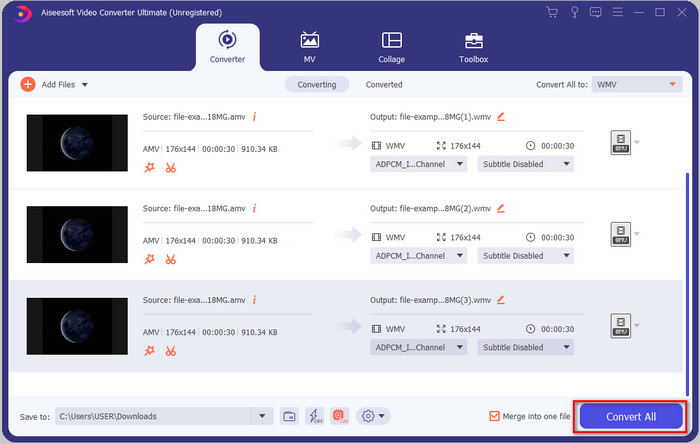
Step 4. Press the Convert All for the process of converting to start. After the process, a folder will display on your screen with the converted WMV file.
Phần 2. Chuyển đổi AMV sang WMV Online
Don't you want to download an offline converter because you don't have enough storage to download one? Then use the FVC Free Online Video Converter. Because you will not need to download the full converter; instead, you will need the launcher, but it is tiny and won't affect your computer storage. Moreover, this web converter converts AMV to WMV, adjusting the resolution. However, converting the file will depend on the speed of your internet. Do you have an internet connection? Then you must try to use this and experience online conversion.
Step 1. Hit this link to open the main website of the converter.
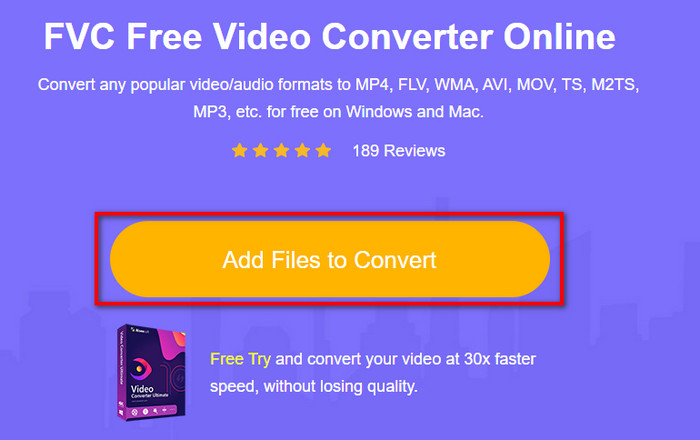
Step 2. By clicking the Add Files to Convert, a folder will show where you can find the AMV file and press Open.
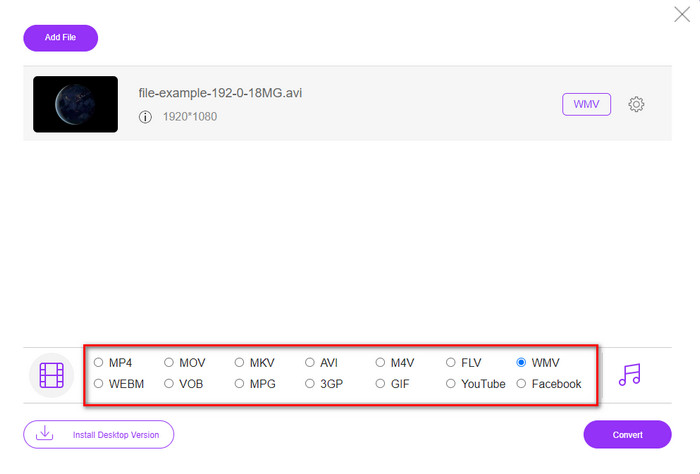
Step 3. Choose the WMV format that will display on the screen.
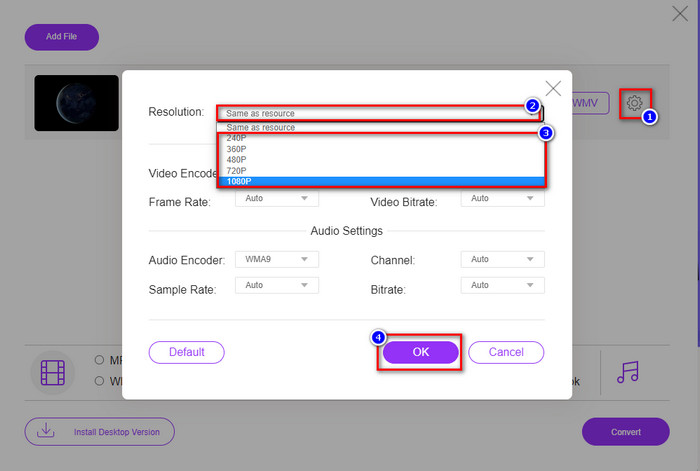
Optional. As we said earlier, you can adjust the resolution here. So now, let's modify the resolution by clicking the gear button. At the upper part, click the drop-down button, and a list of resolutions will show; choose one and press OK to proceed.
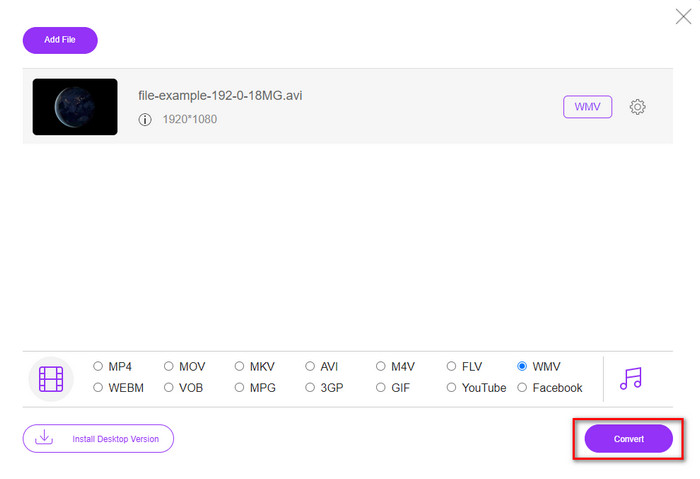
Step 4. So now, if you want to start the conversion, you can click the Convert button, and the process will begin.
Phần 3. Sự khác biệt giữa AMV và WMV là gì
Trước hết, hai vùng chứa phương tiện này trở nên phổ biến vì khả năng định dạng độc đáo của chúng. Nhưng hôm nay, chúng ta sẽ nghiên cứu về những ưu điểm và nhược điểm của chính định dạng này. Hơn nữa, chúng tôi sẽ chỉ rõ ba khía cạnh bằng cách đặt câu hỏi để biết thêm về AMV và WMV.
Định dạng nào có độ phân giải phương tiện tốt hơn?
Giữa hai định dạng, không nghi ngờ gì nữa, WMV có chất lượng tốt hơn. Tệp WMV có thể lưu trữ và phát trực tuyến video có độ phân giải lên đến 300.000 pixel để có đầu ra hình ảnh chi tiết hơn. Nhưng bạn có thể đặt tỷ lệ ở độ phân giải màn hình 528x576. Và đối với AMV, chất lượng mà nó có thể chứa là 96x96 đến 320x240, khá thấp so với độ phân giải thấp của WMV. Một lý do khiến AMV có độ phân giải nhỏ hơn là nó cần phải vừa với màn hình của trình phát media Trung Quốc.
Định dạng nào có kích thước tệp nhỏ hơn?
Chiến thắng này sẽ thuộc về AMV vì định dạng này siêu nén. Mặc dù WMV có một máy nén nhưng kích thước của AMV thân thiện hơn về mặt kinh tế, đặc biệt là trên ổ đĩa máy tính của bạn, so với WMV.
Định dạng nào tương thích hơn?
We can say that they have different strengths if we talk about compatibility because WMV is for Windows programs only. If you are a Mac user, you can't just use this format and play it on Quicktime or edit it on iMovie. Instead, you will need to convert WMV to MOV to make it compatible. In the case of AMV, this format uses a portable Chinese media player to play this format. But today, you can use a portable media player instead of buying an AMV media player. However, looking for an AMV media player is a pain in the ass because they are numbered players supporting this kind of format and the encoder. We can say that WMV has gained more compatibility than AMV, especially if we transfer the file to Windows.
Và bây giờ chúng ta đã biết lý do, việc chuyển đổi tệp sang định dạng mới là cần thiết trong trường hợp này. Vì lý do đó, bạn phải học cách chuyển đổi AMV sang WMV để làm cho tệp phương tiện tương thích với phần mềm Windows.
Phần 4. Câu hỏi thường gặp về Chuyển đổi AMV và WMV
Làm cách nào để chuyển AMV của tôi sang MOV?
There are a lot of techniques and methods we can search and try on that are available if we query it on the web. But it is hard to choose which tool is better to use to convert AMV to MOV. So, to make it short, click this link and understand how to convert AMV to MOV and make it compatible with macOS.
Tôi có thể sử dụng trình phát đa phương tiện VLC để xem và phát AMV không?
Absolutely, you can download the VLC media player on your desktop to play your AMV files without needing to download an additional codec. But if you want to know more about the VLC and its alternative, try to read this article by clicking this link.
Tại sao tôi cần nén AMV?
We compress our media file and AMV because we need to free some space up on our hardware drive. So want to learn how to compress AMV files? Then click this link.
Phần kết luận
Hai giải pháp này cung cấp sự xuất sắc để giúp bạn chuyển đổi từ AMV sang WMV dễ dàng và thành công. Hơn nữa, đây là những giải pháp tốt nhất mà chúng tôi có thể tìm thấy trên web. Vì vậy, bây giờ bạn có thể chọn công cụ chuyển đổi nào bạn sử dụng để chuyển đổi tệp AMV của mình thành WMV. Để đạt được thành công, bạn phải sử dụng các công cụ FVC được cung cấp ở trên.
-
 Phương pháp tốt nhất để sử dụng trong việc chuyển đổi AMV sang AVI [Đã được phê duyệt]
 Bạn đang gặp khó khăn khi chuyển đổi tệp video định dạng AMV của mình sang AVI? Dưới đây là một số mẹo được cung cấp mà bạn chỉ có thể tìm thấy trong bài viết này.
-
 [Đã được chứng minh] 2 cách chuyển đổi AMV sang FLV Ngoại tuyến & Trực tuyến
 Bạn đã bao giờ cân nhắc dùng thử công cụ chuyển đổi để chuyển đổi các tệp AMV của mình sang định dạng tệp FLV chưa. Để giải quyết vấn đề của bạn khi xem video AMV, hãy đọc bài viết này để biết các bộ chuyển đổi phù hợp mà bạn nên sử dụng.
-
 Miễn phí | 3 phương pháp tốt nhất để chuyển đổi MP4 sang WMV mà không làm giảm chất lượng
 Bài đăng này chia sẻ cách chuyển đổi video MP4 sang định dạng WMV trên Mac hoặc Windows. Chúng tôi cũng sẽ cung cấp cho bạn một số tùy chọn, bao gồm cả phần mềm máy tính để bàn và trình chuyển đổi trực tuyến dựa trên web. Bạn đã sẵn sàng để biết các công cụ chuyển đổi MP4 sang WMV tốt nhất chưa?
