


 Chuyển đổi video Ultimate
 Trình ghi màn hình
 Sửa chữa video
3 cách hiệu quả để biến M4V thành MKV trên Mac / Windows / Linux mà không làm giảm chất lượng
Tôi cần quay video M4V mà tôi đã tải xuống trên iTunes. Có bất kỳ ý tưởng nào về cách chuyển đổi M4V sang MKV trên máy Mac và sau đó sử dụng nó trên TV của tôi không?
Vấn đề này khá phổ biến, đặc biệt với các video M4V tải xuống từ iTunes vì định dạng này nằm trong Chính sách FairPlay của Apple và được bảo vệ. Do đó, bạn không thể phát trực tiếp video .m4v trên các thiết bị khác nếu không chuyển đổi chúng. Bài viết này sẽ cung cấp thông tin về các trình chuyển đổi mà bạn có thể sử dụng và chuyển đổi thành công định dạng M4V. Không chần chừ thêm nữa, hãy bắt đầu tìm hiểu phương pháp hiệu quả để chuyển đổi M4V sang MKV trên Mac hoặc Windows.

Phần 1. Chuyển đổi iTunes M4V sang MKV trên Mac và Windows [Được chọn nhiều nhất]
Hiện có rất nhiều trình chuyển đổi M4V sang MKV miễn phí trên thị trường mà bạn có thể tải xuống, và một trong số đó là FVC Video Converter Ultimate. Tuy nhiên, công cụ “ultimate” này mang lại hiệu quả chuyển đổi cao hơn so với các trình chuyển đổi khác nhờ tốc độ cực nhanh, không giới hạn dung lượng tải lên để chuyển đổi và giao diện trực quan. Bạn có ấn tượng với trình chuyển đổi “ultimate” này không? Hoặc bạn muốn biết thêm về nó? Nếu vậy, dưới đây là các tính năng chính bạn sẽ thấy khi sử dụng trình chuyển đổi này.

FVC Video Converter Ultimate
2.999.368+ tải- Nó có thể chuyển đổi nhiều iTunes M4V sang MKV hoặc thành hơn 200 định dạng phương tiện như MOV, AVI, MP4, v.v.
- Với quá trình chuyển đổi cực nhanh, quá trình chuyển đổi M4V của bạn ngay lập tức
- Các tính năng chỉnh sửa nâng cao có sẵn để làm cho video của bạn trở nên tuyệt vời hơn.
- Đặt các tính năng tuyệt vời để nén, thay đổi kích thước, trình tạo GIF, v.v., trong Hộp công cụ.
Tải xuống miễn phí cho Windows 7 trở lên. Tải xuống an toàn.
Tải xuống miễn phí cho MacOS 10.7 trở lên. Tải xuống an toàn.
Thật tuyệt vời khi tất cả các tính năng này có thể có trên một công cụ phải không? Hãy không lãng phí thời gian nữa và xác định cách công cụ này chuyển đổi hiệu quả iTunes M4V sang MKV của bạn bằng cách làm theo các bước dưới đây.
Bước 1. Trước tiên, hãy tải trình chuyển đổi “ultimate” về máy bằng cách nhấn nút tải xuống bên dưới. Chọn nền tảng bạn đang dùng, làm theo quá trình cài đặt, nhấn Start Now để tiếp tục. Hãy nhớ rằng bạn nên làm quen với giao diện của công cụ để tránh gặp khó khăn.
Tải xuống miễn phí cho Windows 7 trở lên. Tải xuống an toàn.
Tải xuống miễn phí cho MacOS 10.7 trở lên. Tải xuống an toàn.
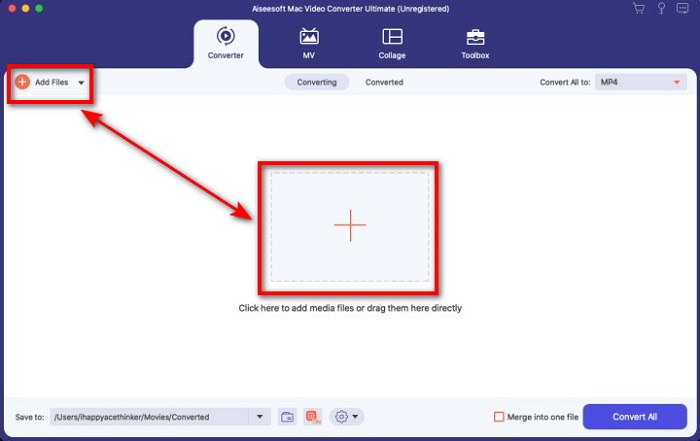
Bước 2. Tải tệp M4V lên giao diện bằng cách nhấn vào Add Files hoặc nút +. Sau đó, một cửa sổ thư mục trên máy tính sẽ mở ra trên màn hình, hãy duyệt tìm tệp .m4v và nhấn Open.
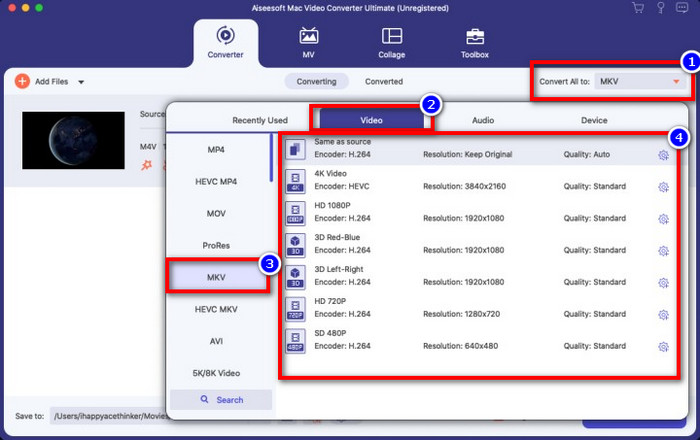
Bước 3. Chọn định dạng MKV trong mục Convert All to và nhấn vào đó.
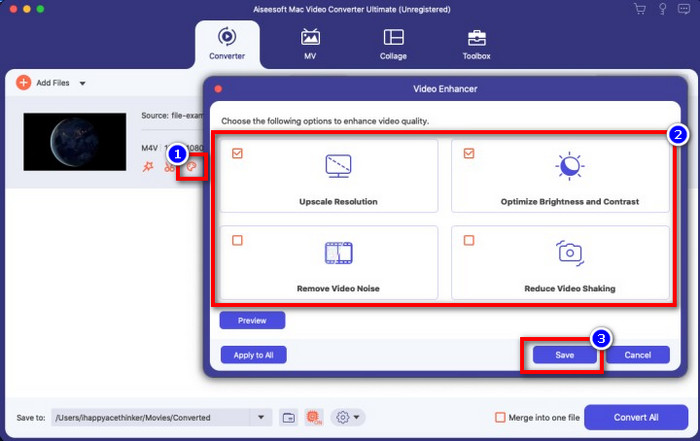
Tùy chọn. Hiệu quả của công cụ này cho đến giờ phải nói là rất tốt. Nhưng bạn có biết rằng công cụ này còn cung cấp tính năng tăng cường chất lượng video không? Nếu bạn nhấp vào tùy chọn enhance video, một hộp thoại sẽ hiện ra; hãy đánh dấu vào box cho phần bạn muốn cải thiện trên video, rồi nhấn Save để áp dụng.
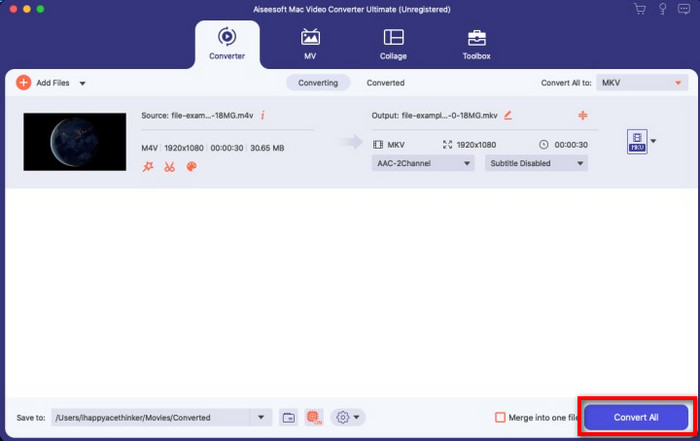
Bước 4. Nhấn nút Convert All, quá trình chuyển đổi sẽ bắt đầu và hoàn thành trong thời gian ngắn. Vậy là xong; từ đây, phần đuôi tệp video của bạn đã trở thành .mkv.
Phần 2. Chuyển đổi M4V sang MKV Online
Không muốn trả phí để chuyển đổi tệp M4V mà muốn chuyển M4V sang MKV trực tuyến? Nếu vậy, FVC Free Video Converter Online là một trình chuyển đổi trực tuyến đảm bảo hiệu quả quá trình chuyển đổi ngay cả khi thực hiện trên web. Công cụ này có thể hoàn thành công việc mà không cần bạn mua hay tải phần mềm về máy. Ngoài ra, không có quảng cáo hay yêu cầu đăng ký khi sử dụng. Dù là công cụ miễn phí, các chức năng ở đây chỉ tập trung vào tác vụ chuyển đổi. Khác với bản “ultimate”, nó không có nhiều tính năng mở rộng và ấn tượng. Tuy nhiên, nếu bạn cần chuyển đổi tệp M4V trực tuyến, hãy dùng công cụ này và làm theo các bước dưới đây.
Bước 1. Vui lòng nhấp vào liên kết này để mở FVC Free Video Converter Online.
Bước 2. Nhấn vào tùy chọn Add Files to Convert để khởi chạy và tải tệp M4V bạn cần chuyển đổi.
Tải xuống phiên bản dành cho máy tính để bàn để chuyển đổi tập tin hàng loạt.
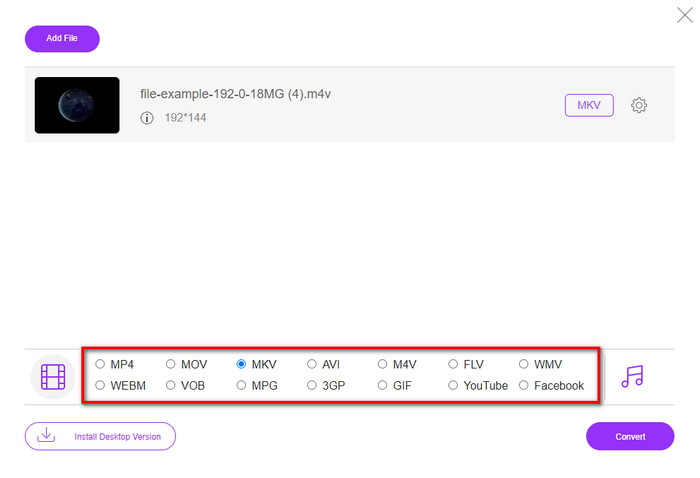
Bước 3. Chọn định dạng MKV phía dưới hoặc định dạng khác mà bạn muốn.
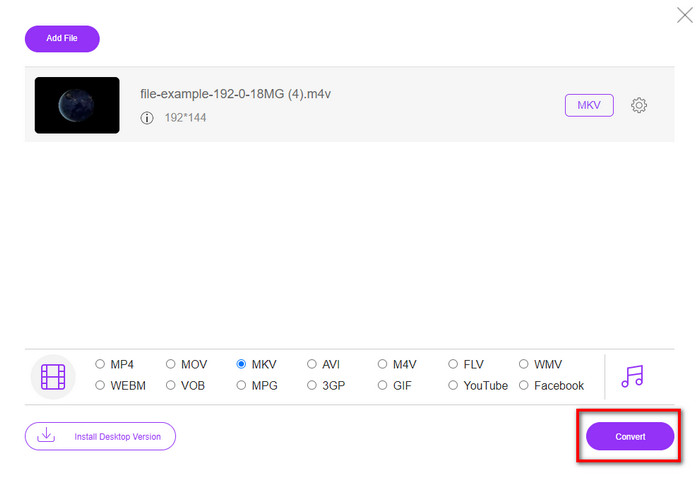
Bước 4. Nhấn Convert để bắt đầu quá trình.
Phần 3. Chuyển đổi M4V sang MKV miễn phí
Handbrake cung cấp quá trình chuyển đổi nhanh và hiệu quả tương tự như các trình chuyển đổi đã được giới thiệu. Tuy nhiên, định dạng mà công cụ này hỗ trợ bị giới hạn, nghĩa là bạn không có nhiều lựa chọn về định dạng đích. Nhưng nếu bạn vẫn muốn dùng Handbrake để chuyển M4V sang MKV, hãy làm theo các bước dưới đây.
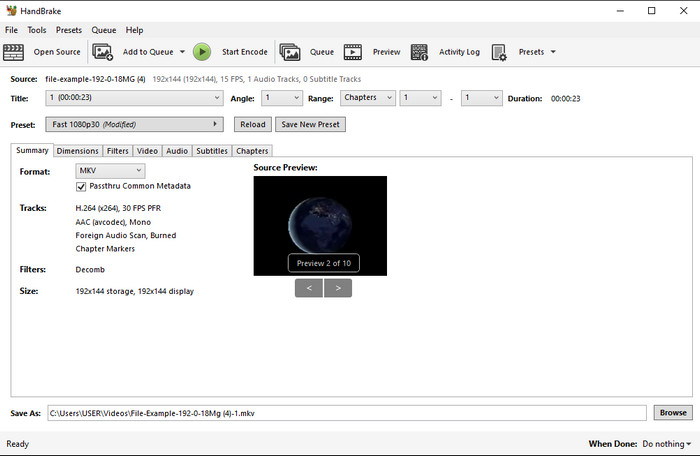
Bước 1. Tải Handbrake về máy tính. Tải tệp .m4v lên bằng cách kéo và thả vào giao diện. Bạn cũng có thể nhấn File, tìm tệp trong thư mục trên máy và nhấn Open.
Bước 2. Nhấn vào Format và chọn MKV.
Bước 3. Nhấn Start Encode để bắt đầu quá trình chuyển đổi.
Phần 4. Điểm giống và khác nhau giữa M4V và MKV
Trước khi chúng tôi so sánh M4V và MKV, chúng ta hãy tìm ra những điểm tương đồng giữa hai định dạng này. M4V và MKV đều là vùng chứa cho nội dung và phần tử đa phương tiện. Ngoài ra, hai định dạng này được biết là lưu trữ một trong những chất lượng video tốt nhất, chẳng hạn như video HD hoặc 4k. Và chúng cũng lớn để chứa các phần tử như siêu dữ liệu. Hơn nữa, chi tiết thành công bên dưới là sự khác biệt giữa hai định dạng.
M4V rất giống với định dạng MP4; tuy nhiên, định dạng này được bảo vệ chống sao chép DRM, có nghĩa là bạn không thể tự do sử dụng nó. Nhưng không phải tất cả các tệp M4V đều có sự bảo vệ của Apple vì một số M4V có thể tải xuống có giấy phép trái phép, vì vậy hãy đảm bảo rằng bạn tải xuống tệp .m4v trên iTunes để tránh vi-rút độc hại sẽ lây nhiễm vào hệ thống của bạn. Mặc dù định dạng có giới hạn, bạn vẫn có thể sử dụng định dạng này trên một số trình phát đa phương tiện để xem video bạn tải xuống trên iTunes. Hơn nữa, nếu bạn cần một thiết kế được bảo vệ trên Mac, thì định dạng này là lựa chọn tốt nhất.
Ngược lại, MKV đặc biệt để chứa nhiều nội dung đa phương tiện và các phần tử trong một tệp. Khả năng này chỉ khả dụng trên MKV, vì định dạng này được sử dụng miễn phí và linh hoạt hơn M4V. Hơn nữa, có nhiều lý do để thay đổi M4V thành MKV trên Mac hoặc Windows, và một trong số đó là để làm cho tệp video không bị giới hạn.
M4V so với MKV
M4V được phát triển bởi Apple, cũng sử dụng MPEG 4. Các tệp M4V thường được sử dụng để lưu trữ các video được tải xuống từ cửa hàng Apple iTunes, như video nhạc, tập phim truyền hình, v.v. Bạn có thể tìm thấy một số tệp M4V được bảo vệ chống sao chép vì nó sử dụng Bảo vệ bản quyền FairPlay DRM của Apple.
Định dạng vùng chứa đa phương tiện Matroska, được phát hành vào năm 2002, là một định dạng mã nguồn mở có thể bao gồm một số bản nhạc video, âm thanh, hình ảnh và phụ đề. Vì vậy, bạn có thể sử dụng nó để lưu trữ các video clip ngắn, chương trình truyền hình và phim một cách dễ dàng. Nó khá phổ biến đối với fan-subbing của anime.
Phần 5. Câu hỏi thường gặp về Chuyển đổi M4V sang MKV
Cái nào tốt hơn để chỉnh sửa, M4V hay MOV?
Hai định dạng này đều là định dạng của Apple, nên bạn sẽ thấy không có nhiều khác biệt lớn giữa M4V và MOV. Tuy vậy, MOV lại tốt hơn cho việc chỉnh sửa vì định dạng này thường chứa chuỗi phát lại video thích hợp cho chỉnh sửa chuyên nghiệp. Có thể bạn đang nghĩ nên chuyển M4V sang MOV để phục vụ chỉnh sửa. Nếu vậy, hãy nhấp vào liên kết này để tìm hiểu thêm về chuyển đổi M4V sang MOV với phần giải thích chi tiết hơn.
M4V và MP4 có giống nhau không?
M4V và MP4 rất giống nhau về cấu trúc và chất lượng video. Nhưng do được bảo vệ bởi Apple Plays, M4V có một phạm vi hỗ trợ nhỏ và bạn không thể chỉ phát video hoặc chỉnh sửa trong phần mở rộng .m4v.
Các trình phát media hỗ trợ M4V là gì?
Không nhiều trình phát media hỗ trợ định dạng này do có bảo vệ DRM. Vì thế, nếu bạn đang tìm một trình phát MKV, bạn sẽ phải mất khá nhiều thời gian để tìm và thử, rất tốn công. Nhưng nếu bạn đọc bài viết này, bạn có thể tải xuống hoặc sử dụng top 5 trình phát media MKV tốt nhất có trên mọi nền tảng.
Phần kết luận
Ba công cụ được giới thiệu trong bài viết này chắc chắn sẽ mang đến cho bạn quá trình chuyển đổi hiệu quả nếu làm theo các bước hướng dẫn. Mặc dù các trình chuyển đổi có nhiều điểm giống nhau, chúng cũng có không ít khác biệt. Nếu bạn đọc các thông tin chúng tôi đã trình bày ở trên, bạn sẽ hiểu rõ hơn về cả ba công cụ. Giả sử bạn muốn có một lần chuyển đổi “một phát ăn ngay” nhưng vẫn đảm bảo hiệu quả, chúng tôi khuyên bạn nên dùng FVC Video Converter Ultimate. Nghe có vẻ khó tin? Thật sự là vậy, hãy tải về máy tính và tự mình trải nghiệm.
-
 M4V to MP3 Converter - 4 phương pháp tốt nhất để trích xuất MP3 từ tệp M4V
 Khi bạn muốn trích xuất âm thanh MP3 từ video M4V một cách dễ dàng, bạn có thể tìm hiểu thêm về 4 bộ chuyển đổi M4V sang MP3 tốt nhất để có được các tệp âm thanh mong muốn từ bài viết.
-
 [Hướng dẫn] Cách chuyển đổi video M4V thành ảnh động GIF trên Windows / Mac
 Nếu bạn muốn tạo tệp GIF động từ video M4V yêu thích của mình, bạn có thể tìm hiểu về 2 cách dễ dàng và hiệu quả để chuyển đổi video M4V sang GIF với cài đặt tùy chỉnh.
-
 3 Chương trình chuyển đổi video được sử dụng để chuyển đổi iTunes M4V sang AVI trên máy Mac
 Không có bất kỳ ý tưởng làm thế nào để chuyển đổi MKV sang định dạng AVI? Khi chúng ta tiếp tục đọc bài viết này, chúng ta sẽ biết 3 công cụ có thể giúp bạn chuyển đổi định dạng tệp này.

