


 Chuyển đổi video Ultimate
 Trình ghi màn hình
 Sửa chữa video
 Tải xuống an toàn
4 ứng dụng tốt nhất để sử dụng khi chuyển đổi Xvid sang DivX
Trong thời đại hiện đại này, video xuất hiện ở khắp mọi nơi. Mọi người thích xem phim, clip, v.v. Tuy nhiên, đôi khi sẽ có những lúc bất ngờ khi video không tương thích với một nền tảng cụ thể. Một trong những lý do phổ biến nhất là định dạng tệp video không được nền tảng đó hỗ trợ. Vì vậy, giải pháp tốt nhất là đổi video sang một định dạng tệp khác. Khi thay đổi định dạng tệp, bạn phải tìm một phần mềm tuyệt vời có thể dùng để chuyển đổi từ định dạng này sang định dạng khác. Nếu bạn muốn học cách chuyển đổi Xvid sang DivX, hãy tiếp tục đọc để tìm hiểu.

Phần 1: Ứng dụng tốt nhất để chuyển đổi trên máy tính
Video Converter Ultimate là một phần mềm chuyển đổi tuyệt vời và ấn tượng mà bạn có thể dùng để chuyển đổi Xvid sang DivX trên máy tính. Ứng dụng này có thể sử dụng trên cả Windows và Mac. Ngoài ra, nó hỗ trợ nhiều định dạng tệp khác nhau, như GIF, FLV, AVI, MOC, MKV và nhiều định dạng khác. Trình chuyển đổi này có thể chuyển đổi các tệp không tương thích với những chương trình hoặc thiết bị khác. Bạn cũng có thể chuyển đổi tệp mà không làm giảm chất lượng. Hơn nữa, Video Converter Ultimate đơn giản và dễ sử dụng, rất phù hợp cho người mới bắt đầu muốn chuyển đổi tệp một cách dễ dàng. Ngoài ra, ứng dụng này không chỉ mạnh mẽ trong việc chuyển đổi nhiều loại tệp khác nhau. Hơn thế nữa, nó còn có nhiều công cụ chỉnh sửa mà bạn có thể tận hưởng, chẳng hạn như tạo collage, điều chỉnh tốc độ video, nén video, nén âm thanh, thêm và xóa watermark, cắt video, tạo collage, thêm watermark, chỉnh màu và nhiều tính năng khác. Nếu bạn muốn chuyển đổi Xvid sang DivX, hãy làm theo các bước đơn giản dưới đây.
Bước 1: Tải Video Converter Ultimate về máy tính của bạn. Khởi chạy ứng dụng sau khi hoàn tất cài đặt.
Tải xuống miễn phí cho Windows 7 trở lên. Tải xuống an toàn.
Tải xuống miễn phí cho MacOS 10.7 trở lên. Tải xuống an toàn.
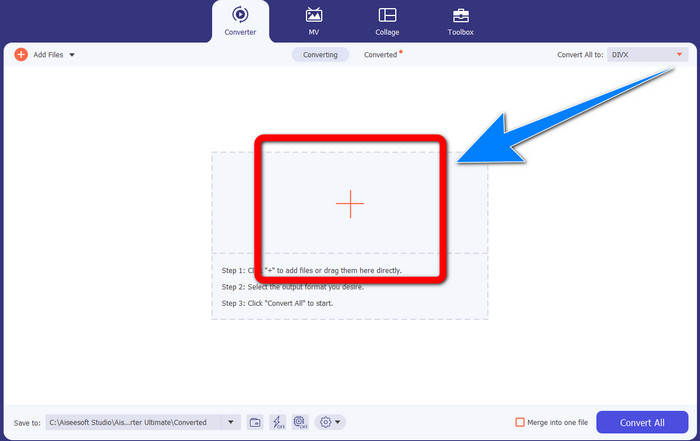
Bước 2: Sau khi khởi chạy Video Converter Ultimate, hãy chuyển đến mục Converter. Sau đó nhấp vào nút biểu tượng Dấu cộng để thêm video tệp Xvid mà bạn muốn chuyển đổi sang DivX.
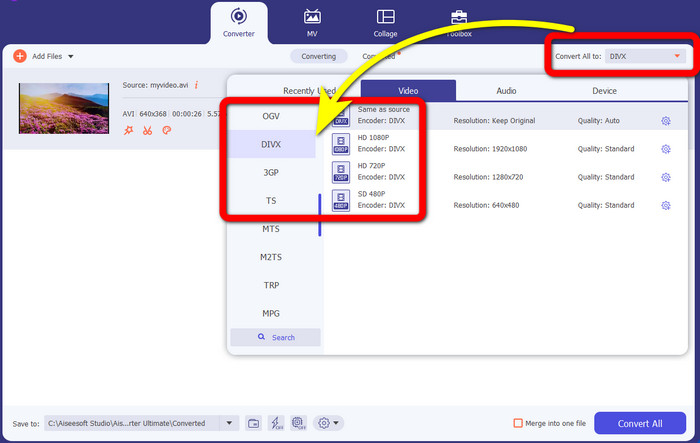
Bước 3: Sau khi đã thêm video tệp Xvid, nhấp vào nút Convert All. Sau đó, chọn tệp DivX và chọn chất lượng mong muốn, như 480p, 720p hoặc 1080p.
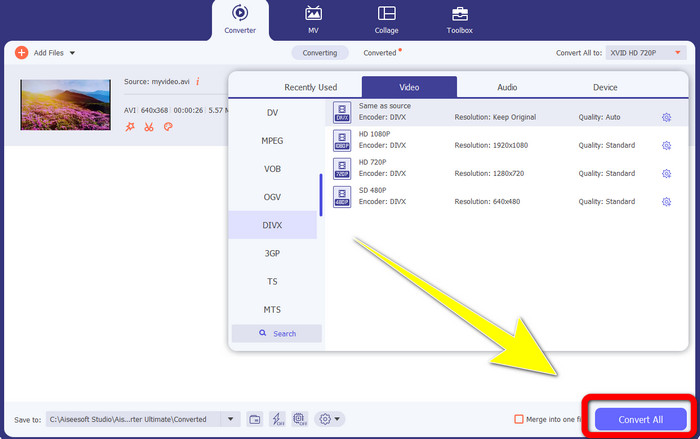
Bước 4: Sau khi bạn đã đổi video từ tệp Xvid sang tệp DivX, hãy nhấp vào nút Convert All để chuyển đổi và lưu kết quả cuối cùng. Sau đó, bạn có thể thử phát tệp đã chuyển đổi trên thiết bị của mình để kiểm tra xem nó đã tương thích chưa.
Phần 2: Phần mềm miễn phí để chuyển đổi Xvid sang DivX
Một trình chuyển đổi video khác mà bạn có thể dùng miễn phí là HitPaw Video Converter. Bạn có thể tải ứng dụng này trên Windows và Mac. Ứng dụng này cho phép bạn chuyển đổi Xvid sang DivX. Ngoài ra, nó còn có thể chuyển đổi hơn 1000 định dạng tệp khác nhau, như MP4, M4V, MOV, MKV, WMV, MPEG, AVI, FLV và nhiều định dạng khác. Hơn nữa, HitPaw Video Converter là một ứng dụng đơn giản, phù hợp với mọi người dùng. Khi sử dụng ứng dụng này, bạn có thể chuyển đổi nhiều tệp dễ dàng hơn. Tuy nhiên, quá trình cài đặt hơi mất thời gian và các tính năng nâng cao chỉ có trong phiên bản trả phí. Nếu bạn muốn chuyển đổi Xvid sang DivX, hãy làm theo các bước sau.
Bước 1: Tải HitPaw Video Converter về máy Windows hoặc Mac của bạn. Sau khi cài đặt xong, khởi chạy ứng dụng.
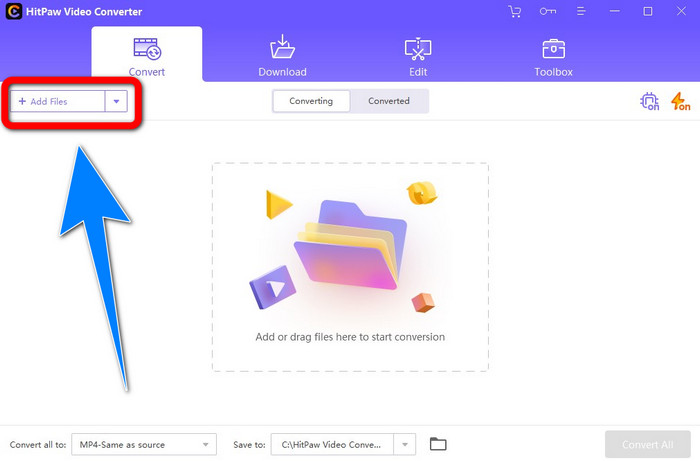
Bước 2: Nhấp vào nút Add File để thêm tệp Xvid của bạn.
Bước 3: Vào mục tùy chọn định dạng, rồi nhấp chọn tệp DivX.
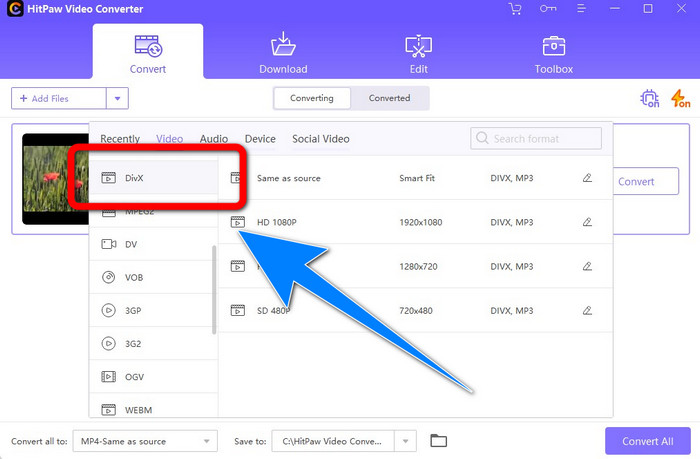
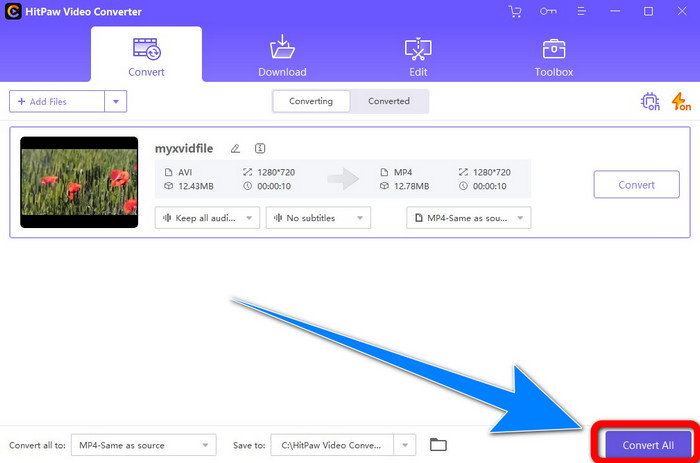
Bước 4: Sau khi chọn định dạng tệp DivX, nhấp vào nút Convert All để chuyển đổi và lưu kết quả cuối cùng.
Phần 3: Chuyển đổi Xvid sang DivX bằng Công cụ trực tuyến
1. Sử dụng Evano
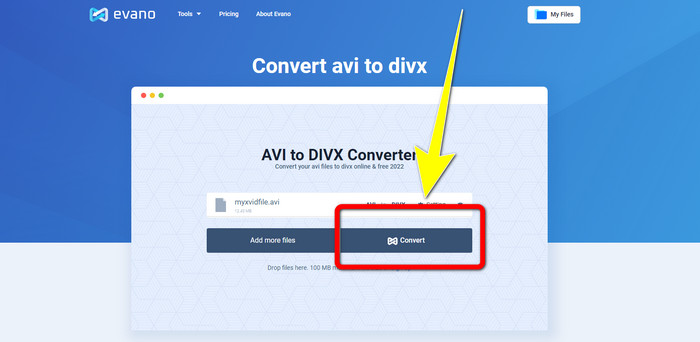
Evano là một trong những phần mềm đáng tin cậy và tốt nhất mà bạn có thể dùng để chuyển đổi tệp Xvid sang tệp DivX. Ngoài ra, phần mềm này miễn phí và có cách chuyển đổi đơn giản, rất phù hợp cho người dùng mới. Hơn nữa, nó hỗ trợ nhiều định dạng âm thanh và video khác nhau. Về âm thanh, nó hỗ trợ MP3, WAV, FLAC, M4R, DTS, AAC, MP2 và nhiều định dạng khác. Về video, nó hỗ trợ DivX, Xvid, AVI, MPEG, MKV, MOV, MJPEG, WEBM và nhiều định dạng khác. Tuy nhiên, phần mềm này cũng có giới hạn. Bạn chỉ có thể chuyển đổi tối đa mười tệp mỗi ngày, điều này không thuận tiện cho những người cần chuyển đổi nhiều tệp. Ngoài ra, tốc độ chuyển đổi khá chậm, mất vài phút. Nếu bạn muốn chuyển đổi Xvid sang DivX bằng Evano, hãy làm theo các bước dưới đây.
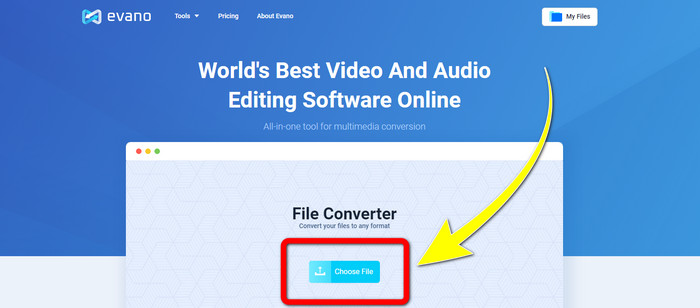
Bước 1: Truy cập trang web của Evano. Sau đó nhấp Choose file và thêm video tệp Xvid của bạn.
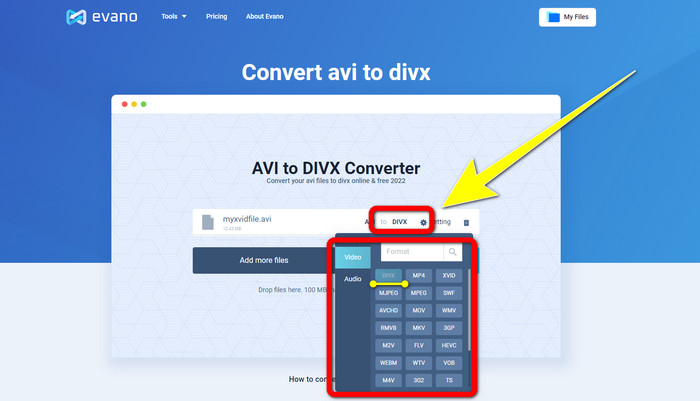
Bước 2: Sau khi đã thêm tệp video, hãy vào Format options, rồi chọn định dạng tệp DivX.
Bước 3: Sau khi nhấp chọn tệp DivX, chọn nút Convert. Chờ quá trình chuyển đổi hoàn tất rồi Download tệp đã chuyển đổi.
2. Sử dụng AnyConv
Nếu bạn đang tìm một ứng dụng trực tuyến hữu ích và tiện lợi khác để chuyển đổi Xvid sang DivX, thì AnyConv là phần mềm bạn có thể sử dụng. Ngoài ra, bạn không cần mua gói đăng ký vì ứng dụng này hoàn toàn miễn phí. Hơn nữa, nó hỗ trợ nhiều định dạng âm thanh, video và hình ảnh, như 3GP, DIVX, MOV, FLAC, FLV, H264, JPEG, JPG, MP3, MP4, MPEG và nhiều định dạng khác. Đồng thời, bạn có thể sử dụng phần mềm này rất dễ dàng vì chỉ cần ba bước đơn giản để chuyển đổi tệp Xvid sang DivX. Tuy nhiên, quá trình chuyển đổi của AnyConv khá chậm và đôi khi phần mềm hoạt động không ổn định. Nhưng nếu bạn muốn chuyển đổi nhiều loại tệp khác nhau bằng ứng dụng trực tuyến này, hãy làm theo các bước dưới đây.
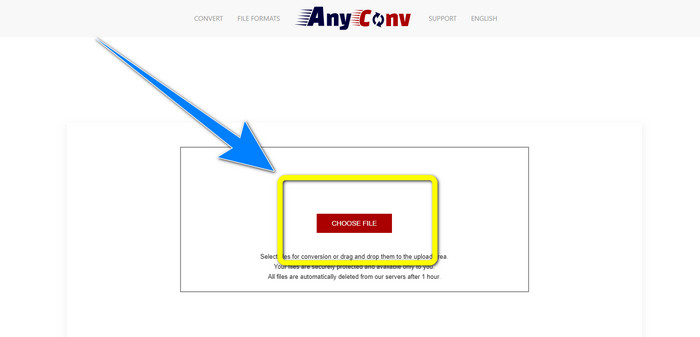
Bước 1: Truy cập trang web của AnyConv. Nhấp nút Choose File và chèn video bạn muốn chuyển đổi.
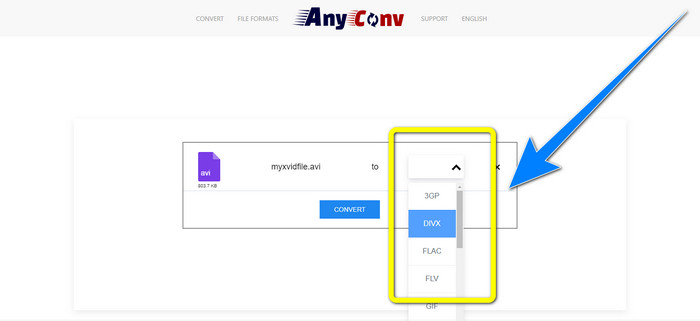
Bước 2: Sau khi đã thêm tệp, chuyển đến format options và chọn định dạng DivX.
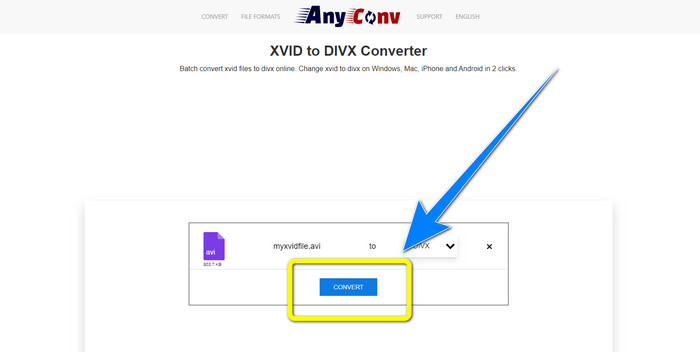
Bước 3: Sau đó, nhấp nút Convert. Sau khi quá trình chuyển đổi hoàn tất, hãy tải tệp đã chuyển đổi xuống và lưu vào thiết bị của bạn.
Có liên quan:
Cách chuyển đổi XviD sang FLV mà không giảm chất lượng [Đã giải quyết]
2 cách hữu ích để chuyển mã XviD sang định dạng WMV mà không mất chất lượng
Phần 4: Giới thiệu Xvid và DivX
Xvid là một phần mềm được phát hành theo Giấy phép Công cộng Chung GNU (GNU General Public License) dựa trên định dạng MPEG-4. Nó cũng cung cấp khả năng nén đủ mạnh để một bộ phim DVD đầy đủ có thể vừa trong một đĩa CD. Ngoài ra, nó được phát triển từ DivX. Hơn nữa, Xvid là đối thủ cạnh tranh trực tiếp của DivX. Thêm vào đó, nó là chuẩn mới hơn và cung cấp công nghệ tốt hơn so với nhiều định dạng tệp khác. Mặt khác, DivX là một trong những codec video lâu đời nhất trên thị trường. Nó cũng thuộc họ MPEG-4. Tuy nhiên, kích thước tệp DivX nhỏ hơn so với nhiều định dạng khác. Ưu điểm lớn nhất là tệp DivX tương thích với nhiều hệ điều hành và thiết bị khác nhau.
Phần 5: Các câu hỏi thường gặp về Chuyển đổi Xvid sang DivX
Mất bao lâu để chuyển đổi Xvid của tôi sang tệp DivX?
Quá trình chuyển đổi video tốc độ sẽ phụ thuộc vào ứng dụng bạn đang sử dụng. Một số ứng dụng chỉ mất vài giây để chuyển đổi và một số ứng dụng mất một lúc. Ngoài ra, nó vẫn phụ thuộc vào kích thước tệp của video.
Tôi có thể chuyển đổi Xvid sang tệp DivX bằng máy Mac của mình không?
Chắc chắn là được! Bạn có thể chuyển đổi Xvid sang tệp DivX bằng máy Mac của mình. Ứng dụng phù hợp với thiết bị của bạn là Video Converter Ultimate. Nó có thể sử dụng trên cả Windows và Mac. Hơn nữa, nó có thể giúp bạn chuyển đổi nhanh hơn so với nhiều ứng dụng khác.
Tôi cũng có thể chuyển đổi tệp MP4 của mình sang tệp khác bằng Video Converter Ultimate không?
Vâng, bạn có thể! Video Converter Ultimate hỗ trợ nhiều định dạng tệp video, chẳng hạn như MP4, WEBM, MXF, FLV, GIF, XVID, DIVX, AVI, Video 5K/8K, v.v. Bằng cách này, bạn có thể chuyển đổi các định dạng tệp khác nhau bằng ứng dụng này.
Tại sao tôi cần chuyển đổi tệp của mình sang định dạng khác?
Đôi khi bạn phải chuyển đổi tệp của mình sang các định dạng khác để làm cho chúng tương thích hơn với thiết bị của bạn.
Phần kết luận
Như bạn có thể thấy, chuyển đổi Xvid sang DivX là rất quan trọng. Nó không chỉ là việc thay đổi định dạng tệp. Quan trọng hơn là làm sao để bạn có thể phát video trên một thiết bị cụ thể mà không gặp vấn đề nào. Chuyển đổi là giải pháp tốt nhất, đặc biệt khi video của bạn không phù hợp hoặc không tương thích với thiết bị. Ngoài ra, nếu bạn muốn chuyển đổi nhiều tệp và đổi sang các định dạng khác, trình chuyển đổi tốt nhất và đáng tin cậy nhất mà bạn có thể sử dụng là Video Converter Ultimate.
-
 2 bộ chuyển đổi được đề xuất hàng đầu để chuyển đổi XviD sang MOV [Trực tuyến & Ngoại tuyến]
 Tìm hiểu 2 bộ chuyển đổi được đề xuất mà bạn có thể sử dụng để chuyển đổi tệp XviD sang định dạng MOV Đọc kỹ bài viết này để có ý tưởng về cách chuyển đổi tệp Xvid.
-
 Cách chuyển đổi XviD sang AVI mà không làm giảm chất lượng video [2021]
 Bạn có muốn chuyển đổi tệp XviD của mình thành AVI không? Nếu đúng như vậy, hãy đọc bài viết này khi chúng tôi nói thêm về XviD và cách chuyển đổi tệp XviD của bạn thành định dạng AVI.
-
 Cách chuyển đổi MKV sang DivX Trực tuyến và Ngoại tuyến miễn phí
 Bạn đang tìm cách tốt nhất để chuyển đổi MKV sang định dạng DivX miễn phí. Hãy tiếp tục đọc để biết các bộ chuyển đổi trực tuyến và ngoại tuyến MKV sang DivX tốt nhất.
