


 Chuyển đổi video Ultimate
 Trình ghi màn hình
 Sửa chữa video
 Tải xuống an toàn
Cách dễ nhất để hợp nhất các bản nhạc trong Audacity [Hướng dẫn năm 2025]
Việc kết hợp các yếu tố như âm thanh, nhạc hoặc bản nhạc khác là điều cần thiết để tạo nên một dự án âm thanh sáng tạo và độc đáo. Quá trình này thường được thực hiện bằng ứng dụng chỉnh sửa âm thanh chuyên dụng có tính năng kết hợp các bản nhạc thành một. Ngày nay, một công cụ thường được sử dụng để kết hợp nhiều bản nhạc, đó là Audacity.
Công cụ này được nhiều người biết đến nhờ tính chất miễn phí và mã nguồn mở, nhưng nó cũng có một bộ tính năng chỉnh sửa rất tốt thu hút người dùng. Vì vậy, nếu bạn đang tìm hướng dẫn về cách gộp các track trong Audacity hoặc một cách thay thế để thực hiện dễ dàng hơn, hãy tiếp tục đọc bài viết này.

Phần 1. Cách ghép các bản nhạc trong Audacity
Audacity là phần mềm chỉnh sửa âm thanh miễn phí được sử dụng rộng rãi, cung cấp nhiều tính năng chỉnh sửa, bao gồm cả tính năng ghép bản nhạc nổi tiếng của Audacity.
Với tính năng này, người dùng có thể dễ dàng nhập nhiều thành phần âm thanh khác nhau vào dòng thời gian chỉnh sửa. Sau đó, từ dòng thời gian chỉnh sửa, họ có thể căn chỉnh các bản nhạc thành một bản nhạc duy nhất bằng cách di chuyển chúng theo thứ tự mong muốn của bạn. Bên cạnh đó, công cụ này có các tính năng chỉnh sửa tuyệt vời, rất cần thiết để đánh bóng bản nhạc đã kết hợp. Các tính năng fade-in và fade-out có thể tạo ra sự chuyển tiếp mượt mà giữa các bản nhạc. Trong khi đó, tính năng điều chỉnh âm lượng sẽ làm cho tất cả các bản nhạc có âm thanh cân bằng khi chúng được hợp nhất.
Vậy tại sao trình biên tập âm thanh lại kết hợp các bản nhạc?
Để tạo các đoạn chuyển tiếp liền mạch. Việc gộp nhiều track cho phép người dùng tạo ra những đoạn chuyển mượt mà, không có những chỗ cắt hay khoảng trống rõ ràng giữa các đoạn âm thanh khác nhau.
Để đơn giản hóa quy trình làm việc. Kết hợp nhiều track sẽ gộp các lớp âm thanh thành một. Quá trình này giúp việc quản lý và chỉnh sửa track dễ dàng hơn mà không phải xử lý nhiều tệp riêng lẻ.
Để tạo âm thanh cân bằng. Gộp nhiều thành phần âm thanh khác nhau sẽ cho phép người chỉnh sửa âm thanh điều chỉnh mức âm lượng, đồng bộ hóa thời gian và hòa trộn các track khác nhau.
Sau đây là cách ghép các bản nhạc trên Audacity:
Bước 1: Trước tiên, hãy tải xuống và cài đặt Audacity trên máy tính của bạn.
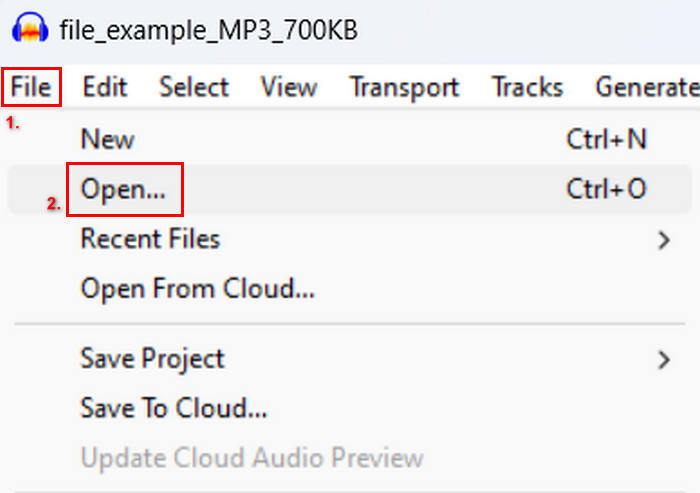
Bước 2: Mở công cụ, vào thẻ File, nhấp Open và nhập các track mà bạn sẽ gộp.
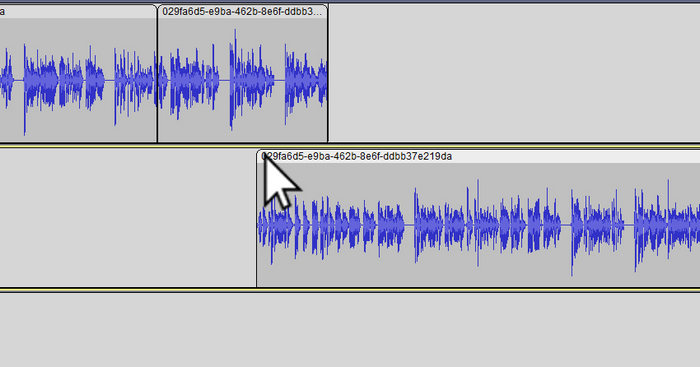
Bước 3: Bây giờ tất cả các track của bạn đã được nhập vào timeline, việc tiếp theo bạn cần làm là nhấp vào phần đầu Clip của track để di chuyển và sắp xếp chúng theo thứ tự mong muốn.
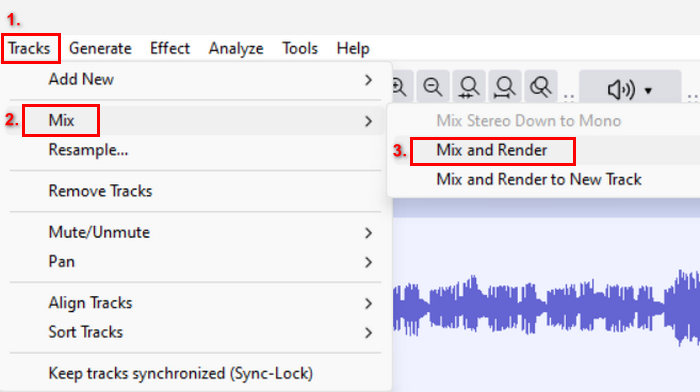
Bước 4: Sau khi bạn đã căn chỉnh xong các track, hãy trộn chúng thành một bản tổng hợp duy nhất. Để chọn các track bạn muốn gộp, nhấn và giữ phím Ctrl trong khi nhấp vào chúng. Sau đó, để gộp các track đã chọn thành một track, hãy vào Tracks, nhấp Mix và chọn Mix and Render.
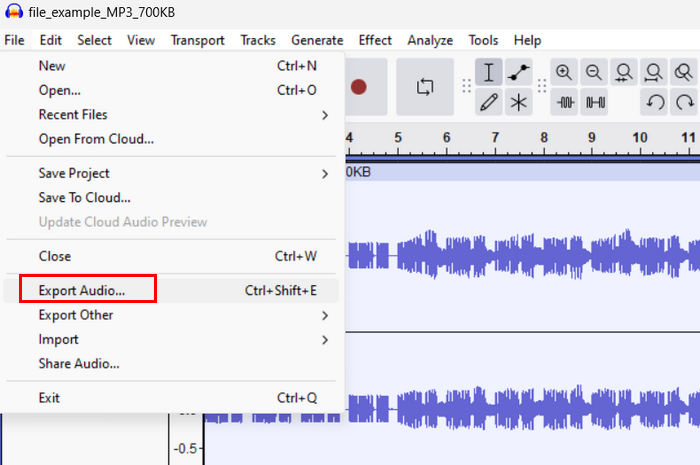
Bước 5: Để xuất tệp, vào thẻ File và chọn Export Audio.
Để đảm bảo chuyển tiếp mượt mà và âm thanh cân bằng cho các track đã gộp, hãy sử dụng hiệu ứng Amplify hoặc Normalize trong công cụ. Ngoài ra, hãy dùng fade-in và fade-out để tạo các đoạn chuyển mềm giữa các track, giúp âm thanh chuyên nghiệp và trau chuốt hơn. Xem tại đây để tìm hiểu cách tạo hiệu ứng fade cho âm thanh trong Audacity.
Phần 2. Hợp nhất các bản nhạc với Audacity Alternative
Nếu bạn đang tìm một lựa chọn thay thế tuyệt vời vì cảm thấy khó hiểu cách hoạt động của tính năng gộp track trong Audacity, thì bạn có thể dùng Video Converter Ultimate được FVC lựa chọn. Đây là một công cụ đầy đủ tính năng, cung cấp nhiều công cụ cho nhu cầu âm thanh và video, bao gồm cả trình gộp âm thanh. Công cụ này hoạt động như sau: sau khi nhập các tệp âm thanh cần gộp, bạn có thể dễ dàng thay đổi thứ tự các track theo ý muốn và chỉnh sửa chúng ngay lập tức trước khi gộp lại chỉ với một cú nhấp chuột.
Các tính năng chính:
• Có thể ghép nhiều tệp âm thanh ở 1.000 định dạng như MP3, AAC, WAV, FLAC, OGG, v.v.
• Bao gồm các tính năng chỉnh sửa cơ bản như cắt, tách nhanh, hiệu ứng mờ dần vào và mờ dần ra.
• Cho phép chỉnh sửa đầu ra âm thanh như bộ mã hóa, tốc độ mẫu, tốc độ bit, kênh, v.v.
• Quá trình hợp nhất nhanh chóng.
• Có sẵn cho cả Windows và MacOS.
Sau đây là cách ghép các bản nhạc bằng Video Converter Ultimate được FVC chọn:
Bước 1: Trước hết, bạn cần tải xuống và cài đặt công cụ trên thiết bị của mình.
Tải xuống miễn phí cho Windows 7 trở lên. Tải xuống an toàn.
Tải xuống miễn phí cho MacOS 10.7 trở lên. Tải xuống an toàn.
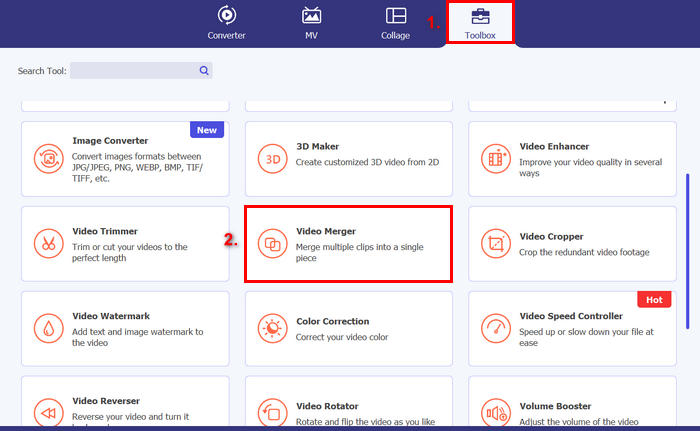
Bước 2: Mở công cụ, đi tới thẻ Toolbox và chọn Video Merger. Sau đó, nhấp vào biểu tượng Dấu cộng để dễ dàng nhập các tệp âm thanh mà bạn sẽ gộp.
Bước 3: Lúc này, tất cả các track âm thanh bạn đã nhập sẽ hiển thị ở phía dưới. Nếu cần điều chỉnh thứ tự, chỉ cần kéo clip âm thanh đến đúng vị trí. Hoặc bạn có thể chọn clip và nhấp nút Forward hoặc Backward. Sau đó, nhấp vào nút Export để lưu dự án của bạn.
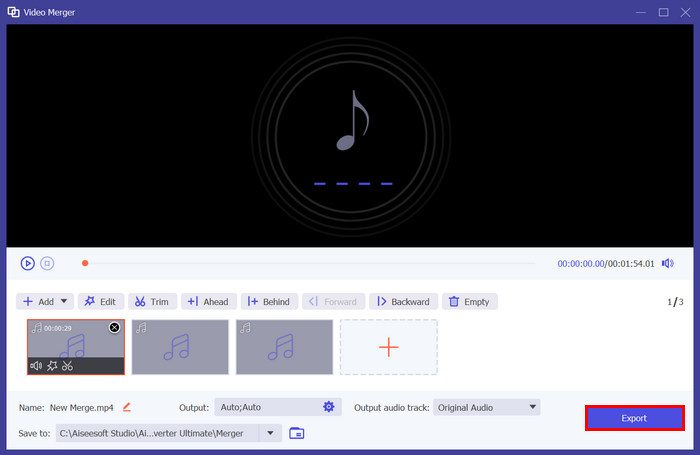
Ghi chú: Trong trường hợp bạn cần thay đổi định dạng âm thanh hoặc tùy chỉnh một số thiết lập âm thanh, hãy vào phần Output. Tại đây, bạn có thể thay đổi định dạng, bộ mã hóa (encoder), tần số lấy mẫu (sample rate), kênh (channel) và bitrate cho các track âm thanh. Khi hoàn tất, nhấp vào nút Export.
Vậy là xong. Video Converter Ultimate do FVC chọn thực sự là một giải pháp thay thế tuyệt vời cho Audacity. Với giao diện trực quan và thân thiện với người dùng, ngay cả người mới bắt đầu cũng có thể dễ dàng sử dụng công cụ này khi hợp nhất nhiều bản nhạc.
Phần 3. Câu hỏi thường gặp về việc hợp nhất các bản nhạc trong Audacity
Làm thế nào để nhập nhiều tệp âm thanh vào một bản nhạc trong Audacity?
Để nhập nhiều tệp âm thanh trong Audacity, hãy vào thẻ File, nhấp Open và chọn các tệp âm thanh bạn muốn gộp. Mỗi tệp sẽ hiển thị ở một track riêng trên timeline. Từ đó, bạn có thể căn chỉnh thủ công và gộp các track bằng tùy chọn Mix and Render trong menu Tracks.
Làm thế nào để di chuyển âm thanh từ bản nhạc này sang bản nhạc khác trong Audacity?
Có hai cách để di chuyển một track khi hợp nhất nhiều track trong Audacity. Để di chuyển một track, hãy nhấp và kéo tay cầm clip của track và định vị nó theo bất kỳ thứ tự nào bạn muốn. Trong khi đó, để di chuyển nhiều track, hãy chọn tất cả các track bạn muốn di chuyển bằng cách sử dụng Công cụ lựa chọn. Sau đó, kéo bất kỳ tay cầm clip nào trong vùng đã chọn để di chuyển tất cả các clip đã chọn cùng lúc.
Audacity có bao nhiêu bản nhạc?
Audacity không có giới hạn cố định về số lượng track bạn có thể chỉnh sửa. Với giới hạn đó, bạn có thể tạo và nhập bao nhiêu track tùy thích. Tuy nhiên, khi làm việc với nhiều track, bạn phải cân nhắc đến dung lượng máy tính của mình vì hiệu suất có thể phụ thuộc vào sức mạnh xử lý và bộ nhớ của hệ thống.
Phần kết luận
Bây giờ khi đã biết cách gộp các track trong Audacity, bạn có thể dễ dàng tạo các đoạn chuyển mượt mà và âm thanh cân bằng cho dự án của mình. Ngoài ra, bạn có thể khám phá các tính năng khác như fade-in, fade-out và điều chỉnh âm lượng để âm thanh hay hơn. Trong khi đó, nếu bạn muốn một lựa chọn đơn giản hơn hoặc nâng cao hơn, hãy thử Video Converter Ultimate do FVC đề xuất. Công cụ này dễ dùng và cung cấp nhiều tùy chọn tùy chỉnh hơn cho các tệp âm thanh của bạn.
-
 Cách sử dụng Audacity để đảo ngược âm thanh trên Windows 10/11
 Nếu bạn đang chỉnh sửa tệp âm thanh trong Audacity và tự hỏi làm thế nào để đảo ngược toàn bộ hoặc một phần tệp đó, hãy đọc ở đây và tìm hiểu cách đảo ngược âm thanh trong Audacity một cách dễ dàng.
-
 Cách làm mờ âm thanh trong Audacity: 4 cách khác nhau [2025]
 Khám phá các bước làm mờ âm thanh trong Audacity hiệu quả và một số kiến thức bổ sung về hiệu ứng mờ dần vào/ra của Audacity. Hãy thắt dây an toàn ngay và bắt đầu thôi.
-
 Cách tách âm thanh trong Audacity với độ chính xác cao [Hướng dẫn]
 Bạn đang cố gắng tìm hiểu cách tách các bản nhạc trong Audacity? Bạn đang ở đúng trang rồi! Trong bài viết này, hãy tìm hiểu cách bạn có thể tách một bản nhạc thành hai bản nhạc một cách dễ dàng.
