


 Chuyển đổi video Ultimate
 Trình ghi màn hình
 Sửa chữa video
 Tải xuống an toàn
Hướng dẫn về cách chỉnh sửa siêu dữ liệu MKV trên máy tính để bàn theo cách dễ dàng nhất
MKV là một phần mở rộng rất phổ biến cho định dạng vùng chứa đa phương tiện Matroska. Điều gì khiến MKV phổ biến hơn các định dạng khác? Nhiều người dùng nghĩ rằng MKV là một dạng nén video dùng cho âm thanh và hình ảnh, nhưng thực tế không phải vậy. Định dạng này trở nên phổ biến nhờ tính linh hoạt trong việc kết hợp các codec cho âm thanh, video và phụ đề trong cùng một tệp duy nhất. Với những đặc điểm đó, định dạng này mang tính “tương lai” (future‑proof), tức là định dạng tệp sẽ không bị lỗi thời, kể cả phần siêu dữ liệu (metadata) được lưu trong đó. Vì vậy, nếu bạn muốn thêm, xóa hoặc chỉnh sửa metadata trên tệp MKV của mình, bạn nên tiếp tục đọc bài viết này để tìm hiểu cách chỉnh sửa metadata MKV nhanh hơn.

Phần 1. Cách chỉnh sửa siêu dữ liệu của tệp MKV với 3 phần mềm tốt nhất trên máy tính để bàn
FVC Video Converter Ultimate - Trình chỉnh sửa thẻ MKV mạnh mẽ nhất trên Windows và Mac
FVC Video Converter Ultimate là trình chỉnh sửa metadata MKV tốt nhất mà bạn có thể tải về trên cả hai hệ điều hành để hoàn thành công việc một cách chuyên nghiệp. Phần mềm “ultimate” này có thể xử lý tệp MKV dễ dàng và mở chúng để thay đổi metadata nếu bạn muốn chỉnh sửa. Với khả năng hỗ trợ nhiều định dạng video và âm thanh, việc tải lên bất kỳ định dạng đa phương tiện nào như MKV chưa bao giờ là chuyện phiền toái. Khi sử dụng phần mềm, bạn sẽ thấy quá trình học cách nắm bắt toàn bộ cách dùng rất dễ dàng. Bạn muốn dùng công cụ nhưng lại không có hướng dẫn chi tiết để dựa vào? May mắn là những thông tin dưới đây sẽ giúp bạn thực hiện tác vụ như một chuyên gia; hãy đọc kỹ hướng dẫn để biết cách đổi tiêu đề tệp MKV trong chưa đầy một phút.
Bước 1. Trước tiên, nhấp vào nút tải xuống để phần mềm được tải về máy tính của bạn ngay lập tức và chọn phiên bản phù hợp với hệ điều hành bạn đang dùng. Sau đó, cài đặt trên máy và khởi chạy để bắt đầu thêm metadata cho các tệp MKV của bạn.
Tải xuống miễn phí cho Windows 7 trở lên. Tải xuống an toàn.
Tải xuống miễn phí cho MacOS 10.7 trở lên. Tải xuống an toàn.
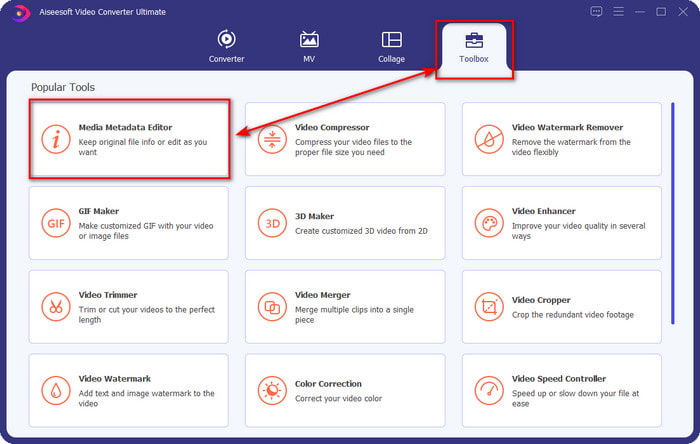
Bước 2. Sau khi đã mở công cụ, bạn cần vào mục Toolbox rồi tìm Media Metadata Editor trong danh sách bên dưới.
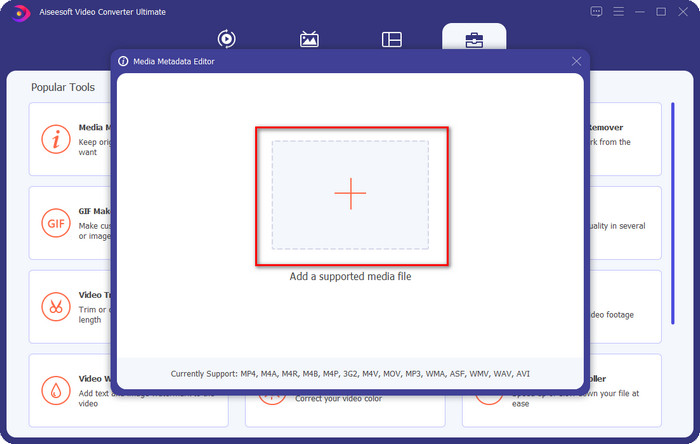
Bước 3. Để thêm tệp MKV, hãy nhấp vào nút + hiển thị trên màn hình, tìm tệp .mkv trong thư mục rồi nhấp Open để chuyển sang bước tiếp theo.
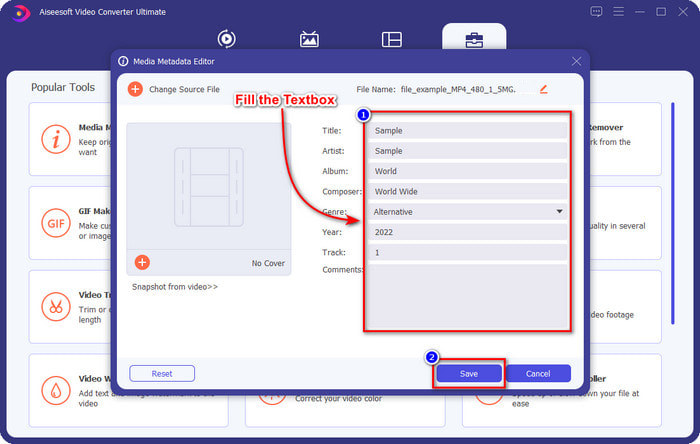
Bước 4. Ở phần này, bạn có thể thêm các metadata cần thiết cho tệp MKV, điền thông tin theo ý muốn, rồi nhấp Save khi đã hoàn tất và sẵn sàng áp dụng. Như vậy, bạn đã thêm các thẻ (tag) vào tệp MKV để có thể nhanh chóng nhận biết nội dung của tệp.
VLC Media Player - Trình chỉnh sửa siêu dữ liệu MKV miễn phí
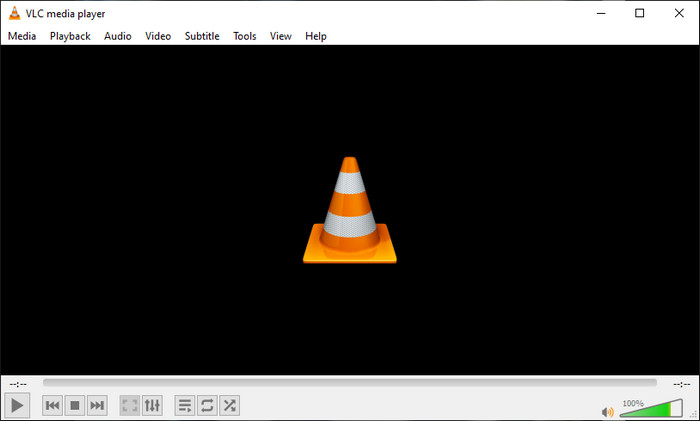
VLC Media Player có thể phát và chỉnh sửa thẻ (tag) của tệp MKV một cách dễ dàng. Công cụ này là mã nguồn mở, nên bạn không cần lo lắng khi tải xuống trên máy tính vì bạn có thể sử dụng toàn bộ tính năng của nó miễn phí, nhưng vẫn có thể quyên góp nếu muốn. Dù công cụ này không tốt bằng các trình chỉnh sửa metadata khác trong danh sách, nó vẫn được xem là một công cụ đáng tin cậy mà bạn có thể dùng trên thiết bị. Thêm vào đó, bạn được tự do thêm các thông tin cơ bản cho tệp MKV như tên tác giả, tiêu đề, nghệ sĩ, album, v.v. Hãy làm theo các bước sau để biết cách chỉnh sửa metadata MKV bằng trình phát đa phương tiện này như một trình chỉnh sửa metadata.
Bước 1. Tải xuống rồi mở VLC trên máy tính của bạn.
Bước 2. Vào menu Tools và nhấp Media Information. Nếu muốn thao tác nhanh hơn, bạn có thể dùng phím tắt bằng cách nhấn CTRL + I. Dù chọn cách nào thì chức năng cũng như nhau.
Bước 3. Nhập các thông tin bạn cần rồi nhấp Close để tự động lưu metadata.
MKVToolNix GUI - Trình chỉnh sửa thẻ MKV chuyên dụng
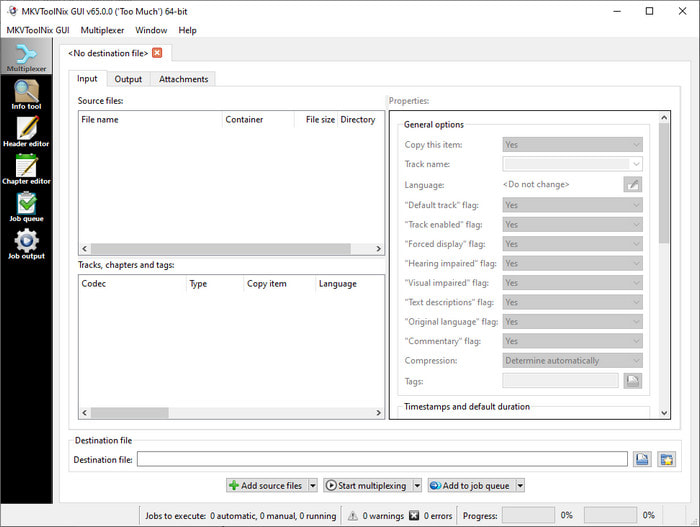
MKVToolNix GUI là một giải pháp chuyên dụng cho tệp MKV; mặc dù bạn có thể tải lên các định dạng khác, phần mềm sẽ chuyển định dạng đó về MKV. Công cụ này được biết đến như một giải pháp một cửa cho MKV vì nó hỗ trợ một bộ công cụ, nghĩa là bạn có thể có nhiều chức năng khác ngoài việc chỉnh sửa metadata. Với giao diện GUI đơn giản, bạn không cần phải học quá nhiều cách dùng; cơ bản là có thể nắm được chỉ trong vài phút. Tuy nhiên, dù công cụ khá dễ dùng, một số người đã quen với các trình chỉnh sửa metadata “chuẩn chỉnh” khác lại so sánh GUI của nó và cho rằng nó chưa đủ trực quan với họ. Dù vậy, không thể phủ nhận công cụ này vẫn có thể giúp chúng ta học cách đổi tiêu đề tệp MKV.
Bước 1. Tải phần mềm về máy, mở lên, nhấp Add Source File và tìm tệp MKV trong thư mục.
Bước 2. Nhấn Output và thay đổi metadata tại đây.
Bước 3. Khi đã hoàn tất tất cả, bạn có thể lưu lại bằng cách nhấp Start Multiplexing.
Phần 2. Câu hỏi thường gặp về Trình chỉnh sửa siêu dữ liệu MKV
Tôi có thể chuyển đổi VOB sang MKV không?
Bạn có thể dễ dàng chuyển đổi VOB sang MKV bằng cách nhấp vào liên kết này; một thẻ (tab) mới sẽ được mở ra và trực tiếp giúp bạn chuyển VOB sang MKV. Nếu bạn muốn biết thêm thông tin về VOB và MKV, thì đây chính là bài viết phù hợp dành cho bạn.
Tại sao các tệp MKV của tôi có kích thước tệp lớn hơn?
Lý do khiến tệp MKV của bạn có dung lượng lớn là vì định dạng này không chỉ chứa video và âm thanh. Nó còn bao gồm nhiều thành phần khác như phụ đề, metadata, tốc độ bit biến thiên (variable bit rate), và nhiều yếu tố nữa. Vậy bạn nên làm gì nếu muốn nén tệp MKV để dung lượng nhỏ hơn mà không làm giảm chất lượng? Không có quá nhiều trình nén video đáng tin cậy, vì thế chúng tôi đã nghiên cứu để giúp bạn nén MKV mà không làm giảm chất lượng một cách dễ dàng.
Những nhược điểm của định dạng MKV là gì?
Mặc dù định dạng tệp đã biết, một số trình phát đa phương tiện và trình chỉnh sửa vẫn có thể xử lý định dạng do codec và phần tử gặp vấn đề. Ngoài ra, định dạng này có kích thước rất lớn và không phải phần mềm nào cũng hỗ trợ tải lên kích thước tệp lớn vì việc nhập và xuất tệp sẽ tiêu tốn rất nhiều thời gian. Kích thước tệp cũng sẽ tăng lên vì nó là một phần của tệp, giống với định dạng khác mà bạn đã thêm siêu dữ liệu. Ngay cả khi nó có điểm yếu, nó vẫn có tính cạnh tranh liên quan đến việc lưu trữ tệp phương tiện và giữ chúng an toàn cho các mục đích trong tương lai.
Phần kết luận
Thật tuyệt vời phải không? Ba phần mềm máy tính để bàn này có thể cung cấp gì cho bạn? Cái kia là trình phát đa phương tiện, trong khi cái kia là trình chỉnh sửa dành riêng cho MKV, nhưng bạn nên sử dụng công cụ nào? Nếu bạn muốn điều tốt nhất, chúng tôi sẵn lòng mang đến công cụ tối ưu cho bạn. Học cách chỉnh sửa siêu dữ liệu MKV với FVC Video Converter Ultimate trở nên dễ dàng và hiệu quả. Bạn đang chờ đợi điều gì? Hãy sở hữu công cụ trong tầm với của bạn và sử dụng nó để sửa siêu dữ liệu trên các tệp MKV của bạn như một người chuyên nghiệp chỉ với một vài cú nhấp chuột.
-
 2 cách tốt nhất để chỉnh sửa siêu dữ liệu OGG mà bạn nên thử miễn phí
 Bạn cần chỉnh sửa siêu dữ liệu OGG? Chà, bạn có thể dễ dàng xử lý việc chỉnh sửa các thẻ bằng cách sử dụng đúng phần mềm. Nếu bạn chưa & #039; thì việc đọc bài viết này là bắt buộc.
-
 Tổng quan tuyệt đối về Trình chỉnh sửa siêu dữ liệu Pentaho [Cập nhật năm 2022]
 Không tìm thấy bài viết đáng tin cậy về Pentaho Metadata Editor? May mắn thay, chúng tôi đã tự mình xem xét công cụ để cung cấp thông tin thực tế mà bạn sẽ biết về công cụ.
-
 Mẹo & Thủ thuật về Trình chỉnh sửa siêu dữ liệu VLC mà bạn phải biết vào năm 2022
 Bạn có muốn sử dụng VLC làm trình chỉnh sửa siêu dữ liệu không? Trong trường hợp này, bạn có thể đọc bài viết này khi chúng tôi cung cấp đánh giá khách quan về trình chỉnh sửa siêu dữ liệu VLC.
