


 Chuyển đổi video Ultimate
 Trình ghi màn hình
 Sửa chữa video
4 phương pháp để chỉnh sửa hoặc sửa siêu dữ liệu MP3 trên Windows và Mac
Mọi người đều là Musicphile, có nghĩa là chúng ta yêu âm nhạc vì nó giúp chúng ta cảm nhận được cảm xúc của người hát và người viết dù chúng ta không nhìn thấy họ bằng mắt thường. Thông qua âm nhạc, mọi người có thể giữ kết nối và nó có thể giúp chúng ta giảm bớt căng thẳng, cải thiện chỉ số IQ và làm việc hiệu quả mỗi ngày. Hầu hết nhạc ở định dạng MP3 vì nó là vùng chứa âm thanh tiêu chuẩn cho nó. Mặc dù bạn có thể phát MP3 trên thiết bị của mình, nhưng bạn sẽ không phát đúng cách sắp xếp chính xác nếu siêu dữ liệu sai. Bạn không thể thiết lập tâm trạng phù hợp nếu thư viện nhạc của bạn đang lộn xộn, vậy bạn phải làm gì? Tại sao bạn không thử sửa các thẻ để sắp xếp chúng một cách chính xác? Nếu bạn muốn biết cách chỉnh sửa siêu dữ liệu MP3 trên Windows và Mac, đây là bài viết phù hợp với bạn, vì chúng tôi giới thiệu bốn phương pháp khác nhau mà bạn có thể sử dụng.

Phần 1. Phương pháp tốt nhất để sửa hoặc chỉnh sửa siêu dữ liệu MP3 trên Windows và macOS [Được khuyến nghị]
FVC Video Converter Ultimate đã tiến thêm một bước để trở thành một trong những chương trình tốt nhất dùng để sửa thẻ MP3 trên Windows và Mac. Công cụ này hỗ trợ tải lên MP3, WAV, WMA, AAC và nhiều định dạng âm thanh khác để khắc phục cùng một vấn đề về siêu dữ liệu. Bạn cũng có thể xóa các siêu dữ liệu ẩn mà bạn không thể truy cập bằng những trình chỉnh sửa thẻ khác.
Không chỉ vậy, nó có thể chuyển đổi MP3 sang định dạng âm thanh khác nếu bạn muốn, đồng thời nó cũng cung cấp rất nhiều chức năng và tính năng có bên trong Hộp công cụ; bạn có thể kiểm tra chúng nếu bạn tải xuống. Trong vài phút, bạn có thể yêu cầu chương trình này khắc phục sự cố nhanh nhất có thể. Không chắc chắn nếu nó là sự thật? May mắn thay, hướng dẫn bằng văn bản dưới đây sẽ dạy cách chỉnh sửa siêu dữ liệu MP3 để chứng minh rằng bạn có thể làm điều đó một cách nhanh chóng, như chúng tôi đã nói.
Bước 1. Nhấp vào nút tải xuống bên dưới, chọn một trong hai hệ điều hành mà bạn đang sử dụng. Cài đặt nhanh sau khi tải xong, mở công cụ và chuyển sang bước tiếp theo.
Tải xuống miễn phí cho Windows 7 trở lên. Tải xuống an toàn.
Tải xuống miễn phí cho MacOS 10.7 trở lên. Tải xuống an toàn.
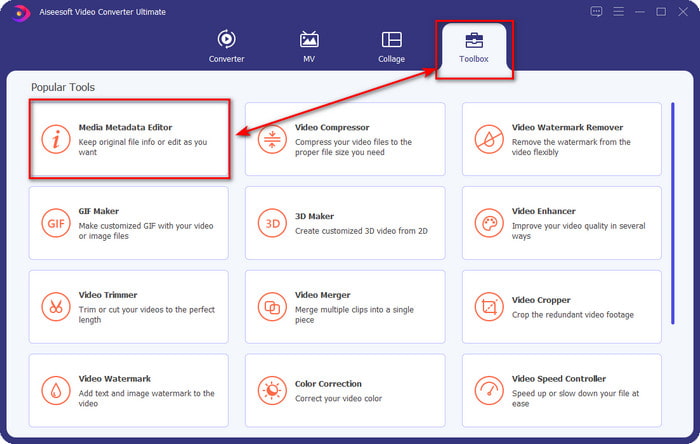
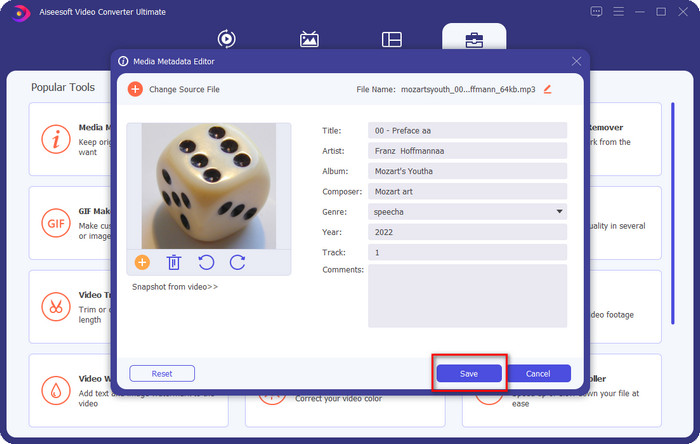
Bước 2. Chọn Hộp công cụ và bên trong đó nhấp vào Trình chỉnh sửa siêu dữ liệu phương tiện. Như đã nói ở phần mở đầu, có nhiều chức năng trong Hộp công cụ mà các trình chỉnh sửa khác không cung cấp để bạn sử dụng.
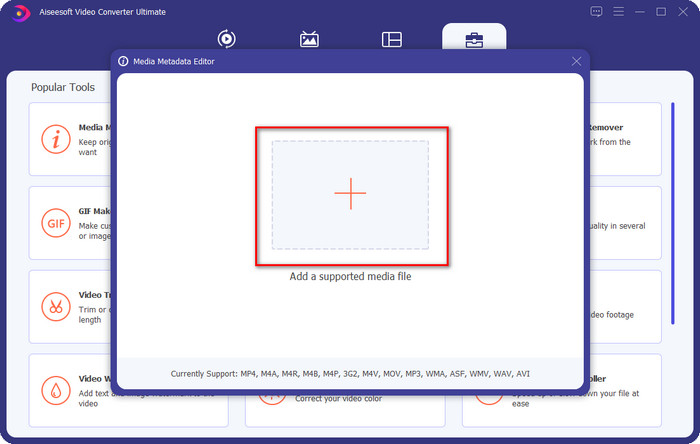
Bước 3. Một cửa sổ nhỏ sẽ hiện trên màn hình; nhấp vào biểu tượng +. Xác định vị trí tệp âm thanh hoặc MP3 trong thư mục xuất hiện trên màn hình, nhấp vào tệp và nhấn Open để tải lên.
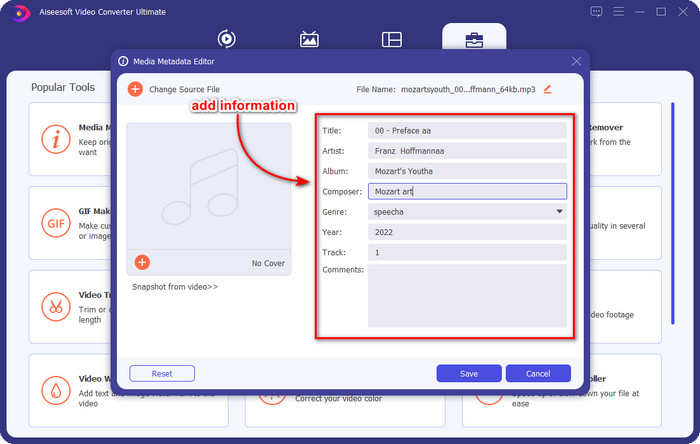
Bước 4. Chỉnh sửa và sửa siêu dữ liệu theo nhu cầu của bạn; nhấp vào từng ô văn bản để thêm thông tin.
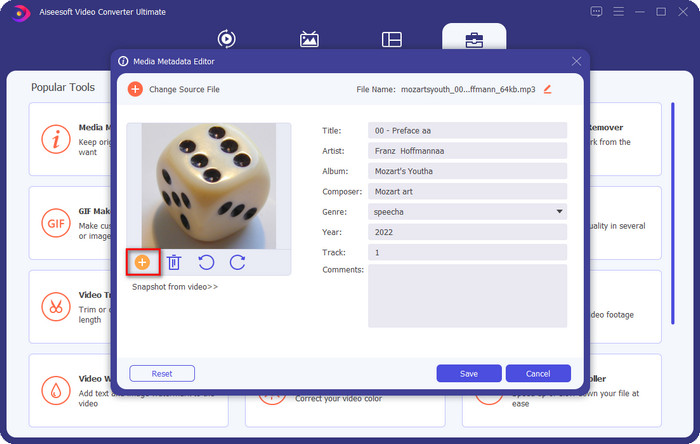
Tùy chọn. Với công cụ này, bạn cũng có thể thêm hoặc sửa siêu dữ liệu ảnh bìa album MP3 cho tệp MP3 của mình bằng cách nhấp vào biểu tượng +; chọn hình ảnh bạn muốn dùng làm ảnh bìa trong thư mục, rồi nhấp Open để tiếp tục.
Bước 5. Nếu bạn đã hoàn tất việc thêm và sửa siêu dữ liệu của tệp MP3, hãy nhấn nút Save để lưu các thay đổi bạn đã thực hiện trên tệp âm thanh. Vậy là xong, với đó, bạn đã sửa xong thẻ âm thanh một cách dễ dàng với sự trợ giúp của công cụ tối ưu này.
Phần 2. 3 Phương pháp Miễn phí để Thay đổi Thẻ MP3 trên Máy tính để bàn
iTunes
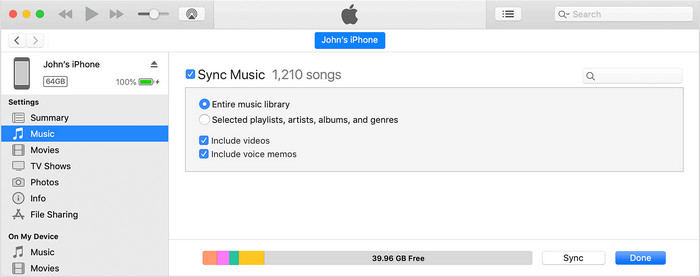
iTunes là một công cụ tích hợp sẵn có thể giúp bạn chỉnh sửa thẻ MP3 trên macOS X. Nó làm được những việc giống như Groove Music trong việc chỉnh sửa siêu dữ liệu của tệp âm thanh. Nhưng với công cụ này, bạn có thể mua nhạc và phát trực tiếp tại đây một cách nhanh chóng. Ngoài ra, nhạc được mua từ ứng dụng này đã có sẵn thẻ, và nếu nhạc bạn tải về không có, bạn có thể dùng iTunes để thêm thẻ. Hãy làm theo các bước dưới đây để biết cách thực hiện.
Bước 1. Mở iTunes trên máy Mac của bạn.
Bước 2. Nhấp vào tệp âm thanh và chọn Get Info.
Bước 3. Sửa các thẻ và nhấp OK để lưu thay đổi.
MP3Tag
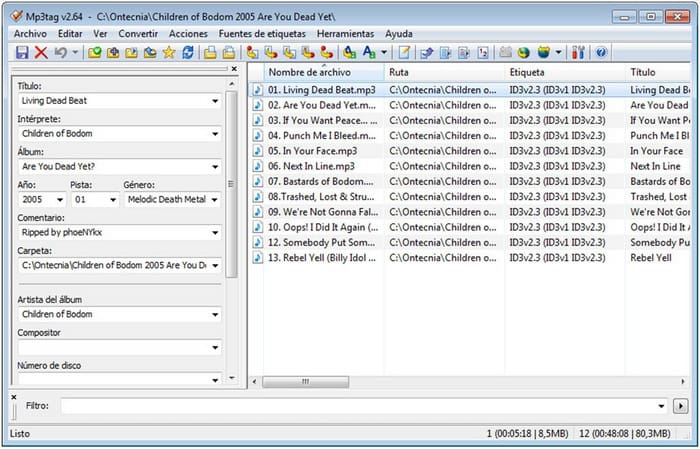
MP3 Tag là một trình sửa thẻ MP3 chuyên dụng và tốt nhất mà bạn có thể tải về trên Windows. Với công cụ này, bạn có thể tự động truy cập cơ sở dữ liệu nhạc để có được siêu dữ liệu chính xác. Mặc dù công cụ này không giống như những phần mềm tích hợp sẵn khác, ta vẫn có thể thấy rằng việc chỉnh sửa siêu dữ liệu với những định dạng phổ biến được hỗ trợ là hoàn toàn khả thi nhờ công cụ này. Nếu bạn muốn tải và sử dụng công cụ, hãy làm theo các bước dưới đây.
Bước 1. Tải phần mềm về máy tính và mở nó.
Bước 2. Kéo và thả tệp MP3 vào giữa cửa sổ, nhấp vào tệp âm thanh, và ở phía bên trái, bạn có thể chỉnh sửa các thẻ.
Bước 3. Để lưu các chỉnh sửa bạn đã thực hiện, hãy nhấp vào biểu tượng save.
Nhạc Groove
Giả sử bạn không còn đủ dung lượng trên ổ đĩa. Liệu có thể học cách chỉnh sửa thẻ MP3 trên Windows 10 hay không? Vậy thì Groove Music chính là công cụ giúp người dùng Windows thay đổi thẻ trên các tệp âm thanh. Với công cụ này, bạn có thể phát gần như mọi tệp âm thanh được lưu trên ổ đĩa một cách dễ dàng. Nếu bạn muốn biết cách sử dụng ứng dụng tích hợp sẵn này, hãy làm theo các bước dưới đây.
Bước 1. Nhấp vào biểu tượng windows trên màn hình và gõ Groove Music để mở. Sau khi nhấp, công cụ sẽ tự động được thiết lập.
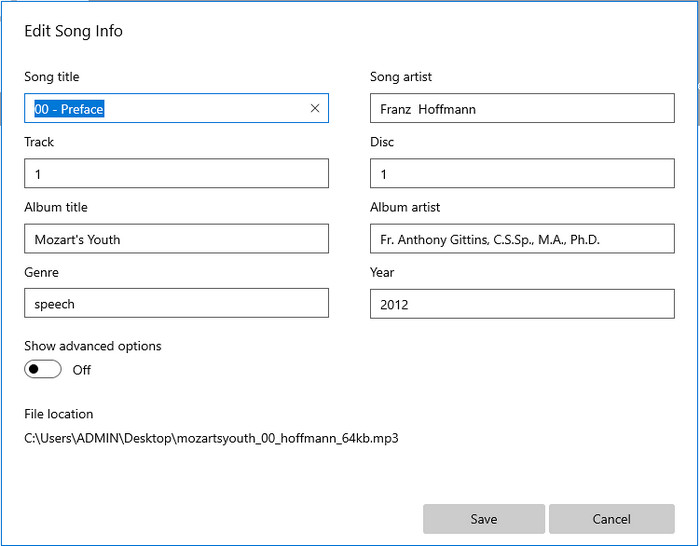
Bước 2. Nhấp chuột phải vào tệp âm thanh và vào mục Edit Info.
Bước 3. Thay đổi siêu dữ liệu trong Edit Song Info và nhấp Save khi bạn đã hoàn tất.
Phần 3. Câu hỏi thường gặp về Chỉnh sửa siêu dữ liệu trên MP3
Chỉnh sửa siêu dữ liệu MP3 trực tuyến có an toàn không?
Vâng, có, bạn có thể chỉnh sửa siêu dữ liệu trên MP3 của mình trực tuyến nếu bạn muốn. Nhưng hãy nhớ rằng có những trang web có mạng không an toàn, vì vậy việc đăng nhập là một quyết định tồi mà bạn sẽ thực hiện. Vì vậy, để tránh điều này, bạn phải sử dụng các công cụ mà chúng tôi đã trình bày ở trên để sửa siêu dữ liệu mp3 của bạn một cách an toàn.
Siêu dữ liệu có quan trọng không?
Hoàn toàn đúng như vậy. Siêu dữ liệu đóng vai trò rất quan trọng trong mọi tệp phương tiện mà chúng ta có. Nhờ đó, bạn có thể dễ dàng xác định nội dung bên trong tệp, như vị trí, thời gian, ngày tháng, thông tin và nhiều thứ khác. Hơn nữa, những thông tin chúng tôi thêm vào đây chỉ là những ý tưởng đơn giản về siêu dữ liệu; nếu bạn muốn tìm hiểu kỹ hơn về siêu dữ liệu, bạn cần nhấp vào liên kết này và đọc bài viết siêu dữ liệu là gì.
Tôi có thể xem siêu dữ liệu trên MP3 của mình không?
Hoàn toàn có thể, nếu bạn không biết cách xem siêu dữ liệu, bạn có thể đọc bài viết này và làm theo các bước được nêu để xem chúng một cách chính xác.
Phần kết luận
Thật vậy, cả bốn trình sửa thẻ .mp3 tốt nhất hiện nay đều nằm trong tầm tay bạn, nghĩa là giờ đây bạn có thể tự lựa chọn công cụ phù hợp. Với những thông tin thực tế chúng tôi cung cấp trong bài viết này, chúng ta có thể dễ dàng chỉnh sửa hoặc sửa thẻ trên các tệp MP3 của mình. Mặc dù các phương pháp mà chúng tôi đưa ra đều rất tốt, chúng tôi vẫn chọn FVC Video Converter Ultimate thay vì các công cụ tích hợp sẵn khác hoặc ứng dụng bên thứ ba. Bởi vì công cụ này mang đến khả năng chỉnh sửa thẻ tiên tiến và mạnh mẽ nhất mà bạn cần mà không phải tốn nhiều công sức. Vậy nên, nếu bạn muốn sở hữu công cụ này, hãy nhấp vào nút tải xuống và làm theo các bước chúng tôi đã viết ở trên.
-
 5 trình chỉnh sửa siêu dữ liệu MP4 cao nhất [Cập nhật năm 2022]
 Làm cách nào để thay đổi siêu dữ liệu MP4 của tôi? Cách tốt nhất để thay đổi siêu dữ liệu MP4 của bạn là sử dụng trình chỉnh sửa thẻ hỗ trợ định dạng MP4 như ví dụ mà chúng tôi liệt kê bên dưới.
-
 5 trình chỉnh sửa thẻ video AVI được người dùng lựa chọn hàng đầu cho năm 2022
 Trình chỉnh sửa thẻ AVI tốt nhất mà tôi có thể sử dụng là gì? Thị trường của trình chỉnh sửa thẻ cho các tệp AVI quá rộng. Vì vậy, hôm nay chúng tôi sẽ giới thiệu 5 biên tập viên được chọn nhiều nhất trong năm 2022.
-
 4 trình chỉnh sửa siêu dữ liệu MKV hiệu quả cho Windows và macOS
 Tôi không thể tìm thấy trình chỉnh sửa siêu dữ liệu MKV trên thị trường. Tôi nên sử dụng những gì? Có cùng một vấn đề? Nếu vậy, hãy tiếp tục đọc blog này để biết các công cụ để sử dụng.
