


 Chuyển đổi video Ultimate
 Trình ghi màn hình
 Sửa chữa video
Mẹo và thủ thuật để tăng âm lượng trên Windows / Mac / iPhone / Android của bạn
Hầu hết PC, Mac, Android hoặc iPhone chỉ có thể phát âm lượng ở mức tạm được. Mặc dù vậy, mức âm này vẫn chưa đủ để khiến bạn “nổi da gà” hay thực sự tận hưởng. Hơn nữa, ta có thể khắc phục bằng cách tăng âm lượng lên mức tối đa. Tuy bạn đã tăng âm lượng, nhưng vẫn có một số video phát rất nhỏ. Vì thế, chúng tôi giới thiệu cho bạn nhiều cách khác nhau để lựa chọn, giúp bạn nghe video rõ hơn chỉ với chính thiết bị của mình. Nếu bạn đã sẵn sàng, hãy tiếp tục và khám phá cách tăng âm lượng một cách dễ dàng trên các nền tảng khác nhau.

Phần 1. Làm thế nào để tăng âm lượng trên Windows / Mac / iPhone / Android
1. Windows
Tăng âm lượng MP3 trên PC Windows dễ dàng hơn nhiều ngay cả khi bạn không phải sử dụng bên thứ ba. Tuy nhiên, nếu bạn muốn tăng âm thanh ở đây thì đừng mong đợi điều gì đó đặc biệt. Bởi vì hệ điều hành này không cung cấp bất kỳ bộ cân bằng nào để giúp bạn thao tác với nó. Nhưng bạn có thể điều chỉnh âm lượng của các ứng dụng khác mà bạn muốn âm thanh cao hơn hoặc thấp hơn. Vì vậy, bây giờ, hãy tiến hành các bước bên dưới để xác định cách làm cho video của bạn nghe rõ ràng hơn trên PC Windows.
Cách tăng âm lượng video trên Windows:
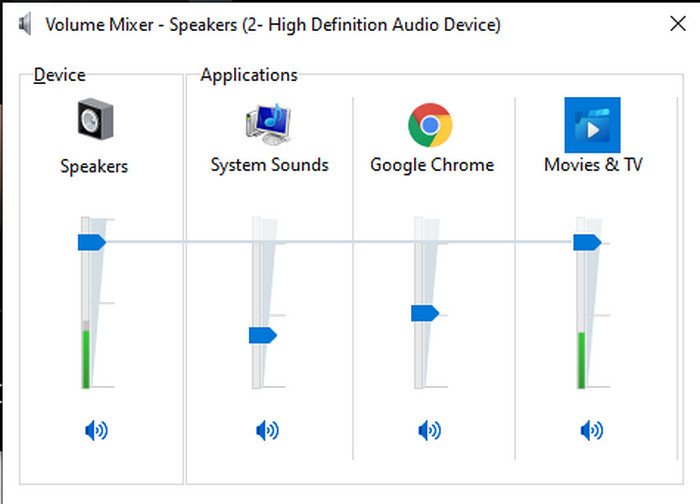
Bước 1. Trên giao diện PC chạy Windows của bạn, hãy tìm biểu tượng Loa (Speaker) ở góc dưới bên phải.
Bước 2. Nhấn chuột phải rồi chọn Open Volume Mixer.
Bước 3. Điều chỉnh mục Device để tăng hoặc giảm toàn bộ âm lượng. Tuy nhiên, nếu bạn chỉ muốn chỉnh âm lượng của một ứng dụng cụ thể thì có thể kéo thanh tương ứng lên hoặc xuống.
2. Máy Mac
Cũng giống như Windows, bạn có thể dễ dàng thao tác và tăng âm lượng video trên Mac. Hơn nữa, nếu bạn muốn tăng đầu ra âm thanh trên máy Mac thì đây phải là lựa chọn của bạn để dễ dàng thực hiện. Tuy nhiên, như đã nói trước đó, điều này giống như Windows nhưng trong một chương trình khác, hệ điều hành này không có bộ cân bằng tích hợp để làm cho âm lượng thay đổi đáng kể. Và bây giờ nếu bạn muốn tìm hiểu cách tăng âm lượng to hơn thì hãy làm theo bước này được chỉ ra bên dưới.
Cách tăng âm lượng video trên Mac:
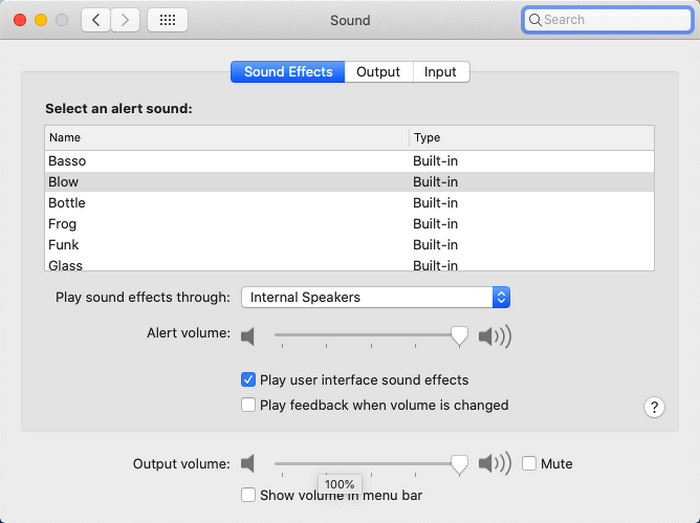
Bước 1. Mở máy Mac và nhấn nút hình quả táo ở phía trên màn hình.
Bước 2. Sau đó chọn System Preference. Nhấn vào Sound để chuyển sang bước cuối.
Bước 3. Điều chỉnh Output Volume bằng cách kéo thanh trượt (slider) để tăng hoặc giảm âm thanh.
3. iPhone
Nếu bạn có iPhone thì bạn có thể dễ dàng học cách tăng âm lượng to hơn và hay hơn. Bởi vì thiết bị này có bộ cân bằng tích hợp chắc chắn sẽ giúp bạn. Hơn nữa, khả năng tăng âm thanh của chiếc điện thoại này vẫn khiến chúng tôi kinh ngạc. Bởi vì chúng tôi không biết rằng có một bộ cân bằng di động mà người dùng iOS có thể sử dụng. Vì vậy, bây giờ, nếu bạn không có ý tưởng làm thế nào để sử dụng nó thì các bước sau đây sẽ giúp bạn thực hiện điều đó.
Cách tăng âm lượng video trên iPhone:
Bước 1. Vào Cài đặt (Settings), tìm mục Nhạc (Music) rồi nhấn vào.
Bước 2. Nhấn EQ và chọn một chế độ trong danh sách, sau đó quay lại Màn hình chính (Home).
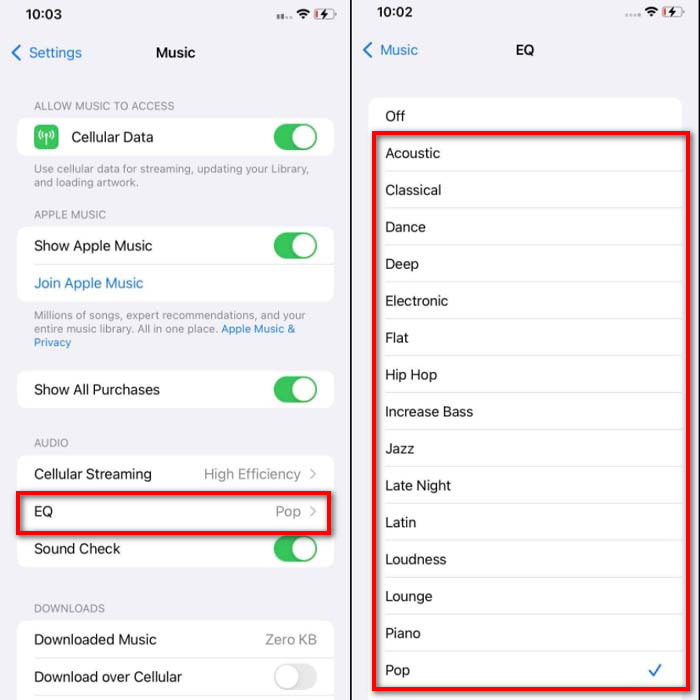
Bước 3. Mở ứng dụng Nhạc, phát bài nhạc và tăng âm lượng bằng cách nhấn nút tăng hoặc giảm âm lượng ở cạnh bên iPhone của bạn.
4. Android
Android sẽ không bao giờ làm người dùng thất vọng vì thiết bị di động này cũng được tích hợp bộ cân bằng. Mặc dù nếu bạn tăng chất lượng và âm lượng bằng bộ chỉnh âm có sẵn ở đây thì nó vẫn không hiệu quả như trên iPhone. Tuy nhiên, nếu bạn sử dụng nó và điều chỉnh âm lượng trong khi có tai nghe hoặc loa thì bạn sẽ cảm nhận được sự thay đổi mạnh mẽ của âm lượng. Nhưng xin lưu ý rằng các bước có thể khác nhau tùy thuộc vào kiểu dáng và sản phẩm của thiết bị của bạn. Ngoài ra, các bước này được cung cấp hoạt động trên Realme 7 pro, Android phiên bản 11 trở lên. Vì vậy, nếu bạn đang tự hỏi, làm thế nào để tăng âm lượng trên điện thoại Android của tôi thì hãy làm theo các bước dưới đây.
Cách tăng âm lượng video trên Android:
Bước 1. Vào Cài đặt (Settings) và tìm mục Âm thanh & Rung (Sound & Vibration).
Bước 2. Kéo xuống tìm Dolby Atmos và nhấn vào để tiếp tục.
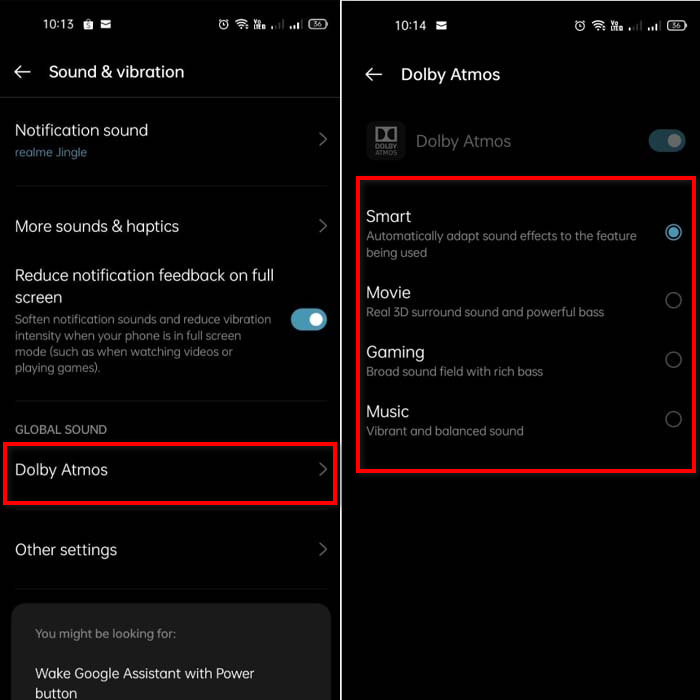
Bước 3. Thay đổi các thiết lập equalizer bằng cách chọn trong danh sách. Nếu muốn âm thanh hay hơn, bạn có thể cắm tai nghe để được âm thanh to và rõ hơn. Sau đó điều chỉnh nút tăng hoặc giảm âm lượng ở cạnh điện thoại Android để chỉnh âm to hoặc nhỏ.
Phần 2. Vẫn không thể nghe được âm lượng của video? Cố gắng tăng cường nó với Trình chuyển đổi video Ultimate
Mặc dù các bước được cung cấp ở trên khá hữu ích, nhưng vẫn chưa đủ để làm tăng cường độ âm lượng một cách rõ rệt. Vì vậy, chúng tôi giới thiệu với bạn một trình tăng âm lượng “đỉnh” giúp chuyển đổi các video âm lượng nhỏ và khuếch đại chúng bằng Video Converter Ultimate. Phần mềm này đã được hơn 10 triệu người dùng trên toàn thế giới tin tưởng sử dụng. Tuy nhiên, bạn không thể dùng công cụ này trên thiết bị di động vì nó chưa được hỗ trợ. Bạn có thể sử dụng phần mềm trên PC hoặc Mac, lưu file ra ổ đĩa rồi sau đó chuyển sang điện thoại. Không dài dòng nữa, hãy cùng tìm hiểu cách sử dụng trình tăng âm lượng trong công cụ này và học cách làm cho âm thanh của bạn to hơn bao giờ hết.
Cách tăng âm lượng video với sự hỗ trợ của Video Converter Ultimate:
Bước 1. Trước khi có thể dùng Video Converter Ultimate, bạn cần tải phần mềm về ổ cứng. Sau đó cài đặt, thiết lập ban đầu rồi nhấn Start Now để khởi chạy.
Tải xuống miễn phí cho Windows 7 trở lên. Tải xuống an toàn.
Tải xuống miễn phí cho MacOS 10.7 trở lên. Tải xuống an toàn.
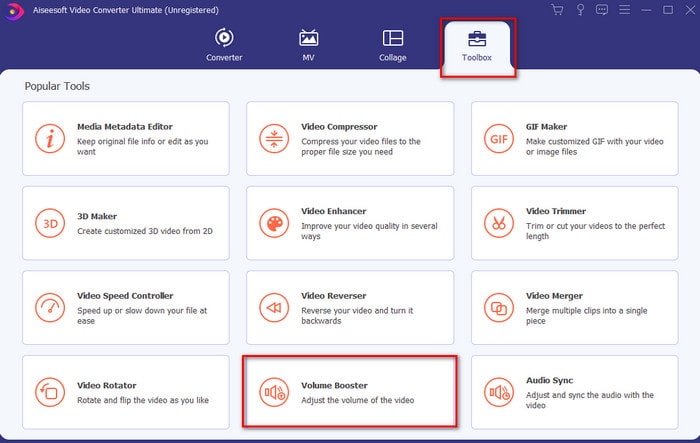
Bước 2. Sau khi khởi chạy công cụ, chuyển sang bước tiếp theo, vào mục Toolbox và tìm Volume Booster.
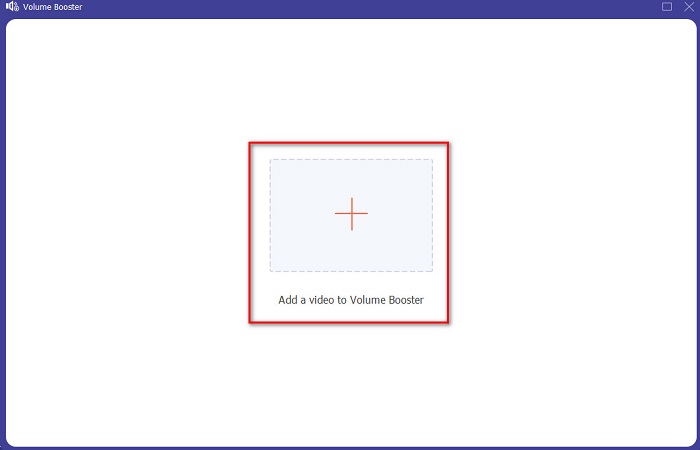
Bước 3. Nhấn dấu + để thêm video bạn muốn tăng âm lượng. Tìm file trong thư mục xuất hiện trên màn hình rồi nhấn Open để tiếp tục.
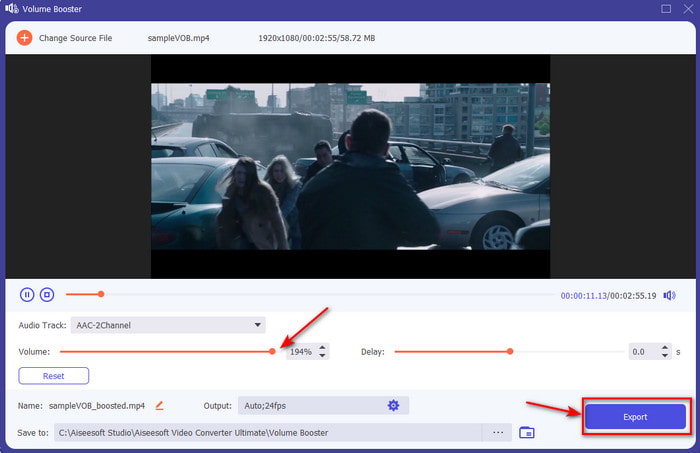
Bước 4. Trên giao diện công cụ, bạn hãy điều chỉnh thanh trượt âm lượng (volume slider) lên mức tối đa hoặc theo ý thích. Khi đã hài lòng với mức âm lượng, hãy nhấn Export để tải file về.
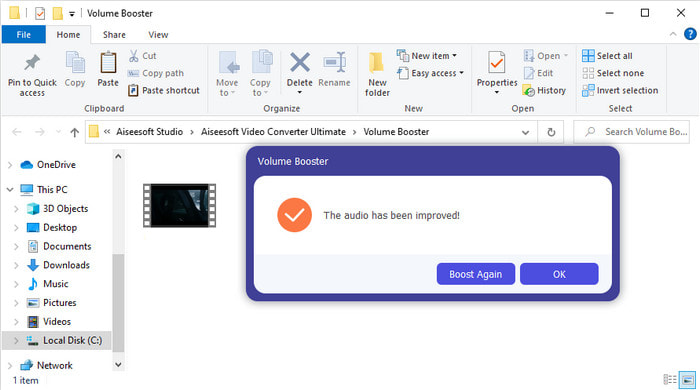
Bước 5. Đợi vài giây để xử lý. Khi file đã hoàn tất, một thư mục sẽ tự động hiện lên trên màn hình, bạn chỉ cần nhấn vào file để nghe âm lượng video đã được chỉnh.
Phần 3. Câu hỏi thường gặp về Tăng âm lượng
Tôi có thể tăng âm lượng trên VLC không?
Thực tế là có, thay vì sử dụng bộ tăng âm lượng, bạn có thể sử dụng VLC Player để tăng đầu ra âm thanh của video. Ngoài ra, thay vì giới hạn âm thanh ở 100%, bạn có thể mở rộng âm lượng của nó lên đến 125% nếu bạn muốn.
Việc chuyển đổi video có làm giảm chất lượng của video và âm thanh không?
Điều này còn tùy thuộc vào định dạng bạn muốn chuyển đổi. Ví dụ, nếu bạn chuyển từ AVI sang MP4 thì hãy dự đoán sẽ có sự thay đổi về chất lượng vì AVI là định dạng chưa nén. Tuy nhiên, chúng ta có thể hạn chế vấn đề này bằng cách đọc kỹ bài viết trong liên kết sau, để tiếp tục hãy nhấn vào link này. Vì thế, nếu bạn định chuyển một file nén sang định dạng chưa nén hoặc sang một định dạng nén khác, hãy dự đoán sẽ có một chút thay đổi, đặc biệt nếu bạn làm việc này thường xuyên; nhưng nếu chỉ chuyển một lần thì chất lượng gần như sẽ không thay đổi đáng kể.
Làm cách nào để khắc phục độ trễ của video và âm thanh?
Thực ra có hai cách để khắc phục. Cách thứ nhất là xóa và tải lại video nếu nó vẫn còn trên web. Đừng để quá trình tải bị gián đoạn và hãy đảm bảo kết nối internet ổn định để tránh bị thiếu file. Tuy nhiên, nếu đây là file riêng của bạn thì bắt buộc phải chọn một phần mềm giúp đồng bộ âm thanh và hình ảnh. Để biết thêm về các phần mềm có sẵn và cách đồng bộ âm thanh và video dễ dàng, hãy nhấn vào liên kết và đọc bài viết hướng dẫn. Chúng tôi đã tổng hợp nhiều phần mềm khác nhau để bạn lựa chọn.
Phần kết luận
Giờ đây khi đã biết cách khắc phục tình trạng âm thanh nhỏ trong video, đây là lúc thích hợp để áp dụng. Chỉ cần làm theo những bước đơn giản ở trên để giúp âm lượng tốt hơn trước. Mặc dù các bước không chỉ đơn thuần là nhấn nút tăng âm lượng, nhưng với sự hỗ trợ của những kỹ thuật khác, bạn có thể dễ dàng thực hiện. Tuy nhiên, nếu bạn vẫn cảm thấy âm thanh trên PC, Mac, Android hoặc iPhone còn nhỏ thì hãy tăng cường bằng Video Converter Ultimate. Hãy nâng âm lượng lên một tầm cao mới và trải nghiệm âm thanh to và chất lượng hơn.
-
 7 bước đơn giản về cách khắc phục các vấn đề về độ trễ âm thanh OBS [Đã giải quyết]
 Bạn có gặp khó khăn khi xem video clip của mình sau khi quay vì độ trễ âm thanh khi sử dụng OBS Studio? Đọc bài viết dưới đây để biết cách sửa lỗi âm thanh không đồng bộ hiệu quả.
-
 Những cách tuyệt vời có thể có | Cách khắc phục độ trễ âm thanh VLC [2021]
 Bạn có gặp khó khăn khi xem bộ phim yêu thích của mình trên trình phát phương tiện VLC vì âm thanh không chắc chắn? Tiếp tục đọc bài viết này để biết tất cả các cách có thể để khắc phục độ trễ âm thanh VLC.
-
 Các cách tốt nhất để tăng khối lượng MP4 trực tuyến và ngoại tuyến
 Bạn có khó nghe âm thanh của video clip của mình không? Đọc bài viết dưới đây để biết cách Tăng âm lượng mp4 theo nhiều cách khác nhau.
