


 Chuyển đổi video Ultimate
 Trình ghi màn hình
 Sửa chữa video
 Tải xuống an toàn
Các phương pháp dễ nhất về cách xóa biểu trưng ManyCam trên thiết bị của bạn
Bạn có muốn tìm hiểu cách xóa logo ManyCam trên Windows và Mac không? Trong trường hợp đó, bài viết này sẽ cung cấp cho bạn nhiều cách khác nhau để xóa logo khỏi video mà bạn nhất định nên thử. Phát các video yêu thích có đóng dấu hoặc logo khá khó chịu. Bạn sẽ không thể thưởng thức trọn vẹn video, và chúng còn gây phân tâm. Thậm chí bạn không thể xem rõ một số phần trong video vì các hình mờ, hình ảnh, chữ hoặc logo. May mắn là bạn có thể dùng những phần mềm tuyệt vời có chức năng xóa watermark để loại bỏ các đối tượng không cần thiết đó khỏi video của mình.
Với sự trợ giúp của các ứng dụng này, bạn sẽ không bao giờ phải thất vọng nữa. Nếu bạn muốn biết các phương pháp tốt nhất để loại bỏ biểu trưng ManyCam, lựa chọn tốt nhất của bạn là đọc bài viết này.

Phần 1: Cách xóa Logo ManyCam bằng cách kích hoạt đăng ký
Giả sử bạn muốn học cách xóa watermark từ ManyCam, đây là nơi phù hợp. ManyCam là phần mềm livestream có thể sử dụng trên cả Windows và Mac. Ứng dụng này cho phép bạn tạo các buổi phát trực tiếp độc đáo trên các nền tảng của mình, tạo video hướng dẫn, bài thuyết trình kinh doanh, phát trực tiếp game và nhiều hơn nữa. Ngoài ra, nó còn có nhiều tính năng hay ho khác mà bạn có thể tận hưởng, như thêm nhạc, ghi lại màn hình, thêm phông xanh, stream game, v.v. Đối với các nhà sáng tạo nội dung, ManyCam rất hữu ích và giá trị. Nó có những công cụ thiết yếu mà họ cần, như quay màn hình và ghi màn hình, giúp mọi việc trở nên thuận tiện hơn.
Tuy nhiên, mỗi khi bạn tạo hoặc chỉnh sửa video của mình, có một logo nhiềucam ở phần dưới của video, điều này gây khó chịu. May mắn thay, bạn có thể xóa biểu trưng này bằng cách kích hoạt đăng ký ManyCam. Hãy làm theo các bước sau để tìm hiểu cách xóa logo nhiềucam bằng cách kích hoạt đăng ký.
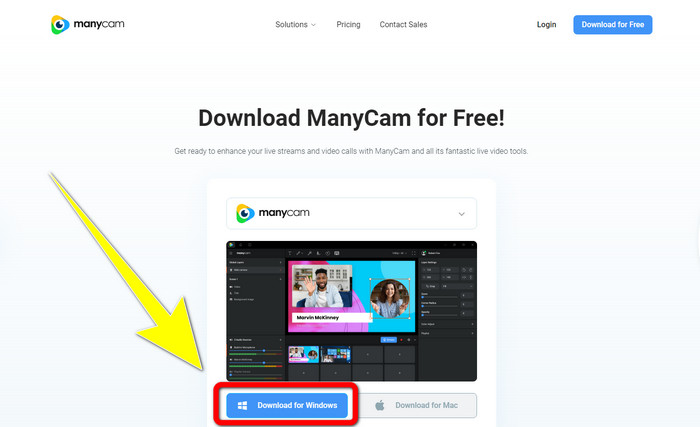
Bước 1: Để tải ManyCam, hãy nhấn nút Download for Windows. Sau đó tiến hành cài đặt.
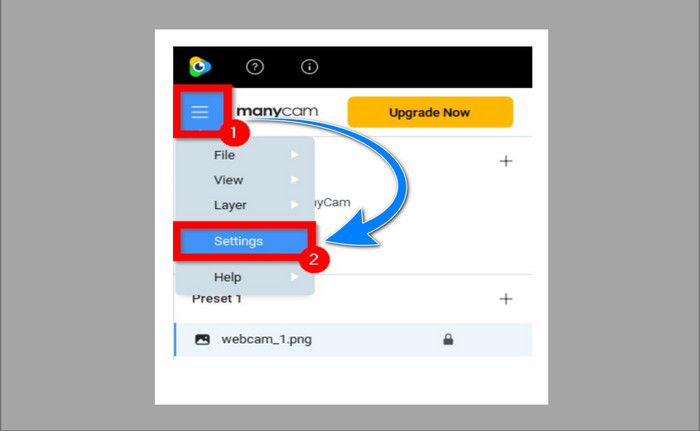
Bước 2: Khởi chạy ứng dụng trên máy tính của bạn và nhấp vào biểu tượng menu (ba gạch) của ManyCam, sau đó vào Settings > Account và đăng nhập vào tài khoản bạn đã tạo sau khi mua gói đăng ký.
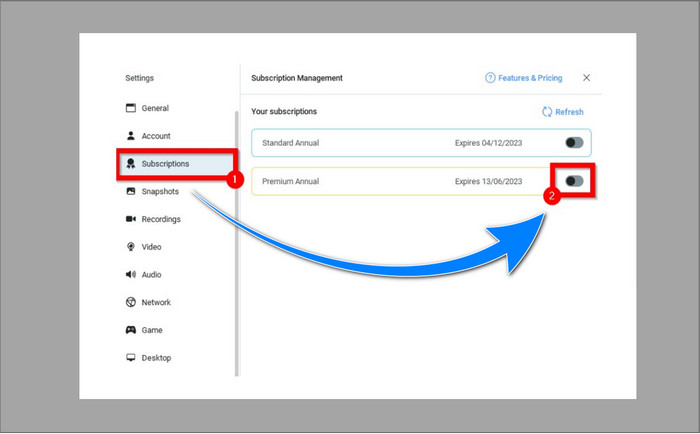
Bước 3: Vào thẻ Subscription để đảm bảo gói đăng ký đã được kích hoạt.
Bước 4: Nếu gói đăng ký đã được kích hoạt, một thông báo Pop-up sẽ xuất hiện và bạn đã hoàn tất.
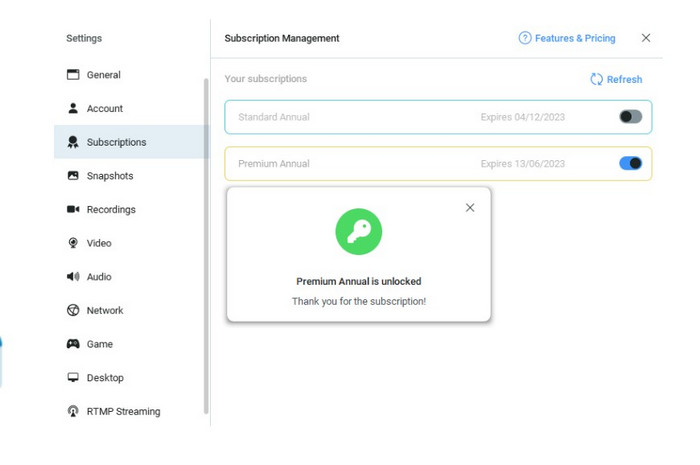
Nếu ứng dụng ManyCam của bạn đã được kích hoạt, hình mờ hoặc biểu trưng trên video của bạn sẽ tự động bị xóa. Bạn có thể xem các video yêu thích của mình mà không gặp phải các hình mờ trên chúng.
Phần 2: Cách xóa Logo ManyCam mà không cần đăng ký
Bạn có muốn xóa watermark của ManyCam miễn phí không? Bên cạnh ứng dụng ManyCam, bạn cũng có thể dùng một ứng dụng khác để xóa logo của ManyCam. Ứng dụng tốt nhất bạn có thể sử dụng là Video Converter Ultimate. Ứng dụng này có thể xóa các đối tượng không cần thiết trên video của bạn, như chữ, watermark, logo, v.v. Ngoài ra, Video Converter Ultimate còn có nhiều công cụ chỉnh sửa mà bạn có thể tận hưởng, như điều chỉnh tốc độ video, nâng cao chất lượng video, thêm và xóa watermark, chỉnh màu, tăng âm lượng, và nhiều hơn nữa. Công cụ tốt nhất bạn có thể dùng để xóa watermark bằng Video Converter Ultimate là tính năng Video Watermark Remover.
Công cụ này sẽ giúp bạn loại bỏ hình mờ một cách dễ dàng. Hơn nữa, ứng dụng này có sẵn trên cả Windows và Mac. Ngoài ra, bạn sẽ không gặp khó khăn khi sử dụng ứng dụng này. Nó cũng hỗ trợ một số định dạng tệp âm thanh và video, như MP4, FLV, MOV, MKV, MP3, AAC, v.v. Nếu bạn muốn xóa logo ManyCam bằng Video Converter Ultimate, bài viết này sẽ hướng dẫn bạn hai cách. Những cách này là sử dụng trình cắt video và xóa hình mờ video.
1. Sử dụng Trình cắt video
Bước 1. Tải FVC Video Converter Ultimate và tiến hành cài đặt.
Tải xuống miễn phí cho Windows 7 trở lên. Tải xuống an toàn.
Tải xuống miễn phí cho MacOS 10.7 trở lên. Tải xuống an toàn.
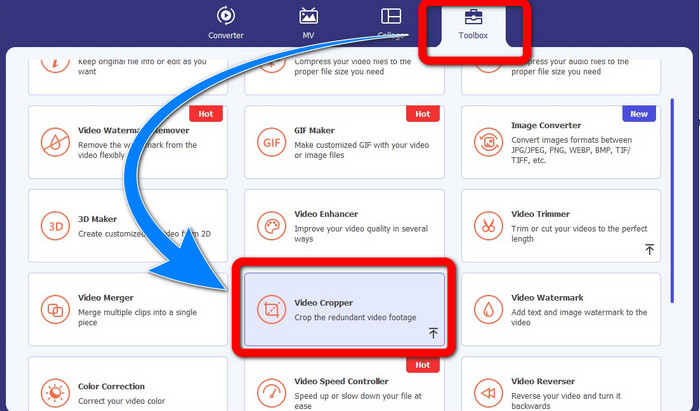
Bước 2: Sau khi cài đặt, khởi chạy ứng dụng. Nhấp vào Toolbox > Video Cropper.
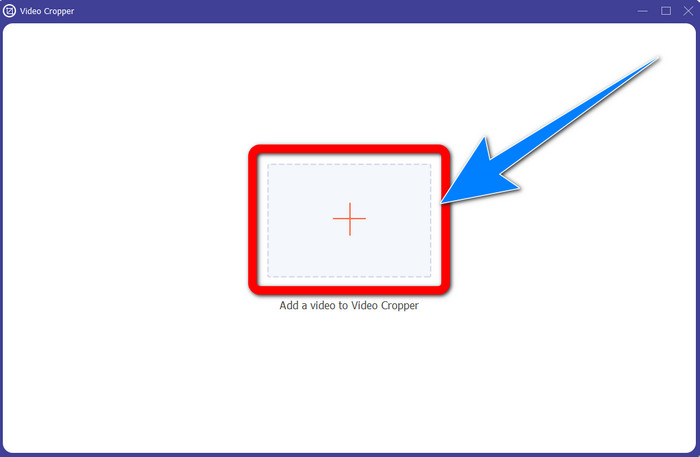
Bước 3: Sau khi nhấp vào Video Cropper, một giao diện khác sẽ xuất hiện. Nhấn nút dấu Plus và thêm các video có watermark từ ManyCam của bạn.
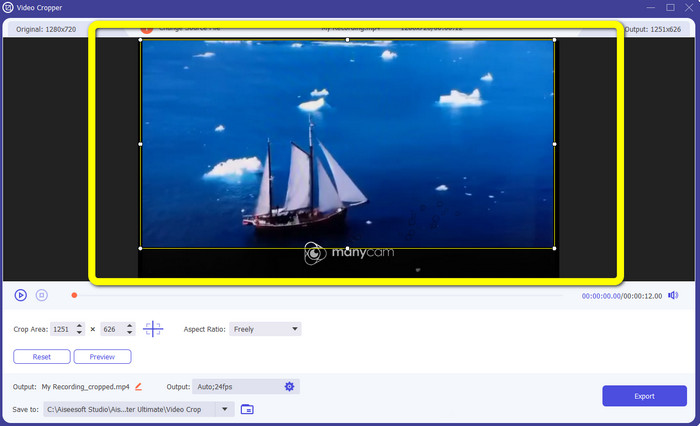
Bước 4: Khi tệp của bạn đã được thêm, bạn có thể cắt video và xóa watermark.
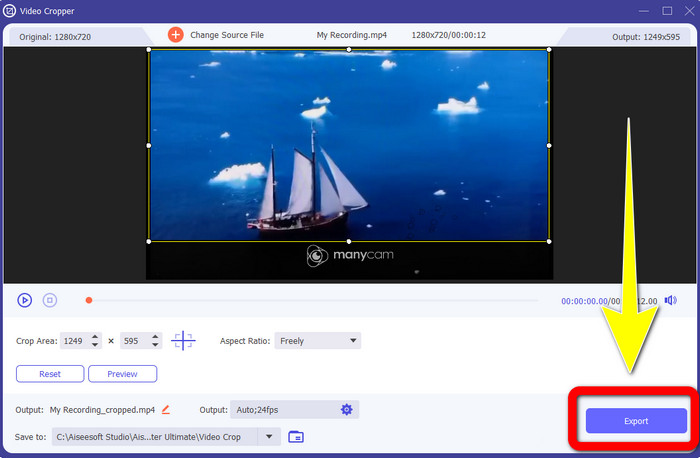
Bước 5: Khi watermark đã được xóa, hãy nhấn nút Export để lưu kết quả cuối cùng. Bây giờ bạn có thể phát video yêu thích của mình mà không còn watermark.
2. Sử dụng Video Watermark Remover
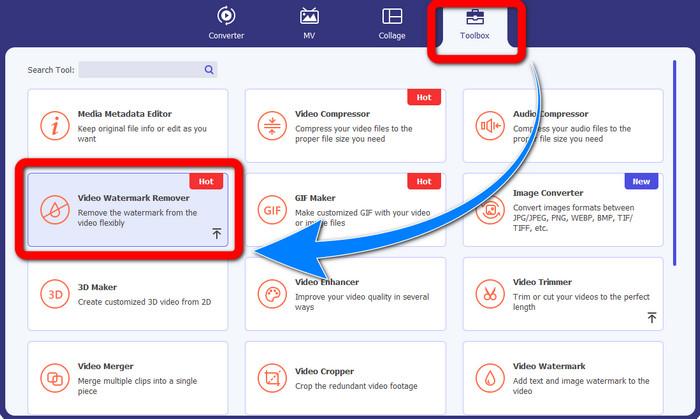
Bước 1: Mở ứng dụng. Vào Toolbox > Video Watermark Remover.
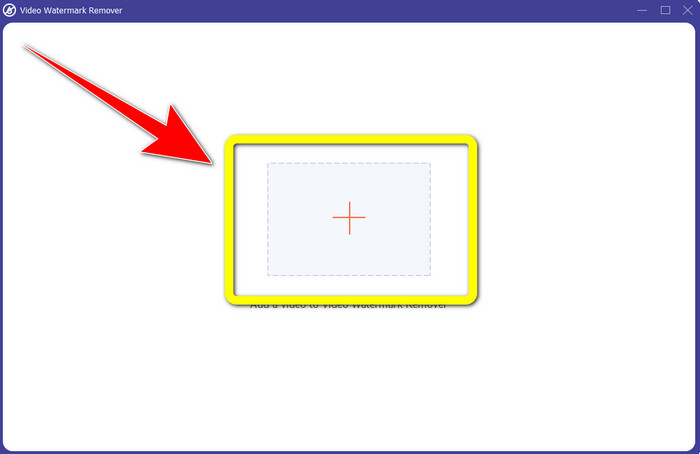
Bước 2: Một giao diện khác sẽ xuất hiện sau khi bạn nhấp vào Video Watermark Remover. Nhấn nút dấu Plus để thêm video có watermark từ ManyCam của bạn.
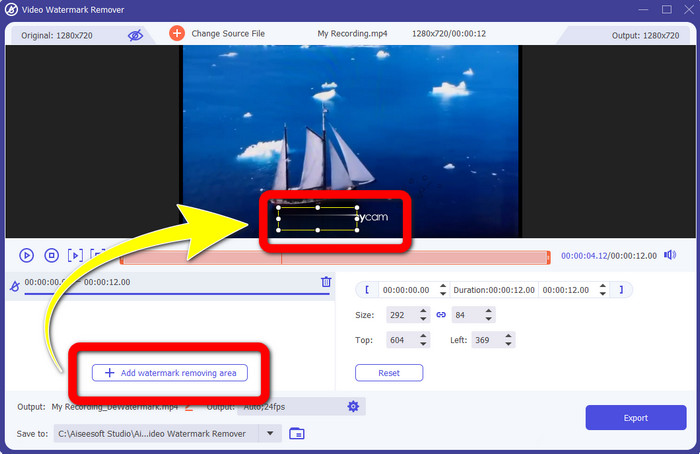
Bước 3: Khi bạn đã thêm video, hãy nhấp vào Add Watermark Removing Area, sau đó một box sẽ xuất hiện trên video. Kéo khung đó đến vị trí watermark để che nó lại.
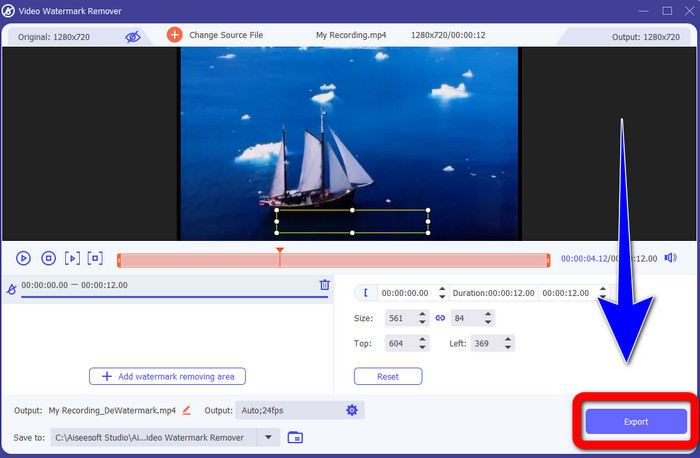
Bước 4: Khi bạn đã hoàn tất xóa watermark khỏi video, nhấn Export để lưu kết quả. Đây là cách tốt nhất để xóa logo ManyCam miễn phí.
Phần 3: Câu hỏi thường gặp về cách xóa biểu trưng ManyCam
Mất bao lâu để gỡ bỏ logo?
Bạn không phải đợi lâu hơn vì quá trình loại bỏ logo hoặc bất kỳ đối tượng không cần thiết nào sẽ chỉ mất vài giây.
Tôi có thể xóa biểu trưng ManyCam trên điện thoại của mình không?
Đúng! Bạn có thể xóa biểu trưng ManyCam trên Android hoặc iPhone của mình bằng các ứng dụng phần mềm khác nhau với công cụ xóa hình mờ. Tìm kiếm ứng dụng trên cửa hàng Play hoặc cửa hàng ứng dụng của bạn và cố gắng sử dụng những ứng dụng bạn có thể thấy ở kết quả hàng đầu.
Có cách nào tốt nhất để xóa hình mờ trên máy Mac của tôi không?
Chắc chắn là Có! Bạn có thể dùng một ứng dụng tuyệt vời có chức năng xóa watermark để xóa watermark trên Mac. Ứng dụng đó là Video Converter Ultimate. Nó hoạt động hoàn hảo trên cả Windows và Mac. Phần mềm này có thể giúp bạn xóa các đối tượng không cần thiết trên video, như logo, watermark, hình ảnh và chữ.
Tôi có thể sử dụng công cụ Cắt từ ứng dụng ManyCam để xóa Biểu trưng ManyCam không?
Rất tiếc là Không! Sử dụng công cụ cắt để xóa logo của ManyCam không hiệu quả. Dù bạn cố cắt video để xóa logo thì nó vẫn sẽ xuất hiện. Cách duy nhất để xóa logo là kích hoạt gói đăng ký trên ManyCam.
Ngoài ManyCam, có cách nào khác để xóa hình mờ trên video của tôi không?
Có, có! Ngoài ManyCam, có nhiều ứng dụng hơn với công cụ xóa hình mờ mà bạn có thể sử dụng mà không cần mua. Một trong những ứng dụng tốt nhất mà bạn có thể sử dụng để xóa hình mờ trên video của mình là Video Converter Ultimate. Nó rất đơn giản và dễ sử dụng, phù hợp cho người mới bắt đầu.
Phần kết luận
Dựa trên những thông tin ở trên, bạn có thể học được cách xóa logo ManyCam trên Windows và Mac. Bạn có thể dùng chính ứng dụng ManyCam để xóa logo một cách dễ dàng sau khi kích hoạt gói đăng ký. Ngoài ra, nếu bạn muốn sử dụng một ứng dụng có chức năng xóa watermark miễn phí, bạn nên dùng Video Converter Ultimate. Ứng dụng này sẽ hỗ trợ bạn rất tốt trong việc xóa các đối tượng không cần thiết khỏi video.
-
 Phương pháp dễ nhất về cách xóa hình mờ khỏi ảnh
 Bạn có bị kích thích bởi các hình mờ trên ảnh của mình không? Đừng lo lắng! Bài viết này sẽ cung cấp các phương pháp đơn giản và dễ dàng để xóa hình mờ khỏi ảnh của bạn.
-
 Cách xóa hình mờ Powtoon bằng 4 phương pháp hiệu quả
 Đọc bài viết này để tìm hiểu cách xóa hình mờ Powtoon bằng các công cụ tốt nhất mà chúng tôi đưa vào ở đây và hướng dẫn.
-
 Đánh giá Apowersoft Watermark Remover - Tính năng, Ưu nhược điểm và Giá cả
 Apowersoft Watermark Remover là một trong những phần mềm xóa hình mờ tốt nhất hỗ trợ trực tuyến và ngoại tuyến, hãy nhấp vào đây để biết thêm!
