


 Chuyển đổi video Ultimate
 Trình ghi màn hình
 Sửa chữa video
 Tải xuống an toàn
Cách nhanh nhất và dễ nhất để rút ngắn video bằng các công cụ tốt nhất
Việc cắt hoặc rút ngắn video là rất quan trọng vì nó chỉ làm nổi bật những đoạn cần thiết từ video của bạn. Cắt video có nghĩa là cắt bỏ phần đầu của phần cuối của video clip. Yếu tố cơ bản của việc chỉnh sửa này là cần thiết để bạn không làm mất sự chú ý của khán giả. Vì vậy, nếu bạn muốn cắt hoặc rút ngắn video dài của mình, bạn sẽ tìm hiểu trong bài viết này các cách làm thế nào để rút ngắn video.

Phần 1. 2 Phương pháp rút ngắn video trên tông đơ bằng ứng dụng tốt nhất
FVC Video Converter Ultimate là công cụ trên máy tính tốt nhất để cắt ngắn video của bạn. Công cụ này có giao diện phần mềm trực quan và được dùng miễn phí. Trình chuyển đổi ngoại tuyến này cho phép bạn thêm nhiều đoạn vào tệp video. Ngoài ra, nó còn có tính năng giúp bạn chia nhỏ video nhanh thành các phần khác nhau theo ý muốn. Và nếu bạn đang tìm một công cụ có thể gộp nhiều định dạng tệp thành một, thì ứng dụng này có thể làm được cho bạn.
Hơn nữa, công cụ này cung cấp nhiều tính năng nâng cao như trình tạo GIF, trình ghép video, trình xóa watermark video, v.v. Điều tuyệt vời hơn nữa là nó hỗ trợ rất nhiều định dạng tệp, bao gồm MP4, WMV, FLV, AVI, MPG, WebM, MKV và hơn 1000 định dạng khác. Vì vậy, nếu bạn muốn dùng ứng dụng này để rút ngắn video, chúng tôi có hai phương pháp để bạn làm theo.
Phương pháp 1. Sử dụng Máy cắt video của FVC
Bước 1. Trước hết, tải FVC Video Converter Ultimate bằng cách nhấp vào nút Download bên dưới. Làm theo quá trình cài đặt rồi chạy ứng dụng.
Tải xuống miễn phí cho Windows 7 trở lên. Tải xuống an toàn.
Tải xuống miễn phí cho MacOS 10.7 trở lên. Tải xuống an toàn.
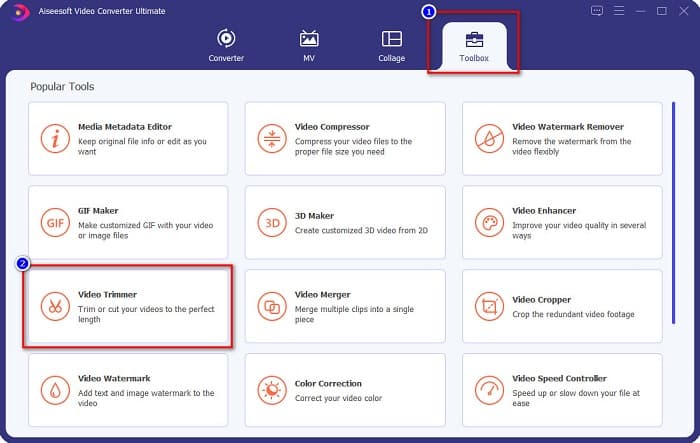
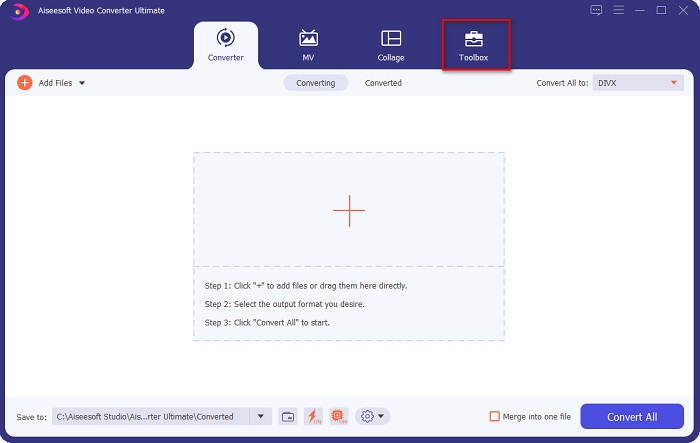
Bước 2. Tiếp theo, chọn bảng Toolbox nằm phía trên giao diện phần mềm. Sau đó, trên bảng Toolbox, nhấp vào Video Trimmer.
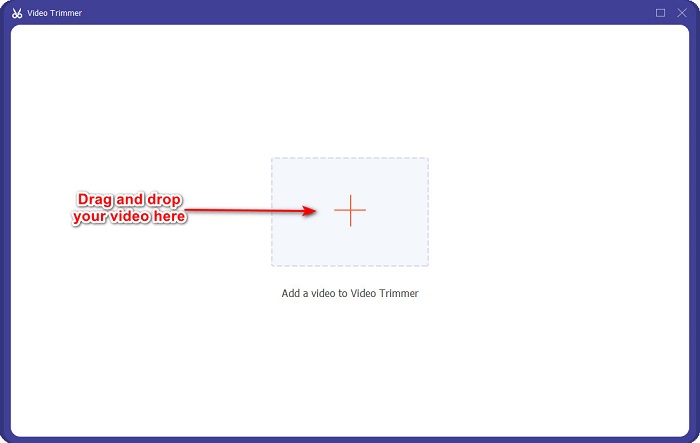
Bước 3. Trên giao diện tiếp theo, nhấp vào nút dấu + hoặc kéo và thả video của bạn vào biểu tượng +.
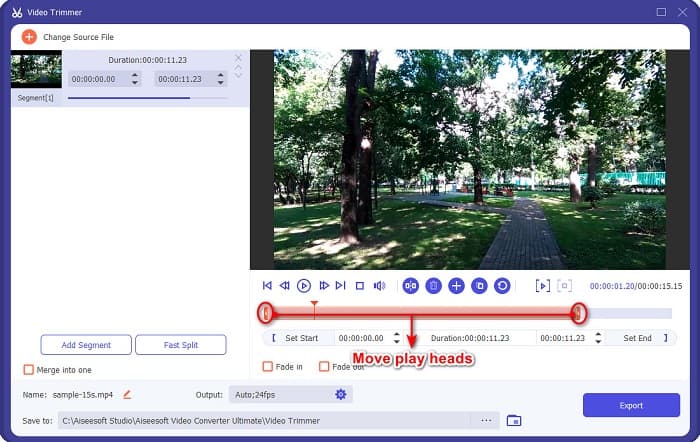
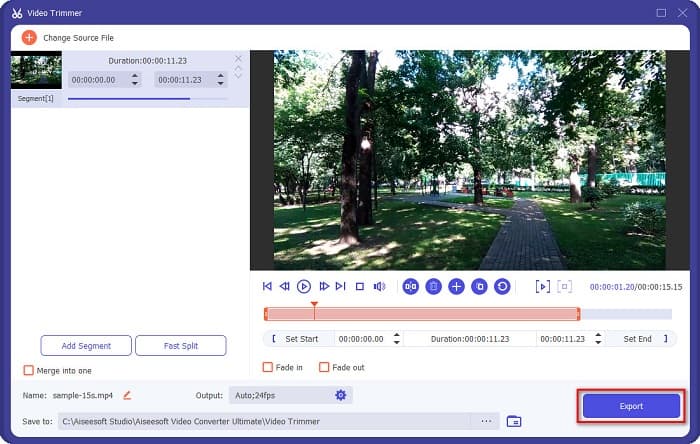
Bước 4. Sau đó, di chuyển các nút đầu phát (play head) đến độ dài bạn mong muốn. Mũi tên cho biết vị trí phần xem trước của video. Các đầu phát cho biết độ dài đoạn video của bạn. Bạn có thể xem những thay đổi tạm thời của video trong khung xem trước.
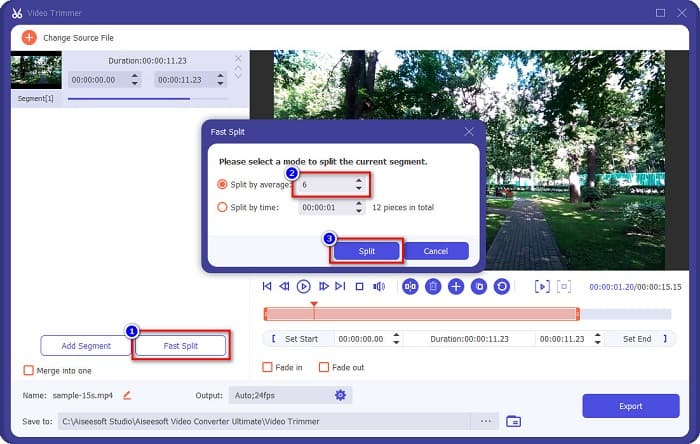
Tùy chọn. Nếu bạn muốn cách đơn giản hơn để chia video thành nhiều đoạn:
1. Nhấp vào nút Fast Split.
2. Chọn số phần bạn muốn chia trong video, rồi nhấn Split.
3. Nếu bạn không muốn chia nhỏ video của mình, hãy chuyển sang bước tiếp theo.
Bước 5. Cuối cùng, nhấp vào nút Export để áp dụng các thay đổi cho video. Sau đó, kết quả xuất ra sẽ tự động được lưu vào thư mục trên máy tính của bạn.
Phương pháp 2. Sử dụng Trình thay đổi tốc độ video của FVC
FVC Video Converter Ultimate cũng có một tính năng mà bạn có thể thay đổi tốc độ video của mình theo các tốc độ 0,125x, 0,25x, 0,5x, 0,75x, 1,25x, 1,5x, 2x, 4x và 8x. Và nếu bạn muốn rút ngắn thời lượng của video, hãy điều chỉnh video của bạn thành tốc độ nhanh. Để biết các bước chi tiết hơn, hãy làm theo hướng dẫn bên dưới.
Bước 1. Mở FVC Video Converter Ultimate. Và trên giao diện chính của phần mềm, nhấp vào tùy chọn Toolbox.
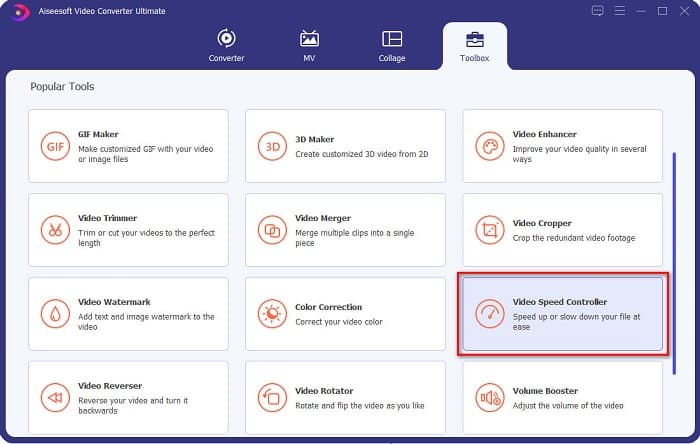
Bước 2. Sau đó, nhấp vào Video Speed Controller và chuyển sang bước tiếp theo.
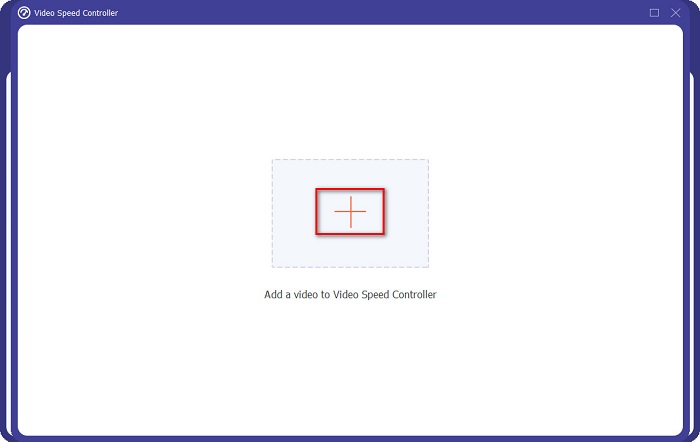
Bước 3. Tiếp theo, nhấp vào nút dấu + để tải lên video bạn muốn cắt ngắn. Thư mục trên máy tính của bạn sẽ hiện ra, nơi bạn sẽ chọn video và tải nó lên giao diện phần mềm.
Bước 4. Để rút ngắn video, hãy chọn tốc độ từ 1.25x đến 8x.
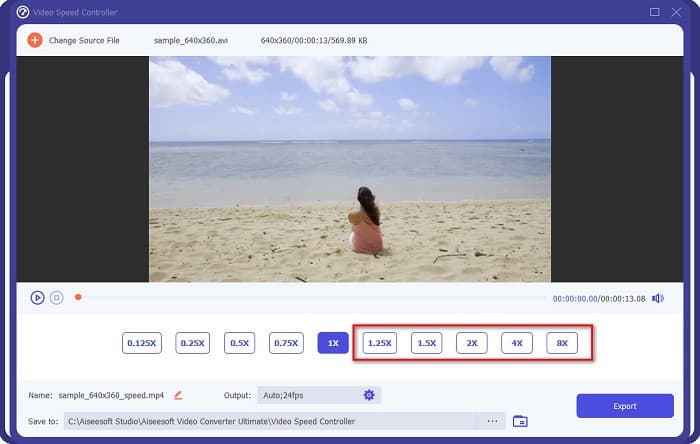
Bước 5. Ở bước cuối cùng, nhấp vào nút Export để lưu các thay đổi trên video của bạn. Sau đó, kết quả xuất ra sẽ tự động được lưu vào thư mục trên máy tính của bạn.
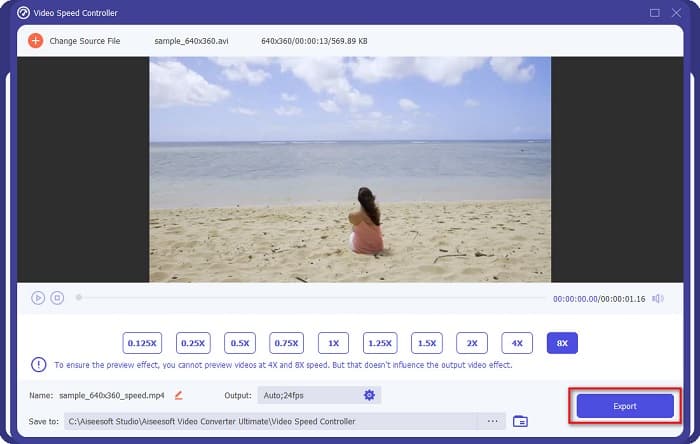
Để có thời lượng video ngắn hơn, hãy chọn tốc độ 8x.
Ưu điểm
- Nó hỗ trợ nhiều định dạng tệp, bao gồm MOV, MKV, AVI, MP4, WMV, WMA, MPEG và hơn 1000 định dạng.
- Nó có một giao diện phần mềm dễ sử dụng.
- Nó cho phép bạn chia nhỏ video của mình một cách nhanh chóng chỉ với một vài cú nhấp chuột.
- Có thể tải xuống trên tất cả các nền tảng đa phương tiện, như Windows, Mac và Linux.
Nhược điểm
- Mua ứng dụng trước trước khi truy cập các tính năng khác của nó.
Phần 2. 2 Máy cắt video trực tuyến để thử
Nếu bạn muốn cắt video của mình mà không cần tải xuống bất kỳ thứ gì, có những trình cắt video trực tuyến mà bạn có thể sử dụng. Chúng tôi đã liệt kê các bộ xén video trực tuyến tốt nhất mà nhiều người sử dụng trong phần này.
Cắt video
Trim Video là một công cụ cắt video trực tuyến dễ sử dụng nhờ giao diện người dùng trực quan. Đây là một công cụ tiện lợi vì không cần cài đặt như các công cụ trực tuyến khác. Ngoài ra, nó có tính năng xoay video của bạn 90, 180 hoặc 270 độ. Hơn nữa, bạn không cần phải lo lắng về tính bảo mật dữ liệu vì công cụ này được bảo vệ quyền riêng tư. Tuy nhiên, vì là ứng dụng dựa trên web nên nó có chứa quảng cáo, có thể gây xao nhãng cho bạn.
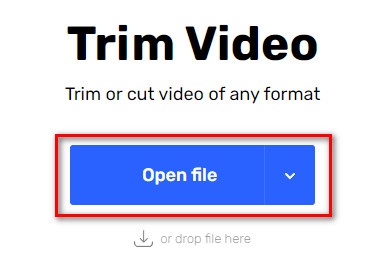
Bước 1. Trên trình duyệt, hãy tìm kiếm trình cắt video trực tuyến. Sau đó, nhấp vào trang Trim Video. Trên giao diện chính của phần mềm, nhấp vào nút Open File.
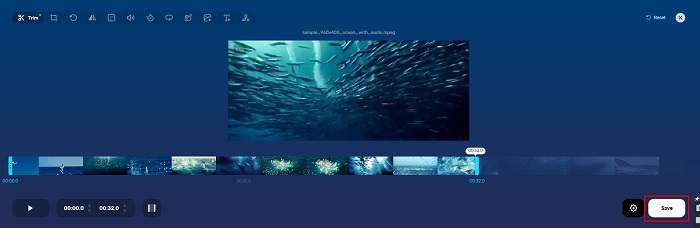
Bước 2. Sau đó, điều chỉnh các nút play head đến độ dài bạn mong muốn.
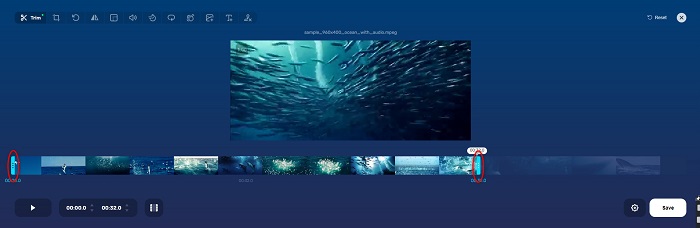
Bước 3. Nhấp vào nút Save để thay đổi độ dài video của bạn.
Ưu điểm
- Nó có một GUI dễ sử dụng.
- Nó có các tính năng để cắt và xoay video của bạn.
- Nó là an toàn để sử dụng.
Nhược điểm
- Nó chứa các quảng cáo phiền phức.
- Nó có quá trình tải và tải lên chậm.
Video
Một công cụ cắt video trực tuyến khác là Clideo. Công cụ online này có giao diện đơn giản, giúp nó trở nên thân thiện với người dùng. Nó cũng hỗ trợ hầu hết các định dạng tệp phổ biến như AVI, MP4, VOB, MPG, MOV, v.v. Hơn nữa, công cụ này áp dụng mức độ bảo mật cao, nghĩa là dữ liệu của bạn an toàn và người khác không thể xem được. Ngoài ra, Clideo không chứa quảng cáo gây xao nhãng.
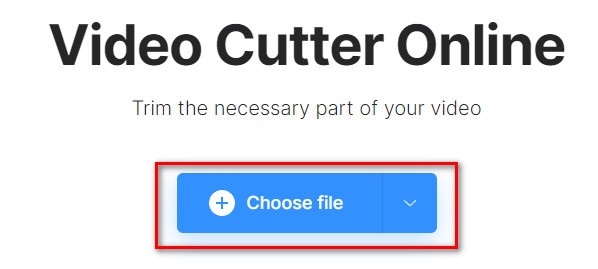
Bước 1. Trên trình duyệt bạn đang dùng, hãy tìm kiếm trình cắt video Clideo. Và trên giao diện đầu tiên của phần mềm, nhấp vào nút Choose File. Thư mục trên máy tính của bạn sẽ hiện ra, nơi bạn sẽ chọn video muốn rút ngắn.
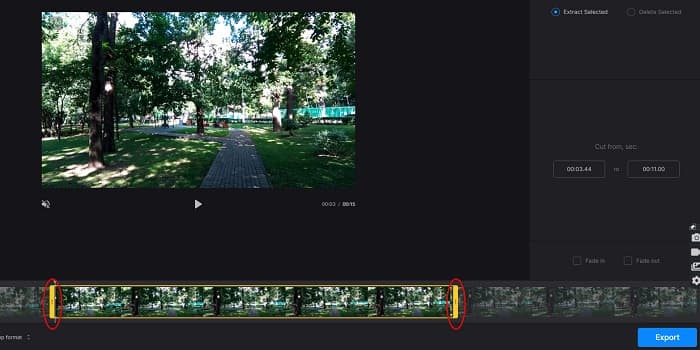
Bước 2. Di chuyển các nút play head đến độ dài mà bạn muốn video có.
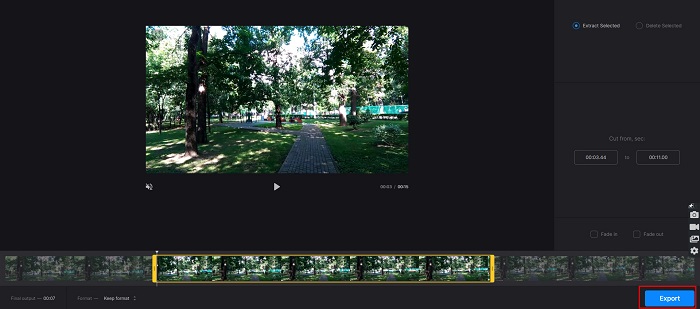
Bước 3. Ở bước cuối cùng, nhấp vào nút Export để thay đổi độ dài video của bạn.
Ưu điểm
- Nó có một giao diện dễ sử dụng.
- Nó là an toàn để sử dụng.
- Nó không chứa bất kỳ quảng cáo nào.
Nhược điểm
- Bạn có thể gặp phải quá trình chậm khi kết nối internet của bạn chậm.
Phần 3. Câu hỏi thường gặp về Cách rút ngắn video
Làm thế nào để rút ngắn video trên iPhone?
Đầu tiên, hãy mở ứng dụng Ảnh và chọn video bạn muốn cắt. Sau đó nhấn vào Chỉnh sửa. Sau đó, di chuyển các thanh trượt đến độ dài video mong muốn của bạn và nhấn vào Xong để lưu các thay đổi từ video của bạn.
Việc cắt xén video của bạn có ảnh hưởng đến chất lượng không?
Không. Hầu hết các công cụ cắt không ảnh hưởng đến chất lượng video của bạn. Nhưng nếu bạn đang đảm bảo về một công cụ không ảnh hưởng đến chất lượng khi bạn rút ngắn video của mình, hãy sử dụng FVC Video Converter Ultimate.
Việc rút ngắn video của bạn có ảnh hưởng đến kích thước tệp không?
Đúng. Video của bạn càng ngắn thì kích thước tệp càng ít. Ngược lại, nếu video của bạn dài, nó chứa một kích thước tệp lớn.
Phần kết luận
Trên đây là tất cả về cách rút ngắn video bằng trình cắt và trình thay đổi tốc độ video. Tất cả các công cụ được liệt kê đều cho kết quả tốt và đảm bảo hiệu suất cao. Nhưng nếu bạn đang tìm kiếm công cụ tốt nhất với nhiều tính năng và rất phổ biến khi nói đến việc rút ngắn video, thì FVC Video Converter Ultimate là công cụ tốt nhất dành cho bạn.
-
 Cách cắt và ghép bài hát trực tuyến - 4 cách hay nhất mà bạn nên biết
 Khi bạn muốn cắt và ghép các bài hát trực tuyến để tạo thành một bản nhạc, bạn có thể tìm hiểu thêm về 4 công cụ trực tuyến tốt nhất để cắt và ghép các bài hát từ bài viết.
-
 Khám phá tông đơ MP4 tốt nhất với quy trình và thông tin
 Bạn có muốn học cách cắt video như các vlogger mà bạn xem không? Sau đó, tiếp tục đọc bài đăng này để biết những gì bạn có thể sử dụng tông đơ MP4.
-
 5 máy cắt MP3 để cắt bất kỳ âm thanh nào một cách dễ dàng [Cập nhật năm 2022]
 Bạn có cần một máy cắt MP3 để cắt âm thanh không? Trong trường hợp đó, hãy đọc bài viết này vì chúng tôi cung cấp các công cụ mà bạn có thể tin cậy để giúp bạn dễ dàng cắt âm thanh.
