


 Chuyển đổi video Ultimate
 Trình ghi màn hình
 Sửa chữa video
Cách tăng tốc độ video trực tuyến: Các phương pháp tiếp cận mở rộng có sẵn trên Internet
Lớp học trực tuyến là một phương pháp giảng dạy khác được dùng trong chương trình học kết hợp, đặc biệt là trong thời kỳ dịch bệnh này, và việc dùng các bài thuyết trình video như một hình thức thay thế cho các khóa học đồng bộ. Tuy nhiên, hầu hết các bài thuyết trình video kéo dài đến một giờ xem rất nhàm chán. Một số học sinh buộc phải tua nhanh hoặc tua tới trong video để nắm được những thông tin quan trọng về bài học. Bài viết này rất phù hợp để khắc phục kiểu vấn đề mà đa số học sinh đang gặp phải. Dưới đây là những ví dụ về cách tăng tốc video online.

Phần 1. Các cách khác nhau có sẵn để tăng tốc độ phát lại video
Tăng tốc video nghe có vẻ lạ vì thông thường tất cả video đều phát ở tốc độ trung bình. Nhưng một số người lại muốn xem một đoạn video nhanh gấp 2 lần bình thường. Chẳng hạn, lý do của một số người là để bỏ qua những chi tiết không quan trọng trong video khiến bộ phim trở nên nhàm chán, ví dụ khi bạn đang xem lại một bộ phim. Bạn chỉ muốn bỏ qua các đoạn hội thoại và tua đến phần hành động hoặc cao trào. Trong khi đó, một số người khác chỉ đơn giản là muốn xem video với tốc độ nhanh. Có những ứng dụng chỉnh sửa mà hầu hết đều cần mua bản quyền trước khi sử dụng mới có thể giúp bạn giải quyết vấn đề này. Tuy nhiên, các phần mềm và công cụ web dưới đây sẽ giúp bạn tăng tốc video online miễn phí.
Phương pháp 1. Sử dụng Clideo
Phần mềm tiếp thị video Clideo bao gồm các chức năng tạo, chỉnh sửa, nén và đóng gói video để phân phối tới hầu như bất kỳ đối tượng trực tuyến nào. Nó có nhiều tính năng, gồm bộ công cụ chỉnh sửa, bộ máy tùy biến và nhiều định dạng khác nhau. Một trong các công cụ cho phép tua nhanh và tăng tốc video. Nếu bạn đang thắc mắc cách sử dụng, dưới đây là các bước hướng dẫn dùng Clideo:
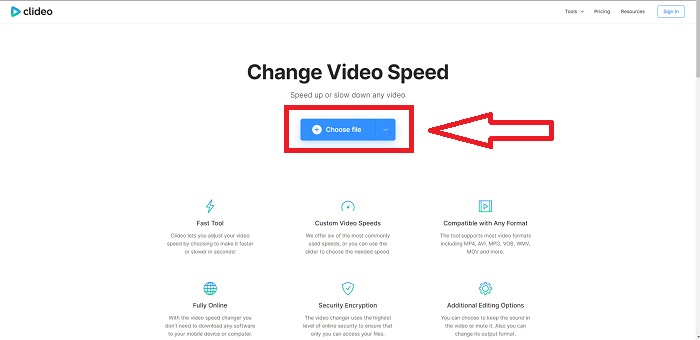
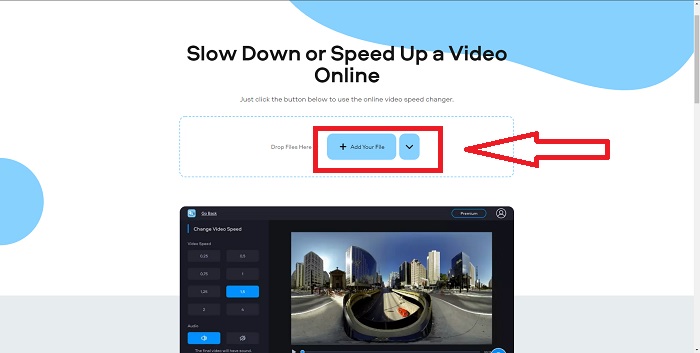
Bước 1: Nhấp vào Choose File trong giao diện của Clideo và tải lên đoạn video bạn muốn tăng tốc.
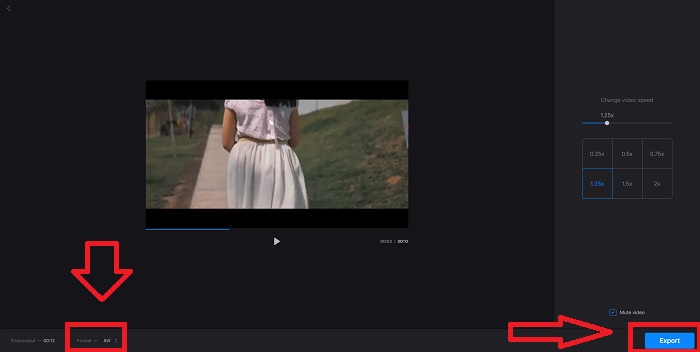
Bước 2: Sau khi tải video lên, hãy chọn tốc độ mong muốn ở góc phải giao diện để áp dụng cho tệp video. Bạn có thể chọn làm video chạy nhanh hơn hoặc làm video chậm hơn so với tốc độ ban đầu của đoạn clip. Bạn cũng có thể chọn tắt toàn bộ tiếng của video.
Bước 3: Nếu bạn đã hài lòng với tốc độ trong video, hãy chọn định dạng phù hợp cho video. Các định dạng có sẵn gồm AVI, 3G2, 3GP, F4V, ASF, FLV và M2TS. Sau đó, nếu mọi thứ đã sẵn sàng để tải lên, hãy xuất tệp bằng cách nhấn Export và nhấn Download để chuyển tệp về máy tính.
Phương pháp 2. Sử dụng Fastreel
Công cụ chỉnh sửa video Fastreel cho phép bạn tạo các đoạn clip ngắn, chỉnh sửa video và sử dụng các mẫu dựng sẵn để quá trình làm việc nhanh hơn và hiệu quả hơn. Một trong những công ty đứng sau dịch vụ này là Movavi, vốn nổi tiếng với phần mềm chỉnh sửa và chuyển đổi video. Vì hoạt động trên mọi trình duyệt – Firefox, Google Chrome, Opera và Safari – nên Fastreel là một lựa chọn thay thế tuyệt vời cho phần mềm máy tính để bàn với cả người dùng Windows và Mac. Tương tự công cụ web đầu tiên, Fastreel có những tính năng giúp bạn tăng tốc video online. Hãy làm theo các bước sau:
Bước 1: Ở giao diện của Fastreel, nhấp vào Use Online Tools để mở toàn bộ các công cụ có sẵn.
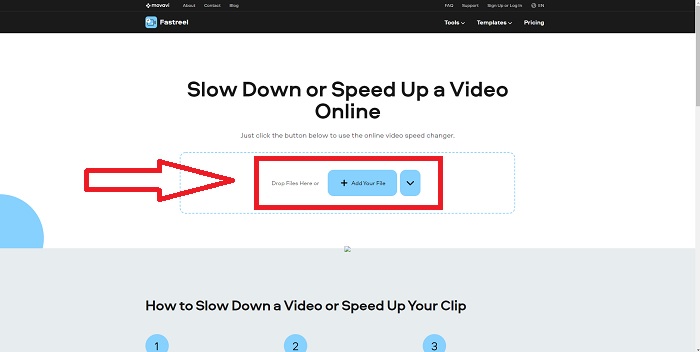
Bước 2: Sau đó, bạn sẽ thấy tổng quan tất cả tính năng của Fastreel. Kéo xuống và tìm mục Effects, rồi nhấp Change Video Speed để bắt đầu chỉnh sửa video. Tiếp tục bằng cách nhấp Add file và chỉnh sửa tiếp.
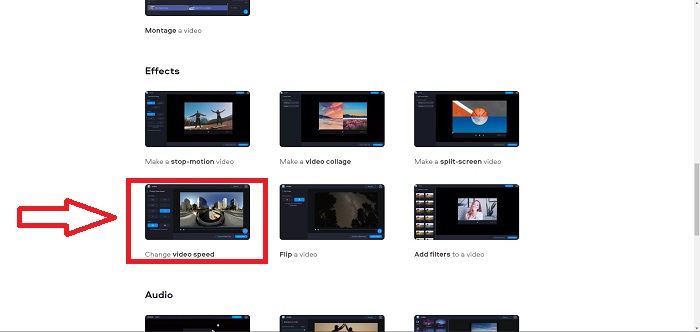
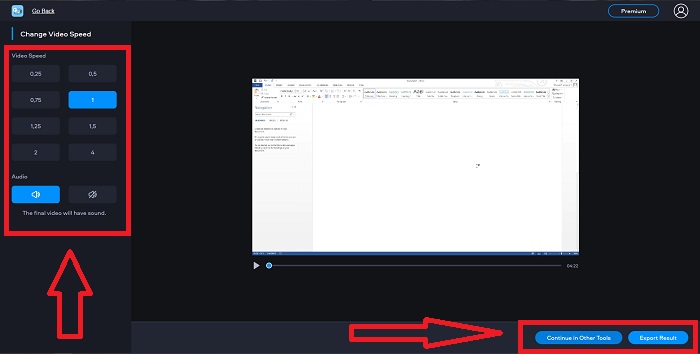
Bước 3: Cuối cùng, điều chỉnh tốc độ phát lại, có thể tăng hoặc giảm. Bạn có thể chọn xuất tệp hoặc dùng thêm công cụ khác của Fastreel. Tuy nhiên, bạn có thể mở khóa toàn bộ tính năng khác nếu nhấp vào Premium.
Phương pháp 3. Sử dụng Flixier
Công cụ web sau đây không giới hạn kích thước tệp khi chỉnh sửa tốc độ phát lại vì nó có thể tăng tốc video dung lượng lớn online. Hãy thử dùng Flixier, trình chỉnh sửa video trực tuyến của chúng tôi cho phép tạo video ngay trong trình duyệt theo cách đơn giản nhất. Thêm chữ và hình ảnh vào video chỉ đơn giản là kéo và thả vào trình biên tập. Bạn không cần tải hoặc cài đặt phần mềm nào để cắt, xén hay crop video chỉ trong vài phút. Bất kể trình độ của bạn, bạn đều có thể nhanh chóng tạo nội dung chất lượng cao. Dưới đây là các bước thực hiện:
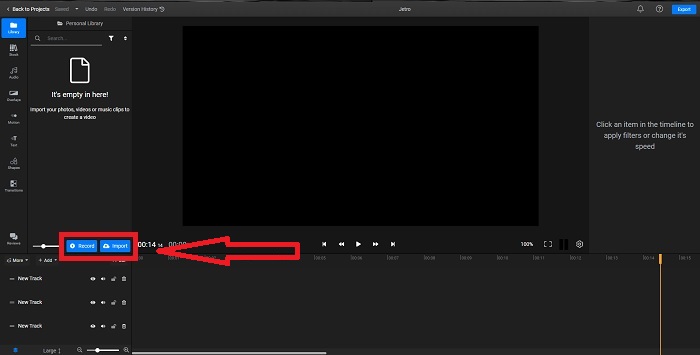
Bước 1: Mở Flixier ở một tab khác và bắt đầu nhập video từ máy tính bằng cách nhấp Import hoặc bắt đầu quay bằng cách nhấp Record. Kéo video đã nhập xuống track và bắt đầu chỉnh sửa.
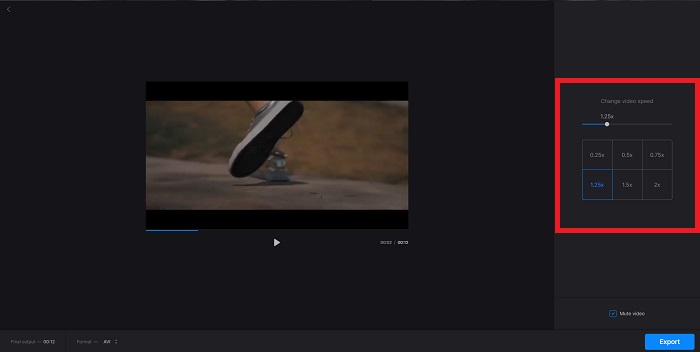
Bước 2: Ở góc phải, bạn sẽ thấy thẻ Video trong các công cụ chỉnh sửa. Kéo xuống và nhấp Video Speed để điều chỉnh tốc độ phát lại của video đã nhập. Chọn giảm hoặc tăng tốc độ video ở mức 0.5x, 1.5x, 2x, hoặc bạn có thể kéo Slider nếu muốn đặt một mức tốc độ phát lại cụ thể cho đoạn clip.
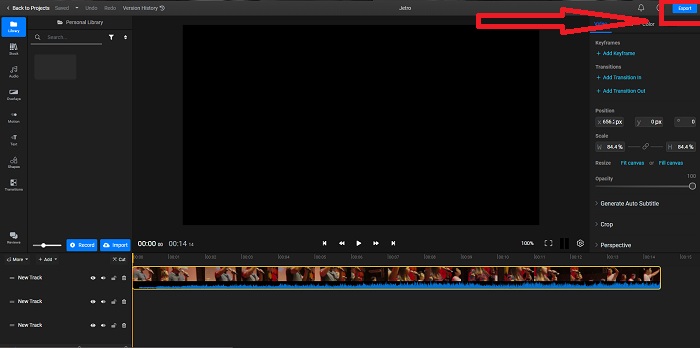
Bước 3: Xuất video bằng cách nhấp nút Export ở góc trên bên phải giao diện. Sau đó, một giao diện khác sẽ xuất hiện. Tại đây, bạn có thể đổi tên tệp xuất và chọn các nền tảng mạng xã hội hoặc dịch vụ lưu trữ đám mây khác nhau.
Phương pháp 4. Sử dụng Video Converter Ultimate - Cách dễ nhất
Nếu bạn đang phân vân giữa việc chọn công cụ tốt nhất để làm video chạy nhanh hơn, không muốn dùng trình chỉnh sửa web online nữa mà chuyển sang phần mềm có thể tải về, hãy thử dùng Video Converter Ultimate để chỉnh sửa video và tùy chỉnh cả tốc độ phát lại.
Bước 1: Nhấp vào tùy chọn Free Download để lưu phần mềm vào ổ cứng máy tính. Sau đó, bạn có thể tùy chỉnh hệ thống bằng cách cài đặt và cấu hình phần mềm.
Tải xuống miễn phí cho Windows 7 trở lên. Tải xuống an toàn.
Tải xuống miễn phí cho MacOS 10.7 trở lên. Tải xuống an toàn.
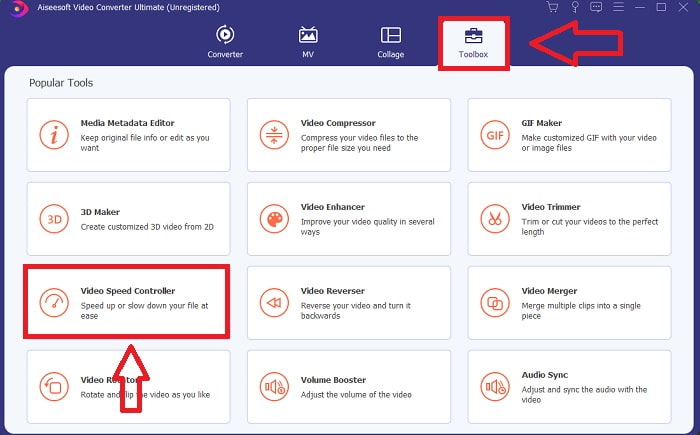
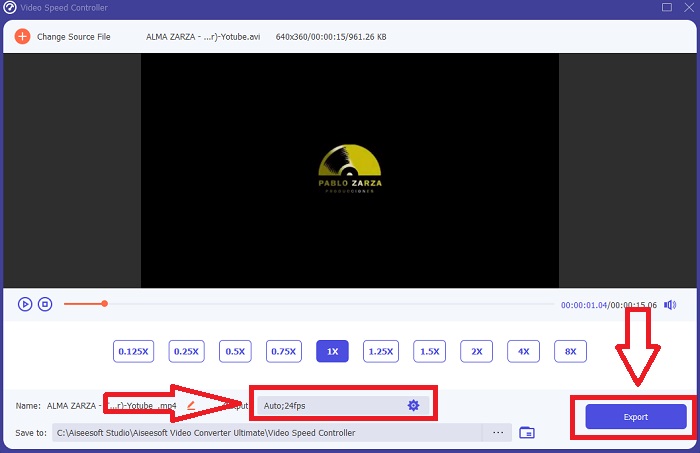
Bước 2: Khi phần mềm đã được cài đặt, hãy chạy nó bằng cách chọn tùy chọn Toolbox từ thanh menu rồi chọn Video Speed Controller từ danh sách hiện ra.
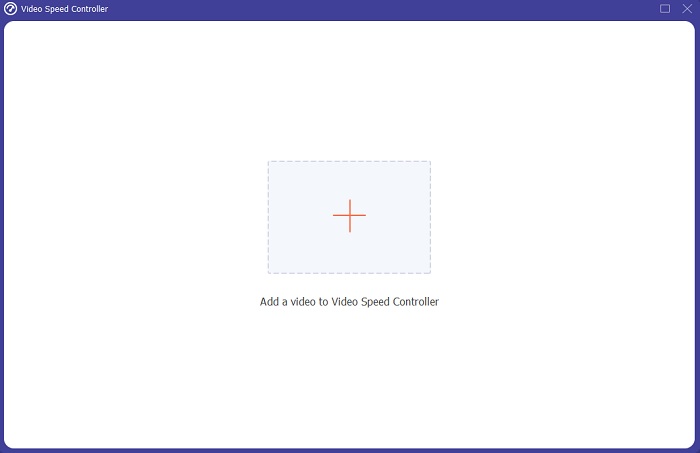
Bước 3: Nhấp nút dấu + theo ý bạn để thêm tệp rồi tiếp tục chỉnh sửa video.
Bước 4: Điều chỉnh tốc độ phát lại bằng cách chọn số lần tăng hoặc giảm tốc độ video.
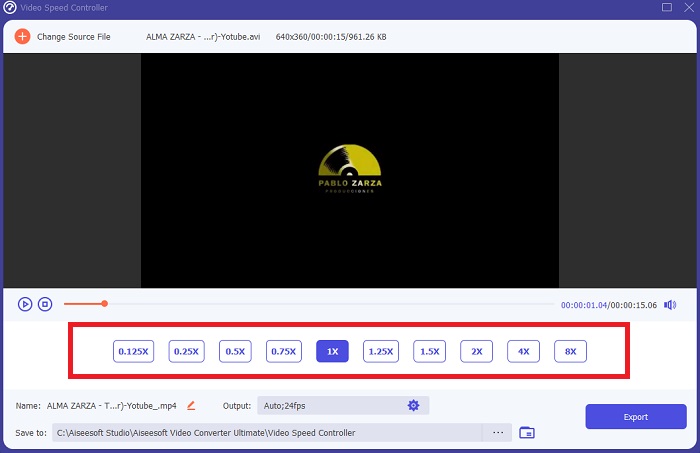
Bước 5: Khi chỉnh sửa xong tốc độ phát lại của video, bạn có thể chọn kiểu đầu ra mong muốn bằng cách chỉnh định dạng, độ phân giải, chất lượng, v.v. Nhấp Export và chọn nơi lưu tệp.
Có liên quan:
Trình phát VOB tốt nhất cho Android
Trình phát video tốt nhất cho iPhone
Phần 2. Câu hỏi thường gặp về Cách tăng tốc độ video trực tuyến
Kích thước tệp của video có trở nên nhỏ hơn nếu bạn tăng tốc độ phát lại không?
Chỉ khung sẽ được chia mỗi khi bạn tăng hoặc giảm tốc độ phát lại video của mình. Nếu bạn tăng nhanh hơn 0,5 lần, khung hình sẽ là 60 khung hình trên 1/120 giây. Tóm lại, nó không thể ảnh hưởng đến video trừ khi video đã có tốc độ khung hình thấp.
Công cụ nào dễ sử dụng hơn để tạo video nhanh hơn?
Tất cả các công cụ đều miễn phí để sử dụng hoặc tải xuống miễn phí. Tuy nhiên, Video Converter Ultimate là giải pháp thay thế tốt nhất cho mọi công cụ web đã được thảo luận trong phần trước của bài viết. Công cụ này cũng có sẵn nhiều tính năng và nó có thể giúp bạn cải thiện video của mình theo những cách dễ tiếp cận nhất có thể.
Công cụ có chấp nhận tất cả các định dạng không?
Không, một số công cụ được cung cấp chỉ có thể hỗ trợ một số định dạng hạn chế. Một số người trong số họ có thể chuyển đổi đầu ra sang định dạng khác. Tuy nhiên, Video Converter Ultimate có thể hỗ trợ nhiều định dạng khác nhau và nó cũng có sẵn cho mọi thiết bị. Nó cũng có thể tăng tốc video mp4 trực tuyến vì hầu hết các trình phát đa phương tiện có thể hỗ trợ định dạng mp4.
Phần kết luận
Tăng tốc video có thể là một ý tưởng kỳ lạ đối với hầu hết mọi người và nó chỉ dẫn đến một số mục đích bất thường. Tuy nhiên, nó vẫn có lợi cho những người muốn có ý tưởng chuyển đổi video của họ một cách nhanh chóng. Bài viết này có thể là một bài viết hữu ích cho những người thành thạo trong việc khám phá cách chỉnh sửa video và trả lời tất cả các câu hỏi về việc tăng tốc video clip.
-
 Cách chuyển đổi tệp MKV sang chơi trên PS3 một cách trơn tru [Đã giải quyết]
 Bạn muốn phát video MKV trên PS3 của mình? Tuy nhiên, PS3 không thể phát trực tiếp các tệp MKV. Bài viết này sẽ hướng dẫn bạn cách chuyển đổi video MKV sang định dạng video hỗ trợ PS3 để phát trên PS3 mà không gặp bất kỳ rắc rối nào.
-
 Đầu phát DVD Android - Cách phát video DVD trên điện thoại di động Android
 Làm thế nào để phát các tệp DVD trên điện thoại di động Android? Có bất kỳ đầu DVD Android nào không? Trong bài viết này, bạn sẽ tìm hiểu về 3 cách để phát video DVD trên điện thoại di động Android có hoặc không có trình điều khiển bên ngoài.
-
 10 trình phát MP4 Android miễn phí tốt nhất để phát video HD / 4K
 Mặc dù điện thoại di động Android có trình phát mặc định để phát video MP4 nhưng chúng không hỗ trợ điều chỉnh cài đặt phát lại và các chức năng khác. Vì vậy, bạn có thể tìm hiểu về 10 trình phát MP4 Android tốt nhất từ bài viết này.
