


 Video Converter Ultimate
 Screen Recorder
 Video Repair
 Secure Download
How to Convert .TS to MP4 on Windows/Mac/Online [10 Ways]
If you've ever tried to watch a .TS file on your favorite media player or stream it on your device, you know it can sometimes be a hassle. The .TS format, while excellent for broadcasting and streaming, isn’t as widely supported for playback on various devices. Converting your .TS files into the more universally accepted. MP4 format can make them more compatible without losing any of the original quality. However, simply changing the file extension from .ts to .mp4 manually usually fails because the internal "container" structure remains different, leading to "File Corrupted" or "No Audio" errors. You need a dedicated converter to remux (re-package) or re-encode the data.
This guide walks you through several ways to convert .TS files into .MP4 - without quality loss - using both online and desktop tools. Whether you’re looking for a quick online solution or a robust desktop converter with advanced features, we've got you covered with step-by-step instructions and expert recommendations.

How We Test and Use
- We have tested all TS video file converter on various computers, including Windows, Mac, and Linux, to assess performance and compatibility across different hardware configurations.
- We have also tested these programs in terms of the intuitiveness of the timeline, format support, and basic and advanced features, including batch conversion, basic editing, high-quality output, and so on.
- We have also assessed the stability and performance, rendering speed, and output quality of these tools.
- We also considered the ease of use, price, and platform availability to provide an overall user experience evaluation.
Quick Selection: 10 Best Methods to Convert TS to MP4
| Method | Platform | Supported Output Quality | Price | Output Video Length Limit | Output Format | Conversion Speed | Other Features | Best For |
| FVC Video Converter Ultimate | Windows, Mac | 4K, 1080p, HD | $14.50 per month | Unlimited | 1000+ media formats, such as MP4, MKV, AVI… | Spend less than 3 seconds processing a 5-min video | Lossless conversion, batch processing, AI video enhancement | High-quality, fast bulk conversion |
| VLC Media Player | Windows, Mac, Linux | Standard HD/Full HD | Free | No limit | MP4, AVI, MKV, and more | Moderate | Free, Open-source, basic editing tools | Basic users, free solution |
| FFmpeg (Advanced) | Windows, Mac, Linux | 4K, 1080p, HD | Free | No limit | MP4, AVI, MOV, MKV, and more | Fast (Command Line) | Open-source, highly customizable, supports many video formats, batch processing | Advanced users, tech-savvy |
| Clipchamp | Windows, Web-based (Browser) | 1080p HD | Free (with premium features) | 30 minutes (free version) | MP4, MOV, AVI, and more | Moderate | Simple interface, built-in editor, cloud-based storage options | Windows users (No install) |
| iMovie | macOS, iOS | 4K, 1080p, HD | Free | No limit (depends on device storage) | MP4, MOV | Moderate | User-friendly interface, basic editing tools, templates, integration with other Apple apps | macOS/iOS users, beginner video editing |
| HandBrake | Windows, Mac, Linux | 4K, 1080p, HD | Free | No limit | MP4, MKV | Moderate | Open-source, highly customizable, batch processing, support for multiple codecs | Users looking for free, high-quality conversion with advanced features |
| FVC Free TS Converter | Windows, Mac | HD, 4K | Free | No limit | MP4, MKV, etc. | Fast | Batch conversion, file compression | Dedicated TS processing |
| FreeConvert | Web-based (Browser) | 1080p, HD | Free (with premium options) | 1GB/Day | MP4, AVI, MOV, and more | Slow | Online service, no software installation needed, supports a variety of formats | Quick online file conversion |
| CloudConvert | Web-based (Browser) | 1080p, HD | Free (with premium options) | 1GB/Day (Free) | 200+ Formats | Moderate | Online service, no software installation needed, supports many file types | Quick online conversion, multi-format support |
| Aiseesoft Online Video Converter | Web-based (Browser) | 1080p, HD | Free | Limited (process up to 100MB 15-min video) | Support 20+ media formats | Spend 1.5 min processing a 5-min video | Advanced trimming, export the audio track | Export short video or audio without quality loss online |
How to Convert .TS to .MP4 on Windows/Mac
FVC Video Converter Ultimate (Best for Lossless & Speed)
FVC Video Converter Ultimate is a heavy-duty desktop application designed for high-speed batch conversion. It uses hardware acceleration (AI-powered) to process large 4K/8K TS files without crashing or losing quality. In addition to basic conversion, it also supports AI video enhancement (especially when your converted TS file is blurry, AI vocal isolation, and more tools.) Below are the steps to convert a.TS file to an .MP4 in FVC Video Converter Ultimate.
Step 1. Download and install FVC Video Converter Ultimate.
Free DownloadFor Windows 7 or laterSecure Download
Free DownloadFor MacOS 10.7 or laterSecure Download
Step 2. Click "Add Files" to add your TS file.

Step 3. Choose "MP4" under the "Video" tab
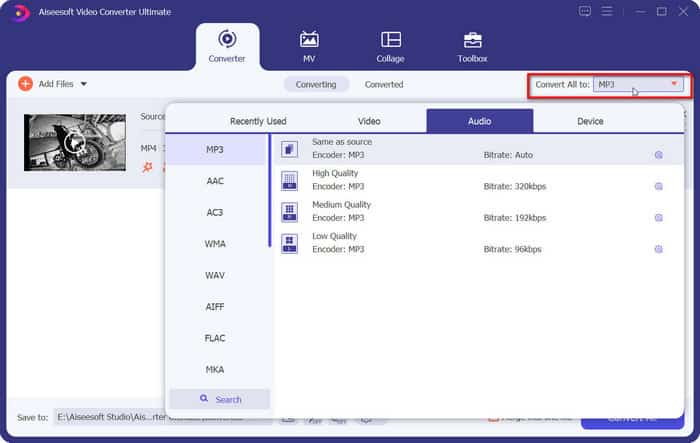
Step 4. Click "Convert All" to export your video after adjusting its settings, save folder, etc. You can also check the "Merge into one file" box to combine multiple videos.

Editor's Verdict: FVC Video Converter Ultimate is ideal for users who need fast, high-quality conversions. It stands out for its lossless quality and hardware acceleration, making it the best option for professional use or for users with large files. If you want to remux instead of transcode the video, just enable the "120× Faster Conversion" option.
VLC Media Player (The Free Utility)
VLC Media Player is a widely-used, free, open-source media player that can also handle basic video conversions, including .TS to .MP4. While it’s not the fastest or most advanced tool for conversions, it’s a convenient option for those looking for a free and straightforward solution.
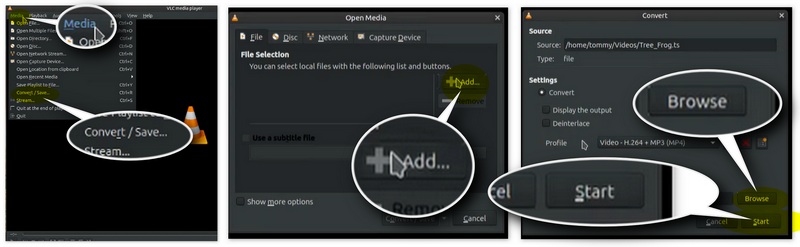
Step 1. Go to "Media" > "Convert/Save".
Step 2. Click "Add" to load your TS file, then click "Convert/Save".
Step 3. Select "Video - H.264 + MP3 (MP4)" from the "Profile" dropdown.
Step 4. Set a destination folder by clicking "Browse" and hit "Start".
Editor's Verdict: VLC is a great free option for basic .TS to .MP4 conversion. However, it lacks advanced customization and speed, and conversion times can be slower compared to dedicated converters. It’s best for simple tasks but may not meet the needs of professional video editors.
FFmpeg (The Technical Pro Choice)
FFmpeg is a command-line tool favored by professionals and tech-savvy users. It provides full control over video and audio conversions, making it ideal for users with specific needs. FFmpeg supports high-quality, lossless conversion, and is perfect for batch processing large files.
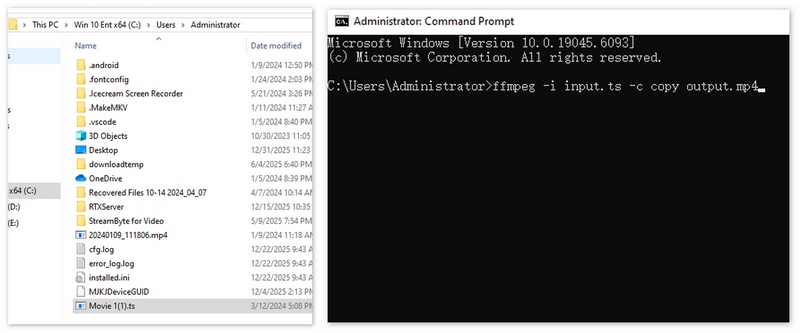
Step 1. If you have FFmpeg installed on your computer, you can open "Terminal" or "Command Prompt".
Step 2. Place the ts video in the directory showed in Command Prompt. Type: ffmpeg -i input.ts -c copy output.mp4
Note: the "input.ts" is your file name.
Step 3. Press "Enter".
Editor's Verdict: Very user-friendly, but it will re-encode the video, which takes time and might slightly alter the original file's metadata. The fastest and only 100% lossless method. Because it uses -c copy, it finishes in seconds. Best for those comfortable with code. However, it requires technical knowledge of command-line operations. For users comfortable with its interface, it’s unmatched in versatility and power.
Clipchamp (Windows Native)
Clipchamp is a native Windows application that provides a user-friendly interface for video editing and conversion. It supports .TS to .MP4 conversion and allows basic video editing before conversion. This tool is suitable for Windows users who need a simple and quick solution.
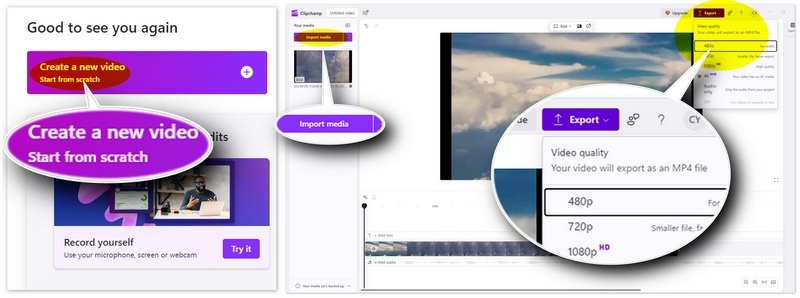
Step 1. Open Clipchamp and click "Create a new video".
Step 2. Click "Import media" to import your TS file and drag it to the timeline.
Step 3. Click "Export" and select "1080p". Your video will auto-save as MP4.
Editor's Verdict: It’s not as feature-packed as professional converters, but it’s excellent for basic needs. It is very user-friendly, but it will re-encode the video, which takes time and might slightly alter the original file's metadata.
iMovie (Mac Native)
iMovie is Apple’s pre-installed video editor. It’s highly optimized for macOS hardware. It’s easy to use and provides basic video conversion and editing features. While iMovie doesn’t offer advanced options like lossless conversion, it’s an excellent choice for Mac users looking for a free, no-fuss solution.
Step 1. Open iMovie and start a new project by clicking "Create New" > "Import Media".
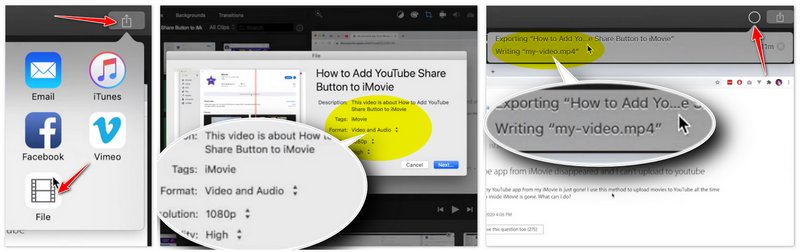
Step 2. On the top-right corner, click the "Share" button.
Step 3. Click "File".
Step 4. Set the "Resolution" to "720p" and "Quality" to "High".
Step 5. Click "Next" to name your file and click "Save". Now, you will find your file’s extension named MP4.
Editor's Verdict: Excellent for Mac users, though iMovie can be picky about certain TS codecs (you may need to "Prepare for Media" first). The process is not easy for new beginners.
HandBrake (Open Source Compression)
HandBrake is an open-source video transcoder that works well for .TS to .MP4 conversion. Known for its compression capabilities, it allows users to convert videos into smaller sizes without compromising much on quality. It is the go-to tool if your TS file is too big and you want to shrink it while keeping it HD.
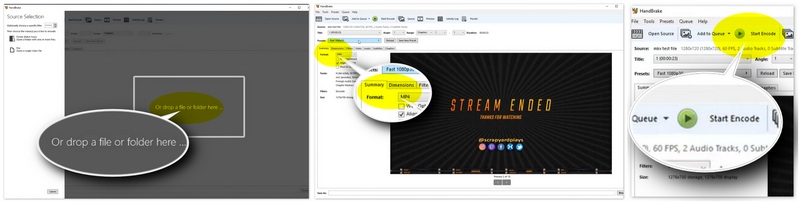
Step 1. Open HandBrake and drop your TS file in.
Step 2. In the "Summary" tab, ensure the format is "MP4". You can also adjust its dimensions, video quality, audio & subtitle & chapters settings.
Step 3. Click "Start Encode".
Editor's Verdict: Best for compressing TS. It provides more granular control over bitrates than any other free tool.
FVC Free TS Converter (Desktop)
FVC Free TS Converter is a free desktop tool specifically designed for converting .TS files to .MP4. While it’s straightforward and simple to use, it doesn’t offer advanced features, making it best for users who need a basic solution.

Free TS Converter
30000+ Downloads- Convert TS to videos in MP4, MKV, AVI, MOV, MP3, AAC, AIFF, etc.
- Export HD MP4 videos and lossless audio file from TS file in 1-click.
- Allow users to edit words, title, author, time to make video perfect.
- The converted file can be played on players, iPhone, Samsumg, PSP, etc.
Free DownloadFor Windows 7 or laterSecure Download
Free DownloadFor MacOS 10.7 or laterSecure Download
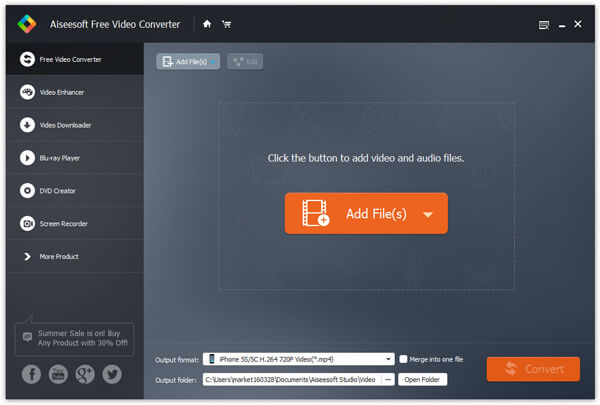
Step 1. After you download FVC Free Video Converter, run and install it on your computer. Click Add File(s) button in the main interface to import TS file into the program. This free tool supports batch conversion, so you can add more than one TS file for converting.
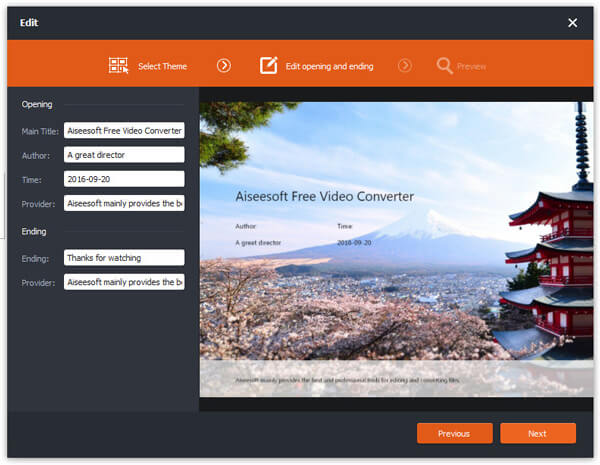
Step 2. You can customize the video by clicking Edit button to add opening and ending theme and title to your video. Then, click Next to move on.
Step 3. Click the dropdown button of Output format and select MP4 file format. After that, click Convert button to convert TS file to MP4.
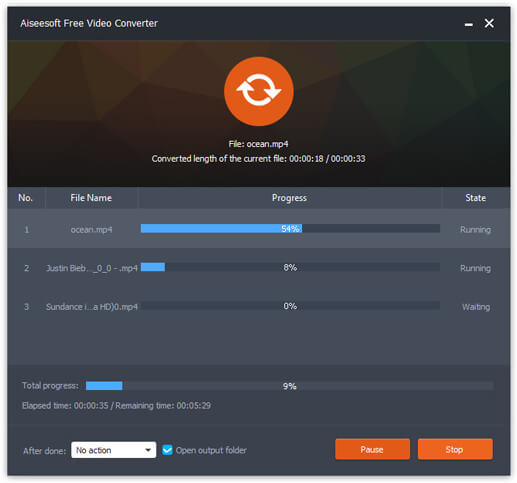
Editor's Verdict: Excellent if you want a simple, clean interface without the complexity of HandBrake or the cost of pro suites.
How to Convert TS to MP4 Online
FreeConvert (Online – Small Files)
FreeConvert is an online tool that provides simple, no-installation-needed conversions. It works well for smaller files and supports a wide variety of formats, including .TS to .MP4. It’s a great option when you need a quick conversion without worrying about software installation.
Step 1. Click "Choose Files" to upload your TS file to the website.
Step 2. Select "MP4" as the target format. Click the gear icon to adjust the advanced settings like resize parameters, frame rate, rotating angle, subtitle settings, and more.
Step 3. Click "Convert" and download when ready.
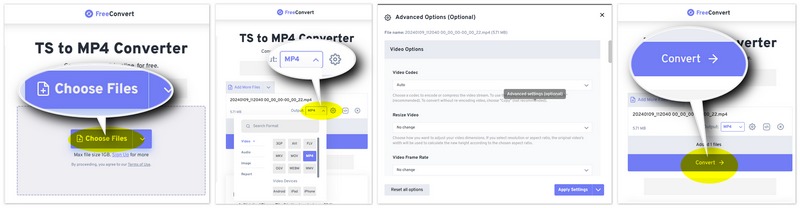
Editor's Verdict: Highly convenient but limited by a 50MB file cap for free users. Only use this for very short clips. One of its highlights is that you can adjust the fading in and out of the audio tracks in the video.
CloudConvert (Online – Professional)
CloudConvert is a professional online tool that supports high-quality file conversions, including .TS to .MP4. It offers more options than Zamzar, and its free version has a higher file size limit, but it’s still geared towards users who need a reliable, online conversion solution.
Step 1. Open CloudConvert’s TS to MP4 Converter and click "Select File" to add your file.
Step 2. You can also edit the resolution, video codec, CRF, audio settings, trimming, subtitles, add a watermark accordingly. Set the output to "MP4".
Step 3. Click "Convert" and wait for the download link.
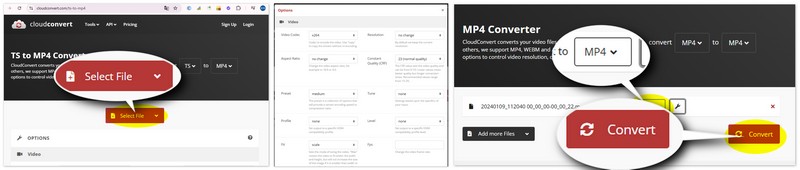
Editor's Verdict: More powerful than ordinary online converter, offering up to 1GB per day for free. It’s the best online choice for privacy and options.
Aiseesoft Online Video Converter (Free and Export Video & Audio)
Aiseesoft Online Video Converter is a free tool that provides fast online conversion for .TS files to .MP4. It’s a great option for users who want an easy-to-use online solution with the option to convert both video and audio.
Step 1. Click "Add a File" on the site: aiseesoft.com/free-online-video-converter/.
Step 2. Select your TS file and choose "MP4" from the "Format" drop-down menu.
Step 3. Choose your encoder, resolution, quality, anc click "Convert".
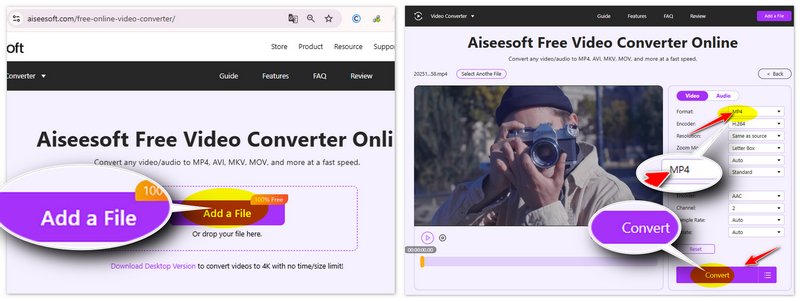
Editor's Verdict: The best "Online" option for TS-to-audio conversion. It allows you convert 10 files per day.
FAQs about TS to MP4 Conversion
Why is my TS file so much larger than the MP4?
TS files contain extra data for error correction during broadcast. Converting to MP4 removes this "filler" data without losing quality.
Can I convert TS to MP4 without re-encoding?
Yes, using FFmpeg's "copy" command or Shutter Encoder's "Rewrap" function. If you want a more convenient option, just choose FVC Video Converter Ultimate and enable the "120× Faster Conversion" option, which will remux as MP4 without really encoding it.
Why is there no sound after TS to MP4 conversion?
TS files often use AC3 audio. Ensure your converter is set to "AAC" or "MP3" audio for maximum MP4 compatibility.
Conclusion
Finding the right way to convert .ts to .mp4 depends on your priority: speed, quality, or convenience. HandBrake is ideal for compressing bulky files, while VLC and FVC Free TS Converter provide reliable, no-cost solutions for Windows and Mac. For small files or quick fixes, Aiseesoft Online and CloudConvert offer the most flexible browser-based experiences without the need for installation. For tech-savvy users, FFmpeg offers the fastest "remuxing" without re-encoding. FVC Video Converter Ultimate is the premier choice for handling large 4K recordings with hardware acceleration.
-
 6 Easy Ways to Convert TS to AVI/MKV/MOV/WMV on Windows/Mac
 Want to convert TS files to AVI/MKV/MOV/WMV quickly? This article shows online and offline video converters with complete guide. Maybe you can get the best free TS converter here.
-
 How to Convert TS File to MP3, AIFF, ALAC, FLAC and More Audio Formats on Windows/Mac
 How to convert TS file to MP3 for free? In this guide, you will find 11 easy ways to extract audio from TS file with TS to audio freeware and online converter tools.
-
 How to Convert MXF to MP4 via Free Converter
 This post is the detailed guide to convert MXF to MP4 on computer. You can get 4 free MXF to MP4 converters to transcode camcorder MXF to MP4 in simple steps.
