


 محول الفيديو النهائي
 مسجل الشاشة
 إصلاح الفيديو
4 طرق لتحرير أو إصلاح البيانات الوصفية MP3 على نظامي التشغيل Windows و Mac
الجميع هو Musicphile ، مما يعني أننا نحب الموسيقى لأنها تساعدنا على الشعور بمشاعر المطربين والكتاب على الرغم من أننا لا نراهم بصريًا. من خلال الموسيقى ، يمكن للجميع البقاء على اتصال ، ويمكن أن يساعدنا في تخفيف التوتر ، وتحسين معدل الذكاء لدينا ، وأن نكون منتجين كل يوم. معظم الموسيقى بتنسيق MP3 لأنها حاوية الصوت القياسية لها. على الرغم من أنه يمكنك تشغيل MP3 على جهازك ، فلن تقوم بتشغيل الترتيب الصحيح بشكل صحيح إذا كانت البيانات الوصفية خاطئة. لا يمكنك ضبط الحالة المزاجية الصحيحة إذا كانت مكتبة الموسيقى الخاصة بك في حالة من الفوضى ، فماذا يجب أن تفعل؟ لماذا لا تحاول إصلاح العلامات لترتيبها بشكل صحيح؟ إذا كنت تريد معرفة كيفية تحرير بيانات تعريف MP3 على نظامي التشغيل Windows و Mac ، فهذه هي المقالة المناسبة لك ، حيث نعرض أربع طرق مختلفة يمكنك استخدامها.

الجزء 1. أفضل طريقة لإصلاح أو تحرير البيانات الوصفية MP3 على نظامي التشغيل Windows و macOS [مستحسن]
لقد خطا برنامج FVC Video Converter Ultimate بالفعل خطوة نحو أن يكون واحدًا من أفضل البرامج لإصلاح وسوم ملفات MP3 على نظامي ويندوز وماك. يدعم هذا البرنامج رفع ملفات MP3 وWAV وWMA وAAC والعديد من صيغ الصوت الأخرى لإصلاح المشكلة نفسها المتعلقة بالبيانات الوصفية. كما يمكنه أيضًا إزالة البيانات الوصفية المخفية التي لا يمكنك الوصول إليها باستخدام برامج تحرير الوسوم الأخرى.
ليس ذلك فحسب ، بل يمكنه تحويل MP3 إلى تنسيق صوتي آخر إذا أردت ، كما أنه يوفر الكثير من الوظائف والميزات الموجودة داخل Toolbox ؛ يمكنك التحقق منها إذا قمت بتنزيله. في غضون دقائق ، يمكنك جعل هذا البرنامج يعمل على حل المشكلة بأسرع ما يمكن. لست متأكدا ما إذا كان هذا صحيحا؟ لحسن الحظ ، سيعلمك البرنامج التعليمي المكتوب أدناه كيفية تحرير البيانات الوصفية بتنسيق MP3 لإثبات أنه يمكنك القيام بذلك بسرعة ، كما نقول.
الخطوة 1. انقر زر التنزيل أدناه، ثم اختر أيًّا من نظامي التشغيل تستخدم حاليًا. بعد تنزيله ثبِّته بسرعة، ثم افتح الأداة وانتقل إلى الخطوة التالية.
تحميل مجانيلنظام Windows 7 أو أحدثتنزيل آمن
تحميل مجانيلنظام MacOS 10.7 أو أحدثتنزيل آمن
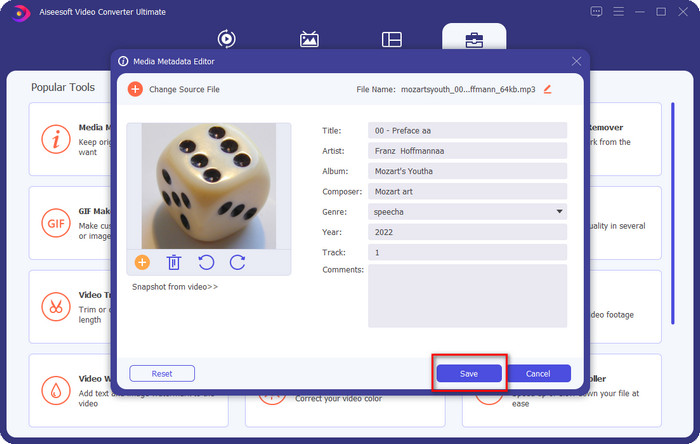
الخطوة 2. اختر Toolbox ومن تحتها انقر على Media Metadata Editor. كما ذكرنا في المقدمة، هناك وظائف متعددة يمكنك استخدامها داخل قسم Toolbox لا يوفرها المحررون الآخرون.
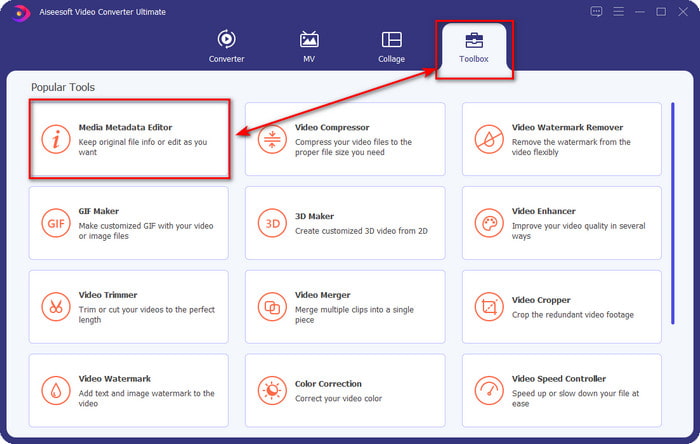
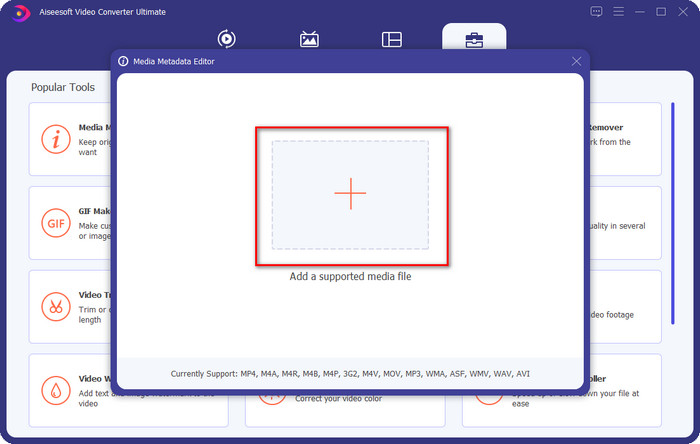
الخطوة 3. ستظهر نافذة صغيرة على شاشتك؛ انقر على أيقونة +. حدِّد ملف الصوت أو ملف MP3 من المجلد الذي سيظهر على الشاشة، ثم انقر على الملف واضغط Open لرفعه.
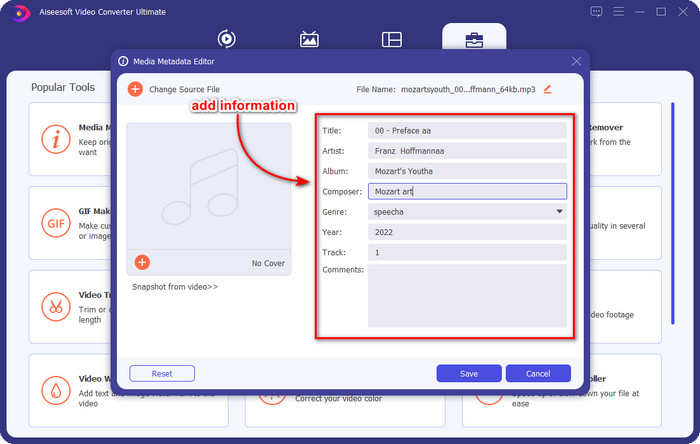
الخطوة 4. عدِّل البيانات الوصفية وأصلحها حسب احتياجاتك؛ انقر على كل مربع نص لإضافة المعلومات.
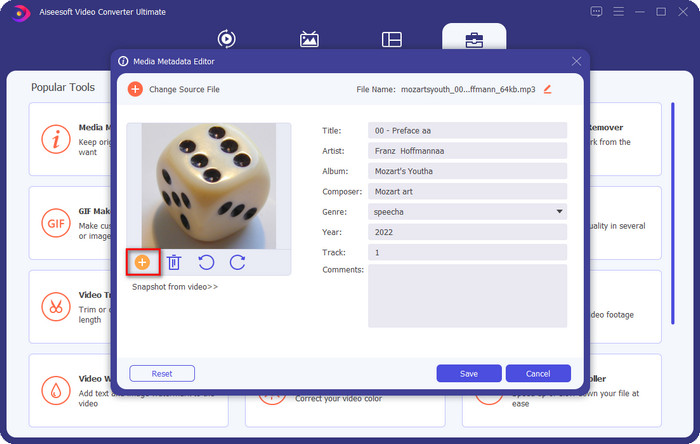
اختياري. باستخدام هذه الأداة يمكنك أيضًا إضافة أو إصلاح بيانات صورة غلاف ألبوم MP3 في ملف MP3 الخاص بك من خلال النقر على أيقونة +، ثم اختر الصورة التي تريد استخدامها كغلاف من المجلد، وانقر Open للمتابعة.
الخطوة 5. إذا انتهيت من إضافة وإصلاح البيانات الوصفية لملف MP3، فاضغط زر Save لحفظ التغييرات التي أجريتها على ملف الصوت. وهكذا تكون قد أصلحت وسوم الصوت بسهولة بمساعدة هذه الأداة الاحترافية.
الجزء 2. 3 طرق مجانية لتغيير علامات MP3 على سطح المكتب
اي تيونز
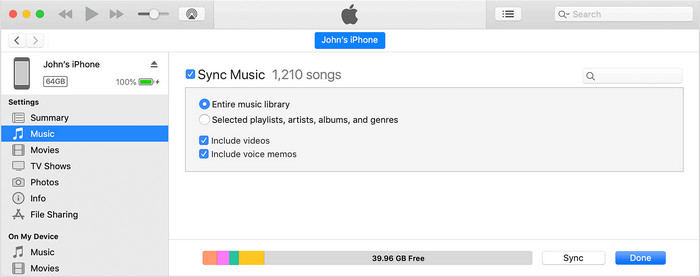
يُعد iTunes برنامجًا مدمجًا يمكنه مساعدتك في تعديل وسوم MP3 على نظام macOS X. يؤدي نفس وظيفة Groove Music فيما يتعلق بتحرير البيانات الوصفية لملف الصوت. لكن مع هذه الأداة يمكنك شراء الموسيقى وتشغيلها هنا بسهولة وسرعة. بالإضافة إلى ذلك، تأتي الموسيقى التي يتم تنزيلها من هذا التطبيق مع وسوم جاهزة، وإذا كانت الموسيقى التي نزّلتها لا تحتوي على وسوم، يمكنك استخدامه لإضافة الوسوم. اتبع الخطوات أدناه لمعرفة كيفية القيام بذلك.
الخطوة 1. افتح iTunes على جهاز الماك.
الخطوة 2. انقر على ملف الصوت واختر Get Info.
الخطوة 3. أصلح الوسوم ثم انقر OK لحفظ التغييرات.
MP3
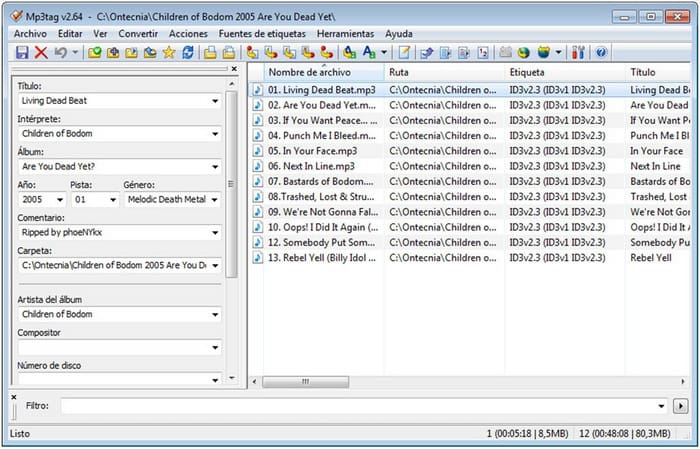
يُعد MP3 Tag أداة مخصّصة ومن أفضل أدوات إصلاح وسوم MP3 التي يمكنك تنزيلها على نظام ويندوز. باستخدام هذه الأداة يمكنك الوصول تلقائيًا إلى قاعدة بيانات الموسيقى للحصول على البيانات الوصفية الصحيحة. ورغم أن الأداة لا تشبه البرامج المدمجة الأخرى، فإنه لا يزال بإمكاننا القول إنه من الممكن تعديل البيانات الوصفية بمساعدتها مع عدد جيد من الصيغ المدعومة. إذا كنت تريد تنزيل هذه الأداة واستخدامها، فاتبع الخطوات أدناه.
الخطوة 1. نزّل البرنامج على جهاز الكمبيوتر وافتحه.
الخطوة 2. اسحب وأفلِت ملف MP3 في المنتصف، ثم انقر على ملف الصوت، وعلى الجهة اليسرى يمكنك تعديل الوسوم.
الخطوة 3. لحفظ التعديلات التي أجريتها، انقر على أيقونة save.
موسيقى Groove
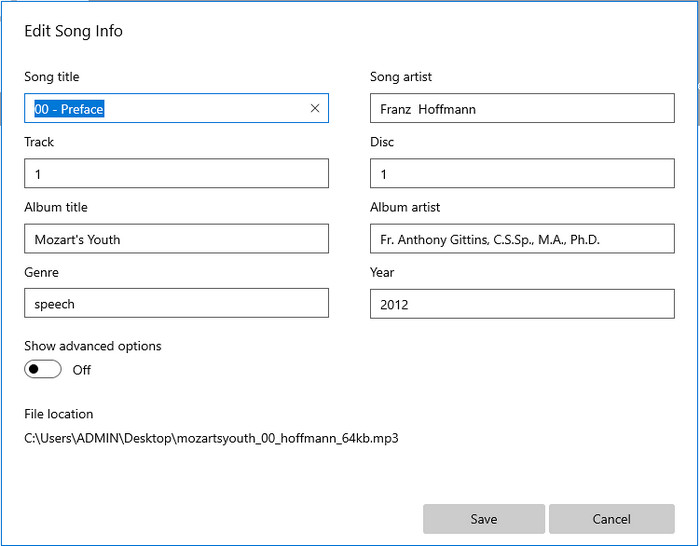
افترض أنه لا توجد لديك مساحة كافية على القرص. هل من الممكن تعلّم كيفية تعديل وسوم MP3 على ويندوز 10؟ هنا يأتي دور Groove Music لمساعدة مستخدمي ويندوز على تغيير الوسوم في ملفاتهم الصوتية. باستخدام هذه الأداة يمكنك تشغيل تقريبًا أي ملف صوتي محفوظ على القرص بسهولة. إذا كنت ترغب في معرفة كيفية استخدام هذا التطبيق المدمج، فاتبع الخطوات أدناه.
الخطوة 1. انقر على أيقونة windows على الشاشة واكتب Groove Music لفتحه. بعد النقر عليه سيبدأ البرنامج بإعداده تلقائيًا.
الخطوة 2. اضغط بزر الفأرة الأيمن على ملف الصوت ثم انتقل إلى Edit Info.
الخطوة 3. غيِّر بيانات Edit Song Info الوصفية ثم انقر Save عند الانتهاء.
الجزء 3. أسئلة وأجوبة حول تحرير البيانات الوصفية على MP3
هل من الآمن تحرير البيانات الوصفية MP3 عبر الإنترنت؟
حسنًا ، نعم ، يمكنك تحرير البيانات الوصفية على MP3 عبر الإنترنت إذا كنت تريد ذلك. لكن تذكر أن هناك مواقع ويب بها شبكة غير آمنة ، لذا يعد تسجيل الدخول قرارًا سيئًا ستتخذه. لذلك ، لتجنب هذا ، يجب عليك استخدام الأدوات التي قدمناها أعلاه لإصلاح البيانات الوصفية mp3 الخاصة بك بأمان.
هل البيانات الوصفية مهمة؟
بالتأكيد نعم. تلعب البيانات الوصفية دورًا مهمًا في كل ملف وسائط نمتلكه. فمن خلالها يمكنك بسهولة تحديد ما يوجد داخل الملف، مثل الموقع والوقت والتاريخ والمعلومات وغير ذلك. علاوة على ذلك، فإن المعلومات التي أضفناها هنا هي مجرد أفكار بسيطة عن البيانات الوصفية، وإذا أردت معرفة المزيد عنها، فينبغي عليك النقر على هذا الرابط وقراءة مقال ما هي البيانات الوصفية.
هل يمكنني عرض البيانات الوصفية على MP3 الخاص بي؟
بكل تأكيد يمكنك ذلك، وإذا كنت لا تعرف كيفية عرض البيانات الوصفية، فيمكنك قراءة هذا المقال واتباع الخطوات الموضَّحة لمعرفة الطريقة الصحيحة لعرضها.
خاتمة
بالفعل، أصبحت أفضل أربع أدوات لإصلاح وسوم .mp3 في متناول يدك الآن، ما يعني أنه يمكنك اختيار الأداة التي تناسبك. وبالاستفادة من المعلومات الدقيقة التي قدّمناها في هذا المقال أصبح بإمكاننا بسهولة تعديل أو إصلاح الوسوم في ملفات MP3 الخاصة بنا. ورغم أن الطرق التي طرحناها تُعتبر الأفضل، فإننا ما زلنا نفضّل FVC Video Converter Ultimate على الأدوات المدمجة والتطبيقات الخارجية الأخرى، لأن هذه الأداة توفّر أكثر إمكانات تحرير الوسوم تقدمًا وقوة مع أقل جهد ممكن. لذا، إذا أردت الحصول على الأداة، يمكنك النقر على زر التنزيل واتباع الخطوات التي كتبناها أعلاه.
-
 5 من أفضل برامج تحرير البيانات الوصفية MP4 [مُحدَّثة في 2022]
 كيف يمكنني تغيير بيانات MP4 الوصفية؟ أفضل طريقة لتغيير البيانات الوصفية الخاصة بـ MP4 هي استخدام محرر العلامات الذي يدعم تنسيق MP4 مثل النموذج الذي ندرجه أدناه.
-
 أفضل 5 مستخدمين يختارون محرري علامات الفيديو AVI لعام 2022
 ما هو أفضل محرر علامات AVI يمكنني استخدامه؟ إن سوق برامج تحرير العلامات لملفات AVI واسع جدًا. لذلك سنقدم اليوم أفضل خمسة محررين تم اختيارهم في عام 2022.
-
 4 محررات بيانات وصفية فعالة MKV لنظامي التشغيل Windows و macOS
 لا يمكنني العثور على محرر بيانات تعريف MKV في السوق. ماذا علي أن أستخدم؟ هل تواجه نفس المشكلة؟ إذا كان الأمر كذلك ، فاستمر في قراءة هذه المدونة لمعرفة الأدوات التي يجب استخدامها.
