


 محول الفيديو النهائي
 مسجل الشاشة
 إصلاح الفيديو
 تنزيل آمن
4 أسهل طرق لتغيير تشغيل سرعة الفيديو على سطح المكتب والويب والهواتف
يجد معظم المستخدمين طريقة فعّالة لمشاهدة فيديو مدته ساعة في وقت أقل من ساعة. الحل الوحيد الذي يمكنه حل هذه المشكلة هو تغيير سرعة تشغيل الفيديو الذي تشاهده حاليًا. أغلب برامج تحرير الفيديو المتوفرة في السوق يمكنها مساعدتك على إتمام هذه المهمة، لكن السؤال هو: هل هي موثوقة؟ أثناء بحثنا عنها، اكتشفنا أنه يمكنك تغيير سرعة الفيديو على أجهزة سطح المكتب، وعبر الإنترنت، وعلى أجهزة iOS و Android. إذا كنت تريد معرفة كيفية القيام بذلك، فعليك متابعة قراءة هذه المقالة، إذ نعرض فيها أدوات وتطبيقات يمكن أن تساعدك.

الجزء 1. أفضل طريقة موصى بها لتغيير سرعة الفيديو على نظامي التشغيل Windows و Mac بسهولة
حتى تغيّر سرعة الفيديو بسهولة، يجب أن تختار أفضل أداة توفّر لك نتائج رائعة ببضع نقرات بسيطة فقط—نقدّم لك FVC Video Converter Ultimate. يتيح لك هذا البرنامج التحكم بسرعة الفيديو الذي لديك بفعالية في أي وقت وأي مكان. كما يمكنك تغيير سرعة الفيديو حتى لو كانت الصيغة MP4 أو MOV أو AVI أو FLV أو TS أو RMVB أو أكثر من 1000 صيغة أخرى؛ رفع ملفك هنا سريع وسهل. سواء كنت مستخدمًا لنظام Windows أو Mac، فإن تنزيل البرنامج على هذا النظام يساعدك على إكمال مهمة تغيير سرعة التشغيل في بضع نقرات.
إلى جانب وظيفة التحكم في سرعة الفيديو ، تحتوي الأداة أيضًا بفخر على صندوق أدوات متعدد الوظائف يمكن أن يساعد في المهام الأخرى. مثل إضافة البيانات الوصفية وإنشاء ملف GIF وإزالة العلامات المائية وغير ذلك الكثير. على الرغم من أن الأداة قابلة للتنزيل ، إلا أنك ستلاحظ أثناء استخدامها أنك لن تحتاج إلى الكثير من الخبرة في التحرير ، لأنها سهلة الاستخدام. هناك وظائف وميزات لم نكتبها بعد والتي ستسلط الضوء على هذا المنتج. ولكن إذا كنت تريد معرفة كيفية تغيير سرعة مقطع فيديو ، فاقرأ التفاصيل لمعرفة كيفية القيام بذلك.
مزايا استخدام برنامج Ultimate كمغير سرعة فيديو:
◆ واجهة سهلة الاستخدام ، حتى يتعلموا كيفية استخدامها في بضع دقائق.
◆ قم بتحميل أكثر من 1000 مقطع فيديو لتسريع التشغيل.
◆ سهل الاستخدام لمساعدة المستخدمين على تجربة أكثر ما يكون.
◆ توجد وظائف أخرى في Toolbox ، مثل تحرير الفيديو الأساسي والمتقدم.
◆ إنه الخيار الأول لما يقرب من مليون مستخدم يقومون بتنزيله.
◆ متوفر على نظامي التشغيل Windows و Mac لتنزيل الأداة بسهولة.
خطوات كيفية تغيير سرعة الفيديو باستخدام برنامج Ultimate:
الخطوة 1. يمكنك الحصول على هذا البرنامج الاحترافي على كلٍّ من نظامي Windows و Mac من خلال النقر على زر التنزيل. أكمل عملية التثبيت بعد النقر على الملف الذي قمت بتنزيله، ثم شغّل البرنامج للمتابعة.
تحميل مجانيلنظام Windows 7 أو أحدثتنزيل آمن
تحميل مجانيلنظام MacOS 10.7 أو أحدثتنزيل آمن
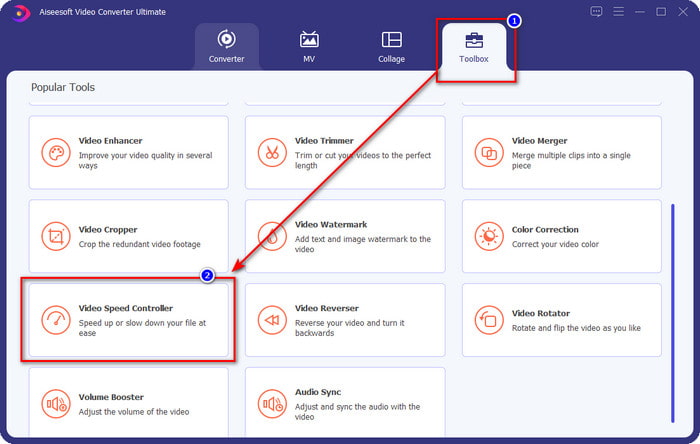
الخطوة 2. بعد فتح البرنامج، انتقل إلى قسم الأدوات (Toolbox)، ومنه افتح أداة Video Speed Controller. لا داعي للقلق؛ فلن تحتاج إلى تنزيل موارد إضافية لاستخدام هذه الأداة.
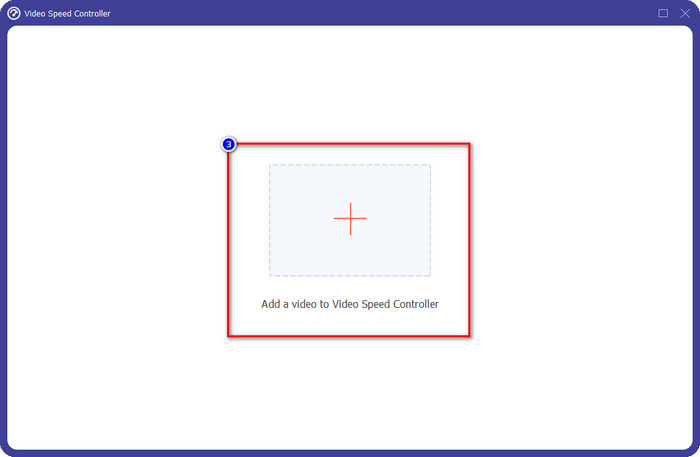
الخطوة 3. اضغط على أيقونة +، ثم أضف الملف الذي لديك من المجلد، وانقر عليه ثم اضغط على Open لرفع ملف الفيديو الذي تملكه.
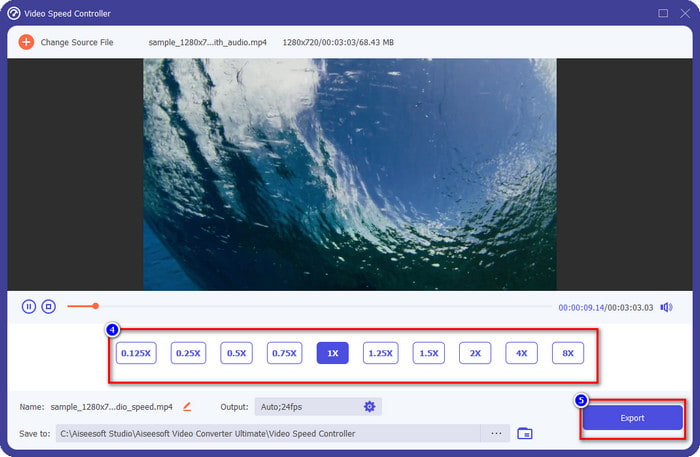
الخطوة 4. اختر من القائمة سرعة التشغيل التي تريد الوصول إليها، فلدينا سرعات تشغيل مختلفة يمكننا اختيارها. انقر على Export لحفظ النتيجة النهائية للفيديو الذي قمت بتغيير سرعته. في أقل من دقيقة، ستكون قد غيّرت بالفعل سرعة الفيديو الذي لديك. يمكنك الآن الاستمتاع بمشاهدته في وقت أقل.
الجزء 2. أفضل طريقة مجانية لتغيير سرعة الفيديو على الويب
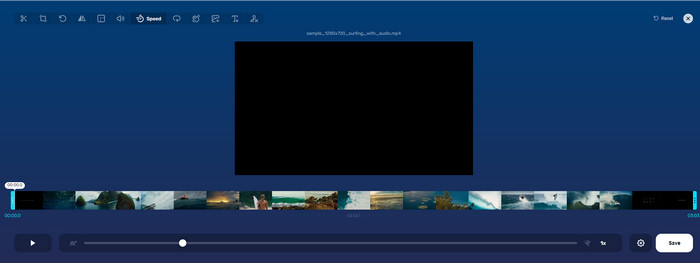
بمساعدة أداة Online Video Cutter، يمكنك تغيير سرعة الفيديو عبر الإنترنت مجانًا. على عكس الأداة الأولى، لن تحتاج إلى تنزيل موارد إضافية أو مثبت على جهازك المكتبي لاستخدام هذه الأداة على الويب. بالإضافة إلى وظيفة تغيير السرعة، يمكنك أيضًا استخدام هذه الأداة لإجراء بعض عمليات التحرير الأساسية. ومع أن الأداة جيدة، إلا أنه لا يمكنك رفع جميع الصيغ التي لديك هنا، لأن الصيغ المدعومة محدودة. لاستخدامها، اتبع الخطوات أدناه.
الخطوة 1. افتح المتصفح الذي تريد استخدامه وابحث عن أداة الويب.
الخطوة 2. افتح أداة الويب، انقر على Open File، ثم ابحث عن ملف الفيديو الذي لديك وقم برفعه.
الخطوة 3. اسحب شُرَيط التمرير (sliders) إلى اليسار أو اليمين لتغيير السرعة، ثم انقر على زر الحفظ Save إذا كنت راضيًا عن السرعة.
الجزء 3. أفضل محرر فيديو على iOS لتغيير سرعة الفيديو مجانًا
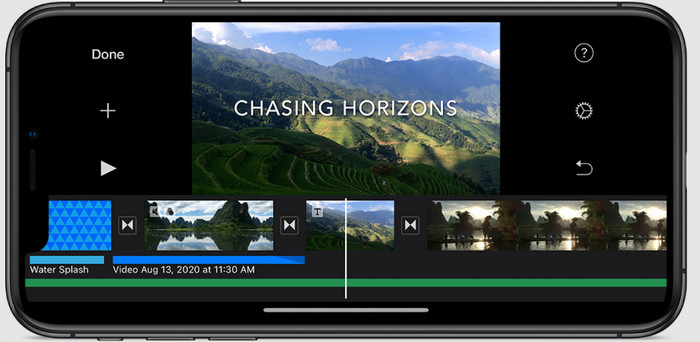
بالنسبة لمستخدمي iOS ، يمكنك استخدام iMovie لمعرفة كيفية تغيير سرعة الفيديو على iPhone مجانًا. على الرغم من أن الأداة هي محرر فيديو أصلي على نظام Mac ، فلا يزال لديك خيار تنزيل التطبيق على جهازك أم لا. يثبت هذا الاختيار أنه يمكن لمستخدمي iOS الاحتفاظ بالمحرر أم لا ، لتوفير بعض المساحة على مساحة التخزين الخاصة بهم. ولكن إذا كان لديك التطبيق على جهاز iPhone الخاص بك ، فيمكنك اتباع الخطوات التي نضيفها أدناه لمعرفة كيفية عمل هذه الأداة.
الخطوة 1. نزّل التطبيق ثم افتحه على جهاز iPhone، وفي المشروع Project اضغط على علامة + ثم انقر على Movie.
الخطوة 2. اضغط على الفيديو الذي تريد تسريعه، ثم في أسفل الشاشة اضغط على Create Movie لرفعه على المخطط الزمني (Timeline).
الخطوة 3. بعد الضغط على المقطع الذي قمت برفعه، انقر على أيقونة التحكم في السرعة (speed controller)، ثم عدّل سرعة الفيديو عن طريق سحب شُرَيط التمرير (sliders) على iPhone الخاص بك. اضغط على Done لحفظه، ثم صدّره إذا رغبت.
الجزء 4. أفضل طريقة لتغيير تشغيل سرعة الفيديو على أجهزة Android باستخدام المحرر المدمج

تنزيل التطبيق ليس هو الحال إذا كنت من مستخدمي Android ؛ قم بتغيير سرعة الفيديو على هاتفك باستخدام محرر الفيديو المدمج. باستخدام هذا المحرر ، يمكنك إجراء التحرير الأساسي المطلوب على مقطع الفيديو الخاص بك لجعله يبدو أفضل من ذي قبل. يمكنك العثور على هذا المحرر في المعرض أو الألبوم على جهاز Android. إذا كنت تريد معرفة كيفية استخدامه ، فستساعدك المعلومات التالية.
الخطوة 1. افتح المعرض أو الألبوم، ثم اضغط على الفيديو الذي تريد تغيير سرعته.
الخطوة 2. انقر على Edit للمتابعة.
الخطوة 3. اضغط على قسم Playback Speed ثم غيّر السرعة حسب احتياجاتك.
الجزء 5. أسئلة وأجوبة حول تغيير سرعة الفيديو
هل يمكنني تغيير السرعة على موقع يوتيوب؟
نعم تمامًا ، يمكنك تغيير تشغيل الفيديو على YouTube حتى إذا لم تقم بتنزيل برنامج للقيام بذلك. اتبع الخطوات لمعرفة كيفية تغيير سرعة الفيديو على موقع يوتيوب. أولاً ، افتح YouTube ، وابحث عن الفيديو الذي تريد مشاهدته بحركة معدلة ، وانقر فوق رمز الترس ، وتحته ، حدد سرعة التشغيل ، واختر السرعة التي تريد تحقيقها ، واستمتع بها.
هل يؤدي تغيير السرعة إلى تقصير مدة الفيديو؟
يعتمد ذلك على كيفية تغيير السرعة ؛ إذا قمت بإبطاء الفيديو ، فتوقع أن تمتد مدته لأنك تقوم بتشغيله في الوضع البطيء. ولكن إذا قمت بتغيير السرعة إلى عالية ، فستكون مدة الفيديو الذي تشغله أقصر من المدة الأصلية. لمعرفة المزيد حول تغيير سرعة الفيديو ، يجب عليك قراءة التفاصيل التالية التي أضفناها أعلاه.
بعد تغيير السرعة ، هل سيكون للجودة تأثير؟
اعتمادًا على سرعة الفيديو التي تحددها ، قد تنخفض الجودة أو تظل كذلك. إذا قمت بتشغيل مقطع فيديو ثماني مرات أو أعلى ، فتوقع الفيديو الذي ستشغله. ومع ذلك ، لن تلاحظ فرقًا كبيرًا بخلاف التشغيل ، من حيث الجودة ، وستظل كما هي.
خاتمة
الآن بعد أن أصبح لدينا فكرة عن كيفية تغيير سرعة الفيديو على أجهزة سطح المكتب، وعبر الإنترنت، وعلى الهواتف، حان الوقت لتحديد الأداة التي يجب علينا استخدامها. إذا كنت لا تريد تنزيل برنامج على جهازك المكتبي لتوفير المساحة وتجنّب خطوات التثبيت، فعليك قراءة الجزء الثاني من هذه المقالة. أما إذا كنت مستخدمًا لنظام iOS أو Android، فالجزآن الثالث والرابع مخصصان لك. وإذا كنت تريد استخدام أفضل محرر فيديو على Windows و Mac، فعليك تنزيل FVC Video Converter Ultimate. فهو أفضل أداة للتحكم في سرعة الفيديو لتغيير سرعة تشغيل الفيديو الذي لديك على سطح المكتب بسهولة تامة. ماذا تنتظر؟ نزّله الآن واستفد من عرضنا الخاص المقدم لك فقط!
-
 كيفية تسريع الفيديو في Premiere Pro وبدائلها
 هل تريد معرفة كيفية استخدام العرض الأول لتسريع الفيديو؟ فأنت في المقالة الصحيحة حيث نقدم خطوات وبدائل أخرى ميسورة التكلفة.
-
 2 طرق سهلة حول كيفية تسريع الفيديو على TikTok
 هل تريد معرفة سر كيفية تسريع الفيديو على TikTok؟ ثم اقرأ هذه المقالة للحصول على فكرة حول كيفية القيام بذلك ومعرفة ما هي الأداتين الأخريين اللتين ستساعدك.
-
 نصائح ممتازة لعام 2021: كيفية تسريع الفيديو على iMovie
 يقترح صديقك تطبيق iMovie لمساعدتك في حل مشكلتك المتعلقة بكيفية تسريع الفيديو باستخدام نظام التشغيل iOS ، لكنك لا تعرف ماذا تفعل؟ تعرف على المزيد حول هذا أثناء قراءة المزيد من خلال هذه المقالة.
