


 محول الفيديو النهائي
 مسجل الشاشة
 إصلاح الفيديو
 تنزيل آمن
كيفية ضغط الصوت: أفضل 4 أدوات مفيدة تحتاج إلى تجربتها
على الرغم من الجودة التي لا غنى عنها التي يحتوي عليها ملفك الصوتي، لن يكون هناك ما هو أكثر إحباطًا من عدم قدرتك على إرساله عبر الإنترنت. إضافة إلى ذلك، تشغل ملفات الصوت الكبيرة مساحة كبيرة على جهازك، مما يجبرك على الاحتفاظ بعدد قليل فقط من أغانيك المفضلة وحذف البقية. لحسن الحظ، يمكن إزالة هذه العقبات بسهولة بفضل ضواغط الصوت عبر الإنترنت وغير المتصلة. في هذا الدليل، قدّمنا لك أفضل أربعة برامج تتيح لك بسرعة ضغط ملف صوتي.

الجزء 1. أفضل طريقة لضغط الصوت
لنبدأ بأفضل طريقة لضغط الملفات الصوتية في بضع نقرات. يُعد Video Converter Ultimate خيارًا ممتازًا للمبتدئين والمستخدمين المتوسطين والمحترفين، لأنه يقدّم ما يتجاوز احتياجاتك في ضغط الصوت. يمكنه العمل كمحوّل، مما يتيح لك تحويل صيغة إلى أخرى. إضافة إلى ذلك، يوفّر Video Converter Ultimate صندوق أدوات يمكنك من خلاله الوصول إلى قائمة شاملة من الميزات مثل صانع GIF، ومحسِّن الفيديو، وقاطع الصوت وغير ذلك الكثير.
إلى جانب هذا العرض الرائع، يتيح لك Video Converter Ultimate ضبط تفاصيل مشروعك عن طريق تغيير معدل البت ومعدل العينة والقنوات. راجع الدليل أدناه لتقليل حجم الملف الصوتي باستخدام الأداة.
الخطوة 1. تشغيل أفضل ضاغط صوت
كبداية حاسمة، قم بتثبيت البرنامج على أجهزتك عن طريق اختيار زر التنزيل المجاني أدناه. اختر الجانب الأيمن لنظام التشغيل Windows والجانب الأيسر لأجهزة Mac. بعد ذلك، انقر نقرًا مزدوجًا فوق الملف واتبع معالج التثبيت.
تنزيل مجانيلنظام Windows 7 أو أحدثتنزيل آمن
تنزيل مجانيلنظام MacOS 10.7 أو أحدثتنزيل آمن
الخطوة 2. رفع الملف الصوتي
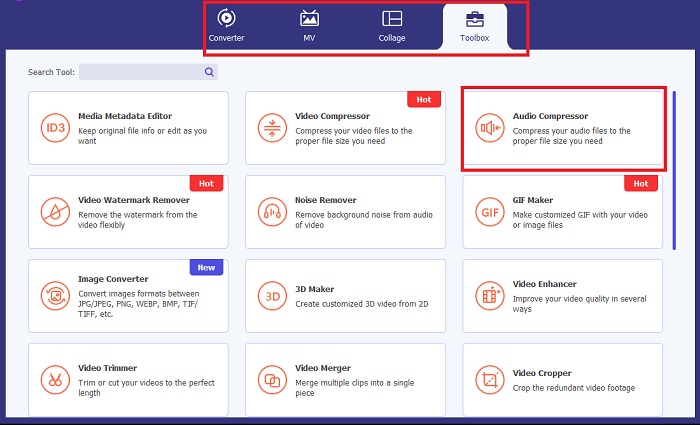
بعد أن تعتاد على واجهة البرنامج، انتقل إلى قسم Toolbox في Video Converter Ultimate واختر Audio Compressor. بعد ذلك ستظهر نافذة أخرى، وانقر على أيقونة علامة الجمع لاستيراد ملفك الصوتي.
الخطوة 3. ضغط الصوت
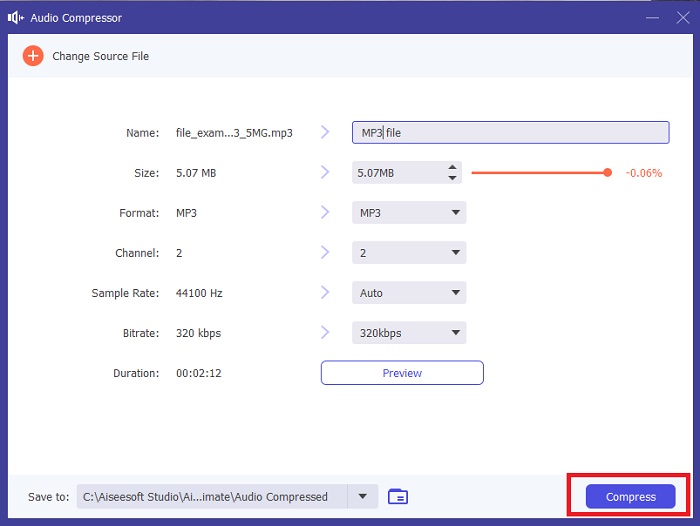
أثناء تحميل ملفك، يقوم Video Converter Ultimate تلقائيًا بضغط ملفك الصوتي. قد تستغرق العملية بعض الوقت، اعتمادًا على طولها. من ناحية أخرى، يمكنك تحريك شريط التمرير وفقًا لمستوى الضغط المفضل لديك.
الخطوة 4. حفظ الملف
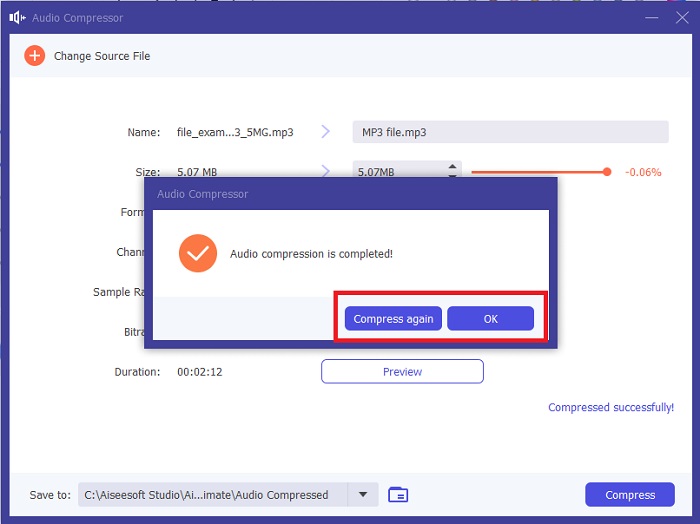
بمجرد الانتهاء من عملية الضغط، يمكنك أيضًا تغيير الصيغة والقناة وغيرها من المتطلبات التي تحتاجها. بعد ذلك، اضغط على زر Compress وابدأ عملية الضغط.
الجزء 2. كيفية ضغط الصوت في الجرأة
إذا كنت مبتدئًا في التعامل مع ضغط الصوت، فإن Audacity هي أداة ممتعة للبدء بها. هذا البرنامج هو برنامج تحرير صوتي مفتوح المصدر يسمح لك بتحرير المسارات والتسجيلات الصوتية. بالإضافة إلى ذلك، فإن Audacity هي أداة متعددة المنصات - وبعبارة أخرى، ستعمل بشكل مثالي على أي جهاز يعمل بنظام Mac، وWindows، وحتى Linux.
قبل ضغط ملفك الثمين، يمكن أن تساعدك هذه الأداة على مزج الملفات الصوتية مثل المؤثرات الصوتية الخاصة. يمكنه أيضًا تحرير الكلام والإيقاع ودرجة الصوت للتسجيل الصوتي الخاص بك. إذا كنت ترغب في معرفة كيفية ضغط الصوت في Audacity، فاتبع الخطوات أدناه.
الخطوة 1. أولًا، قم بتحميل الملف الصوتي في البرنامج من خلال الانتقال إلى علامة تبويب File والنقر على Import. بعد ذلك ستظهر لك نافذة تحتوي على مجلدات جهاز الكمبيوتر حيث يمكنك اختيار الملف الذي تريد ضغطه.
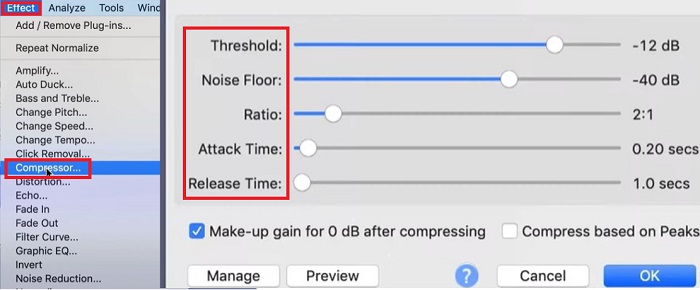
الخطوة 2. بعد ذلك، حدِّد الملف الصوتي على المخطط الزمني لتظليله. ثم افتح القائمة المنسدلة Effect واذهب إلى Compressor.
الخطوة 3. عند ظهور لوحة Compressor يمكنك البدء في ضبط المعلمات المطلوبة لضغط ملفاتك الصوتية، مثل Threshold, Noise Floor, Ratio وRelease Time.
الخطوة 4. انقر على زر Preview لتشغيل النتيجة المتوقعة ومراجعة المخرج النهائي. عندما تكون راضيًا عن الملف الصوتي، اضغط OK وصدِّر الصوت إلى المجلد المحلي لديك.
الجزء 3. أدوبي أوديشن ضغط الصوت
في حين أن الأداة الأخيرة هي الأفضل للمبتدئين، فإن برنامج Adobe Audition مناسب للمحترفين. يمكن لهذا البرنامج ضبط المسارات الصوتية للحصول على مخرجات مثالية. علاوة على ذلك، توفر هذه الأداة الاحترافية ميزات شاملة في تحرير التفاصيل الصوتية ومزجها واستعادتها.
علاوة على ذلك، تمنحك هذه الأداة حرية تقليل حجم ملف الصوت الخاص بك. ننتقل الآن إلى طرق تقليل حجم الصوت على Adobe Audition باستخدام الضغط أحادي النطاق.
الخطوة 1. بعد تشغيل الأداة على شاشتك، توجه إلى الزاوية العلوية اليسرى من البرنامج وانقر على Open. من هناك، قم برفع الملف الصوتي الذي تحتاج إلى ضغطه. بديلًا عن ذلك، يمكنك استخدام طريقة السحب والإفلات.
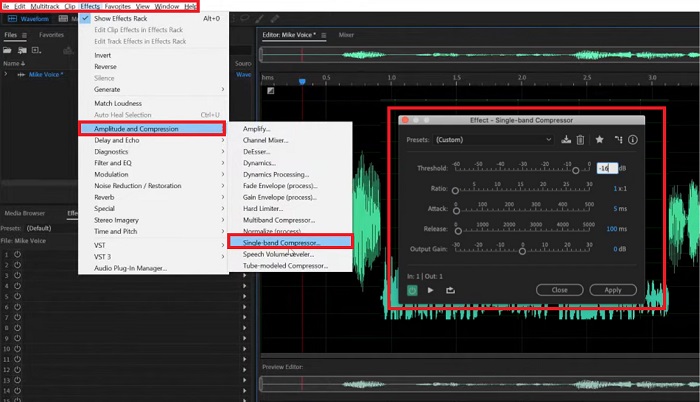
الخطوة 2. بعد ذلك، وسِّع علامة تبويب Effect واختر Amplitude and Compression. ثم اختر Single-Band Compressor من القائمة لمعادلة الصوت.
الخطوة 3. أخيرًا، قم يدويًا بضبط Threshold, Attack وOutput Gain وفقًا لاحتياجاتك الصوتية. عندما يطابق كل شيء متطلباتك، انقر على Apply.
الجزء 4. ضغط الصوت في Camtasia
آخر ما في القائمة هو أداة متعددة الوظائف تسمى Camtasia والتي تلبي احتياجات معالجة الصوت والفيديو الخاصة بك. على الرغم من أن البرنامج يستخدم بشكل أساسي لتحرير الفيديو وتسجيل الشاشة، إلا أن هذا البرنامج يمكنه أيضًا جعل الصوت الخاص بك رائعًا بشكل واضح.
عند إصلاح البيانات الصوتية، يقدم Camtasia أدوات تساعدك على ضبط مستوى الصوت، وإزالة الضوضاء في الخلفية، وحتى تغيير سرعة وإيقاع ملفك. يعمل Camtasia على أجهزة Mac وWindows. لقد قدمنا دليلًا أدناه حول كيفية عمل ضغط الصوت في Camtasia.
الخطوة 1. أولًا، استورد الملف الصوتي إلى البرنامج عن طريق النقر على File > Open. بعد ظهوره، انقر على الملف الصوتي لتظليله. تأكد من أن المؤشر موجود في الثواني الأولى من الصوت.
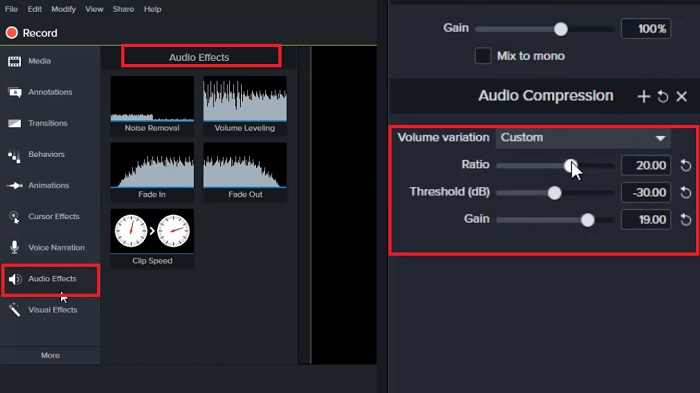
الخطوة 2. بعد ذلك، توجه إلى الزاوية اليسرى من الأداة واختر Audio Effects. عند ظهور الخيارات تحت هذه العلامة، اختر Compressor. من هناك سيقوم البرنامج تلقائيًا بموازنة مستوى الصوت.
الخطوة 3. يمكنك الضغط على زر Play في لوحة المعاينة للتحقق من ملفك الصوتي. إذا كنت راضيًا، انقر على Apply.
الخطوة 4. لحفظ الناتج في مجلدك، افتح علامة تبويب File مرة أخرى واضغط على Export.
قراءة إضافية:
أفضل 3 حلول لكيفية إصلاح مشكلة تأخّر الصوت [2023]
كيفية ضغط الفيديوهات مجانًا/ جرّب هذه الضواغط الفيديوية السبعة عبر الإنترنت
الجزء 5. الأسئلة الشائعة حول طرق تقليل حجم الملف الصوتي
هل يمكنني ضغط الملف الصوتي WAV؟
قطعا نعم! يعد Waveform Audio File، أو تنسيق WAV باختصار، ملفًا صوتيًا غير قابل للفقدان تم إنتاجه بواسطة IBM وMicrosoft. نظرًا لأن WAV غير مضغوط، فقد تضطر إلى ضغط ملفات مثل هذه لتوفير مساحة أكبر على مساحة التخزين لديك.
كيف أقوم بضغط الصوت إلى MP3؟
فيما يتعلق بالحصول على جودة قياسية لمساراتك الصوتية، فإن MP3 هو الخيار الأفضل. لضغط ملف MP3، يمكنك استخدام أداة متاحة عبر الإنترنت أو برنامج غير متصل بالإنترنت. بالنسبة للأداة عبر الإنترنت، قم بتحميل ملف MP3 في ضاغط الصوت عبر الإنترنت. بعد ذلك، ستمنحك الأداة خيار حجم الملف المستهدف وجودته المقابلة.
كيف يمكنني ضغط الملفات الصوتية عبر الإنترنت؟
يمكن أن تساعد العديد من الأدوات عبر الإنترنت في تقليل حجم الملف الصوتي إلى أحجام أصغر. ما عليك فعله هو تحميل ملف MP3 إلى ضاغط الصوت عبر الإنترنت. بعد ذلك، ستستخدم الأداة خوارزمياتها لتمنحك إمكانية اختيار حجم الملف المستهدف والجودة المقابلة له.
كيف يمكنني إرسال ملف صوتي كبير جدًا؟
يقتصر إرسال ملف صوتي كبير الحجم على منصات التواصل الاجتماعي على 25 ميجابايت فقط. في مثل هذه الحالات، أفضل ما يمكنك فعله هو إنشاء ملف مضغوط لملفك وإرفاقه ببريدك الإلكتروني. ومن ناحية أخرى، يمكنك الاحتفاظ بالملف على Google Drive ومشاركة الرابط مع المتلقي.
هل برنامج Adobe Audition مجاني؟
لا، لا يمكن استخدام Adobe Audition إلا عند الاشتراك في Creative Cloud. ومع ذلك، يختار المحررون المحترفون وجود هذا البرنامج على أجهزتهم نظرًا لأن أدائه أكثر تقدمًا وشمولاً إلى حد كبير.
خاتمة
باستخدام المنصات المذكورة أعلاه، يمكنك ضغط الصوت بلا حدود والحصول على جودة صوت معقولة. ومع امتلاك Adobe Premiere Pro قائمة شاملة من أدوات التحرير إلى جانب أداة الضغط، سيساعدك ذلك على ضبط الضوضاء الخلفية. من ناحية أخرى، إذا كان هدفك هو ضغط الملفات الصوتية فقط، فسيكون كل من Camtasia وVideo Converter Ultimate كافيًا.
-
 كيفية إضافة الصوت والموسيقى إلى الفيديو مجانًا على جهاز الكمبيوتر / الهاتف
 توضح هذه المقالة 4 طرق سهلة لإضافة الصوت إلى الفيديو مجانًا. بغض النظر عن المسار الصوتي الذي تريد إضافته إلى الفيديو الخاص بك ، يمكنك الحصول على نتائج مرضية هنا.
-
 برنامج تعليمي لضغط GIF وتقليل حجم ملفه بجودة عالية
 إليك're طريقتان سهلتان لضغط ملف GIF. يمكنك استخدام FVC Free Online Video Compressor وPhotoshop لتقليل حجم ملف GIF في جوانب مختلفة.
-
 كيفية مزامنة الصوت والفيديو في iMovie على iPhone و Mac
 هل تواجه مشكلة بسبب عدم مزامنة الصوت والفيديو على iPhone و Mac؟ الآن ، دعنا ننتقل إلى كيفية استخدام iMovie من خلال قراءة هذا المقال.
