


 محول الفيديو النهائي
 مسجل الشاشة
 إصلاح الفيديو
كيفية إزالة العلامة المائية من صورة GIF عبر الإنترنت [خطوة بخطوة]
أصبح وضع علامة مائية على ملف GIF إحدى طرق حمايته، ولكن ماذا لو احتجت إلى إزالة العلامة المائية التي أضفتها إلى ملف GIF الخاص بك؟ ماذا يجب أن تفعل؟ هل يمتلك صانع ملفات GIF لديك هذه الميزة؟ ألا يحتوي على أداة لإزالة العلامة المائية؟ نعلم أن مواجهة هذه المشكلة مزعجة، أليس كذلك؟ لكن لا داعي للقلق، لأن جميع هذه الأسئلة ستجد جوابًا لاحقًا، فقد وجدنا أربع أدوات لإزالة العلامة المائية يمكنك استخدامها أونلاين وأوفلاين. هذه الأدوات مختارة بعناية من السوق لتزويدك بأفضل ما يمكنك استخدامه لـإزالة العلامة المائية من ملف GIF.

نظرة عامة على هذه التطبيقات
| محول الفيديو النهائي | أدوات GIF على الإنترنت | WatermarkRemover.io | بيكسلر | محل تصوير | |
| الدقة | 8 ك | 1080 بكسل | 5 كيلومترات | 8 ك | 300 ألف |
| سرعة العملية | بسرعة | واسطة | واسطة | بسرعة | يعتمد على الأجهزة الخاصة بك |
| متطلبات الأجهزة | قليل | غير متاح | واسطة | عالي | عالية جدًا |
الجزء 1. أسهل طريقة لإزالة العلامة المائية من GIF على نظامي التشغيل Windows و Mac بسرعة
يمكن لـVideo Converter Ultimate أن يساعدك بنجاح على إزالة العلامة المائية من ملف GIF متى أردت ذلك. يمكن لهذه الأداة أن تساعدك على إضافة علامة مائية وإزالتها؛ وبشكل أساسي هي أداة شاملة الكل في واحد ستحتاجها على نظام ويندوز أو ماك. ليس ذلك فحسب، بل يمكنك من خلال هذه الأداة إنشاء ملف GIF خاص بك وإضافة العلامة المائية التي تريدها لحماية ملف GIF الذي أنشأته. لتجربته، يمكنك اتباع الخطوات البسيطة التي نقدّمها، وهذا كل شيء. وبذلك يمكنك استخدام ملف GIF من دون علامة مائية في أقل من دقيقة.
مزايا برنامج Video Converter Ultimate:
◆ إنه أفضل خيار لإزالة وإضافة علامة مائية على GIF الخاص بك.
◆ يمكن أن تساعدك واجهة المستخدم الرسومية سهلة الاستخدام على فهم ما يحدث لواجهة الأداة.
يمكن أن تساعدك عملية التحويل فائقة السرعة المضمنة وتسريع الأجهزة في الاستيراد والتصدير بسرعة البرق.
◆ متاح على جميع الأنظمة الأساسية مثل Windows و Mac للتنزيل.
◆ يحتوي على أفضل الميزات المتقدمة لصانع GIF التي يمكنك استخدامها على سطح المكتب الخاص بك لإنشاء صورة GIF مخصصة.
الخطوات الخاصة بكيفية إزالة العلامة المائية من ملف GIF باستخدام أداة إزالة العلامة المائية Ultimate
الخطوة 1. قم بتنزيل البرنامج إلى قرص جهاز الكمبيوتر لديك من خلال النقر على الزر أدناه. ثم شغّله وقم برفع ملف GIF أو فيديو.
تحميل مجانيلنظام Windows 7 أو أحدثتنزيل آمن
تحميل مجانيلنظام MacOS 10.7 أو أحدثتنزيل آمن
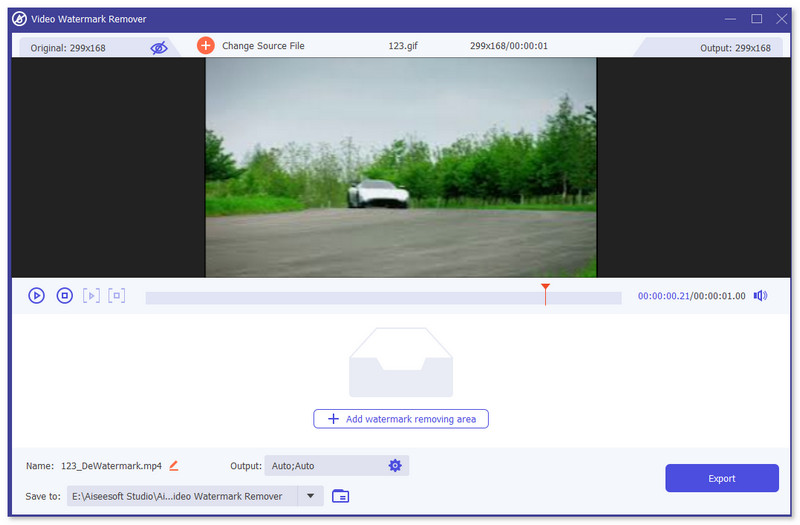
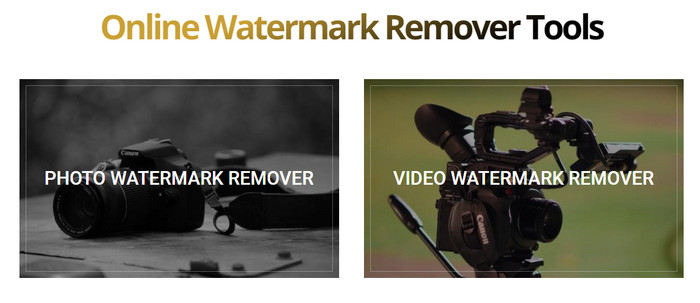
الخطوة 2. افتح أداة إزالة العلامة المائية، انتقل إلى صندوق الأدوات Toolbox، وابحث عن Video Watermark Remover.

الخطوة 3. قم برفع ملف GIF أو فيديو واضغط على Export.
ذات صلة:
إزالة العلامة المائية من TikTok
إزالة العلامة المائية من GIF باستخدام Adobe Photoshop
إذا كان لديك برنامج أدوبي فوتوشوب مثبتًا على جهاز الكمبيوتر الخاص بك، يمكنك الاعتماد عليه لإزالة العلامات المائية أو الظلال من الصور. يُعد فوتوشوب أحد أشهر وأقوى أدوات تحرير الصور، إذ يتيح لك إضافة تأثيرات، وفلاتر، ومسح العناصر، وغيرها. على الرغم من أنه ليس محرر صور مجانيًا، إلا أنه يمنحك فترة تجريبية مجانية لمدة 30 يومًا. الآن، يمكنك اتباع الدليل أدناه لإزالة العناصر غير المرغوب فيها من الصور.
الخطوة 1. شغّل برنامج PhotoShop على جهاز الكمبيوتر. يمكنك الذهاب إلى الموقع الرسمي لأدوبي لتنزيل PhotoShop مجانًا والحصول على نسخة تجريبية.
الخطوة 2. يمكنك سحب ملف الصورة مباشرة وإفلاته لاستيراد الصورة التي تريد تعديلها. كما يمكنك النقر على File في شريط القائمة ثم النقر على Open لاختيار صورة محلية من جهاز الكمبيوتر.
الخطوة 3. يمكنك استخدام أداة Select and Mask tool لاختيار العناصر غير المرغوب فيها. خلال هذه الخطوة، يمكنك بحرية اختيار الأداة المناسبة لتحديد المنطقة التي تريد إزالتها.
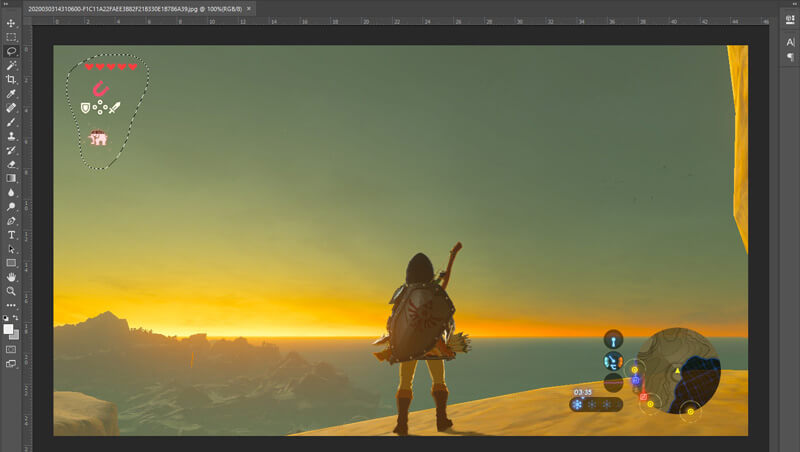
الخطوة 4. يمكنك الآن الاعتماد على أداة Content-Aware Fill في Photoshop لإزالة العنصر من الصورة واستبدال هذا الجزء بمحتوى مناسب. وبالمقارنة، إذا كنت لا تريد فقط مسح بعض العناصر ببساطة من الصورة، فإن ميزة Content-Aware Fill يمكن أن تمنحك نتيجة أفضل.
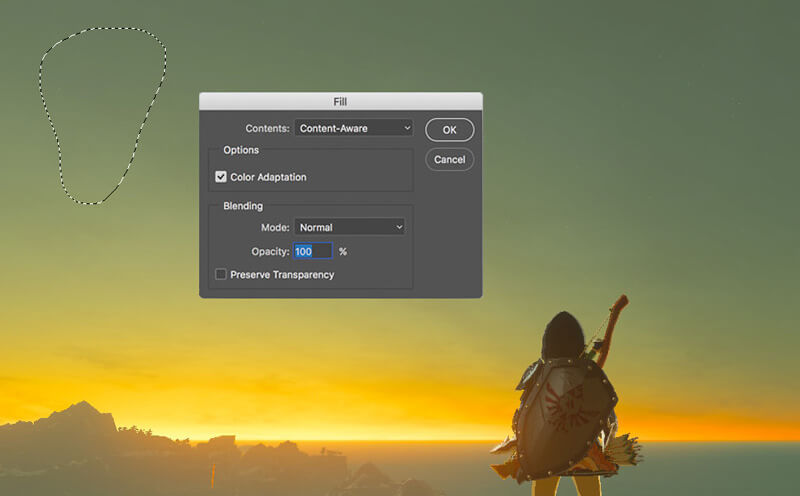
الخطوة 5. بعد أن ينتهي PhotoShop من إزالة العنصر، يمكنك النقر على File ثم Save لحفظ الصورة المعدلة على جهاز الكمبيوتر. يمكنك اختيار أي صيغة صور شهيرة مثل JPG أو PNG أو GIF وغيرها كصيغة إخراج. هنا يمكنك أيضًا الضغط على Ctrl + S لحفظ وتصدير ملف الصورة من PhotoShop.
الجزء الثاني: كيفية إزالة العلامة المائية من صور GIF عبر الإنترنت
باستخدام هذه الأدوات المجانية عبر الإنترنت ، يمكنك إزالة العلامات المائية من صور GIF. لكن عليك أن تتذكر أن هذه الأدوات لن تعمل إذا لم يكن لديك اتصال بالإنترنت لأن جميع الأدوات تعتمد على الشبكة. أيضًا ، قد يستغرق استخدامها بعض الوقت لأنه يتم تخزينها مؤقتًا أثناء استخدامك لأدوات الويب هذه. لذا ، إذا كنت تريد معرفة مزيل GIF المجاني عبر الإنترنت ، فاقرأ التفاصيل أدناه.
إزالة العلامة المائية من صورة GIF باستخدام أدوات GIF عبر الإنترنت
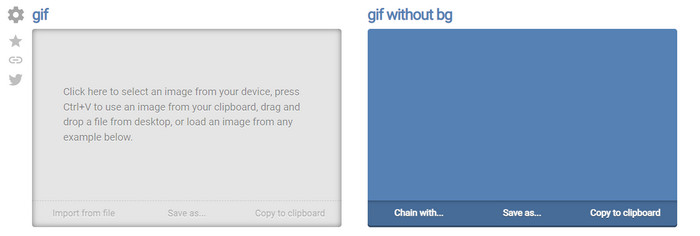
يُعد Online GIF Tools أداة مجانية يمكنك استخدامها لإزالة العلامات المائية من ملفات GIF. توفّر هذه الأداة للمستخدمين ميزات متقدمة للإزالة مثل إزالة العلامة المائية الموجودة في الخلفية من ملف GIF. وعلى الرغم من أن الأداة مميزة، فإن إزالة العلامة المائية قد تكون معقّدة لأنها تزيل بكسلات الألوان واحدًا واحدًا في كل إطار.
الخطوة 1. افتح موقع Online GIF Tools على متصفّح الويب لديك.
الخطوة 2. انقر على Import File لرفع ملف GIF. تحت خيار لون الخلفية، انقر على options color coder لتحديد لون العلامة المائية.
الخطوة 3. انقر على Save As ثم Download بعد ذلك لحفظ ملف GIF على القرص لديك.
إزالة العلامة المائية من صورة GIF باستخدام أداة إزالة العلامة المائية عبر الإنترنت
باستخدام WatermarkRemover.io، سيتم إزالة العلامة المائية من ملف GIF الخاص بك تلقائيًا. هذه الأداة ممتازة لإزالة العلامات المائية مجانًا. فهي تتيح للمستخدمين تقليل الجهد في إزالة العلامة المائية لأنك لن تحتاج إلى القيام بذلك بنفسك، فالأداة تقوم بالمهمة عنك. ومع ذلك، هناك بعض المناطق الجغرافية لا تصل إليها هذه الأداة؛ وبشكل أساسي قد لا تتمكن من تنزيل ملف GIF بعد إزالة العلامة المائية.
الخطوة 1. شغّل موقع WatermarkRemover.io وأضِف ملف GIF من خلال النقر على الجزء السفلي من الشعار.
الخطوة 2. بعد إضافة الملف، ستبدأ المعالجة تلقائيًا وانتظر حتى تنتهي.
الخطوة 3. انقر على زر التنزيل لحفظه على جهاز الكمبيوتر.
إزالة العلامة المائية من GIF باستخدام Pixlr

إذا كنت تريد أفضل أداة ويب لإلغاء العلامة المائية من ملف GIF الخاص بك، فاستخدم Pixlr. على عكس أداتي الويب المذكورتين سابقًا، فهذه الأداة مختلفة كثيرًا لأنها تحتوي على العديد من الوظائف التي قد ترغب في استخدامها لإزالة العلامة المائية. وعلى الرغم من أن الأداة تشبه Photoshop، فإن بعض الجوانب هنا ليست فعّالة بقدر ما يقدّمه Photoshop لك، خاصة في إزالة العلامة المائية من ملفات GIF، كما أنها تضيف علامة مائية في نهاية التصدير.
الخطوة 1. ابحث عن Pixlr وافتحه.
الخطوة 2. اضغط على Advance Editor، أضِف ملف GIF، ثم انقر على Open Image. بعد إضافة ملف GIF، انقر على أيقونة droplet لتمويه العلامة المائية، ثم انقر على العلامة المائية مرارًا وتكرارًا وتأكد من إزالتها.
الخطوة 3. انقر على File ثم Save.
الجزء 3. أسئلة وأجوبة حول إزالة العلامة المائية من GIF
هل إزالة العلامة المائية تجعل حجم الملف أصغر؟
سيتغير حجم الملف ، لكن لن يكون له تأثير كبير لأنك فقط أزلت قليلاً من العلامة المائية على الفيديو الخاص بك. لذلك ، إذا كان حجم الملف الأصلي والعلامة المائية المستخرجة ليسا متماثلين تقريبًا ، فإن المشكلة تكمن في ما استخدمته.
لماذا يوجد تشويش على الفيديو الخاص بي بعد إزالة العلامة المائية؟
يوجد تمويه على الفيديو الخاص بك بعد إزالة العلامة المائية لأن هذه هي طريقة الأداة لإزالة العلامة المائية. إنها إحدى الطرق التي توفرها الأدوات لإزالة العلامة المائية على أي فيديو أو صورة عن طريق طمسها.
هل ستتغير جودة صورة GIF بعد إزالة العلامة المائية؟
لن تلاحظ أي تغيير فيما يتعلق بالجودة بعد إزالة العلامة المائية من ملف GIF الخاص بك. لكن بعض الأدوات تقلل من جودة ملف GIF الخاص بك لأنها لا تدعم صور GIF عالية الجودة. لذلك ، تذكر أن تختار الأداة المناسبة التي تدعم تصدير مخرجات عالية الجودة حتى لو قمت بإزالة العلامة المائية منها.
خاتمة
في النهاية، يمنحنا هذا المقال فرصة فعّالة لـإزالة العلامة المائية من ملف GIF أو الفيديو الذي نستخدمه. فالأدوات التي قدّمناها فعّالة ومثالية لإزالة العلامة المائية من ملفات GIF الخاصة بنا. ومع ذلك، يظل برنامج Video Converter Ultimate هو الأقوى في إزالة أو إضافة علامة مائية إلى ملف GIF الخاص بك. لذلك، إن كنا متفقين بشأن هذه الأداة، فعليك استخدامها، وحتى لو لم نكن متفقين، فعليك أن تحاول تنزيلها وإزالة العلامة المائية من ملف GIF. بعد ذلك، ستساعدك الأداة على إنجاز ذلك بسرعة، وقد تغيّر رأيك حول قدرات هذه الأداة.
-
 أفضل طريقة لإضافة علامة مائية إلى مقطع فيديو في Photoshop على نظامي التشغيل Windows و Mac
 هل تريد معرفة كيفية إضافة علامة مائية إلى مقطع فيديو على Photoshop؟ في هذه الحالة ، ستزودك هذه المقالة بالشيء أو الشيءين اللذين ستحتاج إلى معرفتهما.
-
 3 أفضل الحلول حول كيفية إزالة العلامة المائية من مقاطع الفيديو بسهولة
 هل تريد إزالة العلامة المائية المزعجة على الفيديو؟ باستخدام هذه المدونة ، يمكنك التعرف على الأفكار المختلفة حول إزالة العلامة المائية من مقطع فيديو.
-
 أفضل 5 طرق لتغيير الصورة إلى صورة GIF متحركة [محدّث 2022]
 هل تحتاج إلى تحويل صورة إلى GIF؟ ستوفر هذه المقالة أفضل خمسة محولات يمكن أن نجدها في السوق. لذا ، دعنا نتعرف على هذه الأدوات من خلال قراءة هذه المقالة.
