


 محول الفيديو النهائي
 مسجل الشاشة
 إصلاح الفيديو
3 طرق لإضافة خلفية للصور عبر الإنترنت ، على iPhone و Android والكمبيوتر
أثناء تعديل صورة، غالبًا ما تحتاج إلى إزالة الخلفية الأصلية وإضافة خلفية مختلفة لها. بالنسبة للصورة ذات الخلفية الشفافة، يمكنك بسهولة تغيير الخلفية باستخدام محرر صور. بينما في معظم الحالات، عليك إزالة الخلفية الحالية أولًا، ثم إضافة خلفية جديدة إلى الصورة. هل تبحث عن تطبيق محرر صور جيد يمكنه إضافة خلفية إلى صورة؟
يوضح هذا المنشور 3 طرق فعالة لإضافة خلفية إلى صورة. سواء كنت ترغب في إضافة خلفية بيضاء إلى صورة مباشرة عبر الإنترنت ، أو إضافة خلفية إلى صورة على iPhone ، أو تغيير خلفية الصورة على جهاز Android ، يمكنك اتباع الطريقة المحددة للقيام بذلك.

الجزء 1. كيفية تحرير إضافة خلفية إلى صورة عبر الإنترنت
لإضافة خلفية إلى صورة بسرعة، يمكنك أولًا تجربة بعض محررات الصور عبر الإنترنت. هنا نوصي بشدة باستخدام أداة مُزيل الخلفية المجاني عبر الإنترنت سهلة الاستخدام لإزالة الخلفية الأصلية من صورتك وإضافة خلفية مختلفة لها. تدعم أداة تغيير خلفية الصور المجانية هذه جميع الصيغ الشائعة الاستخدام مثل JPG وPNG وGIF وغيرها. وتوفر لك طريقة بسيطة لإضافة خلفية بيضاء إلى صورة أو استبدال الخلفية الحالية بصورة مختلفة.
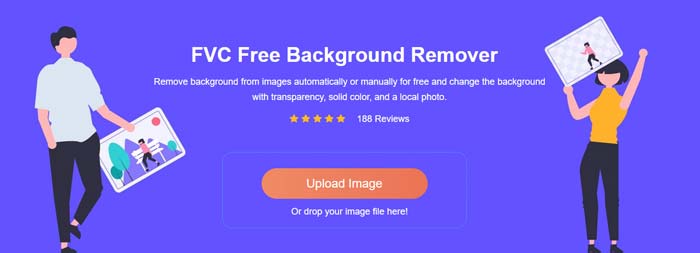
الخطوة 1. افتح متصفح الويب لديك مثل Chrome أو Safari أو Yahoo أو IE أو Firefox، ثم انتقل إلى موقع مُغيّر خلفية الصور المجاني هذا. عند الدخول إلى الصفحة، يمكنك ببساطة النقر على زر Upload Portrait لاختيار صورتك وإضافتها لتحريرها لاحقًا.
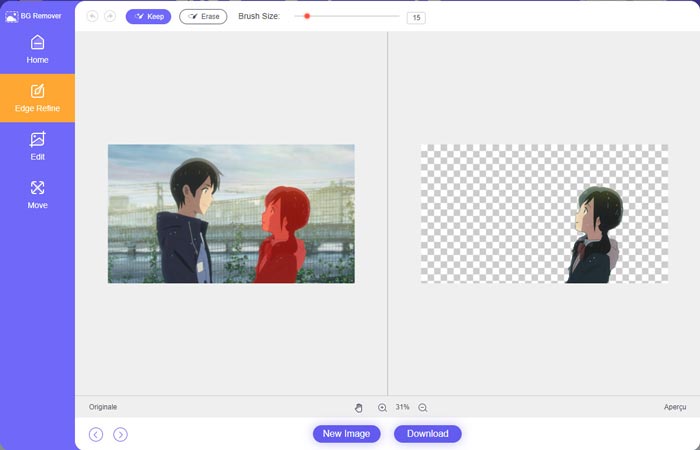
الخطوة 2. بفضل تقنية الذكاء الاصطناعي المتقدمة، سيقوم الموقع تلقائيًا بتحديد العنصر الرئيسي في الصورة التي قمت برفعها. بعد ذلك يمكنك استخدام ميزة Keep أو Erase لإجراء المزيد من التعديلات.
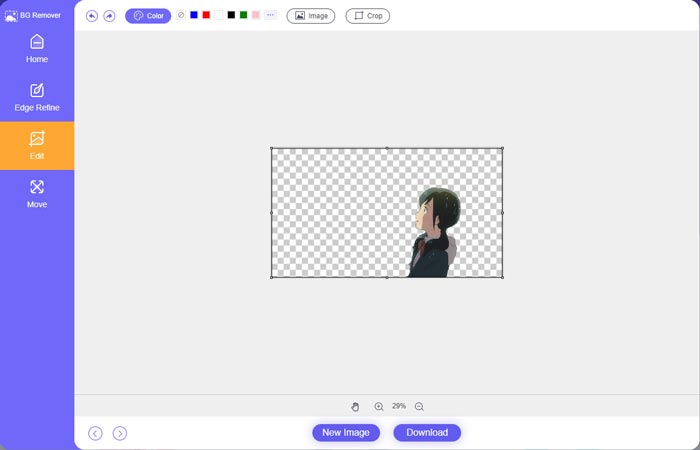
الخطوة 3. انقر على خيار Edit في الجهة اليسرى، ثم يمكنك اختيار تغيير لون الخلفية، أو إضافة خلفية إلى الصورة. خلال هذه الخطوة، يمكنك أيضًا الاعتماد على ميزة Crop لتخصيص حجم الصورة حسب حاجتك.
الخطوة 4. بعد أن تضيف خلفية مناسبة للصورة، يمكنك النقر على زر Download لحفظها على جهاز الكمبيوتر. سيتم حفظ ملف الصورة المعدلة بصيغة PNG بشكل افتراضي.
الجزء 2. كيفية إضافة خلفية إلى صورة باستخدام Adobe Photoshop
يعد Adobe Photoshop من أشهر برامج تحرير الصور التي تحمل العديد من الميزات لتحرير الصور والتأثيرات المخصصة والقيام بعمليات أخرى. إذا كان لديك برنامج Photoshop مثبتًا على جهاز الكمبيوتر الخاص بك ، فيمكنك اختيار إضافة خلفية للصورة في Photoshop.
الخطوة 1. افتح برنامج Photoshop على جهاز الكمبيوتر وأضِف صورتك إليه. يمكنك تنزيل أحدث إصدار من Photoshop مجانًا من الموقع الرسمي لشركة Adobe. لاحظ أن Adobe توفر فترة تجربة مجانية لمدة 7 أيام فقط لاستخدام Photoshop.
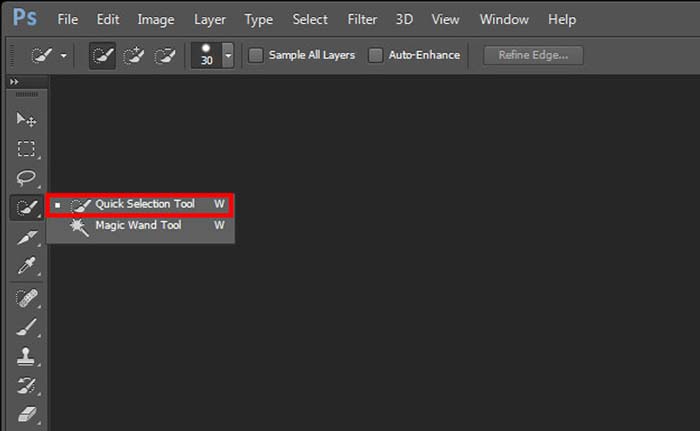
الخطوة 2. بعد تحميل الصورة في Photoshop، يمكنك النقر على أيقونة Quick Selection Tool أو Magic Wand Tool في صندوق الأدوات الموجود على اليسار لتحديد الخلفية التي تريد تغييرها.
الخطوة 3. بعد تحديد خلفية الصورة، يمكنك النقر بزر الماوس الأيمن عليها واختيار خيار Fill. والآن يمكنك ببساطة إضافة خلفية بيضاء للصورة أو تغيير الخلفية إلى لون آخر مثل الأسود أو الأزرق أو الرمادي أو أي لون آخر تحتاجه.
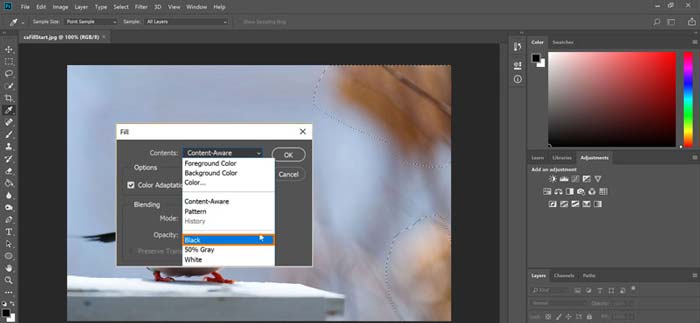
الخطوة 4. إذا كنت تريد إضافة صورة جديدة كخلفية، فيجب عليك إزالة الخلفية المحددة أولًا. يمكنك الضغط على زر Delete في لوحة المفاتيح للتخلص من الخلفية الحالية. بعد ذلك يمكنك إضافة ملف الصورة إلى Photoshop وسحب طبقتها أسفل طبقة الخلفية. وبهذه الطريقة يمكنك بسهولة استبدال الخلفية الأصلية بصورة جديدة.
الخطوة 5. بعد أن تضيف خلفية إلى صورة في Photoshop، يمكنك النقر على قائمة File في الأعلى ثم اختيار خيار Save As من القائمة المنسدلة. اختر صيغة الصورة المناسبة ثم احفظها على جهاز الكمبيوتر.
الجزء 3. كيفية إضافة خلفية إلى صورة على iPhone و Android Phone
عندما تريد إضافة خلفية إلى صورة على هاتف iPhone أو iPad أو Android ، فأنت بحاجة إلى العثور على تطبيق محرر خلفية صورة جيد.
LightX هو تطبيق تحرير صور متكامل متوفر لمستخدمي iOS وAndroid. يوفر طريقة مريحة لإزالة الخلفيات غير المرغوب فيها، وإضافة خلفيات جديدة للصورة، وإضافة تأثيرات مختلفة، وإنشاء صور سيلفي عالية الجودة والمزيد مباشرة على هاتفك. تم تضمين العديد من أدوات تعديل الصور المتقدمة في تطبيق LightX، مثل مزج الألوان وضبط تشبع الصورة بشكل مخصص والتباين والدرجة اللونية والمنحنيات وغير ذلك. يمكنك تنزيله من App Store أو Google Play Store.
الخطوة 1. ثبّت تطبيق LightX وافتحه على iPhone أو iPad أو هاتف Android. امنح التطبيق الإذن للوصول إلى الصور على جهازك. أضِف صورتك إليه لتحرير الخلفية لاحقًا.
الخطوة 2. لإزالة الخلفية الحالية للصورة وتغييرها إلى خلفية أخرى، يمكنك السحب إلى اليسار ليظهر العديد من الخيارات المختلفة. ضمن قسم Creative، يمكنك اختيار ميزة Cutout لإضافة خلفية للصورة. الآن تحتاج إلى تحديد العنصر الرئيسي يدويًا ومسح الخلفية الأصلية.
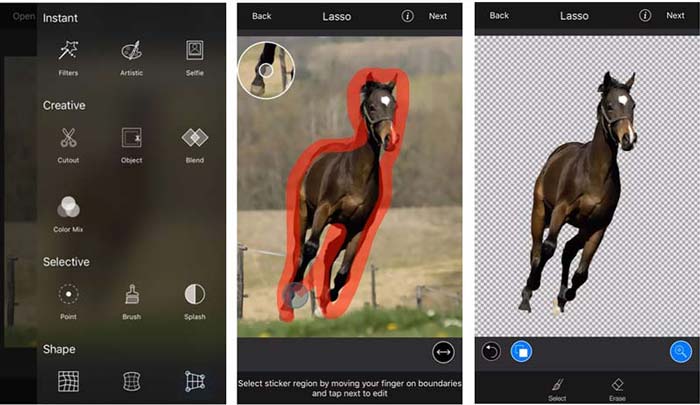
الخطوة 3. بعد إزالة الخلفية، يمكنك النقر على Next في الزاوية اليمنى العليا للمتابعة. بعد ذلك يمكنك استخدام ميزة Crop لتغيير حجم الصورة. اضغط على Done لتأكيد العملية. بعد ذلك، يمكنك النقر على BG Image في أسفل الشاشة لإضافة خلفية مختلفة للصورة. يمكنك بحرية ضبط تأثيرات الخلفية الجديدة حسب حاجتك.
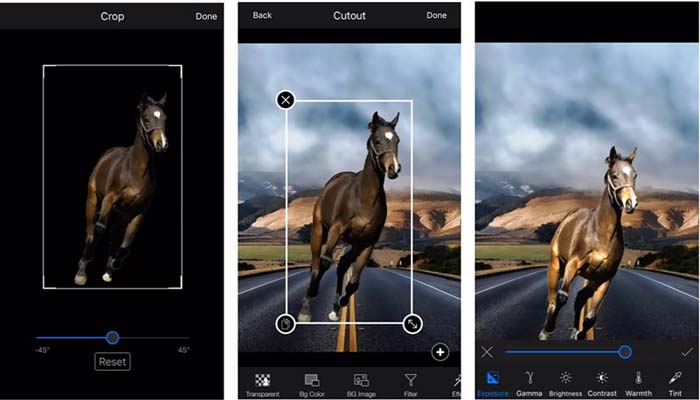
سواء كنت تستخدم جهاز iOS أو Android ، يمكنك اتباع خطوات مماثلة لإضافة خلفية إلى صورة باستخدام تطبيق LightX. لاحظ أنه ، كمستخدم iOS ، تحتاج إلى دفع $3.99 لتطبيق إضافة الخلفية هذا. إذا كنت من مستخدمي Android ، فيمكنك تثبيته من متجر Google Play. للترقية إلى الإصدار المتميز ، يجب أن تدفع نفس السعر.
ذات صلة:
ما هي دقّة الفيديو: نظرة معمّقة على الدقّة وغيرها
ستة فلاتر متحركة مفضلة على سناب شات
الجزء 4. أسئلة وأجوبة حول كيفية إضافة خلفية للصورة
كيف أضيف خلفية مختلفة إلى صورة على جهاز Mac الخاص بي؟
يمكنك استخدام الطريقتين الأوليين لتغيير خلفية صورتك بسهولة على جهاز Mac. إلى جانب أداة مُزيل الخلفية المجاني عبر الإنترنت وAdobe Photoshop الموصى بهما، يمكنك أيضًا الاعتماد على بعض محررات الصور الأخرى لإضافة خلفية جديدة لصورتك.
كيفية تغيير خلفية الشاشة على iPhone؟
يوفر iOS طريقة بسيطة لتغيير خلفية الشاشة على iPhone أو iPad. يمكنك الانتقال إلى تطبيق الإعدادات ، والنقر فوق خيار الخلفية ، ثم النقر فوق اختيار خلفية جديدة.
هل يمكنني إضافة خلفية إلى صورة حية على جهاز iPhone الخاص بي؟
لا ، لا يقدم لك iPhone طريقة مباشرة لتغيير خلفية الصورة الحية. يُسمح لك فقط بقصها وتطبيق المرشحات وضبط التأثيرات وتغييرها إلى صورة ثابتة.
خاتمة
يشارك هذا المنشور 3 طرق مفيدة لإضافة خلفية إلى صورة. عندما تحتاج إلى إزالة خلفية الصورة الأصلية وإضافة خلفية جديدة إليها ، يمكنك تحديد محرر الصور المفضل لديك للقيام بذلك.
-
 أفضل 3 طرق لإضافة فلاتر على GIF مع أفضل برامج تحرير GIF [المفضلة]
 هل تريد معرفة كيفية إضافة مرشح إلى GIF لجعله أفضل؟ في هذه المدونة ، ستتعلم بسهولة الأساليب المختلفة لإضافة عوامل تصفية إلى صور GIF الخاصة بك.
-
 3 أسهل طرق لإضافة علامة مائية إلى GIF عبر الإنترنت وغير متصل
 يمكن أن تكون إضافة علامة مائية إلى GIF سهلة مثل 1-2-3 إذا كنت تستخدم الأداة الصحيحة بشكل صحيح. الأدوات الموجودة في السوق واسعة جدًا ، لكننا سنقدم الأدوات الثلاث التي يمكنك الاعتماد عليها.
-
 أفضل 5 طرق لتغيير الصورة إلى صورة GIF متحركة [محدّث 2022]
 هل تحتاج إلى تحويل صورة إلى GIF؟ ستوفر هذه المقالة أفضل خمسة محولات يمكن أن نجدها في السوق. لذا ، دعنا نتعرف على هذه الأدوات من خلال قراءة هذه المقالة.
