


 محول الفيديو النهائي
 مسجل الشاشة
 إصلاح الفيديو
 تنزيل آمن
أفضل الطرق حول كيفية تكبير صورة للطباعة
يمكن تكبير الصورة بطريقتين. يمكنك تكبير الصورة من خلال عملية الارتقاء بالدقة (Upscaling) أو عن طريق زيادة عدد وحدات البكسل في الصورة. وهناك طريقة أخرى لتكبير الصورة وهي تغيير الحجم الفعلي أو أبعاد الصورة الفوتوغرافية. وفي هذا الدليل سنعرض لك هاتين الطريقتين لتكبير الصورة. وبناءً على احتياجاتك ستتمكن بالتأكيد من معرفة الإجابات عن سؤالك. اقرأ هذا الدليل لتتعلم كيفية تكبير الصورة من أجل الطباعة، أو للاستخدام عبر الإنترنت أو دون اتصال.

الجزء 1. تكبير الصورة دون فقدان الجودة عبر الإنترنت للطباعة
يبدو الأمر معقدًا عندما تسمع لأول مرة عن تكبير جودة الصورة. ولكن ، بعد قراءة هذا المنشور ، سيكون بالتأكيد سهلاً عليك. هناك الكثير من التطبيقات التي يمكن أن تساعدك على تكبير صورتك. لكن المشكلة هي أن هناك الكثير مما يصعب اختياره. لحسن الحظ ، وجدنا تطبيقًا يمكنه مساعدتك في تكبير الصورة بسهولة وبشكل مجاني.
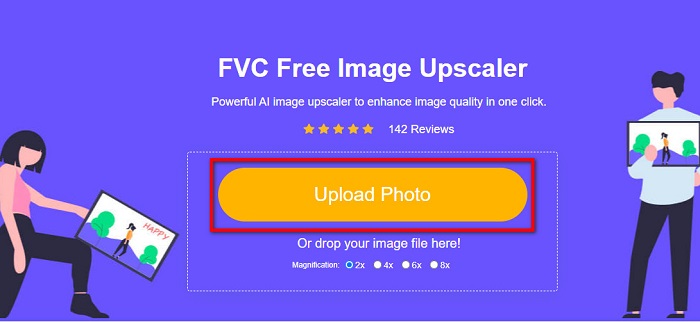
تُعد أداة FVC Free Image Upscaler تطبيقًا رائعًا لتكبير الصور يمكنك استخدامه عبر الإنترنت. ما يميز التطبيقات الإلكترونية أنك لا تحتاج إلى تنزيلها، مما يساعدك على توفير مساحة التخزين. يمكنك تكبير صورتك باستخدام هذه الأداة عبر الإنترنت بمعدل تكبير 2x أو 4x أو 6x أو 8x. بالإضافة إلى ذلك، فهي تستخدم تقنية ذكاء اصطناعي في عملية الارتقاء بالدقة تقوم تلقائيًا باكتشاف الأجزاء منخفضة الجودة في الصورة ثم تحسينها.
أيضًا ، يمكن للمبتدئين استخدام هذا التطبيق بسهولة لأنه يحتوي على واجهة مستخدم سهلة الاستخدام. علاوة على ذلك ، له تأثير معاينة يمكّنك من التحقق من نتائج مخرجاتك قبل حفظها. FVC Free Image Upscaler مجاني للاستخدام على جميع متصفحات الويب ، مثل Google و Firefox و Safari.
كيفية تكبير صورة للطباعة باستخدام FVC Free Image Upscaler
الخطوة 1. انتقل إلى متصفح الويب الخاص بك وابحث عن FVC Free Image Upscaler في مربع البحث. يمكنك أيضًا النقر على هذا الرابط للانتقال مباشرةً إلى الصفحة الرئيسية.
الخطوة 2. في الواجهة الرئيسية للمستخدم، انقر زر Upload Photo لإضافة الصورة التي تريد تكبيرها. يمكنك أيضًا استخدام طريقة السحب والإفلات لتحميل صورتك.
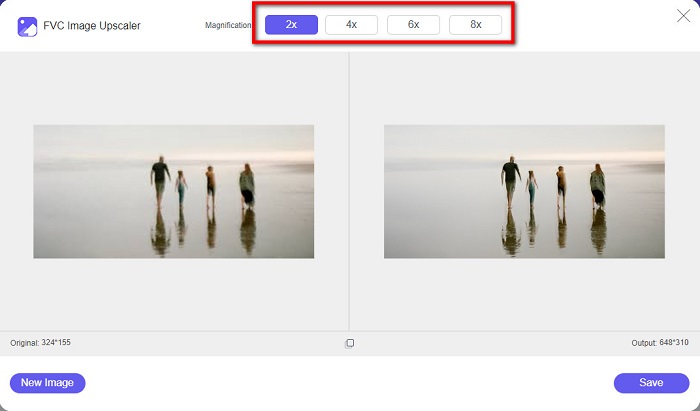
الخطوة 3. بعد تحميل الملف، سيتم نقلك إلى واجهة أخرى. اختر مستوى التكبير الذي تفضله لصورتك. يمكنك الاختيار بين 2x، 4x، 6x و8x. كلما كانت جودة صورتك أقل، كان عليك اختيار مستوى تكبير أعلى.
الخطوة 4. حرّك المؤشر فوق الصورة الموجودة على اليسار لعرض نتيجة التكبير. هل ترى التغييرات؟ انقر زر Save في الزاوية السفلية اليمنى من الواجهة لحفظ الناتج على جهازك.
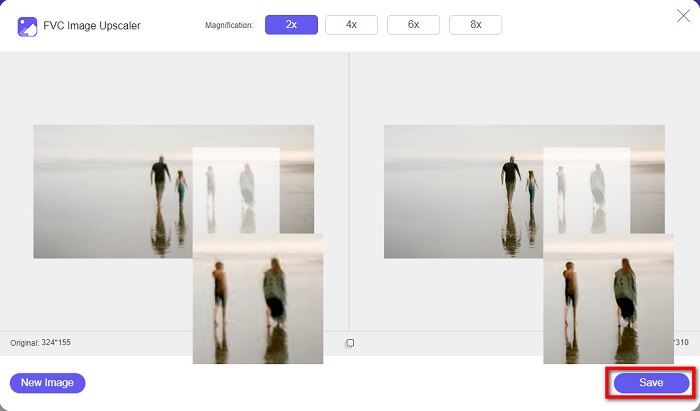
وهذه هي الخطوات السهلة حول كيفية تكبير صورة للطباعة عبر الإنترنت باستخدام FVC Free Image Upscaler. سهل مثل الفطيرة ، أليس كذلك؟ ولكن إذا كنت ترغب في تكبير صورة عن طريق تغيير أبعاد الصورة ، فاقرأ الجزء التالي.
الجزء 2. كيفية تكبير صورة في برنامج فوتوشوب دون فقدان الجودة
ربما تكون قد صادفت هذا التطبيق عند البحث عن كيفية تكبير صورة. يعد Adobe Photoshop من أبرز تطبيقات تحرير الصور على الإنترنت. يستخدم Adobe Photoshop بشكل أساسي من قبل المحترفين الذين غالبًا ما يقومون بتحرير الصور لنشرها على منصات مختلفة. باستخدام أدوات وميزات هذا التطبيق ، يمكنك بالتأكيد إنتاج مخرجات مذهلة. لكن هل تعلم أنه يمكنك أيضًا تكبير صورة باستخدام Adobe Photoshop؟ نعم ، لقد قرأت ذلك بشكل صحيح. إنها أيضًا أداة مناسبة لتوسيع الصور دون فقدان الجودة. باستخدام Adobe Photoshop ، يمكنك تكبير صورتك عن طريق تغيير الدقة أو إدخال عرض وارتفاع صورتك يدويًا. على الرغم من أن Adobe Photoshop هو تطبيق احترافي ، إلا أن ميزة التوسيع الخاصة به سهلة الاستخدام. بدون مزيد من اللغط ، هذه هي الخطوات لتكبير الصورة باستخدام Photoshop بدون فقدان.
الخطوة 1. أولًا وقبل كل شيء، قم بتنزيل برنامج Adobe Photoshop على جهاز الكمبيوتر. فهو متوفر تقريبًا على جميع أنظمة التشغيل مثل Windows وmacOS. بعد تثبيت التطبيق على جهازك، استورد الصورة التي تريد تكبيرها.
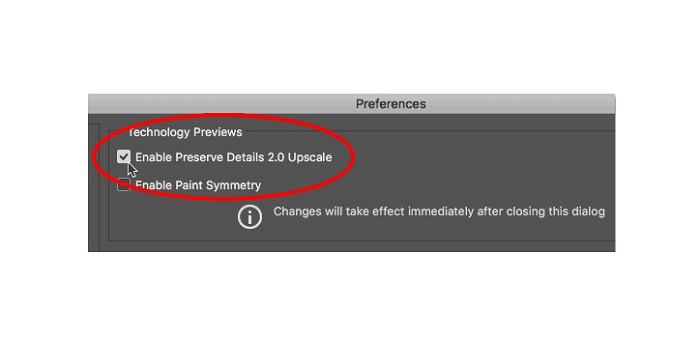
الخطوة 2. بعد ذلك، فعِّل خيار Preserve Details 2.0. إذا كنت تستخدم جهاز كمبيوتر يعمل بنظام Windows، فاذهب إلى لوحة Edit في شريط القوائم (Menu Bar). إذا كنت تستخدم جهاز Mac، فاذهب إلى قائمة Photoshop CC، واختر Preferences، ثم انقر زر Technology Previews. سيؤدي ذلك إلى فتح مربع حوار التفضيلات على خيار Technology Previews. ضع علامة في المربع بجوار Enable Preserve Details 2.0 Upscale. وبعد ذلك اضغط OK لإغلاق مربع الحوار والرجوع من خيار Technology Previews.
الخطوة 3. بعد ذلك، افتح مربع حوار Image Size بالذهاب إلى قائمة Image ثم اختيار خيار Image Size.
الخطوة 4. عند تكبير أو upscale الصورة في Photoshop، نحتاج إلى ضبط الأبعاد الفيزيائية للصورة، أو بعبارة أخرى نرغب في إضافة أو إزالة وحدات بكسل. لذلك تأكد من تحديد خيار Resample.
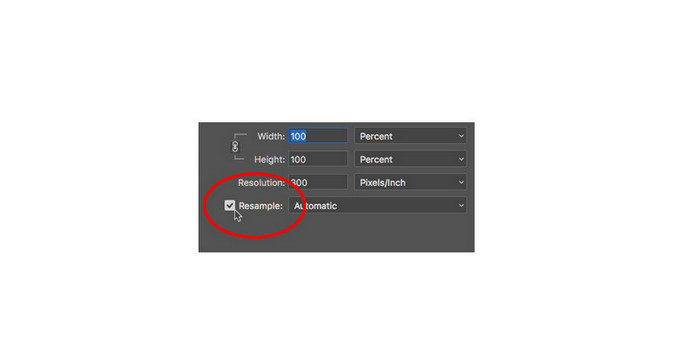
الخطوة 5. بعد ذلك، غيّر الطول (height) والعرض (width) لصورتك بإدخال الأبعاد التي تفضلها لصورتك. في الوضع الافتراضي، يكون العرض والارتفاع مرتبطين معًا، لذا إذا عدّلت عرض الصورة فسيتغير الارتفاع تبعًا لذلك.
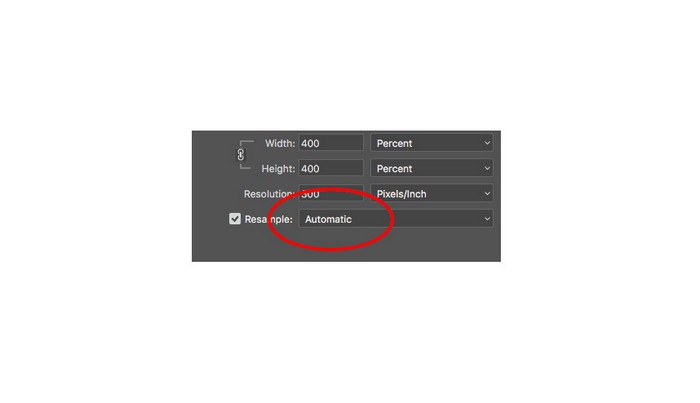
الخطوة 6. وأخيرًا، غيّر طريقة إعادة采采采 (Resample Method) إلى Preserve Details 2.0. طريقة إعادة采采采 الافتراضية تكون مضبوطة على Automatic. ولكن لن يختار Photoshop هذا الخيار عندما يكون Resample مضبوطًا على Automatic. لذلك غيّر خيار Resample من خلال النقر على Automatic ثم اختيار Preserve Details 2.0.
الخطوة 7. حان الوقت الآن لمعاينة النتيجة. بعد اختيار Preserve Details 2.0، سيتم تحديث نافذة المعاينة على اليسار لتُظهر لك كيف ستبدو صورتك بعد التكبير. اسحب صورتك باستخدام الماوس داخل نافذة المعاينة لعرض الأجزاء المختلفة من الصورة.
باتباع هذه الخطوات ، ستتعلم بالتأكيد كيفية تكبير الصورة للطباعة دون فقدان الجودة.
ذو صلة بـ:
أفضل 7 أدوات لتكبير الصور عبر الإنترنت وبدون اتصال
أفضل 4 أدوات لتكبير صور GIF أونلاين وأوفلاين لا ينبغي أن تفوتك
الجزء 3. أسئلة وأجوبة حول كيفية تكبير الصورة دون فقدان الجودة
هل يمكنني تكبير حجم ملف JPG عبر الإنترنت؟
يمكنك تغيير حجم ملف صورة JPG الخاصة بك باستخدام FVC Free Image Upscaler. ما عليك سوى زيادة مستوى التكبير إلى 6x أو 8x لتكبير حجم صورة JPG.
هل يدعم Adobe Photoshop ملفات PNG؟
نعم. يتم دعم ملفات PNG بواسطة العديد من الأنظمة الأساسية ، بما في ذلك Adobe Photoshop. يمكنك استيراد جميع تنسيقات ملفات الصور تقريبًا باستخدام Adobe Photoshop ، مثل PNG و JPG و JPEG و BMP و WebP.
هل يؤثر تكبير صورتي على حجم ملفها؟
نعم إنها كذلك. يزداد حجم ملف صورتك لأنك تقوم بضبط العدد الإجمالي لوحدات البكسل في صورتك أو عدد وحدات البكسل في كل بوصة. لكن حجم الملف سيكون أيضًا أصغر عند خفض عرض الصورة وارتفاعها.
خاتمة
وهذه هي الطرق المتبعة في كيفية تكبير الصورة دون فقدان الجودة. سواء استخدمت الطريقة عبر الإنترنت أو دون اتصال، يمكنك تكبير صورتك دون التأثير سلبًا في جودتها. ولكن إذا كنت تريد طريقة أسهل لتكبير الصورة، فنحن نوصي باستخدام FVC Free Image Upscaler، وهو تطبيق سهل الاستخدام.
-
 كيفية تغيير حجم الصورة في Illustrator بطريقتين مختلفتين
 تعرف على أفضل الطرق لتغيير حجم صورة في Illustrator. للبدء ، قم بتنزيل وفتح تطبيق Adobe Illustrator على جهاز الكمبيوتر الخاص بك ، واتبع هذه الخطوات البسيطة.
-
 6 طرق لإعادة تحجيم صورة على الويب وغير متصل [100% العمل]
 من خلال البرنامج التعليمي الذي أضفناه هنا ، يمكنك الآن بسهولة تغيير حجم الصورة بناءً على الحجم المفضل لديك. تعلم كيف تفعل ذلك هنا!
-
 أفضل الطرق لتغيير حجم الصورة على جهاز iPhone الخاص بك مجانًا وبدون تثبيت
 قد يكون من الصعب تعلم تغيير حجم الصورة على جهاز iPhone الخاص بك. لحسن الحظ ، توفر هذه المقالة برنامجًا تعليميًا حول كيفية تغيير أبعاد الصور بسهولة.
