


 محول الفيديو النهائي
 مسجل الشاشة
 إصلاح الفيديو
 تنزيل آمن
كيفية تغيير حجم صورة أو صورة في Word [طريقتان]
عندما نقوم بإدراج الصور في برنامج مايكروسوفت وورد، يكون حجمها أحيانًا هو الحجم الأصلي من مصدرها. وغالبًا لا نحتاج إلى هذا الحجم الأصلي في مستندنا، لأنه يفسد تنسيق العمل الذي نقوم به. علاوة على ذلك، عندما تكون الصورة كبيرة في المستند، يكون حجم ملف المستند كبيرًا عادةً، وهذا ما لا نريده لملفنا. لذلك، في هذه المقالة سنشرح طريقتين حول كيفية تغيير حجم صورة في وورد. كما يمكن أيضًا تغيير حجم الصورة باستخدام أداة FVC Free Image Upscaler. لذا اجلس بهدوء وارتشف فنجانًا من القهوة أثناء قراءة هذه الصفحة.

الجزء 1. كيفية تغيير حجم صورة في Word
Microsoft Word هو معالج كلمات تجاري شهير تطوره Microsoft. باستخدام Microsoft Word ، يمكنك إنشاء مستندات يمكنك مشاركتها مع الآخرين أو نشرها على أنظمة أساسية مختلفة. يستخدم العديد من المهنيين هذا البرنامج في مجال عملهم. وهناك أوقات تحتاج فيها إلى تغيير حجم الصورة التي قمت باستيرادها في التطبيق. لذلك ، اقرأ هذا الجزء باستمرار إذا كنت تريد تغيير حجم صورتك في Microsoft Word.
طريقة 1
غالبًا ما يكون خطأنا عند العمل مع الصور في Word هو أننا نقوم فقط بتغيير ارتفاع أو عرض الصورة ، وليس كليهما. عندما نقوم بتغيير حجم الصور ، يجب ألا نشوه الصورة. لذلك ، عندما نقوم بتغيير حجم الصورة ، يجب أن نتأكد من ضبط عرض وارتفاع الحجم المعاكس تلقائيًا. هذا يتحدث عن نسبة العرض إلى الارتفاع للصورة.
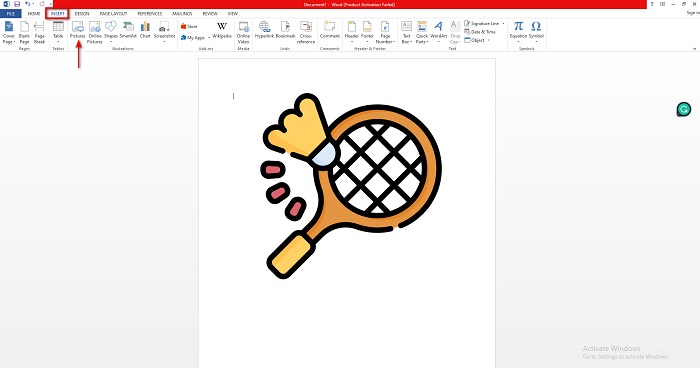
الخطوة 1. إذا لم يكن برنامج مايكروسوفت وورد محمَّلًا على جهازك المكتبي بعد، فقم بتحميله الآن. ثم افتح مستندًا موجودًا يحتوي على صورة، أو يمكنك إنشاء مستند جديد وإدراج صورة فيه. لإدراج صورة، انتقل إلى إدراج > صور (Insert > Pictures)، ثم افتح صورة من مجلدات جهاز الكمبيوتر لديك.
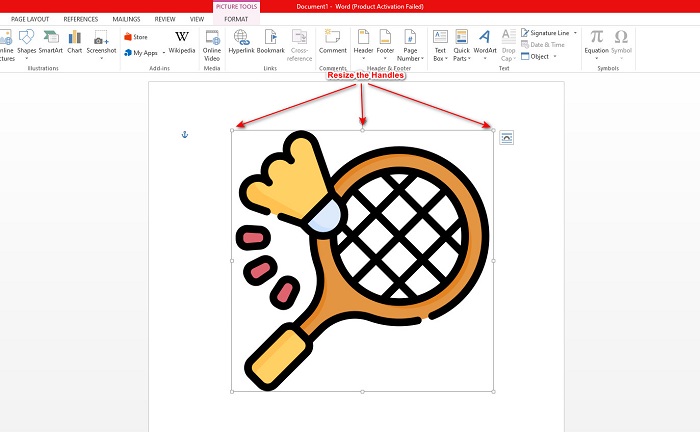
الخطوة 2. بعد ذلك، انقر على الصورة حتى تظهر مقابض تغيير الحجم. عندها سترى أن علامة تبويب أدوات الصورة > تنسيق (Picture Tools > Format) قد ظهرت في الشريط (Ribbon). انقر عليها لعرض الخيارات المتاحة.
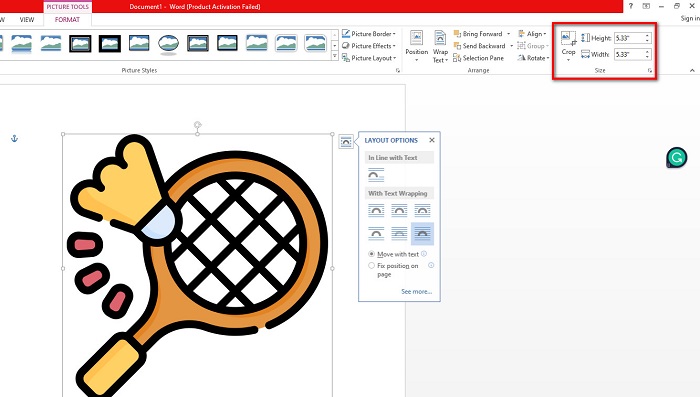
الخطوة 3. بعد ذلك، بمجرد النقر على تنسيق (Format)، يمكنك الآن استخدام وظائف مجموعة الحجم (Size) لإدخال المقاس الدقيق للارتفاع أو العرض لصورتك. يمكنك النقر على أسهم الأعلى والأسفل المجاورة لـالارتفاع والعرض لضبط الحجم وفقًا لتفضيلاتك.
الخطوة 4. ولكن إذا كنت تريد ضبط حجم الصورة يدويًا، يمكنك استخدام الفأرة والضغط مع السحب على مقابض تغيير الحجم. اسحب المقابض باتجاه منتصف الصورة إذا كنت تريد تصغير أو تقليل الحجم. واسحب المقابض باتجاه حافة الشاشة إذا كنت تريد تكبير أو زيادة الحجم.
الخطوة 5. تذكّر دائمًا أنه عند تغيير حجم الصورة يدويًا في وورد، من الأفضل استخدام مقابض الزوايا. فهذا يضمن تغيير كل من الارتفاع والعرض في الوقت نفسه والحفاظ على نسبة الطول إلى العرض في صورتك.
الطريقة الثانية
هناك خيار آخر يمكنك استخدامه لتغيير حجم صورة باستخدام Microsoft Word وهو استخدام النسب المئوية. إذا كنت تريد تغيير حجم صورتك بالنسب الدقيقة باستخدام النسب المئوية ، فيمكنك استخدام هذه الطريقة.
الخطوة 1. حدِّد الصورة التي تريد تغيير حجمها بالنقر عليها بزر الفأرة الأيسر.
الخطوة 2. ثم انتقل إلى علامة التبويب تنسيق الصورة (Picture Format)، ثم انقر موضع (Position) ثم مزيد من خيارات التخطيط (More Layout Options).
الخطوة 3. بعد ذلك، انقر على علامة تبويب الحجم (Size). وفي لوحة المقياس (Scale)، فعِّل خيار تأمين نسبة العرض إلى الارتفاع (Lock Aspect Ratio). يمكنك الآن إدخال النِّسب المئوية التي تريدها لارتفاع وعرض الصورة.
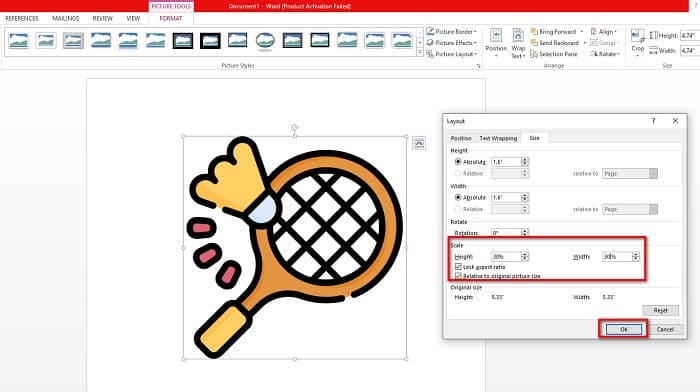
الخطوة 4. أخيرًا، اضغط على موافق (OK) لحفظ التغييرات التي أجريتها على حجم الصورة.
الجزء 2. كيفية تغيير حجم صورة عبر الإنترنت
نحن نغطي ظهرك إذا كنت تريد استخدام تطبيق عبر الإنترنت لتغيير حجم الصورة. في هذا الجزء ، سوف نعرض لك أفضل أداة لتغيير حجم الصور عبر الإنترنت وكيف يمكنك استخدامها لتغيير حجم صورتك.
إن أداة FVC Free Image Upscaler هي مغير حجم صور (Image Resizer) عبر الإنترنت يمكنك استخدامه لضبط أحجام صورك. يمكنك تغيير حجم صورتك بهذه الأداة من خلال تغيير أو زيادة درجة التكبير للصورة. على سبيل المثال، إذا كان لديك صورة ضبابية، يمكنك استخدام FVC Free Image Upscaler لتحسينها. بالإضافة إلى ذلك، فإن تقنية الذكاء الاصطناعي (AI) فيها تكشف الأجزاء منخفضة الجودة في الصورة ثم تقوم بتحسينها. كما يدعم هذا البرنامج عبر الإنترنت أكثر صيغ الصور شيوعًا، مثل PNG وJPG وJPEG وWebP. وهو أيضًا تطبيق مناسب للمبتدئين لأنه يتميز بواجهة سهلة الاستخدام.
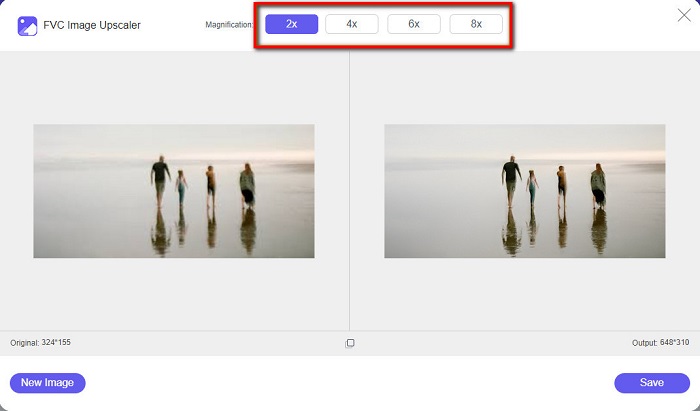
علاوة على ذلك ، يمكنك تحسين صورتك بتكبير 2x و 4x و 6x و 8x. وإذا كنت تريد التحقق من النتيجة قبل حفظ الإخراج ، فإن هذه الأداة تتيح لك معاينة إخراجك. ما يميز برنامج FVC Free Image Upscaler هو أنه آمن للاستخدام ولن يتطلب منك تسجيل الدخول للحصول على حساب.
كيفية تغيير حجم صورة عبر الإنترنت باستخدام FVC Free Image Upscaler
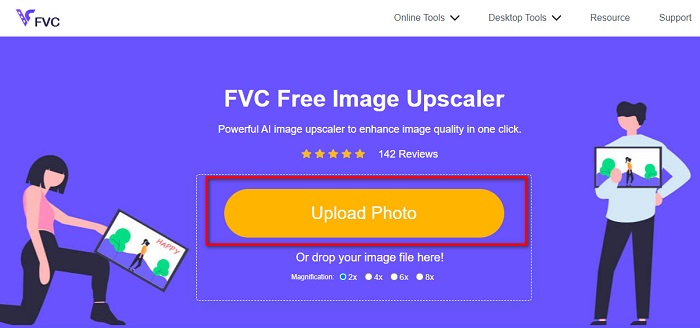
الخطوة 1. افتح المتصفح وابحث عن FVC Free Image Upscaler في مربع البحث. يمكنك النقر على هذا الرابط للانتقال مباشرةً إلى الصفحة الرئيسية للأداة. ثم انقر زر "Upload Photo" لتشغيل البرنامج على جهازك.
الخطوة 2. ثم انقر زر Upload Photo مرة أخرى لاستيراد الصورة التي تريد تغيير حجمها. من ملفات جهاز الكمبيوتر، حدِّد الصورة ثم انقر فتح (Open) لتحميلها.
الخطوة 3. بعد ذلك، اختر مستوى التكبير الذي تريده لصورتك. يمكنك الاختيار بين 2x و4x و6x و8x. تذكّر دائمًا أنه كلما زاد مستوى التكبير، زاد حجم ملف الصورة.
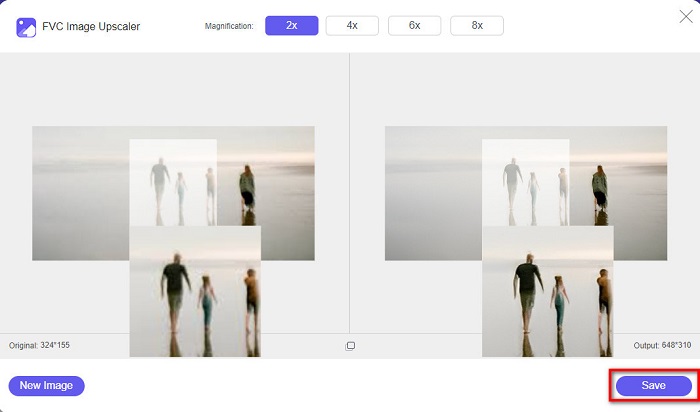
الخطوة 4. ولمعاينة النتيجة، اسحب المؤشر على الجانب الأيمن من صورتك لمشاهدة التغييرات والتحسينات. انقر زر حفظ (Save) عندما تكون راضيًا عن النتيجة التي حصلت عليها من هذا مغيِّر حجم الصور.
الجزء 3. الأسئلة الشائعة حول كيفية تغيير حجم صورة في Word
هل ستظهر الصورة ضبابية بعد أن أقوم بتغيير حجمها في Microsoft Word؟
لا، عند تغيير حجم صورتك في مايكروسوفت وورد، لن تتأثر جودة الصورة. ولكن إذا واجهت مشكلة من هذا النوع، فقد تكون الصورة ضبابية بسبب مشكلة في الضغط (Compression).
هل سيقل حجم الملف إذا قمت بتقليص صورتي في Word؟
نعم. قد ينخفض حجم ملف المستند الخاص بك إذا قمت بتقليص الصورة فيه. قد تكون الصور التي يتم استيرادها إلى مستند ذات دقة عالية. لذلك ، عند تغيير حجم صورة ، سيتأثر حجم المستند بأكمله.
هل يمكنني تغيير حجم الصورة في Excel؟
بالطبع. يمكنك تغيير حجم صورة أو كائن مستورد في Excel عن طريق النقر فوق الصورة وضبط المقاود.
خاتمة
من السهل جدًّا تغيير حجم صورة في وورد، خاصةً إذا اتبعت الخطوات المذكورة أعلاه. لذا، في المرة القادمة التي تُدرِج فيها صورة في وورد وتريد ضبط حجمها، ستكون على دراية بما يجب فعله. أما إذا كنت تفضّل استخدام تطبيق عبر الإنترنت لتغيير حجم صورة مخصّصة لوورد، فيمكنك استخدام FVC Free Image Upscaler.
-
 5 من أفضل أدوات إعادة تحميل ملفات GIF المتوفرة عبر جميع الأنظمة الأساسية #91 ؛ 2022]
 هل تريد أن تعرف أدوات Resizers التي يمكنك استخدامها؟ في هذه الحالة ، ستتحدث المعلومات الواردة أدناه عن resizers التي يمكنك استخدامها على صور GIF الخاصة بك على جميع الأنظمة الأساسية.
-
 أفضل تطبيق لتغيير حجم الصور على الإنترنت ، وغير متصل ، وأندرويد ، وآيفون
 ما هي أفضل تطبيقات تغيير حجم الصور؟ انقر فوق الصفحة للتعرف على أقوى خمسة تطبيقات لتغيير حجم الصور يمكنك استخدامها لتحسين ملفك أو تغيير حجمه.
-
 كيفية تغيير حجم صورة في PowerPoint [أسرع طريقة لتغيير الحجم]
 يعد تعلم كيفية تغيير حجم الصور في PowerPoint أمرًا ضروريًا خاصة إذا كنت تريد استخدامه في العرض التقديمي. اقرأ هذه المقالة لمعرفة كيفية القيام بذلك.
