


 محول الفيديو النهائي
 مسجل الشاشة
 إصلاح الفيديو
 تنزيل آمن
قم بتحويل ملف PPT إلى MP4 بثلاث طرق فعالة
يُعد PPT أداة رائعة عندما يتعلق الأمر بتقديم العروض التقديمية، سواء في المدرسة أو العمل وما إلى ذلك. في بعض الأحيان، بعد العرض التقديمي، قد يطلب البعض نسخة من مادة PPT للرجوع إليها.
ومع ذلك، من المهم أن ندرك أن بعض الأشخاص لا يستطيعون الوصول إلى الملف لأنهم لا يملكون التطبيق أو أداة البرنامج مثبتة على أجهزتهم. وبفضل هذا، يمتلك معظم مقدمي العروض نسخة MP4 محولة من العرض التقديمي لمشاركة المادة بسهولة مع الجميع.
إذًا، إذا كنت تبحث عن طريقة لتحويل ملف PPT إلى MP4 لمشاركته بسرعة وتسهيل الوصول إلى محتواه، فأنت في المكان المناسب. لذلك، واصل قراءة هذا المقال وتعمّق في تعلّم 3 طرق مختلفة يمكنك من خلالها تحويل ملف PPT إلى فيديو.

الجزء 1: كيفية تحويل PowerPoint إلى MP4 داخل PPT
باستخدام عرض PowerPoint، يمكن للمستخدمين تحويل ملفات PPT إلى MP4 بسهولة. إنها ميزة مدمجة رائعة لتوفير الراحة والمرونة.
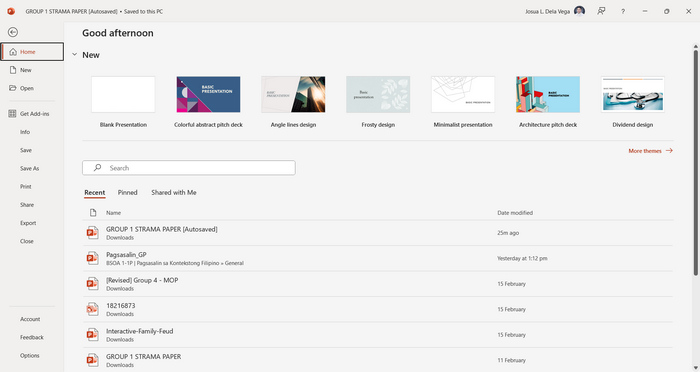
الخطوة 1. افتح عرض الشرائح (العرض التقديمي) باستخدام برنامج مايكروسوفت باوربوينت على جهازك.
الخطوة 2. انتقل إلى علامة تبويب ملف (File)، وابحث عن زر تصدير (Export) ثم انقر عليه.
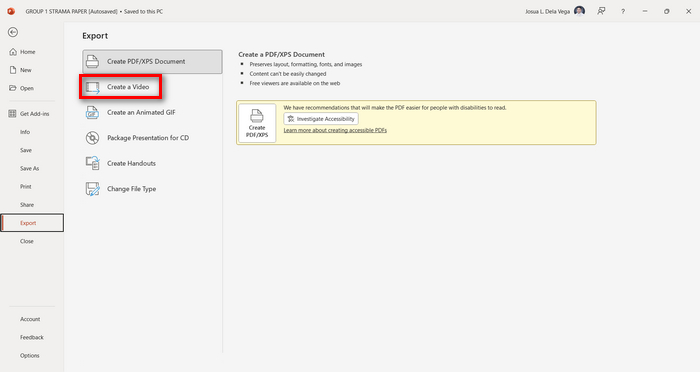
الخطوة 3. بعد الانتقال إلى علامة تبويب تصدير (Export)، انقر على خيار إنشاء فيديو (Create a Video).
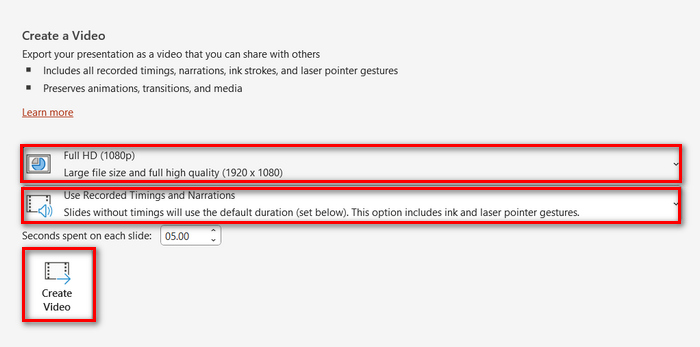
الخطوة 4. الآن، حدّد دقة الفيديو التي تفضّلها، ويمكنك الاختيار بين 480p وحتى 4K. كذلك، في خيار استخدام التوقيتات والتعليقات المسجَّلة (Use Recorded Timings and Narrations) يمكنك ضبط مدة عرض الشرائح يدويًا. بعد ذلك، انقر على زر إنشاء فيديو (Create Video).
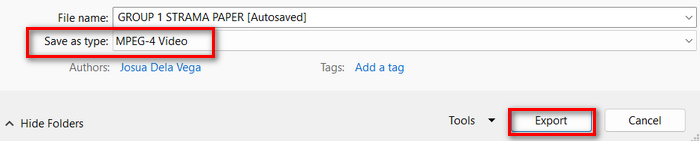
الخطوة 5. بعد النقر على زر إنشاء فيديو (Create a Video) ستظهر نافذة جديدة يمكنك من خلالها التحقق من صيغة ملف الإخراج وتحديد مكان حفظه. بعد الانتهاء من الإعداد، انقر فقط على زر تصدير (Export) وانتظر حتى يكتمل التحويل.
لا شك أن تحويل ملف PowerPoint إلى MP4 باستخدام الخاصية المدمجة في البرنامج أمر مريح للغاية، لكنّه يفتقر إلى خصائص التخصيص إذا كنت تريد إضافة موسيقى خلفية. ومع ذلك، إذا كان هدفك يقتصر على مشاركة العرض فقط، فلن تكون هذه مشكلة بالنسبة لك.
الجزء 2: تحويل PPT إلى MP4 مع الصوت عبر الإنترنت مجانًا
إذا كان لديك ملف PPT وترغب في تحويله عبر الإنترنت نظرًا لعدم وجود تطبيق أو أداة لبرنامج عرض PowerPoint على جهازك، فيمكنك استخدام MagicSlides. تتيح لك أداة التحويل عبر الإنترنت هذه تحويل PowerPoint إلى MP4 بسهولة عن طريق استيراد الملف إلى نظامك.
الخطوة 1. قم برفع ملف PPT الذي تريد تحويله إلى MP4 عن طريق النقر على زر Upload your source file (تحميل ملف المصدر).
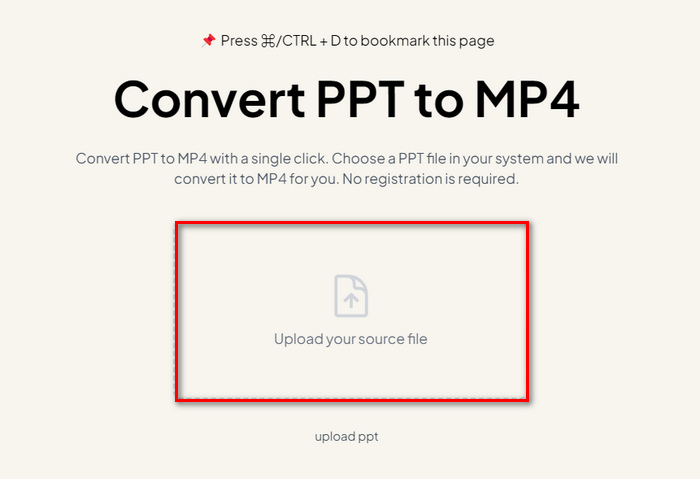
الخطوة 2. بعد استيراد الملف، انقر على زر Create MP4 لبدء عملية التحويل.
الخطوة 3. عند الانتهاء، يمكنك معاينة ملف PPT المحوَّل أولاً، وعندما تكون راضيًا عن النتيجة، انقر فقط على زر Download لحفظه مباشرة على جهازك.
على الرغم من أن هذه الأداة توفر خطوات بسيطة للغاية لتحويل PPT إلى MP4، إلا أن استيراد ملفات PPT يستغرق الكثير من الوقت، وهو ما قد يكون مزعجًا، خاصة عندما تكون في عجلة من أمرك. كما أنها لا تحتوي على أي خيارات تخصيص. لقد حولت ملفات PPT حرفيًا إلى فيديو.
الجزء 3: كيفية تحويل PPT إلى MP4 باستخدام التأثيرات والصوت
إذا كنت تريد تحويل ملف PPT إلى MP4 ولكن مع إضافة مؤثرات وصوت هذه المرة، فهذه الأداة مناسبة لك تمامًا. باستخدام FVC Screen Recorder يمكنك تحويل عرضك التقديمي في PowerPoint إلى ملف MP4 إبداعي وتفاعلي بفضل ميزات التحرير المتوفرة فيه. علاوة على ذلك، لا داعي للقلق بشأن جودة الإخراج، إذ يدعم دقة فيديو تصل إلى 4K. لاستخدامه، اتبع الدليل أدناه:
الخطوة 1. أولًا، قم بتنزيل أداة البرنامج وثبّتها على جهاز الكمبيوتر لديك.
تنزيل مجانيلـ Windows 7 أو أحدثتنزيل آمن
تنزيل مجانيلـ MacOS 10.7 أو أحدثتنزيل آمن
الخطوة 2. افتح عرض PowerPoint، وتأكد من تشغيله بوضع ملء الشاشة.
الخطوة 3. الآن، في أداة تسجيل الشاشة، اختر وظيفة Video Recorder (مسجل الفيديو) وحدّد منطقة التصوير على أنها Full (كامل الشاشة).
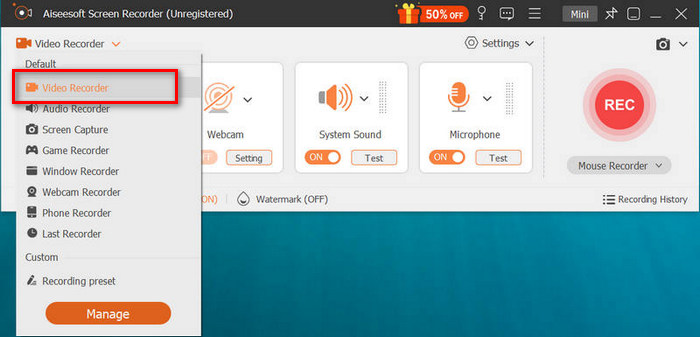
الخطوة 4. بعد ذلك، ابدأ تشغيل عرض الشرائح في PowerPoint. وبالمثل، انقر على زر REC لبدء تسجيل عرض PowerPoint.
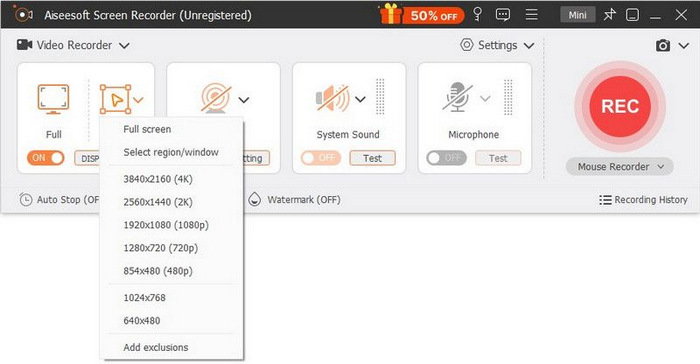
الخطوة 5. عند الانتهاء، انقر فقط على زر إيقاف (Stop)، وسيتم نقلك إلى واجهة المعاينة. من هناك، ستجد في الزاوية السفلية خيارات التحرير التي يمكنك استخدامها لتحرير الصوت والمؤثرات أثناء تحويل PPT إلى MP4.

الخطوة 6. أخيرًا، يمكنك الوصول إلى ملفك من خلال النقر على زر فتح المجلد (Open Folder).
الميزة الجيدة في استخدام مسجل الشاشة FVC في تحويل PowerPoint إلى MP4 هي أنه يمكنك التحكم في توقيت ووتيرة الشرائح. علاوة على ذلك، على عكس الأدوات الأخرى التي تقدم تحويلًا أساسيًا فقط، تحتوي هذه الأداة على ميزات تحرير يمكن استخدامها لتحسين ملف MP4 المحول بشكل أكبر.
الجزء 4: الأسئلة الشائعة حول تحويل PPT إلى MP4
كم من الوقت يستغرق تحويل PPT إلى MP4؟
يعتمد وقت عملية التحويل على حجم الملف الذي يتم تحويله. ولكن عادةً لا تستغرق العروض التقديمية البسيطة وقتًا طويلاً أثناء التحويل.
هل يمكنني الاحتفاظ بالرسوم المتحركة والانتقالات عند تحويل PPT إلى MP4 في PPT؟
نعم. تتيح الميزة المضمنة للمستخدمين الاحتفاظ بالرسوم المتحركة والانتقالات أثناء عملية التحويل. وذلك لضمان الحفاظ على العناصر المرئية في العرض التقديمي، مثل الانتقالات والرسوم المتحركة، أثناء تحويله إلى تنسيق MP4. ومع ذلك، من المهم ملاحظة أن توافق الرسوم المتحركة والانتقالات قد يختلف وفقًا لإصدار PowerPoint المستخدم وتعقيد التأثيرات المطبقة.
هل سيتم الحفاظ على جودة عرض PowerPoint الخاص بي عند التحويل إلى MP4؟
نعم. يدعم عرض PowerPoint دقة فيديو تصل إلى 4K. لذلك، فإن اختيار دقة أعلى سيساعد في الحفاظ على جودة العرض التقديمي. بالإضافة إلى ذلك، عندما تختار تحويل ملف PPT إلى MP4 باستخدام بعض أدوات التحويل المتقدمة التي توفر خيارات لضبط إعدادات معدل البت والضغط لتحسين جودة الفيديو بشكل أكبر، يمكنك ضمان جودة الإخراج.
خاتمة
إن تحويل ملفات PPT إلى صيغة MP4 يوفّر بالفعل قدرًا كبيرًا من السهولة وإمكانية الوصول عند مشاركة الملف عبر منصات وأجهزة مختلفة. والآن بعد أن أصبحت لديك فكرة عن كيفية تحويلها، حان وقت تطبيق ما تعلّمته. ابدأ التحويل اليوم وعزّز مدى وصول عروضك التقديمية وأثرها!
-
 كيفية تغيير حجم صورة في PowerPoint [أسرع طريقة لتغيير الحجم]
 يعد تعلم كيفية تغيير حجم الصور في PowerPoint أمرًا ضروريًا خاصة إذا كنت تريد استخدامه في العرض التقديمي. اقرأ هذه المقالة لمعرفة كيفية القيام بذلك.
-
 مراجعة مزيل العلامة المائية Apowersoft - الميزات والإيجابيات والسلبيات والسعر
 يعد Apowersoft Watermark Remover أحد أفضل إزالة العلامات المائية التي تدعم الاتصال بالإنترنت وغير متصل ، انقر فوق هذا لمعرفة المزيد!
-
 كيفية إصلاح عدم تشغيل الفيديو في برنامج PowerPoint | مرشد سريع
 هل لا يتم تشغيل فيديو PowerPoint الخاص بك؟ تغلب على الإحباط الناتج عن عدم تشغيل مقاطع الفيديو المضمنة الآن باستخدام أفضل خمسة حلول لدينا لحلها دون عناء.
