


 محول الفيديو النهائي
 مسجل الشاشة
 إصلاح الفيديو
 تنزيل آمن
3 طرق فعالة لتحويل MP4 إلى AMV على نظام Windows و Mac بسهولة
عندما تريد إرسال بعض مقاطع فيديو MP4 الكبيرة إلى هاتفك الذكي ، مثل فيلم كبير ، فقد لا تكون هناك مساحة تخزين كافية. لتحويل ملف MP4 إلى AMV ، يمكنك استخدام خوارزمية الضغط المتقدمة للحصول على فيديو أصغر بكثير. سواء كنت بحاجة إلى تحويل مقاطع الفيديو عبر الإنترنت ، أو تعديل مقاطع الفيديو وتعديلها بحجم معين ، يمكنك معرفة المزيد حول أكثر 3 محولات MP4 إلى AMV كفاءة من المقالة.

الجزء 1: كيفية تحويل MP4 إلى AMV عبر الإنترنت
If you just need to convert a simple MP4 to AMV with ease, FVC Free Online Video Converter is a versatile online video converter, which is compatible with MP4, AMV, AVI and more other files. It also enables to tweak the video and audio settings, and even enables you to convert the files without watermark, or other restriction.
- 1. تحويل MP4 إلى AMV ، AVI, مكف والمزيد من مقاطع الفيديو الأخرى بجودة أصلية.
- 2. قم بتعديل معدل الإطارات وجودة الفيديو وترميز الفيديو وجودة الصوت والمزيد.
- 3. توفير واجهة مستخدم سهلة لتحويل ملفات AMV في 3 خطوات فقط.
- 4. إنها طريقة آمنة ومستقرة لتحويل الملفات بدون علامة مائية.
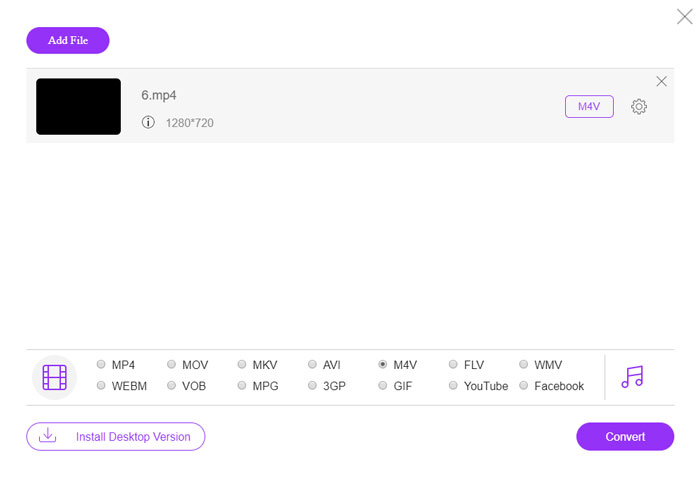
Step 1. Head to the online MP4 to AMV converter on any browser, you can click the Add File to Convert button to install the video converter for the first time. You can also load the MP4 files to the program.

Step 2. Choose the AMV as the output format from the bottom. Of course, you can also tweak the video and audio settings, such as video encorder, video resolution, video bitrate, frame rate and more to get a desired video.

Step 3. After that, you can click the Convert button to start converting MP4 to AMV accordingly. It takes a few seconds to get the desired file, and then you can transfer the video to your smartphone accordingly.
الجزء 2: كيفية تحويل MP4 إلى AMV باستخدام VLC Media Player
يعد VLC Media Player أحد أشهر محولات MP4 إلى AMV. كما يوفر بعض ميزات تحويل وتحرير الفيديو الأساسية. علاوة على ذلك ، يمكنك أيضًا معاينة إخراج فيديو AMV بعد التحويل. فقط تحقق من العملية التفصيلية على النحو التالي.
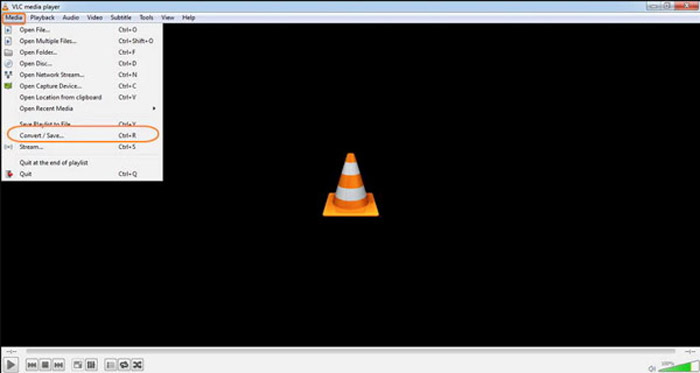
Step 1. Open VLC Media Player on your computer, go to the Media menu and choose the Convert/Save option. Click the Add option to the right of the File Selection list on the File tab and browse the MP4 files.
Step 2. Click the Convert/Save button to continue. Go to the Convert windows, you can select the AMV as the output format. Click the Edit Selected Profile button to tweak the video and audio settings.
Step 3. Click the Browse option and choose a location and filename for the output file. After that, you can click the Start button to convert MP4 files into AMV accordingly on your computer.
الجزء 3: أفضل طريقة لتحويل MP4 إلى AMV بسهولة
FVC Video Converter Ultimate is an all-in-one MP4 to AMV converter on both Windows and Mac. It not only converts the video formats, but also enables you to adjust the different video and audio parameters, add subtitles/audio tracks, and even edit the converted video files with ease.
- 1. تحويل MP4 إلى AMV والمزيد من تنسيقات الفيديو الأخرى بجودة أصلية.
- 2. قم بتعديل معدل الإطارات وجودة الفيديو ومعدل البت وترميز الفيديو والمزيد.
- 3. توفير ميزات تحرير فيديو متعددة للتدوير ، والقص ، وضبط المرشحات ، إلخ.
- 4. تسريع الأجهزة المتقدمة لتحويل الفيديو بسرعة 70x أسرع.
تحميل مجانيلنظام Windows 7 أو أحدثتنزيل آمن
تحميل مجانيلنظام MacOS 10.7 أو أحدثتنزيل آمن
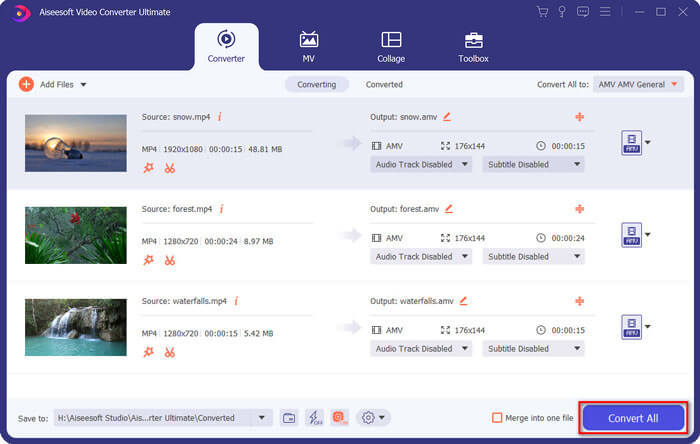
Step 1. Download and install the MP4 to AMV converter, launch the program on your computer. Choose the Convert button and click the Add File option to load the MP4 files, or directly drag multiple MP4 files to this program.

Step 2. Click on the format icon on the right side of the video file and choose the AMV as the output format. You can also click the Gear icon to adjust the video and audio settings, or even edit the video/adjust filters with ease.

Step 3. Once you are satisfied with the output AMV, such as the video size, you can click the Convert All button to start the MP4 to AMV conversion. After that, you can transfer the AMV files to another device.
الجزء 4: الأسئلة الشائعة حول تحويل MP4 إلى ملفات AMV
1. ما هو تنسيق ملف AMV؟
يُعرف ملف AMV باسم ملف Anime Music Video. يتم استخدامه عادةً بواسطة أجهزة تشغيل الوسائط المحمولة من الصين وفيها. يتميز تنسيق الفيديو AMV بدقة منخفضة ، حيث تبلغ دقة الفيديو بين 94 × 64 و 160 × 120. عندما تقوم بتحويل MP4 إلى AMV ، يمكنك إرسال المزيد من مقاطع الفيديو إلى هاتفك الذكي بسهولة.
2. كيف تلعب ملفات AMV على الهاتف الذكي والكمبيوتر؟
عندما تقوم بتحويل ملفات MP4 إلى AMV ، كيف تقوم بتشغيل ملفات الفيديو على هاتفك الذكي أو جهاز الكمبيوتر الخاص بك؟ في الواقع ، يمكنك ببساطة استخدام AMV كمتغير لتنسيق AVI ، وهو قابل للتطبيق على معظم مشغلات الوسائط. إذا كنت بحاجة إلى تشغيل ملفات AMV على أجهزة iOS الخاصة بك ، فيمكنك استخدام VLC Media Player أو مشغل وسائط آخر بدلاً من ذلك.
3. ما هي الاختلافات بين AMV و MP4؟
MP4 هو أحد تنسيقات الفيديو الأكثر استخدامًا والتي يمكن استخدامها لخدمة وجهاز البث عبر الإنترنت. AMV هو نوع مختلف من Motion JPEG ، مع جداول تكميم ثابتة وليست متغيرة. عندما تقوم بتحويل MP4 إلى AMV ، يمكنك ضغط الفيديو وتوفير مساحة تخزين أكبر ، خاصة لنقل مقاطع الفيديو إلى الأجهزة.
خاتمة
ما هو أفضل خيار لتحويل MP4 إلى AMV؟ فقط تعرف على مزيد من التفاصيل حول أفضل الطرق من المقالة. إذا كنت بحاجة إلى تحويل مقاطع الفيديو وضغطها عبر الإنترنت بدون برامج إضافية ، فإن FVC Free Online Video Converter هو الحل النهائي الذي يمكنك أخذه في الاعتبار.
-
 AVI VS MP4 - أيهما أفضل (الجودة / الضغط / حجم الملف ...)
 ما هو تنسيق الفيديو الأفضل ، AVI أم MP4؟ إذا كنت ترغب في الحصول على مقارنة مفصلة ، يمكنك التحقق من هذه المقالة AVI VS MP4. يمكنك معرفة الاختلافات والتشابهات بين AVI و MP4 في العديد من الجوانب.
-
 أفضل 10 برامج مشغل MP4 لنظامي التشغيل Windows و Mac (مجاني ومدفوع)
 اقرأ واحصل على أفضل مشغل MP4 من توصيات أحدث 10 برامج لمشغل الفيديو MP4. يمكنك تشغيل ملفات الفيديو MP4 على نظامي التشغيل Windows و Mac بسلاسة دون تأخير.
-
 كيفية تحويل MP4 إلى WMV لنظام التشغيل Mac / Windows
 يشارك هذا المنشور كيفية تحويل فيديو MP4 إلى تنسيق WMV على نظام Mac أو Windows. سوف نقدم لك أيضًا العديد من الخيارات ، بما في ذلك كل من برامج سطح المكتب والمحولات عبر الإنترنت القائمة على الويب. هل أنت مستعد لمعرفة أفضل أدوات تحويل MP4 إلى WMV؟
