


 محول الفيديو النهائي
 مسجل الشاشة
 إصلاح الفيديو
 تنزيل آمن
MP4 إلى M4V - 4 محولات فعالة من MP4 إلى M4V يجب ألا تفوتها أبدًا
هل يمكنك ببساطة تغيير امتداد الملف من MP4 إلى M4V مباشرة؟ ما هي الاختلافات بين MP4 و M4V؟ عند إعادة تسمية MP4 إلى M4V ، يمكنك على الأرجح تشغيل ملفات M4V مع معظم مشغلات الوسائط دون أي مشكلة. لكن تغيير امتداد الملف لا يؤدي في الواقع إلى تحويل الملف إلى M4V بدلاً من ذلك. ما عليك سوى معرفة المزيد حول 4 محولات فعالة من MP4 إلى M4V من المقالة واختيار المحولات المطلوبة وفقًا لذلك.

الخطوة 1: 4 طرق لتحويل MP4 إلى M4V على Windows / Mac
الطريقة الأولى: كيفية تحويل MP4 إلى M4V عبر الإنترنت مجانًا
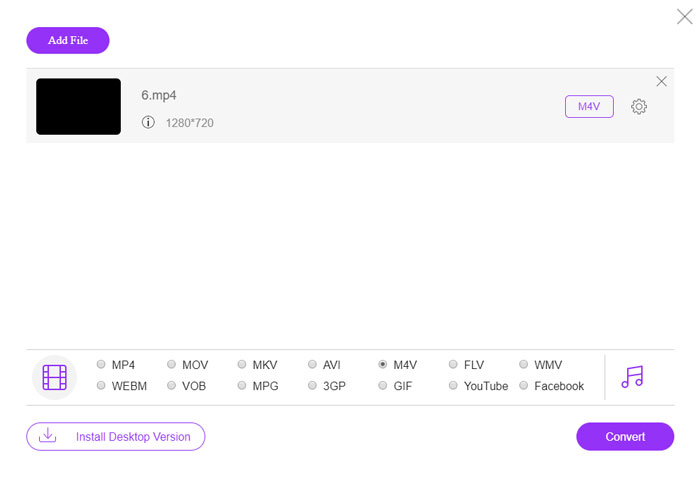
عندما ترغب في تحويل ملفات MP4 إلى M4V مجانًا عبر الإنترنت وبدون أي قيود، فإن FVC Free Online Video Converter هو محوّل فيديو متعدد الاستخدامات يمكنه تحويل معظم صيغ الفيديو، وضبط إعدادات الفيديو/الصوت، وحتى الحفاظ بسهولة على الجودة الأصلية للفيديو.
- 1. تحويل MP4 إلى M4V ، AVI, مكف والمزيد مع الجودة الأصلية.
- 2. قم بتعديل معدل الإطارات ، برنامج ترميز الفيديو ، جودة الفيديو ، برنامج ترميز الصوت والمزيد.
- 3. توفير واجهة بسيطة وبديهية لتحويل ملفات الفيديو بنقرات.
- 4. يمكنك من تحويل مقاطع الفيديو بدون علامة مائية ، أو قيود على الحجم ، إلخ.
الخطوة 1. انتقل إلى محوِّل MP4 إلى M4V عبر الإنترنت، ثم انقر على زر Add Files to Convert لتحميل ملفات MP4 التي تريد تحويلها. عليك تنزيل مُثبِّت محوِّل الفيديو في المرة الأولى.
قم بتنزيل إصدار سطح المكتب لتحويل الملفات دفعة واحدة.

الخطوة 2. اختر تنسيق ملف M4V من واجهة المستخدم. عندما تحتاج إلى ضبط إعدادات الفيديو، يمكنك تعديل مُرمِّز الفيديو (video encoder)، الدقة (resolution)، معدل البت للفيديو (video bitrate)، معدل الإطار (frame rate)، معدل العيّنة (sample rate) والمزيد من الإعدادات الأخرى كما تريد.

الخطوة 3. بعد ذلك، يمكنك النقر على زر Convert لتحويل MP4 إلى M4V. قد يستغرق الأمر بضع ثوانٍ للحصول على الملف المطلوب، والذي يمكنك حفظه على جهاز الكمبيوتر لديك أو مشاركته على مواقع التواصل الاجتماعي.
الطريقة 2: كيفية تحويل MP4 إلى M4V باستخدام VLC Media Player
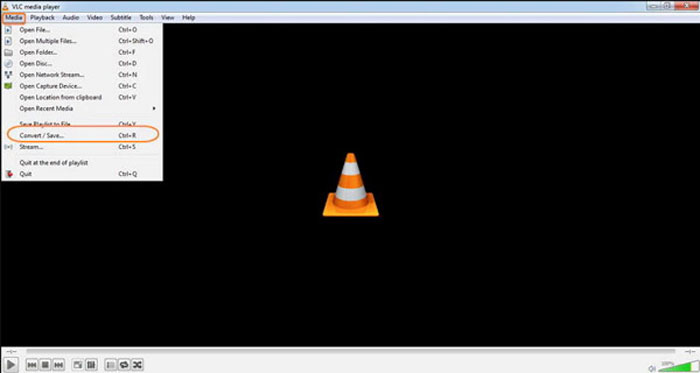
VLC Media Player هو محول مفتوح المصدر من MP4 إلى M4V يمكنك من تحويل مقاطع الفيديو على نظامي التشغيل Windows و Mac. إنه يعمل مع معظم التنسيقات وبرامج الترميز ، والتي يمكنك تحويل مقاطع الفيديو بين تنسيقات مختلفة. هذه هي العملية التفصيلية التي يجب أن تعرفها.
الخطوة 1. افتح مشغّل الوسائط VLC على جهاز الكمبيوتر، واختر قائمة Media ثم حدِّد خيار Convert/Save للدخول إلى مربع حوار Media. بعد ذلك، يمكنك النقر على زر Add لاستعراض الملفات.
الخطوة 2. بمجرد استيراد مقاطع الفيديو، يمكنك النقر على زر Convert/Save أو فقط الضغط على مفتاح الإدخال Enter في لوحة المفاتيح. بعد ذلك، يمكنك اختيار M4V كصيغة للإخراج وضبط المعلمات الأخرى.
الخطوة 3. اختر اسم ملف الوجهة، أي الملف الذي سيتم تحويله وحفظه. اضغط على خيار Browse لتحديد الموقع، ثم أعطِه اسمًا مثل final وانقر على Save قبل النقر على زر Start لتحويل MP4 إلى M4V.
الطريقة الثالثة: كيفية تحويل MP4 إلى M4V عبر FFmpeg
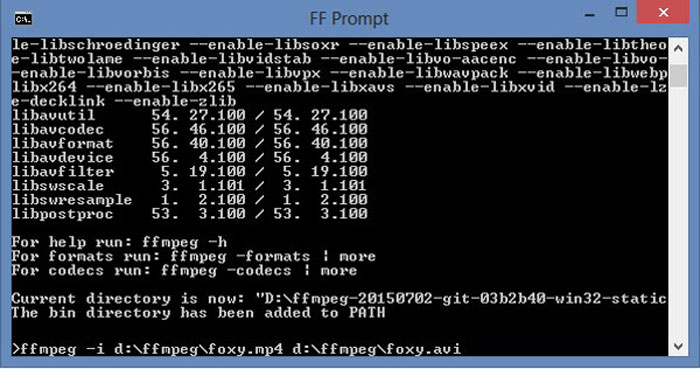
FFmpeg هو محول MP4 إلى M4V يمكّنك من تحويل ترميز الفيديو باستخدام برنامج الترميز. إذا كنت معتادًا على برنامج الترميز ، فيمكنك تغيير ملفات الفيديو بالجودة الأصلية. ما عليك سوى معرفة المزيد من التفاصيل حول طريقة تحويل MP4 إلى M4V على النحو التالي.
الخطوة 1. افتح نافذة موجه الأوامر على جهازك الذي يعمل بنظام Windows وقم بتثبيت FFmpeg عبر سطر الأوامر لتثبيت برنامج تحويل الفيديو المجاني. يحتوي البرنامج على سلسلة كاملة من أوامر سطر الأوامر لتحويل الفيديو.
الخطوة 2. أدخل الأمر التالي لتحويل MP4 إلى M4V. علاوة على ذلك، يمكنك أيضًا ضبط برنامج ترميز الفيديو، ومعدل الإطار، والمزيد من الإعدادات الأخرى للحصول على الفيديو المطلوب.
ffmpeg \-أنا المدخلات. mp4 \
نسخة vcodec
-نسخة ترميز \
الإخراج. m4v
الطريقة الرابعة: كيفية تحويل MP4 إلى M4V باستخدام فرملة اليد
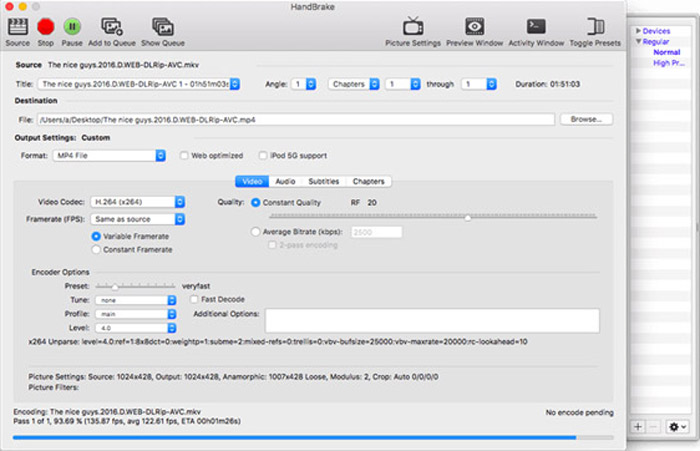
HandBrake هو محول آخر مفتوح المصدر من MP4 إلى M4V. فهو لا يمكّنك من تحويل ملفات الفيديو فحسب ، بل يزيل أيضًا حماية DRM على نظامي التشغيل Windows و Mac. بالطبع ، يمكنك أيضًا استخراج ملفات الفيديو من قرص DVD وفقًا لمتطلباتك.
الخطوة 1. قم بتنزيل وتثبيت HandBrake، ثم شغِّل البرنامج على جهاز الكمبيوتر لديك. اختر خيار Source في الأعلى لتحديد مقاطع فيديو MP4 وإضافتها إلى البرنامج.
الخطوة 2. انتقل إلى خيار Output Settings، واضبط الصيغة على ملفات MP4. وبالطبع يمكنك أيضًا ضبط برنامج ترميز الفيديو، والجودة، ومعدل الإطارات (FPS)، ومعدل البت، والإعداد المسبق (preset) والمزيد من خيارات الترميز الأخرى.
الخطوة 3. بعد ذلك، يمكنك النقر على زر Start لتحويل MP4 إلى M4V بسهولة. عند الحصول على ملفات M4V المطلوبة، يمكنك ببساطة حفظ مقاطع الفيديو في iTunes أو نقلها إلى أجهزة iOS.
MP4 مقابل M4V
تم إصداره بواسطة Moving Picture Experts Group (MPEG) في عام 2001 ، يمكن أن يساعدك تنسيق MP4 في حفظ بيانات الفيديو والصوت والترجمة والصور في مسارات منفصلة. إنه اختصار MPEG-4 Part 14. بالإضافة إلى أنه أحد أكثر التنسيقات شيوعًا المستخدمة لدفق مقاطع الفيديو ومشاركتها.
تم تطوير M4V بواسطة Apple ، والتي تستخدم أيضًا ملفات MPEG 4. غالبًا ما تستخدم ملفات M4V لتخزين مقاطع الفيديو التي تم تنزيلها من متجر Apple iTunes ، مثل مقاطع الفيديو الموسيقية وحلقات التلفزيون وما إلى ذلك ، وقد تجد بعض ملفات M4V محمية ضد النسخ نظرًا لاستخدامها حماية حقوق الطبع والنشر لـ FairPlay DRM من Apple.
الخطوة 2: الأسئلة الشائعة حول تحويل MP4 إلى M4V
1. ما هي الاختلافات بين MP4 و M4V؟
كما ذكر أعلاه ، فإن الاختلاف الرئيسي بين MP4 و M4V هو تقييد DRM Fairplay. تنسيق ملف M4V هو تنسيق حاوية فيديو تم تطويره بواسطة Apple لتشفير ملفات الفيديو في متجر iTunes الخاص بها. عندما تحتاج إلى تشغيل مقاطع الفيديو لأجهزة iOS أو MacBook ، يمكنك تحويل MP4 إلى M4V بدلاً من ذلك.
2. هل يمكنك استخدام نفس الأساليب لتحويل M4V إلى MP4؟
لا. بسبب حماية DRM في متجر iTunes، لا يمكنك تحويل M4V إلى MP4 مباشرة. يمكنك ببساطة تغيير الامتداد من MP4 إلى M4V، وهو ما يعمل مع معظم مشغّلات الوسائط. لكن حماية DRM في ملفات M4V لا تتيح لك تشغيل الفيديوهات إلا على الأجهزة المصرَّح لها فقط. تحتاج إلى استخدام محوِّل فيديو احترافي لإزالة الحماية بدلًا من ذلك.
3. هل يمكنني تحويل MP4 إلى M4V باستخدام QuickTime Player على نظام Mac؟
نعم. نظرًا لأن QuickTime Player لا يدعم M4V كتنسيق الإخراج ، عندما تحتاج إلى تحويل MP4 إلى M4V باستخدام QuickTime Player ، فأنت بحاجة إلى تثبيت بعض المكونات الإضافية للحصول على الفيديو المطلوب على جهاز MacBook الخاص بك مجانًا بسهولة.
خاتمة
عندما تحتاج إلى استيراد مقاطع فيديو إلى مكتبة iTunes لأجهزة iOS الأخرى ، يجب عليك تحويل MP4 إلى M4V بدلاً من ذلك. ما عليك سوى معرفة المزيد من التفاصيل حول الطرق الأربعة الأكثر استخدامًا لتحويل ملفات M4V بسهولة. إذا كنت تحتاج فقط إلى تحويل مقاطع فيديو MP4 عبر الإنترنت بجودة الفيديو الأصلية ، فإن FVC Free Online Video Converter هو الخيار الأفضل الذي يجب أن تأخذه في الاعتبار.
-
 كيفية تحويل M4V إلى MP4 مع / بدون DRM
 هذا المنشور هو الدليل التفصيلي لتحويل M4V إلى MP4 لأي مشغل. يمكنك تغيير M4V إلى MP4 ، حتى ملفات M4V المحمية ، بحيث يمكنك تشغيل مقاطع فيديو M4V بلا حدود.
-
 ما الفرق بين MP3 و MP4
 MP3 أم MP4 ، أيهما أفضل؟ ما الفرق بين MP3 و MP4؟ ستقارن هذه المقالة MP3 مع MP4 من جميع الجوانب التي يمكنك تصويرها.
-
 كيفية تحويل MP4 إلى WMV لنظام التشغيل Mac / Windows
 يشارك هذا المنشور كيفية تحويل فيديو MP4 إلى تنسيق WMV على نظام Mac أو Windows. سوف نقدم لك أيضًا العديد من الخيارات ، بما في ذلك كل من برامج سطح المكتب والمحولات عبر الإنترنت القائمة على الويب. هل أنت مستعد لمعرفة أفضل أدوات تحويل MP4 إلى WMV؟

