


 محول الفيديو النهائي
 مسجل الشاشة
 إصلاح الفيديو
 تنزيل آمن
أفضل 4 طرق لتحرير تحويل MP4 إلى MOV
يُعَدّ تنسيق الفيديو MP4 أحد أشهر التنسيقات، وهو مدعوم بدرجة كبيرة من معظم المشغلات والمحررات والأجهزة. ولكن في بعض الحالات، ستظل بحاجة إلى تحويل ملف MP4 إلى MOV. هل تعرف كيفية تغيير MP4 إلى MOV؟

عند البحث في جوجل عن كيفية تحويل MP4 إلى MOV على الإنترنت، ستجد أن هناك العديد من برامج تحويل الفيديو التي يمكنها مساعدتك في إجراء عملية التحويل، بما في ذلك بعض أدوات التحويل المجانية عبر الإنترنت. في هذا المقال، سنخبرك عن 4 طرق مجانية تساعدك على تحويل MP4 إلى MOV بسهولة.
الجزء 1. كيفية تحويل MP4 إلى MOV مجانًا على جهاز Mac / PC دون فقد الجودة
على الرغم من توافر عدد كبير من برامج تحويل MP4 إلى MOV في السوق، فإن الكثير منها يتسبب في فقدان بعض جودة الصورة والصوت أثناء عملية التحويل. إذا كنت تريد تحويل MP4 إلى MOV دون فقدان الجودة، ينبغي عليك اختيار Free Video Converter.
تم تصميم Free Video Converter خصيصًا للتعامل مع جميع أنواع تحويلات الفيديو والصوت. يدعم بشدة جميع تنسيقات الفيديو / الصوت تقريبًا بما في ذلك MP4 و MOV و MKV و FLV و AVI و WMV و MP3 و AAC و FLAC والمزيد. يمكّنك من تحويل MP4 إلى MOV مجانًا على جهاز Mac أو Windows PC مع الحفاظ على الجودة الأصلية.
تنزيل مجانيلنظام Windows 7 أو الأحدثتنزيل آمن
الخطوة 1. انقر نقرًا مزدوجًا على زر التنزيل أعلاه، ثم اتبع التعليمات لتثبيت هذا المحوّل المجاني من MP4 إلى MOV وتشغيله على جهاز Mac أو PC. تأكد من تنزيل الإصدار المناسب لنظام التشغيل لديك.
الخطوة 2. بعد الدخول إلى الواجهة الرئيسية، يمكنك النقر على Add File(s) لاستيراد ملف أو ملفات MP4 التي تريد تحويلها. هذا المحوّل المجاني من MP4 إلى MOV مزود بميزة التحويل الدفعي التي تتيح لك تحويل ملف MP4 واحد أو أكثر في الوقت نفسه.
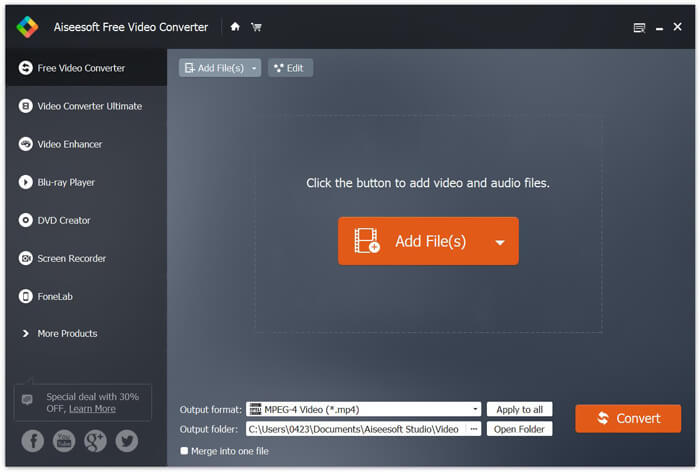
الخطوة 3. انقر على Output format واختر MOV كصيغة الهدف من القائمة المنسدلة. الآن يمكنك ببساطة النقر على زر Convert لبدء عملية التحويل من MP4 إلى MOV.
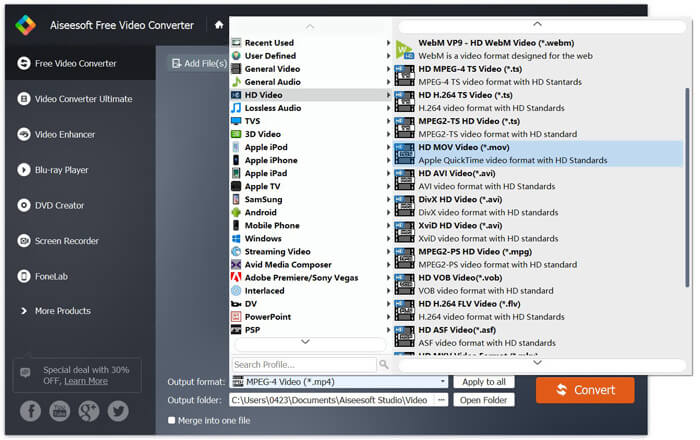
بعد بضع ثوانٍ فقط ، سيتم تحويل MP4 الأصلي إلى تنسيق MOV. إلى جانب MOV ، يمكنك أيضًا تحويل MP4 إلى MKV و FLV و AVI وما إلى ذلك بجودة عالية. يحتوي محول الفيديو المجاني هذا أيضًا على بعض ميزات التحرير الأساسية. قبل التحويل النهائي من MP4 إلى MOV ، يمكنك استخدامها لتحرير مقطع (مقاطع) الفيديو MP4.
الجزء 2. كيفية تغيير MP4 إلى MOV مجانًا باستخدام محول الفيديو عبر الإنترنت
كما ذكرنا أعلاه ، هناك العديد من محولات الفيديو المجانية عبر الإنترنت المتوفرة في السوق والتي يمكن أن تساعدك في تحويل MP4 إلى MOV. هنا في هذا المنشور ، سوف نقدم طريقتين حول كيفية تغيير MP4 إلى MOV عبر الإنترنت.
1. FVC Free Online Video Converter
إذا كنت تريد تحويل MP4 إلى MOV مجانًا عبر الإنترنت، فسيكون FVC Free Online Video Converter خيارك الأفضل. في 3 خطوات بسيطة فقط، يمكنك إتمام التحويل والحصول على ملف محوّل بدون فقدان للجودة خلال ثوانٍ.
الخطوة 1. انقر على الرابط أعلاه وانتقل إلى FVC Free Online Video Converter. ثم انقر على Add Files to Convert في منتصف الشريط. بعد ذلك قم بتنزيل وتثبيت FVC launcher على جهاز الكمبيوتر لديك.
قم بتنزيل إصدار سطح المكتب لتحويل الملفات دفعة واحدة.

الخطوة 2. بعد اختيار الفيديو الذي تريد تحويله ورفعه، تحتاج إلى اختيار MOV كصيغة إخراج لملف الفيديو المحوّل.
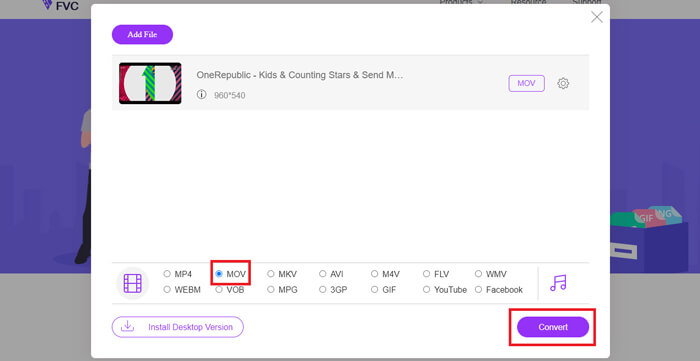
الخطوة 3. انقر على Convert. ويمكنك اختيار حفظ الملف المحوّل على سطح المكتب. بعد ذلك، انتظر قليلاً لتحصل على فيديو MOV الخاص بك.
2. CloudConvert
CloudConvert هي أداة تحويل فيديو عبر الإنترنت شائعة جدًا وسهلة الاستخدام. لديه القدرة على تحويل أكثر من 200 تنسيق ، بما في ذلك تنسيقات الصوت أو الفيديو أو المستندات أو الكتاب الإلكتروني أو الأرشيف أو الصور أو جداول البيانات أو العروض التقديمية. علاوة على ذلك ، سيحمي هذا المحول عبر الإنترنت الجدير بالثقة بياناتك وخصوصيتك.
الخطوة 1. افتح المتصفح وانتقل إلى الموقع الرسمي لخدمة CloudConvert. تم تصميمه بواجهة بسيطة توفّر لك تجربة تحويل مريحة.
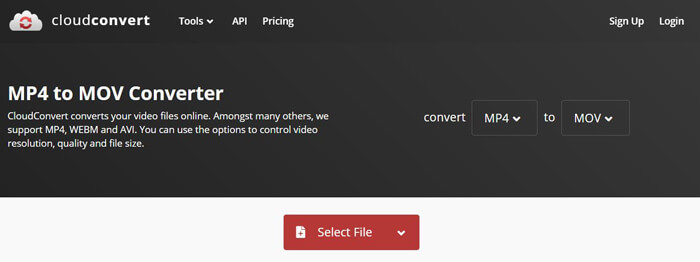
الخطوة 2. انقر على زر Select File لرفع ملف MP4 الذي تريد تحويله. هنا يمكنك إضافة ملف من الكمبيوتر، أو من رابط URL، أو Google Drive، أو OneDrive أو Dropbox. وخلال هذه الخطوة، يُسمح لك بإضافة مزيد من الملفات للتحويل.
شيء واحد يجب أن تهتم به هو أن محول MP4 إلى MOV المجاني هذا يسمح لك فقط بتحويل مقطع فيديو أقل من 1 جيجابايت. تحتاج إلى شراء حزمة لتحويل ملفات أكبر.
الخطوة 3. انقر على زر Convert لبدء رفع وتحويل ملف MP4. بعد ذلك يمكنك النقر على زر Download لحفظ فيديو MOV المحوّل على جهاز الكمبيوتر.

باستخدام CloudConvert لتحويل MP4 إلى MOV عبر الإنترنت ، تحتاج إلى قضاء المزيد من الوقت في عملية تحميل وتحويل وتنزيل الفيديو ، خاصةً عند تحويل ملف كبير.
الجزء 3. كيفية تحويل MP4 إلى MOV باستخدام VLC Media Player
يُعد VLC Media Player مشغل وسائط شهيرًا ومفتوح المصدر. ولا يقتصر عمله على كونه مشغلًا للوسائط فحسب، بل يمكن لـ VLC أيضًا أن يعمل كأداة لتحويل الفيديو لمساعدتك على إجراء عمليات تحويل فيديو متعددة. إذا كان برنامج VLC مثبتًا على جهازك، يمكنك الاعتماد عليه لتحويل ملف MP4 إلى فيديو MOV.
الخطوة 1. افتح برنامج VLC Media Player على جهاز الكمبيوتر. إذا لم يكن لديك VLC، يمكنك الذهاب إلى موقعه الرسمي لتنزيله مجانًا.
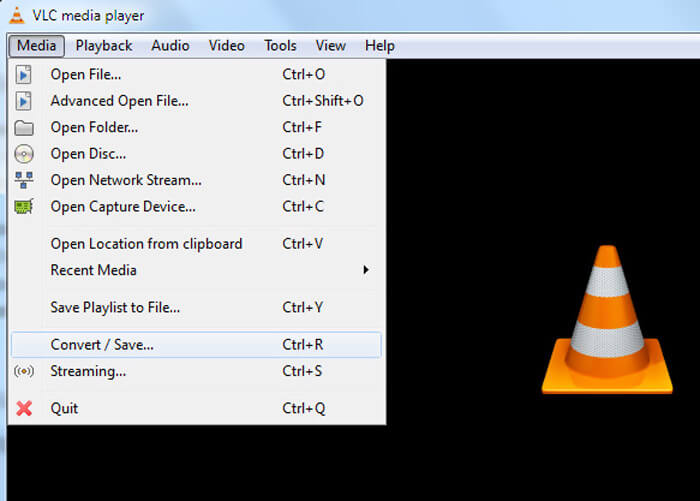
الخطوة 2. انقر على زر Media في شريط القائمة ثم اختر خيار Convert/Save من القائمة المنسدلة.
الخطوة 3. ستظهر نافذة جديدة باسم Open Media. هنا يمكنك النقر على File > Add لاستيراد ملف MP4 الذي تريد تحويله.
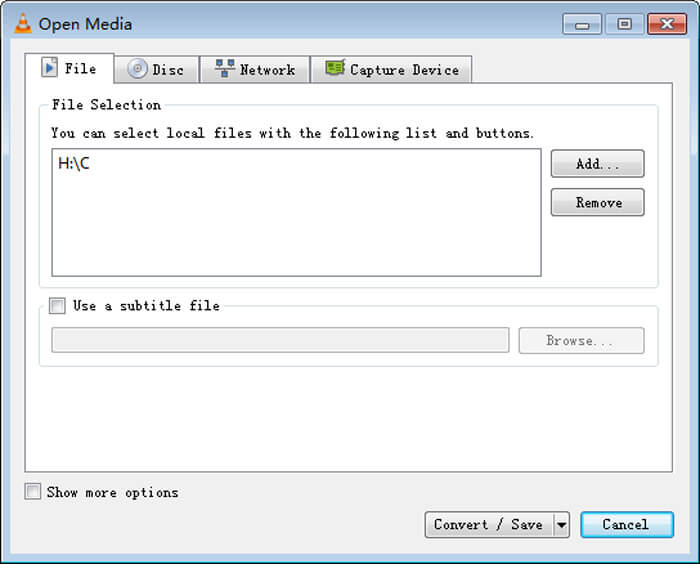
الخطوة 4. انقر على زر Convert/Save في الأسفل لتأكيد العملية. بعد ذلك سيتم نقلك إلى نافذة Convert حيث يمكنك اختيار مجلد حفظ الملف وصيغة الإخراج للفيديو المحوّل.
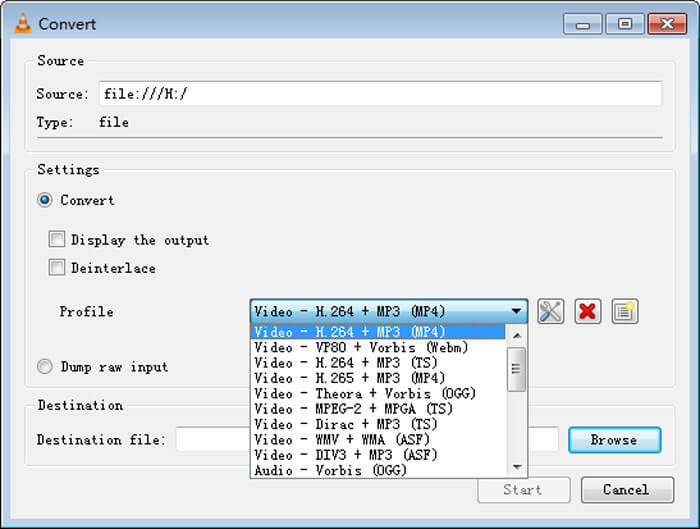
الخطوة 5. اختر MOV كصيغة إخراج من القائمة المنسدلة Profile. ثم انقر على Start لإجراء عملية التحويل من MP4 إلى MOV باستخدام VLC.
MP4 مقابل MOV
تم إصداره بواسطة Moving Picture Experts Group (MPEG) في عام 2001 ، يمكن أن يساعدك تنسيق MP4 في حفظ بيانات الفيديو والصوت والترجمة والصور في مسارات منفصلة. إنه اختصار MPEG-4 Part 14. بالإضافة إلى أنه أحد أكثر التنسيقات شيوعًا المستخدمة لدفق مقاطع الفيديو ومشاركتها.
يمكن استخدام تنسيق MOV لتخزين فيلم أو برنامج تلفزيوني أو مقطع فيديو قصير أو فيلم منزلي. يتم حفظه بالفعل في تنسيق ملف QuickTime (QTFF) ، الذي قدمته شركة Apple في عام 1991. غالبًا ما يتم استخدام ملفات MOV عندما يريد الأشخاص حفظ مقطع فيديو بجودة عالية.
الجزء 4. أسئلة وأجوبة حول تحويل MP4 إلى MOV
السؤال 1. هل يمكن لبرنامج QuickTime تحويل MP4 إلى MOV؟
عندما تحتاج إلى تحويل MP4 إلى MOV على جهاز Mac ، يمكنك تجربة QuickTime. يمكنك فتح فيديو MP4 باستخدام QuickTime Player. ثم انقر فوق الزر "تصدير" واختر تنسيق MOV. يمكنك إعادة تسمية الملف وتحديد الموقع ودقة الفيديو. ثم يمكنك النقر فوق الزر "تصدير" لتحويل MP4 إلى MOV مجانًا على نظام Mac.
السؤال 2. أيهما أفضل ، MOV أم MP4؟
يُعد MP4 أحد أشهر تنسيقات تخزين ملفات الوسائط المتعددة. فهو عبارة عن ملف حاوية رقمي، أي مجرد غلاف للفيديو وليس الفيديو نفسه. وبشكل مشابه لـ MP4، يُعتبر MOV أيضًا ملف حاوية رقميًا. يُشفَّر MOV باستخدام ترميز MPEG-4.الاختلاف الرئيسي بين MOV وMP4 هو أن MOV يُستخدم غالبًا في بيئات Mac، وقد صُمِّم خصيصًا لبرنامج QuickTime. أما MP4 فهو معيار دولي يمكن أن تدعمه معظم برامج تشغيل الوسائط والأنظمة. بشكل عام، يكون فيديو MOV غالبًا أعلى جودةً وأكبر حجمًا، بينما يكون ملف MP4 مضغوطًا أكثر وأصغر حجمًا. لذلك لا يمكنك أن تقول ببساطة إن MOV أفضل من MP4 أو أن MP4 هو الأفضل.
السؤال 3. هل يؤدي تحويل MOV إلى MP4 إلى فقدان الجودة؟
عندما تريد تحويل MOV إلى MP4 ، أو تغيير MP4 إلى MOV ، يجب عليك اختيار محول فيديو احترافي. في معظم الحالات ، لن ترى أي فقد للجودة بعد التحويل.
السؤال 4. هل هناك أي محول مجاني من MP4 إلى MOV؟
هناك الكثير من محولات الفيديو المجانية المعروضة على الإنترنت والتي يمكن أن تساعدك في تحويل MP4 إلى MOV. إلى جانب CloudConvert الموصى به ، يمكنك أيضًا الاعتماد على FFmpeg و HandBrake و ZAMZAR و Convert Files والمزيد لعمل نسخة التحويل.
-
 كيفية تحويل ملفات الفيديو MP4 إلى صور GIF متحركة دون فقدان الجودة
 هل تبحث عن أفضل طريقة لتحويل فيديو MP4 الخاص بك إلى صور GIF متحركة؟ فيما يلي دليل مفصل للقيام بذلك في Photoshop و Windows Movie Maker ومحول الفيديو عبر الإنترنت والمزيد.
-
 MOV مقابل MP4 - أيهما أفضل
 MOV مقابل MP4 ، أيهما أفضل؟ يوضح هذا المنشور الفرق بين MP4 و MOV ، بحيث يمكنك الحصول على أفضل خيار لاستخدامه لملفات الفيديو الخاصة بك.
-
 كيفية تحويل MOV إلى MP4 دون فقدان الجودة
 هل تريد تحويل ملفات MOV (Apple QuickTime Movie) إلى MP4؟ يشارك هذا المنشور 4 طرق مجانية لتحويل ملفات فيديو MOV إلى تنسيق MP4 على نظام التشغيل Windows 10/8/7 / XP و Mac OS X.

