


 محول الفيديو النهائي
 مسجل الشاشة
 إصلاح الفيديو
 تنزيل آمن
كيفية تشغيل MP4 في Windows Media Player على كمبيوتر يعمل بنظام Windows 10
في بعض الأحيان ، لا يتم تشغيل ملف MP4 في Windows Media Player ، ولكن يمكن تشغيله على مشغلات أخرى مثل VLC Media Player أو KM Player. نظرًا لأن MP4 هو تنسيق الفيديو الأكثر شيوعًا وهو متوافق مع جميع مشغلات الوسائط وأجهزة الوسائط المتعددة. قد يكون لديك العديد من ملفات الفيديو المحفوظة بتنسيق MP4. إنه أمر مزعج للغاية إذا فشل تشغيل ملف MP4 في Windows Media Player. إذن كيف تلعب ملفات MP4 في نظام التشغيل Windows 10؟ حسنًا ، لا داعي للقلق. فيما يلي جميع الحلول لإصلاح Windows Media Player وليس تشغيل ملفات MP4.

الجزء 1. لماذا لا يقوم Windows Media Player بتشغيل MP4
وفقًا لمايكروسوفت، ليست كل إصدارات Windows Media Player تدعم تنسيق ملفات MP4. فالإصدارات Windows Media Player 7 وWindows Media Player for Windows XP وWindows Media Player 9 Series وWindows Media Player 10/11 لا تدعم تنسيق ملفات MP4.
إذا تعذر على Windows Media Player تشغيل مقطع الفيديو MP4 ، فربما يكون مقطع الفيديو MP4 تالفًا أو تالفًا. في هذه الحالة ، يمكنك محاولة تشغيل ملف MP4 غير القابل للتشغيل في مشغل وسائط آخر.
سبب آخر لعدم تشغيل Windows Media Player لـ MP4 هو أن ملف MP4 لا يحتوي على حزمة الترميز المناسبة له.
الجزء 2. قم بتشغيل MP4 مع أفضل بديل لبرنامج Windows Media Player
إذا كانت مقاطع فيديو MP4 ما زالت لا تعمل، يمكنك الانتقال إلى مشغّل وسائط مثل FVC Free Video Player. إنه مشغّل فيديو مجاني عبر الإنترنت يشغّل جميع ملفات الوسائط المتعددة الشائعة مثل MP4 وMKV وFLV وMOV وAVI و3GP وMP3 وFLAC وAAC وغيرها على نظامي ويندوز وماك. وبالاعتماد على تقنية HTML5، يمكنك تشغيل أي ملفات فيديو سواء من الكمبيوتر المحلي أو التي تم تنزيلها.
الخطوة 1. قم بزيارة الموقع الرسمي لبرنامج FVC Free Video Player (https://www.free-videoconverter.net/free-video-player/). انقر زر Play Now لتنزيل المُشغِّل وتثبيته.

الخطوة 2. انقر زر Open File لتحميل ملف MP4 الذي تريد تشغيله. يمكنك أيضًا النقر على قائمة File ثم اختيار Open File لإضافة ملف MP4.

بمجرد رفع فيديو MP4، سيتم تشغيله تلقائيًا على جهاز الكمبيوتر الذي يعمل بنظام ويندوز. إذا كنت تريد تعديل تأثيرات الفيديو، يمكنك النقر على Tools ثم اختيار Effects حيث يمكنك ضبط درجة اللون والإضاءة والتباين والتشبع ودرجة غاما لتحسين الفيديو.

الجزء 3. تحويل MP4 للتشغيل في Windows Media Player
إذا كان Windows Media Player لا يمكنه تشغيل ملف MP4، فإن أحد الحلول البسيطة هو تحويل ملف MP4 إلى تنسيق آخر مدعوم من Windows Media Player. يمكنك استخدام أداة لتحويل الفيديو مثل FVC Video Converter Ultimate لتحويل ملف MP4 إلى التنسيق الافتراضي لـ Windows Media Player مثل WMV أو ASF أو WMA.
تحميل مجانيلنظام Windows 7 أو أحدثتنزيل آمن
تحميل مجانيلنظام MacOS 10.7 أو أحدثتنزيل آمن
الخطوة 1. حمِّل Video Converter Ultimate مجانًا ثم ثبِّته وشغِّله على جهاز الكمبيوتر الذي يعمل بنظام ويندوز. انقر زر Add Files لإضافة ملف MP4 الذي تريد تشغيله.

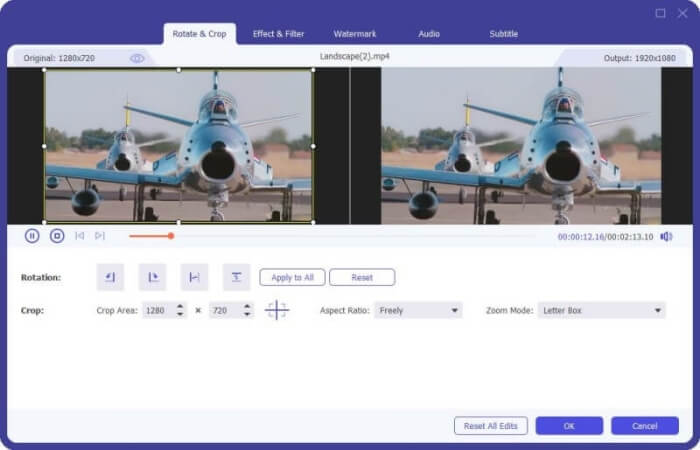
الخطوة 2. إذا كنت ترغب في إضافة بعض التأثيرات إلى ملف MP4، يمكنك النقر على أيقونة Edit للدخول إلى واجهة التحرير. هنا يمكنك إضافة تأثيرات وتطبيق فلاتر وتدوير أو قص ملف MP4 وإضافة علامة مائية وضبط مسار الصوت والترجمات.
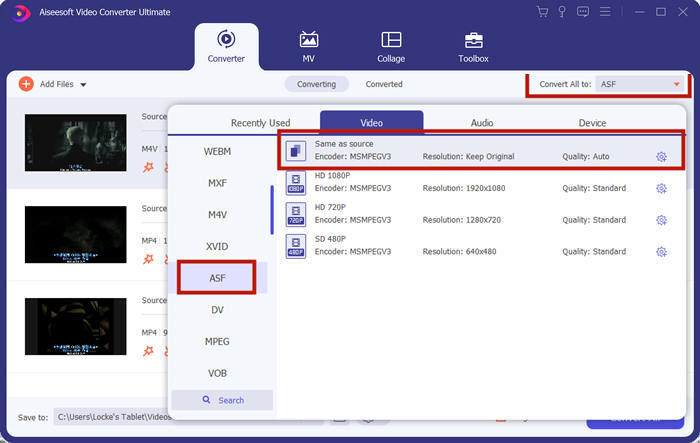
الخطوة 3. بعد ذلك، انقر سهم القائمة المنسدلة بجوار Convert All to، وانتقل إلى علامة تبويب Video ثم اختر ASF أو WMV كتنسيق إخراج.
الخطوة 4. أخيرًا، عيِّن مجلد الإخراج الذي سيتم حفظ ملف MP4 المحوّل فيه. انقر زر Convert All لتحويل ملف MP4. بعد التحويل، يمكنك تشغيل ملف MP4 المحوّل في Windows Media Player.

الجزء 4. نصائح عامة لتشغيل MP4 في Windows Media Player
لتشغيل MP4 على ويندوز 10، يمكنك الانتقال إلى المجلد الذي تُحفظ فيه ملفات MP4. انقر بزر الماوس الأيمن على ملف MP4 الذي تريد تشغيله، واختر Open with ثم حدد Windows Media Player. رغم بساطة الخطوات، قد تفشل أحيانًا في فتح ملف MP4 في Windows Media Player. لحل هذه المشكلة، يمكنك تجربة النصائح التالية.
1. تشغيل MP4 مع مشغلات الوسائط الأخرى
إذا كان ملف MP4 لا يعمل في Windows Media Player، يمكنك تجربة مشغلات وسائط أخرى لفتح ملف MP4. هناك العديد من مشغلات الوسائط مثل FVC Free Video Player وVLC Media Player وKM Player وReal Player وGOM Player وBS Player وDivX Player وغيرها.
2. قم بتثبيت برنامج الترميز الصحيح لبرنامج Windows Media Player
هناك برامج ترميز مفقودة إذا كان Windows Media Player لا يقوم بتشغيل ملف MP4. لحل المشكلة ، تحتاج إلى تثبيت برنامج الترميز الصحيح لبرنامج Windows Media Player.
الخطوة 1. افتح Windows Media Player. انقر على قائمة Organize ثم اختر Options.
الخطوة 2. انتقل إلى علامة تبويب Privacy ثم فعِّل خيار Download usage rights automatically when I play or sync a file.
الخطوة 3. لتشغيل ملف MP4، يمكنك النقر على زر OK لحفظ التغييرات.
3. قم بتشغيل مستكشف الأخطاء ومصلحها على Windows
إذا فشل تشغيل MP4 في Windows Media Player ، يمكنك استخدام أداة استكشاف الأخطاء وإصلاحها لحل المشكلة في Windows 10. اتبع الخطوات لاستكشاف المشكلة وإصلاحها.
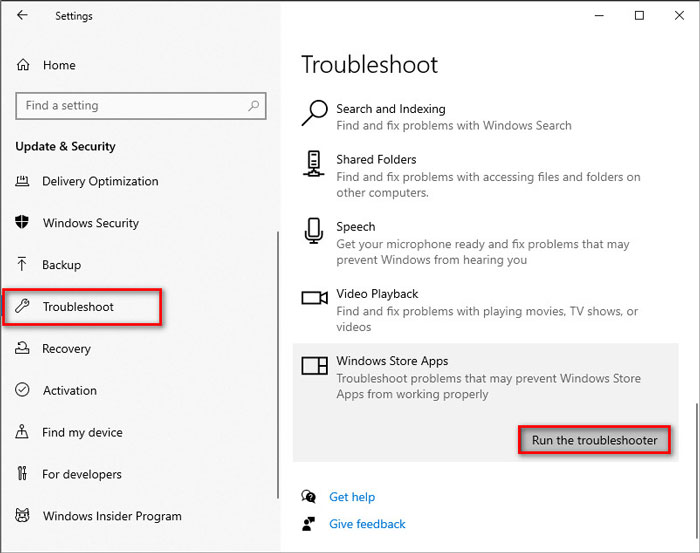
الخطوة 1. على جهاز الكمبيوتر الذي يعمل بنظام ويندوز 10، افتح Settings ثم اختر Update & Security.
الخطوة 2. انتقل إلى قسم Troubleshoot ثم انقر على Windows Store Apps.
الخطوة 3. انقر زر Run the troubleshooter لاستكشاف مشكلات تشغيل Windows Media Player وإصلاحها.
الجزء 5. الأسئلة الشائعة حول تشغيل MP4 في Windows Media Player
ما هو تنسيق الفيديو الافتراضي لبرنامج Windows Media Player؟
تنسيق الملف الافتراضي لبرنامج Windows Media Player هو WMV (Windows Media Video) و WMA (Windows Media Audio). كما أنه يدعم ASF (تنسيق الأنظمة المتقدم) وتنسيق قائمة التشغيل الخاص به المستند إلى XML ، قائمة تشغيل Windows.
ما هو أفضل مشغل MP4؟
هناك العديد من مشغلات MP4 الشهيرة في السوق، بما في ذلك FVC Free Video Player وVLC Media Player وKM Player وQuickTime Player وRealPlayer وMedia Player Classic وGOM Player وPotPlayer وغيرها.
هل يمكنني تشغيل MKV في Windows Media Player؟
لا يدعم Windows Media Player 12 المدمج في نظام التشغيل Windows 10 تشغيل MKV. تحتاج إلى تثبيت برنامج الترميز المناسب للتشغيل.
خاتمة
MP4 هو تنسيق الوسائط المتعددة الرقمية الأكثر شيوعًا والذي يستخدم عادة لتخزين الفيديو والصوت. إنه أمر محبط إذا فشل تشغيل ملف MP4 في Windows Media Player. آمل أن تتمكن من تشغيل ملفات MP4 الخاصة بك بطلاقة في نظام التشغيل Windows 10 مع جميع النصائح والحلول الخاصة بنا. يمكنك تجربة مشغل فيديو آخر مثل FVC Free Video Player لتشغيل ملفات MP4.
-
 كيفية تشغيل ملفات MP4 في Google Drive
 MP4 لا يلعب في Google Drive الخاص بي؟ كيف تلعب ملفات MP4 في جوجل درايف؟ يوضح هذا المنشور 3 طرق لتشغيل مقاطع فيديو MP4 في Google Drive.
-
 قم بتشغيل ملفات MP4 على Chromebook 2021
 هل يمكنك تشغيل مقاطع الفيديو على Chromebook؟ كيف تلعب ملفات MP4 من USB على جهاز Chromebook؟ يشارك هذا المنشور 3 طرق لتشغيل MP4 على Chromebook.
-
 كيفية تشغيل DVD على Windows Media Player في عام 2021
 لماذا لا يعمل قرص DVD الخاص بي على Windows Media Player؟ كيف تلعب دي في دي على ويندوز 7 ميديا بلاير؟ يشارك هذا المنشور 3 طرق لتشغيل أقراص DVD مع أو بدون WMP.
