


 محول الفيديو النهائي
 مسجل الشاشة
 إصلاح الفيديو
 تنزيل آمن
مراجعة متعمقة لبرنامج تسجيل Fraps [2025]
يشارك الكثير من اللاعبين الآن تجاربهم في الألعاب عبر الإنترنت، سواء من خلال البث المباشر أو عبر نشر مقاطع فيديو مُسجّلة للشاشة. ومع ذلك، يُعد امتلاك مسجل شاشة سلس وعالي الدقة أمرًا ضروريًا إذا كنت مهتمًا بهذا النوع من المحتوى. على الأرجح أنك هنا لأنك فضولي لتعرف ما هو Fraps. لبدء رفع مستوى تجربة اللعب لديك، سيوفر لك هذا المقال كل ما تحتاج معرفته عن برنامج تسجيل الشاشة Fraps، بما في ذلك أبرز مميزاته، وأنظمة التشغيل المدعومة، ومزاياه وعيوبه، وسعره، وما إذا كان يستحق الشراء. ولا تفوّت أيضًا التعرف على أفضل بديل له في حال لم يتوافق Fraps مع تفضيلاتك واحتياجاتك. ماذا تنتظر؟ لنبدأ!

الجزء 1. ما هو برنامج Fraps Screen Recorder؟
Fraps برنامج ممتاز لتسجيل الشاشة، يستخدمه المستخدمون منذ ما يقرب من 25 عامًا. على الرغم من أن واجهته قديمة بعض الشيء مقارنةً بأدوات تسجيل الشاشة الحديثة، إلا أنه لم يفقد سمعته الطيبة من حيث الموثوقية والأداء، خاصةً بين اللاعبين ومختبري البرامج. يُعرف Fraps بقدرته على التقاط مقاطع فيديو عالية الجودة، وقياس أداء النظام، وعرض معدل الإطارات في الثانية (FPS) بشكل فوري أثناء لعب الألعاب أو استخدام التطبيقات التي تعتمد على تقنية رسومات DirectX أو OpenGL.
يتيح لك تسجيل الفيديو بمعدلات إطارات قابلة للتخصيص، تصل إلى 120 إطارًا في الثانية، مما يجعله أداةً مثاليةً لالتقاط لقطات لعب سلسة. كما يمكن للمستخدمين التقاط لقطات شاشة باستخدام مفتاح اختصار وحفظها تلقائيًا مع الطوابع الزمنية.
الخصائص الرئيسية:
• عرض عداد FPS في الوقت الفعلي أثناء اللعب.
• أداة معايرة لقياس أداء النظام.
• تسجيل الشاشة بجودة عالية تصل إلى 120 إطارًا في الثانية.
• التقاط لقطة شاشة باستخدام مفاتيح التشغيل السريع القابلة للتخصيص.
• يدعم تطبيقات DirectX و OpenGL.
• يسجل الصوت مع الفيديو.
• يحفظ لقطات الشاشة بتنسيقات BMP، أو JPG، أو PNG، أو TGA.
المنصات المدعومة:
برنامج Fraps متوافق مع أنظمة Windows XP وWindows 2003 وWindows Vista وWindows 7. يتطلب صلاحيات المسؤول ليعمل بشكل صحيح، ويدعم جميع وحدات المعالجة المركزية الحديثة، مثل Pentium 4 والإصدارات الأحدث، مع SSE2. للحصول على أفضل أداء، يُلتقط Fraps أسرع عند استخدامه مع بطاقة رسومات NVIDIA GeForce أو AMD Radeon.
الايجابيات
- يسجل باستمرار بمعدل 120 إطارًا في الثانية.
- تعتبر أداة القياس المعياري المضمنة مفيدة للغاية.
- يدعم ألعاب OpenGL و DirectX.
- يعرض معدل FPS في الوقت الفعلي أثناء اللعب.
- واجهة بديهية وسهلة الاستخدام.
- يسمح للمستخدمين بالتقاط لقطات شاشة.
سلبيات
- تتطلب أحجام ملفات الفيديو الكبيرة التحويل أو الضغط قبل التحميل.
- يمكن أن يستهلك التسجيل الذي مدته دقيقتان ما يقرب من 4 جيجابايت.
- الحد الزمني للتسجيلات في النسخة المجانية هو 30 ثانية.
- لا يوجد تحويل فيديو مدمج.
- لا يدعم التسجيل عبر كاميرا الويب أو كاميرا الوجه.
- الواجهة قديمة، والأداة لم تعد محدثة.
الجزء 2. كيف أقوم بالتسجيل باستخدام Fraps؟
بعد أن تعرفت على برنامج Fraps Screen Recorder، حان الوقت لتعلم كيفية استخدامه. فيما يلي خطوات تسجيل الشاشة باستخدام Fraps:
الخطوة 1. أولاً، تحتاج إلى تنزيل الأداة وتثبيتها على جهاز الكمبيوتر الخاص بك. يرجى الانتباه إلى إصدار نظام ويندوز المدعوم.
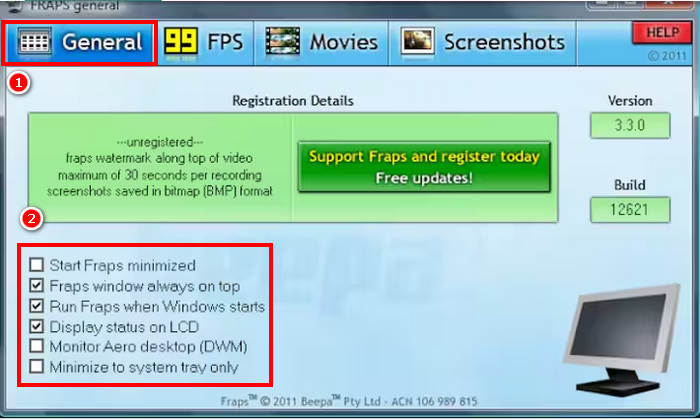
الخطوة 2. بعد ذلك، شغّل الأداة وانتقل إلى علامة التبويب General. من هنا يمكنك تحديد ما تريد أن يحدث عند استخدام الأداة عن طريق النقر على مربعات الاختيار في الأسفل.
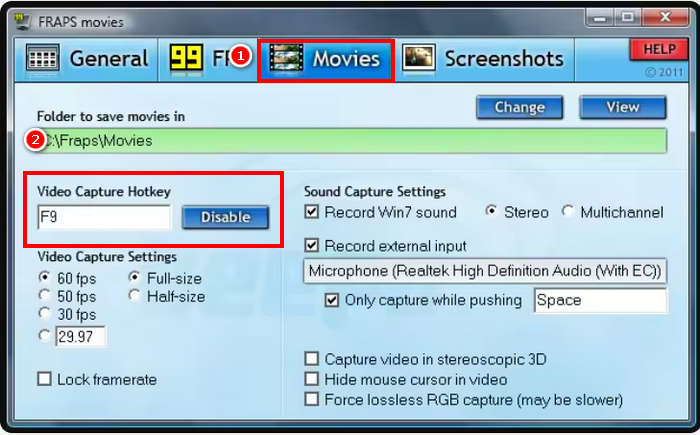
الخطوة 3. بعد ذلك، انتقل إلى علامة تبويب Movie ثم انقر في مربع Video Capture Hotkey. في هذا المربع، أدخل المفتاح الذي تريد استخدامه كاختصار لبدء أو إيقاف تسجيل الفيديو. على سبيل المثال، إذا كنت تريد استخدام المفتاح F9 فقم بتعيينه لهذا المربع.
الخطوة 4. لبدء التسجيل، ما عليك سوى الضغط على المفتاح الذي قمت بتعيينه سابقًا. سيظهر رقم معدل الإطارات (FPS) على شاشتك وسيتحول إلى اللون الأحمر، مما يدل على أن التسجيل جارٍ الآن. لإيقاف التسجيل، اضغط ببساطة على المفتاح نفسه الذي استخدمته لبدء التسجيل.
الجزء 3. هل برنامج Fraps يستحق ذلك؟
كان برنامج Fraps سابقًا مسجل شاشة شائعًا، اشتهر بتصويره عالي الجودة وعرضه لمعدل الإطارات في الثانية (FPS) في الوقت الفعلي. يعمل بكفاءة على إصدارات Windows القديمة مثل XP وVista و7، وهو سهل الاستخدام مع إعدادات بسيطة.
مع ذلك، لم يُحدَّث منذ سنوات. فهو لا يدعم نظامي التشغيل Windows 10 أو 11 بشكل صحيح، ويفتقر إلى ميزات مثل تسجيل كاميرا الويب، ويُنشئ ملفات فيديو كبيرة جدًا تتطلب تحويلًا قبل مشاركتها. كما أن الإصدار المجاني يحدّ من مدة التسجيلات إلى 30 ثانية فقط. بشكل عام، قد يكون Fraps مفيدًا لأجهزة الكمبيوتر القديمة والاستخدامات الأساسية، ولكن بالنسبة لمعظم المستخدمين اليوم، تُقدّم الأدوات الأحدث قيمة أفضل بكثير.
الجزء 4. لماذا لا يقوم مسجل الشاشة Fraps الخاص بي بالتسجيل؟
هناك أسباب مختلفة لعدم تسجيل برنامج Fraps Screen Recorder، وقد يختلف ذلك حسب الموقف، ولكن فيما يلي الأسباب المحتملة لعدم عمل برنامج Fraps الخاص بك كما هو متوقع:
• قد يكون نظام التشغيل غير متوافق. يعمل Fraps بشكل أفضل على إصدارات ويندوز الأقدم مثل XP وVista و7. قد لا يعمل بشكل صحيح على ويندوز 10 أو 11.
• نقص صلاحيات المسؤول. يتطلب Fraps تشغيله بصلاحيات المسؤول. من دون هذه الصلاحيات قد لا يسجل أي شيء.
• إعدادات تسجيل خاطئة. إذا لم يتم تعيين مفتاح الاختصار للتسجيل بشكل صحيح أو إذا كان معدل الإطارات مرتفعًا جدًا، فقد لا يبدأ التسجيل.
• تطبيقات غير مدعومة. يدعم Fraps فقط البرامج التي تستخدم DirectX أو OpenGL. ولن يعمل مع الألعاب أو البرامج التي تستخدم واجهات برمجة رسومات أخرى.
• برامج تشغيل بطاقة الرسومات قديمة. يمكن أن تؤدي برامج التشغيل القديمة أو التالفة إلى منع Fraps من اكتشاف الشاشة أو تسجيلها.
الجزء الخامس. أفضل بديل لبرنامج Fraps لتسجيل الشاشة
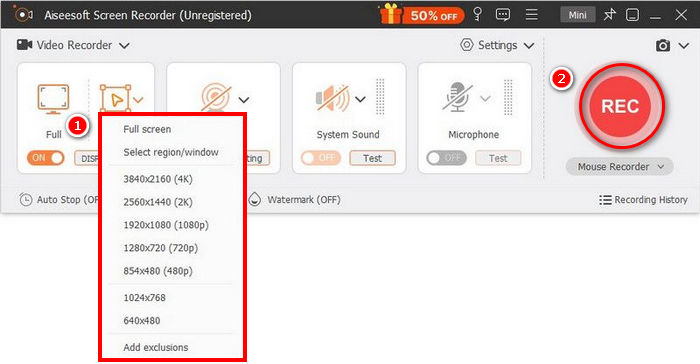
أفضل بديل لـ Fraps يدعم ويندوز حتى أحدث إصدار، بالإضافة إلى macOS، هو FVC Screen Recorder. أداة تسجيل الشاشة هذه سهلة الاستخدام للغاية، وواجهتها بسيطة وبديهية. تتيح لك تسجيل الشاشة مع الصوت وكاميرا الويب وحتى أصوات النظام. على عكس Fraps، يدعم FVC صيغًا مختلفة لإخراج الفيديو ويوفر ضغطًا فوريًا، بحيث تصبح ملفاتك أصغر وجاهزة للمشاركة. كما يتيح لك التقاط لقطات شاشة وجدولة التسجيلات، مما يجعله أكثر مرونة لتسجيل ألعاب الفيديو وكذلك مهام تسجيل الشاشة اليومية.
تنزيل مجانيلـ Windows 7 أو أحدثتنزيل آمن
تنزيل مجانيلـ MacOS 10.7 أو أحدثتنزيل آمن
الايجابيات
- يتيح لك تسجيل الشاشة الكاملة أو النافذة المحددة أو المنطقة المخصصة.
- سجل مكالمات الفيديو والاجتماعات واللعب والدروس عبر الإنترنت
- يسمح بإضافة نصوص وخطوط وإبرازات وأشكال أثناء التسجيل.
- يمكنه تسجيل صوت النظام وصوت الميكروفون.
- تسجيل الشاشة فيديو بجودة عالية.
سلبيات
- قد يبدو الإصدار المجاني محدودًا.
الجزء 6. الأسئلة الشائعة حول برنامج Fraps Screen Recorder
هل يمكن لبرنامج Fraps تسجيل سطح المكتب؟
لا، لا يستطيع برنامج Fraps تسجيل سطح مكتبك العادي أو تطبيقاتك التي لا تدعم DirectX/OpenGL. يعمل فقط مع البرامج والألعاب التي تستخدم رسومات DirectX أو OpenGL.
هل برنامج Fraps يسجل الصوت؟
نعم. برنامج Fraps يُسجِّل الصوت. وهو يدعم صوت النظام والمدخلات الخارجية، مثل الميكروفون، والتي يُمكن تفعيلها من الإعدادات.
كيف أعرف أن برنامج Fraps يقوم بالتسجيل؟
يعرض Fraps عدّاد FPS على الشاشة. عند بدء التسجيل، يتحول لون العدّاد إلى الأحمر للإشارة إلى أن التسجيل قيد التنفيذ.
خاتمة
لا يزال Fraps مفيدًا في عمليات تسجيل الشاشة الأساسية، خاصة على أنظمة ويندوز القديمة. يمكنه تسجيل فيديوهات عالية الجودة وعرض معدل الإطارات في الألعاب. ولكن بما أنه لم يتم تحديثه منذ سنوات، فهو يفتقر إلى المزايا الحديثة وقد لا يعمل بشكل جيد على أجهزة الكمبيوتر الجديدة. إذا كنت تحتاج إلى مزيد من الخيارات أو تستخدم نظامًا أحدث، فقد يكون برنامج مثل FVC Screen Recorder خيارًا أفضل. ما إذا كان Fraps يستحق الشراء يعتمد على ما تحتاجه ونوع النظام الذي تستخدمه.
-
 مراجعة شاملة لبرنامج Action Screen Recorder [2025]
 تعرّف على المزيد حول Action Screen Recorder، من ميزاته الرئيسية، إيجابياته، سلبياته، وتقييمنا له. لا تفوّت فرصة اكتشاف أفضل بديل له.
-
 4 أفضل مسجلات إطلاق الويب المجانية لالتقاط فيديو الشاشة
 هل تبحث عن أفضل طريقة لتسجيل الأنشطة التي تظهر على الشاشة على سطح المكتب دون دفع فلس واحد؟ فيما يلي 4 مسجلات إطلاق الويب المجانية الأكثر استخدامًا.
-
 أفضل 3 مسجلات مكالمات على Facebook لأجهزة الكمبيوتر و iOS و Android
 عندما تريد تسجيل مكالمات Facebook لحفظ أشياء ثمينة ، فهناك الكثير من مسجلات مكالمات Facebook للاختيار من بينها. هنا يمكنك التعرف على أفضل 3 أدوات لتسجيل مكالمات الفيديو على Facebook لأجهزة الكمبيوتر الشخصية و iOS و Android.
