


 محول الفيديو النهائي
 مسجل الشاشة
 إصلاح الفيديو
 تنزيل آمن
كيفية تسجيل اللعب على PS5 بلا حدود [إرشادات شاملة]
في غضون ثلاث سنوات فقط، حقق جهاز بلايستيشن 5 مبيعات هائلة، إذ تجاوز عدد الوحدات المباعة 50 مليون جهاز منذ طرحه، بفضل كونه جهازًا قويًّا يوفر ألعابًا بدقة 4K. وإذا كنت متحمسًا لاستعراض مهاراتك في اللعب أو مشاركة لحظات اللعب الأسطورية مع معجبيك، فإن التسجيل على بلايستيشن 5 خيار ممتاز. إذا كنت تتساءل عن كيفية التسجيل على PS5، فالجهاز مزوّد بهذه الميزة الرائعة التي تتيح لك التقاط مغامراتك في اللعب وتعديلها ومشاركتها على منصات مختلفة. ولكن كيف تفعل كل ذلك بالضبط؟ تابع القراءة لتتعرف على كيفية تسجيل الفيديو والتقاط لقطات الشاشة على جهاز PS5، بل وحتى كيفية القيام بذلك باستخدام أسلوب تسجيل غير محدود المدة.

الجزء 1. كيفية تسجيل اللعب على PS5
بالتأكيد، يأتي جهاز PS5 مع مسجل مدمج سيساعدك على تسجيل لعبتك المذهلة. ومع ذلك، يجدر بنا أن نلاحظ أن مسجل وحدة التحكم الخاصة بك يأتي مع قيود وفعالية. عندما يتعلق الأمر بالفعالية، فمن الآمن أن نقول إنه فعال للغاية في إنتاج مقاطع فيديو مسجلة عالية الجودة. من ناحية أخرى، عندما يتعلق الأمر بقيوده، يجب أن تضع في اعتبارك أن وحدة التحكم هذه لا يمكنها السماح لك إلا بتسجيل 60 دقيقة كحد أقصى من وقت اللعبة. وبصرف النظر عن ذلك، فلن تسمح لك إلا بإنتاج مقاطع فيديو بتنسيق MP4 وWebM كتنسيقات إخراج مدعومة.
في هذه الأثناء، بالنسبة لسؤال كيفية تسجيل الشاشة على مسجل اللعب المدمج في PS5، اتبع الخطوات أدناه لتزويدك بالإجابة.
تسجيل اللعب
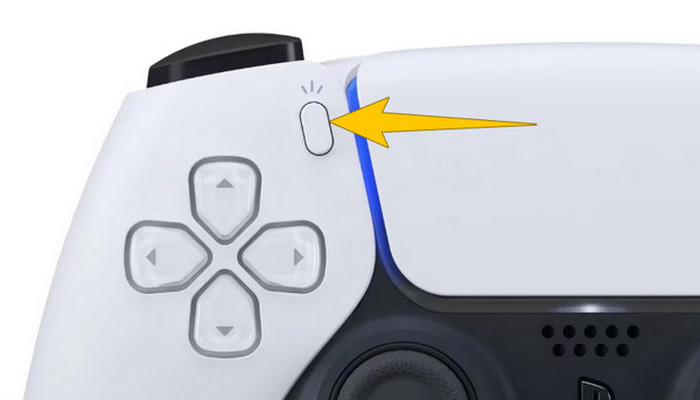
الخطوة 1. أمسك بذراع التحكم DualSense واضغط على الزر الموجود فوق أزرار الاتجاهات. هذا الزر يمثل وظيفة Create (إنشاء) ويمكنك الضغط عليه عندما تكون على وشك بدء تسجيل أسلوب لعبك.
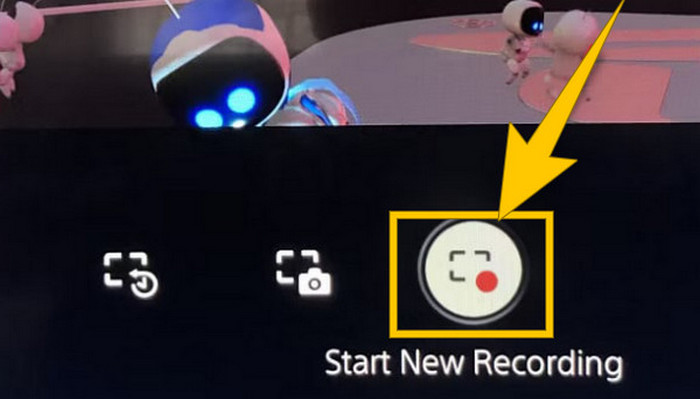
الخطوة 2. بعد الضغط على الزر، انظر إلى الشاشة وانقر على خيار Start New Recording (بدء تسجيل جديد). سترى هذا الخيار في الجزء السفلي. سيبدأ التسجيل فورًا، ويمكنك عندها البدء في اللعب.
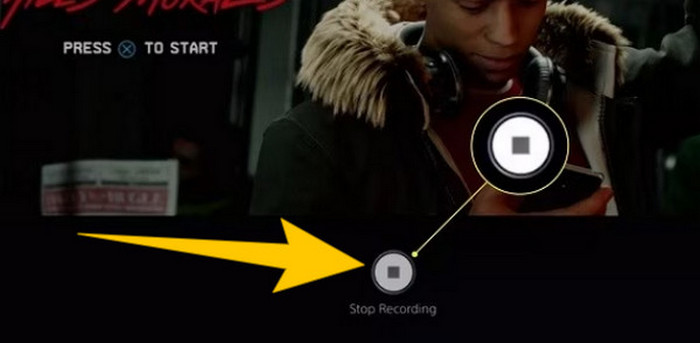
الخطوة 3. لنفترض أنك انتهيت من اللعب، فإليك كيفية إيقاف تسجيل أسلوب اللعب على PS5. كل ما عليك فعله هو الضغط على زر Create مرة أخرى، وهذه المرة انقر على خيار Stop Recording (إيقاف التسجيل) الذي سيظهر على الشاشة.
تنزيل التسجيلات
بعد التسجيل، سيحفظ جهاز PS5 الناتج تلقائيًا في معرض الوسائط الخاص بك، حيث يتم الاحتفاظ بجميع الملفات. الآن، إذا كنت تريد الاحتفاظ بنسخة لجهازك المنفصل، فمن المؤسف أن نخبرك أن المعرض المذكور لا يحتوي على خيار التنزيل. ومع ذلك، لا تزال هناك طريقة للاحتفاظ بالملفات.
الخطوة 1. قم بتوصيل بطاقة SD خارجية أو محرك أقراص USB بجهازك. ثم انتقل إلى Media Gallery (معرض الوسائط) وافتحه.
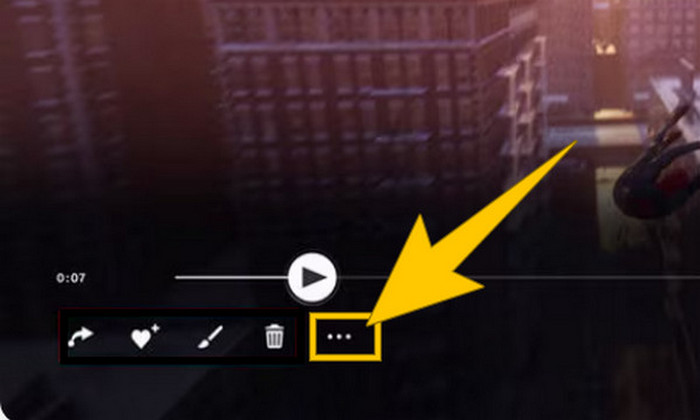
الخطوة 2. اختر تسجيل الشاشة الذي حفظته مؤخرًا. بعد ذلك، انقر على زر Ellypsis أو زر النقاط الثلاث الموجود في أسفل الشاشة إلى جانب الخيارات الأخرى المتاحة.
الخطوة 3. بعد النقر، اختر خيار Copy to USB Drive (نسخ إلى محرك USB) لبدء نسخ الفيديو المسجّل إلى وحدة USB. وبعد الانتهاء، انقل الفيديو إلى الجهاز الذي تريد حفظ الملف المسجّل عليه.
الجزء 2. كيفية تسجيل الشاشة على PS5 بجودة 4K دون حدود
لا تقلق إذا كان بلايستيشن 5 لا يسمح لك بتسجيل أكثر من ساعة واحدة من أسلوب اللعب بجودة جيدة. نحن ندرك مدى إحباط ذلك للكثير من اللاعبين، كما أن ليست كل الألعاب تدعم هذه المدة. لذا، إذا أردت تسجيلًا غير محدود المدة وبجودة 4K على جميع ألعاب PS5، فقد ترغب في تجربة برنامج FVC Screen Recorder. نعم، هذا المسجّل لا يقيّد مدة التسجيل، والحدّ الوحيد هو سعة تخزين جهاز الكمبيوتر لديك. بالإضافة إلى ذلك، لن يبطئ أداء ألعابك. ومع هذا المسجّل الرائع، يمكنك أيضًا ضبط التسجيلات قبل حفظها. في الواقع، يمكنك قص الفيديو، دمجه، ضغطه، تحويل صيغته، تعديل البيانات الوصفية، تعزيز جودة التسجيل، ومشاركته على المنصات التي تختارها بكل سهولة.
ومن الجدير بالذكر أيضًا أن برنامج FVC Screen Recorder يوفر أدوات تسجيل متنوعة لتلبية مهام التسجيل الخاصة بك. وباستخدامه، يمكنك تسجيل الفيديو والصوت والنوافذ وكاميرات الويب والهواتف وما إلى ذلك. ومن المثير للاهتمام أنه يمكنك الاستمتاع بتسجيلاتك دون وجود علامات مائية مدمجة فيها! لذا، لمعرفة المزيد عن برنامج FVC Screen Recorder، اتبع الخطوات أدناه لمعرفة كيفية تسجيل الشاشة على PS5.
الخطوة 1. احصل على برنامج FVC Screen Recorder بتنزيله على جهاز الكمبيوتر. للقيام بذلك، ما عليك سوى النقر على زر Free Download (تنزيل مجاني)، ثم اتباع التعليمات لتثبيته وفتحه.
تنزيل مجانيلـ Windows 7 أو أحدثتنزيل آمن
تنزيل مجانيلـ MacOS 10.7 أو أحدثتنزيل آمن
الخطوة 2. بعد الوصول إلى واجهة برنامج FVC، ابحث عن أداة Game Recorder (مسجّل الألعاب) وانقر عليها. ستجدها في الجهة اليمنى من منتصف الشاشة. من هناك، انقر على السهم الصغير بجوار Select the Game (تحديد اللعبة) لاختيار النافذة التي تظهر فيها شاشة جهاز PS5.
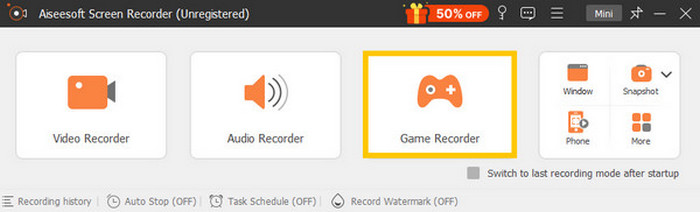
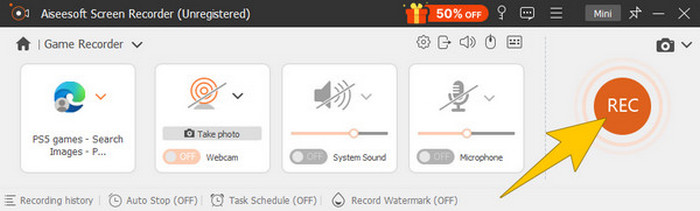
الخطوة 3. بعد اختيار النافذة، ستلاحظ أن المسجّل سيركّز عليها. ومن المميز أنه يمكنك أيضًا تحديد ما إذا كنت تريد تضمين كاميرا الويب لتسجيل صورة داخل صورة، بالإضافة إلى صوت النظام وصوت الميكروفون في التسجيل. عند ضبط كل الإعدادات، انقر على زر REC لبدء اللعب والتسجيل.
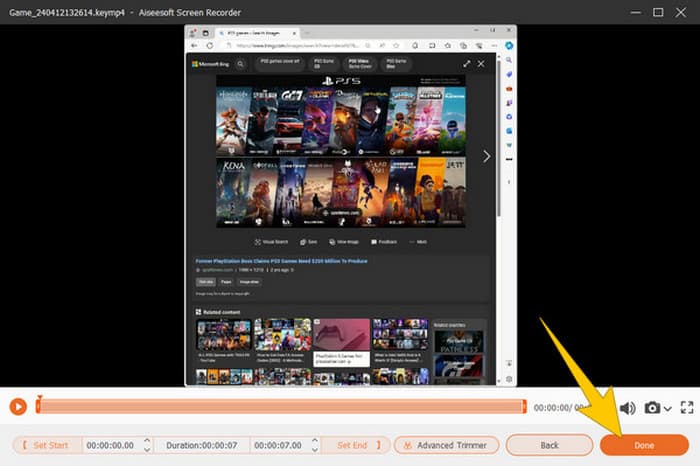
الخطوة 4. عندما تنتهي من التسجيل، انقر على زر Stop (إيقاف) من الشريط العائم. بعد ذلك، يمكنك تعديل الفيديو باستخدام أدوات التحرير المتاحة في النافذة الجديدة. ثم انقر على زر Done (تم) لحفظ الملف المسجّل في معرضك.
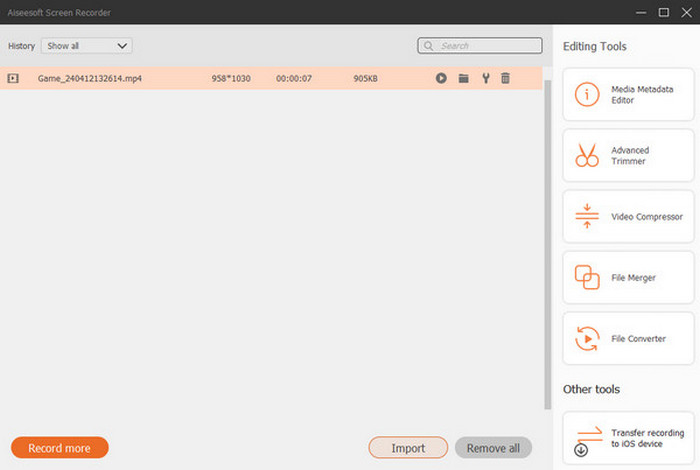
الخطوة 5. هذه خطوة اختيارية. لكن إذا أردت مشاركة تسجيلك على حساباتك في مواقع التواصل الاجتماعي، يمكنك النقر بزر الفأرة الأيمن على أحدث تسجيل للعبة، ثم اختيار خيار Share (مشاركة). كما يمكنك استخدام أدوات التحرير المتقدمة الإضافية لتحسين تسجيلاتك.
إذا كنت ترغب في معرفة المزيد عن هذا المسجل، فإليك المزيد من النصائح للتعلم.
قراءة إضافية
5 طرق فعّالة لتسجيل الشاشة وتحويلها إلى GIF على نظامي Mac وWindows
كيفية تسجيل الحركات الملحمية، والإنقاذات الصعبة، أو الشروحات في لعبة Minecraft
الجزء 3. الأسئلة الشائعة حول تسجيل اللعب على PS5
كيف تقوم بإيقاف تسجيل اللعب على PS5؟
لإيقاف أو إيقاف تسجيل اللعب على جهاز PS5، ما عليك سوى الضغط على زر "إنشاء" من وحدة التحكم في اللعبة. ثم انقر على خيار "إيقاف التسجيل" على الشاشة.
أين يمكنني رؤية مقاطع اللعب المسجلة على جهاز PS5 الخاص بي؟
يتم تخزين مقاطع اللعب المسجلة في قسم "التقاط" من المعرض الرئيسي. ويمكنك الوصول إلى هذا المعرض من الشاشة الرئيسية. وباستخدامه، يمكنك عرض مقاطعك وتحريرها ومشاركتها حسب ما يسمح به المعرض الخاص بك.
كيف سأشارك تسجيلاتي على PS5؟
يمكنك مشاركة مقاطعك بعد تسجيلها على جهاز PS5 مباشرةً من معرض اللقطات. ما عليك سوى تحديد المقطع الذي تريد مشاركته، ثم النقر فوق الزر "خيارات" على وحدة التحكم، ثم تحديد خيار "مشاركة".
خاتمة
لن تحتاج بعد الآن إلى السؤال عن كيفية التسجيل على PS5، فهذه المقالة قدّمت لك الطرق الافتراضية وأفضل الحلول. لذا، استمتع بتسجيلات طويلة وعالية الجودة لأسلوب اللعب الذي تفضّله. ثم شارك هذه الحلول مع رفاقك اللاعبين ليحصلوا هم أيضًا على تجربة تسجيل مثيرة على جهاز PS5 الخاص بهم!
-
 5 من أفضل برامج تسجيل الألعاب التي يجب على اللاعبين معرفتها [2024]
 هل أنت لاعب تريد تسجيل لعبة؟ بعد ذلك ، ستمنحك هذه المقالة أفضل مسجل ألعاب يمكنك استخدامه لتجربة ارتفاعات ألعاب جديدة.
-
 أفضل 5 تطبيقات لتسجيل شاشة Android يجب عليك الحصول عليها في عام 2024
 هل تواجه مشكلة لأنه لا يمكنك تسجيل شاشة على جهاز Android؟ إذا كان الأمر كذلك ، فقد استعرضت هذه المقالة مسجلات شاشة Android التي يمكنك التنزيل عليها.
-
 أفضل 5 مسجلات اجتماعات Zoom لتسجيل الاجتماعات على Zoom [2024]
 هل تحتاج إلى تسجيل اجتماع تكبير حتى لا تفوتك التفاصيل المهمة لاجتماعك؟ إذا كان الأمر كذلك ، فإن هذه المقالة توفر أفضل مسجلات التكبير / التصغير التي يجب أن تعرفها.
