


 محول الفيديو النهائي
 مسجل الشاشة
 إصلاح الفيديو
إنشاء آلية التعامل في حل تأخير صوت VLC في كل نظام تشغيل متاح
يُعَدّ VLC (VideoLan Client) واحدًا من أشهر مشغلات الوسائط المتاحة على نظامي ويندوز وماك لأنه مجاني. وهو مرن في الأداء حتى مع أعلى جودة للفيديو، وقادر على تشغيل أنواع مختلفة من المقاطع مثل فيديوهات 360 درجة أو صيغ الملفات المضغوطة. ولكن حتى أكثر مشغلات الوسائط شهرة قد يواجه أعطالًا أحيانًا. ستناقش هذه المقالة كيفية ضبط تأخير الصوت في VLC على أنظمة ويندوز وماك وأندرويد وآيفون.

الجزء 1. كيفية إصلاح تأخير صوت VLC في جميع أنظمة التشغيل
إصلاح تأخير الصوت في VLC على Windows
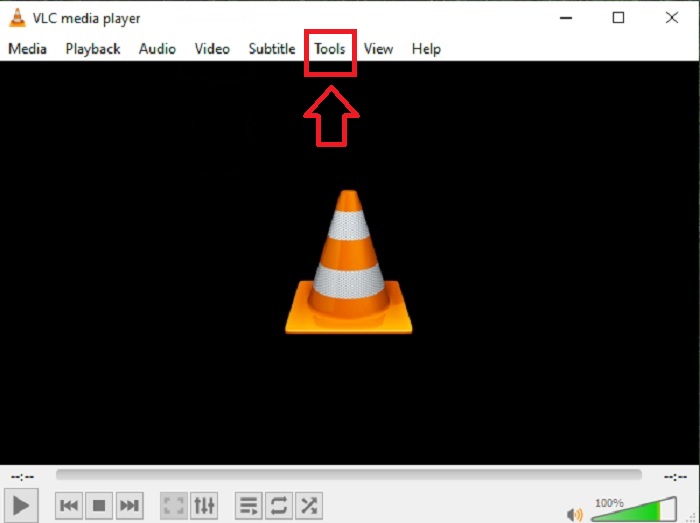
الخطوة 1: افتح مشغّل الوسائط VLC في ويندوز، ثم انقر على تبويب Tools (الأدوات). بعد النقر على تبويب Tools، اضغط على Preference (التفضيلات).
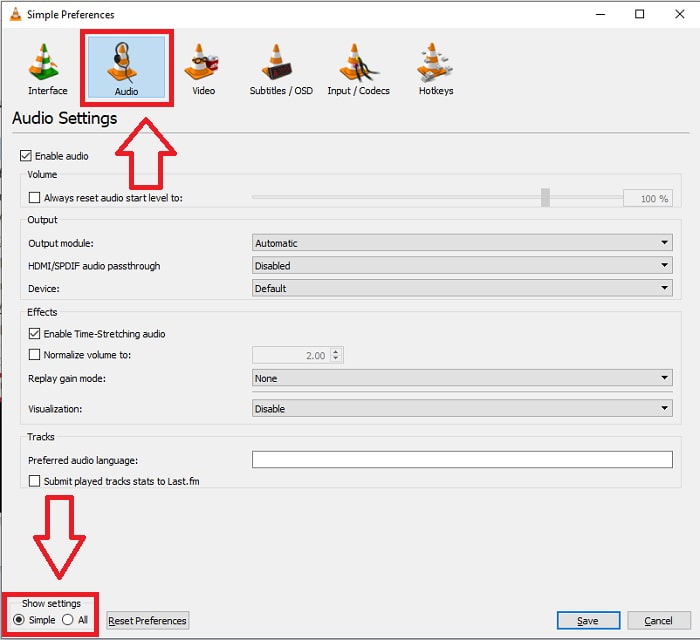
الخطوة 2: ستظهر واجهة أخرى على شاشتك. تابع العملية بالنقر على تبويب Audio (الصوت). في الزاوية السفلية اليسرى، اختر All (الكل) للوصول إلى الإعدادات المتقدّمة.
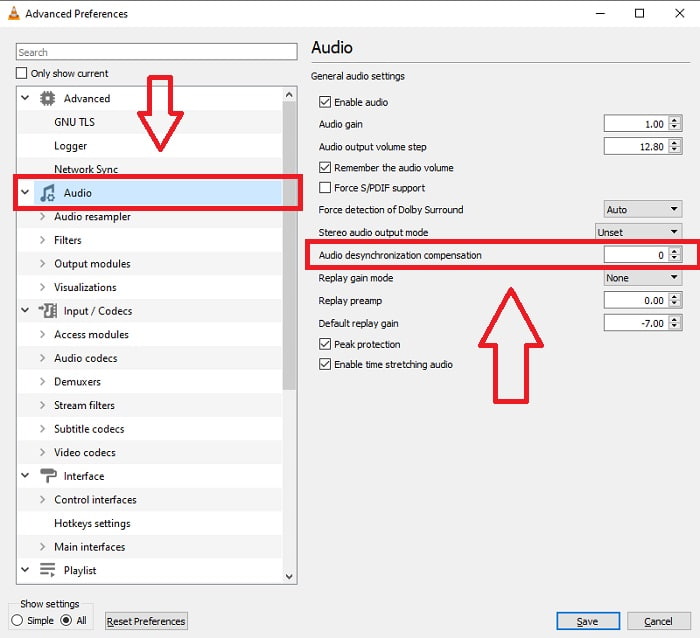
الخطوة 3: ستوفّر لك الإعدادات المتقدّمة كل الخيارات المتاحة. تابع بالبحث عن قسم Audio (الصوت) في تبويب الإعدادات المتقدّمة. بعد الضغط عليه، سترى الإعدادات العامة للصوت وتمكّنك من ضبط Audio desynchronization compensation. إذا كان الصوت متأخرًا عن الفيديو، فغيّر القيمة إلى قيمة موجبة للتعويض. يجب استخدام القيم السالبة إذا كان الصوت يتقدّم على الفيديو. سيعمل مشغّل الوسائط VLC على إصلاح مشكلة عدم تزامن الصوت مع الفيديو بشكل دائم في جميع المقاطع من خلال هذه العملية.
إصلاح تأخير الصوت في VLC على Mac
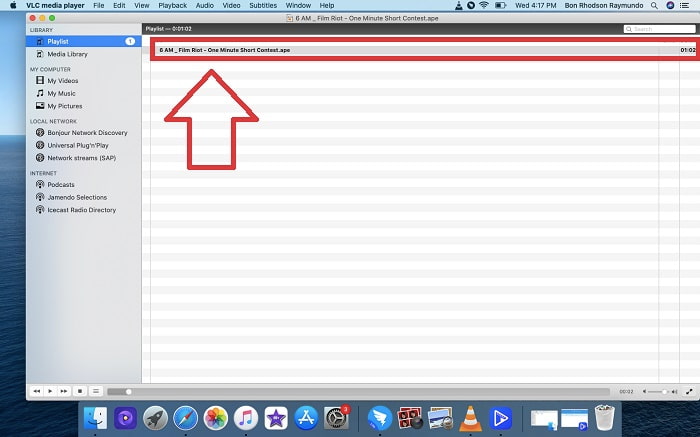
الخطوة 1: افتح مشغّل الوسائط VLC على جهاز ماك، وأضِف ملفًا من سطح المكتب بالنقر على Open Media (فتح وسائط) أو بسحب الملف وإفلاته في VLC.
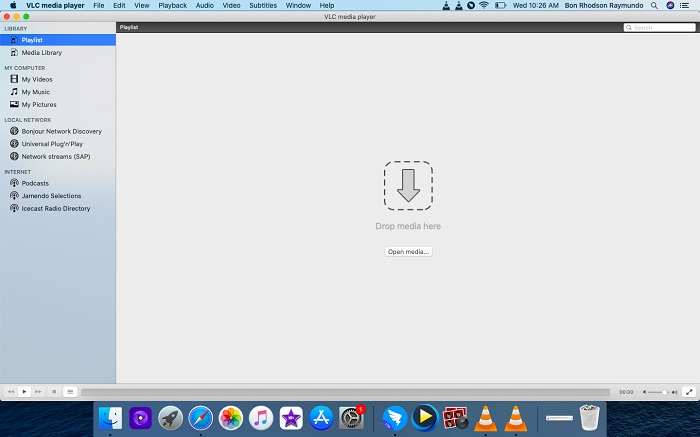
الخطوة 2: قم بتشغيل الملف عندما يصبح ملف الفيديو جاهزًا.
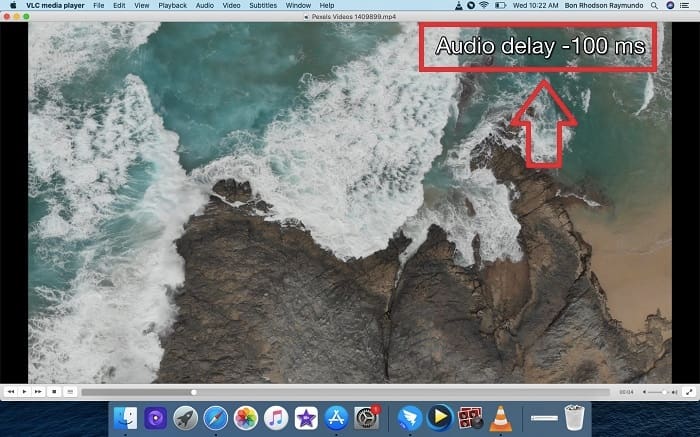
الخطوة 3: باستخدام المفتاح F يمكنك تقليل تأخير الصوت ببضعة ميلي ثانية، بينما يزيد المفتاح G التأخير ببضعة ميلي ثانية. وبناءً على ما إذا كان الصوت متأخرًا عن الفيديو أو متقدّمًا عليه، لن تحتاج إلا إلى الضغط على الأزرار لإنهاء الأمر بسرعة. يقوم المفتاحان G وF بتقديم الصوت وتأخيره على الترتيب.
إصلاح تأخير الصوت في VLC على iPhone
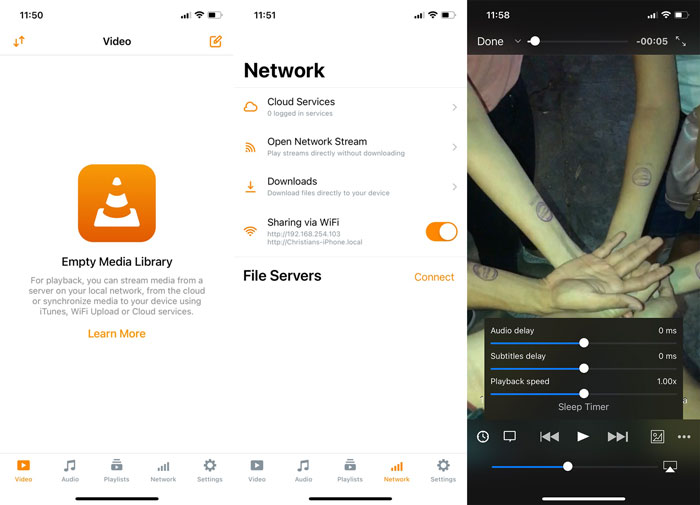
الخطوة 1: افتح مشغّل الوسائط VLC على الآيفون، وانقر على أيقونة Network (الشبكة) لرفع ملف الفيديو الخاص بك.
الخطوة 2: بعد النقر على أيقونة Network، افتح خيار Sharing via Wi-Fi (المشاركة عبر Wi‑Fi) وسجّل الدخول إلى خدمة التخزين السحابي لرفع الفيديو الذي تريد ضبط تأخير الصوت فيه.
الخطوة 3: شغّل مقطع الفيديو، وانقر على الأيقونة الموجودة في أسفل يسار الشاشة، ثم خصِّص Audio Delay (تأخير الصوت) عن طريق ضبط Slider (شريط التمرير) الذي يعالج مشكلة عدم تزامن الصوت باستخدام مشغّل الوسائط VLC. إذا كان صوت مقطع الفيديو متأخرًا، حرّك الشريط إلى اليمين، وإذا كان الصوت مبكرًا عن الفيديو، فحرّكه إلى اليسار.
إصلاح تأخير الصوت في VLC على Android
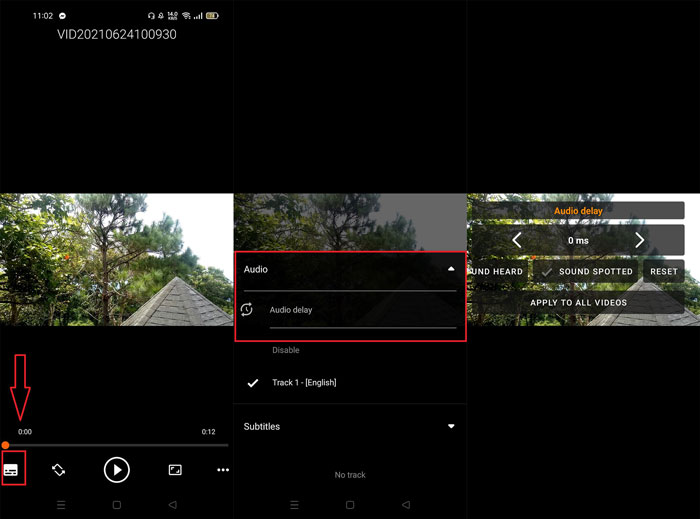
الخطوة 1: افتح مشغّل الوسائط VLC على هاتف أندرويد، وشغّل الفيديو الذي تريد ضبط تأخير الصوت فيه.
الخطوة 2: انقر على الأيقونة الأولى في الزاوية السفلية اليسرى من الشاشة ثم اضغط على Audio (الصوت) لمعاينة Audio delay. (تأخير الصوت).
الخطوة 3: كما هو الحال في كل أنظمة التشغيل، ستقوم بزيادة التأخير إذا كان الصوت يعمل مبكرًا قبل الفيديو، وستقوم بتقليل تأخير الصوت إذا كان الفيديو يعمل قبل الصوت.
الجزء 2. أفضل طريقة لإصلاح / ضبط الصوت غير المتزامن في مشغل الميديا VLC
قد يكون من المربك إصلاح عدم تزامن الفيديو والصوت باستخدام VLC بسبب خطواته المعقّدة وكثرة التفاصيل في تشغيل البرنامج. أفضل طريقة لحل مشكلة تأخير الصوت هي استخدام برنامج Video Converter Ultimate. يحتوي هذا البرنامج على ميزة مزامنة الصوت Audio Sync شبيهة بما في VLC، لكنها تقوم بإصلاح تزامن الصوت مع الفيديو بطرق أسهل بكثير. إضافة إلى ذلك، يوفّر هذا البرنامج مزايا أخرى يمكن استخدامها لتحسين مقطع الفيديو.
الخطوة 1: انقر على زر Free Download (تنزيل مجاني) لحفظ البرنامج على القرص الصلب في جهاز الكمبيوتر. بعد ذلك يمكنك تثبيت البرنامج وإجراء التغييرات على إعداداته.
تحميل مجانيلنظام Windows 7 أو أحدثتنزيل آمن
تحميل مجانيلنظام MacOS 10.7 أو أحدثتنزيل آمن
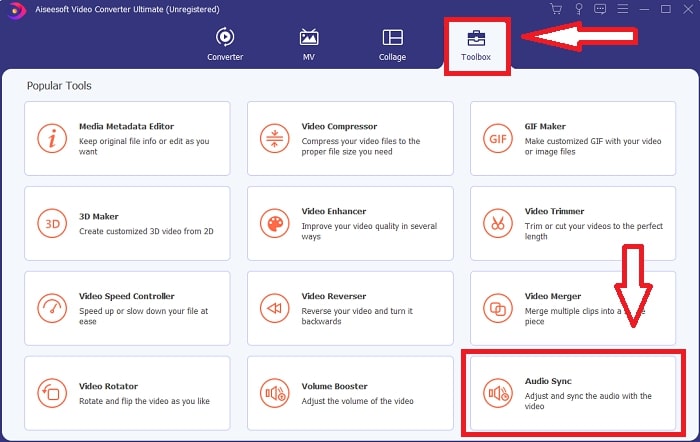
الخطوة 2: بعد تثبيت البرنامج، قم بتشغيله، واختر خيار Toolbox (صندوق الأدوات) من القائمة الرئيسية ثم انقر على أداة Audio Sync (مزامنة الصوت).
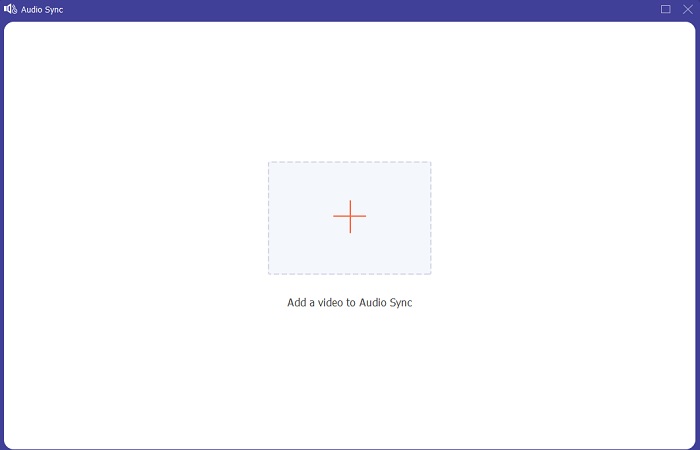
الخطوة 3: بالنقر على زر + وفقًا لتفضيلاتك، يمكنك إضافة أي ملف ثم تعديل مقطع الفيديو كما تفعل عادة.
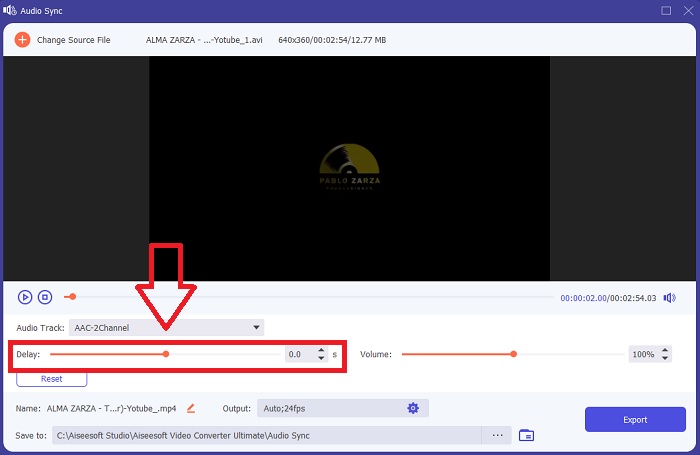
الخطوة 4: حرّك Slider (شريط تمرير) الصوت لجعل مقطع الفيديو متزامنًا معه. بالإضافة إلى ذلك، لديك خيار تغيير جهاز الإخراج ومستوى صوت مقطع الفيديو.
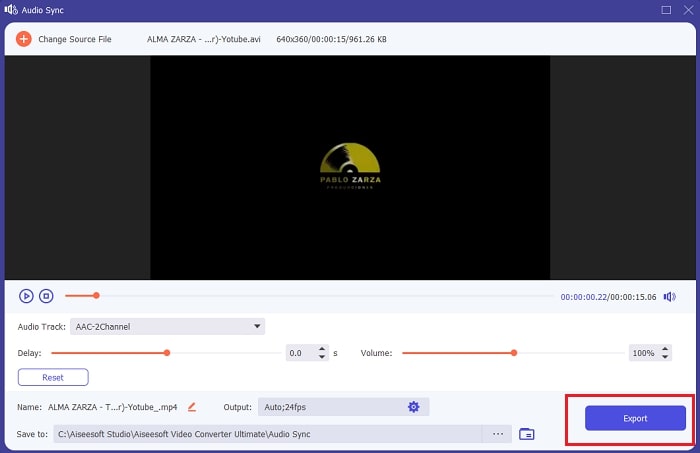
الخطوة 5: عندما تصبح راضيًا عن تزامن مقطع الفيديو، انقر على Export (تصدير) واحفظ الملف في أي مكان تريده.
الجزء 3. أسئلة وأجوبة حول VLC Audio Delay
ما هو نظام التشغيل الذي يصعب استخدامه في إصلاح مزامنة الصوت؟
هناك طرق مختلفة لإصلاح مشكلة تزامن الصوت في مقطع الفيديو. بل إنه يساعد أيضًا في تعلّم كيفية تأخير الصوت في VLC على ويندوز وماك وأندرويد وآيفون. إن استخدام VLC على الآيفون أكثر تعقيدًا من استخدامه على أنظمة التشغيل الأخرى، إذ يتطلّب استخدام التخزين السحابي لتشغيل مقطع فيديو على VLC قبل تعديل تأخير الصوت. أفضل بديل لاستخدام VLC لضبط تأخير الصوت في مقطع الفيديو الخاص بك هو برنامج Video Converter Ultimate. يحتوي هذا البرنامج على ميزة Audio Sync (مزامنة الصوت) التي تمكّنك من تخصيص تأخير الصوت بطريقة سهلة ومباشرة.
هل أفقد جودة الصوت إذا قمت بإصلاح مزامنة الصوت باستخدام VLC؟
لن يقوم مشغل وسائط VLC بتغيير جودة الصوت إلا إذا قمت بتحويل الصوت إلى تنسيقات أخرى. يقوم تعويض تزامن الصوت فقط بمزامنة صوت مقطع الفيديو الخاص بك. ومع ذلك ، فإنه لن يغير جودة إخراج الصوت.
هل يمكنني استخدام VLC لتسجيل الشاشة؟
يُعد مشغّل الوسائط VLC خيارًا ممتازًا لـتسجيل الشاشة. فمن خلاله يمكنك التقاط الفيديو من سطح المكتب والتلفزيون وكاميرا الويب ثم رفعه إلى مواقع التواصل الاجتماعي. ويمكن استخدامه أيضًا في تسجيل الصوت. ومع ذلك، لا يكون VLC دائمًا موثوقًا عند تسجيل الفيديو من الشاشة؛ فهو معروف بحدوث أعطال متكررة فيه دون سبب واضح.
خاتمة
في الختام، إذا وجدت أن مشغّل الوسائط VLC معقّد للغاية لإصلاح تزامن الصوت مع مقطع الفيديو، فنحن نوصي باستخدام برنامج Video Converter Ultimate. هناك طرق عديدة لتحسين تأخير الصوت عند تشغيل مقاطع الفيديو على VLC، إلا أن هذا البرنامج أسهل بكثير على جميع أنظمة التشغيل مثل ماك وويندوز وآيفون وأندرويد. كما يوفّر ميزات مختلفة يمكنها تحسين مقطع الفيديو، مثل القصّ والتحسين والتحرير باستخدام القوالب. قم بتنزيل Video Converter Ultimate لتجربة سهولة إصلاح وضبط الفيديو الذي تريده.
-
 [محلول] لن يقوم مشغل VLC بتشغيل MKV ، وكيفية إصلاحه
 هل يدعم مشغل VLC ملفات MKV؟ لماذا لا يقوم VLC بتشغيل MKV؟ يشارك هذا المنشور 4 نصائح مفيدة لإصلاح مشغل VLC لن يقوم بتشغيل ملفات MKV.
-
 [محلول] VLC لا يقوم بتشغيل DVD ، وكيفية إصلاحه
 هل يمكن لـ VLC تشغيل قرص DVD؟ لماذا & #039؛ t يقوم VLC بتشغيل قرص DVD الخاص بي؟ كيف يمكنني الحصول على VLC لتشغيل قرص DVD على نظام التشغيل Windows 10؟ يشارك هذا المنشور 3 نصائح لإصلاح VLC لا يقوم بتشغيل مشكلة DVD.
-
 عملية نسخ قرص DVD وتسجيله باستخدام VLC لرقمنة التنسيق القابل للتشغيل
 يدعم VLC العديد من تنسيقات الملفات الصوتية والمرئية المضغوطة ، بما في ذلك التسجيل في أقراص DVD. فقط استمر في تحريك الكرة لمزيد من المناقشة والتفاصيل حتى النهاية.
