


 محول الفيديو النهائي
 مسجل الشاشة
 إصلاح الفيديو
 تنزيل آمن
طرق رائعة لكيفية قص مقطع فيديو على Snapchat [بما في ذلك Offline Way]
تطبيق سناب شات هو تطبيق مختلف حاز على شعبية كبيرة مؤخرًا. كان التركيز الرئيسي لسناب شات في البداية على تبادل الصور الخاصة والشخصية، لكن يمكنك الآن استخدامه لمهام متنوعة، مثل إرسال المقاطع القصيرة والمشاركة في مكالمات الفيديو المباشرة. من ناحية أخرى، يمكنك أيضًا استخدام هذا التطبيق لقص مقاطع الفيديو الخاصة بك. كما نعلم جميعًا، سناب شات لا يقبل إلا مقاطع فيديو تصل مدتها إلى 60 ثانية فقط. لذا يُعد قص الفيديو أفضل حل إذا كنت تخطط لرفع أو نشر فيديو على هذا التطبيق على الهاتف المحمول. في هذه الحالة، اقرأ هذا المقال للاطلاع على الطرق المفصلة التي يمكنك تجربتها لكيفية قص فيديو على سناب شات وقص المقاطع لتناسب سناب شات.

الجزء 1. كيفية قص مقطع فيديو لـ Snapchat باستخدام الكمبيوتر
يُفرض في سناب شات حد عند نشر الفيديو. أحد أفضل الحلول لهذا النوع من المشكلات هو تقصير مدة الفيديو. بهذه الطريقة، عند قص الفيديو أو تقليمه، يمكنك بعدها إضافة الفيديو إلى سناب شات. إذا كنت تريد أفضل برنامج لتحرير الفيديو لقص فيديو طويل ليناسب سناب شات، فاستخدم Video Converter Ultimate. يمتلك هذا البرنامج وظيفة ممتازة لتقسيم الفيديو إلى مقاطع. كما أن إجراء تقسيم الفيديوهات مناسب تمامًا للمستخدمين غير المحترفين؛ إذ يمكنك تقسيم الفيديوهات في بضع نقرات فقط. كما أن واجهته سهلة الاستخدام، بحيث يمكنك فهم كل خيار بسهولة. إضافة إلى ذلك، يحتوي على مزيد من الميزات الرائعة بجانب تقسيم الفيديوهات؛ إذ يتيح لك Video Converter Ultimate قص الإطار، وتدوير الفيديو، وتحسينه وفقًا لتفضيلاتك. كما أنه يدعم صيغ فيديو متعددة، بما في ذلك MP4 وMOV وMKV وAVI وغيرها. علاوة على ذلك، يمكن لمستخدمي ويندوز وماك الوصول إلى البرنامج لأنه متوفر على كل من أجهزة كمبيوتر ماك وويندوز.
الخطوة 1. انقر زر التنزيل أدناه لتنزيل Video Converter Ultimate. بما أن البرنامج متوفر لأجهزة ماك وويندوز، فستجد زرين في الأسفل. انقر الزر المناسب للجهاز الذي تستخدمه. بعد ذلك، شغّل البرنامج.
تحميل مجانيلنظام Windows 7 أو أحدثتنزيل آمن
تحميل مجانيلنظام MacOS 10.7 أو أحدثتنزيل آمن
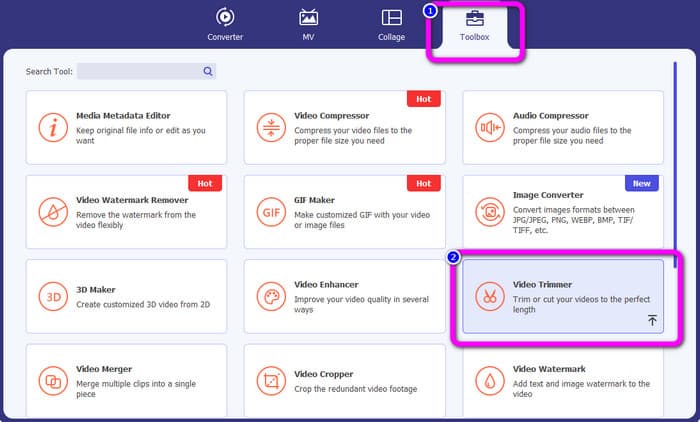
الخطوة 2. انقر على لوحة الأدوات (Toolbox) في الجزء العلوي من الواجهة. وعندما تظهر الأدوات تحت قسم Toolbox، اختر أداة Video Trimmer.
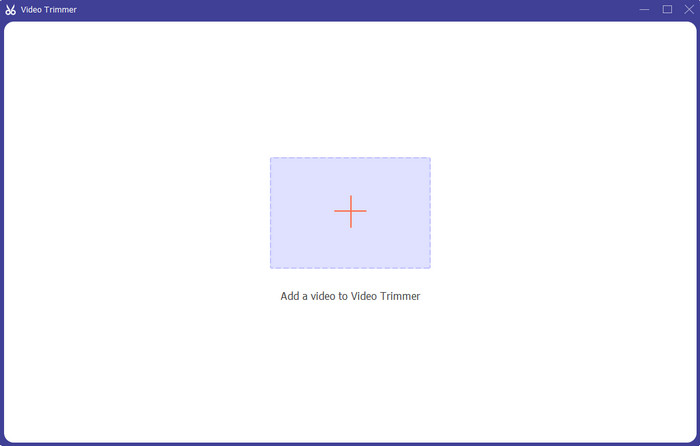
الخطوة 3. انقر رمز العلامة زائد (+) في وسط الواجهة. بعد ذلك، اختر الفيديو الذي تريد قصه من مجلد الملفات.
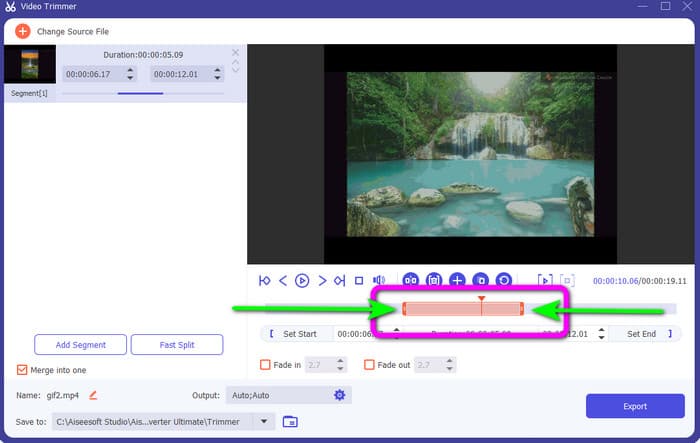
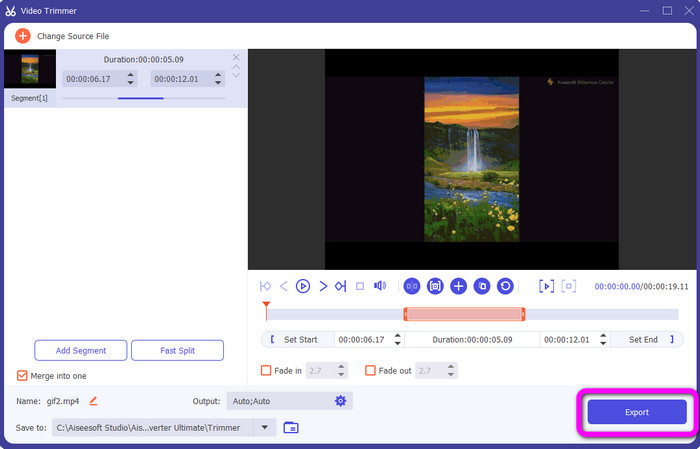
الخطوة 4. يمكنك قص الفيديو من خلال ضبط الشريط البرتقالي الذي تراه في الجزء السفلي من الفيديو. لهذا الشريط حافتان على الجانبين؛ حرّك حافتي الشريط لضبط الجزء الذي تريد الاحتفاظ به من الفيديو الذي تقوم بتعديله.
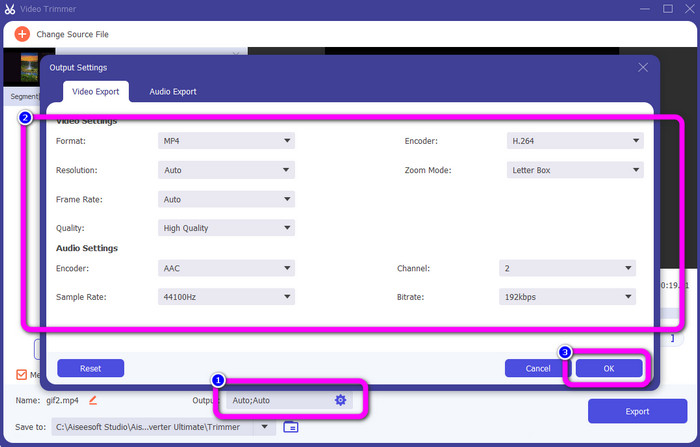
الخطوة 5. من خلال النقر على خيار إعدادات الإخراج (Output Settings) يمكنك تعديل معدل الإطارات وجودة الفيديو ودقته ووضع التكبير لمزيد من التغييرات. كما يمكنك تغيير معدل العيّنة (Sample Rate) ومعدل البِت (Bitrate) للصوت. ثم انقر موافق (OK).
الخطوة 6. في الخطوة الأخيرة، انقر زر تصدير (Export). انتظر انتهاء العملية، وبعد بضع ثوانٍ يمكنك حفظ الفيديو النهائي بعد التعديل على جهاز الكمبيوتر الخاص بك.
الجزء 2. كيفية قص مقطع فيديو على Snapchat
في هذا الجزء ، ستتعلم كيفية قص مقطع فيديو على Snapchat. يعد تطبيق الهاتف المحمول هذا ممتازًا لالتقاط الصور ومقاطع الفيديو. يمنحك العديد من التأثيرات لتحسينها وإرضاء المستخدمين. يعتبر أيضًا منصة اتصال لأشخاص آخرين. علاوة على ذلك ، فإن Snapchat ليس قادرًا فقط على هذا النوع من الأشياء. يتيح لك تطبيق الهاتف المحمول أيضًا قص مقطع فيديو أو قصه بسهولة. بصرف النظر عن ذلك ، يتيح لك Snapchat تعديل الفيديو الخاص بك عن طريق تغيير الفلاتر وإضافة التأثيرات والقص وغير ذلك. ومع ذلك ، مثل التطبيقات الأخرى ، يركز Snapchat على التقاط الصور ومقاطع الفيديو. لذلك ، لا يمكنك استخدام أدوات التحرير المتقدمة من التطبيق. أيضًا ، لا يقبل سوى مقاطع الفيديو القصيرة ، وهو أمر غير مرضٍ للمستخدمين الذين يرغبون في تحميل مقاطع فيديو طويلة. راجع الإجراءات أدناه حول كيفية تقصير مقطع فيديو على Snapchat.
قص مقطع فيديو بعد التسجيل
الخطوة 1. قم بتنزيل تطبيق سناب شات (Snapchat) من متجر التطبيقات (App Store) أو من متجر جوجل بلاي. بعد تثبيت التطبيق على الهاتف، افتحه على جهازك.
الخطوة 2. بعد ذلك، قم بتسجيل مقطع فيديو باستخدام سناب شات. عند الانتهاء من التسجيل، سيظهر مقطع صغير (Mini Clip) في الجزء السفلي من الشاشة. انقر عليه لبدء عملية القص.
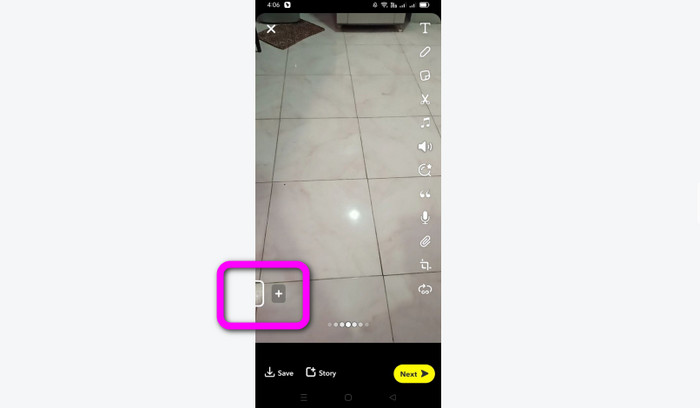
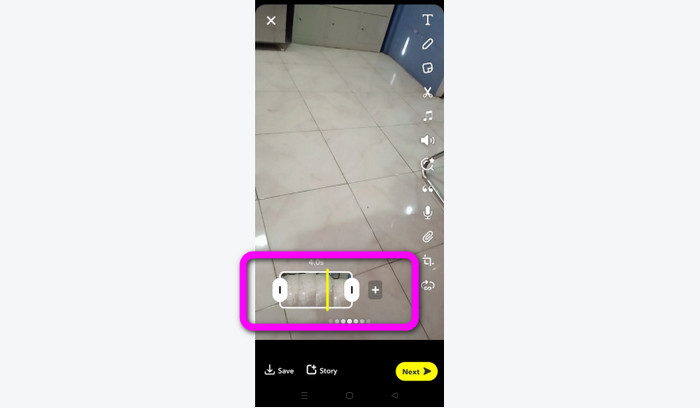
الخطوة 3. عندما يظهر المقطع على الشاشة يمكنك متابعة العملية. اسحب الحواف الخاصة بالمقطع وقم بقص الفيديو وفقًا لتفضيلاتك.
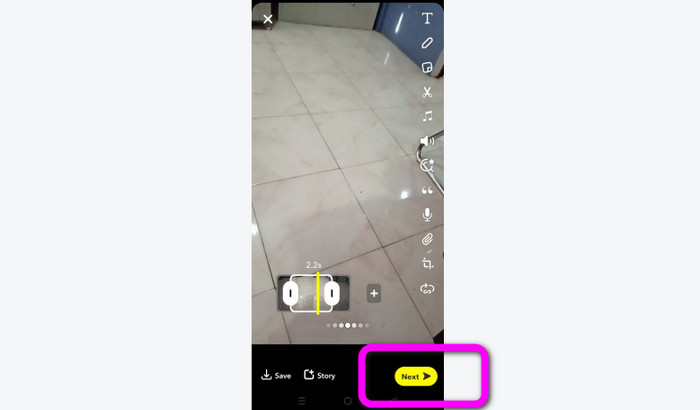
الخطوة 4. عندما تصبح راضيًا عن النتيجة النهائية، اضغط زر التالي (Next) في الزاوية السفلية اليسرى من الواجهة. بهذه الطريقة يمكنك حفظ الفيديو بعد قصه.
قص مقطع فيديو من الذكريات
الخطوة 1. افتح تطبيق سناب شات (Snapchat) على هاتفك. بعد ذلك، انتقل إلى قسم الذكريات (Memories). في هذا القسم يمكنك رؤية مقاطع الفيديو الخاصة بك. اضغط مطولًا على الفيديو لبضع ثوانٍ ثم انقر خيار تحرير (Edit).
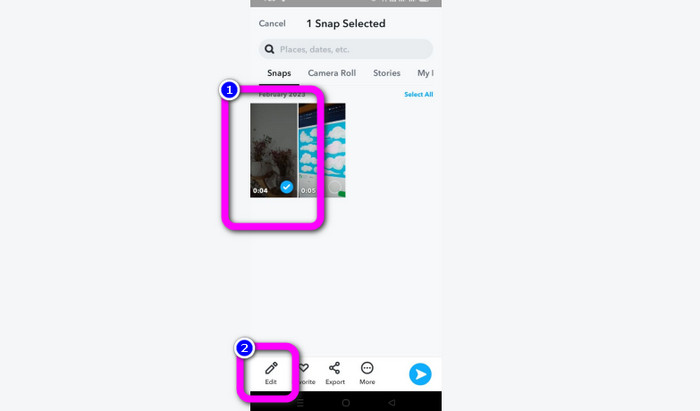
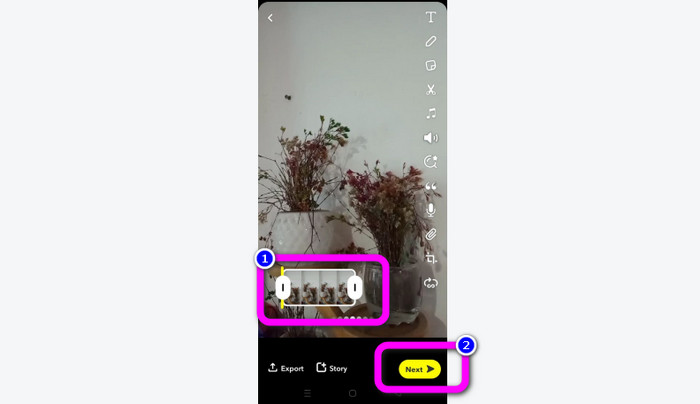
الخطوة 2. بعد ذلك، سترى الفيديو في الجزء السفلي من الشاشة. يتيح لك هذا الشريط الخاص بالفيديو ضبط حوافه لبدء عملية القص. بعد الانتهاء من القص، انقر زر التالي (Next) لحفظ الفيديو النهائي.
11 أداة مميزة لقص الفيديو يمكن استخدامها [مجانية ومدفوعة]
طرق ممتازة حول كيفية قص الفيديو أونلاين بسهولة
الجزء 3. أسئلة وأجوبة حول كيفية قص مقطع فيديو على Snapchat
1. ماذا يعني قص مقطع فيديو على Snapchat؟
إن قص مقطع فيديو هو إجراء قطع ينشئ قسمًا محددًا كبداية وقسمًا محددًا كنهاية لمقطع الفيديو. يتيح لك هذا الخيار اختيار مواضع بداية الفيديو ونهايته على Snapchat. يعد هذا الخيار مثاليًا إذا كنت ترغب في تحميل أجزاء من مقطع فيديو استمر في البداية أكثر من 10 ثوانٍ.
2. هل يمكنك استخدام ميزة الانقسام على سناب شات؟
لا يمكنك استخدام هذه الميزة إذا قمت بتحميل مقطع فيديو من Camera Roll. إذا استخدمت كاميرا Snapchat لالتقاط الصور ، فيمكنك ذلك. يمكنك استخدام أداة Split لفصل الفيلم إلى أجزاء قابلة للتحرير وإزالة أي أجزاء لا ترغب في الاحتفاظ بها.
3. ما هو الحد الأقصى لحجم الفيديو لفيديو سناب شات واحد؟
إذا قمت بنقل صور أو مقاطع فيديو من ألبوم الكاميرا إلى Snapchat ، فيمكنك فقط إرسال مقطع فيديو واحد يصل حجمه إلى 2.5 ميغابايت. يتم ضغط ملفاتك قبل تسليمها.
خاتمة
إذا كنت تستخدم سناب شات لقص فيديو، فهذا المقال مناسب لك. فقد قدّم لك هذا المقال أفضل طريقة حول كيفية قص فيديو على سناب شات. وأيضًا، إذا كنت تفضّل قص الفيديو الخاص بك لسناب شات على جهاز الكمبيوتر، فهناك برنامج يمكنك استخدامه. يُعد Video Converter Ultimate برنامجًا ممتازًا لقص الفيديوهات باستخدام الكمبيوتر؛ إذ يتمتع بواجهة بديهية وسهلة الاستخدام، وهو مجاني تمامًا.
-
 6 اختيارات مفضلة لفلاتر Snapchat Animated Snapchat على Snapchat
 هل تريد معرفة أفضل الطرق لإضافة عوامل تصفية على مقاطع فيديو Snapchat؟ حسنًا ، يمكنك النقر فوق هذا ومعرفة عوامل التصفية المختلفة التي يمكنك استخدامها للتطبيق على مقاطع فيديو Snapchat.
-
 كيفية إبطاء مقطع فيديو على Snapchat بسهولة على أي جهاز
 أفضل طريقة لإبطاء مقطع فيديو على Snapchat موجودة هنا بالفعل. لمعرفة ما هي هذه التقنيات لإبطاء مقطع فيديو ، اتبعه جيدًا.
-
 أسهل الطرق حول كيفية إزالة نص Snapchat من لقطة الشاشة
 دعنا نزيل نص Snapchat من الصور ومقاطع الفيديو باستخدام أدوات موثوقة عبر الإنترنت وغير متصل. سوف نقدم لك طرق سهلة. جربه الآن ، ودعنا نجربه!
