


 محول الفيديو النهائي
 مسجل الشاشة
 إصلاح الفيديو
كيفية تغيير البيانات الوصفية لملفات MOV على نظام التشغيل Mac بخطوات سهلة
نعلم جميعًا أن تنسيق MOV من أفضل التنسيقات التي يمكنك استخدامها لتشغيل الفيديو على أجهزة Apple الخاصة بك وكذلك للتحرير. لكن ما الذي يجعل MOV مميزًا؟ إنه يدعم نوعًا من ضغط الفيديو يُفضَّل استخدامه من قِبل المحترفين. وعلى الرغم من أنه يمكنه تخزين عناصر متعددة داخل ملف واحد، يظل من الممكن أن تختلط الوسوم (العلامات) في ملف MOV مما قد يؤدي إلى مشكلة. لذا من المفيد تعديلها بالشكل المناسب للحصول على بيانات وصفية (ميتا داتا) صحيحة وحل المشكلة فورًا. وباستخدام أداة مساعدة، تصبح هذه المهمة في غاية السهولة. لذلك، سنعرض لك اليوم أفضل الطرق لتحرير البيانات الوصفية لملفات MOV فورًا.

الجزء 1. كيفية تحرير بيانات MOV الأولية باستخدام Ultimate Tag Editor على نظام Mac
يُعد FVC Video Converter Ultimate الحل الشامل لمشكلة البيانات الوصفية هذه، إذ يدعم أكثر من 1000 صيغة على كلٍّ من نظامي Mac وWindows. باستخدام هذه الأداة، يمكنك فورًا إزالة أو تعديل أو إضافة البيانات الوصفية إلى ملف MOV الخاص بك. ماذا أيضًا؟ يمكنك إجراء تعديلات متعددة على ملف MOV، مثل القص، والتشذيب، والدمج، والاقتصاص، وغير ذلك الكثير، حتى لو لم تكن محترفًا في المونتاج. بالفعل من الرائع أن تكون هذه الأداة إلى جانبك، فهناك أشياء كثيرة أخرى يمكنك القيام بها من خلالها ببضع نقرات فقط. لكن اليوم نقدّم لك التعليمات التفصيلية التي أعددناها لتتبعها بنجاح في تحرير البيانات الوصفية لملفات MOV الخاصة بك.
الخطوة 1. يمكنك الحصول على المحوّل النهائي على جهاز Mac أو Windows لديك من خلال النقر على زر التنزيل أدناه. تابع عملية التثبيت عبر النقر على الملف الذي قمت بتنزيله، ثم انقر على Start Now لتشغيل الأداة فورًا.
تحميل مجانيلنظام Windows 7 أو أحدثتنزيل آمن
تحميل مجانيلنظام MacOS 10.7 أو أحدثتنزيل آمن
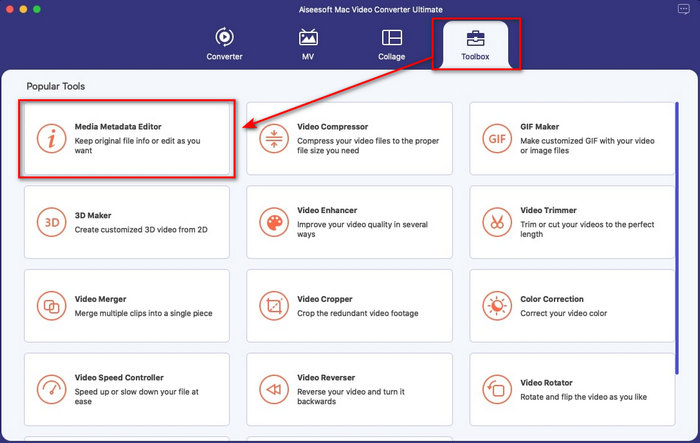
الخطوة 2. ستظهر واجهة الأداة على الشاشة؛ انتقل إلى قسم Toolbox ثم افتح Media Metadata Editor.
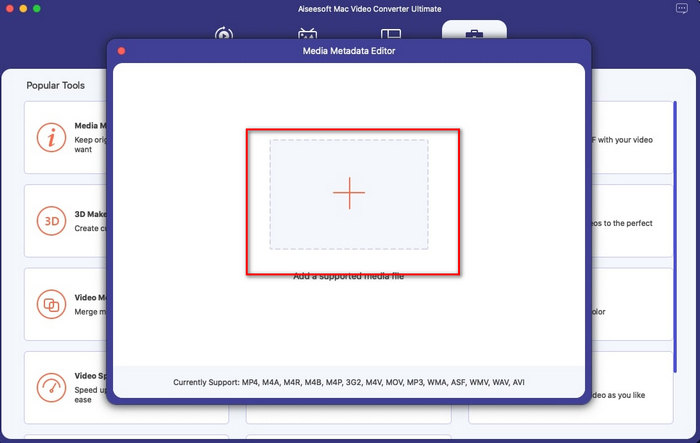
الخطوة 3. بعد فتح محرر البيانات الوصفية، ستظهر نافذة صغيرة؛ انقر على زر + لفتح المجلد الذي يوجد به الملف الذي تريد تحديده، ثم انقر على Open لإدراجه.
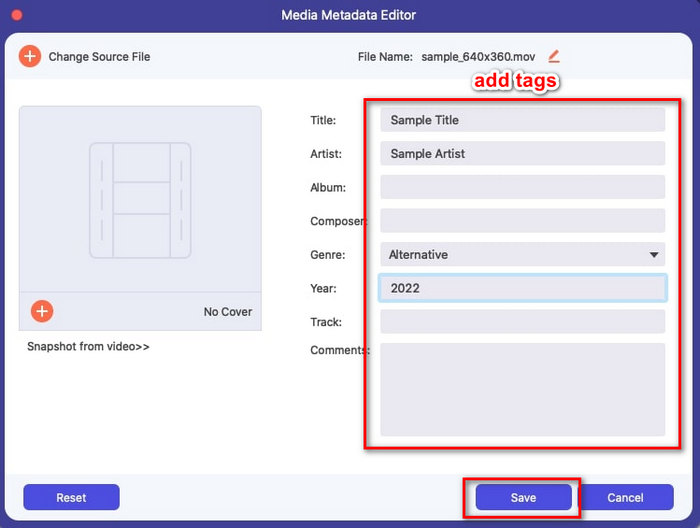
الخطوة 4. يمكنك الآن إضافة الوسوم أو تعديلها أو إزالتها من ملف MOV الخاص بك داخل مربع النص. بعد الانتهاء من كل شيء، انقر على زر Save. وهكذا تكون قد حررت البيانات الوصفية لملف MOV بهذه السرعة.
ذات صلة:
الجزء 2. 3 من أفضل محرري علامة MOV لتغيير البيانات الوصفية لـ MOV
مشغل الميديا VLC
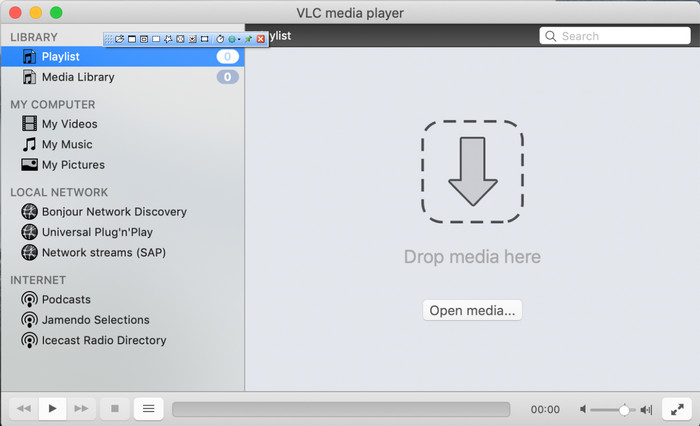
يُعد VLC Media Player مشغّل وسائط شهير متاحًا على نظامي Mac وWindows. ورغم أنه قادر على تشغيل صيغ فيديو متعددة، فإنه يستطيع أيضًا تغيير البيانات الوصفية لملفات الوسائط، بما في ذلك MOV. وعلاوة على ذلك، إن أردت عرض البيانات الوصفية لملفك، يمكنك استخدامه بسهولة لهذا الغرض. ومع ذلك، فهو ليس فعّالًا بقدر برامج تحرير البيانات الوصفية المخصصة الأخرى التي يمكنك استخدامها على Mac أو Windows. ومع هذا، ما زال من الممكن استخدام مشغّل الوسائط هذا لتحرير البيانات الوصفية لملف MOV.
الخطوة 1. قم بتنزيل مشغّل الوسائط من الموقع الرسمي لـ VLC، ثم افتحه.
الخطوة 2. اضغط على Command + I في لوحة المفاتيح، وستظهر معلومات الوسائط حيث يمكنك إضافة أو حذف البيانات الوصفية لملف MOV الخاص بك.
الخطوة 3. انقر على Save Metadata بعد الانتهاء من تطبيق الوسوم على ملف MOV.
اي تيونز
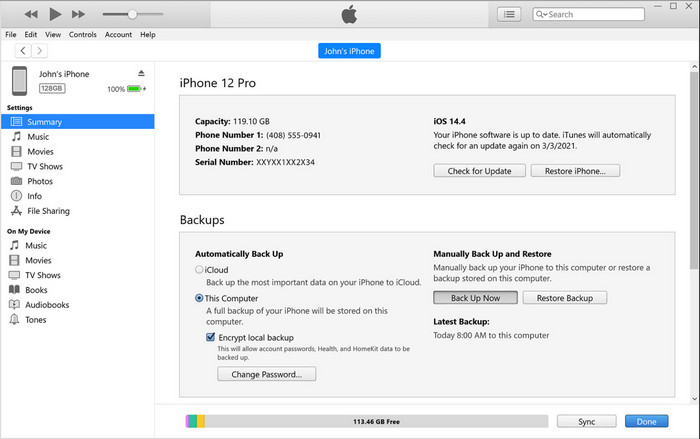
يُعد iTunes أفضل تطبيق بث مدمج يمكنك الوصول إليه على أي جهاز Apple. هذا التطبيق مليء بالخصائص المختلفة مثل مشغّل الموسيقى ومتجر للموسيقى والأفلام والبودكاست وغيرها الكثير، وجميعها محمية بنظام DRM لتجنّب مشاكل حقوق النشر. وعلى الرغم من كونه تطبيقًا مدمجًا رائعًا، فإن المنافسة في مجال محررات البيانات الوصفية قوية للغاية بحيث يصعب على iTunes مجاراتها. لكننا ما زلنا نضع هذا التطبيق في الاعتبار لأنه يمكنه تغيير بيانات MOV الوصفية على أجهزة Mac.
الخطوة 1. افتح iTunes ثم استورد ملف MOV إلى مكتبة iTunes.
الخطوة 2. بعد ذلك، انقر بزر الفأرة الأيمن على ملف .mov الذي أضفته واختر Get Info. بعد النقر عليها، ستظهر لك خيارات مختلفة لتغيير البيانات الوصفية مثل المعلومات التفصيلية، والغلاف (artwork)، والكلمات (lyrics)، والخيارات (options)، والفرز (sorting)، والملف (file)، قم بضبطها وفقًا لاحتياجاتك.
الخطوة 3. اضغط على OK لحفظ التغييرات.
ميتاز
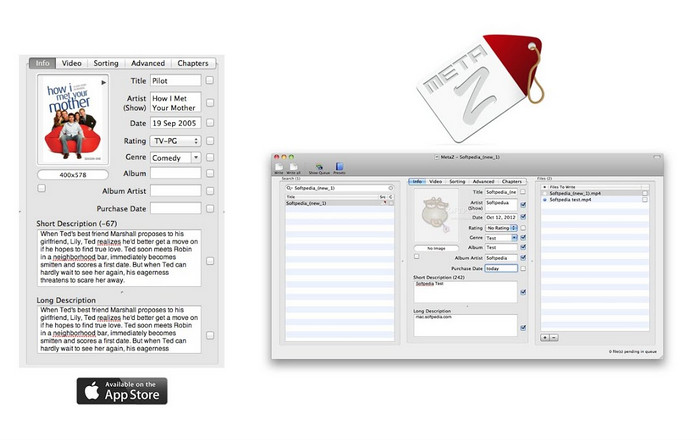
بالنسبة لنظام التشغيل macOS X ، يمكنك تنزيل Metaz بحرية لتغيير البيانات الوصفية لملفاتك بسهولة. يمكن أن يساعدك محرر البيانات الوصفية في تغيير علامات الفيديو الخاصة بك في معظم التنسيقات ، مثل MOV. مع هذا التطبيق ، يمكنك القيام بالخدعة بسهولة وتنظيم MOV في مكتبتك. ومع ذلك ، فقد حدثت العديد من التقارير مؤخرًا مع التطبيق ؛ يواجه المستخدمون العديد من المشكلات المزعجة أثناء استخدام التطبيق. على الرغم من احتمال حدوث مشكلات ، إلا أنه لا يزال أحد أكثر برامج تحرير البيانات الوصفية MOV المختارة والتي يمكنك تنزيلها على جهاز Mac الخاص بك.
الخطوة 1. قم بتنزيل التطبيق على جهاز Mac ثم شغّله، وبعدها ستظهر ثلاثة أقسام في واجهة الأداة على الشاشة، حيث يمكنك إضافة الملف، وتحرير الوسوم، والبحث عن الوسوم.
الخطوة 2. اسحب ملف MOV وأفلته في الجانب الأيسر؛ وعلى يمين هذا القسم سترى أنه سيقوم تلقائيًا بالبحث عن الوسوم المناسبة لملف MOV استنادًا إلى العنوان، لكن يمكنك تعديلها في القسم الأوسط إذا أردت.
الخطوة 3. اضغط على Write، وسيتم إضافة الوسوم إلى ملف MOV.
الجزء 3. أسئلة وأجوبة حول محرر البيانات الوصفية لـ MOV
هل يمكنني استخدام محرر بيانات تعريف QuickTime لتغيير العلامات؟
لسوء الحظ ، لا يمكنك ذلك لأن هذه الأداة يمكنها فقط تشغيل تنسيق الوسائط وتحرير مقاطع الفيديو والتسجيل. ولكن يمكنك عرض البيانات الوصفية لملفك بحرية على Quicktime باتباع هذه الخطوات البسيطة. أولاً ، افتح ملف MOV على Quicktime وقم بتشغيله. سترى خيارات مختلفة في الجزء العلوي ؛ انقر فوق نافذة ، وتحتها ، اضغط على View Inspector ، ثم ستظهر نافذة جديدة على شاشتك لرؤية المعلومات الصغيرة حول ملف MOV الخاص بك.
هل تغيير علامات MOV يؤثر على الجودة؟
لحسن الحظ ، لن يحدث ذلك لأنك قمت بتعديل العلامات ، وليس دقة أو جودة ملف MOV. لذا ، إذا كنت قلقًا من أن دقة الفيديو قد تقل بعد تغيير العلامات ، فسنكررها ؛ لن تفعل ذلك.
هل ستؤدي إضافة البيانات الوصفية على MOV إلى زيادة حجم الملف؟
في أي ملفات ، بمجرد إضافة البيانات الوصفية إلى هذا الملف ، سترى الفرق بين الملف الذي لا يحتوي على علامة والملف الذي يحتوي على. ومع ذلك ، فإن هذه العلامات ليست كبيرة مثل محتوى الملف. لذلك ، إذا أضفت بيانات وصفية إلى MOV الخاص بك ، فتوقع أن يزداد حجمها قليلاً لأنك أضفت معلومات حول ملف الفيديو.
خاتمة
بعد أن انتهينا من شرح كيفية تغيير البيانات الوصفية لملف MOV، حان الآن الوقت لتختار أي دليل ستتبعه. إن أردت تنزيل أداة مجانية على جهاز Mac، يمكنك تنزيل VLC وMetaz لإصلاح أو تحرير البيانات الوصفية لملف MOV. أما إن لم ترغب في ذلك، فيمكنك استخدام iTunes لتحرير البيانات الوصفية بسهولة. ورغم أن هذه الأدوات ممتازة للاستخدام، فإنه لا تزال لا توجد أداة توازي قوة خصائص تحرير البيانات الوصفية على Mac مثل الإمكانيات التي يقدمها لك FVC Video Converter Ultimate. لذا، إذا كنت لا تزال مترددًا بشأن الأداة التي ستستخدمها، فنحن نوصي بشدة باستخدام هذه الأداة النهائية في هذه المهمة، لأنها سهلة الاستخدام وفي الوقت نفسه توفّر لك حزمة شاملة من الخصائص التي ستحتاجها في أي وقت.
-
 ما هي البيانات الوصفية: تعرف على المعلومات الأساسية حول البيانات الوصفية
 ما هي البيانات الوصفية؟ هل هذا مهم؟ ما هي أجزاء البيانات الوصفية؟ هل لديك نفس السؤال؟ في هذه المقالة ، ستتعرف على المعلومات الأساسية حول البيانات الوصفية.
-
 4 من أفضل عارض البيانات الوصفية عبر الإنترنت وغير متصل [محدّث 2022]
 هل يمكنني التحقق من البيانات الوصفية لملفي؟ نعم ، يمكنك ، بمساعدة هذا المنشور ، أن نقدم لك مشاهدي البيانات الوصفية المختلفة التي يمكنك استخدامها.
-
 أفضل 4 برامج تحرير لعلامات WMV تم اختيارها على سطح المكتب [تحديث 2022]
 هل تحتاج إلى محرر علامات WMV موثوق به لتحرير علامات WMV؟ حسنًا ، توفر هذه المقالة معرفة كافية حول الأداة التي تدعم WMV.
