


 Video Converter Ultimate
 Gravadora de pantalla
 Reparació de vídeo
Consells útils per fer vídeos a càmera lenta a iMovie
iMovie és un gran editor de vídeo disponible en tots els sistemes operatius iOS i Mac. Aquesta aplicació es pot descarregar gratuïtament i disposa de diferents eines molt útils per fer canvis importants al teu vídeo, especialment pel que fa a la velocitat de reproducció o a la creació de vídeos a càmera lenta. Tot i que aquesta aplicació és fàcil d’usar, pot ser complicat entendre-la i utilitzar-la per aconseguir l’efecte de càmera lenta que vols aplicar al teu vídeo. Però per entendre completament cada detall per fer vídeos a càmera lenta a iMovie, llegeix aquest article i segueix els passos amb atenció.

Part 1. Com fer vídeos a càmera lenta a iMovie amb iPhone
Tal com es dóna la declaració anterior, iMovie només funciona en sistemes iOS com l'iPhone. Per fer els millors vídeos a càmera lenta amb aquesta aplicació, aquí teniu els procediments que us guiaran sobre com utilitzar aquesta aplicació.
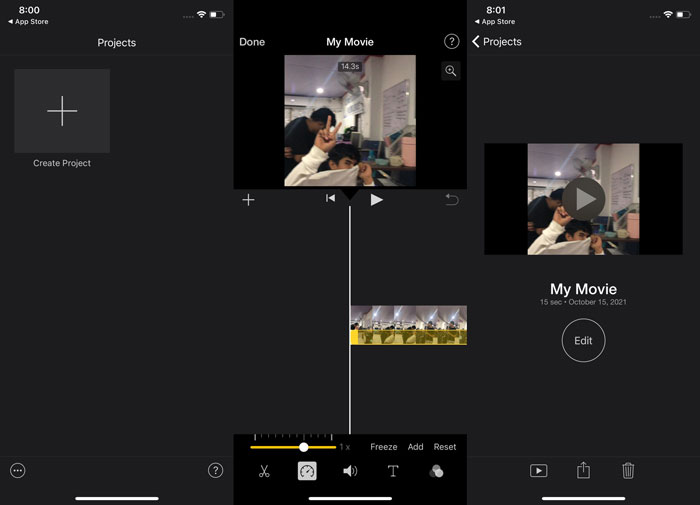
Pas 1. Amb el teu iPhone o iPad, obre l’aplicació iMovie. El botó Continuar es mostrarà si apareix una vista general de la interfície. Des de la pestanya Projectes, selecciona la icona del signe + per editar un clip de vídeo nou. Per continuar, ves a la finestra Projectes nous i selecciona Pel·lícula.
Pas 2. Després de seleccionar un vídeo del teu carret i prémer el botó Crea la pel·lícula a la part inferior de la pantalla. L’eina de velocitat, que sembla un velocímetre, es pot trobar tocant un clip de vídeo a la línia de temps i esperant que es mostrin les eines d’edició abans de seleccionar una de les opcions. Per avançar o rebobinar el teu clip de vídeo, simplement mou el control lliscant groc inferior cap a la dreta o cap a l’esquerra. Pots accelerar els elements fins a dues vegades la seva velocitat original o alentir-los fins a una vuitena part de la seva velocitat original.
Pas 3. A la cantonada superior esquerra de la pantalla del telèfon, toca Fet quan tot estigui complet. Per desar la pel·lícula acabada, fes clic a la icona Comparteix a la part inferior de la pàgina i tria una ubicació per desar-la.
Part 2. Com fer vídeos a càmera lenta a iMovie amb Mac
iMovie també està disponible a Mac, fent els vídeos a càmera lenta més excel·lents de la manera més fàcil possible. Per saber com aconseguir aquest tipus de vídeos que desitgeu, aquí teniu els passos que heu de seguir:
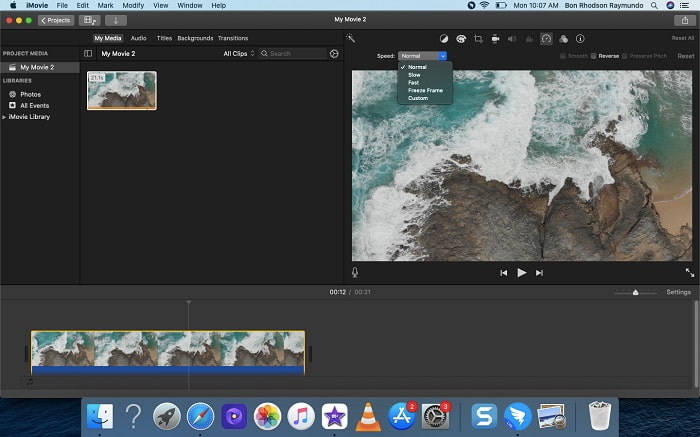
Pas 1. Canvia la velocitat del clip al programa iMovie del teu Mac seleccionant-lo a la línia de temps i modificant-ne la velocitat.
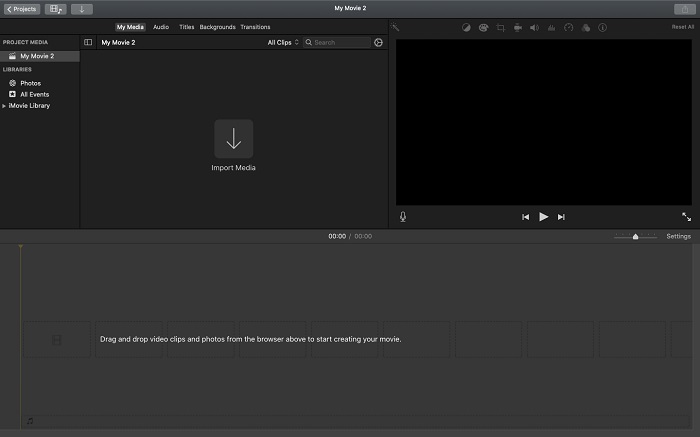
Pas 2. Pots accedir als paràmetres de velocitat fent clic al botó Velocitat situat a la cantonada superior dreta de la pantalla. Per ajustar amb precisió la velocitat de reproducció, només cal que triïs entre les opcions Lenta i Ràpida des d’un botó de velocitat a l’escriptori del teu ordinador.
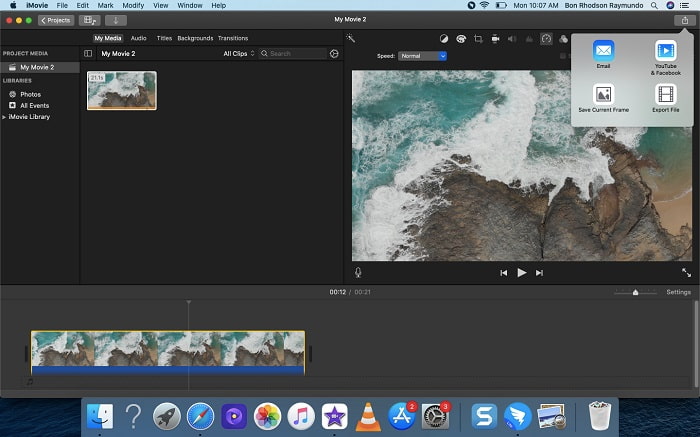
Pas 3. Per desar el fitxer al disc dur de l’ordinador, fes clic a la icona Puja a la cantonada superior dreta de la pantalla.
Part 3. Millor alternativa per crear vídeos a càmera lenta
A més d’utilitzar iMovie per fer vídeos a càmera lenta, aquesta millor alternativa afavoreix tots els usuaris d’ordinadors de taula i portàtils. Video Converter Ultimate és un programari de descàrrega gratuïta disponible tant per a Windows com per a Mac. És fàcil d’utilitzar i té una interfície intuïtiva que evita que et costi analitzar quines eines fer servir per crear vídeos a càmera lenta. Incorpora una de les millors eines, el Controlador de velocitat de vídeo, que pots utilitzar per ajustar la velocitat de reproducció d’un vídeo; amb això, ara pots crear un vídeo a càmera lenta a partir d’un vídeo a velocitat normal. Per saber-ne més detalls sobre com fer servir aquest programari per aconseguir la càmera lenta que desitges, aquí tens els passos que has de conèixer:
Pas 1. Abans d’utilitzar el programari, primer l’has de descarregar fent clic a l’enllaç de descàrrega de més avall, segons el teu sistema operatiu. Instal·lar-lo és tan fàcil com descarregar-lo a l’escriptori i fer clic a Inicia ara per començar.
Descàrrega gratuïtaPer a Windows 7 o posteriorDescàrrega segura
Descàrrega gratuïtaPer a macOS 10.7 o posteriorDescàrrega segura
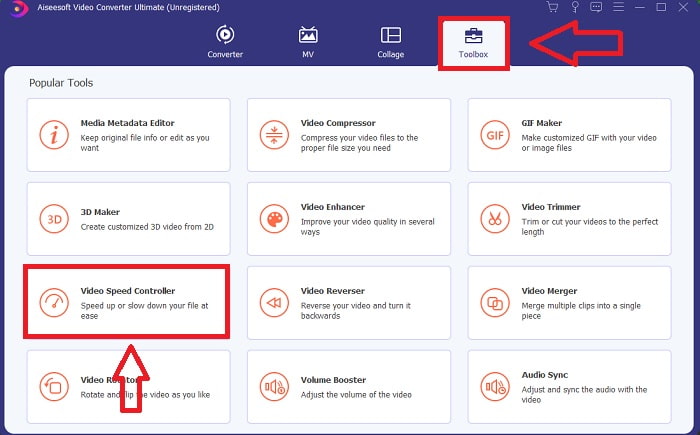
Pas 2. Podràs veure la funció Convertidor a la interfície principal del programari quan hagis acabat d’obrir el programa. A continuació, utilitza la funció Caixa d’eines per trobar el que necessites per fer vídeos a càmera lenta. Si vols canviar la velocitat del teu vídeo o simplement fer-ne un a càmera lenta, selecciona Controlador de velocitat de vídeo de la llista d’eines disponibles.
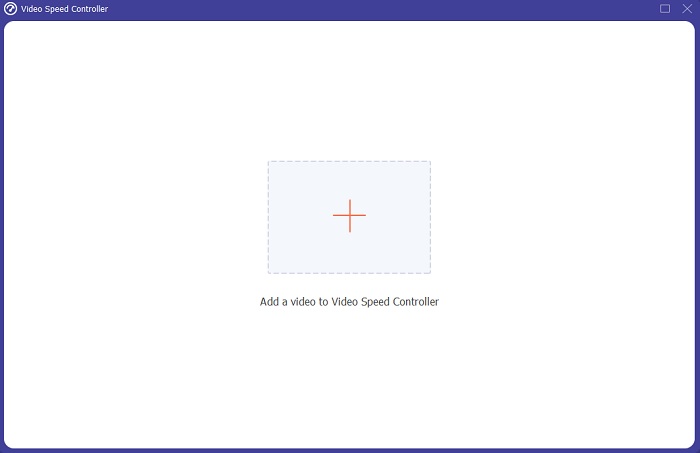
Pas 3. Després de continuar, s’obrirà una altra finestra a la pantalla de l’ordinador. Per començar a editar, fes clic al signe de suma +.
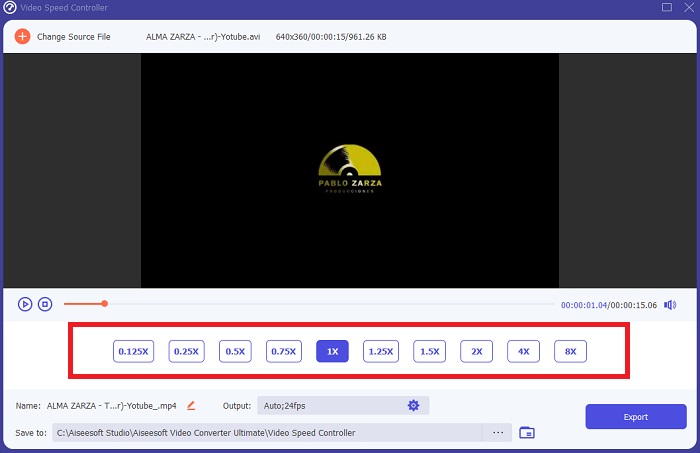
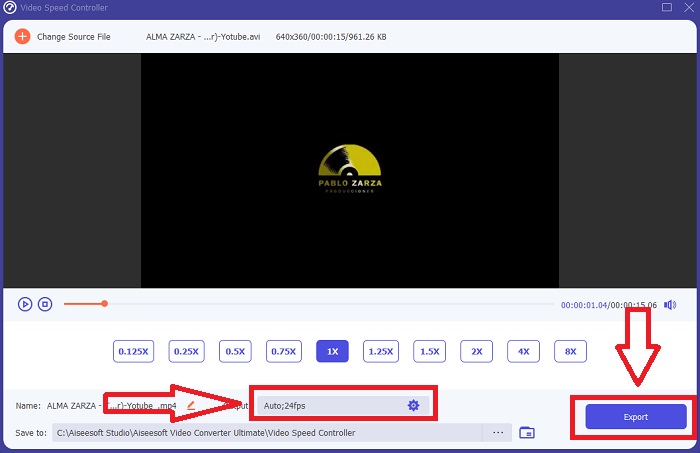
Pas 4. Per començar a editar, tria quantes vegades augmentarà o disminuirà la velocitat de fotogrames del vídeo durant la reproducció per veure com d’ràpid o lent anirà; això definirà l’efecte de càmera lenta que aplicaràs al teu vídeo. Com que estàs fent un vídeo a càmera lenta, reduiràs la velocitat triant una velocitat de vídeo per sota de la velocitat mitjana. Si estàs satisfet amb la velocitat del teu vídeo, pots afinar-ne ara la qualitat canviant el format, la resolució, la velocitat de fotogrames, etc. També tindràs l’opció de canviar el nom del teu vídeo de sortida.
Pas 5. Fes clic a Exporta i tria una ubicació al sistema de fitxers de l’ordinador per desar la teva feina.
Relacionat:
Part 4. Preguntes freqüents sobre com fer vídeos a càmera lenta a iMovie
Què passa si iMovie no funciona?
A menys que hi hagi una opció disponible, el clip de vídeo no és prou llarg per suportar la reproducció accelerada. També és possible que hàgiu de convertir el vostre vídeo. Alguns tipus de vídeo, com els gravats amb un iPhone o en H.264 amb una càmera de vídeo Flip, s'han de convertir abans de canviar la velocitat. Al navegador del projecte, feu clic i feu doble clic al fitxer de vídeo per obrir-lo. Si veieu un botó Converteix tot el clip a l'inspector que s'obre, seleccioneu-lo. Repetiu el clip i, a continuació, continueu amb el procés de càmera lenta / avançament ràpid.
Es pot alentir un vídeo de lapse de temps a iMovie?
El vostre vídeo de lapse de temps començarà a reproduir-se tan bon punt deixeu anar el botó de l'obturador per finalitzar la gravació. El control lliscant de velocitat de lapse de temps es pot trobar a la part inferior de la pantalla. Quan atureu la gravació amb el botó de l'obturador premut, el vostre vídeo en lapse de temps començarà a reproduir-se automàticament. El control lliscant de velocitat de lapse de temps es pot trobar a la part inferior de la pantalla.
Com frenes els vídeos de Youtube?
Reprodueix un vídeo a l'aplicació Youtube, localitza la icona de l'engranatge o anomenada icona de configuració. Feu clic a Velocitat de reproducció i trieu les opcions per sobre de la velocitat normal per començar a reduir la velocitat del vídeo que reproduïu.
Conclusió
Per acabar, iMovie és un gran editor de vídeo que només està disponible en sistemes operatius iOS i Mac. Però, què passa si fas servir Windows per crear un vídeo a càmera lenta? Recomanem utilitzar Video Converter Ultimate per aconseguir el vídeo a càmera lenta que vols. Aquest programari està disponible per a Windows i Mac. A més, és gratuït i té una gran varietat d’eines per editar un vídeo. També inclou una eina especialment pensada per ajustar la velocitat de reproducció i obtenir vídeos a càmera lenta. A banda de les eines que ofereix, també és compatible amb diferents formats de vídeo perquè no tinguis problemes a l’hora de convertir el teu fitxer.
-
 [Gratis i de pagament] GIF Speed Changer: eleccions populars del 2021
 No estàs satisfet amb el GIF que has fet en línia perquè és tediós i lent? Aquest serà el vostre dia de sort perquè us presentem un article sobre el canviador de velocitat GIF i els detalls que us ajudaran a utilitzar-lo i dominar-lo.
-
 Els 4 millors reproductors de vídeo amb Speed Controller el 2021
 No us heu adonat de la velocitat de reproducció de tots els reproductors multimèdia sempre que reproduïu un vídeo? Aquest article és adequat perquè aprenguis tot sobre els reproductors de vídeo amb control de velocitat.
-
 3 maneres d'accelerar el vídeo a l'iPhone [Proven&93;
 Teniu problemes per ajustar la velocitat de reproducció del vostre vídeo perquè feu servir un iPhone? Aquest és un article excel·lent per ajudar-vos amb el vostre problema.
