


 Video Converter Ultimate
 Gravadora de pantalla
 Reparació de vídeo
 Baixada segura
Com convertir l'enregistrament de zoom a MP4 en ordinadors Windows i Mac
Zoom és una plataforma que permet fer trucades de vídeo, com ara reunions i classes en línia. Normalment, desa les gravacions en un format que es pot reproduir a la majoria de dispositius, com ara MP4. Tanmateix, si atures la gravació accidentalment abans d’hora, és possible que el fitxer es quedi en el format original de la plataforma, que és .zoom, i que no el puguis obrir immediatament. Això passa perquè Zoom no ha tingut l’oportunitat de convertir automàticament el fitxer a MP4. Si et passa això, hauràs de convertir el fitxer Zoom a MP4 dins o fora de la plataforma. Afortunadament, hi ha unes quantes maneres perquè Zoom acabi aquest procés de conversió. T’explicarem com fer-ho amb el mateix programa Zoom i amb una eina especial que ve integrada a Zoom. Si això no et funciona, també hem enumerat una altra eina que pots utilitzar. Així doncs, anem directament al contingut!

Part 1. Són les gravacions amb zoom en MP4
En primer lloc, Zoom produeix enregistraments MP4, que és la seva configuració predeterminada. Tanmateix, això no passarà en un instant. El que volem dir és que, durant la gravació, el vostre metratge en brut encara no està en el format MP4 que creieu que és. De fet, com s'ha esmentat anteriorment, el metratge del procés encara està en format .zoom, que és el format propietari de la plataforma, i només es convertirà en MP4 un cop finalitzada la gravació i la conversió. Això és especialment cert quan atureu accidentalment les gravacions.
Part 2. 3 maneres de convertir l'enregistrament amb zoom a MP4 amb Zoom
Passem ara a les eines efectives que us ajudaran a convertir les gravacions de Zoom a MP4 si no en teniu una a la plataforma.
1. Client Zoom (escriptori)
Sabíeu que Zoom fa un seguiment de tots els vostres enregistraments a l'aplicació client d'escriptori? No només podeu accedir fàcilment a les vostres gravacions, sinó que Zoom també ofereix un convertidor integrat. Això garantirà la compatibilitat de reproducció a la majoria de dispositius. Per tant, si no esteu segur de com utilitzar-lo, aquí teniu un desglossament detallat de com trobar i convertir les vostres gravacions de Zoom a format MP4.
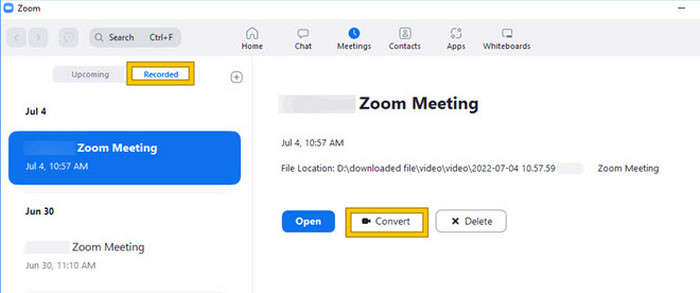
Pas 1. Obre Zoom a l’ordinador i ves de seguida a la secció Reunions per accedir a l’historial de reunions.
Pas 2. Un cop oberta, veuràs la llista de les reunions gravades. Localitza la gravació que vols convertir i fes-hi clic per seleccionar-la.
Pas 3. Un cop seleccionada, apareixerà una opció al costat dret de la pantalla. Fes clic al botó Convertir i espera el resultat final convertit a MP4.
2. Transcodificació (macOS)
Si sou un usuari de Mac i la conversió automàtica de la gravació de Zoom a MP4 falla, aquí teniu una eina pràctica anomenada Transcode per ajudar-vos. Aquesta eina us permet convertir manualment aquest .zoom a fitxers MP4, que pot ser que no es reprodueixin correctament a causa de la conversió automàtica fallida. En essència, Transcode ofereix una solució manual per als usuaris de Mac per garantir que les seves gravacions de Zoom siguin accessibles i utilitzables quan el procés automàtic no funciona com s'esperava.
Pas 1. Localitza el teu fitxer .zoom, fes-hi doble clic i selecciona Tria una aplicació al quadre de diàleg. Després, obre el fitxer amb l’aplicació Transcode, que també pots establir com a aplicació predeterminada per als teus fitxers.
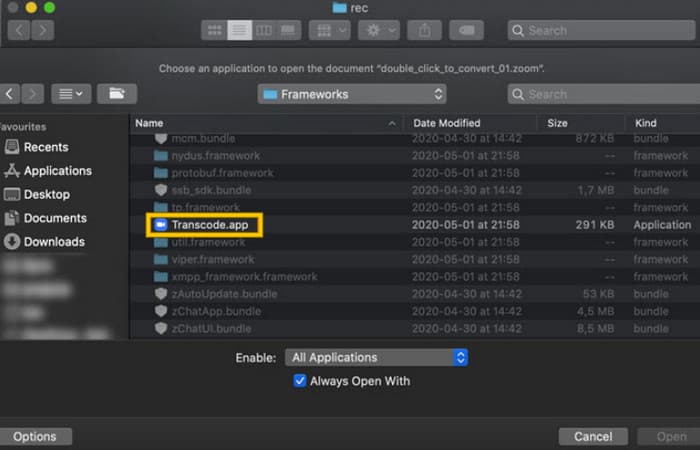
Pas 2. Just després de triar l’aplicació, el procés de conversió s’iniciarà automàticament.
Pas 3. Quan el procés de conversió hagi acabat, tria la carpeta on prefereixes desar el resultat.
3. zTscoder (escriptori)
Si voleu una eina similar a l'anterior per al vostre escriptori, us recomanem zTscoder. zTscoder és la versió de Windows de Transcode, que és el programa en què confien els usuaris de Mac per a situacions similars. Ambdues eines us permeten convertir manualment els vostres fitxers Zoom en format MP4 estàndard, que pot ser que no es reprodueixin correctament. Per tant, si ara esteu davant del vostre escriptori, seguiu els passos següents.
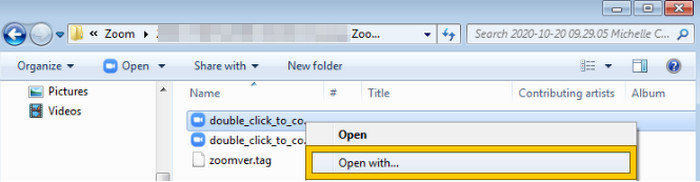
Pas 1. Localitza la carpeta on es desen les teves gravacions de Zoom i tria la que necessites convertir. Fes-hi clic amb el botó dret i obre-la amb zTscoder.
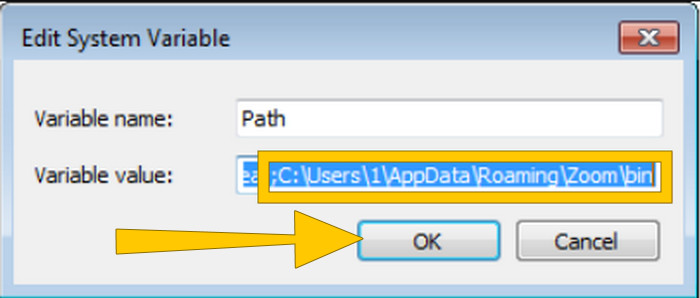
Pas 2. Si l’eina no respon, pots anar al Tauler de control, navegar fins a Sistema i seguretat > Sistema i després obrir la configuració avançada del sistema. Des d’allà, afegeix C:\Users\*el teu nom d’usuari*\AppData\Roaming\Zoom\bin al valor de la variable i fes clic a D’acord.
Pas 3. Un cop el fitxer estigui configurat per obrir-se amb l’eina, el procés de conversió s’iniciarà automàticament.
Part 3. Grava reunions de zoom en MP4 amb una qualitat de fins a 4K
Vols una bona solució per tenir les teves reunions de Zoom en MP4? Enregistra-les amb FVC Screen Recorder! Aquest enregistrador ofereix una solució versàtil que va més enllà de les reunions de Zoom. Aquesta eina et permet gravar les teves classes en línia, conferències, tutorials o qualsevol cosa que aparegui a la pantalla de Zoom. A més, tens la flexibilitat de gravar tota la pantalla o només una finestra específica, ja que ofereix opcions per fer-ho. També pot capturar el so del micròfon, l’àudio del sistema i fins i tot la imatge de la teva càmera web, sempre que configuris prèviament els paràmetres. Aquest programari és compatible tant amb ordinadors Mac com Windows i et permet desar les gravacions en formats d’alta qualitat, inclosa una resolució de fins a 4K. Un altre motiu destacable per estimar FVC és que va un pas més enllà oferint eines d’anotació que et permeten ressaltar els punts clau durant la gravació. Mentrestant, aquí t’expliquem com convertir gravacions de Zoom a MP4.
Pas 1. Instal·la l’enregistrador al teu ordinador. Pots fer servir el botó de Baixa que es mostra a continuació. Mentre el procés d’instal·lació estigui en marxa, obre la reunió de Zoom que vols gravar en MP4.
Descàrrega gratuïtaPer a Windows 7 o posteriorDescàrrega segura
Descàrrega gratuïtaPer a macOS 10.7 o posteriorDescàrrega segura
Pas 2. Obre el convertidor i fes clic a l’eina Enregistrador de vídeo. A continuació, has de configurar la visualització de la pantalla perquè cobreixi tota la interfície de la reunió de Zoom. També pots configurar el so del Sistema i el Micròfon si ho desitges.
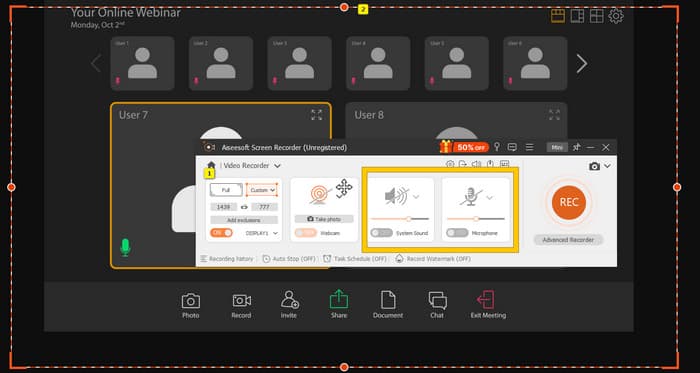
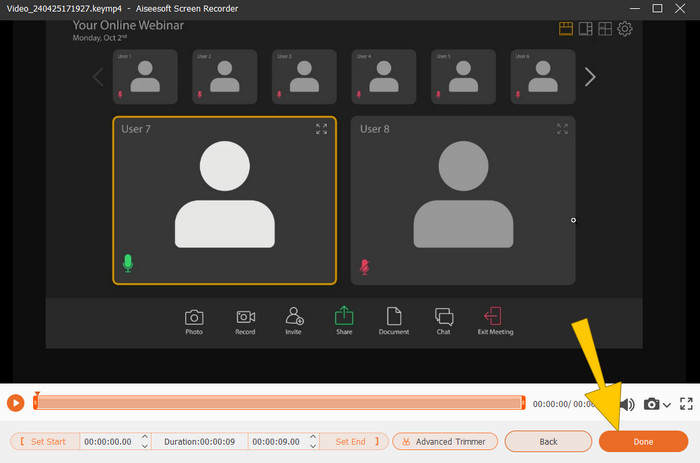
Pas 3. Tot seguit, fes clic al botó REC per començar la gravació. Quan la reunió acabi, fes clic al botó Atura de la barra flotant. Després, fes-hi petits ajustos a la finestra nova. En cas contrari, fes clic al botó FET per continuar i desar la gravació.
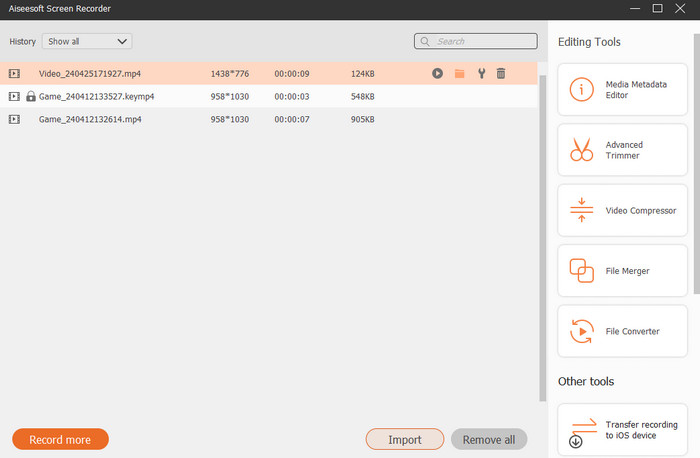
Pas 4. Per a més opcions d’edició, l’eina t’endurà a la seva biblioteca, on veuràs la llista de les teves gravacions. També hi trobaràs les eines d’edició que pots utilitzar lliurement.
Lectura ampliada:
6 sorprenents eines enregistradores d’MP4 del 2024 [Gratuïtes i de pagament]
Els 5 millors enregistradors per gravar reunions a Zoom [2024]
Part 4. Preguntes freqüents sobre la conversió d'enregistraments amb zoom
Les gravacions de Zoom són MP4?
Sí. Tanmateix, és possible que les gravacions no estiguin en MP4 si es van aturar accidentalment.
Hi ha un límit a la durada de les gravacions que puc convertir a MP4?
Depèn. Els comptes gratuïts poden tenir limitacions en l'espai d'emmagatzematge i les opcions de conversió, mentre que els plans de pagament solen oferir més flexibilitat i límits més alts.
Com puc convertir una gravació de Zoom a MP4?
Podeu convertir una gravació de Zoom en MP4 amb el client Zoom, ja que té una funció de conversió integrada. Quan obriu la gravació, només cal que feu clic al botó Converteix.
Conclusió
Per defecte, les reunions de Zoom es desen en MP4, però si les gravacions no es desen correctament, encara hauràs de convertir les gravacions de Zoom a MP4. Per sort, en aquesta publicació s’hi presenten maneres efectives de fer la conversió. Esperem que t’hagi estat útil.
-
 7 de la Magnífica Gravadora de veu Accessible a totes les plataformes
 Vols aprendre a gravar àudio? A continuació, aneu a aquest article mentre parlem de la millor gravadora d'àudio que s'adapta a les vostres necessitats.
-
 Revisió de CamStudio 2025: Pros i contres d'utilitzar CamStudio
 CamStudio és un fantàstic programa de captura de pantalla lliure i de codi obert per gravar la pantalla. El gravador de pantalla CamStudio és segur? Bé, aquesta revisió us ajudarà a descobrir totes les funcions de CamStudio.
-
 Formes factibles sobre com podeu gravar àudio amb el reproductor VLC
 Apreneu les millors maneres de gravar àudio amb el reproductor VLC i altres eines pràctiques llegint l'article.
