


 Video Converter Ultimate
 Gravadora de pantalla
 Reparació de vídeo
 Baixada segura
GIFs en bucle: la millor manera de fer GIFs en bucle infinit [Guia]
Has vist mai un GIF tan fluid que no podies distingir on començava ni on acabava? Aquesta és la màgia d’un GIF en bucle perfecte. Des de fa més de 35 anys, els GIFs han evolucionat fins a convertir-se en una potent eina visual. S’utilitzen àmpliament en disseny web, xarxes socials, articles en línia i fins i tot en presentacions professionals, oferint una manera única de captar l’atenció i donar moviment a continguts que, altrament, serien estàtics.
Així doncs, si teniu curiositat per saber per què la gent en crea un i per què vosaltres també ho hauríeu de fer, un GIF en bucle ben elaborat pot millorar la identitat digital de la vostra marca, fer que el vostre contingut sigui més atractiu i fins i tot explicar una història en només uns segons. Per tant, en aquesta guia, us explicarem tot el que necessiteu saber sobre com crear el vostre propi GIF en bucle, des d'entendre què fa que un bucle sigui bo fins a utilitzar el millor bucleador de GIF disponible en línia.

Part 1. Consells per fer un GIF en bucle perfecte
Crear un GIF en bucle pot semblar un repte, però tot comença amb l'enfocament correcte i, el més important, les eines adequades. Per tant, si teniu previst crear-ne un, a continuació us presentem els consells per aconseguir GIFs en bucle perfectes:
Consell 1. Trieu l'eina GIF Looper adequada
ajustar la sincronització dels fotogrames, previsualitzar bucles i exportar-los com a GIF. Hi ha moltes opcions fàcils d'usar per a principiants i gratuïtes. Aprofundirem en cadascuna d'elles a les seccions següents.
Consell 2. Seleccioneu el clip o l'animació correcte
Feu servir un clip que ja tingui un moviment en bucle natural, com ara ones, objectes giratoris o llums intermitents. Això facilita la creació d'una transició fluida.
Consell 3. Sigues breu i dolç
Els GIFs en bucle curt són més efectius i visualment agradables. Es carreguen més ràpid, es reprodueixen en bucle sense problemes i tenen més probabilitats de captar l'atenció.
Consell 4. Feu coincidir el primer i l'últim fotograma
Una de les regles d'or per crear GIFs perfectament en bucle és fer que el final del clip torni suaument al principi. Algunes eines de bucle GIF ajuden a alinear els fotogrames visualment per facilitar-ho.
Consell 5. Utilitzeu tècniques de bucle com ara la inversió o la difuminació encreuada
Les eines que ofereixen bucle invers, també conegut com a transició de ping-pong o crossfade, poden fer que el bucle sembli més natural, sobretot quan el moviment no torna perfectament per si sol.
Consell 6. Ajusta el temps dels fotogrames per obtenir suavitat
No passis per alt el temps de cada fotograma. Alentir o accelerar fotogrames específics pot fer que el teu bucle sembli més fluid.
Consell 7. Previsualitza i ajusta
Abans d'exportar-lo, sempre previsualitza el GIF repetidament. Petits retocs, com ara retallar un fotograma o desplaçar un tall, poden marcar la diferència.
Consell 8. Exporta-ho com a format GIF
Finalment, exporta els teus clips en bucle com un fitxer GIF. Aquest format és fàcil de compartir, funciona a la majoria de plataformes i manté el bucle fluid i lleuger.
Part 2. Com fer un GIF de bucle infinit
Mètode 1. Com convertir vídeo a GIF Loop professionalment
Si vols convertir un vídeo en un GIF en bucle de qualitat professional, la millor manera de fer-ho és utilitzant una eina fiable per crear bucles GIF. FVC Video Converter Ultimate és una coneguda eina de conversió de vídeo. A més de les seves impressionants capacitats de conversió de vídeo i àudio, també inclou una Caixa d’Eines plena de funcions pràctiques, una de les quals és el GIF Maker.
Aquest creador de GIF integrat et permet convertir sense esforç clips de vídeo en GIFs en bucle fluids i d'alta qualitat. Pots retallar el vídeo amb precisió, ajustar la freqüència d'imatges i la resolució, i fins i tot superposar text o imatges per personalitzar el GIF. Admet més de 1000 formats de vídeo, de manera que no hauràs de preocupar-te per la compatibilitat.
Pas 1. Primer, has de descarregar i instal·lar FVC Video Converter Ultimate a l’ordinador. Tingues en compte que és compatible tant amb Windows com amb macOS.
Descàrrega gratuïtaPer a Windows 7 o posteriorDescàrrega segura
Descàrrega gratuïtaPer a macOS 10.7 o posteriorDescàrrega segura
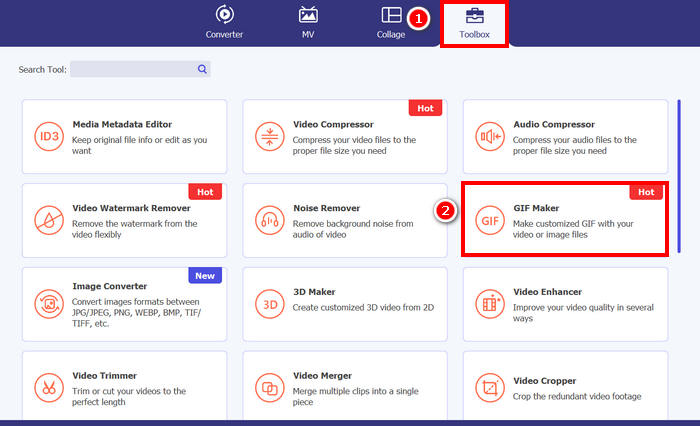
Pas 2. Inicia l’eina, fes clic a la pestanya Toolbox i, des d’allà, selecciona GIF Maker.
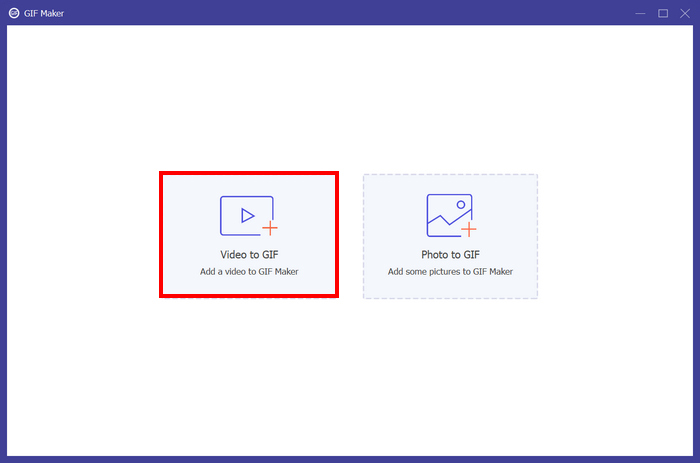
Pas 3. Després, tria Video to GIF i puja el vídeo que vols convertir en un GIF en bucle.
Pas 4. Ara pots editar el vídeo retallant-lo, ajustant-ne la velocitat de fotogrames i la resolució. Quan acabis, fes clic a Generate GIF. El fitxer GIF es desarà directament a l’ordinador.
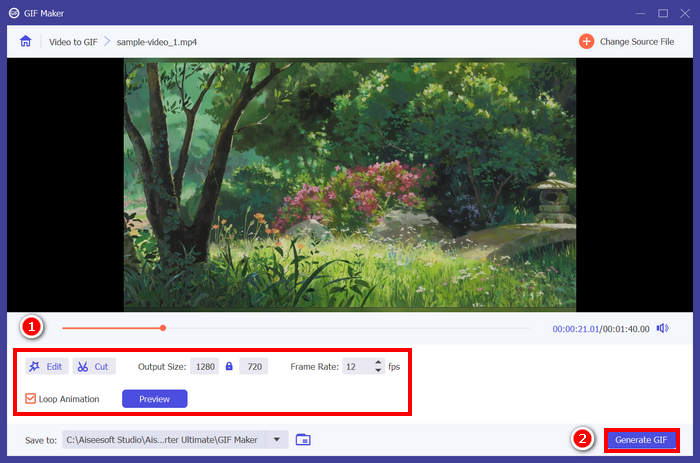
Nota: No oblidis marcar l’opció de bucle a sota per aconseguir el GIF de bucle infinit que desitges a partir del teu vídeo. A més, per comprovar si el teu GIF està perfectament enllaçat, el pots previsualitzar abans de generar-lo.
Mètode 2. Com fer un GIF en bucle al PowerPoint
Un altre mètode que podeu utilitzar per crear un GIF en bucle és a través del PowerPoint. El Microsoft PowerPoint és conegut per la seva capacitat de crear presentacions, objectes, animacions, etc. Amb això, els usuaris poden aprofitar algunes de les funcions, com l'animació i la seva opció d'exportació. Així doncs, us expliquem com fer un GIF en bucle al PowerPoint.
Pas 1. A l’ordinador, obre PowerPoint i crea una diapositiva en blanc.
Pas 2. A continuació, insereix una imatge, forma o qualsevol element que vulguis convertir en un GIF en bucle.
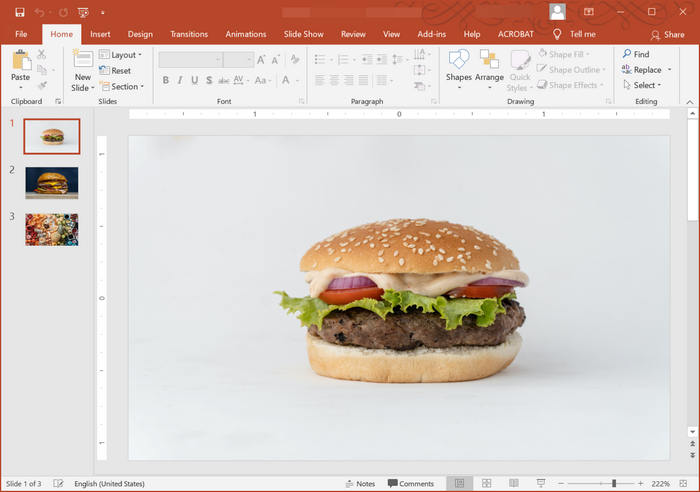
Pas 3. Després, afegeix-hi alguna animació per donar-li vida; només assegura’t que l’animació acabi igual que com comença.
Pas 4. Finalment, ves a la pestanya File i selecciona Export; des d’allà, tria Create an Animated GIF.
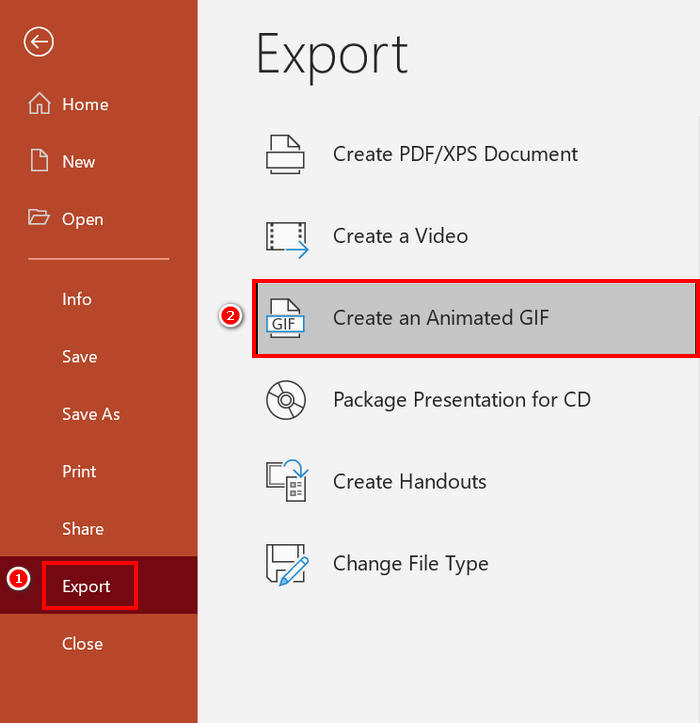
Tot i que és possible crear un GIF en bucle al PowerPoint, es limita principalment a animacions basades en diapositives i no admet la conversió de videoclips reals en GIF. Per tant, si treballeu amb contingut de vídeo, necessitareu una eina més especialitzada.
Mètode 3. Com exportar GIF en bucle a l'After Effects
L'After Effects és conegut per les seves potents capacitats de gràfics en moviment i efectes visuals, cosa que el converteix en una de les millors opcions per a professionals que creen animacions d'alta qualitat. Crear un GIF en bucle a l'After Effects és relativament fàcil. Tanmateix, el repte arriba quan arriba el moment d'exportar l'animació com a GIF, ja que l'After Effects no ofereix una opció d'exportació directa per a GIF. Per tant, a continuació es mostren els passos sobre com exportar GIF en bucle a l'After Effects:
Pas 1. El primer que has de fer és instal·lar GifGun. Aquest connector és necessari, ja que After Effects no permet exportar GIFs de manera predeterminada.
Pas 2. Un cop fet això, selecciona la composició que vols exportar com a GIF al panell Project.
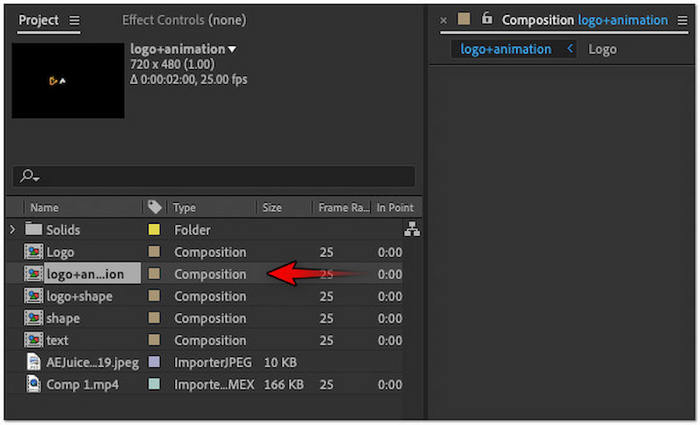
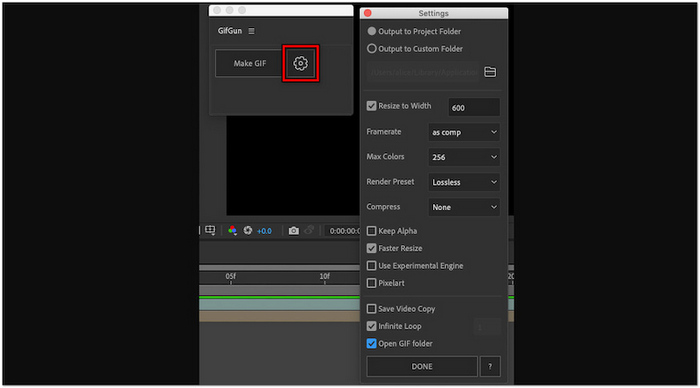
Pas 3. Després, ves a la pestanya Window del menú superior i tria el connector GifGun. Des d’allà, fes clic al botó Gear per configurar els paràmetres de sortida.
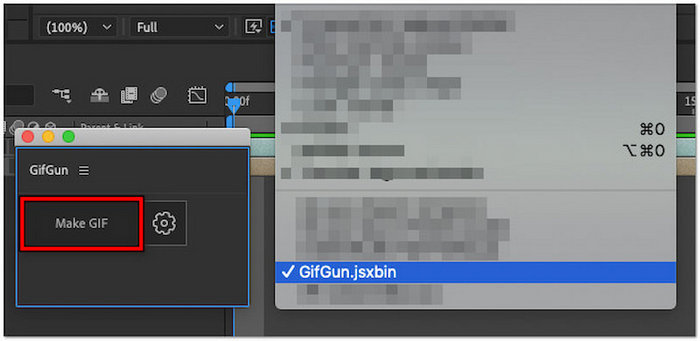
Pas 4. Fes clic a Make GIF per començar a exportar el teu GIF en bucle.
Nota: Assegura’t que la teva animació estigui dissenyada per fer un bucle perfecte abans d’exportar-la. Per garantir un bucle impecable, el primer i l’últim fotograma de la composició s’han d’alinear de manera suau. A més, GifGun et permet ajustar la qualitat, la resolució i la configuració del bucle, així que val la pena dedicar-hi un moment per afinar aquestes opcions i obtenir el millor resultat possible.
Fes clic aquí per obtenir més informació sobre els retalladors de GIF, si cal.
Part 3. Preguntes freqüents sobre com crear un GIF en bucle
Com puc evitar que un GIF es repeteixi en bucle?
La millor manera d'aturar el bucle d'un GIF és utilitzar un creador o editor de GIF dedicat, com ara el creador de GIF del FVC Video Converter Ultimate. Un cop hàgiu obert el fitxer GIF a l'eina, podeu desactivar el bucle per evitar que es repeteixi.
Com fer un bucle GIF animat en línia gratuïtament?
Per crear un bucle GIF animat en línia de forma gratuïta, podeu utilitzar eines com Ezgif. Amb aquesta plataforma en línia, simplement pengeu el vostre vídeo o seqüència d'imatges i, a continuació, personalitzeu la configuració del bucle retallant, retallant, afegint efectes i, el més important, definint el nombre de bucles. Després d'això, feu clic a Crea un GIF i descarregueu l'animació en bucle final.
On puc trobar un fons bonic per a un bucle GIF?
Pots trobar fons bonics i d'alta qualitat per al teu bucle GIF en llocs web d'imatges i vídeos lliures de drets d'autor com ara Unsplash, Pexels i Pixabay. Només assegura't de triar fons que siguin visualment fluids i compatibles amb els bucles, com ara cels, onades o degradats animats, per mantenir un flux natural al teu GIF.
Quina és la durada ideal per a un GIF en bucle?
La durada ideal per a un GIF en bucle sol ser d'entre 2 i 6 segons. Les durades més curtes ajuden a mantenir una reproducció fluida, temps de càrrega més ràpids i una millor continuïtat en bucle. Mantenir-lo curt també garanteix que capti l'atenció sense tornar-se repetitiu o molest.
Conclusió
Crear un GIF en bucle perfecte pot semblar un detall menor, però en realitat pot tenir un impacte important. Per tant, amb les eines adequades i alguns consells pràctics, qualsevol persona pot crear GIFs en bucle fluids i atractius que captin l’atenció i donin vida a qualsevol contingut. Tant si utilitzes una eina professional com FVC Video Converter Ultimate, PowerPoint o After Effects, la clau és centrar-se en transicions suaus i en un disseny intencionat. Ara que ja saps com fer-ho, és el moment de posar la teva creativitat en moviment!
-
 Combina GIF utilitzant els millors combinadors de GIF fora de línia i en línia
 Voleu afegir una mica de condiment a les vostres publicacions a les xarxes socials o campanyes de màrqueting? No busqueu més que els millors combinadors de GIF en línia i fora de línia!
-
 Com transformar vídeo a GIF per fer GIF atractius
 Descobriu com convertir sense esforç els vostres vídeos en GIF atractius amb els nostres convertidors de vídeo a GIF seleccionats a mà i el procés fàcil de seguir de vídeo a GIF.
-
 5 millors maneres de canviar una imatge a GIF animat [actualitzat el 2025]
 Necessites un convertidor d'imatge a GIF? Aquest article proporcionarà els cinc millors convertidors que podem trobar al mercat. Ara llegiu-lo sobre aquestes eines per al seu ús.
