


 Video Converter Ultimate
 Gravadora de pantalla
 Reparació de vídeo
3 maneres d'afegir fons a la foto en línia, a iPhone, Android i ordinador
Quan edites una imatge, sovint has d’eliminar el fons original i afegir-ne un de diferent. Per a les imatges amb fons transparent, pots canviar fàcilment el fons amb un editor d’imatges. En la majoria dels casos, però, primer has d’eliminar el fons actual i després afegir-ne un de nou a la foto. Estàs buscant una bona aplicació d’edició d’imatges per a afegir fons a una foto?
Aquesta publicació explica 3 mètodes efectius per afegir un fons a una foto. Tant si voleu afegir fons blanc a una foto directament en línia, afegir un fons a una foto en un iPhone o canviar el fons de la imatge en un dispositiu Android, podeu seguir el mètode específic per fer-ho.

Part 1. Com afegir un fons a una foto en línia
Per afegir ràpidament un fons a una foto, primer pots provar alguns editors d’imatges en línia. Aquí et recomanem especialment el fàcil d’utilitzar Free Background Remover Online perquè eliminis el fons original de la teva imatge i hi afegeixis un fons diferent. Aquesta eina gratuïta per canviar el fons de la imatge admet tots els formats d’imatge més utilitzats, com JPG, PNG, GIF i més. T’ofereix una manera senzilla d’afegir un fons blanc a una foto o reemplaçar el fons actual per una altra imatge.
Pas 1. Obre el navegador web, com ara Chrome, Safari, Yahoo, IE o Firefox, i ves a aquest lloc web gratuït per canviar el fons de fotos. Quan arribis a la pàgina, simplement pots fer clic al botó Upload Portrait per seleccionar i afegir la teva foto per editar-la després.

Pas 2. Amb una tecnologia d’IA avançada, seleccionarà automàticament l’objecte principal de la imatge que hagis pujat. Després podràs utilitzar la funció Keep o Erase per fer una edició més detallada.
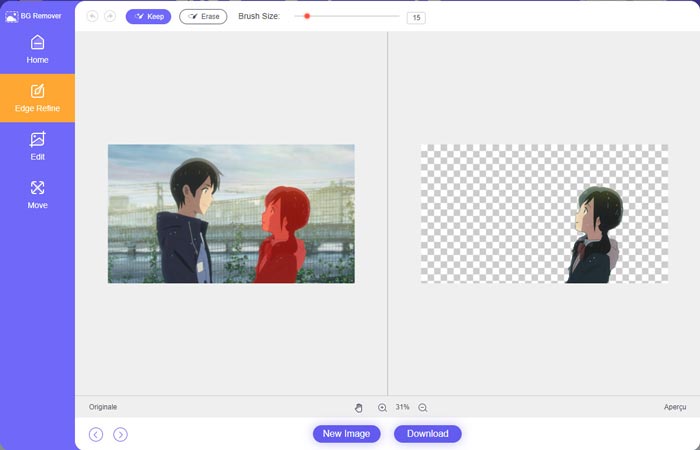
Pas 3. Fes clic a l’opció Edit a l’esquerra, i després podràs triar canviar el color del fons o afegir un fons a la foto. Durant aquest pas, també pots confiar en la seva funció Crop per personalitzar la mida de la imatge segons les teves necessitats.
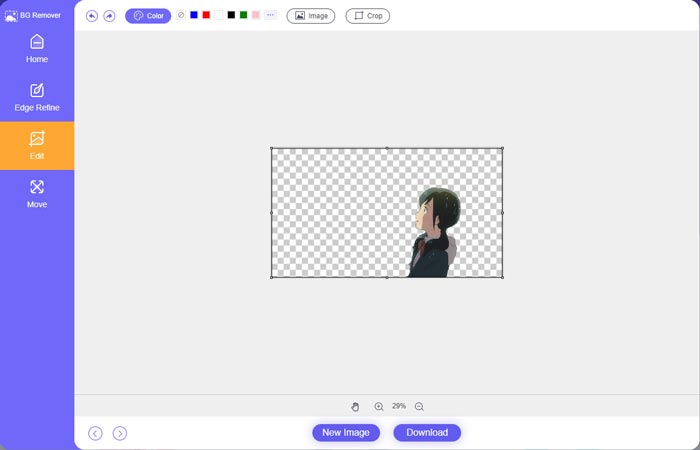
Pas 4. Després d’afegir un fons adequat a la foto, pots fer clic al botó Download per desar-la a l’ordinador. El fitxer d’imatge editat es desarà en format PNG per defecte.
Part 2. Com afegir un fons a una foto amb Adobe Photoshop
Adobe Photoshop és un dels editors d'imatges més famosos que inclou moltes funcions per editar imatges, efectes personalitzats i fer altres operacions. Si teniu Photoshop instal·lat a l'ordinador, podeu optar per afegir fons a la foto a Photoshop.
Pas 1. Obre el programari Photoshop a l’ordinador i afegeix-hi la teva foto. Pots descarregar lliurement l’última versió de Photoshop des del lloc web oficial d’Adobe. Tingues en compte que Adobe només ofereix una prova gratuïta de 7 dies per utilitzar Photoshop.
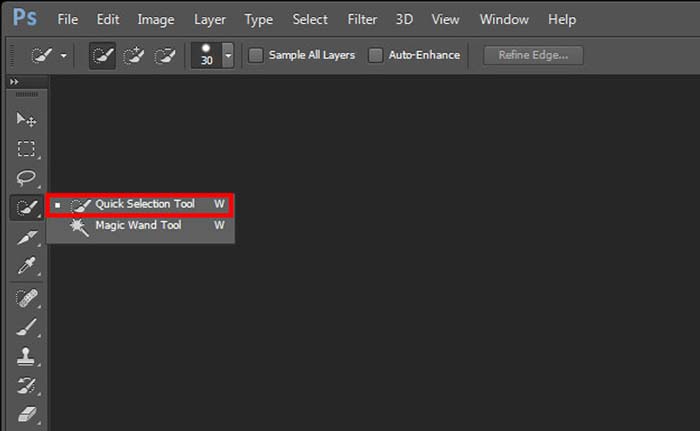
Pas 2. Quan la teva foto s’hagi carregat a Photoshop, pots fer clic a la icona de l’eina Quick Selection Tool o Magic Wand Tool a la barra d’eines de l’esquerra per seleccionar el fons que vols canviar.
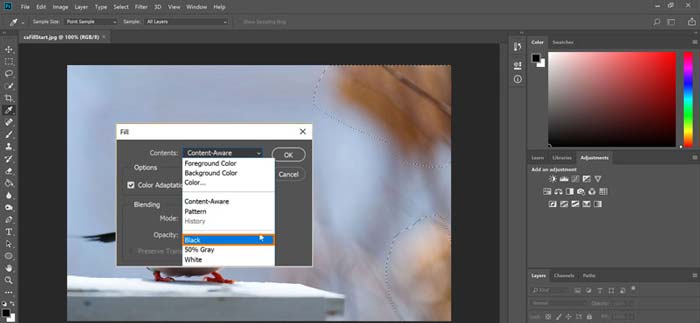
Pas 3. Després de seleccionar el fons de la foto, pots fer-hi clic amb el botó dret i triar l’opció Fill. Ara simplement pots afegir un fons blanc a la foto o canviar el fons per un altre color, com negre, blau, gris o qualsevol altre color que necessitis.
Pas 4. Si vols afegir una imatge nova com a fons, primer has d’eliminar el fons seleccionat. Pots prémer la tecla Supr del teclat per treure el fons actual. Després pots afegir el fitxer d’imatge a Photoshop i arrossegar-ne la capa per sota de la capa de fons. Fent això, podràs substituir fàcilment el fons original per una imatge nova.
Pas 5. Després d’afegir un fons a una foto a Photoshop, pots fer clic al menú File de la part superior i després triar l’opció Save As de la llista desplegable. Selecciona el format d’imatge adequat per a aquesta foto i desa-la a l’ordinador.
Part 3. Com afegir un fons a una foto a l'iPhone i al telèfon Android
Quan voleu afegir fons a una foto en un iPhone, iPad o telèfon Android, heu de trobar una bona aplicació d'edició de fons d'imatges.
LightX és una aplicació d’edició de fotos completa tant per a usuaris d’iOS com d’Android. Ofereix una manera pràctica d’eliminar fons no desitjats, afegir un fons nou a la foto, aplicar diferents efectes, crear selfies d’alta qualitat i molt més directament al telèfon. A l’aplicació LightX s’hi han dissenyat moltes eines avançades d’edició d’imatges, com barreja de colors, saturació de foto personalitzada, contrast, to, corbes i més. Pots descarregar-la des de l’App Store o Google Play Store.
Pas 1. Instal·la i obre l’aplicació LightX al teu iPhone, iPad o telèfon Android. Dona a l’aplicació permís per accedir a les fotos del teu dispositiu. Afegeix-hi la teva foto per fer-hi l’edició de fons.
Pas 2. Per eliminar el fons actual de la foto i canviar-lo per un altre, pots lliscar cap a l’esquerra per fer aparèixer moltes opcions diferents. A l’apartat Creative, pots triar la funció Cutout per afegir un fons a la foto. Ara has de seleccionar manualment l’objecte principal i esborrar el fons original.
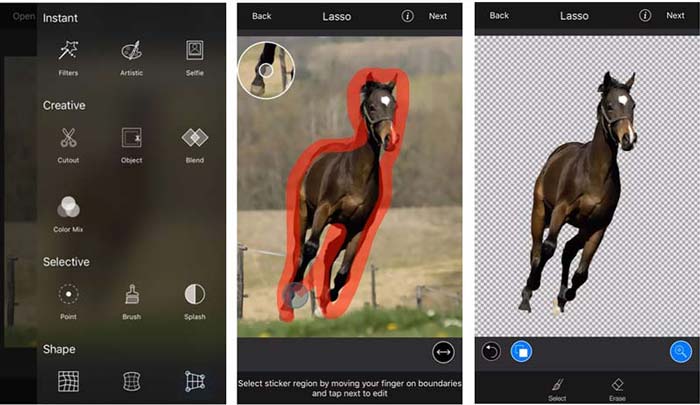
Pas 3. Després d’eliminar el fons, pots tocar Next a l’angle superior dret per continuar. Després pots utilitzar la funció Crop per canviar la mida de la imatge. Toca Done per confirmar l’operació. A continuació, pots tocar BG Image a la part inferior de la pantalla per afegir un fons diferent a la foto. Pots ajustar lliurement els efectes del fons nou segons les teves necessitats.
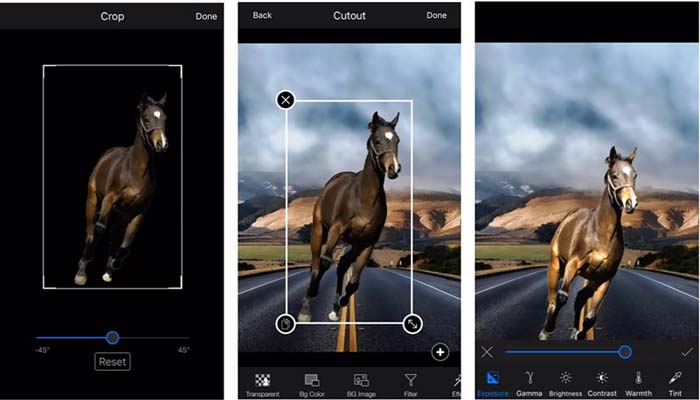
Tant si utilitzeu un dispositiu iOS com Android, podeu seguir passos similars per afegir un fons a una foto amb l'aplicació LightX. Tingueu en compte que, com a usuari d'iOS, heu de pagar $3,99 per aquesta aplicació per afegir fons. Si sou un usuari d'Android, podeu instal·lar-lo des de Google Play Store. Per actualitzar a una versió premium, heu de pagar el mateix preu.
Relacionat:
Què és la resolució de vídeo: anàlisi detallada de la resolució i més
6 filtres animats preferits de Snapchat a Snapchat
Part 4. Preguntes freqüents sobre com afegir un fons a una foto
Com afegir un fons diferent a una foto al meu Mac?
Pots utilitzar els 2 primers mètodes per canviar de manera senzilla el fons de la teva foto en un Mac. A més del recomanat Free Background Remover Online i Adobe Photoshop, també pots recórrer a altres editors d’imatge per afegir un fons nou a la teva foto.
Com canviar el fons de pantalla en un iPhone?
iOS ofereix una manera senzilla de canviar el fons de pantalla en un iPhone o un iPad. Podeu anar a l'aplicació Configuració, tocar l'opció Fons de pantalla i, a continuació, tocar Tria un fons de pantalla nou.
Puc afegir un fons a una foto en directe al meu iPhone?
No. L'iPhone no t'ofereix una manera directa de canviar el fons d'una foto en directe. Només podeu retallar-lo, aplicar filtres, ajustar efectes i canviar-lo a una imatge fixa.
Conclusió
Aquesta publicació comparteix 3 mètodes útils per afegir fons a una foto. Quan tingueu la necessitat d'eliminar el fons de la foto original i afegir-hi un de nou, podeu seleccionar el vostre editor d'imatges preferit per fer-ho.
-
 Les 3 millors maneres d'afegir filtres a GIF amb els millors editors de GIF [Preferit]
 Vols saber com afegir un filtre a GIF per millorar-lo? En aquest bloc, aprendràs fàcilment les diferents tècniques per afegir filtres als teus GIF.
-
 3 maneres més fàcils d'afegir una marca d'aigua a un GIF en línia i fora de línia
 Afegir una marca d'aigua a un GIF pot ser tan fàcil com 1-2-3 si feu servir correctament l'eina adequada. Les eines del mercat són massa àmplies, però us presentarem les tres eines de les quals podeu confiar.
-
 5 millors maneres de canviar la imatge a GIF animat [Actualitzat el 2022]
 Necessites un convertidor d'imatge a GIF? Aquest article proporcionarà els cinc millors convertidors que podem trobar al mercat. Per tant, anem a descobrir aquestes eines llegint aquest article.
