


 Video Converter Ultimate
 Gravadora de pantalla
 Reparació de vídeo
 Baixada segura
2 mètodes senzills sobre com eliminar la marca d'aigua de Dxtory
Quan es tracta d’enregistrar gameplays i altres aplicacions, Dxtory és un dels programes de gravació de pantalla més populars per a molta gent. Moltes persones fan servir aquest gravador de pantalla perquè és una de les poques aplicacions de gravació que pot enregistrar fins a 120 fps. A més, registra ràpidament la informació de vídeo DirectX i OpenGL al teu sistema. No obstant això, quan graves amb Dxtory Screen Recorder, deixa una marca d’aigua al teu vídeo. Com a resultat, la gent busca una manera d’eliminar aquesta molesta marca d’aigua. Aquest article t’ensenyarà com eliminar la marca d’aigua de Dxtory del teu vídeo enregistrat de pantalla.

Part 1. Com gravar la pantalla amb Dxtory
Si busqueu una aplicació de programari que pugui gravar els aspectes més destacats del vostre joc, Dxtory és una aplicació adequada. Dxtory és una aplicació que us pot ajudar a gravar la vostra pantalla mentre jugueu a un joc, parleu d'una lliçó en línia o mireu vídeos a l'ordinador. És una aplicació de programari coneguda per a la gravació de pantalla. El gravador de pantalla Dxtory té les eines necessàries per accedir a la configuració global, avançada, d'accés directe, captura de pantalla, vídeo i àudio, etc.
A més, aquest gravador de pantalla us permet fer una captura de pantalla mentre enregistreu. També podeu modificar aquestes captures de pantalla amb opcions de vora, escala i tall. També té múltiples fonts d'àudio enregistrament, el que significa que Dxtory pot gravar simultàniament el so del joc i del micròfon. També és la captura de pel·lícules més ràpida per a aplicacions DirectX i OpenGL. Per tant, si voleu utilitzar Dxtory per gravar la pantalla, continueu llegint aquesta part.
Com gravar el joc amb el gravador de pantalla Dxtory:
Pas 1. Primer, has de descarregar Dxtory al teu dispositiu. Segueix el procés d’instal·lació. Pots comprar la llicència perquè no tinguis cap limitació a l’hora de gravar i perquè no aparegui cap marca d’aigua al teu vídeo de sortida.
Pas 2. Executa l’aplicació que vols gravar i després executa Dxtory.
Pas 3. Ves a la pestanya Target i fes clic al joc que estàs jugant. La llista de processos apareixerà immediatament a la llista d’objectius.
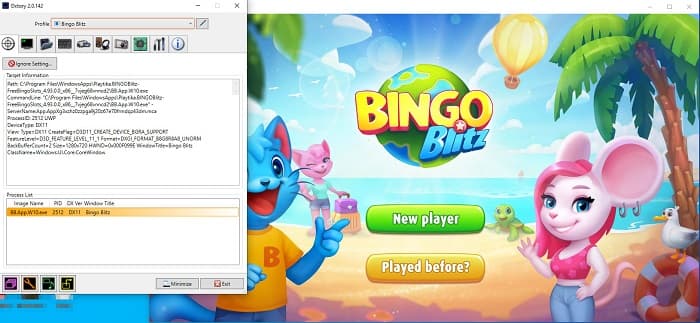
Pas 4. A continuació, ves a la pestanya Folder i selecciona la destinació del teu fitxer. Després, ves a Hotkeys per seleccionar les tecles per al procés de gravació de pantalla. També pots ajustar el so de l’àudio.
Pas 5. Minimitza Dxtory i inicia el joc. Veureu un número a la part superior esquerra de la interfície del joc que indica els FPS. Prem la tecla d’accés ràpid de captura de vídeo que has definit al panell Hotkeys per començar a gravar.
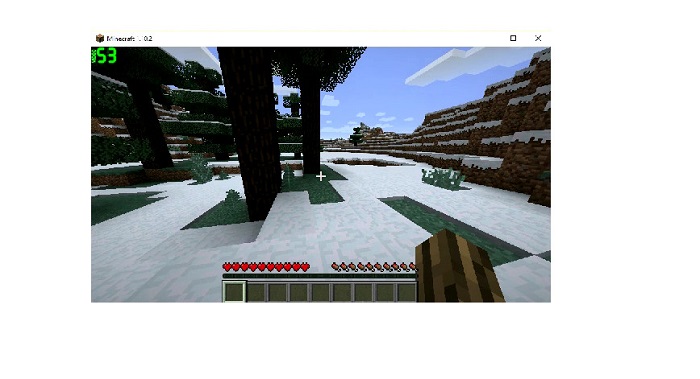
Pas 6. Llavors, si vols aturar la gravació, prem la mateixa tecla que has premut per començar. El vídeo es guarda a la destinació que has seleccionat quan atures la gravació.
Ara ja pots gaudir del teu vídeo de gravació de pantalla. Si no has comprat la llicència, veuràs una marca d’aigua al vídeo. Per tant, si vols eliminar la marca d’aigua del vídeo, llegeix la següent part.
Part 2. Com eliminar la marca d'aigua de Dxtory amb l'eina definitiva
Si voleu eliminar la marca d'aigua Dxtory del vostre vídeo de la gravadora de pantalla, és probable que vulgueu utilitzar aquesta increïble aplicació de programari. Llegiu aquesta part per conèixer les descripcions completes sobre aquesta eina i com utilitzar-la per al procés d'eliminació de la marca d'aigua de Dxtory.
FVC Video Converter Ultimate és un dels programes més coneguts que et permet eliminar marques d’aigua de qualsevol vídeo. Té una interfície senzilla d’utilitzar, fet que el converteix en una eina fàcil i intuïtiva. A més, FVC Video Converter Ultimate admet nombrosos formats de fitxer, incloent-hi MP4, MKV, MOV, M4V, AVI, FLV i més de 1000 formats més. I si vols tenir una aplicació amb moltes funcions d’edició, aquesta eina és la millor per a tu. Conté moltes funcions avançades d’edició, com ara retallador de vídeo, eliminador de marques d’aigua de vídeo, combinador de vídeos, tallador de vídeos i més eines al Toolbox.
Amb la seva interfície de processament ràpid, podeu eliminar fàcilment qualsevol marca d'aigua incrustada al vostre vídeo. Per tant, seguiu els passos següents per tenir un vídeo Dxtory sense filigrana.
Hi ha dues maneres d'eliminar la marca d'aigua Dxtory del vostre vídeo.
Mètode 1: Com eliminar la marca d'aigua de Dxtory mitjançant la funció de retall de vídeo:
Pas 1. Primer, instal·la FVC Video Converter Ultimate al teu dispositiu fent clic al botó Download de sota per a Windows o Mac. Segueix el procés d’instal·lació i obre l’aplicació.
Descàrrega gratuïtaPer a Windows 7 o posteriorDescàrrega segura
Descàrrega gratuïtaPer a macOS 10.7 o posteriorDescàrrega segura
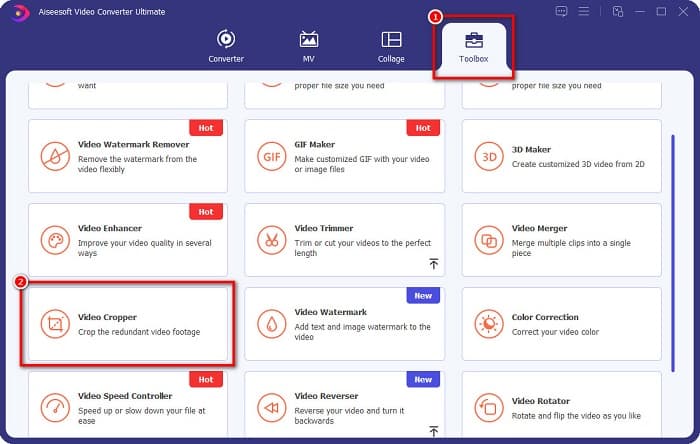
Pas 2. A la interfície principal, fes clic al panell Toolbox i selecciona la funció Video Cropper.
Pas 3. Després, fes clic al botó amb el símbol més (+) per pujar el vídeo del qual vols eliminar la marca d’aigua. També pots arrossegar i deixar anar el vídeo des dels teus fitxers de l’ordinador.
Pas 4. A continuació, pots previsualitzar el resultat. Veureu un quadre de retall; ajusta els costats del quadre de retall fins que la marca d’aigua no quedi inclosa al vídeo.
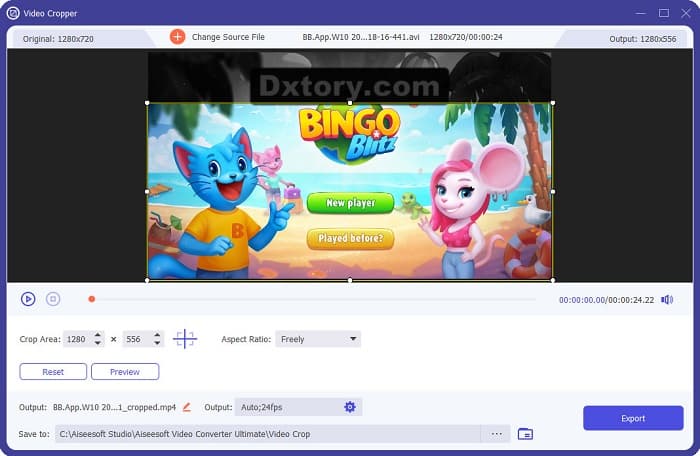
Podeu ajustar la mida de l'àrea de retall fent clic al botó amunt i avall que hi ha a sota de la vista prèvia del vostre vídeo.
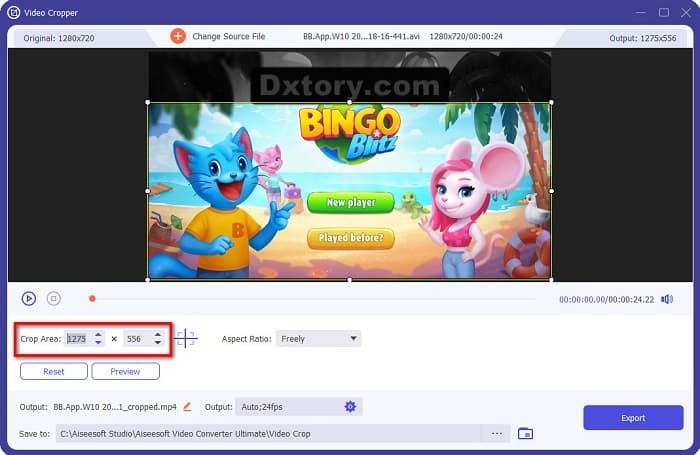
Pas 5. Finalment, fes clic al botó Preview per veure el resultat del teu vídeo i fes clic a Export si n’estàs satisfet.
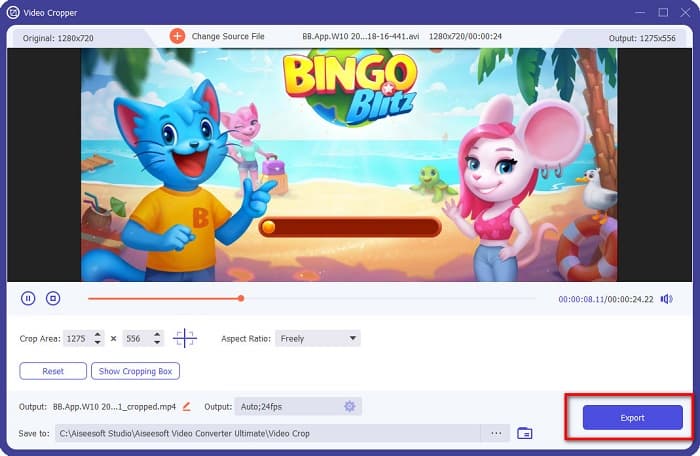
Amb aquests senzills passos, podeu eliminar la marca d'aigua Dxtory del vostre vídeo mitjançant la funció Video Cropper de FVC Video Converter UItimate.
Mètode 2: Com eliminar la marca d'aigua de Dxtory mitjançant Video Watermark Remover de FVC Video Converter Ultimate:
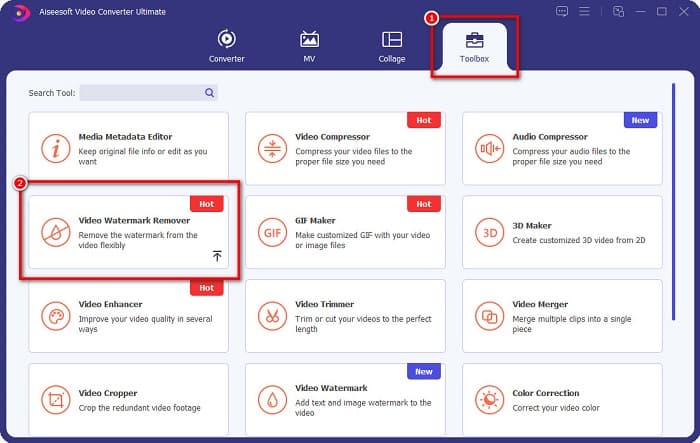
Pas 1. Si el programa ja està descarregat al teu dispositiu, obre l’aplicació. Després, ves a Toolbox i selecciona Video Watermark Remover.
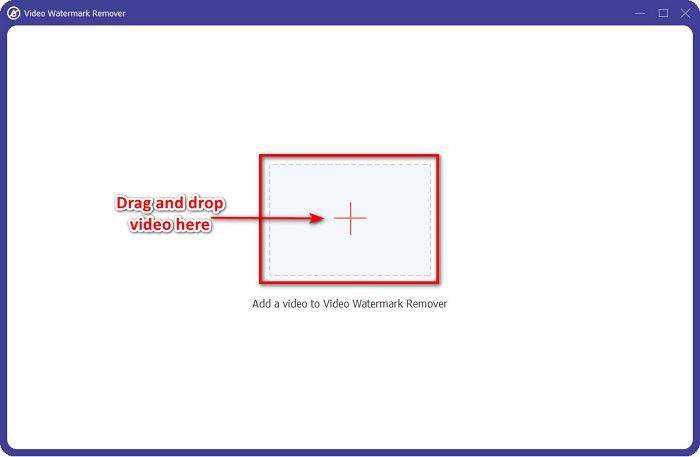
Pas 2. Llavors, fes clic al botó amb el símbol + o arrossega i deixa anar el teu vídeo de Dxtory al quadre amb el signe +.
Pas 3. Després de pujar el vídeo, en veuràs la previsualització. Fes clic a l’àrea Add watermark removing.
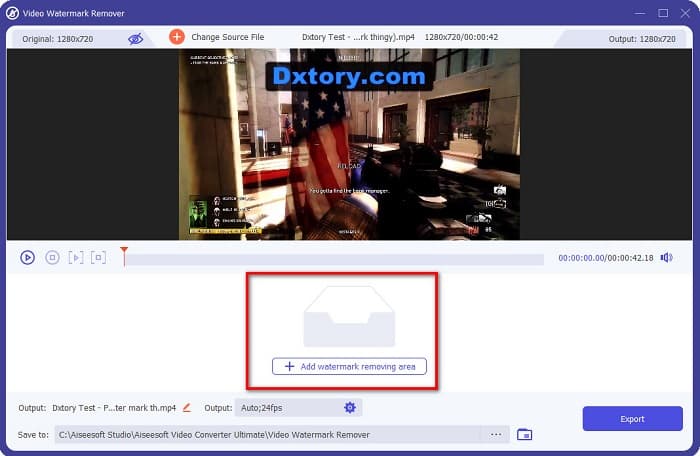
Pas 4. A continuació, apareixerà una àrea d’eliminació de marca d’aigua sobre el teu vídeo. Col·loca-la sobre la marca d’aigua de Dxtory.
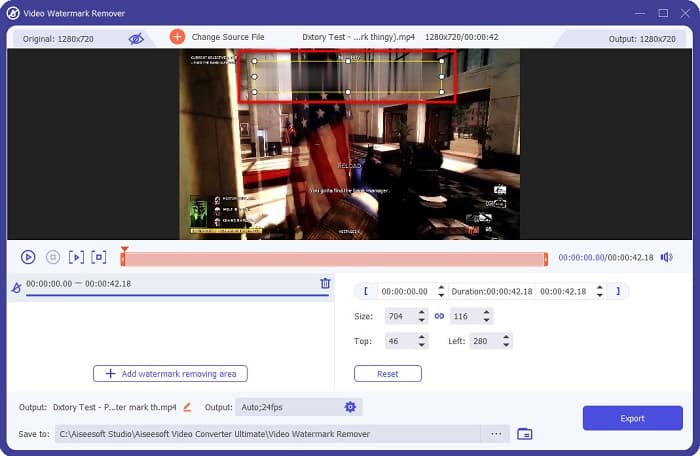
Opcional. Si hi ha dues o més marques d’aigua al teu vídeo, fes clic a add watermark removing area per afegir un altre quadre d’eliminació.
Pas 5. Finalment, fes clic al botó Export per desar el vídeo resultant al teu dispositiu. I ja està!
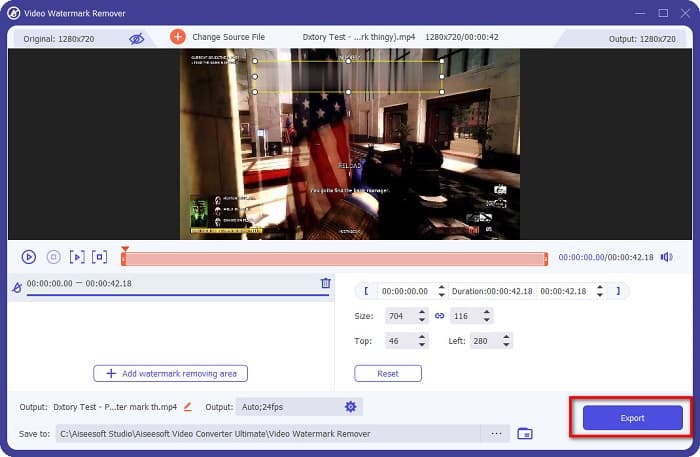
Fàcil, oi? Pots eliminar la marca d’aigua de Dxtory del teu vídeo així de senzill. També pots eliminar marques d’aigua de TikTok amb mètodes similars als que s’han esmentat abans.
Part 3. Preguntes freqüents sobre l'eliminació de la marca d'aigua de Dxtory
Pot Adobe After Effects eliminar la marca d'aigua de Dxtory?
Sí. Adobe After Effects és el programa més popular per eliminar marques d’aigua de vídeo i pot eliminar qualsevol marca d’aigua del teu vídeo (logotip, text, imatges). També pot eliminar la marca d’aigua de Dxtory del teu vídeo. Tanmateix, molts usuaris troben que és difícil d’utilitzar. Localitza la marca d’aigua a la teva imatge. Col·loca-hi el quadre d’eliminació de marca d’aigua. Ves al panell Layer. Crea Null Objects. Fes clic a Save Frame as. Importa els teus vídeos editats. Redueix la Opacity de la teva imatge. Fes servir l’opció Pick-up whip.
Pots eliminar la marca d'aigua de les teves imatges?
Pots eliminar marques d’aigua, com ara logotips, text o qualsevol element de les teves imatges. Pots utilitzar el FVC free watermark remover per eliminar qualsevol marca d’aigua de la teva imatge.
Per què Dxtory posa marques d'aigua als vídeos?
Dxtory va posar una marca d'aigua als seus vídeos perquè en compreu la versió de pagament. A més, incrusten marques d'aigua als seus vídeos perquè no tinguin drets d'autor.
Conclusió
Tal com s’ha comentat anteriorment, hi ha mètodes provats sobre com eliminar les marques d’aigua de Dxtory dels teus vídeos. I fent servir FVC Video Converter Ultimate, pots eliminar fàcilment qualsevol marca d’aigua molesta de la teva imatge. Descarrega’l ara i gaudeix de les seves millors funcions.
-
 Com eliminar la filigrana de Wondershare DVD Creator amb facilitat
 Aquest article inclou informació sobre com eliminar la filigrana de Wondershare DVD Creator. Per obtenir tota la informació que necessiteu és imprescindible llegir això.
-
 Com eliminar la filigrana de Coub amb passos senzills
 Obteniu informació sobre com eliminar la filigrana de Coub als vostres vídeos amb aquests populars eliminadors de filigrana. Llegiu aquest article per conèixer aquestes increïbles eines i com utilitzar-les.
-
 Com eliminar la filigrana Lumion a Windows i Mac fàcilment
 Necessites eliminar la marca d'aigua Lumion per presentar-la professionalment? Bé, hi ha eines que podeu utilitzar per ajudar-vos a desfer-vos de la marca d'aigua que deixa.
