


 Video Converter Ultimate
 Gravadora de pantalla
 Reparació de vídeo
 Baixada segura
Com eliminar la marca d'aigua del gràfic d'origen de manera efectiva al gràfic
És possible que necessitis utilitzar Origin Graph per crear una plantilla amb dades matemàtiques o científiques massa complexes per expressar-les amb paraules. Aquest programari ja ha ajudat estudiants, investigadors, professors, professionals dels negocis i altres persones que necessiten crear el seu propi gràfic. Amb el conjunt de plantilles entre les quals pots triar, podràs fer un gràfic visualment atractiu que capti l’atenció dels espectadors. El problema amb què probablement et trobaràs si n’utilitzes la versió gratuïta és que afegeix una marca d’aigua de text al resultat final. Tens problemes per gestionar la marca d’aigua? No pateixis més! Perquè et tenim cobert. Aquí et presentarem consells útils per eliminar la marca d’aigua d’Origin Graph i poder utilitzar el gràfic a Word o PowerPoint.

Part 1. Com eliminar la filigrana del gràfic d'origen amb l'eliminador de filigrana d'imatge en línia
FVC Free Watermark Remover Online és un excel·lent eliminador de marques d’aigua de text que pots utilitzar per eliminar la marca d’aigua d’Origin Graph. Aquesta eina és altament eficient a l’hora d’eliminar qualsevol objecte de les teves imatges perquè tinguin un aspecte encara més professional un cop n’has suprimit la marca d’aigua. Amb aquesta eina, podem assegurar-te que es tracta d’un eliminador de marques d’aigua dedicat que pots utilitzar i en el qual pots confiar quan et trobis amb aquest problema. Et preguntes si aquesta eina és fàcil d’utilitzar? No cal que ho facis! Perquè els passos que afegim a continuació són els que pots seguir per desfer-te de la marca d’aigua de text de la imatge que afegeix Origin Graph.
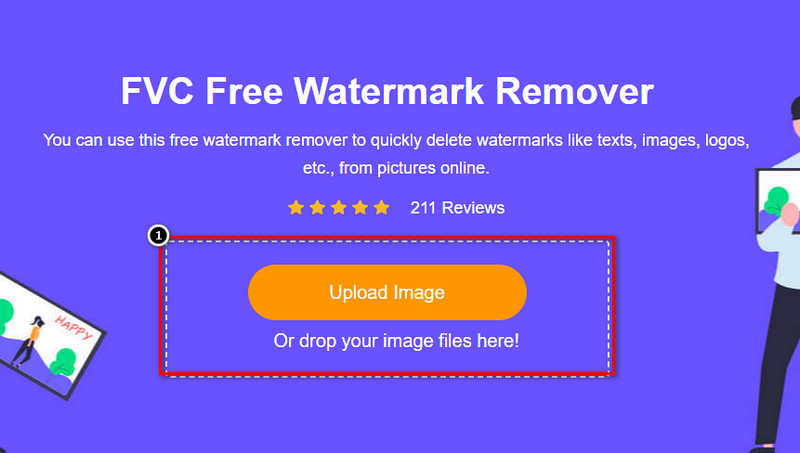
Pas 1. Pots fer clic en aquest enllaç per obrir l’eliminador de marques d’aigua d’imatges en línia; s’obrirà directament en una pestanya nova on podràs accedir a l’eina.
Pas 2. Prem Upload Image per afegir-hi la foto amb marca d’aigua, localitza el fitxer de la foto a la carpeta i fes clic a Open per pujar-la correctament.
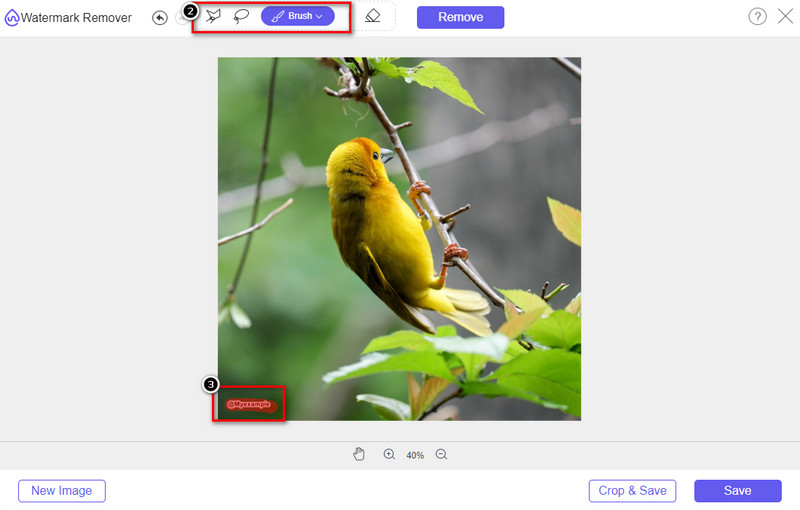
Pas 3. Pots utilitzar tres eines per ressaltar la marca d’aigua; tot i que funcionen de manera diferent, la seva efectivitat és la mateixa. Tria una eina i després ressalta l’àrea de la imatge que tingui la marca d’aigua.
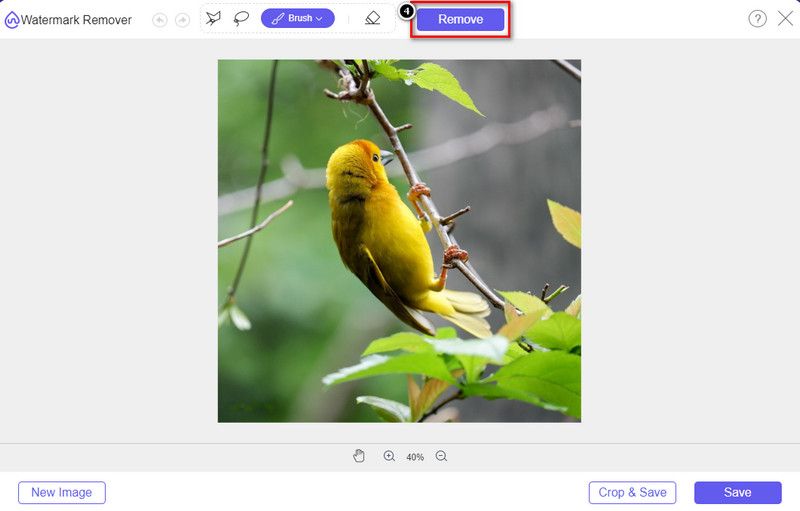
Pas 4. Assegura’t de fer clic a la icona Remove després de ressaltar la marca d’aigua amb l’eina. Aquest pas és essencial perquè, quan exportis la imatge, la tinguis sense la marca d’aigua.
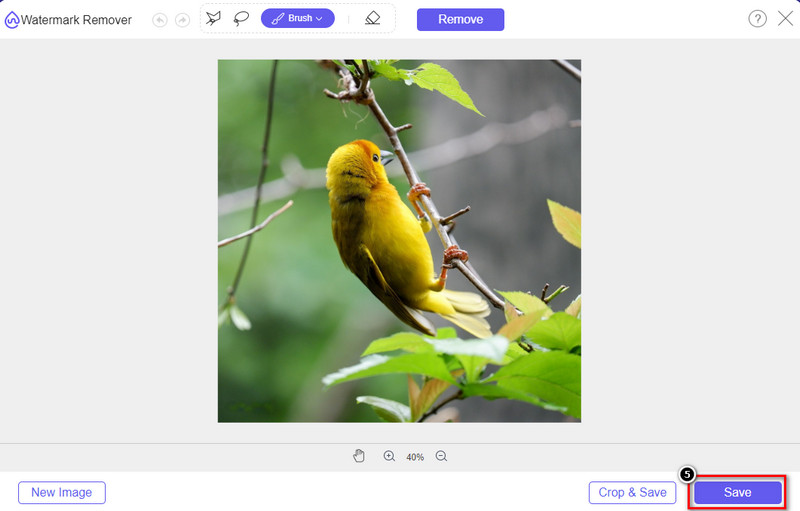
Pas 5. Per iniciar el procés d’exportació, ara ja pots fer clic al botó Save. Espera que el procés acabi i ja podràs revisar la imatge sense la marca d’aigua d’Origin Graph visible a la zona.
Pros
- Un eliminador de filigrana d'imatge basat en web gratuït al qual podeu accedir.
- Funciona de manera eficient per eliminar la marca d'aigua amb el suport de la tecnologia AI.
- Admet una gran varietat de formats d'imatge que podeu tenir a la vostra unitat local.
- No s'afegeix cap filigrana a les imatges exportades.
Contres
- Necessites connexió a Internet per funcionar.
- El seu objectiu és eliminar la marca d'aigua i res més.
Part 2. Com copiar gràfics d'Origin a Word o PowerPoint sense la marca d'aigua
En aquesta part de l'article, us donarem el procediment que haureu de saber per afegir el gràfic que heu creat a Origin Graph sense la marca d'aigua. Seguiu-lo en conseqüència per afegir el gràfic que feu correctament a Microsoft Word i PowerPoint sense filigrana.
Haureu d'alliberar almenys 1,9 GB a causa de la seva enorme mida de fitxer. Al fitxer de 1,9 GB, podeu tenir l'ajuda que necessiteu, però si no voleu ajuda, podeu descarregar-ne la versió de 652 MB mitjançant .zip o .exe.
Passos sobre com crear un gràfic al gràfic d'origen sense la marca d'aigua:
Pas 1. Primer, descarrega Origin Graph al teu sistema operatiu des del seu lloc web oficial. Obre l’eina per començar a crear el gràfic que vulguis.
Pas 2. Després d’executar el programari, afegeix-hi els valors de la taula que necessitis. Aquí pots afegir més variables i també el nombre de gràfics.
Addicional: Pots fer clic a Plot per veure altres gràfics que pots utilitzar, com ara Basic 2D, Bar, Statistical i més.
Pas 3. Fes clic a File i després prem Save per exportar el gràfic que has creat aquí.
Pas 4. Pots seguir els passos que hem afegit a la Part 1 i seguir el tutorial per eliminar la marca d’aigua d’Origin Graph amb l’ajuda de FVC Free Watermark Remover Online.
Com utilitzar el gràfic a Word sense filigrana:
Pas 1. Obre l’aplicació Word a l’escriptori i fes clic a Pàgina en blanc. Si ja has creat documents de Word, obre aquest fitxer.
Pas 2. Ves a la secció Insert i fes clic a Pictures. Busca el fitxer del gràfic al teu disc local, fes-hi un clic i després prem Open per carregar-lo a Word.
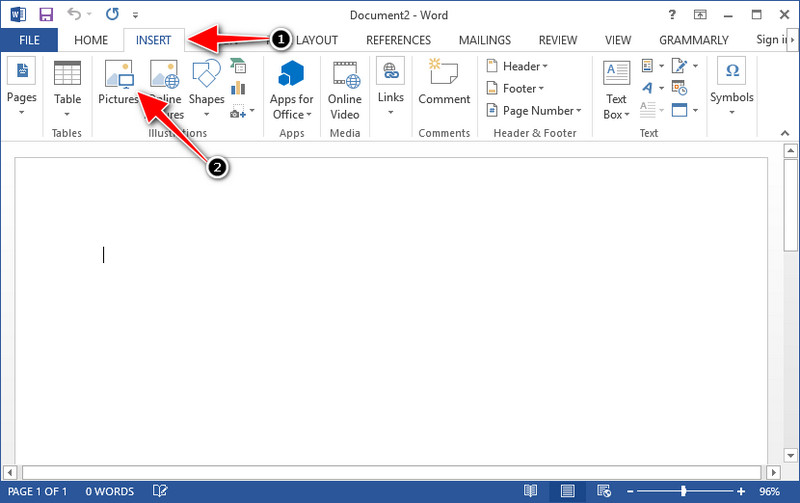
Pas 3. Es carregarà automàticament al document de Word que has obert o creat; ara ja pots col·locar el gràfic mantenint-lo premut i arrossegant-lo dins del Word.
Com utilitzar el gràfic a Powerpoint sense filigrana:
Pas 1. Inicia PowerPoint a l’ordinador i fes clic a Presentació en blanc. També pots revisar les presentacions recents que has creat a la part esquerra. Si hi ha el fitxer al qual necessites afegir el gràfic, fes-hi clic per obrir-lo.
Pas 2. Prem Insert i fes clic a Picture per inserir la imatge del gràfic que has creat a Origin Graph.
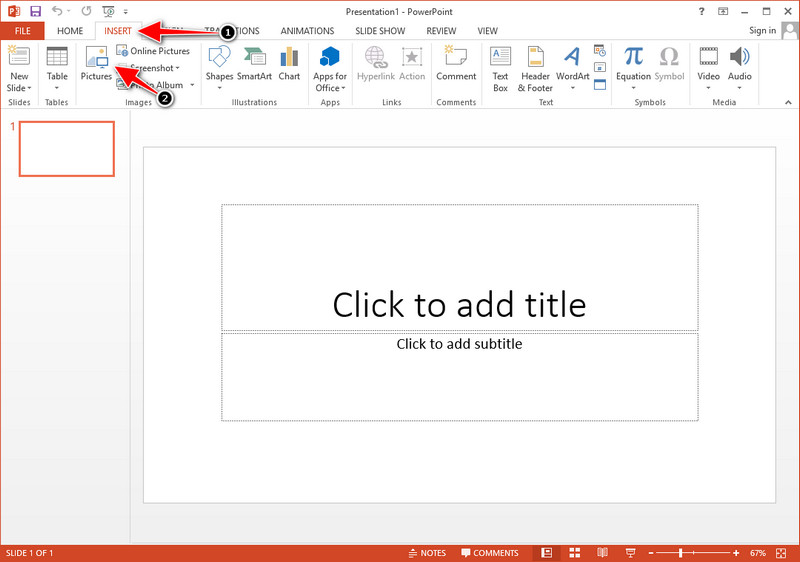
Pas 3. Ajusta la imatge del gràfic i col·loca-la a la diapositiva.
Lectures relacionades:
Com eliminar la marca d’aigua de B612 de les teves imatges
Com eliminar gratuïtament la marca d’aigua de WOW Slider
Part 3. Preguntes freqüents sobre com eliminar la filigrana del gràfic d'origen
Quant costa l'Origin Pro?
Per als usuaris individuals, podeu obtenir la versió premium d'Origin Graph per a $435 a partir. Podeu visitar la seva botiga oficial a Origin Lab.
On puc descarregar oficialment l'Origin Graph?
Visiteu l'Origin Lab per descarregar l'Origin Graph. Abans de poder descarregar el programari al vostre escriptori, us farà preguntes. Després d'això, hi haurà dues opcions per descarregar el fitxer, si el voleu descarregar amb ajuda o no, en forma de .exe o zip.
Excel i Origin són el mateix?
Excel i Origin tenen una GUI semblant a un full de càlcul per organitzar les dades, calcular i definir etiquetes. Tanmateix, Excel se centra a contenir moltes columnes i files que podeu utilitzar. Però amb Origin, serveix per organitzar atributs que utilitzen una fórmula de columna en lloc d'una fórmula de cel·la com la que admet Excel.
Conclusió
Ara que heu après a eliminar la marca d'aigua d'Origin Graph, és el moment d'utilitzar el gràfic que heu creat i de presentar-lo de manera professional. Si el vostre propòsit és utilitzar-lo a Word o Powerpoint, podeu llegir la part 2 per aprendre a fer-ho. L'eliminació de la marca d'aigua amb aquesta eina és, amb diferència, la més desitjada per qualsevol que vulgui eliminar la filigrana de les imatges. El problema es resol amb aquesta eina. Si aquest article us ha ajudat, deixeu 5 estrelles a continuació.
-
 Com eliminar la filigrana amb Pixlr en passos detallats [Efectiu]
 Vols saber com eliminar una filigrana amb Pixlr? Si és així, segueix llegint a continuació per saber com fer-ho i les alternatives que pots utilitzar.
-
 Elimina la marca d'aigua d'Animotica als vídeos exportats amb 3 maneres provades
 Alguna vegada us heu preguntat si és possible eliminar la marca d'aigua d'Animotica als vídeos que heu exportat? Aquest article ofereix una guia de com fer-ho.
-
 Maneres gratuïtes d'eliminar la marca d'aigua de VideoShop als vídeos [sense esforç]
 Per eliminar la marca d'aigua de VideoShop, el vostre dispositiu necessitarà un eliminador de filigrana. Per saber què són, llegiu aquest article.
