


 Video Converter Ultimate
 Gravadora de pantalla
 Reparació de vídeo
 Baixada segura
Corregiu de manera sorprenent la qualitat de la imatge utilitzant les eines més fantàstiques
Tenir una imatge de baixa qualitat és força molest. Si tu també tens una imatge de baixa qualitat, has de millorar-ne la qualitat. Però com ho pots fer? Hi ha molts amplificadors d’imatges que pots utilitzar a l’ordinador per augmentar la qualitat de la teva imatge. I si et preguntes com arreglar la qualitat de la teva imatge, t’ajudarem amb això. Llegeix tot aquest article per aprendre com arreglar la qualitat d’una imatge ràpidament.

Part 1. Com arreglar la qualitat de la imatge en línia gratuïta
Hi ha un munt d'escaladors d'imatges que podeu descarregar al vostre ordinador. Tanmateix, cal comprar-los abans de millorar la qualitat de la vostra imatge. I si esteu buscant un escalador d'imatges gratuït, tenim l'eina adequada. Llegiu aquesta part detingudament per aprendre a millorar la qualitat de la imatge de manera gratuïta mitjançant les dues eines en línia més fantàstiques.
FVC Free Image Upscaler
FVC Free Image Upscaler és una aplicació en línia gratuïta que t’ajudarà a arreglar la qualitat d’una imatge. Aquesta eina en línia és ideal per a principiants perquè té una interfície molt fàcil d’utilitzar. A més, et pot donar quatre resultats amb ampliacions de 2x, 4x, 6x i 8x, oferint uns resultats excel·lents. Tampoc no t’has de preocupar per la seguretat de les teves dades, perquè FVC Free Image Upscaler et garanteix que és segur d’utilitzar. El que és encara més magnífic d’aquesta eina és que utilitza tecnologia d’IA que reconeix automàticament les parts borroses. A més, aquesta eina et permet reparar perfectament els píxels perduts, les textures de color i altres detalls. Si vols utilitzar aquesta eina per millorar la qualitat de la teva imatge, llegeix les instruccions següents.
Com arreglar la qualitat de la foto en línia amb FVC Free Image Upscaler:
Pas 1. Al navegador que facis servir, cerca FVC Free Image Upscaler al quadre de cerca. Fes clic en aquest enllaç per anar directament a la pàgina principal.
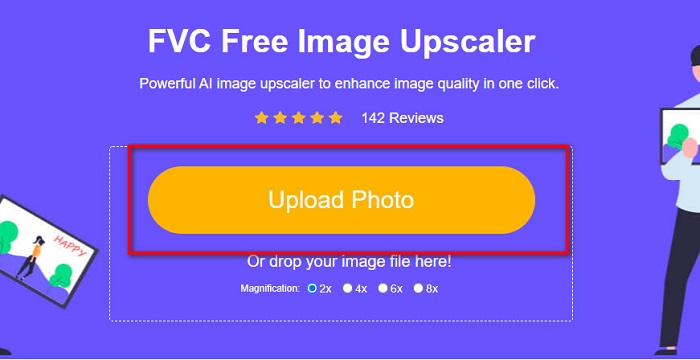
Pas 2. A la interfície principal d’usuari, fes clic al botó Upload Photo per carregar la imatge que vols ampliar. Es mostraran els fitxers de l’ordinador, on seleccionaràs la teva imatge de baixa qualitat i la pujaràs.
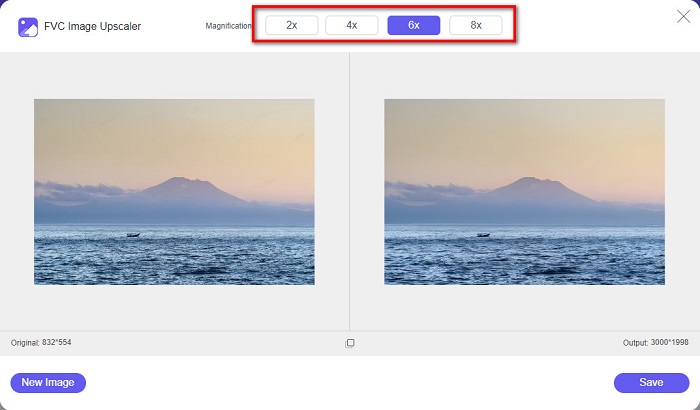
Pas 3. A continuació, selecciona la magnification que vols per a la teva imatge. Com més gran sigui l’ampliació, millor serà la qualitat. Pots triar entre 2x, 4x, 6x i 8x.
Pas 4. Després, prem el botó Save per desar la imatge millorada a les carpetes del teu ordinador.
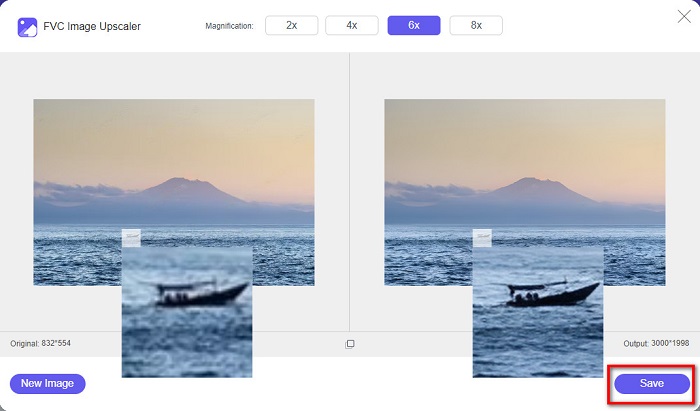
Fàcil, oi? Tan senzill com A-B-C, pots arreglar la qualitat d’una imatge utilitzant FVC Free Image Upscaler.
Icons8.com
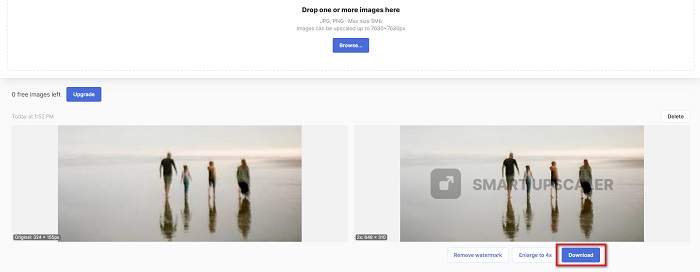
Icons8.com és un altre amplificador d’imatges en línia accessible des de gairebé tots els navegadors web, incloent-hi Google, Firefox i Safari. Aquesta aplicació en línia és fàcil d’utilitzar perquè té una interfície senzilla. A més, aquesta eina en línia utilitza tecnologia d’IA que detecta automàticament les parts borroses de la imatge. A més a més, les teves imatges es poden ampliar fins a 7680 x 7680 px. Tanmateix, deixa una marca d’aigua al resultat. Tot i això, continua sent una eina eficaç per ampliar la teva imatge.
Com arreglar una imatge de baixa qualitat a Icons8.com:
Pas 1. Obre el navegador i cerca Icons8.com. Després, a la interfície principal, fes clic al botó Browse.
Pas 2. Com que Icons8.com també utilitza tecnologia d’IA, detecta automàticament la part borrosa de la teva imatge.
Pas 3. Finalment, fes clic al botó Download per desar la imatge a l’ordinador.
Part 2. Com arreglar imatges de mala qualitat a Photoshop
No és difícil millorar la imatge de la teva qualitat. Però utilitzar Photoshop per millorar la vostra imatge pot ser bastant difícil a causa de la seva interfície i funcions. Però no us preocupeu, perquè us ensenyarem a utilitzar Adobe Photoshop per millorar la qualitat de la vostra imatge.
Adobe Photoshop és excel·lent per a l’edició i la manipulació de fotografies. Molts editors professionals d’arreu del món utilitzen aquest programari d’edició. A més, disposa de moltes eines d’edició avançades que pots fer servir per retocar la teva imatge. Adobe Photoshop també es pot descarregar en totes les plataformes principals, incloent-hi Windows, Mac i Linux. A més, pots editar bàners, logotips, fullets i molt més amb aquesta aplicació. I el que molts usuaris no saben és que també pot millorar la qualitat de la teva imatge. Tot i que l’has de comprar abans de descarregar-la, Adobe Photoshop val el que costa.
Com arreglar imatges de baixa qualitat a Photoshop:
En aquest tutorial, millorarem la qualitat d'una imatge ampliant-la per veure'n la resolució.
Pas 1. Descarrega Adobe Photoshop a l’ordinador. Segueix el procés d’instal·lació i, després, executa l’aplicació a l’ordinador.
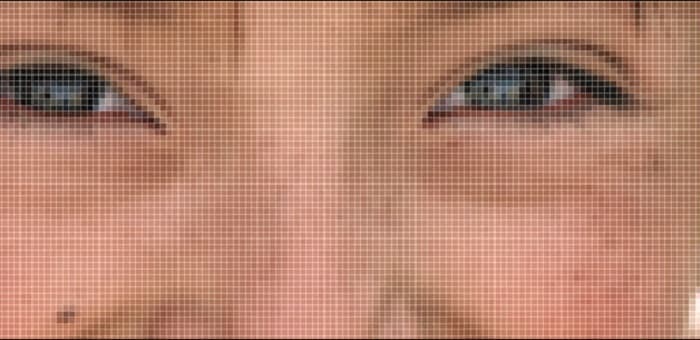
Pas 2. Obre la teva imatge de baixa resolució a Adobe Photoshop. Aquí tens una imatge d’exemple ampliada al 100%. Tal com pots veure, la imatge té baixa resolució.
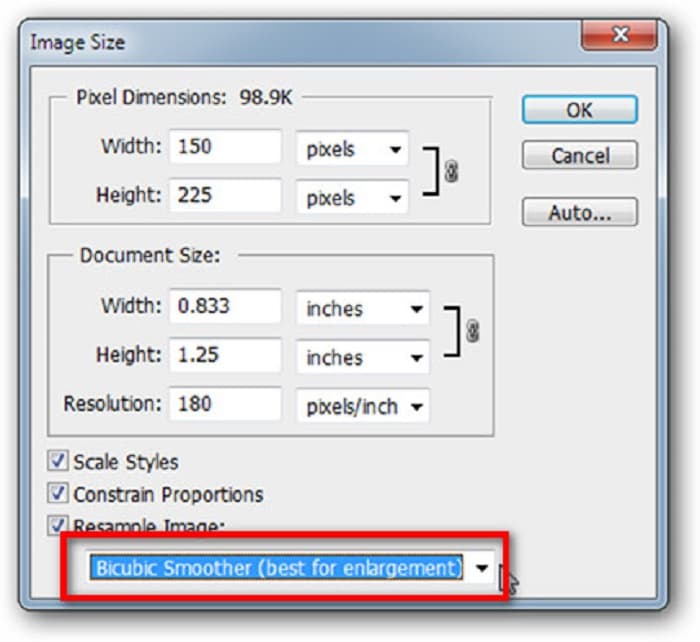
Pas 3. A continuació, ves a Image > Image Size. Després, canvia el tipus d’antialiàsing al Resample Image per engrandir i suavitzar la imatge. Canvia’l a Bicubic Smoother, que és el millor per a ampliacions.
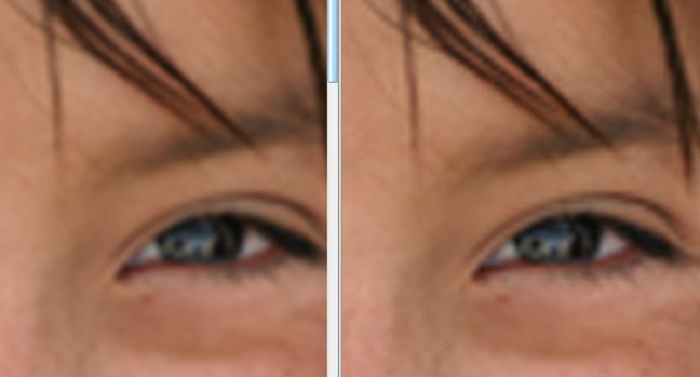
Pas 4. Podràs veure la diferència entre les dues imatges de sota quan la canviïs a la versió Bicubic Smoother. Canviar l’antialiàsing marca una gran diferència en la suavitat de la imatge.
Pas 5. Ara millorarem la imatge ampliada modificant-ne els detalls. La majoria d’usuaris de Photoshop no van més enllà de RGB i CMYK. I avui farem servir un mode de color diferent, el mode Color Lab. Ves a Image > Mode > Lab Color.
Pas 6. Després, assegura’t d’obrir el panell anant a Windows > Channels > Lightness. També pots fer clic a la icona d’amagar capa al costat dels canals a i b.
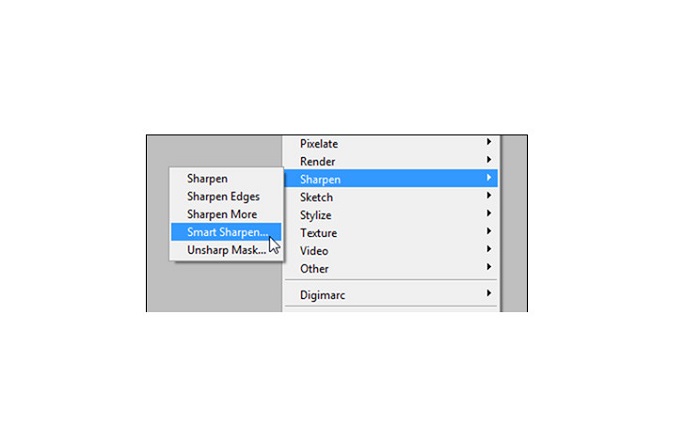
Pas 7. En seleccionar el canal Lightness, ves a Filter > Smart Sharpen > Sharpen per afegir el filtre Smart Sharpen.
Pas 8. Després, pots ajustar la configuració de la teva foto fins a trobar el resultat desitjat. Recorda sempre que has de mantenir l’opció Remove en Gaussian Blur.
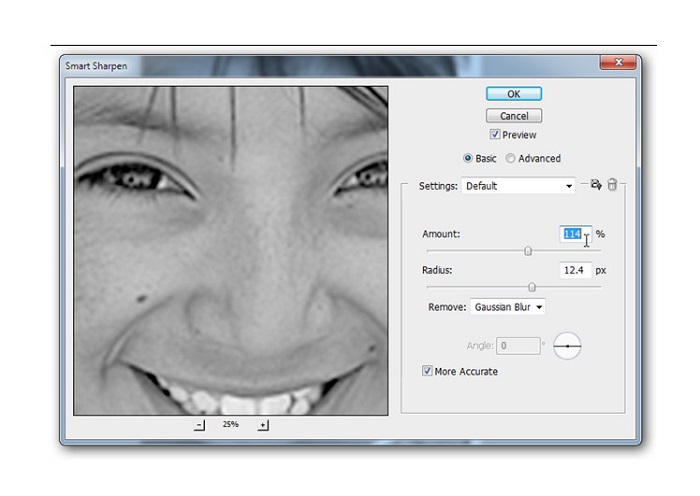
Pas 9. Pots triar mantenir la imatge en mode Lab Color o tornar-la a RGB. I ja està! Aquest és el resultat de la teva imatge. Notaràs que la qualitat de la imatge ha millorat i té una textura més rica.
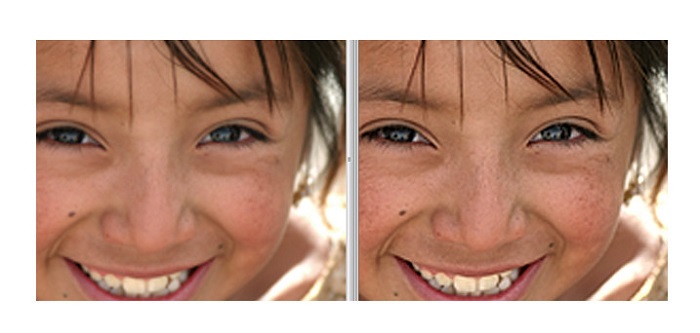
I voilà! Si seguiu la guia anterior sobre com corregir imatges de mala qualitat a Photoshop, podeu millorar la qualitat de la vostra imatge.
Part 3. Preguntes freqüents sobre com corregir la qualitat de la imatge
Puc millorar les imatges de mala qualitat a l'iPhone?
Sí. Podeu descarregar moltes aplicacions al vostre iPhone que us ajudaran a millorar la qualitat de la vostra imatge. Una de les millors aplicacions de millora d'imatges és Remini, una aplicació fàcil d'utilitzar.
Puc canviar la resolució de les imatges JPEG?
Podeu canviar la resolució de qualsevol format d'imatge que vulgueu augmentar. Podeu utilitzar les eines esmentades anteriorment per millorar la qualitat de la vostra imatge JPEG.
Com arreglar la qualitat de la imatge a Instagram?
Per arreglar la qualitat de les teves fotos a Instagram, canvia el paràmetre Image Resolution del connector a una mida d’imatge més gran per mostrar la imatge amb la resolució correcta. Pots fer-ho anant a: Instagram Feed > Customize > Posts > Photos > Image Resolution.
Conclusió
Esperem haver respost la teva pregunta sobre com arreglar la qualitat d’una imatge. Pots escollir l’eina que et vagi millor entre les presentades més amunt. Pot ser que Adobe Photoshop sigui una eina més professional, però no és gaire intuïtiva. Així que, si vols un amplificador d’imatges gratuït i fàcil d’utilitzar, fes servir FVC Free Image Upscaler.
-
 Com convertir imatges de baixa resolució en alta resolució en línia
 Si voleu aprendre a convertir imatges de baixa resolució en imatges d'alta resolució en línia, aquest article és per a vosaltres. Llegeix completament per saber com.
-
 Elimineu la marca d'aigua de DaVinci Resolve als vídeos exportats amb un tutorial complet
 Per eliminar la marca d'aigua de Davinci Resolve, haureu d'utilitzar una eina o comprar-ne la versió oficial, seguiu llegint això per saber-ne més.
-
 Com desfer-se de la marca d'aigua de Power Director de forma gratuïta [Complet]
 Com desfer-se de la marca d'aigua de Power Director de forma gratuïta? Les millors eines per eliminar la marca d'aigua estan aquí, així que apreneu-les llegint això.
