


 Video Converter Ultimate
 Gravadora de pantalla
 Reparació de vídeo
 Baixada segura
Millora la qualitat de la imatge utilitzant aquests mètodes ràpids i senzills
Do you have an image that is blurry or has a low quality? The best solution that you must do is to increase the quality of your image. Luckily, numerous tools can help you improve your image’s quality. However, not all applications or tools on a computer have the best features. That’s why we searched for the most popular photo enhancers online, offline, and on iPhone. To learn how to improve image quality, read this post.

Part 1. Com millorar la qualitat de la imatge en línia
Utilitzar un millorador d'imatges en línia és més convenient que descarregar una aplicació de programari al vostre ordinador. L'avantatge d'utilitzar una eina en línia és que pots accedir-hi lliurement a la teva web. Aquesta part us mostrarà com augmentar la qualitat de la vostra imatge mitjançant el millorador de fotos en línia més sorprenent.
FVC Free Image Upscaler is an online, free-to-use image enhancer popular with many. This online application can set the magnification to 2x, 4x, 6x, and 8x. In addition to that, it supports the most standard image formats, including PNG, JPG, JPEG, and BMP. You can also access it on all web browsers, including Google, Firefox, and Safari. Also, you do not need to worry about the safety of your data because this tool is safe to use.
A més, té una potent tecnologia d'IA que reconeix automàticament les parts borroses de la vostra imatge. A més, FVC Free Image Upscaler pot arreglar els píxels perduts, les textures de color i més detalls. Si voleu utilitzar aquest excel·lent escalador d'imatges, seguiu la guia senzilla següent.
Com millorar la qualitat de la imatge en línia amb FVC Free Image Upscaler:
Step 1. Open your browser and search FVC Free Image Upscaler on the search box. You can go directly to their main page by clicking the link provided.
Step 2. Next, click the Upload Photo button on the main interface to upload the image you want to upscale. Wait for your image to upload, then proceed to the next step.
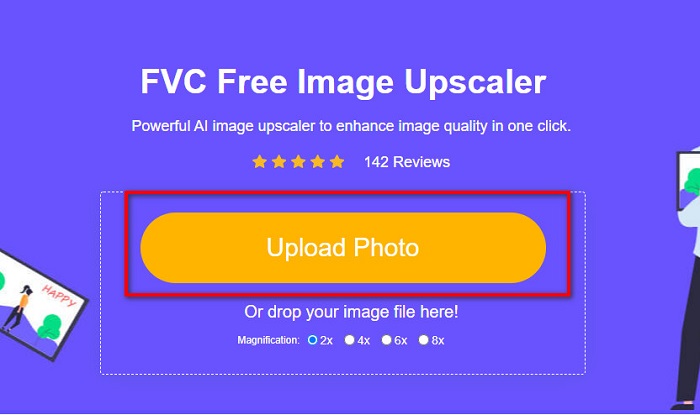
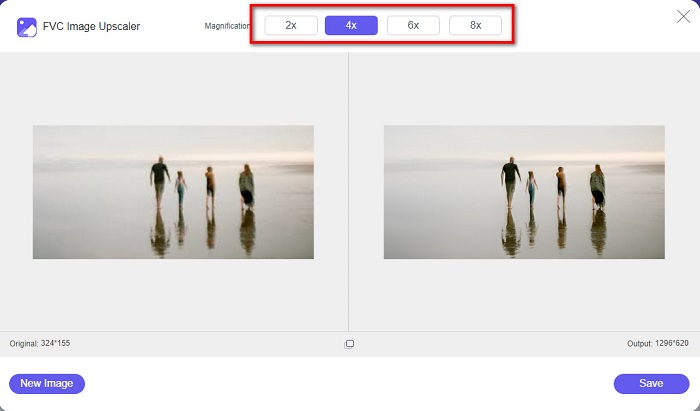
Step 3. And then, choose the Magnification that you want for your image. You can choose between 2x, 4x, 6x, and 8x.
Step 4. You can see the preview of your image, and if you are content with it, click the Save button to save your upscaled image on your device.
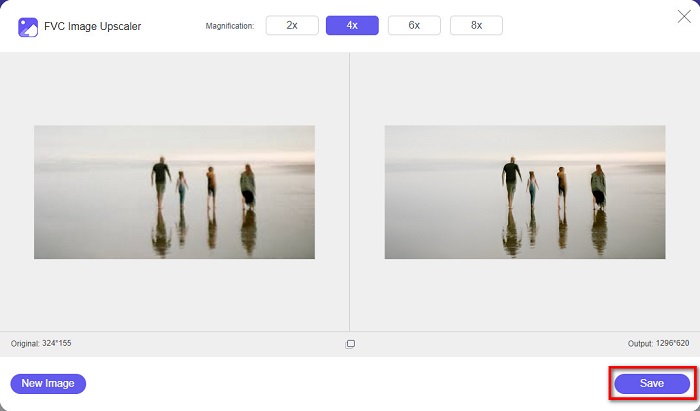
I ja està! Ara podeu veure la vostra imatge a l'ordinador amb una vista d'alta qualitat.
Part 2. Com millorar la qualitat de la imatge a Photoshop
Tenim el que vols si vols utilitzar una eina professional per augmentar la qualitat de la teva imatge. Aquesta part us ensenyarà com millorar la qualitat de les fotografies amb Adobe Photoshop.
Adobe Photoshop is a professional editing app that you can use to enhance the quality of your image. Adobe Photoshop has many editing tools that you can use to edit images. Additionally, many professionals use this tool because it has many functions. Also, this application produces high-quality outputs that you can share on other social media platforms or websites. Moreover, Adobe Photoshop is one of the best creations of Adobe Company which you can download on almost all media platforms. By using this editing application, you can design logos, banners, brochures, and more. But many users do not know that it can also enhance an image. However, many users have difficulty using this tool because it has a hard-to-operate software interface and is a bit costly to download.
Passos per millorar la qualitat de la imatge a Photoshop:
Step 1. First, download Adobe Photoshop on your computer. Follow the installation process, then open the app.
Step 2. Go to File > Open on the main interface and select the image you want to improve.
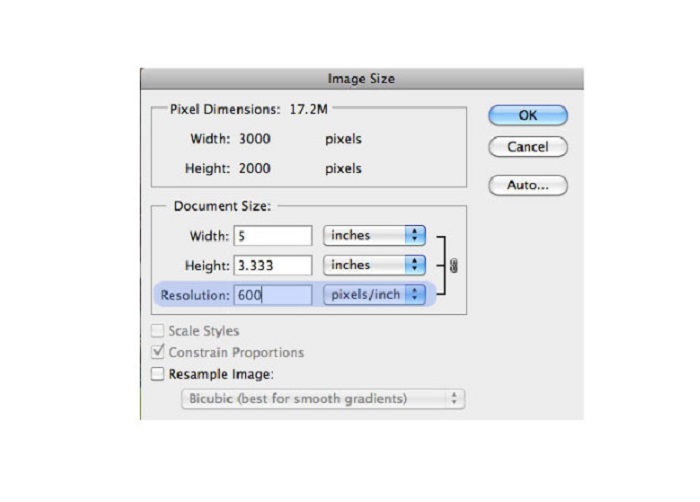
Step 3. And then, go to Image > Image Size. Then a dialog box will prompt where you will uncheck the Resample Image box so that it will only change the resolution of your image. And on the resolution option, type in the resolution that you want for your image.
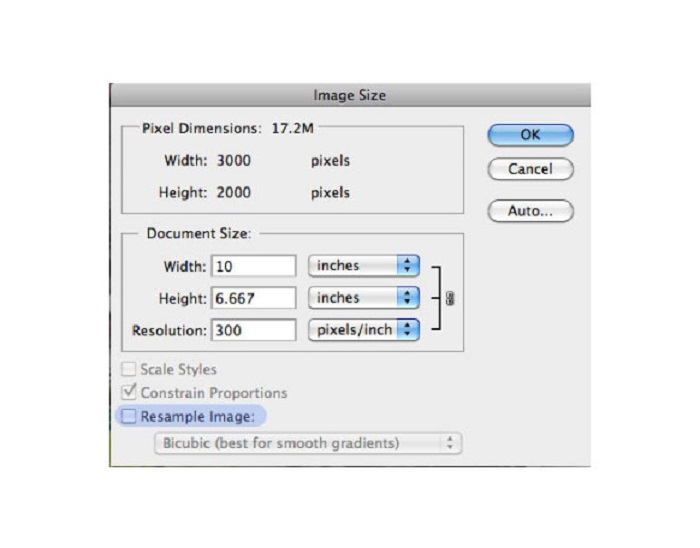
Step 4. Once you change the Resolution, the Width and Height of your image will also change. Then, click the OK button to save the change you made to your image. With this way, you can convert low resolution images to high.
Part 3. Com millorar la qualitat d'una foto a l'iPhone
Algunes aplicacions poden millorar la vostra imatge de baixa qualitat si sou un usuari d'iPhone. Tot i que hi ha moltes aplicacions de millora de fotografies disponibles a l'AppStore, vam triar la més famosa entre elles. Llegeix aquesta part per saber com millorar la qualitat d'una foto en un iPhone.
Remini is one of the best apps that you can use to enhance your low-quality image. This amazing app has a simple interface, making it a user-friendly app. Furthermore, it also uses AI technology that automatically detects the blurred parts of your image. It is also a safe-to-use app, so your files are safe when using this app. The downside of this app is that you need to watch an ad to view and download the result, or you can purchase its full version to download the results without watching an ad.
Com millorar la qualitat de la imatge a l'iPhone amb l'aplicació Remini:
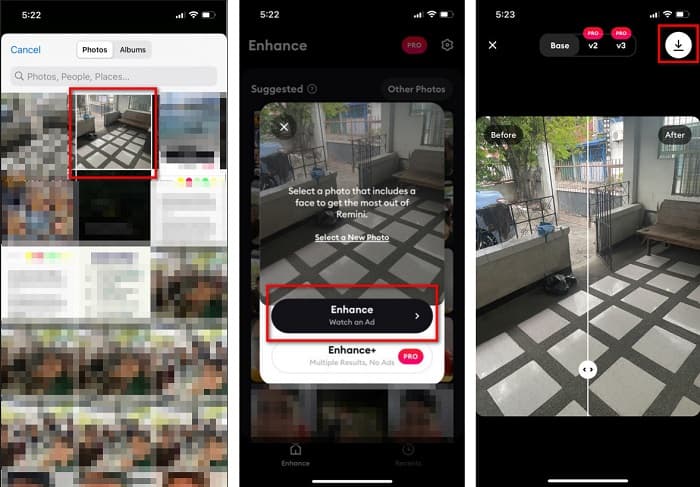
Step 1. Download the Remini app on AppStore. After downloading it, open the app on your phone.
Step 2. And then, on the main app’s interface, select the image you want to upscale.
Step 3. Next, tap the Enhance button to improve the quality of your image. If you avail of the pro version of the app, you do not need to watch an ad. But if not, it will require you to watch an ad to see and save the result.
Step 4. Now, you can view your improved image. Then, tap the Download icon in your screen's top-right corner. And voila! With those easy steps, you can improve the quality of your image.
Part 4. Preguntes freqüents sobre com millorar la qualitat de les fotografies
Hi ha alguna aplicació que pugui millorar la qualitat de la imatge a Android?
L'eina Millora la qualitat de la imatge és una de les millors aplicacions per millorar la qualitat de la imatge. L'ús de la imatge Efectes d'embelliment donarà a la vostra imatge un aspecte professional.
Com millorar la qualitat de la foto a Lightroom?
Adobe Lightroom is another Adobe product that you can use to enhance the resolution of your image. Read the simple steps below to learn how to improve photo quality in Lightroom. 1. Download Adobe Lightroom on your computer. 2. Then, open your image in Lightroom. 3. Click Choose Photo > Enhance. 4. Next, select the Super Resolution, then click Enhance. 5. And then, you will see that Lightroom will increase the resolution of your image and save it as a DNG file.
Afectarà la mida del fitxer si augmenteu la vostra imatge?
Canviar la resolució d'impressió no canviarà el nombre de píxels de la imatge i no afectarà la mida de la imatge.
Conclusió
It is easy to improve image quality, especially now that you have a guide to follow. Also, many apps on a computer or iPhone can help you upscale your image. However, if you want to use a free image upscaler that automatically upscales your blurred image, use FVC Free Image Upscaler now.
-
 5 maneres d'eliminar la filigrana B612 amb les millors eines
 Vols saber com eliminar les filigranes B612 de les teves fotos? Podeu eliminar sense esforç la filigrana B612 de les vostres imatges utilitzant aquestes eines excepcionals.
-
 Passos senzills sobre com eliminar la marca d'aigua del control lliscant WOW [Resolt]
 WOW Slider és una aplicació per crear una presentació de diapositives fantàstica. Tanmateix, incrusta marques d'aigua a la seva sortida. Llegiu a continuació per saber com eliminar la filigrana de WOW Slider.
-
 Mètodes fàcils sobre com eliminar la filigrana a prova de trets
 Elimineu la marca d'aigua Shootproof seguint aquests senzills mètodes. Utilitzeu aquests increïbles eliminadors de filigrana per eliminar fàcilment la filigrana Shootproof de la vostra imatge.
