


 Video Converter Ultimate
 Gravadora de pantalla
 Reparació de vídeo
 Baixada segura
Millora la resolució de fotos de l'iPhone utilitzant les millors maneres que has de conèixer [el més recent]
If you need a mobile device that can capture high-definition images, it is a smart move to pick an iPhone because of its innovative high-end front and back camera. Sorry Android users, we need to face the truth that the camera of the latest iPhone is way better. Most people usually take a snap using iPhone devices, but not all of the images they capture are perfect; some needs adjustment, editing, improvement, or upscaling. If you want to improve your iPhone photo resolution, follow this article as we indicate the information you need to know!

Part 1. Forma recomanada: Com augmentar la resolució de fotografies en línia amb el millor escalador d'imatges
How to change photo resolution on iPhone 13? If this is your problem, you must use the FVC Free Image Upscaler. Everything you upload here, this tool will upscale it immediately with its proudly AI technology. You can sit and relax after you upload the image here because the tool will increase the resolution of the image you upload here. Unlike other software you can use, you wouldn’t need to download an installer here to use it. Also, FVC doesn’t require you to log in to your account here, so you are safe from leaking information, and it doesn’t give you cookies. So, if this tool caught your attention, you can immediately follow the steps we added below to fix the problem.
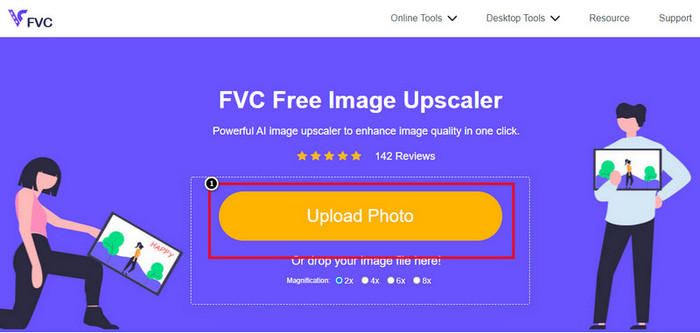
Step 1. Open the online tool by clicking the name of it above, and a new tab will automatically be opened; this will lead you to the official website.
Step 2. Tick the Upload Photo to insert the image you want to upscale in this tool. After you’ve clicked it, a folder will show on your screen, select the image, and press Open.
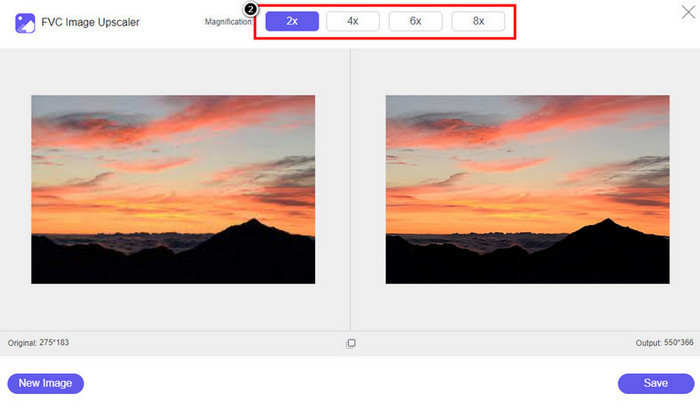
Step 3. Choose what type of Magnification you want to be applied to the enhanced version of the image; you can try them all to see which options make your image better in looks.
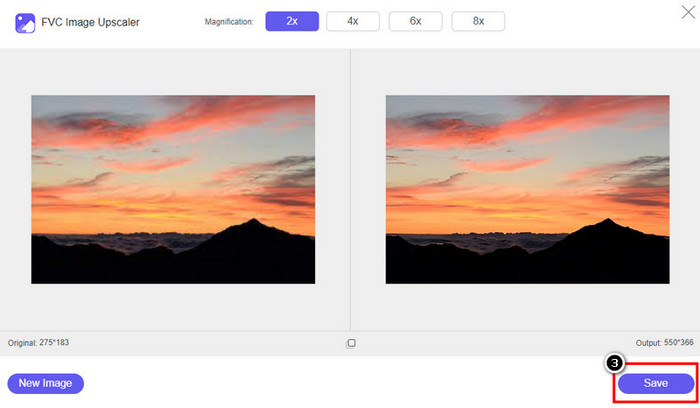
Step 4. Click the Save button to download the software you improve here; This tool will directly save it to your local folder. Check out the upscaled version of the image you edited here.
Part 2. Com canviar la resolució de la foto a l'iPhone [Millora la teva imatge desa fàcilment]
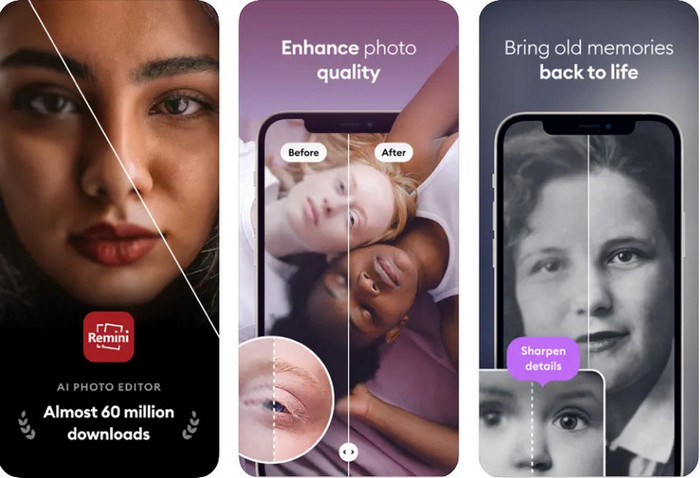
Remini App allows you to change the resolution of pictures iPhone to make them look even better. You can download this app on AppStore once you visit. This app is an all-in-one image editor that can help you enhance and turn black and white images into colorized ones with a single swipe. With this app, you can upscale any images up to 4x with the help of its AI technology. If you want to use this app, then you can copy the step-by-step we add next.
Step 1. Download the app on your iPhone so that you can start using it.
Step 2. Open the app and press Enhance. Select the image you want to improve that is in your Photos.
Step 3. Wait for the processing to enhance the image you upload; you can drag the slider to see the before and after of the image.
Step 4. Now that the processed image is done click the Save button to download the image you enhance.
Part 3. Com canviar la resolució de les fotos a Android [Millora les imatges de manera efectiva]
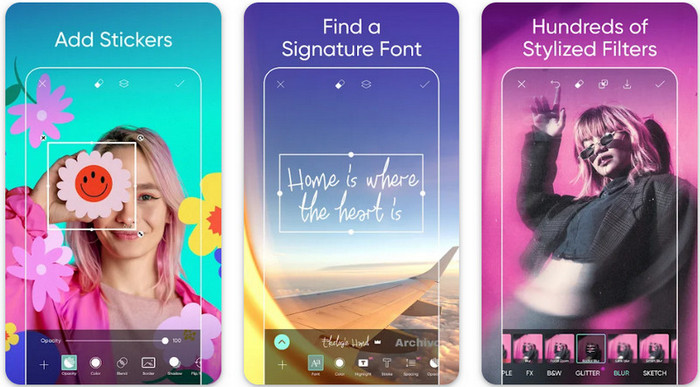
How to change picture resolution on Android? If you want to upgrade the image resolution you capture on your Android; you can try using Picsart. It is a well-known application you can download on your Android to edit images that you have to make them look better. This app is rich in features that you can take advantage of. The enhancement we will teach you isn’t the typical way you think, but it can improve image quality. Follow the detailed information below to know more!
Step 1. Download the app via the Play Store, then launch it. Choose the image you want to improve, then upload it.
Step 2. Go to Effects, click Blur, drag the slider for blur to set it to 5 to 10, and press the check icon to save it.
Step 3. Open the Tools and go to Curve.
Step 4. Adjust the curve by dragging it up and down to make your image resolution look better.
Step 5. Hit the check icon to save the changes you applied to the image by bending the curve, then Export it.
Part 4. Com ajustar la configuració de la càmera per capturar millors imatges! [Consells i trucs]
Com augmentar la resolució d'una foto en un iPhone per capturar un millor retrat d'imatge? No totes les funcions es presenten a l'aplicació Càmera del vostre iPhone. Algunes de les opcions per millorar la qualitat d'imatge són la configuració. T'interessa com afrontar aquest problema? A continuació, procediu a llegir la informació que afegim a continuació.
Step 1. Go to your Setting and open the Camera App.
Step 2. Click the Formats.
Step 3. Set the final output to Most Compatible, and that is the JPEG. Every time you capture images are in the JPEG extension, which we all know uses lossy image compression with a high-quality image output.
Relacionat:
How to Fix HEIC Photos Using the Best Tools
Photo Blemish Removers You Must Use to Have Smooth Silky Skin on Images
Part 5. Preguntes freqüents sobre com canviar la resolució de les fotos a l'iPhone
Què fa que la qualitat de la imatge a l'iPhone es faci malament?
Hi ha molts factors que cal tenir en compte quin podria ser el problema. Abans de capturar una imatge, assegureu-vos de netejar la lent del vostre iPhone i tenir una mà estable, o podeu utilitzar un suport de càmera i utilitzar l'ISO alt per moure objectes. Si ho heu fet i encara teniu mala qualitat, podeu utilitzar les eines que oferim en aquest article.
El canvi de qualitat de la imatge fa que la mida del fitxer sigui gran?
De fet, la qualitat de la imatge serà més gran després de millorar-la. Quan afegiu píxels a la imatge, després de millorar-la, la mida del fitxer de la versió millorada també augmentarà.
És fàcil canviar la resolució de la foto a l'iPhone?
Sí, no caldria tenir anys d'experiència per millorar la resolució fotogràfica del vostre iPhone, així que si voleu saber com fer-ho, podeu copiar els passos que afegim anteriorment i les eines que us presentem que podeu utilitzar.
Conclusió
After all, we now have a clear idea of how to make iPhone photo resolution even better than before with the help of these dedicated apps! We hope that this article help you deal with the problem with different solution on iPhone and Android. Everyone hates bad image quality so we are here to fix it. Follow the steps we add above to finish it in no time successfully!
-
 Com convertir imatges de baixa resolució en alta resolució en línia
 Si voleu aprendre a convertir imatges de baixa resolució en imatges d'alta resolució en línia, aquest article és per a vosaltres. Llegeix completament per saber com.
-
 Els 6 millors eliminadors de fotos de taques que heu de tenir ara [2022]
 Necessites un removedor de taques fotogràfiques per tenir una pell llisa? No et preocupis més! Aquí, presentarem diferents eines que poden ajudar al vostre dispositiu.
-
 Elimineu la marca d'aigua StarUML amb la versió gratuïta i de pagament que podeu utilitzar
 Voleu eliminar la marca d'aigua StarUML a la sortida final? Bé, hi ha dues maneres de fer-ho, i anem a parlar-ne aquí.
