


 Video Converter Ultimate
 Gravadora de pantalla
 Reparació de vídeo
 Baixada segura
MP4 a M4V: 4 convertidors eficients de MP4 a M4V que mai no us heu de perdre
Podeu canviar directament l'extensió de fitxer de MP4 a M4V? Quines diferències hi ha entre MP4 i M4V? Quan canvieu el nom de MP4 a M4V, probablement podreu reproduir els fitxers M4V amb la majoria del reproductor multimèdia sense cap problema. Però canviar una extensió de fitxer no converteix el fitxer a M4V. Simplement apreneu més sobre els 4 convertidors eficients de MP4 a M4V de l'article i trieu el desitjat en conseqüència.

Pas 1: 4 mètodes per convertir MP4 a M4V a Windows / Mac
Mètode 1: Com convertir MP4 a M4V en línia de forma gratuïta
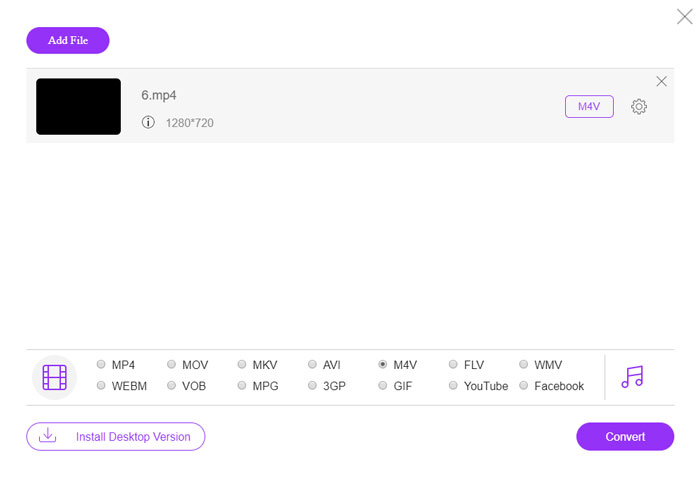
When you want to convert MP4 to M4V online for free without any limitation, FVC Free Online Video converter is a versatile video converter to convert most of the video formats, tweak the video/audio settings, and even remain the original video quality with ease.
- 1. Converteix MP4 a M4V, AVI, MKV i més d'altres amb la qualitat original.
- 2. Ajusteu la velocitat de fotogrames, el còdec de vídeo, la qualitat de vídeo, el còdec d’àudio i molt més.
- 3. Proporcioneu una interfície senzilla i intuïtiva per convertir els fitxers de vídeo en uns clics.
- 4. Us permet convertir els vídeos sense filigrana, restricció de mida, etc.
Step 1. Go to the online MP4 to M4V converter, you can click the Add Files to Convert button to load the MP4 files you want to convert. You have to download the video converter installer for the first time.
Baixa la versió d’escriptori per convertir fitxers per lots.

Step 2. Choose the M4V file format from the user interface. When you need to tweak the video settings, you can video encorder, resolution, video bitrate, frame rate, sample rate and more other settings as desired.

Step 3. After that, you can click the Convert button to convert MP4 to M4V. It might take a few seconds to get the desired file, which you can save the video to your computer or share to social media websites.
Mètode 2: Com convertir MP4 a M4V amb VLC Media Player
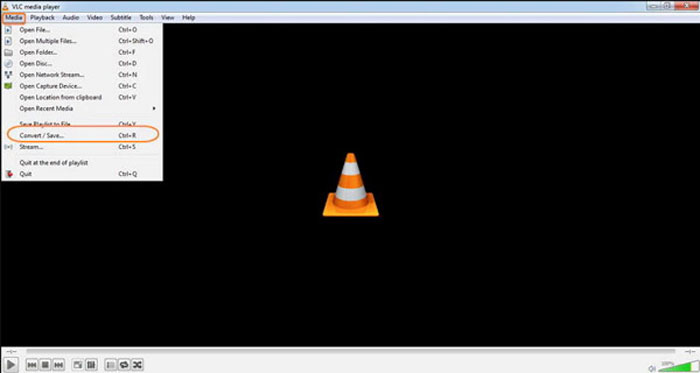
VLC Media Player és un convertidor de codi obert de MP4 a M4V que us permet convertir els vídeos a Windows i Mac. Funciona per a la majoria de formats i còdecs, que permeten convertir vídeos entre diferents formats. Aquí teniu el procés detallat que heu de conèixer.
Step 1. Open VLC Media Player on your computer, choose the Media menu and select the Convert/Save option to enter the Media dialog box. After that, you can click on the Add button to browse for the files.
Step 2. Once you have imported the videos, you can click the Convert/Save button or just hit enter on your keyboard. After that, you can choose the M4V as the output format and adjust the other parameters.
Step 3. Select a destination filename, the one that is converted and saved. Hit the Browse option to select a location. Just provide a name like final and click on Save before clicking the Start button to convert MP4 to M4V.
Mètode 3: Com convertir MP4 a M4V mitjançant FFmpeg
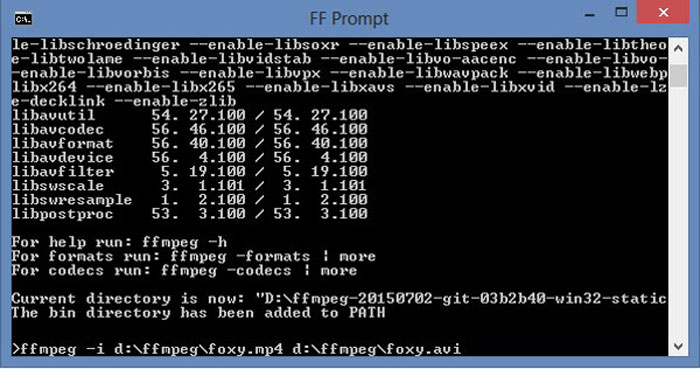
FFmpeg és un convertidor de MP4 a M4V que us permet transcodificar el vídeo amb còdec. Si esteu familiaritzat amb el còdec, podeu canviar els fitxers de vídeo amb la qualitat original. Només cal obtenir més detalls sobre el mètode per convertir MP4 a M4V a continuació.
Step 1. Open the command prompt window on your Windows PC and install FFmpeg with command line to install the free video converter. It has a whole series of command line to transcode the video.
Step 2. Enter the following command to convert MP4 to M4V. Moreover, you can also tweak the video codec, frame rate and more other settings to get the desired video.
ffmpeg \-i input.mp4 \
-còpia vcodec \
-còpia acodec \
sortida.m4v
Mètode 4: Com convertir MP4 a M4V amb HandBrake
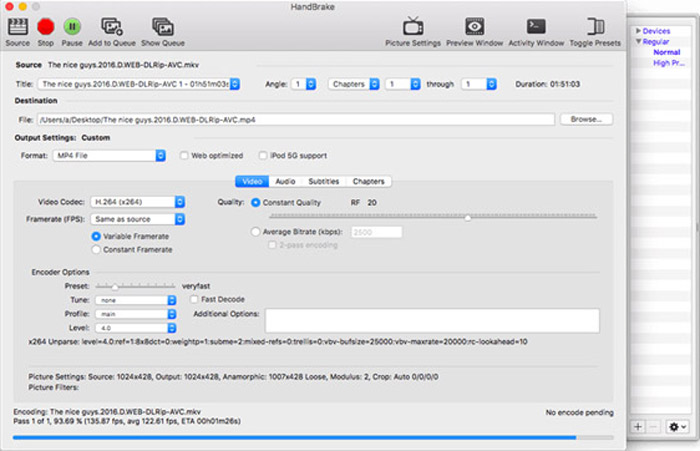
HandBrake és un altre convertidor de codi obert de MP4 a M4V. No només us permet transcodificar els fitxers de vídeo, sinó que també elimina la protecció DRM del vostre Windows i Mac. Per descomptat, també podeu extreure els fitxers de vídeo del disc DVD segons el vostre requisit.
Step 1. Download and install the HandBrake, you can launch the program on your computer. Choose the Source option at the top to select the MP4 videos into the program.
Step 2. Navigate to Output Settings option, set the format as MP4 files. Of course, you can also adjust the video codec, quality, FPS, bitrate, preset and more other encoder options.
Step 3. After that, you can click the Start button to convert MP4 to M4V with ease. When you get the desired M4V files, you can simply save the videos to iTunes or transfer to iOS devices.
MP4 contra M4V
Publicat pel Moving Picture Experts Group (MPEG) l'any 2001, el format MP4 us pot ajudar a desar dades de vídeo, àudio, subtítols i imatges en pistes separades. És l'abreviatura de MPEG-4 Part 14. A més, és un dels formats més populars utilitzats per transmetre i compartir vídeos.
L'M4V està desenvolupat per Apple, que també utilitza MPEG 4. Els fitxers M4V s'utilitzen sovint per emmagatzemar els vídeos descarregats de la botiga iTunes d'Apple, com ara vídeos musicals, episodis de televisió, etc. És possible que trobeu alguns fitxers M4V protegits contra còpia, ja que Protecció de drets d'autor FairPlay DRM d'Apple.
Pas 2: Preguntes més freqüents sobre la conversió de MP4 a M4V
1. Quines diferències hi ha entre MP4 i M4V?
Tal com s'ha esmentat anteriorment, la principal diferència entre MP4 i M4V és la restricció DRM Fairplay. El format de fitxer M4V és un format de contenidor de vídeo desenvolupat per Apple per codificar fitxers de vídeo a la seva iTunes Store. Quan necessiteu reproduir els vídeos per a dispositius iOS o el vostre MacBook, podeu convertir MP4 a M4V.
2. Podeu fer servir els mateixos mètodes per convertir M4V a MP4?
No. Because the DRM protection of the iTunes store, you cannot convert M4V to MP4 directly. You can simply change MP4 to M4V file extension, which is workable for most of the media players. But the DRM protection of M4V only enables you to play the videos with the authorized device only. You need to use the professional video converter to remove the protection instead.
3. Puc convertir MP4 a M4V amb QuickTime Player a Mac?
Sí. Com que QuickTime Player no admet M4V com a format de sortida, quan necessiteu convertir MP4 a M4V amb QuickTime Player, heu d’instal·lar alguns connectors per obtenir el vídeo desitjat al vostre MacBook de forma senzilla.
Conclusió
Quan hàgiu d'importar vídeos a la biblioteca d'iTunes per a altres dispositius iOS, hauríeu de convertir MP4 a M4V. Simplement apreneu més detalls sobre els 4 mètodes més freqüents per convertir els fitxers M4V amb facilitat. Si només heu de convertir vídeos MP4 en línia amb la qualitat de vídeo original, FVC Free Online Video Converter és la millor opció que heu de tenir en compte.
-
 Com convertir M4V a MP4 amb / sense DRM
 Aquesta publicació és la guia detallada per convertir M4V a MP4 per a qualsevol reproductor. Podeu canviar M4V a MP4, fins i tot els fitxers M4V protegits, de manera que pugueu reproduir vídeos M4V sense límit.
-
 Quina és la diferència entre MP3 i MP4
 MP3 o MP4, què és millor? Quina diferència hi ha entre MP3 i MP4? Aquest article compararà MP3 amb MP4 des de tots els aspectes que podeu imaginar.
-
 Com convertir MP4 a WMV per a Mac / Windows
 Aquesta publicació explica com es converteix el vídeo MP4 a format WMV a Mac o Windows. També us oferirem diverses opcions, inclosos programes d'escriptori i convertidors en línia basats en web. A punt per conèixer les millors eines de conversió de MP4 a WMV?

