


 Video Converter Ultimate
 Gravadora de pantalla
 Reparació de vídeo
 Baixada segura
Una bona manera d'eliminar la marca d'aigua de Camtasia 9 que heu de provar
Si estàs buscant la manera més senzilla i eficaç de treure la marca d’aigua a Camtasia 9, aquest és el lloc ideal. Hi ha molts vídeos excel·lents que volem veure. No obstant això, alguns tenen una marca d’aigua molt gran que els fa més molestos i impedeix gaudir del contingut del vídeo en si. A més, amb aquests elements innecessaris, hi ha parts del vídeo que no es poden veure, cosa que decep encara més els espectadors. Afortunadament, hi ha aplicacions de programari amb eines per eliminar marques d’aigua que pots utilitzar per suprimir-les dels teus vídeos i així gaudir de les teves pel·lícules preferides sense interrupcions. Si vols saber més sobre com eliminar ràpidament les marques d’aigua dels teus vídeos, llegeix aquest article de principi a fi.

Part 1: la millor manera d'eliminar la marca d'aigua de Camtasia
Utilitzant Video Converter Ultimate
Si estàs buscant una aplicació excel·lent i fiable amb eines per eliminar marques d’aigua, Video Converter Ultimate és un programari magnífic que pots aprofitar. Pots eliminar les marques d’aigua dels teus vídeos amb aquesta aplicació. També la pots utilitzar si el teu vídeo té marques d’aigua d’altres apps com Camtasia. A més, és fàcil d’utilitzar i senzilla, cosa que la fa adequada per a principiants. També disposa de diverses eines d’edició amb què pots gaudir, com ara Compressor de Vídeo, Millorador de Vídeo, Retallador de Vídeo, Compressor d’Àudio, Reversor de Vídeo, Rotador de Vídeo i molt més. Aquest article et mostrarà dues maneres d’eliminar les marques d’aigua dels teus vídeos amb Video Converter Ultimate.
1. Ús de Video Watermark Remover
Pas 1: Descarrega el Video Converter Ultimate a l’ordinador. Després, continua amb el procés d’instal·lació.
Descàrrega gratuïtaPer a Windows 7 o posteriorDescàrrega segura
Descàrrega gratuïtaPer a macOS 10.7 o posteriorDescàrrega segura
Pas 2: Quan la instal·lació hagi finalitzat, obre l’aplicació i ves a Toolbox > Video Watermark Remover. A continuació, apareixerà una altra interfície a la pantalla.
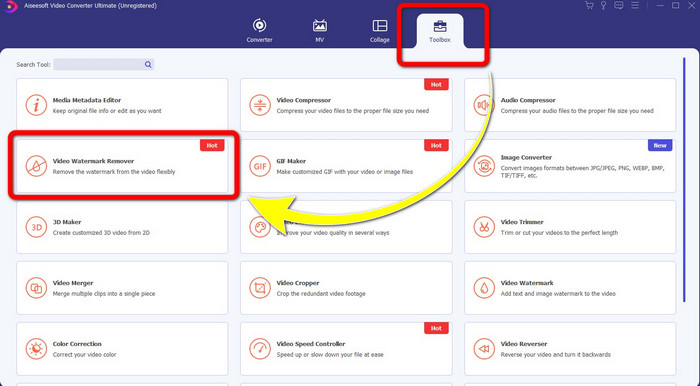
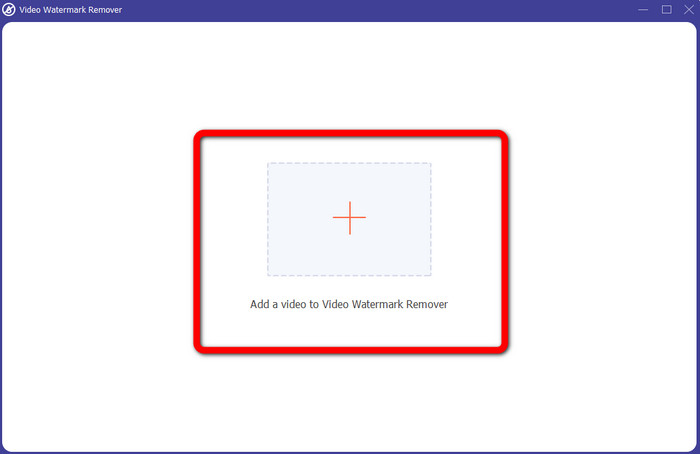
Pas 3: Quan ja s’hagi mostrat la nova interfície, fes clic al botó amb el signe Plus i afegeix el vídeo amb la marca d’aigua.
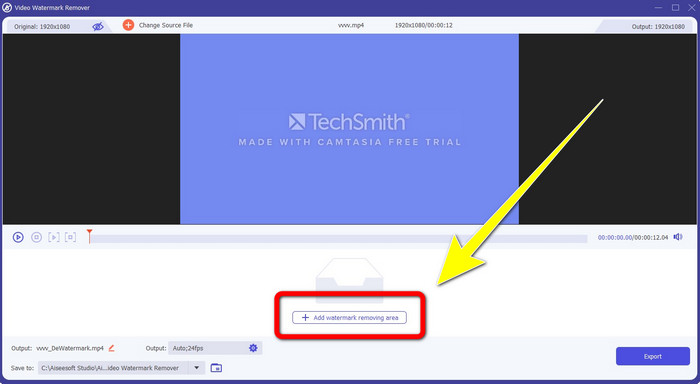
Pas 4: Després d’afegir el teu vídeo amb marca d’aigua, fes clic a Add Watermark Removing Area.
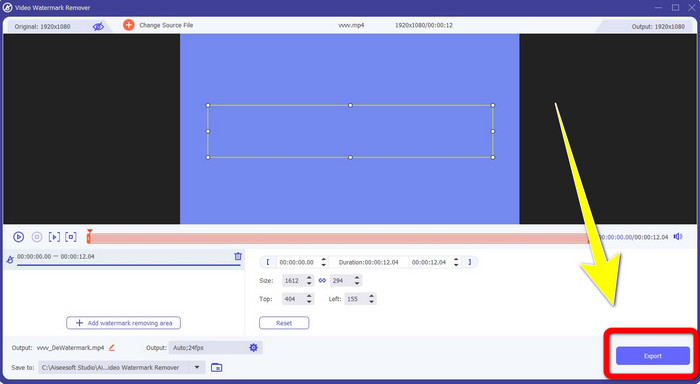
Pas 5: Apareixerà una pantalla en forma de caixa al monitor. Utilitza aquesta caixa per cobrir la marca d’aigua del teu vídeo.
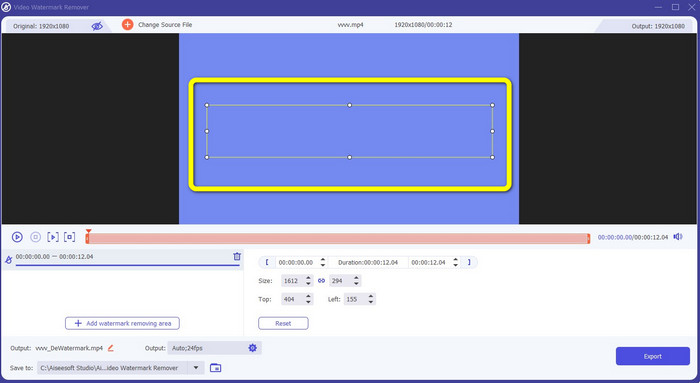
Pas 6: Quan la marca d’aigua hagi quedat coberta, desapareixerà del teu vídeo. Fes clic a Export per desar el vídeo. D’aquesta manera, podràs treure la marca d’aigua d’un vídeo procedent de Camtasia.
2. Ús de les funcions de retall
Una altra manera que pots provar són les funcions d’escapçat (cropping) de Video Converter Ultimate. És una de les formes més senzilles d’eliminar marques d’aigua dels teus vídeos, especialment si la marca d’aigua és només en una cantonada o a la vora dels vídeos. En retallar els teus vídeos, pots esborrar immediatament els elements innecessaris del teu vídeo. Segueix aquests passos senzills per eliminar marques d’aigua fent servir l’eina de retall.
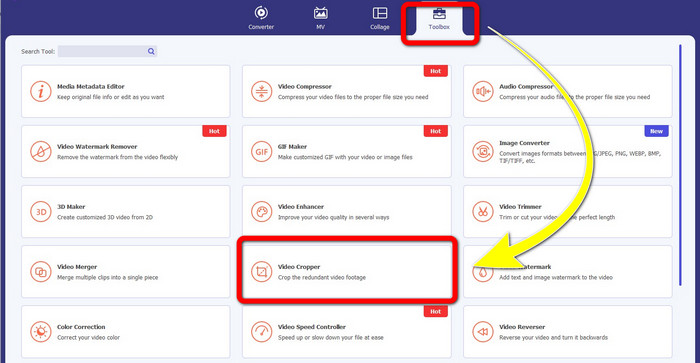
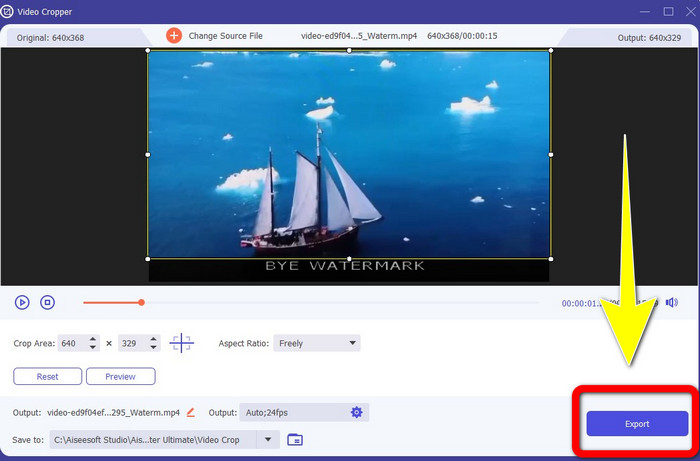
Pas 1: Obre el Video Converter Ultimate. Fes clic a Toolbox > Video Cropper. A continuació, apareixerà una altra interfície a la pantalla.
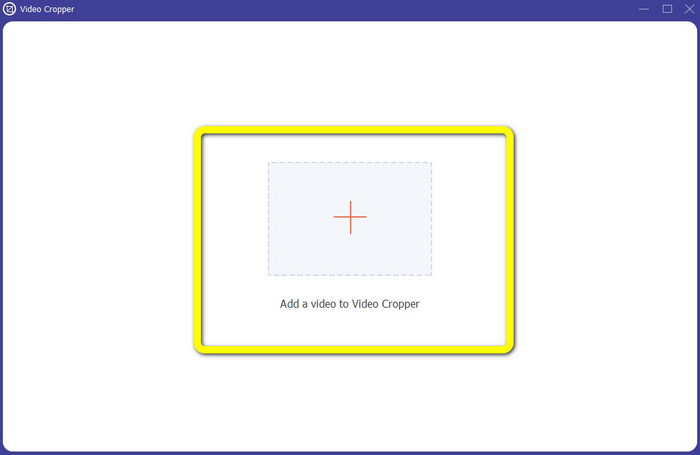
Pas 2: Fes clic al botó amb el signe Plus i afegeix el vídeo amb la marca d’aigua que vols eliminar.
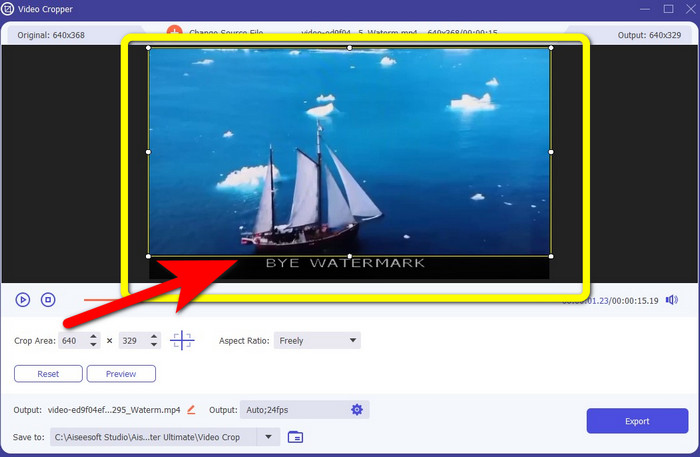
Pas 3: Quan ja hagis adjuntat el teu vídeo amb marca d’aigua, ja pots retallar la vora del vídeo fins a l’àrea on hi ha les marques d’aigua. D’aquesta manera, podràs eliminar-les.
Pas 4: Si ja has retallat el teu vídeo i veus que la marca d’aigua ha desaparegut, fes clic a Export per desar el vídeo editat. Ara pots gaudir del teu vídeo sense cap marca d’aigua a la pantalla.
Part 2: Com produir vídeos a Camtasia sense una marca d'aigua
Vols aprendre a produir un vídeo de Camtasia sense marques d’aigua? Primer, definim què és Camtasia. Camtasia és una eina d’edició senzilla i útil que pots utilitzar. A més, també és un programari de gravació de pantalla que pots fer servir. A més a més, té diverses funcions d’edició amb què pots gaudir, com anotacions, transicions, animacions, efectes d’àudio, efectes de vídeo i molt més. També hi pots crear una presentació de diapositives.
Amb l'ajuda d'aquesta aplicació, podeu fer que els vostres vídeos siguin més atractius i únics per als espectadors. A Camtasia, podeu produir vídeos bonics que podreu gaudir. Tanmateix, aquesta aplicació té una marca d'aigua després d'exportar el vostre vídeo tret que compreu l'aplicació. Seguiu aquests senzills passos per aprendre moltes coses en aquesta aplicació, especialment per crear vídeos a Camtasia.
Amb l'ajuda d'aquesta aplicació, podeu fer que els vostres vídeos siguin més atractius i únics per als espectadors. A Camtasia, podeu produir vídeos bonics que podreu gaudir. Tanmateix, aquesta aplicació té una marca d'aigua després d'exportar el vostre vídeo tret que compreu l'aplicació. Seguiu aquests senzills passos per aprendre moltes coses en aquesta aplicació, especialment per crear vídeos a Camtasia.
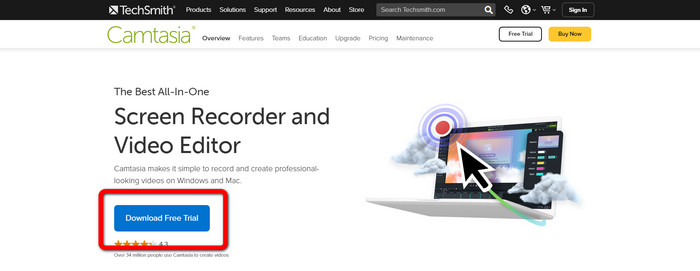
Pas 1: Has de descarregar Camtasia al teu Windows. Fes clic al botó Download Free Trial per obtenir l’aplicació. Després, obre-la un cop acabat el procés d’instal·lació.
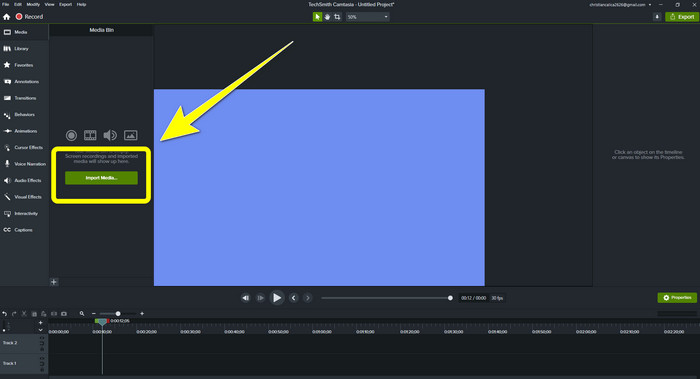
Pas 2: Després d’iniciar l’aplicació, fes clic al botó Import Media per afegir el fitxer que vols editar.
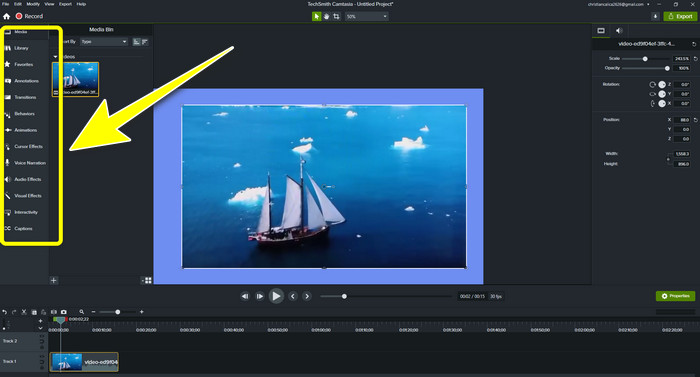
Pas 3: Ara pots editar els teus fitxers en aquesta aplicació fent servir les eines d’edició, com afegir subtítols, transicions, animacions, anotacions, comportaments i molt més.
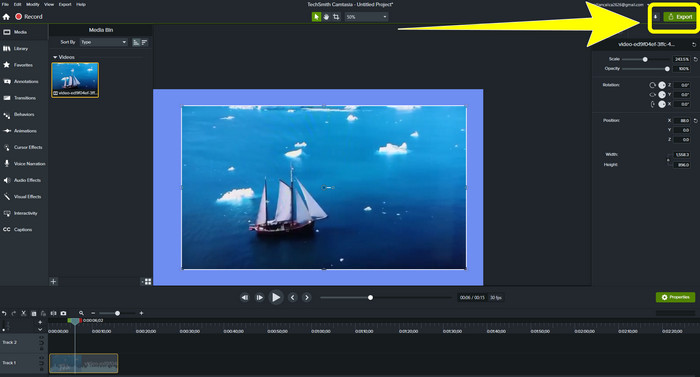
Pas 4: Si has acabat i estàs satisfet amb l’edició dels teus vídeos, ja pots fer clic al botó Export > Local File per desar el resultat.
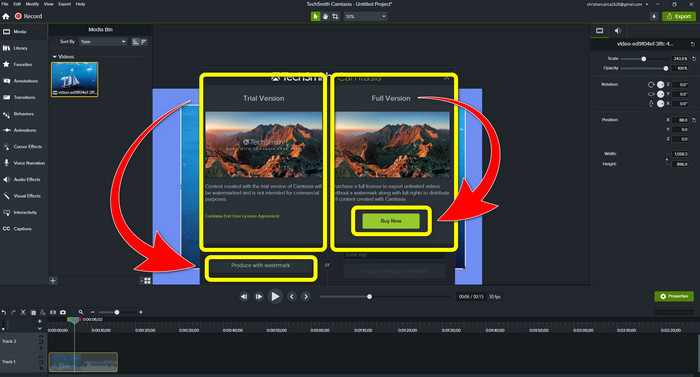
Pas 5: Després de fer clic a Export > Local File Button, apareixerà una altra interfície. Si vols comprar l’aplicació, fes clic al botó Buy per produir un vídeo a Camtasia sense marca d’aigua. Tanmateix, si només utilitzes la versió de prova gratuïta, el teu vídeo portarà una marca d’aigua després d’exportar-lo i desar-lo.
Relacionat amb:
Com eliminar la marca d’aigua de Filmora dels teus vídeos o projectes de manera gratuïta
El truc més ràpid per eliminar la marca d’aigua d’Adobe Stock d’un vídeo [ Tutorial ]
Part 3: Preguntes freqüents sobre l'eliminació de marques d'aigua
Hi ha un excel·lent eliminador de filigrana que puc utilitzar al meu Mac?
Sens dubte, sí! Pots utilitzar aplicacions amb eines per eliminar marques d’aigua, com ara Video Converter Ultimate. És capaç d’eliminar les marques d’aigua dels teus vídeos. A més, aquesta aplicació és accessible tant a Windows com a Mac, cosa que la fa encara més pràctica.
Hi ha alguna manera de treure les marques d'aigua de les fotos?
Absolutament sí! Podeu utilitzar moltes aplicacions del vostre dispositiu per eliminar les marques d'aigua de les fotos. El millor que heu de fer és cercar als vostres navegadors les eines per eliminar les filigranes i buscar els 10 millors resultats a la pàgina de resultats.
Puc eliminar les marques d'aigua amb el meu telèfon?
Si, tu pots! Algunes de les aplicacions amb eliminadors de filigranes ara són accessibles a Mac i Windows i telèfons mòbils com ara telèfons Android i iPhones.
Com puc eliminar les filigranes amb una eina de retall?
Eliminar les filigranes de les vostres fotos o vídeos amb una eina de retall és fàcil, sobretot si la filigrana es troba a la vora de la imatge. Tot el que heu de fer és retallar-lo, eliminar la marca d'aigua i ja està.
Conclusió
Com pots veure, aquest article mostra les millors maneres de treure la marca d’aigua de Camtasia 9. A més, presenta una aplicació excel·lent i fiable amb dos mètodes per eliminar elements innecessaris dels teus vídeos. Aquesta aplicació és el Video Converter Ultimate.
-
 5 maneres d'eliminar una marca d'aigua d'un vídeo d'una manera professional
 Necessites eliminar una marca d'aigua d'un vídeo per fer-lo semblar professional? Bé, llegiu aquest article mentre afegim un tutorial sobre com fer-ho!
-
 3 dels últims removedors de filigranes de Shutterstock que necessitareu
 No li agrada la marca d'aigua de Shutterstock adjunta al vídeo exportat? Podeu utilitzar un eliminador de filigrana de Shutterstock per esborrar-lo de manera eficaç.
-
 Mètodes més fàcils sobre com eliminar la filigrana de les fotos
 Estàs irritat per les filigranes de la teva foto? No et preocupis! Aquest article us proporcionarà mètodes senzills i fàcils per eliminar les marques d'aigua de les vostres fotos
