


 Video Converter Ultimate
 Gravadora de pantalla
 Reparació de vídeo
 Baixada segura
Com canviar la mida de les imatges a Illustrator al vostre ordinador
Actualment, moltes edicions complexes són habituals, sobretot amb l’aparició d’aplicacions de retoc fotogràfic professional com Adobe Illustrator. Tot i així, encara és possible fer-hi edicions senzilles amb aquestes potents eines. Per exemple, encara pots utilitzar Adobe Photoshop si vols canviar les dimensions de la teva imatge. I ho sabies? Pots redimensionar la teva imatge a Illustrator mitjançant dos mètodes. Un és escalant la imatge manualment i l’altre és escrivint els valors numèrics que prefereixis per a la teva foto. En aquesta guia et mostrarem aquests dos mètodes sobre com redimensionar imatges a Illustrator.

Part 1. Com canviar la mida de les imatges a Illustrator
Adobe Illustrator és el programari d'edició de fotografies més utilitzat pels professionals. Aquesta aplicació us permet crear sortides excepcionals mitjançant les seves sofisticades eines de dibuix digital. És perfecte per crear il·lustracions basades en vectors, icones, tipografies, logotips i molt més. A més, té opcions de color avançades per crear paletes de colors, esquemes de colors degradats i barrejar diferents colors per obtenir una imatge sorprenent.
Podeu fer moltes coses amb Adobe Illustrator. Les funcions esmentades són només algunes de les moltes funcions que ofereix Illustrator. I si esteu preguntant si Adobe Illustrator pot canviar la mida de la vostra imatge, la resposta és sí. Llegiu contínuament aquesta part per aprendre els passos sobre com canviar la mida de les imatges a Illustrator.
Com canviar la mida d'una imatge a Illustrator mitjançant l'escalador d'imatges
Pas 1. El primer que has de fer és descarregar Adobe Illustrator a l’ordinador. Després de descarregar i instal·lar l’aplicació, obre-la al teu dispositiu. Tot seguit, obre la imatge a Illustrator anant a File > Open. També pots copiar i enganxar la teva imatge en un tauler (artboard) que ja tinguis obert.
Pas 2. A continuació, fes clic a l’eina Selection Tool (Cmd V al teclat) i fes clic a la imatge per seleccionar-la. Un cop seleccionada, apareixeran nanses a les cantonades de la imatge. Aquestes nanses semblen petits quadrats blancs amb un contorn blau. Amb aquestes nanses pots escalar/redimensionar la imatge, girar-la i esbiaixar-la.
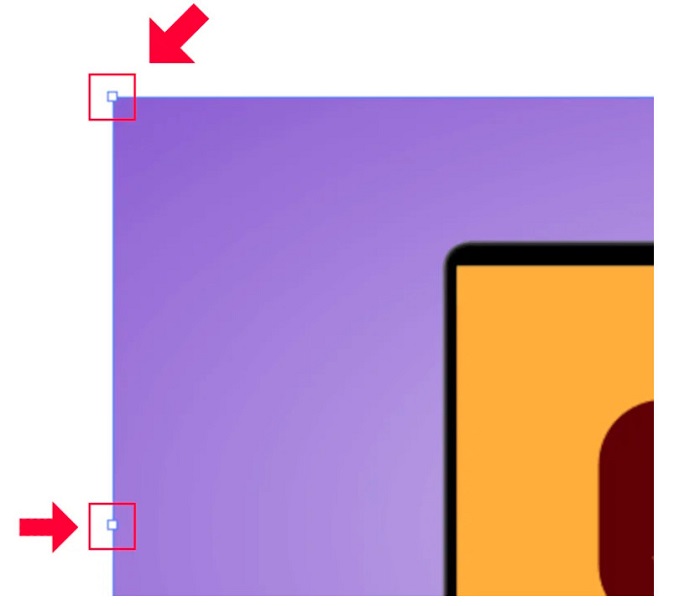
Pas 3. Per redimensionar la imatge mitjançant l’escalat, mantén premut i arrossega qualsevol de les nanses fins a la mida que prefereixis. A més, pots bloquejar la relació d’aspecte de la imatge mantenint premuda la tecla Maj (Shift) del teclat mentre mous el cursor.
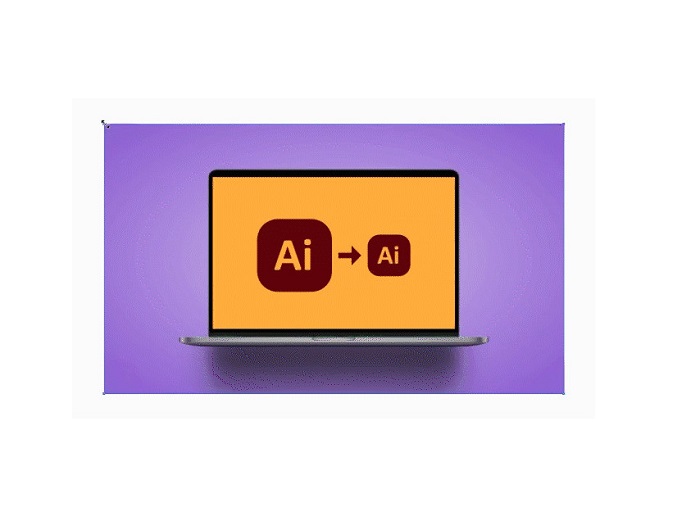
Després de canviar la mida de la imatge segons les vostres preferències, ara podeu deixar anar fent clic a les nanses.
Com utilitzar Adobe Illustrator per canviar la mida d'una imatge ajustant els valors numèrics
Ara, us ensenyarem a canviar la mida de la vostra foto introduint valors numèrics mitjançant el menú Transformació en lloc d'escalar manualment la imatge amb l'eina de selecció.
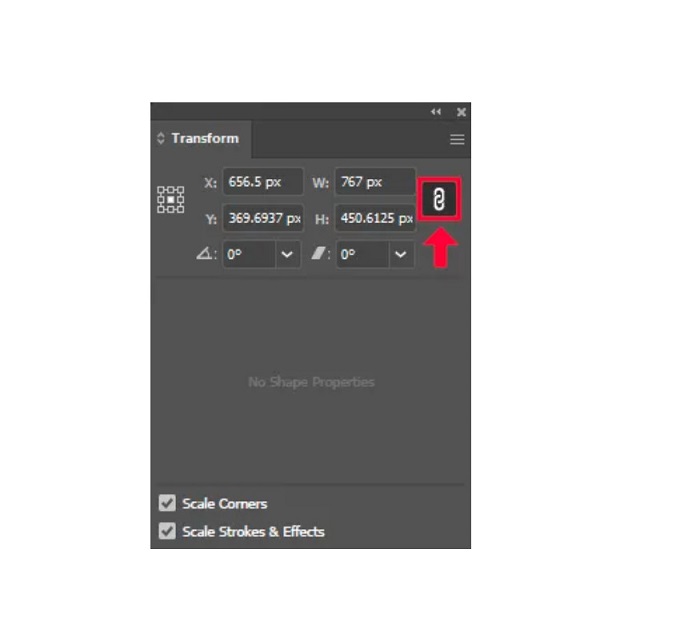
Pas 1. Quan tinguis Adobe Illustrator obert al dispositiu, obre el menú Transform fent clic a Windows > Transform. També pots obrir aquest menú prement Maj + F8 al teclat. Així és com es veu el menú Transform.
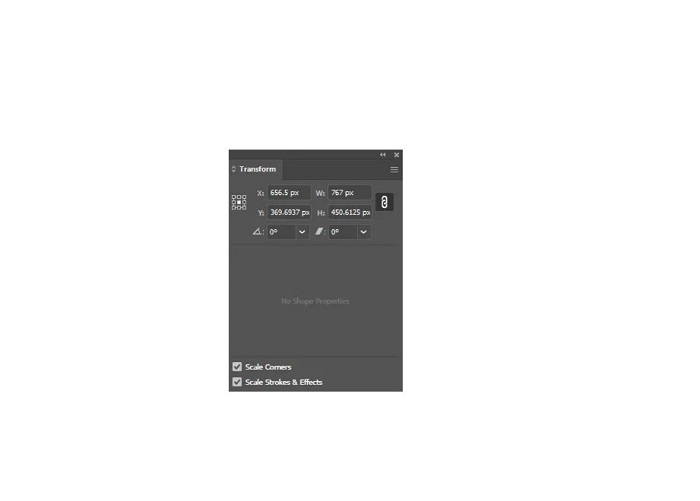
El menú Transform et permet canviar la ubicació del teu objecte respecte als eixos X i Y. També pots utilitzar aquest menú per girar, esbiaixar i redimensionar la imatge introduint-hi un valor numèric.
Pas 2. Després, selecciona la imatge que vols redimensionar amb l’eina Selection Tool. A continuació, ajusta l’amplada i l’alçada al menú Transform canviant els valors segons la mida que vulguis per a la teva foto. La lletra W indica l’amplada i la H indica l’alçada de la imatge.
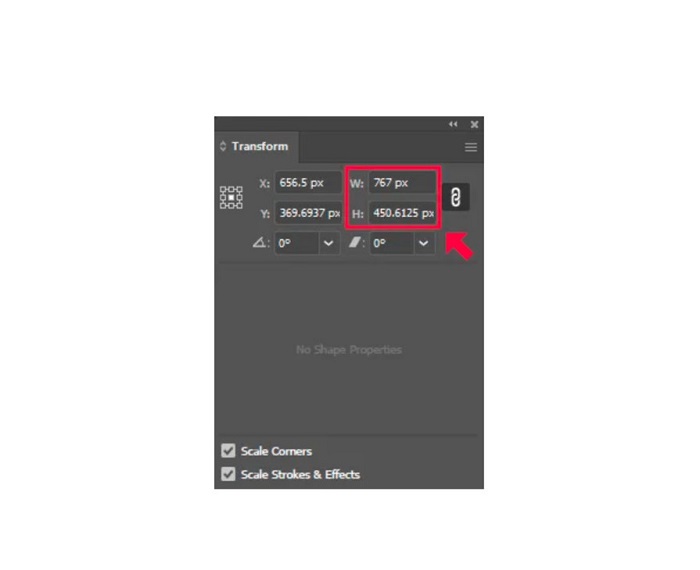
Pas 3. També és útil bloquejar la relació d’aspecte de la foto fent clic a la icona de la cadena que hi ha al costat de l’alçada i l’amplada. Quan selecciones l’opció de cadena i canvies l’alçada de la imatge, l’amplada s’ajustarà automàticament.
Consell. També pots canviar la unitat de mesura predeterminada de la teva imatge. Illustrator utilitza píxels (px) com a unitat de mesura per defecte. Pots canviar la unitat de la manera següent:
◆ Centímetres (cm)
◆ Mil·límetres (mm)
◆ Polzades (polzades)
◆ Percentatges (%)
Per canviar la unitat de mesura de la imatge, escriu-la després del número de la mesura. Un cop canviats el valor numèric i la unitat de la imatge, prem la tecla Enter del teclat.
Ara exportarem la imatge. Selecciona-la amb la Selection Tool, fes-hi clic amb el botó dret i tria Export Selection.
Després de seleccionar l’opció Export Selection, apareixerà el menú Export for Screens. Aquest menú et permet desar la imatge redimensionada en un format utilitzable.
Sota la miniatura, pots previsualitzar el teu resultat i canviar el nom del fitxer pel que prefereixis. Després, al panell Export to, fes clic a la icona de la carpeta per cercar la ubicació on desaràs el resultat. Assegura’t també que el camp Scale estigui configurat a 1x. A continuació, tria el format de sortida. Es recomana utilitzar el format PNG o JPG.
I finalment, fes clic al botó Export Asset per desar el resultat.
Increïble, oi? Adobe Illustrator us permet editar les vostres imatges segons el vostre contingut. Aquesta part també és la resposta si cerqueu com canviar la mida de les imatges a Il·lustrador sense distorsió. Tanmateix, aquesta aplicació no és una eina fàcil d'utilitzar perquè no té una interfície fàcil d'utilitzar. Per tant, si voleu canviar la mida/augmentar la mida de la vostra imatge mitjançant una aplicació fàcil d'utilitzar, llegiu detingudament la següent part.
Part 2. Alternativa en línia per a Illustrator
Adobe Illustrator és una eina fora de línia i no és gratuïta. Per tant, si voleu utilitzar un fantàstic redimensionador d'imatges gratuït i que us ajudarà a millorar la vostra imatge, seguiu el tutorial que us presentarem a continuació.
FVC Free Image Upscaler és un ampliador d’imatges en línia que pot ajudar-te a millorar les teves fotos de baixa qualitat. Aquesta eina en línia pot millorar la teva imatge amb una ampliació de 2x, 4x, 6x i 8x. A més, utilitza tecnologia d’IA (intel·ligència artificial) que detecta automàticament les parts de baixa qualitat de la imatge i les millora. Admet tots els formats d’imatge, inclosos JPEG, JPG, PNG i BMP. A més, és segura d’utilitzar i completament gratuïta. I amb la seva interfície senzilla, pots redimensionar/ampliar fàcilment la teva imatge.
Com canviar la mida d'una imatge amb FVC Free Image Upscaler:
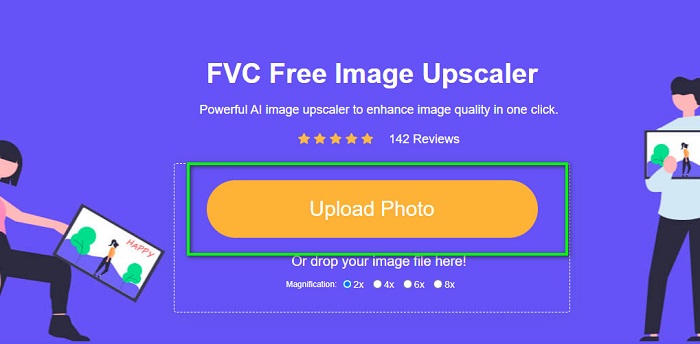
Pas 1. Cerca FVC Free Image Upscaler al navegador o fes clic en aquest enllaç per anar directament a la pàgina principal. A la interfície principal del programari, fes clic al botó Upload Photo per iniciar l’aplicació al teu dispositiu.
Pas 2. Després, fes clic de nou al botó Upload Photo per importar la imatge que vols ampliar.
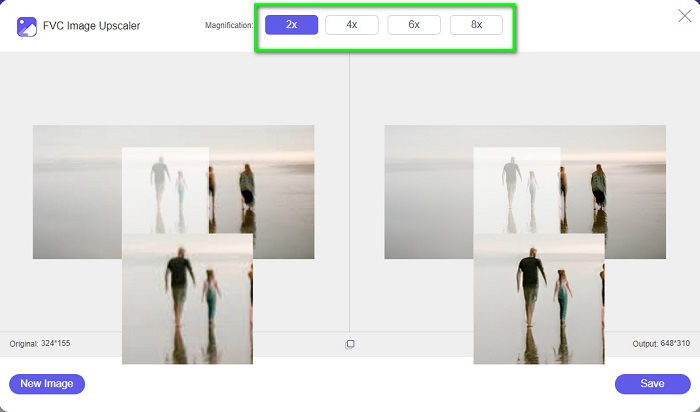
Pas 3. Quan la teva foto s’hagi pujat, selecciona el valor de magnificació que vulguis per a la imatge. Pots triar entre 2x, 4x, 6x i 8x.
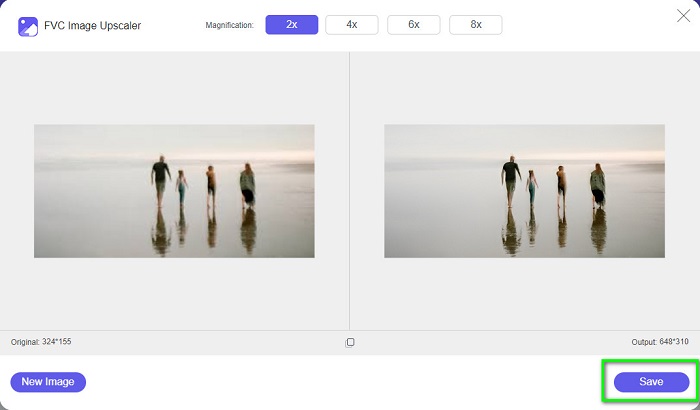
Pas 4. Finalment, prem el botó Save per desar el resultat al teu dispositiu.
Relacionat amb:
Com utilitzar GIMP per redimensionar imatges: procés pas a pas
Com redimensionar una foto per a Facebook [Passos ràpids i senzills]
Part 3. Preguntes freqüents sobre com canviar la mida de la imatge a Illustrator
Per què Adobe Illustrator no canvia la mida de les imatges?
No podeu canviar la mida d'una imatge a Illustrator perquè probablement el quadre delimitador no estigui activat. Per activar el quadre delimitador, aneu a Visualització > Mostra el quadre delimitador. Si l'activeu, ara podeu canviar la mida de la vostra imatge a Illustrator.
Puc canviar la mida d'una imatge a Illustrator sense perdre qualitat?
Sí. Hi ha una manera de canviar la mida de la imatge amb Adobe Illustrator. Tanmateix, la majoria de vegades, quan canvieu la mida d'una imatge amb l'escalador, la qualitat de la vostra imatge es veurà afectada.
Adobe Illustrator és gratuït?
No. Adobe Illustrator no és gratuït. Abans d'utilitzar aquesta potent aplicació d'edició de fotos, l'has de comprar per $20,99 al mes.
Conclusió
Has après com redimensionar imatges a Illustrator seguint els mètodes que t’hem mostrat. Potser requereix molts passos, però val la pena utilitzar-lo i provar-lo. El problema d’Adobe Illustrator és que no és gratuït i té una interfície complexa. Per tant, si vols un redimensionador d’imatges més pràctic i gratuït, utilitza FVC Free Image Upscaler.
-
 Com canviar la mida de la imatge: Adobe Canvia la mida de la imatge [en línia i fora de línia]
 Si esteu buscant una imatge de redimensionament d'Adobe, tenim la solució per a vosaltres. Consulteu aquesta publicació a fons per aprendre a canviar la mida de les imatges amb Adobe al vostre ordinador.
-
 Millor aplicació Photo Resizer en línia, fora de línia, Android i iPhone
 Quines són les millors aplicacions de redimensionament de fotos? Feu clic a la pàgina per conèixer les cinc aplicacions de redimensionament de fotos més potents que podeu utilitzar per millorar o canviar la mida del vostre fitxer
-
 Millor 7 Pixels Enhancer per a tots els navegadors web que heu d'utilitzar
 Si voleu conèixer els millors potenciadors de píxels per utilitzar, millor que consulteu aquesta publicació. Aquest article enumera els set millors potenciadors de píxels fotogràfics per a tots els navegadors web.
