


 Video Converter Ultimate
 Gravadora de pantalla
 Reparació de vídeo
 Baixada segura
Com canviar la mida d'una imatge o imatge a Word [2 maneres]
Quan importem imatges a Microsoft Word, de vegades conserven la mida original d’origen. I sovint no necessitem aquesta mida original al nostre document, perquè en destorba el flux i la llegibilitat. A més, quan tens una imatge molt gran en un document, normalment també té una mida de fitxer gran, i això tampoc no ens interessa. Per tant, en aquest article t’ensenyarem dos mètodes sobre com canviar la mida d’una imatge a Word. A més, també pots redimensionar una imatge amb FVC Free Image Upscaler. Així que seu còmodament i pren un cafè mentre llegeixes aquesta pàgina.

Part 1. Com canviar la mida d'una imatge en Word
Microsoft Word és un processador de textos comercial popular que desenvolupa Microsoft. Amb Microsoft Word, podeu crear documents que podeu compartir amb altres persones o publicar en diferents plataformes. Molts professionals utilitzen aquest programa en el seu camp de treball. I hi ha vegades que necessiteu canviar la mida d'una imatge que heu importat a l'aplicació. Per tant, llegiu aquesta part contínuament si voleu canviar la mida de la vostra imatge a Microsoft Word.
Mètode 1
Sovint, el nostre error quan treballem amb les imatges a Word és que només canviem la mida de l'alçada o l'amplada de la imatge, no les dues. Quan redimensionem les imatges, no hem de distorsionar la imatge. Per tant, quan canviem la mida d'una foto, ens hem d'assegurar que l'amplada i l'alçada de la mida oposada s'ajusten automàticament. Això parla de la relació d'aspecte de la imatge.
Pas 1. Si encara no tens Microsoft Word descarregat a l’ordinador, baixa’l ara. Després obre un document existent que ja contingui una imatge, o bé crea’n un de nou i insereix-hi una imatge. Per inserir una imatge, ves a Insereix > Imatges i obre una imatge des de les carpetes del teu ordinador.
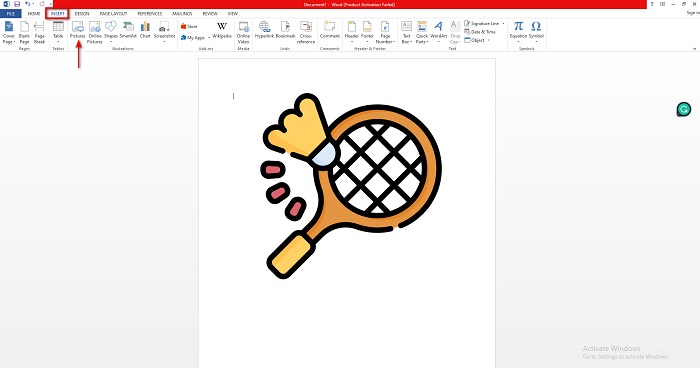
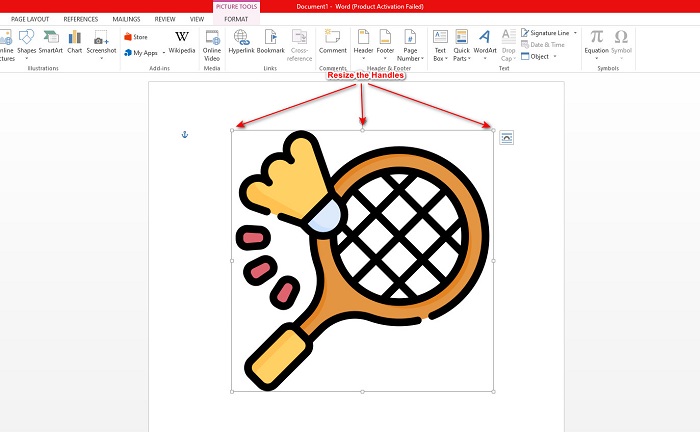
Pas 2. A continuació, fes clic a la imatge perquè apareguin les nanses de redimensionament. Llavors veuràs que al Cinta apareix la pestanya Eines d’imatge > Format. Fes-hi clic per mostrar totes les opcions disponibles.
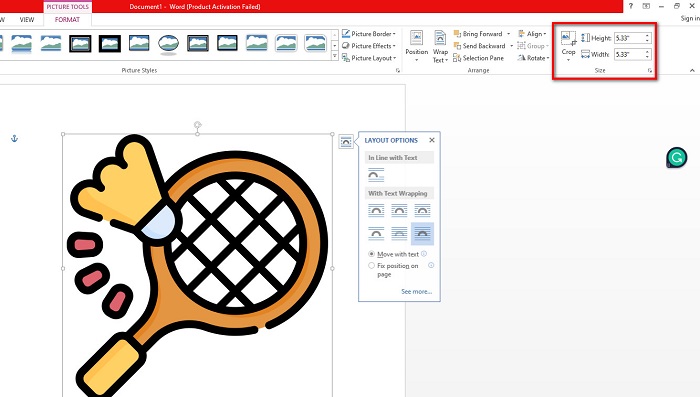
Pas 3. Després, un cop hagis fet clic a Format, ja pots fer servir les funcions del grup Mida per introduir la mida exacta de l’alçada o l’amplada de la foto. Pots prémer les fletxes amunt i avall que hi ha al costat de l’alçada i l’amplada per ajustar la mida segons les teves preferències.
Pas 4. Però si prefereixes ajustar la mida de la imatge manualment, pots utilitzar el ratolí i arrossegar les nanses de redimensionament. Arrossega les nanses cap al centre de la imatge si vols reduir o disminuir la mida. Arrossega-les cap a la vora de la pantalla si vols engrandir o augmentar la mida.
Pas 5. Recorda sempre que, quan redimensiones manualment la imatge a Word, és millor utilitzar les nanses de les cantonades. Això garanteix que l’alçada i l’amplada de la imatge es redimensionin alhora i es mantingui la proporció entre l’alçada i l’amplada.
Mètode 2
Una altra opció que podeu utilitzar per canviar la mida d'una imatge amb Microsoft Word és utilitzar percentatges. Si voleu canviar la mida de la vostra imatge amb la proporció exacta mitjançant percentatges, podeu utilitzar aquest mètode.
Pas 1. Selecciona la imatge que vols redimensionar fent-hi clic amb el botó esquerre.
Pas 2. Després ves a la pestanya Format de la imatge i fes clic a Posició i tot seguit a Més opcions de disseny.
Pas 3. A continuació, fes clic a la pestanya Mida. I al panell Escala, marca la casella Bloqueja la relació d’aspecte. Ara ja pots introduir els percentatges que vulguis per a l’alçada i l’amplada de la imatge.
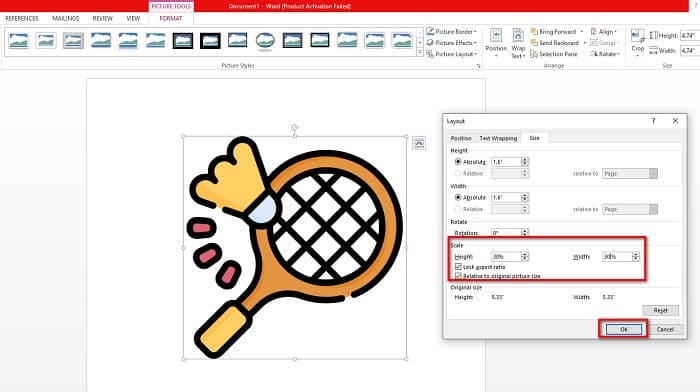
Pas 4. Finalment, prem D’acord per desar els canvis que has fet en la mida de la imatge.
Part 2. Com canviar la mida d'una imatge en línia
Tenim l'esquena coberta si voleu utilitzar una aplicació en línia per canviar la mida d'una imatge. En aquesta part, us mostrarem el millor redimensionador de fotos en línia i com podeu utilitzar-lo per canviar la mida de la vostra foto.
FVC Free Image Upscaler és un redimensionador d’imatges en línia que pots fer servir per ajustar la mida de les teves imatges. Pots canviar la mida de la foto amb aquesta eina modificant o augmentant la magnificació de la imatge. Per exemple, si tens una imatge borrosa, pots usar FVC Free Image Upscaler per millorar-la. A més, la seva tecnologia d’IA (intel·ligència artificial) detecta les parts de baixa qualitat d’una imatge i les millora. Aquest recurs en línia també admet els formats d’imatge més habituals, com PNG, JPG, JPEG i WebP. També és una aplicació apta per a principiants perquè té una interfície molt fàcil d’utilitzar.
A més, podeu millorar la vostra imatge amb un augment de 2x, 4x, 6x i 8x. I si voleu comprovar el resultat abans de desar la sortida, aquesta eina us permet tenir la vista prèvia de la vostra sortida. El que és fins i tot excel·lent de FVC Free Image Upscaler és que és segur d'utilitzar i no requereix que inicieu sessió per obtenir un compte.
Com canviar la mida d'una imatge en línia amb FVC Free Image Upscaler
Pas 1. Obre el navegador i busca FVC Free Image Upscaler al quadre de cerca. Pots fer clic en aquest enllaç per visitar directament la pàgina principal. Després, fes clic al botó Pujar foto per obrir el programa al teu dispositiu.
Pas 2. A continuació, torna a fer clic al botó Pujar foto per importar la imatge que vols redimensionar. A les carpetes del teu ordinador, localitza la imatge i fes clic a Obre per pujar-la.
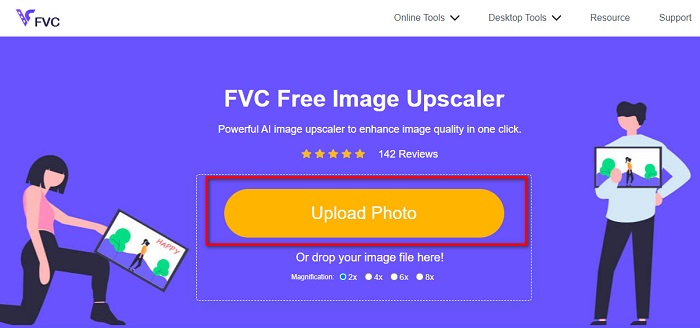
Pas 3. Tot seguit, tria el nivell de magnificació que vols per a la teva imatge. Pots escollir entre 2x, 4x, 6x i 8x. Tingues sempre present que, com més alta sigui la magnificació, més gran serà la mida del fitxer.
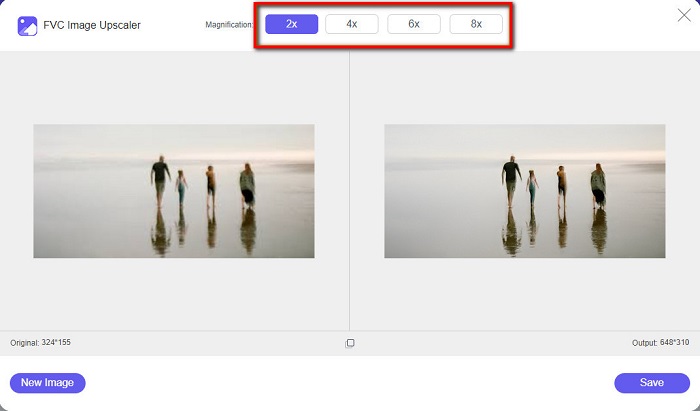
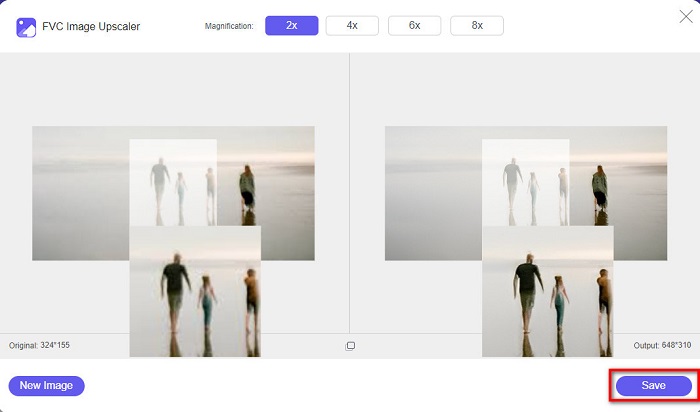
Pas 4. Per previsualitzar el resultat, arrossega el cursor al costat dret de la imatge per veure els canvis i les millores. Fes clic al botó Desa quan estiguis satisfet amb el resultat obtingut amb aquest redimensionador de fotos.
Part 3. Preguntes freqüents sobre com canviar la mida d'una imatge en Word
La imatge quedarà borrosa després de canviar-la de mida a Microsoft Word?
No. Quan redimensiones la teva foto a Microsoft Word, la qualitat de la imatge no es veurà afectada. Però si et trobes amb un problema d’aquest tipus, és possible que la imatge es vegi borrosa a causa d’un problema de compressió.
La mida del fitxer disminuirà si redueixo la meva imatge a Word?
Sí. La mida del fitxer del document pot disminuir si reduïu la imatge que hi ha. Les imatges que s'importen a un document poden tenir una resolució alta. Per tant, quan canvieu la mida d'una imatge, la mida de tot el document es veurà afectada.
Puc canviar la mida d'una imatge a Excel?
És clar. Podeu canviar la mida d'una imatge o d'un objecte importat a Excel fent clic a la imatge i ajustant el manillar.
Conclusió
És molt fàcil canviar la mida d’una imatge a Word, sobretot si segueixes els passos anteriors. Així que, la propera vegada que importis una imatge a Word i en vulguis ajustar la mida, ja sabràs què has de fer. Però si prefereixes fer servir una aplicació en línia per redimensionar una imatge per a Word, pots utilitzar FVC Free Image Upscaler.
-
 5 dels millors redimensionadors de GIF disponibles a totes les plataformes #91;2022]
 Voleu conèixer els canvis de mida GIF que podeu utilitzar? En aquest cas, la informació que es proporciona a continuació parlarà dels canvis de mida que podeu utilitzar als vostres GIF a totes les plataformes.
-
 Millor aplicació Photo Resizer en línia, fora de línia, Android i iPhone
 Quines són les millors aplicacions de redimensionament de fotos? Feu clic a la pàgina per conèixer les cinc aplicacions de redimensionament de fotos més potents que podeu utilitzar per millorar o canviar la mida del vostre fitxer.
-
 Com canviar la mida d'una imatge a PowerPoint [la manera més ràpida de canviar la mida]
 Aprendre a canviar la mida de les imatges a PowerPoint és essencial, sobretot si voleu utilitzar-lo a la vostra presentació. Llegeix aquest article per saber com fer-ho.
