


 Video Converter Ultimate
 Gravadora de pantalla
 Reparació de vídeo
 Baixada segura
Instruccions definitives per eliminar la marca d'aigua de Canva [Resolt]
Els usuaris en línia i professionals que han de produir fotografies, presentacions i vídeos d’alta qualitat utilitzen sovint Canva. Aquest programa té molts avantatges, com ara una gran selecció d’eines, plantilles, dissenys, temes i molt més. Malauradament, ara els elements Pro tenen marques d’aigua. Cal pagar per utilitzar els elements Pro sense marca d’aigua. Per sort, aquesta publicació et mostrarà els millors mètodes que pots provar per eliminar les marques d’aigua de Canva sense comprar els elements Pro. Per tant, llegeix tot l’article per fer-te una idea de com eliminar les marques d’aigua de Canva.

Part 1: la millor eina en línia per eliminar les marques d'aigua de Canva
Si vols aprendre a eliminar gratis les marques d’aigua de Canva, pots utilitzar FVC Free Watermark Remover. Aquesta eina en línia pot eliminar qualsevol objecte de la teva foto sense gastar ni un cèntim. A més, pot esborrar fàcilment les marques d’aigua de Canva amb l’ajuda d’eines per eliminar marques d’aigua com Pinzell, Poligonal i Llaç. A més a més, també pots eliminar marques d’aigua mitjançant l’eina d’escapçar, especialment quan l’àrea de la marca d’aigua és a la vora de la foto. A més, no t’has de preocupar pel format d’imatge compatible, ja que admet gairebé tots els formats, com JPG, PNG, BMP i més. Amb la seva interfície intuïtiva i mètodes bàsics, podem dir que FVC Free Watermark Remover és perfecte per a tots els usuaris, inclosos els principiants. Aquesta part t’ajudarà a eliminar les marques d’aigua de Canva de la teva foto fent servir totes les eines per eliminar marques d’aigua, com les eines de Pinzell, Llaç i Poligonal.
Podeu utilitzar l'eina Raspall si voleu eliminar les filigranes com si les estiguéssis raspallant. Fins i tot podeu canviar la mida del pinzell segons les vostres preferències. Podeu utilitzar l'eina Lazo per seleccionar parts tancades d'imatges o formes. Finalment, podeu utilitzar l'eina Poligonal si voleu ressaltar les filigranes com una forma de rectangle per eliminar-les fàcilment sense seguir el patró de la marca d'aigua.
Utilitzant l'eina pinzell
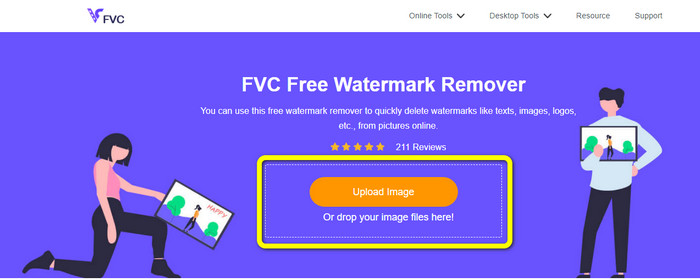
Pas 1: El primer que has de fer és visitar el lloc web de FVC Free Watermark Remover. Després, prem el botó Upload Image per pujar la teva imatge amb la marca d’aigua de Canva. Una altra manera de pujar una foto és arrossegar el fitxer d’imatge a la caixa.
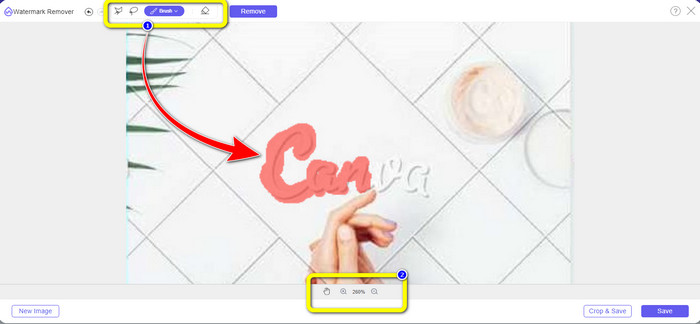
Pas 2: A la primera caixa de dalt, selecciona l’eina Brush. Després, utilitza aquesta eina per ressaltar les marques d’aigua de Canva de la teva foto. A sota de l’eina de pinzell, pots modificar la mida del pinzell. Pots allunyar o apropar la teva imatge a la segona caixa de sota per veure marques d’aigua petites.
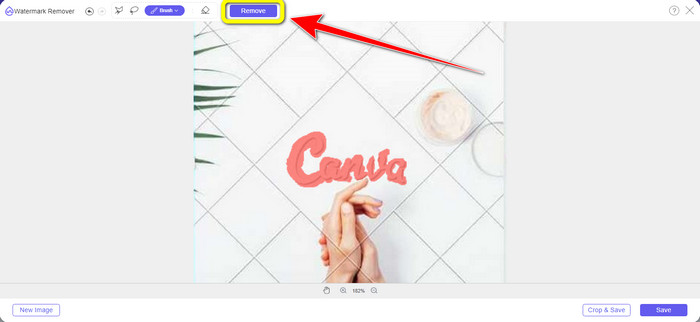
Pas 3: Quan hagis acabat de ressaltar les marques d’aigua de Canva de la foto, fes clic al botó Remove perquè es pugui iniciar el procés d’eliminació. Després, espera uns segons.
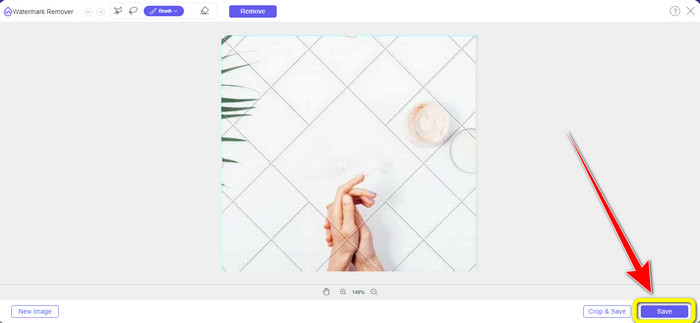
Pas 4: Després del procés d’eliminació, podràs veure que la marca d’aigua de Canva ja ha desaparegut. Fes clic al botó Save per desar la teva foto.
Utilitzant l'eina Lasso
Pas 1: Després de pujar la imatge amb la marca d’aigua de Canva, selecciona l’eina Lasso entre les eines d’eliminació de marques d’aigua. A continuació, utilitza el ratolí per ressaltar la marca d’aigua de Canva.
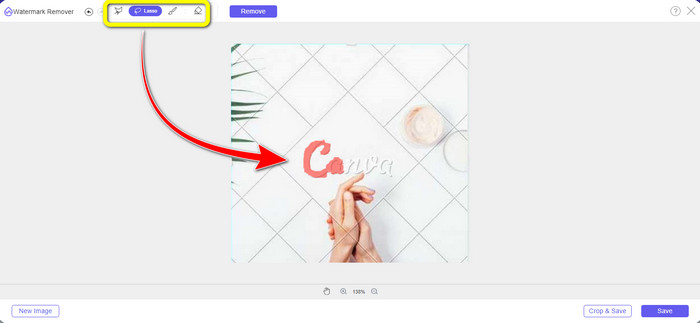
Pas 2: A la caixa groga sota la foto, pots fer clic a la icona + o - per ampliar la imatge i veure-la amb més claredat. Després, fes clic al botó Remove quan hagis acabat de ressaltar la marca d’aigua de Canva amb l’eina Llaç.
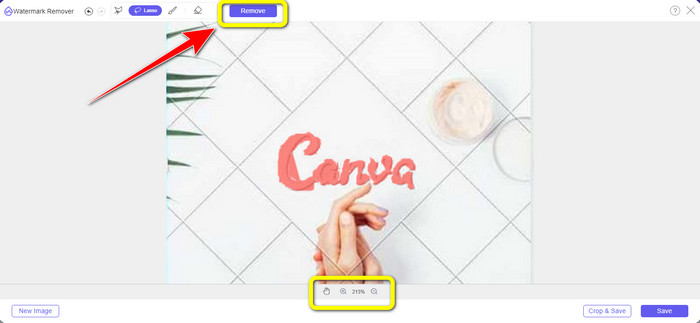
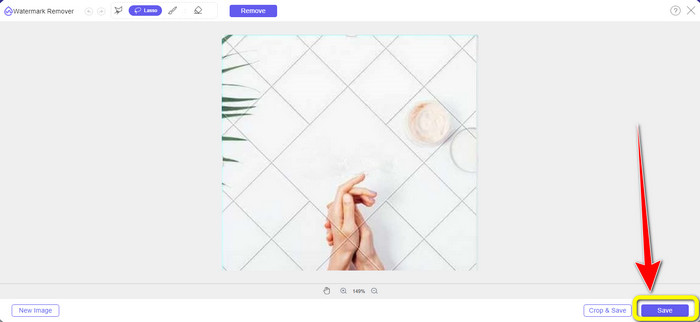
Pas 3: Un cop finalitzat el procés d’eliminació i quan la marca d’aigua de Canva s’hagi esborrat, fes clic al botó Save per desar la foto final.
Utilitzant l'eina poligonal
Pas 1: Quan hagis acabat d’afegir la foto a FVC Free Watermark Remover, selecciona l’eina Polygonal entre les eines per eliminar marques d’aigua.
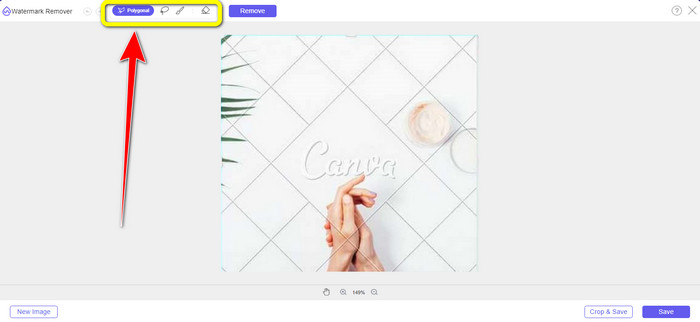
Pas 2: En aquesta part, amb l’eina Poligonal, ressalta la marca d’aigua de Canva de la teva imatge.
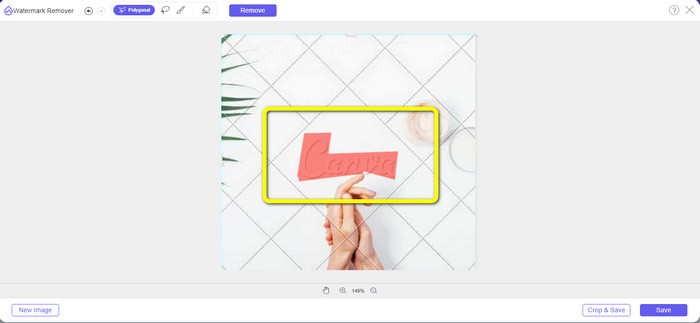
Pas 3: Després de ressaltar, ja pots eliminar la marca d’aigua de Canva fent clic al botó Remove.
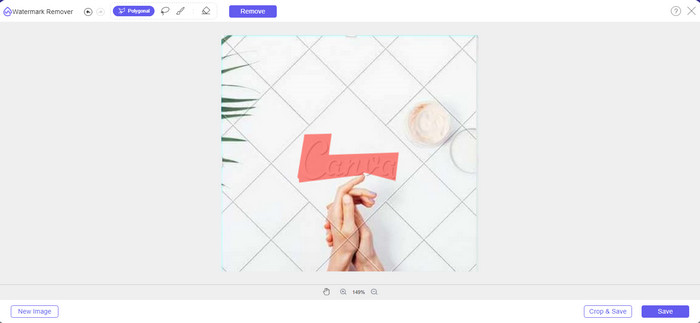
Pas 4: Després del procés d’eliminació, pots passar al mètode següent i últim: desar la teva foto fent clic al botó Save.
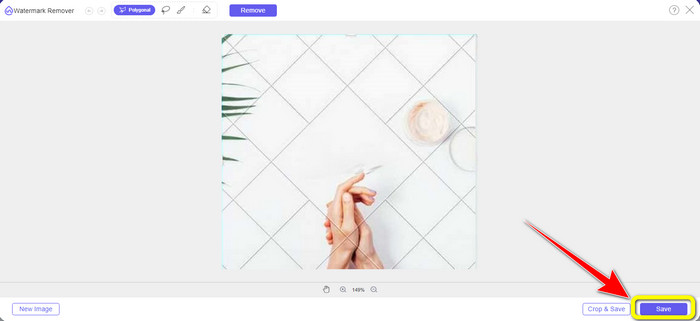
Amb aquestes tres eines per eliminar les filigranes, podeu eliminar ràpidament les marques d'aigua de Canva de la vostra foto. Aquesta vegada, utilitzem l'eina Retallar per eliminar la filigrana de Canva de la imatge.
Utilitzant l'eina de retall
L’eina de Cropping és la millor manera de retallar marques d’aigua, sobretot si l’àrea de la marca d’aigua és a la vora o al cantó de la foto. Segueix les indicacions següents per saber com eliminar les marques d’aigua de Canva mitjançant l’eina de retallat (Cropping).
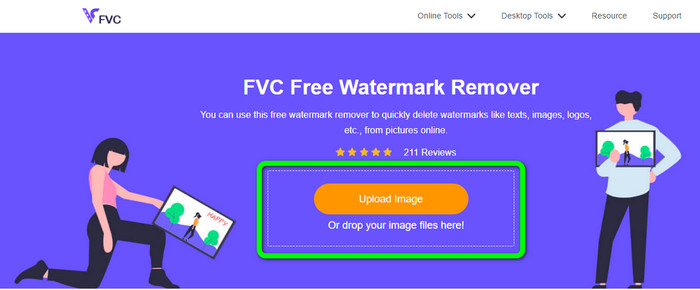
Pas 1: Fes clic al botó Upload Image. A continuació, la teva carpeta apareixerà a la pantalla. Tria la imatge amb la marca d’aigua de Canva que vulguis esborrar.
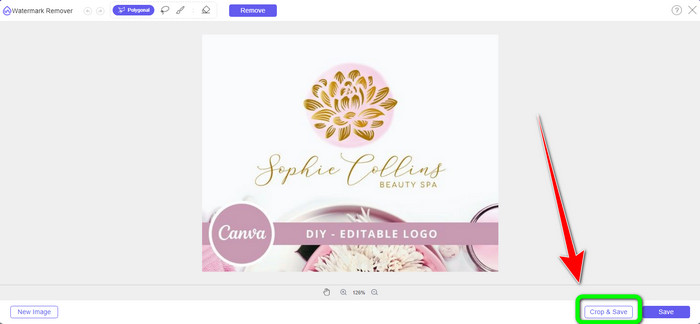
Pas 2: Després de triar el fitxer d’imatge, fes clic al botó Crop&Save. A continuació, passa al procés següent.
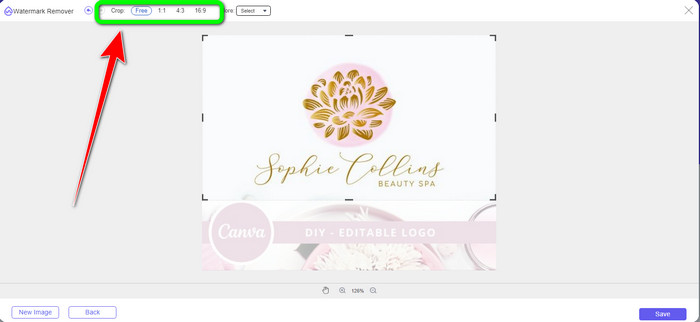
Pas 3: En aquesta caixa, pots escollir com vols retallar la foto. A més, si selecciones l’opció Free, pots retallar manualment la imatge com vulguis.
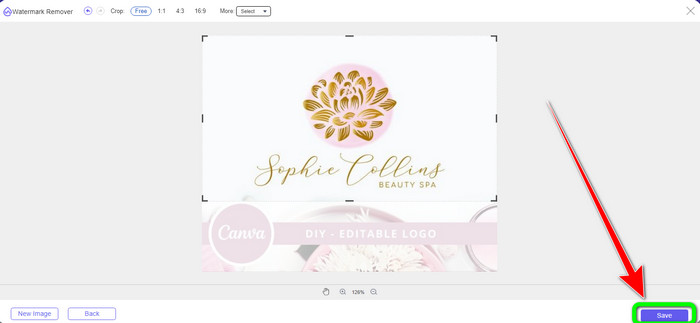
Pas 4: Després de retallar la foto per eliminar la marca d’aigua de Canva, pots fer clic al botó Save per desar la imatge final.
Part 2: Eliminar les filigranes de Canva amb Photoshop
Una altra manera d'eliminar la filigrana de Canva de les imatges és utilitzar Adobe Photoshop. També pot esborrar qualsevol objecte molest de la vostra foto, incloses les marques d'aigua, els logotips, el text, els adhesius i molt més. A més, aquesta eina té un procés d'eliminació ràpid, de manera que no haureu de passar més temps eliminant objectes no desitjats de la vostra foto. A més, el programari com Adobe Photoshop s'utilitza àmpliament per al disseny gràfic, l'edició d'imatges ràster i l'art digital. Les capes afegeixen profunditat i versatilitat als processos de desenvolupament i edició i ofereix eines d'edició essencials que, quan es combinen, poden donar resultats excepcionals. Tanmateix, Adobe Photoshop no és fàcil d'utilitzar, sobretot si sou un usuari nou. Photoshop és un programari d'edició avançat adequat per a usuaris avançats. Significa que els usuaris no professionals ho trobaran complicat quan utilitzin l'eina. A més, Adobe Photoshop no és gratuït. Només pot oferir una prova gratuïta de set dies. Aleshores, heu de comprar l'aplicació per utilitzar-la contínuament.
Seguiu els passos següents per eliminar la filigrana de Canva amb Adobe Photoshop.
Pas 1: Descarrega Adobe Photoshop a l’ordinador i instal·la’l. Després, obre l’aplicació.
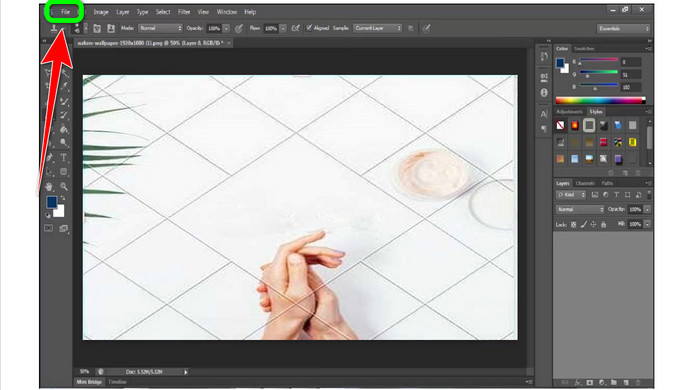
Pas 2: Ves a File > Open per inserir la foto amb la marca d’aigua de Canva.
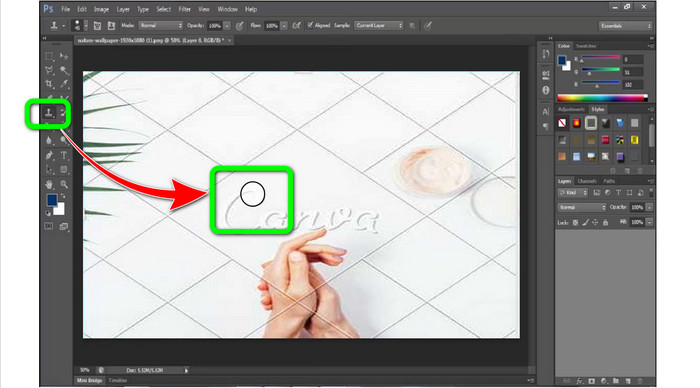
Pas 3: A la part esquerra de la interfície, selecciona l’eina Clone Stamp Tool.
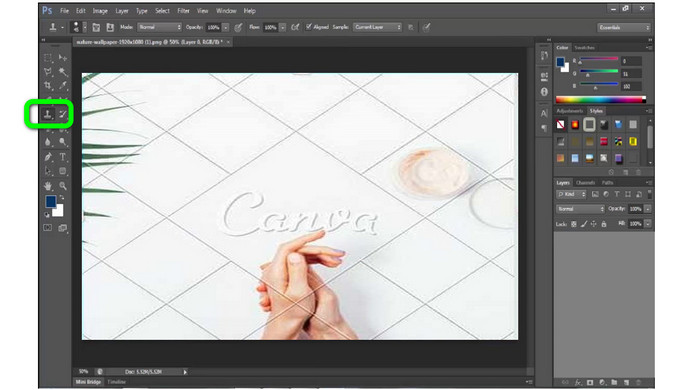
Pas 4: Després de seleccionar l’eina Clone Stamp, utilitza el ratolí per fer clic sobre la marca d’aigua de Canva fins que hagis esborrat totes les marques d’aigua.
Pas 5: Quan la marca d’aigua de Canva hagi desaparegut, ves a File > Save.
Relacionat amb:
Passos senzills sobre com eliminar la marca d’aigua de WOW Slider [Solucionat]
Mètodes fàcils per eliminar la marca d’aigua de Shootproof
Part 3: Preguntes freqüents sobre l'eliminació de les filigranes de Canva
1. Com puc eliminar la marca d'aigua de Canva gratuïta?
Per eliminar la marca d'aigua de tots els vostres dissenys, heu de comprar el Canva Pro. Una altra opció és utilitzar una prova gratuïta de Canva Pro, que esborrarà la marca d'aigua. A més, podeu eliminar la marca d'aigua desant el vostre disseny com a fitxer PDF o PNG.
2. Quina diferència hi ha entre Canva i Canva Pro?
A Canva, el pla és totalment gratuït. Podeu obtenir plantilles, dissenys, elements gràfics, fotografies i molt més gratuïts. Però a la versió gratuïta, hi ha limitacions, com ara la manca d'eines de marca, sense filtres i opcions de sortida limitades. A Canva Pro, hi ha més funcions fantàstiques que podeu gaudir. Ofereix més plantilles, fotografies, gràfics i vídeos. L'ús de Canva Pro és millor que la versió gratuïta.
3. Quina és la millor manera d'eliminar la marca d'aigua de Canva?
Utilitza FVC Free Watermark Remover. Aquesta eina pot ajudar-te ràpidament a eliminar les marques d’aigua de Canva de la teva foto. També pot esborrar altres elements no desitjats, com logotips, text, emoticones, etc.
Conclusió
Canva és una eina fantàstica de disseny gràfic. No obstant això, deixa marques d’aigua en gairebé totes les fotos. Però si vols eliminar les marques d’aigua de Canva, pots utilitzar FVC Free Watermark Remover. És gratuïta i més fàcil d’utilitzar que Photoshop.
-
 Mètodes més fàcils sobre com eliminar la filigrana de les fotos
 Estàs irritat per les filigranes de les teves fotos? No et preocupis! Aquest article us proporcionarà mètodes senzills i fàcils per eliminar les marques d'aigua de les vostres fotos
-
 Maneres de com eliminar fàcilment les marques d'aigua de Reddit de les imatges
 Si esteu aquí, potser esteu buscant un excel·lent eliminador de filigranes de Reddit. En aquest cas, us mostrarem el mètode més fàcil per eliminar les filigranes de Reddit
-
 Com eliminar la filigrana a Lightroom Mobile [Resolt]
 Vols aprendre a eliminar les marques d'aigua de les fotos a Lightroom? Aquests són els mètodes més fàcils que podeu provar amb els vostres telèfons mòbils i ordinadors
