


 Video Converter Ultimate
 Gravadora de pantalla
 Reparació de vídeo
 Baixada segura
Maneres professionals de com convertir imatges a vector
El millor format de gràfics per a logotips i dibuixos són els gràfics vectorials. Això es deu a les seves corbes i línies definides. A més, en lloc d’utilitzar píxels, s’empren equacions per construir-los. Es poden redimensionar els vectors a qualsevol mida sense perdre nitidesa. L’usuari ha de poder convertir fotografies en vectors. La bona notícia és que pots aprendre en línia tot el que necessites saber, gràcies a l’abundància d’eines i tutorials disponibles. Dissenyadors i professionals del màrqueting han d’aprendre a treballar amb el tipus de fitxer tan estès conegut com a imatges vectorials. Al cap i a la fi, els cartells publicitaris i altres formes de publicitat prefereixen aquest format. Hi ha nombroses tècniques per transformar imatges en vectors. Si vols la millor manera de convertir imatges en vectors, tens un bon motiu per llegir aquesta guia.

Part 1. Què és un vector d'imatge?
Una imatge d'ordinador amb punts, línies i corbes s'anomena imatge vectorial. A partir d'equacions matemàtiques, s'utilitza per crear diverses formes. Cada equació matemàtica té qualitats úniques com ara el color, el gruix, la corba i molt més. Per això, una imatge vectorial es pot ampliar i escalar cap amunt o cap avall sense perdre el detall de la imatge. Això implica que les línies, corbes i punts es mantenen suaus independentment de la mida o el grau de zoom de la imatge. Mai hi haurà vores borroses o irregulars a l'obra d'art. Els logotips solen ser fitxers vectorials. A més, els colors es divideixen en diferents formes. Tan senzill com fer clic a un botó simplifica canviar els colors d'aquests gràfics.
Part 2. Millor manera de vectoritzar una imatge
Com vectoritzar una imatge a Illustrator
Si vols vectoritzar les teves imatges, pots fer servir Illustrator. Aquest programa et permet vectoritzar una imatge a la perfecció. Disposa de totes les eines i opcions que necessites. A més, admet gairebé tots els formats d’imatge més comuns per afegir qualsevol imatge. Pots afegir JPG, BMP, PNG, EPS, TIFF i més. Tanmateix, has de comprar el programa si el vols utilitzar cada dia. Illustrator només et pot oferir uns quants dies de prova gratuïta. A més, té un procés d’instal·lació confús. Et costarà fer-lo servir si ets principiant. Necessitaràs demanar ajuda a usuaris avançats si vols vectoritzar les teves imatges amb Illustrator. A més, el programa té opcions complicades. Cal estudiar el programa primer abans de fer-lo servir. També, quan es vectoritza una imatge, hi ha molts passos. Consulta el procediment següent per aprendre a vectoritzar una imatge.
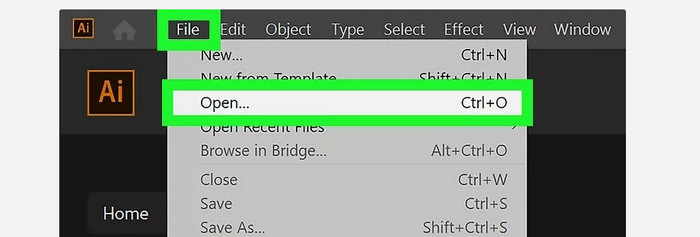
Pas 1. Descarrega Illustrator a l’ordinador. Pots utilitzar la versió de prova gratuïta si ho vols. Després del procés d’instal·lació, obre el programa. Ves al menú File > Open per afegir la imatge que vols vectoritzar.
Pas 2. En una finestra que apareixerà de nou, marca la casella Preview per veure la teva imatge en format vectorial en temps real.
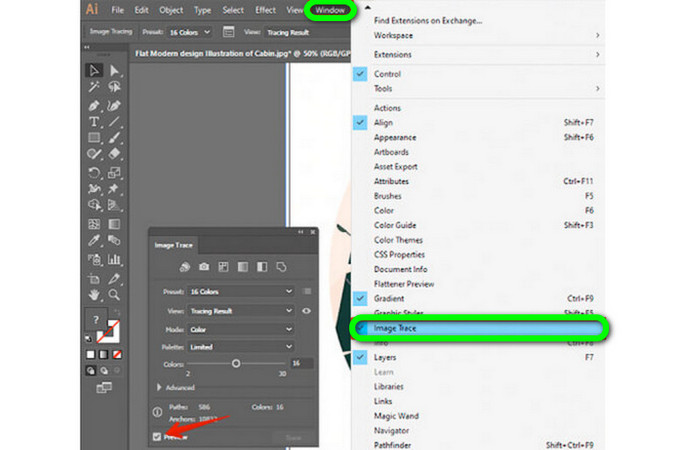
Pas 3. Seleccionar el mode és el següent pas per entendre com vectoritzar a Illustrator. Localitza l’opció desplegable Mode al panell Image Trace i selecciona el mode que s’adapti millor al teu disseny de la llista. Els modes possibles són escala de grisos, blanc i negre o color.

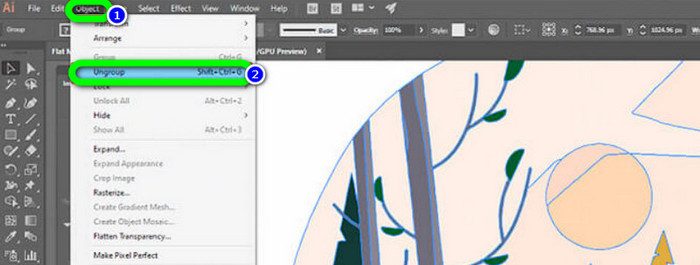
Pas 4. A continuació, fes clic amb el botó dret sobre la imatge. Tria Ungroup al menú desplegable de la pestanya Object. També es poden utilitzar les combinacions de tecles Shift+Ctrl+G/Shift+Cmd+G si prefereixes dreceres per a un accés més fàcil. A causa d’aquesta operació, les teves formes de color es dividiran en parts.
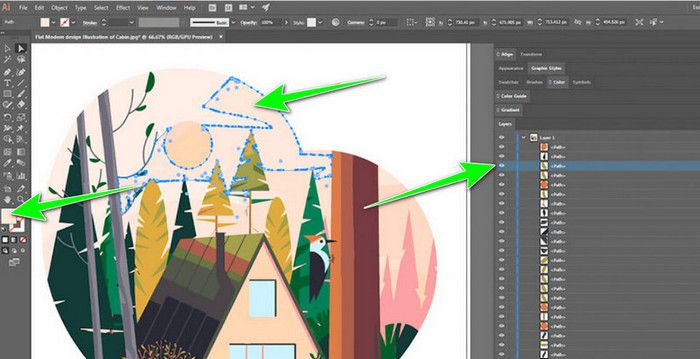
Pas 5. Pots modificar lliurement la imatge un cop finalitzada la conversió. Fes clic en una forma i, després, selecciona Select > Same > Fill Color per suprimir qualsevol grup de colors que vulguis.
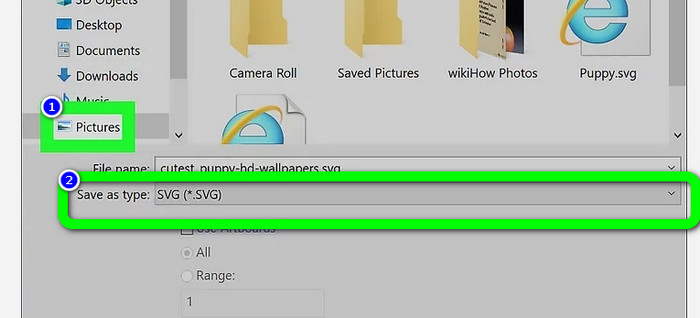
Pas 6. Finalment, desa la imatge com a fitxer vectorial. Ves a l’opció File > Save as. A continuació, selecciona el format de fitxer SVG.
Com vectoritzar una imatge a Photoshop
Adobe Photoshop va molt bé per vectoritzar una imatge. Té mètodes efectius que ho fan fàcil per a tots els usuaris. A més, pots vectoritzar una imatge en pocs passos. A més, Photoshop també és capaç d’editar imatges. Si vols editar imatges abans de desar-les, ho pots fer. Tanmateix, Photoshop té alguns inconvenients. Només ofereix una prova gratuïta de 7 dies. Després del període de prova, has de pagar un pla de subscripció. El procés d’instal·lació també és llarg.
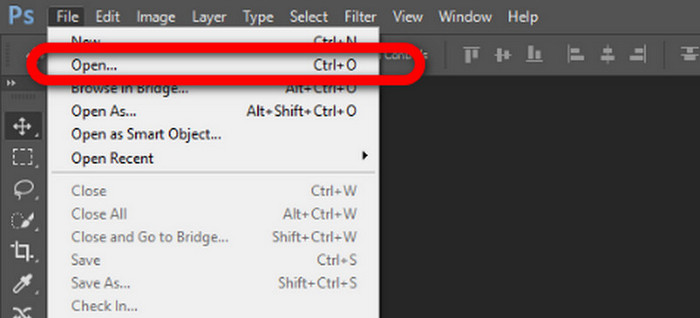
Pas 1. Obre Adobe Photoshop a l’ordinador. A continuació, ves al menú File i selecciona l’opció Open per afegir la imatge que vols vectoritzar.
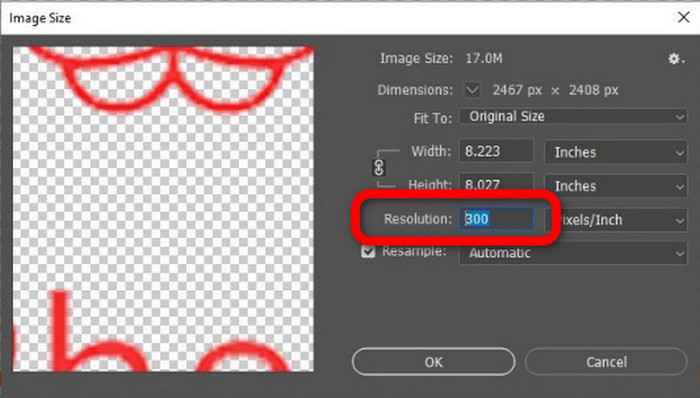
Pas 2. Prem Ctrl + Alt + I al teclat per obrir la finestra Image Size i ajusta la resolució a 300.
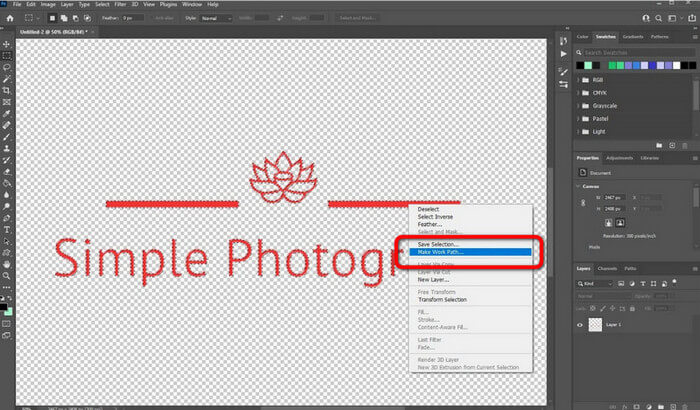
Pas 3. Mou el cursor per sobre de la selecció, tria l’eina Marquee del panell d’eines i fes clic amb el botó dret. Després, tria l’opció Make Work Path del menú.
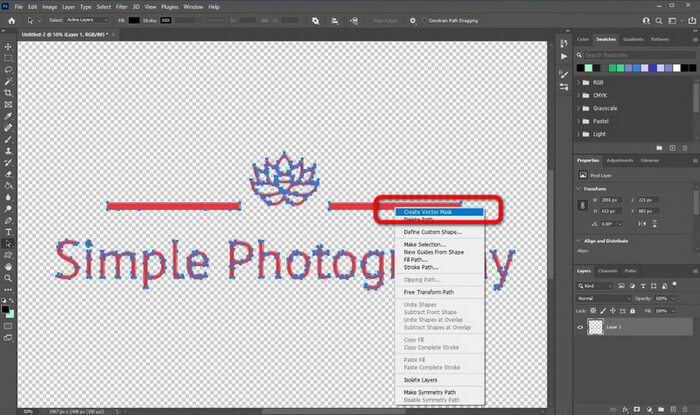
Pas 4. Després, prem Ctrl + A al teclat per activar l’eina Direct Selection. A continuació, fes clic amb el botó dret a la imatge i selecciona l’opció Create Vector Mask. D’aquesta manera, es crearà una màscara vectorial sobre la capa.
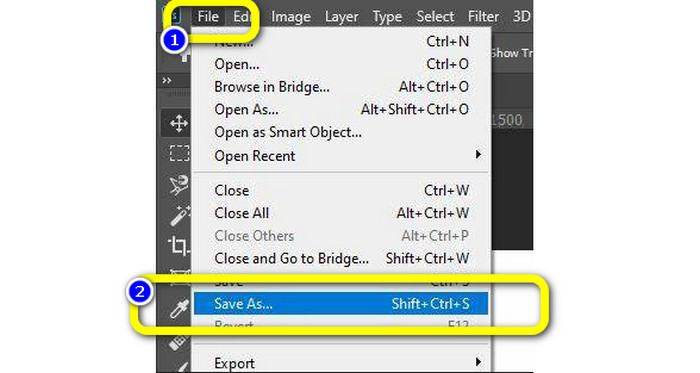
Pas 5. Per desar la imatge vectoritzada, ves al menú File i selecciona l’opció Save as.
Part 3. Com convertir imatges vectorials
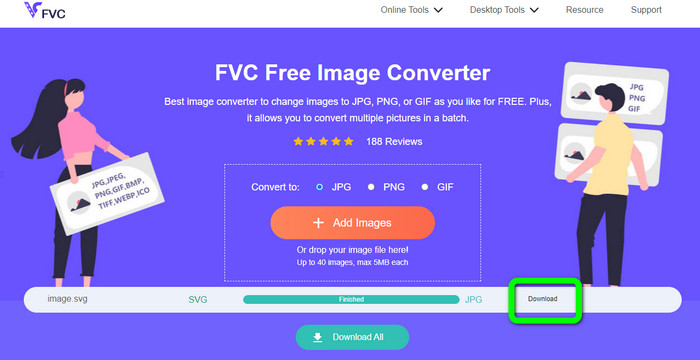
Un excel·lent convertidor d’imatges en línia és FVC Free Image Converter. Pot convertir gràfics vectorials a altres formats com JPG i PNG. La interfície d’usuari és excel·lent. Et pots concentrar en la conversió de fitxers perquè no conté anuncis que distreguin. A més, no és necessari instal·lar aquest convertidor. Es pot controlar directament des del navegador. A més, la qualitat de la imatge serà la mateixa que la del fitxer original després de la conversió. Ofereix una interfície i unes instruccions fàcils de seguir, ideals per als usuaris. També és possible convertir diversos fitxers d’imatge. Aquest convertidor d’imatges té la capacitat de fer conversions per lots. A més, pots descarregar nombrosos fitxers convertits amb un sol clic. També accepta fitxers d’entrada en diversos formats addicionals, com PNG, BMP, TIFF i GIF. Un dels aspectes positius d’aquesta eina és la manca d’anuncis molestos. Això permet assegurar que el producte final sigui agradable d’utilitzar i de veure. Amb FVC Free Image Converter, la teva privadesa està protegida. No desarà les teves dades després de desar la imatge.
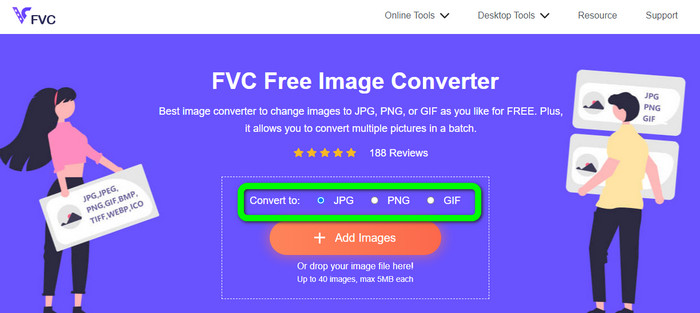
Pas 1. Ves al lloc web de FVC Free Image Converter. Ves a l’opció de conversió i selecciona el format de sortida desitjat.
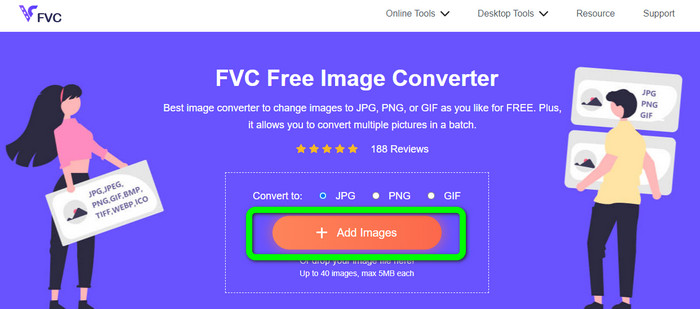
Pas 2. Fes clic al botó Add Images per pujar la imatge vectorial. Pots arrossegar la imatge dins del quadre.
Pas 3. Després de pujar la imatge vectorial, l’eina convertirà la imatge automàticament. A continuació, un cop acabat el procés de conversió, fes clic al botó Download.
Relacionat amb:
Mètodes senzills per convertir imatges a blanc i negre
Millors maneres de convertir imatges en enllaços [Mètodes complets]
Part 4. Preguntes freqüents sobre la conversió d'imatges a vector
1. Quins són els diferents usos de les imatges vectorials?
Hi ha moltes raons per les quals necessiteu utilitzar fitxers vectorials. Si teniu previst imprimir imatges, és millor posar la imatge en un fitxer vectorial. A part de la impressió, també és perfecte per a l'animació. Els usuaris l'utilitzen per a imatges fotograma a fotograma que requereixen menys potència de càlcul. A més, alguns dissenyadors utilitzen imatges vectorials per a tanques publicitàries i anuncis.
2. Quins són els principals tipus de formats d'imatge vectorial?
Els formats d'imatge vectorials principals són Scalable Vectors Graphics (SVG), Windows Metafile (WMF), Adobe Illustrator Artwork (AI), Encapsulated PostScript (APS) i Portable Document Format (PDF).
3. Necessito sempre un fitxer vectorial si tinc treballs de disseny fets?
No sempre. Hi ha maneres d'utilitzar diferents formats de fitxer. Però si necessiteu o no fitxers vectorials, en última instància, depèn del tipus de feina que hàgiu fet. Al final, si teniu un treball de disseny fet, discutiu els formats de fitxer amb el vostre dissenyador. D'aquesta manera, podeu reunir o generar els fitxers adequats si no estan disponibles.
4. Com convertir qualsevol imatge en una silueta vectorial en blanc i negre?
Per convertir la imatge a blanc-negre, podeu utilitzar Photoshop. Aneu al menú Fitxer i seleccioneu l'opció Obre per afegir la imatge. A continuació, a la interfície superior, feu clic al menú Imatge. Seleccioneu Ajusts > Llindar. Aleshores, apareixerà la finestra Llindar. A continuació, feu clic a D'acord.
Conclusió
Les imatges vectorials són ideals quan s’utilitzen per a anuncis, cartells publicitaris i més. Per això, l’article t’ha ensenyat els millors mètodes sobre com vectoritzar una imatge. També has après com convertir imatges vectorials a altres formats com JPG i PNG. Si vols vectoritzar una imatge i convertir imatges a altres formats, fes servir FVC Free Image Converter.
-
 Maneres fàcils d'entendre per convertir PSD a PNG o JPG
 Aquesta publicació us donarà passos manejables per convertir PSD a JPG o PNG. Hi ha diversos convertidors que podeu utilitzar per convertir els vostres fitxers. Llegeix més per saber-ho.
-
 Maneres provades de convertir TGA a PNG de manera fàcil però professional
 Consulteu aquestes guies per saber com convertir TGA a PNG mitjançant convertidors d'imatges en línia. Feu clic a l'article per conèixer tots els detalls de la conversió d'imatges.
-
 Tutorials incomparables per convertir imatges a format SVG
 Voleu convertir les vostres fotos al format de fitxer SVG? Aleshores, aquesta publicació us oferirà excel·lents convertidors que podeu utilitzar en línia, fora de línia i en dispositius mòbils.
