


 Video Converter Ultimate
 Gravadora de pantalla
 Reparació de vídeo
 Baixada segura
Solucions per tallar vídeos en línia [tutorials pas a pas]
Com pots escurçar el teu vídeo llarg? Si no saps quins són els millors mètodes que pots fer servir, tens un motiu per llegir aquesta guia. Al llarg d’aquest article, t’oferirem tota la informació essencial sobre com reduir la durada del teu vídeo. A més, et presentarem programes d’edició de vídeo en línia i fora de línia que pots utilitzar. D’aquesta manera, tindràs més oportunitats d’assolir el teu objectiu. Així doncs, sense més preàmbuls, llegeix aquest article i aprèn com retallar un vídeo en línia.

Part 1. Excel·lents mètodes per tallar vídeos en línia
1. InVideo
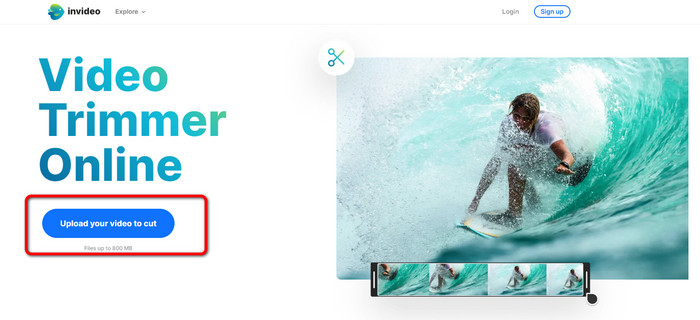
Una de les eines útils d'edició de vídeo que podeu trobar en línia és el retallador de vídeo InVideo. Aquest programari basat en web ofereix un disseny fàcil d'utilitzar. Després de visitar el lloc web, no cal que instal·leu l'eina. Tot el que heu de fer és afegir el vídeo i ja podeu procedir a retallar. A més, com que té un disseny senzill, també hi haurà un mètode entenedor. D'aquesta manera, tant si sou un usuari professional com si no, podeu utilitzar InVideo. A més, InVideo és accessible a gairebé totes les plataformes web. Podeu utilitzar l'eina a Google Chrome, Mozilla Firefox, Internet Explorer i més. Tanmateix, InVideo té alguns inconvenients. Quan utilitzeu la versió gratuïta, InVideo no pot oferir una alta qualitat de vídeo. A més, només pot oferir una qualitat de vídeo baixa, cosa que no és satisfactòria. Si voleu una qualitat de vídeo excel·lent, heu de comprar un pla de subscripció. Seguiu els passos següents per tallar o retallar el vostre vídeo amb el retallador de vídeo InVideo.
Pas 1. Obre el navegador i ves al lloc web oficial d’InVideo. Després, si ja ets a la pàgina, fes clic al botó Upload your video to cut. Quan aparegui la finestra d’arxius a la pantalla, selecciona el vídeo que vols retallar/tallar i obre’l.
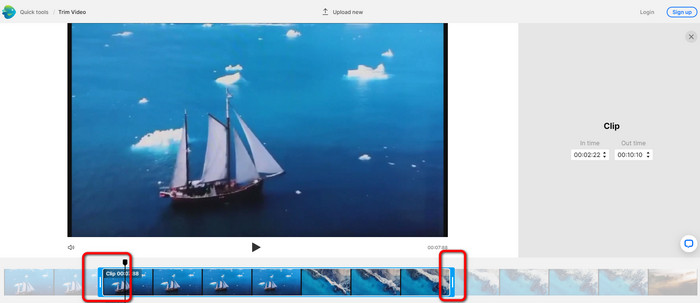
Pas 2. Després de seleccionar un vídeo, se’t dirigirà a la secció on el pots retallar. Per retallar el teu vídeo, mou els controls lliscants dels dos extrems del vídeo fins al minutatge que vulguis.
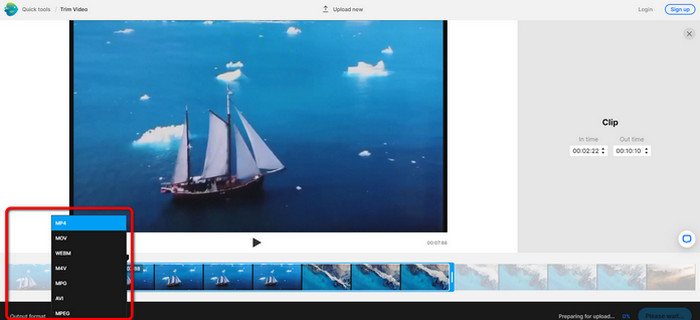
Pas 3. Quan hagis retallat el vídeo, el pots desar en diversos formats. Ves a l’opció Output Format a la part inferior esquerra de la interfície. A continuació, quan apareguin les opcions de format, selecciona el format de sortida que prefereixis. Després fes clic a Done.
Pas 4. Has de registrar un compte a InVideo o iniciar sessió amb un compte ja creat abans de poder desar el vídeo. El teu vídeo estarà disponible per desar-lo al cap d’uns segons, un cop hagis introduït les teves credencials.
2. Ezgif
Un altre retallador de vídeo en línia gratuït és Ezgif. Té passos senzills per escurçar un vídeo. Ezgif és una eina en línia gratuïta, així que no t’has de preocupar per gastar ni un cèntim. A més, pots accedir a l’eina en línia des de tots els navegadors, inclosos Google, Edge, Firefox, Explorer i més. No obstant això, l’eina en línia només admet GIF. Per tant, si penses retallar un vídeo amb un altre format, Ezgif no és l’eina adequada. A més, apareixen molts anuncis molestos a la pantalla quan utilitzes l’eina, cosa que resulta entrebancadora mentre edites un vídeo.
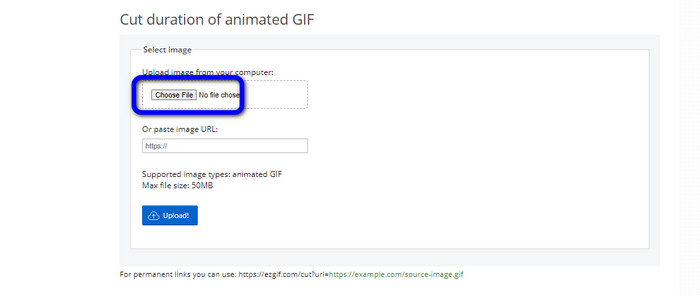
Pas 1. Ves al lloc web d’Ezgif i selecciona l’opció Cut.
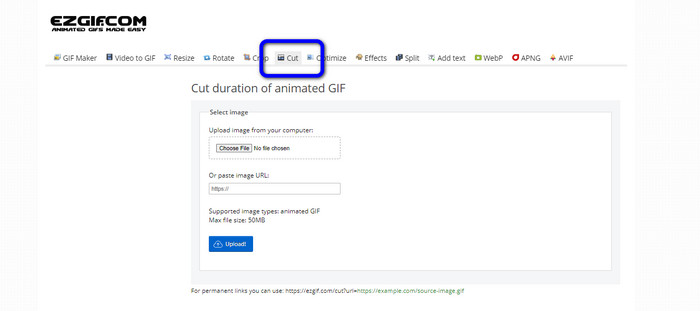
Pas 2. Després, fes clic al botó Choose File. A continuació, afegeix el fitxer GIF que vols pujar des de la carpeta de l’ordinador.
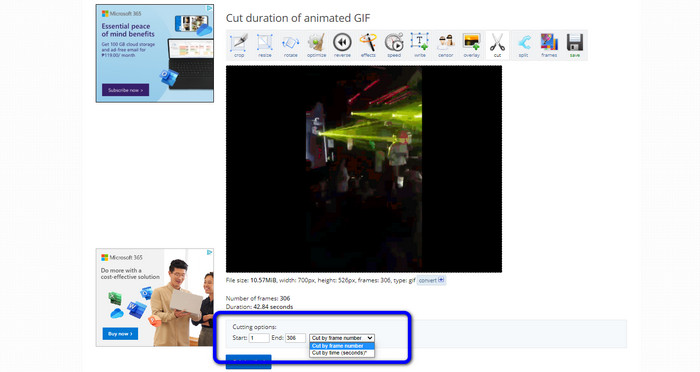
Pas 3. Un cop hagis pujat el fitxer GIF, ja el pots retallar. Hi ha dues maneres de retallar el fitxer GIF: pots retallar per número de fotograma o retallar per temps. Retalla’l segons la manera que prefereixis.
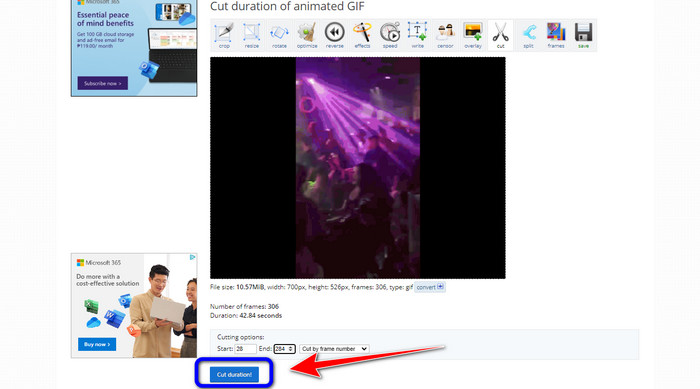
Pas 4. Fes clic al botó Cut Duration per començar el procés de retallada.
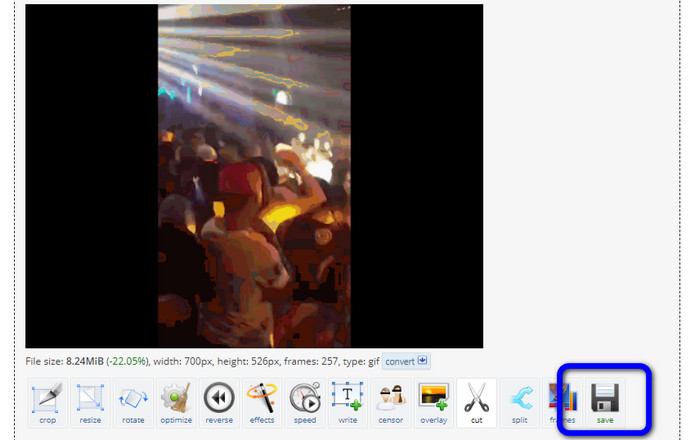
Pas 5. Després, apareixerà el GIF editat. Fes clic a l’opció Save per descarregar el resultat final a l’ordinador.
3. Kapwing
Per retallar el vídeo, també pots utilitzar el retallador de vídeo Kapwing. Aquesta eina basada en el web és capaç de tallar un vídeo amb un mètode sense complicacions. A més, pots accedir a l’eina des de diversos navegadors, com Chrome, Mozilla, Edge i altres. A més a més, Kapwing admet diferents formats de vídeo, com MP4, MOV, AVI, FLV, WEBM i més, cosa que la fa molt pràctica per a tots els usuaris. No obstant això, Kapwing té alguns desavantatges. Té anuncis molestos que apareixen constantment a la pantalla. A més, quan utilitzes la versió gratuïta només et permet pujar vídeos amb qualitat de 720p. També afegeix marques d’aigua molestes després d’editar el vídeo. Si vols obtenir el vídeo sense marques d’aigua i gaudir de més funcions avançades, cal que compris un pla de subscripció.
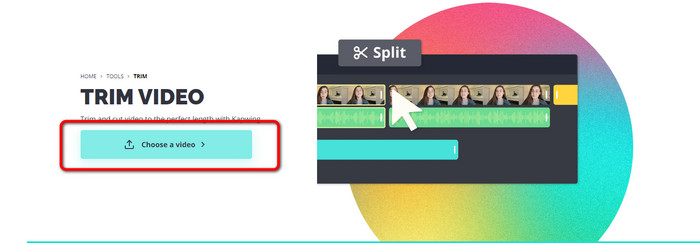
Pas 1. Ves al lloc web de Kapwing. Després, fes clic a l’opció Choose a video per accedir a la interfície principal de l’eina.
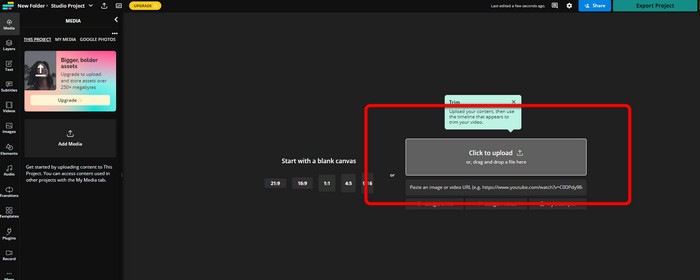
Pas 2. Fes clic al botó Click to upload per inserir el vídeo des de la carpeta d’arxius.
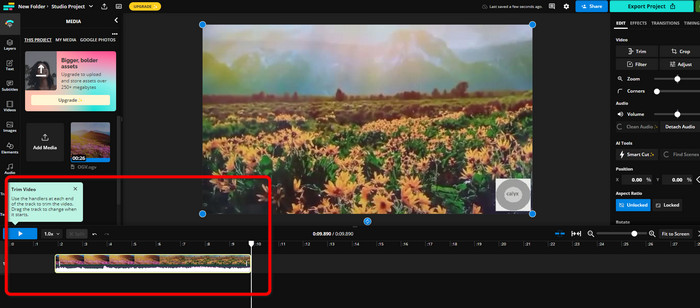
Pas 3. Quan el vídeo ja sigui a la línia de temps, pots fer clic als manejadors de cada costat per començar a retallar el vídeo.
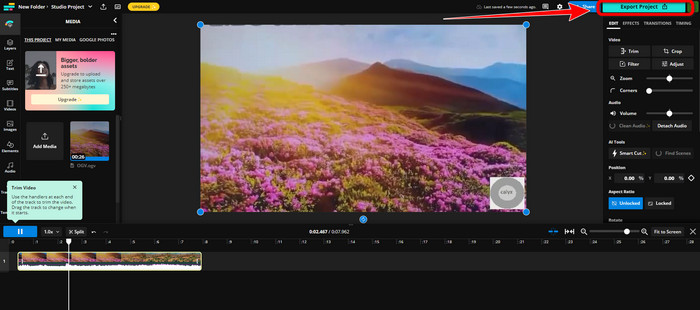
Pas 4. Quan hagis acabat, ves a la cantonada superior dreta de la interfície i fes clic al botó Export Project. D’aquesta manera, podràs desar el vídeo editat a l’escriptori.
Part 2. Manera alternativa de retallar el vídeo fora de línia
Fes servir Video Converter Ultimate per editar vídeos fora de línia de la millor manera possible. Aquesta eina et permet retallar i/o tallar el teu vídeo amb facilitat. També té una interfície senzilla amb una navegació clara, cosa que la fa ideal per a tot tipus d’usuaris. El teu resultat final també es pot desar en una varietat de formats, com MOV, AVI, MP4, MKV i d’altres. Hi ha més funcions que pots utilitzar quan retalles vídeos. Pots fer diversos ajustos desplaçant-te fins a les opcions de sortida. Pots modificar la freqüència de fotogrames, la resolució, el còdec, la qualitat del vídeo, etc. A més, Video Converter Ultimate no afegirà marques d’aigua al vídeo editat. D’aquesta manera, podràs veure el vídeo editat sense elements molestos. També tant els usuaris de Windows com de Mac poden accedir a Video Converter Ultimate, cosa que significa que el programa és pràctic tant per a Windows com per a Mac. Segueix les instruccions detallades que trobaràs a continuació per començar a retallar el vídeo.
Pas 1. Fes clic al botó de descàrrega de més avall per instal·lar Video Converter Ultimate a l’ordinador. Obre el programa després del procés d’instal·lació.
Descàrrega gratuïtaPer a Windows 7 o posteriorDescàrrega segura
Descàrrega gratuïtaPer a macOS 10.7 o posteriorDescàrrega segura
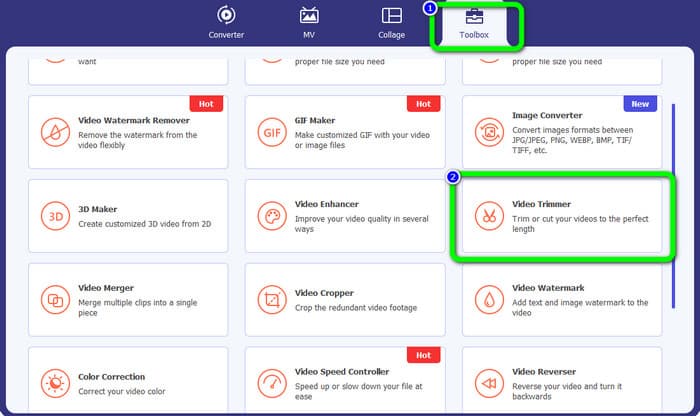
Pas 2. A la interfície, fes clic al menú Toolbox i selecciona l’eina Video Trimmer.
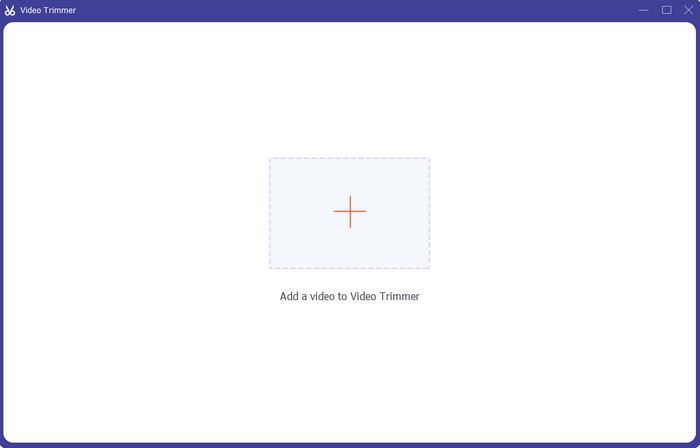
Pas 3. Quan la nova interfície aparegui a la pantalla, fes clic al signe Plus per inserir el vídeo que vols editar.
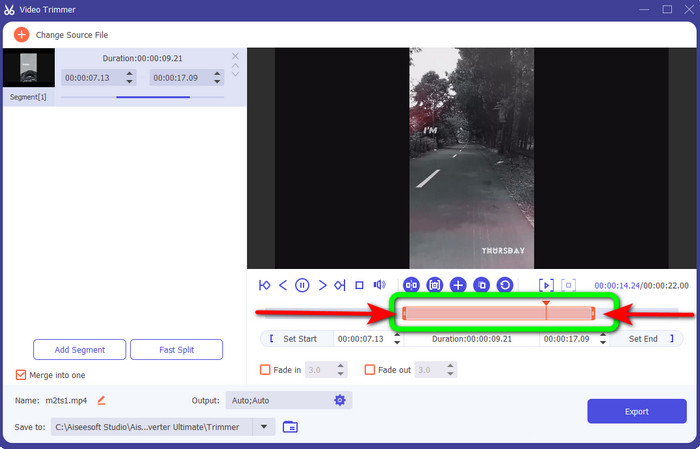
Pas 4. A continuació, ja pots començar a editar el vídeo en aquesta secció. Pots moure els extrems del clip per controlar com vols tallar/retallar el vídeo. Pots moure els extrems dret i esquerre segons les teves necessitats.
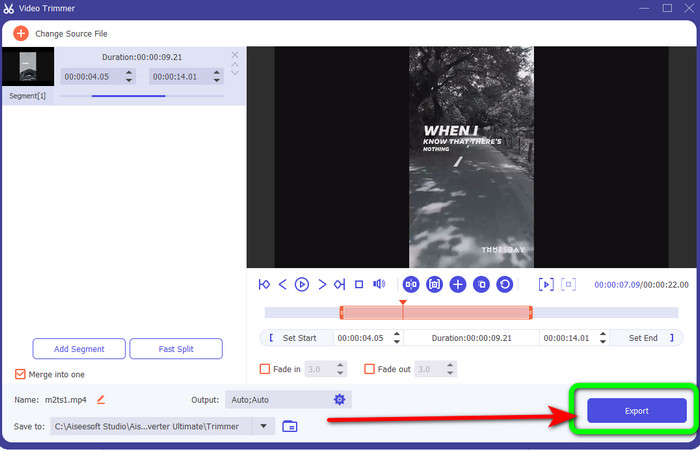
Pas 5. Quan estiguis satisfet amb el vídeo, fes clic al botó Export per iniciar l’exportació. Després, desa el teu vídeo final i editat.
Part 3. Preguntes freqüents sobre com tallar vídeos en línia
Com retallar un vídeo en un iPhone?
Després de començar, toqueu el vídeo que voleu editar a l'aplicació Imatges. Feu clic a Edita. Canvieu les hores d'inici i de parada arrossegant els controls lliscants a cada costat de la línia de temps del vídeo. Fes servir el botó de reproducció per veure una vista prèvia del vídeo editat. Trieu Desa el vídeo o Desa el vídeo com a clip nou després de seleccionar Fet.
Com tallar vídeos a Shotcut?
Arrossegueu el fitxer de vídeo a la línia de temps després d'importar-lo a Shotcut. Col·loqueu el capçal de reproducció al principi del segment que voleu retallar. A continuació, premeu la tecla de drecera I. Premeu la tecla O després d'avançar el capçal de reproducció fins a la conclusió de la secció. Ara el segment estaria separat de la resta del vídeo.
Quin és el millor programari per tallar fitxers MP4 fora de línia?
Si vols retallar fitxers MP4 fora de línia, fes servir Video Converter Ultimate. Aquest programa de descàrrega gratuïta et permet retallar fitxers MP4 sense complicacions.
Conclusió
Aquests són els millors mètodes per retallar un vídeo en línia. Pots fer servir totes les eines d’edició de vídeo esmentades anteriorment per retallar un vídeo. No obstant això, quan utilitzes una eina en línia, hi ha vegades que no funcionarà bé a causa d’una connexió a Internet deficient. En aquest cas, utilitza Video Converter Ultimate. Es tracta d’un programa descarregable que et permet editar vídeos sense connexió a Internet.
-
 [4 maneres] Com accelerar fàcilment els vostres vídeos en línia
 Vols accelerar un vídeo en línia? Llegiu aquest article per obtenir més informació sobre com accelerar un vídeo de diferents maneres possibles.
-
 Com tallar i combinar cançons en línia: 4 millors maneres que heu de conèixer
 Quan vulgueu retallar i combinar cançons en línia per crear una peça musical, podeu obtenir més informació sobre les 4 millors eines en línia per retallar les cançons i combinar fitxers de l'article.
-
 Descobriu el millor tallador MP4 amb procediment i informació
 Vols aprendre a tallar vídeos com els vloggers que veus? A continuació, continueu llegint aquesta publicació per saber quins retalladors MP4 podeu utilitzar.
