


 Video Converter Ultimate
 Gravadora de pantalla
 Reparació de vídeo
 Baixada segura
Com convertir FLAC a MP3: Guia per a la compressió d'àudio d'alta qualitat
Vols evitar que els teus fitxers d’àudio FLAC d’alta qualitat ocupin massa espai al dispositiu? Convertir-los al format MP3, àmpliament compatible, pot resoldre aquest problema sense sacrificar gaire la qualitat del so. En aquesta guia t’explicarem pas a pas el procés de convertir de FLAC a MP3. Parlarem de tot: des de les millors eines i consells per a una conversió eficient fins a com preservar al màxim la qualitat durant el procés. Gaudeix de les teves cançons preferides en qualsevol dispositiu sense preocupar-te per l’espai d’emmagatzematge.

1. FVC Video Converter Ultimate
FVC Video Converter Ultimate és un programari complet de conversió de vídeo que no només converteix diversos formats de vídeo, sinó que també admet la conversió d’àudio. És una solució tot en un per convertir, descarregar, editar i gravar vídeos i fitxers d’àudio. A més de les seves funcions de conversió de vídeo, FVC Video Converter Ultimate pot convertir fitxers d’àudio entre diversos formats, inclosa la conversió de FLAC a MP3. Ofereix compatibilitat amb una gran varietat de formats d’àudio, com ara WAV, AAC, M4A, WMA i molts altres. Per aprendre a utilitzar aquest convertidor de FLAC a MP3, segueix els passos següents.
Pas 1. Instal·la el programa
Primer, has de tenir el programa instal·lat a l’ordinador. Per fer-ho, fes clic en un dels botons de Baixada gratuïta per descarregar l’eina. Després, segueix l’assistent d’instal·lació per instal·lar-la. A continuació, obre-la a l’ordinador per veure’n la interfície real.
Descàrrega gratuïtaPer a Windows 7 o posteriorDescàrrega segura
Descàrrega gratuïtaPer a macOS 10.7 o posteriorDescàrrega segura
Pas 2. Afegeix un fitxer FLAC o MP3
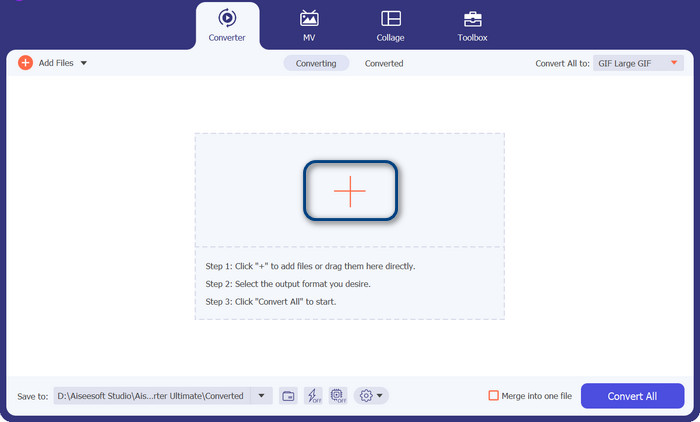
Si voleu convertir MP3 a FLAC o viceversa, afegiu un fitxer d'àudio prement el botó del signe més de la interfície principal. Podeu seleccionar un o més fitxers d'àudio com vulgueu. Després, hauríeu de veure la seva miniatura des de la interfície principal.
Pas 3. Especifica el format de sortida
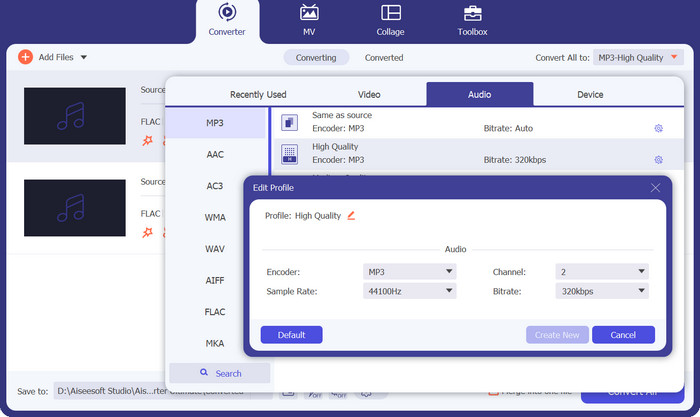
Ara, fes clic al menú Profile al menú de la part superior dreta de l’eina. Un cop desplegat, selecciona la pestanya Audio i busca MP3. Per convertir de MP3 a FLAC, tria el format FLAC com a fitxer de sortida. De manera opcional, pots editar els paràmetres de sortida segons les teves preferències.
Pas 4. Converteix a FLAC
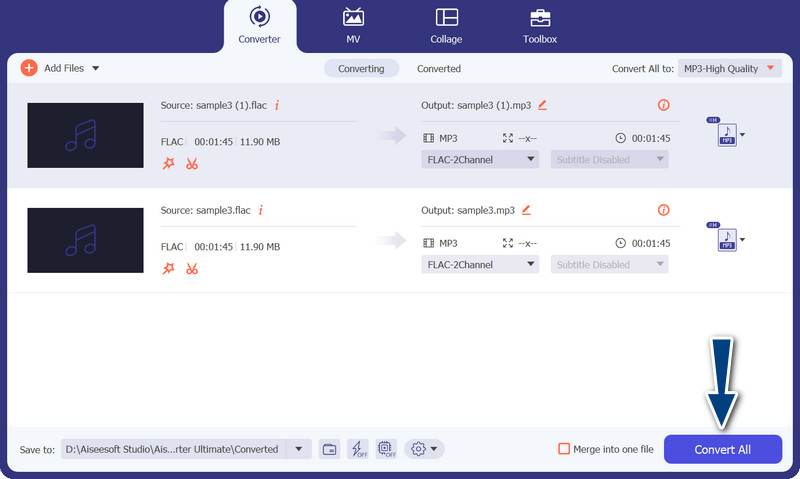
Ara, estableix la carpeta de sortida on vols desar els fitxers resultants. Es troba a la part inferior de la interfície. Fes-hi clic i especifica la carpeta de sortida. Ara que tot està a punt, prem el botó Convert All per començar la conversió. Així és com s’utilitza aquest convertidor de MP3 a FLAC o de FLAC a MP3.
Pros
- Proporciona una interfície fàcil d'utilitzar i eines fàcils d'utilitzar per convertir.
- El programari inclou funcions per editar vídeos.
- Velocitat de conversió ràpida sense comprometre la qualitat.
Contres
- És un convertidor de FLAC a MP3 de pagament.
- La qualitat de la conversió pot variar segons la font.
2. Convertidor de vídeo gratuït en línia
Si busques un programa gratuït i vols aprendre com convertir FLAC a MP3 en línia, hauries de considerar l’ús de Free Video Converter Online. Tal com indica el nom, ajuda els usuaris a convertir els seus fitxers de vídeo o àudio sense cap cost. A més, et dona llibertat per editar el resultat segons les teves preferències. A sobre, la velocitat de conversió no es queda enrere. Sempre que tinguis accés a internet, pots esperar obtenir el resultat desitjat. Descobreix com funciona aquesta eina gratuïta de conversió de FLAC a MP3 seguint la guia pas a pas a continuació:
Pas 1. Obre un navegador web i ves al convertidor de vídeo en línia que prefereixis.
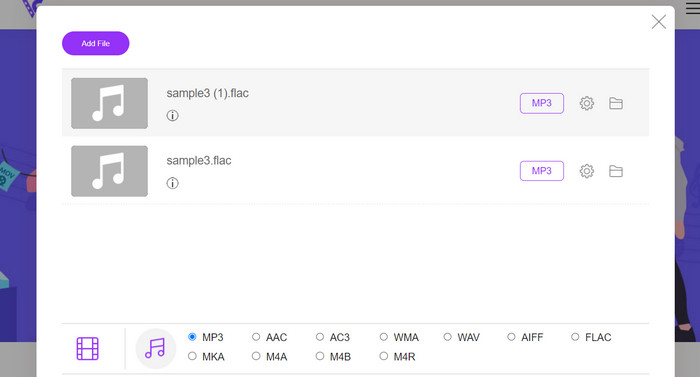
Pas 2. En fer clic a Add Files to Convert podràs pujar el fitxer FLAC que vols convertir de FLAC a MP3.
Pas 3. De la llista de formats possibles, selecciona MP3 com a format de sortida al menú de formats Audio. Després, tria el bitrate o la qualitat de sortida desitjada per al fitxer MP3.
Pas 4. Per iniciar el procés de conversió, fes clic al botó Convert. Potser hagis d’esperar uns quants minuts fins que acabi la conversió, en funció de la mida del fitxer i de la velocitat de la teva connexió a internet.
Pros
- Accediu al millor convertidor gratuït de FLAC a MP3 en qualsevol moment.
- Requereix una experiència tècnica mínima.
- Pot estalviar temps i espai d'emmagatzematge en un ordinador.
Contres
- No ofereix el mateix nivell de personalització que el programari d'escriptori.
- Requereix una connexió a Internet estable i ràpida.
Part 2. Converteix FLAC a MP3 o MP3 a FLAC al mòbil
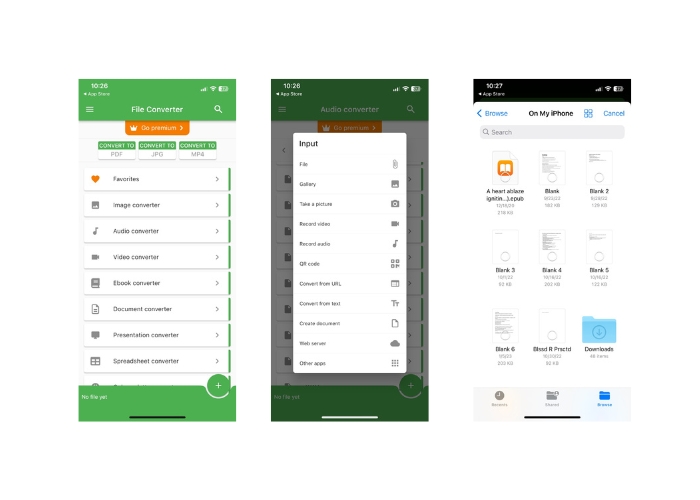
File Converter és una aplicació mòbil gratuïta disponible per a dispositius iOS que us permet convertir diversos formats de fitxer, inclosos fitxers d'àudio i vídeo. L'aplicació ofereix una interfície senzilla i fàcil d'utilitzar que us permet convertir fitxers sense necessitat de cap programari addicional. L'aplicació admet una àmplia gamma de formats d'àudio i vídeo, com ara FLAC, MP3, WAV, M4A i molt més.
Això significa que podeu convertir fàcilment els vostres fitxers d'àudio i vídeo des d'un format sense cap molèstia. Una de les característiques més destacades de File Converter és la seva capacitat per convertir FLAC a MP3 per lots. Això vol dir que podeu convertir diversos fitxers alhora, estalviant-vos temps i esforç.
Pas 1. Des de l’App Store, descarrega i instal·la l’aplicació File Converter. Obre l’app i selecciona l’opció Audio.
Pas 2. De la llista d’opcions disponibles de conversió d’àudio, tria FLAC to MP3.
Pas 3. Per afegir els fitxers FLAC que vols convertir, utilitza el botó +. Després d’afegir els fitxers, si vols, pots canviar els paràmetres de conversió. La qualitat de sortida, el bitrate i altres opcions es poden configurar.
Pas 4. Per iniciar el procés de conversió, toca una última vegada el botó Convert. Els fitxers MP3 convertits s’emmagatzemaran localment al teu dispositiu.
Pros
- Pot convertir diversos fitxers alhora.
- El procés de conversió és relativament ràpid.
Contres
- Té un límit de mida de fitxer de 250 MB.
- No ofereix opcions avançades.
Lectures relacionades:
WAV a MP3 – Els 5 millors convertidors gratuïts per convertir WAV a MP3
Els 3 millors editors de metadades FLAC per a Mac i Windows [Actualitzat 2023]
Part 3. Preguntes freqüents sobre la conversió de FLAC i MP3
Puc convertir FLAC a MP3 al Mac?
Si, tu pots. Si teniu iTunes instal·lat al vostre Mac, podeu utilitzar-lo per convertir fitxers FLAC a MP3. Simplement importeu els fitxers FLAC a iTunes, trieu els fitxers que voleu convertir i, a continuació, aneu a Fitxer > Converteix > Crea una versió MP3. Els fitxers MP3 convertits es desaran a la vostra biblioteca d'iTunes.
Pot l'Audacity batch convertir FLAC a MP3?
Sí, l'Audacity pot convertir per lots fitxers FLAC a MP3 al Mac. Per fer-ho, primer, obriu Audacity i creeu una cadena d'edició que inclogui les ordres d'exportació múltiples. Als quadres de diàleg Exporta múltiples, configureu el tipus de fitxer a Fitxers MP3 i configureu les opcions d'exportació MP3 al vostre gust.
La conversió de FLAC a MP3 afectarà la qualitat de l'àudio?
Sí, convertir FLAC a MP3 implica una certa pèrdua de qualitat d'àudio, ja que MP3 és un format de compressió amb pèrdues. Tanmateix, amb un bon codificador i una configuració adequada, podeu minimitzar la pèrdua de qualitat i, tot i així, acabar amb un fitxer MP3 amb un so decent.
Conclusió
La conversió de FLAC a MP3 pot ser una manera pràctica de fer que els grans fitxers d’àudio siguin més manejables, tot i mantenint una qualitat de so força bona. Amb tantes eines disponibles per fer aquesta tasca, incloent-hi programari d’escriptori i aplicacions mòbils, els usuaris poden trobar fàcilment una solució adequada a les seves necessitats. Tanmateix, és important tenir en compte que convertir d’un format sense pèrdues a un format amb pèrdues com MP3 comporta inevitablement certa pèrdua de qualitat d’àudio, i els usuaris haurien de valorar els avantatges i inconvenients dels diferents mètodes de conversió abans de continuar. En general, amb la cura adequada i parant atenció als detalls, convertir FLAC a MP3 pot ser una manera efectiva de gestionar grans fitxers d’àudio.
-
 Descàrrega de reproductor de MP3: els 10 millors reproductors de música MP3 gratuïts del 2023
 Quin és el millor reproductor de música MP3? Com puc posar música a un reproductor de MP3? Com es pot baixar el reproductor de música MP3? Aquesta publicació us proporciona una revisió detallada dels 10 millors reproductors MP3 gratuïts per a PC amb Windows i Mac.
-
 Tutorial pràctic sobre com convertir vídeos a format MP3
 Tens problemes per convertir vídeos a MP3? Aleshores, heu de confiar en aquest escrit mentre investiguem quin convertidor ofereix la millor conversió.
-
 5 talladors de MP3 per tallar qualsevol àudio fàcilment [Actualitzat el 2023]
 Necessites un tallador de MP3 per retallar l'àudio? En aquest cas, llegiu aquest article perquè oferim les eines de les quals podeu confiar que us proporcionen un tall fàcil de l'àudio.
