


 Video Converter Ultimate
 Gravadora de pantalla
 Reparació de vídeo
 Baixada segura
Com canviar la mida dels GIF mitjançant programes fiables i actualitzats
Els GIFs són un tipus d’imatge molt popular, però de vegades hi ha elements que no són adequats per al consum multimèdia, com ara barres negres, una relació de mida de pantalla petita i molts més. Com a resultat, molts usuaris volen trobar un programa amb el qual puguin redimensionar els seus GIFs fàcilment. Aquí és on els programes per redimensionar GIFs resulten molt útils. Dona un cop d’ull a les nostres recopilacions d’apps i consells sobre com utilitzar aquestes aplicacions per al redimensionament de GIFs. Això ajudarà usuaris com tu a entendre-ho millor i et donarà una base sobre les aplicacions.

Part 1: Per què canviar la mida d'un GIF
Canviar la mida d'un GIF és una tasca divertida i terrible al mateix temps. Sense la disponibilitat d'aplicacions o programes per utilitzar, simplement optimitzar els GIF és una tasca impossible. Aleshores, per què canviar la mida del GIF? Un GIF té una proporció de mida fixa quan es crea, per aquest motiu, quan algú t'envia un GIF, és possible que no encaixi bé a la teva pantalla o que tingui una qualitat baixa. És per això que molts usuaris canvien la mida dels seus GIF en línia.
Consells per redimensionar GIFs:
◆ Utilitzeu aplicacions i programari de confiança
◆ Coneix el resultat desitjat
◆ No produïu mai un nombre de píxels inferior a 720×1280p
Part 2. Com canviar la mida d'un GIF a l'escriptori utilitzant aplicacions efectives
1. Video Converter Ultimate
Video Converter Ultimate és l’eina definitiva per a qualsevol tasca que puguis imaginar. Aquesta aplicació permet redimensionar qualsevol GIF sense estrès, sense perdre qualitat de píxel de la imatge i proporcionant una bona recomanació de relació de píxels. Ofereix els millors GIFs animats optimitzats que vulguis redimensionar. Per tant, és una aplicació fiable i pràctica que pots utilitzar per editar els teus GIFs.
Pas 1. Aconsegueix i instal·la l’aplicació
Primer de tot, descarrega el programa fent clic al botó Descàrrega gratuïta que trobaràs a continuació. Quan s’hagi completat la descàrrega, instal·la’l a l’ordinador. Només has de fer clic a l’enllaç d’acord amb el teu dispositiu. Després de la instal·lació, familiaritza’t amb l’aplicació per poder navegar fàcilment per l’eina.
Baixada gratuïtaPer a Windows 7 o posteriorBaixada segura
Baixada gratuïtaPer a macOS 10.7 o posteriorBaixada segura
Pas 2. Inicia l’eina
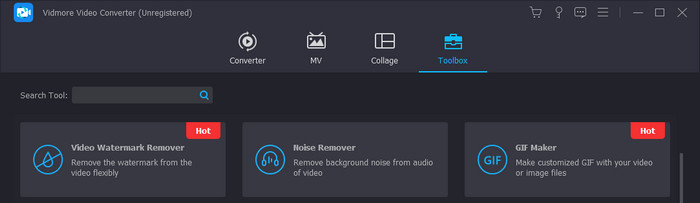
Obre l’app Video Converter Ultimate al teu PC i fes clic a l’opció Caixa d’eines. A continuació, selecciona GIF Maker o simplement cerca-ho. En triar aquesta opció, permetrà als usuaris redimensionar un GIF sense esforç.
Pas 3. Selecciona el procés
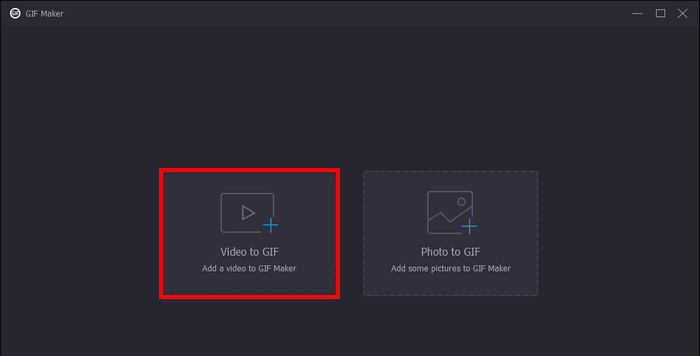
Després de fer clic a GIF Maker, ja pots triar quin procés vols fer. Selecciona Vídeo a GIF. Això et permetrà importar el teu fitxer GIF per redimensionar-lo. Importa els teus fitxers seleccionant-los des de la carpeta del directori.
Pas 4. Redimensiona i genera el GIF
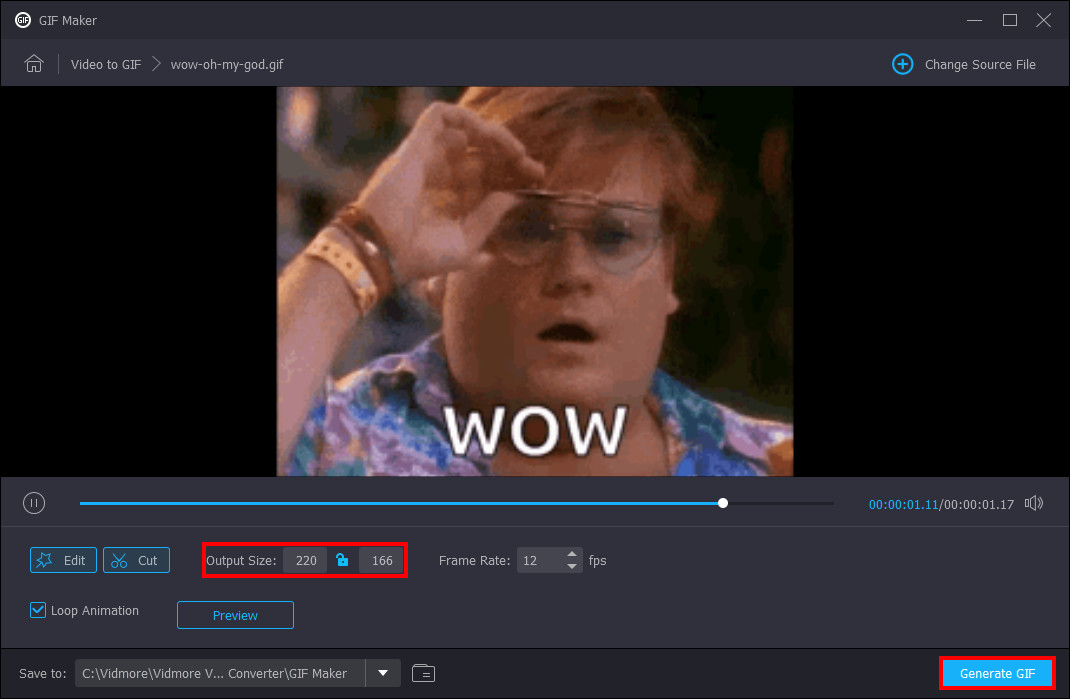
Finalment, ja pots ajustar la mida del teu GIF. Redimensiona’l introduint la mida desitjada al panell de mida que hi ha sota del teu GIF. Després de redimensionar el GIF, ja el pots desar i generar. Només cal que facis clic al botó Generate GIF a l’angle inferior dret de l’aplicació.
2. Photoshop
Photoshop és una aplicació creada per editar i dissenyar imatges. I ara, els usuaris també utilitzen Photoshop per canviar la mida i retallar imatges. Aquesta aplicació també pot fer que els GIF siguin més petits per a una millor gestió del disc.
Pas 1. Després d’encendre l’ordinador, fes clic amb el botó dret al teu fitxer GIF, selecciona Obre amb i fes clic a Photoshop.
Pas 2. A continuació, selecciona les teves imatges. Finalment, prem Ctrl + T al teclat. Aplica la mida desitjada al teu GIF arrossegant-ne la mida.
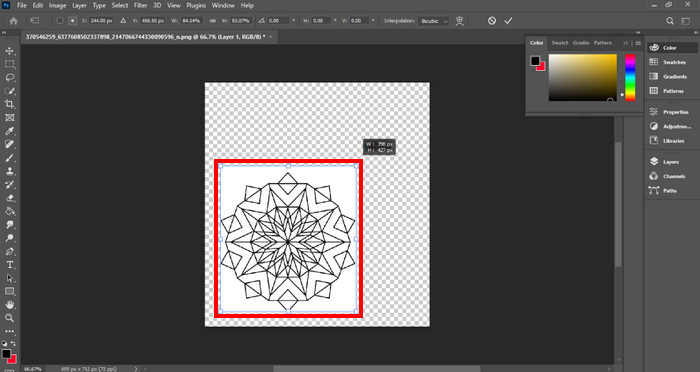
Pas 3. Després de redimensionar el GIF, només has de seleccionar OK per aplicar tots els canvis realitzats.
3. Vista prèvia
Preview és una aplicació preinstal·lada al sistema operatiu Mac. Creat per editar i visualitzar. La vista prèvia fins i tot té les eines per fer que els GIF tinguin una mida de fitxer més petita. Només és exclusiu per a portàtils i ordinadors de sobretaula Mac.
Pas 1. En engegar el teu Mac, obre el fitxer fent-hi clic amb el botó dret. Després, fes clic a Obre amb i selecciona l’app Vista prèvia.
Pas 2. Després d’importar el GIF, selecciona Eines a la barra de menú superior i tria Ajusta la mida per redimensionar el GIF animat. Aquí pots ajustar l’Amplada i l’Alçada del teu GIF. Edita-ho segons les teves preferències.
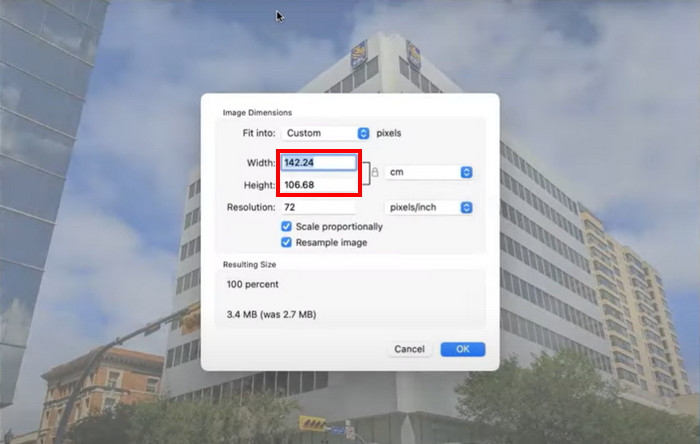
Pas 3. Fes clic a OK per aplicar tots els canvis que vulguis. Després, prem cmd + S per desar el GIF editat.
Part 3. Com fer un GIF més petit amb les 5 millors eines gratuïtes en línia
1. EZGIF
Aquest programa és un programa en línia que és beneficiós per a aquells que no tenen prou espai als seus dispositius. Però podria ser una molèstia per als usuaris que no tenen Internet a casa seva. EZGIF inclou eines de canvi de mida i efectes que poden alterar i canviar la mida dels GIF amb uns quants clics. Equipat amb eines de retall avançades que faran que el vostre procés d'edició sigui molt més eficient.
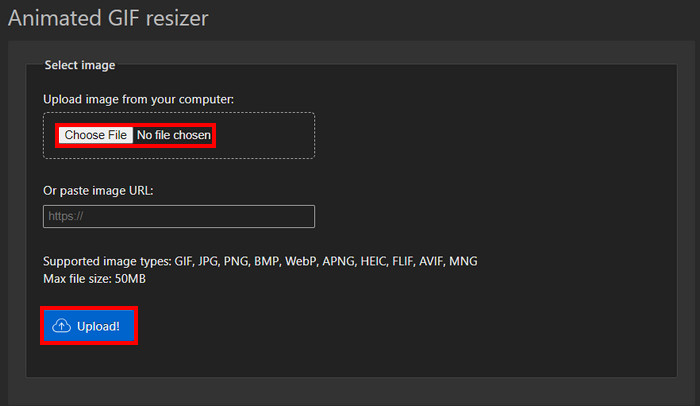
Pas 1. En obrir l’enllaç, veuràs opcions relacionades amb GIFs. Fes clic a Resize, això et permetrà pujar la teva imatge. Fes clic al botó Upload després de seleccionar els teus fitxers.
Pas 2. Després de pujar els teus GIFs, ja en pots editar i manipular la mida. Només cal que introdueixis la mida desitjada als panells d’Amplada i Alçada.
Pas 3. Quan acabis d’editar el GIF, ja el podràs descarregar. Només cal que facis clic a Convert, i es descarregarà el GIF automàticament.
2. Veed.io
Veed.io és un programa basat en web que pot reduir la mida dels GIF amb només unes quantes marcades d'un botó. Proporciona efectes exclusius que els usuaris poden aplicar als seus fitxers GIF. Els usuaris passaran una estona divertida editant en aquest programa basat en web.
Pas 1. Quan entris al lloc, hi haurà un gran botó Try It, fes-hi clic. Això et portarà a una altra pàgina on podràs pujar el teu GIF.
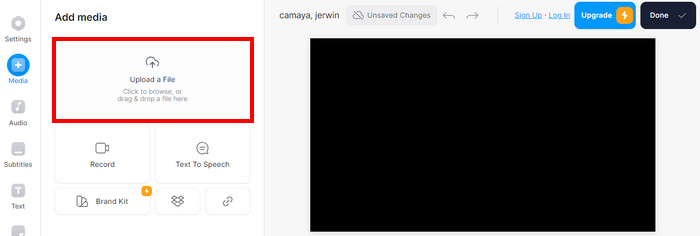
Pas 2. Puja el fitxer fent clic al gran botó Upload. Això et portarà a la carpeta del teu directori on podràs seleccionar el teu GIF.
Pas 3. Per redimensionar el GIF, ajusta el deslitzador que hi ha a prop de la teva foto. Després d’ajustar la mida desitjada per al GIF, ja el podràs descarregar fent clic a Done i Download.
3. Canva
Canva és una eina en línia que inclou moltes plantilles per a GIF i presentacions. El canvi de mida dels fitxers GIF s'ha facilitat amb el programari que inclou. Compactat amb moltes plantilles que canvien la mida dels GIF.
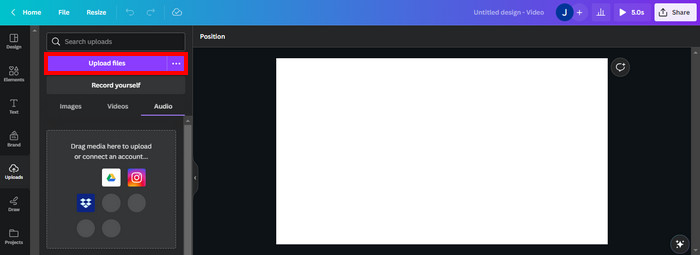
Pas 1. Obre Canva al navegador i fes clic a Create Design per crear un nou disseny. Després, importa el GIF que vols redimensionar fent clic a Upload File.
Pas 2. En aquesta part, Canva mostrarà els ajustos que pots modificar per editar el GIF. Fes clic a Resize per veure i seleccionar quines opcions de mida hi ha disponibles per al teu GIF.
Pas 3. Després de seleccionar la mida del GIF, ja la pots aplicar fent clic a Done. Això et portarà a una altra pestanya on podràs descarregar el GIF fent clic al botó Download a l’angle superior dret.
4. RedKetchup - GIF Resizer
RedKetchup es crea com una eina basada en web que pot canviar la mida i modificar les mides GIF per a la creació de contingut. Amb eines útils per canviar la mida dels GIF, és una eina fiable i còmoda que s'utilitza per canviar la mida dels GIF.
Pas 1. En entrar al lloc, veuràs les eines disponibles. Fes clic a Image Resizer, aquesta eina et permetrà redimensionar el GIF gratuïtament.
Pas 2. Després de seleccionar Image Resizer, fes clic a Upload per pujar el teu GIF. Això et portarà a una altra carpeta on podràs veure els teus fitxers GIF.
Pas 3. Després de pujar el GIF, baixa fent scroll i veuràs un panell on podràs introduir la mida desitjada. Introdueix la mida que vulguis.
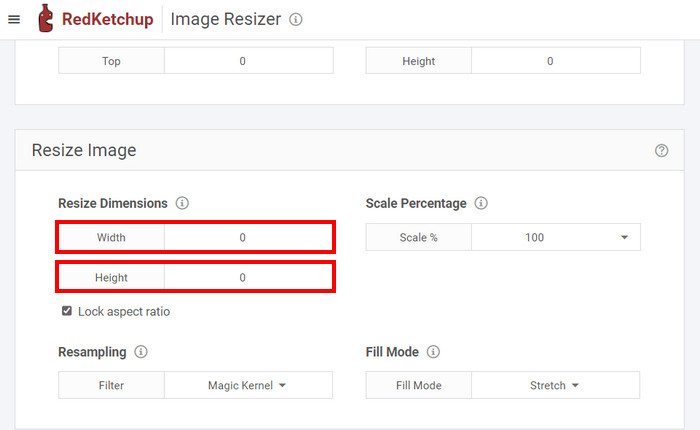
Pas 4. Després de canviar la mida del GIF, ja el pots descarregar desplaçant-te fins a la part inferior. Ara fes clic a Download per descarregar el GIF.
5. Iloveimg.com - Canvia la mida del GIF
Iloveimg.com té una utilitat que us ajuda a aprendre a optimitzar la mida del fitxer GIF. És un programa exclusiu d'Internet que podeu utilitzar per modificar la mida de les vostres imatges GIF.
Pas 1. En obrir el lloc en línia, es mostren les eines disponibles. Fes clic a Resize Image per redimensionar el teu GIF.
Pas 2. En aquesta part, pots pujar el fitxer GIF fent clic a Select Image. Això farà que s’obri una altra finestra de carpeta i t’obligarà a triar el fitxer GIF per pujar-lo.
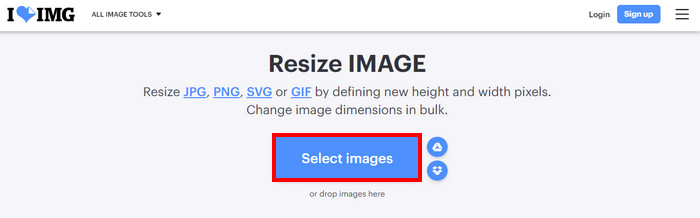
Pas 3. Després de la pujada, redimensiona el GIF introduint la mida desitjada als panells d’Amplada i Alçada a la banda dreta. Per descarregar el fitxer, fes clic a Resize Images.
Part 4. Com canviar la mida dels GIF a iPhone i Android
1. GIF Mini: Editor de GIF
GIF Mini: GIF Editor és una aplicació fiable per canviar la mida i comprimir GIF. Aquesta aplicació està disponible a Android i consta de moltes eines fiables per crear i manipular GIF que es poden utilitzar per canviar la mida d'un GIF per als emojis de discordia.
Pas 1. En obrir l’aplicació, veuràs els teus fitxers de la galeria. Selecciona el GIF que vols redimensionar.
Pas 2. Després de seleccionar el fitxer, fes clic a la icona del llapis a l’angle superior dret de l’app. Això mostrarà la mida de la imatge i et permetrà redimensionar-la. Fes clic a la mida del teu GIF i introdueix la mida desitjada.
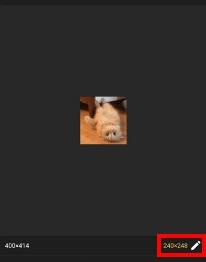
Pas 3. Després de redimensionar, ja pots desar. Fes clic al botó Save.
2. Editor de GIF ràpid: retalla, canvia la mida
Quick GIF Editor és una aplicació exclusiva per a dispositius iOS. Compilat amb opcions d'edició ràpida on una IA pot eliminar el fons del vostre GIF amb un conjunt exclusiu d'eines. Els usuaris no hauran de buscar un tutorial en línia sobre com fer un GIF més petit.
Pas 1. Obre l’app i fes clic a Select Image. Això importarà la imatge seleccionada.
Pas 2. Redimensiona la teva foto fent clic al panell d’Amplada i Alçada sota la foto. Redimensiona fins que estiguis satisfet.
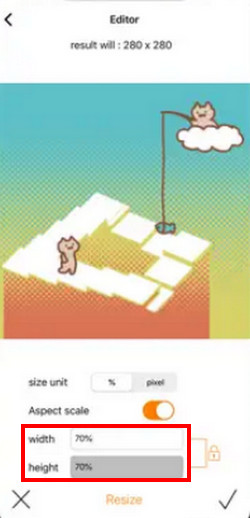
Pas 3. Finalment, ja estàs llest per desar el GIF. Fes clic al botó Save/Upload a l’angle superior dret de l’app.
Lectures relacionades:
Tria el millor tallador de GIFs en línia i fora de línia per retallar GIFs [2023]
[Gratuït i de pagament] Canviador de velocitat de GIF: seleccions destacades del 2023
Part 5. Preguntes freqüents sobre com canviar la mida d'un GIF
L'iPhone té dreceres per canviar la mida dels GIF?
No, però pots baixar una aplicació per canviar la mida dels teus GIF.
Quina és la millor mida GIF per a Discord?
128 × 128 píxels és la millor mida GIF per a Discord. Superar això no és possible perquè aquesta també és la mida màxima per als GIF a Discord.
Com afecta el canvi de mida a la mida del fitxer d'un GIF?
Canviar la mida del GIF pot tenir resultats diferents pel que fa a la mida del fitxer. Si esteu augmentant un GIF, pot augmentar la mida del fitxer però reduir-ne la qualitat. En reduir-lo, es podria reduir la mida del fitxer.
Què passa si canvio la mida d'un GIF que té transparència?
Tindria la mateixa transparència, però tindria una cobertura de transparència més petita si la reduïu. El mateix passaria si l'ampliessis.
Quina és la mida GIF ideal per als usuaris web?
La millor mida GIF és 720p i la mida recomanada més baixa és 480p.
Conclusió
Redimensionar un GIF ha estat una part important per a les persones que utilitzen internet. Pot ser una tasca complicada quan comences a provar d’editar el teu primer GIF. Per això s’ha creat aquest article. Perquè la gent que vulgui editar els seus GIFs sàpiga que és possible redimensionar un GIF a Photoshop o amb Video Converter Ultimate.
-
 Tutorial per comprimir GIF i reduir la mida del fitxer amb alta qualitat
 Aquí'hi ha 2 maneres fàcils de comprimir GIF. Podeu utilitzar FVC Free Online Video Compressor i Photoshop per reduir la mida del fitxer GIF en diferents aspectes.
-
 Les 3 millors maneres d'afegir filtres a GIF amb els millors editors de GIF [Preferit]
 Vols saber com afegir un filtre a GIF per millorar-lo? En aquest bloc, aprendràs fàcilment les diferents tècniques per afegir filtres als teus GIF.
-
 Els 4 millors ampliadors GIF fora de línia i en línia que no us podeu perdre
 Aquesta publicació és per a tu si esteu buscant els millors ampliadors de GIF. Hem enumerat els ampliadors GIF en línia i fora de línia de millor rendiment per al vostre ordinador.
