


 Video Converter Ultimate
 Gravadora de pantalla
 Reparació de vídeo
 Baixada segura
Una guia completa per exportar iMovie a MP4
iMovie és una de les eines d’edició de vídeo més usades i populars desenvolupada per Apple per a usuaris de Mac, iPhone i iPad. Aquesta eina disposa d’un bon conjunt de funcions d’edició que qualsevol editor voldria tenir. Però, d’altra banda, hi ha un aspecte amb què els usuaris solen tenir dificultats. Els vídeos d’aquesta eina s’exporten en format MOV. Aquest format per defecte pot comportar limitacions pel que fa a la compatibilitat amb altres dispositius i plataformes. Per això, la majoria d’usuaris han de convertir els fitxers MOV a un altre format reconegut globalment, com ara MP4, per poder reproduir-los en altres reproductors de vídeo. Així doncs, si també estàs buscant maneres d’exportar iMovie a MP4, llegeix tot aquest article.

Part 1: Com exportar iMovie a MP4 a Mac
Quan es tracta d'exportar vídeos des d'iMovie, hi ha molts formats de sortida per triar. És només que estem acostumats al seu format MOV predeterminat. Amb això, normalment ens trobem amb problemes de compatibilitat quan reproduïm un vídeo exportat des d'ell. Per tant, aprendre a exportar iMovie a MP4 s'està convertint en una cosa ja que aquest format s'utilitza àmpliament i és compatible principalment amb tots els dispositius digitals i reproductors multimèdia. Per exportar iMovie a MP4 al Mac, seguiu els passos següents:
Pas 1. Primer, obre iMovie al teu Mac.
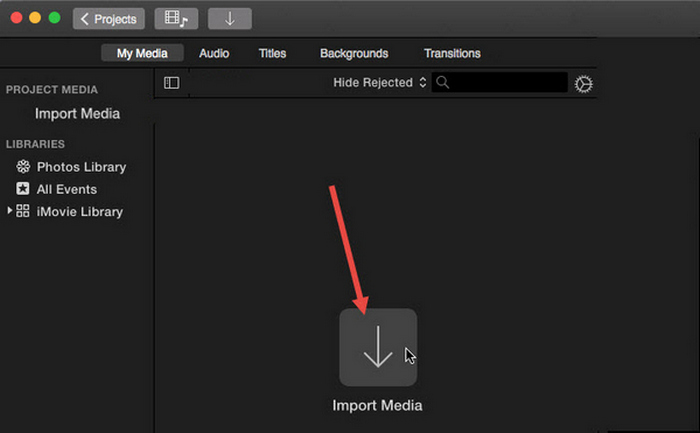
Pas 2. A continuació, importa el teu vídeo al programari fent clic al botó Importa contingut multimèdia.
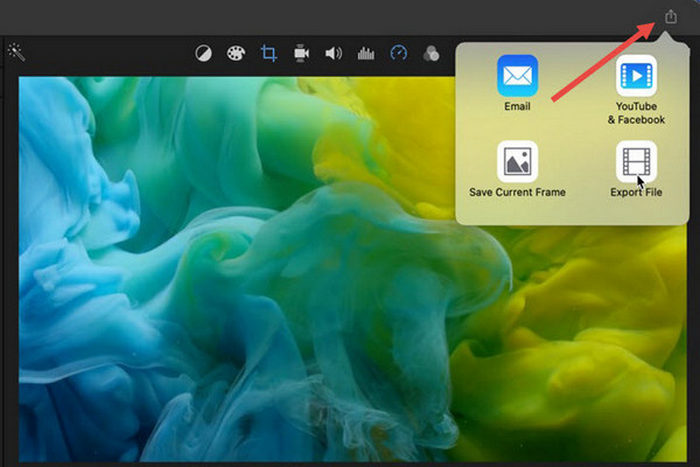
Pas 3. Ara, a la barra d’eines superior, fes clic al botó Fitxer, ves a Comparteix, després a Fitxer, o bé, a la finestra de previsualització, fes clic a la icona Comparteix i selecciona l’opció Fitxer al diàleg emergent.
Pas 4. Tria Vídeo i àudio a la nova finestra emergent com a format de sortida i ajusta la resolució, la qualitat i altres paràmetres segons les teves necessitats.
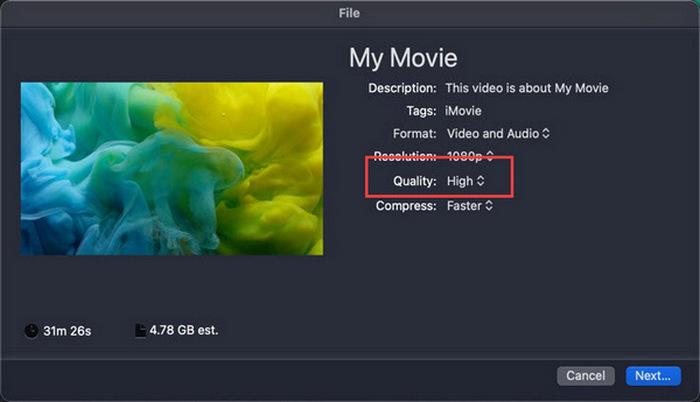
Nota: No seleccionis l’opció de qualitat ProRes si vols exportar el fitxer de vídeo en format MP4, perquè es desarà en format MOV.
Pas 5. Finalment, fes clic al botó Següent i posa un nom al fitxer MP4 d’iMovie que exportaràs. No t’oblidis de seleccionar un directori de sortida i fes clic a Següent per desar-lo com a MP4.
Realment hi ha una manera d'exportar iMovie a MP4 directament des de Mac. Tanmateix, el procés pot semblar una mica complicat, sobretot quan es tracta del seu format de fitxer predeterminat quan es desa el vídeo.
Si vols utilitzar iMovie a Windows, no et perdis aquesta publicació.
Part 2: Com arreglar l'exportació d'iMovie que no funciona [Solució comuna]
Hi pot haver diversos motius pels quals l'exportació d'iMovie podria no funcionar correctament. A continuació es mostren algunes solucions i alternatives per solucionar el problema de l'exportació d'iMovie que no funciona:
Solució 1: Comprovació de l'espai d'emmagatzematge
Una de les causes habituals dels problemes d'exportació d'iMovie és l'espai en disc insuficient al vostre Mac. Si teniu problemes per exportar vídeos, comenceu per comprovar la disponibilitat d'emmagatzematge.
Per a macOS Ventura o posterior: Ves al logotip del menú Apple, tria Preferències del Sistema, fes clic a General i, a continuació, selecciona Emmagatzematge al costat dret.
Per a versions anteriors de macOS: Accedeix al logotip del menú Apple, després fes clic a Quant al Mac i ves a Emmagatzematge.
Aleshores, si el vostre Mac s'està quedant sense emmagatzematge, penseu a suprimir fitxers o aplicacions innecessàries per alliberar espai. Un cop ho hàgiu fet, torneu a iMovie i torneu a intentar l'exportació.
Solució 2: comproveu el nom del fitxer
Si iMovie no pot exportar un vídeo després d'haver intentat l'exportació unes quantes vegades, és essencial revisar el nom del fitxer a la configuració de sortida per assegurar-se que no inclou cap caràcter especial com ara guioons, barres inclinades, comes, etc. Normalment, iMovie ho fa. no admet caràcters especials per nomenar el fitxer.
Solució 3: reinicieu iMovie
Ara, si el problema continua, prova de reiniciar l’aplicació i exportar el vídeo de nou. Però primer, no t’oblidis de desar el teu projecte actual. Per tancar completament iMovie, fes clic a la icona de l’app i tria l’opció Surt. Després, torna a obrir iMovie, obre un projecte i comprova si ara pot exportar vídeos. També prova de reiniciar el Mac per solucionar el problema.
Solució 4: actualitzeu iMovie
Una versió desactualitzada d’iMovie sol provocar errors d’exportació a causa d’alguns errors i problemes del sistema que no s’han actualitzat. Per actualitzar iMovie, obre la App Store, fes clic a Actualitzacions al lateral esquerre i comprova si hi ha actualitzacions disponibles per a iMovie; després, fes-hi clic.
Solució 5: torneu a instal·lar iMovie
Si altres solucions no aconsegueixen resoldre el problema d’exportació, planteja’t reinstal·lar iMovie. Per desinstal·lar iMovie d’un Mac, obre el Launchpad i prem la tecla Opció, fes clic i mantén premut iMovie, després fes clic al botó X que hi ha al costat de l’app i fes clic a Suprimeix per confirmar. A continuació, ves a la App Store per descarregar i instal·lar iMovie.
Bonificació: com arreglar l'exportació d'iMovie que no funciona [forma alternativa]
Si cap de les solucions et funciona, és el moment de provar aquesta alternativa per solucionar el problema d’iMovie quan l’exportació no funciona. FVC Video Converter Ultimate és conegut per les seves àmplies capacitats de conversió, que permeten als usuaris convertir vídeos a qualsevol format que prefereixin. Però, a més d’això, disposa d’altres funcions, com MV, dissenyada per a usuaris que volen editar vídeos. Igual que amb iMovie, només has d’importar els fitxers que vols editar i, després, utilitzar les funcions d’edició, com retallar i girar els clips, afegir efectes i filtres, així com posar-hi música de fons per fer el vídeo més atractiu, i molt més. Després, exporta el fitxer a MP4.
A més, aquesta eina admet resolucions HD/4K/8K, garantint una qualitat de sortida de primer nivell. I la millor part? Funciona a una velocitat vertiginosa, completant les conversions 120 vegades més ràpid que altres mètodes.
Pas 1. Primer, a l’ordinador Windows o Mac, descarrega i instal·la FVC Video Converter Ultimate.
Descàrrega gratuïtaPer a Windows 7 o posteriorDescàrrega segura
Descàrrega gratuïtaPer a macOS 10.7 o posteriorDescàrrega segura
Pas 2. Després, un cop siguis a la interfície de l’eina, ves a la pestanya MV.

Pas 3. Ara, fes clic al botó Afegeix fitxer per afegir els fitxers que vols convertir a MP4.

Pas 4. Per afegir, editar i retallar el teu vídeo MP4, fes clic al botó de la part superior del botó Afegeix fitxer. A més, pots afegir un tema al teu vídeo triant entre la llista de temes predefinits de la pestanya Tema de dalt.

Pas 5. Per millorar encara més el fitxer MP4 que estàs editant, hi pots afegir filtres i efectes fent clic a la icona Edita de sota. També hi pots afegir una marca d’aigua per personalitzar el fitxer.

Pas 6. Quan acabis, fes clic al botó Exporta, on podràs canviar el format a MP4 i modificar la velocitat de fotogrames, la resolució i la qualitat.

Pas 7. Finalment, per desar el fitxer, fes clic al botó Inicia l’exportació.
Amb FVC Video Converter Ultimate, no us haureu de preocupar de com convertir el vostre iMovie a fitxers MP4 quan s'exporti en format MOV. A més, és una gran alternativa sempre que trobeu un problema d'exportació amb iMovie, ja que es tracta d'una eina amb totes les funcions. Podeu tenir tot el que necessiteu, especialment sobre la conversió de fitxers d'un format a un altre.
Part 3: Com exportar iMovie a MP4 a iPad/iPhone
Per a aquells que utilitzen iOS o iPadOS i volen exportar i convertir iMovie a MP4 al seu iPhone o iPad, aquí teniu com exportar iMovie a MP4 a iPad/iPhone.
Pas 1. Primer, a l’iPhone o iPad, obre l’app iMovie.
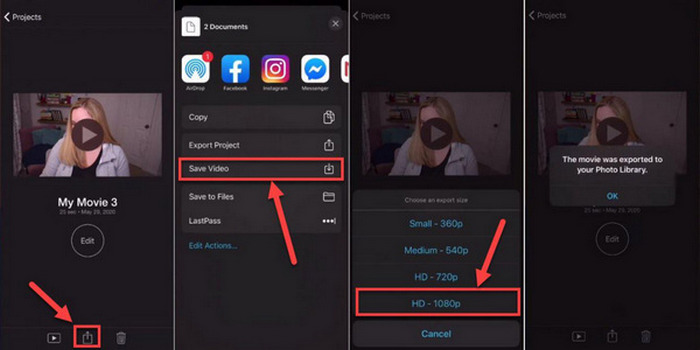
Pas 2. Després, a la pestanya Projectes, tria el projecte que vols exportar a MP4.
Pas 3. A continuació, toca el botó Comparteix i selecciona Exporta el projecte.
Pas 4. Finalment, tria Desa el vídeo, després tria una mida d’exportació i converteix i desa iMovie a MP4 al teu iPhone o iPad.
Quan exporteu i convertiu iMovie a MP4 directament al vostre iPhone o iPad, recordeu assegurar-vos que teniu prou espai d'emmagatzematge disponible al vostre dispositiu per allotjar el fitxer MP4 exportat, ja que això comporta problemes i problemes d'exportació.
Part 4: Preguntes freqüents sobre l'exportació d'iMovie a MP4
Per què el meu fitxer de vídeo iMovie no és compatible amb QuickTime?
És possible que els fitxers iMovie no siguin compatibles amb QuickTime a causa de les diferències en els còdecs o els formats de fitxer. QuickTime admet una gamma limitada de còdecs de vídeo i tipus de fitxers, de manera que si el vostre fitxer iMovie utilitza un còdec o un format no compatible amb QuickTime, poden sorgir problemes de compatibilitat. Per solucionar-ho, proveu d'exportar el vostre projecte iMovie en un format o còdec diferent que sigui compatible amb QuickTime.
Quant de temps triga a exportar un iMovie?
Normalment es triga entre 1,5 i 2 vegades el temps de reproducció del projecte a renderitzar-se i codificar durant el procés d'exportació. Factors com la complexitat del projecte, la resolució de vídeo i la potència de processament del dispositiu poden afectar els temps d'exportació. A més, l'exportació de projectes més grans o més complexos pot trigar més temps que els de més petits o més senzills.
Exportar iMovie a MP4 afecta la qualitat dels meus vídeos?
L'exportació d'iMovie a MP4 no hauria d'afectar significativament la qualitat dels vostres vídeos, sempre que trieu la configuració d'exportació adequada. Tanmateix, és essencial assegurar-vos que seleccioneu la configuració de resolució, taxa de bits i compressió desitjada per mantenir la qualitat dels vídeos que voleu exportar.
Conclusió
Aprendre com exportar iMovie a MP4 és important per garantir la compatibilitat i la versatilitat a l’hora de compartir els teus projectes de vídeo en diversos dispositius i plataformes. Per tant, si trobes qualsevol problema durant el procés d’exportació a iMovie, assegura’t d’explorar les solucions habituals que aquí es presenten. Comença a exportar els teus projectes d’iMovie a MP4 avui mateix amb aquesta guia.
-
 Les millors maneres d'utilitzar iMovie per fer vídeos a càmera lenta [Resolt]
 Alguna vegada has utilitzat iMovie per convertir el teu vídeo de velocitat normal a càmera lenta? Aquesta és l'oportunitat de saber-ne més.
-
 Com sincronitzar àudio i vídeo a iMovie a iPhone i Mac
 Teniu un problema perquè l'àudio i el vídeo no es sincronitzen a l'iPhone i al Mac? Així que ara, continuem sobre com utilitzar iMovie llegint aquest article.
-
 Com afegir una marca d'aigua a un vídeo a iMovie al Mac [All Embracing]
 Vols conèixer els secrets d'afegir una marca d'aigua a un vídeo a iMovie? No vesseu el te a ningú i apreneu-lo llegint aquest article.
