


 Video Converter Ultimate
 Gravadora de pantalla
 Reparació de vídeo
 Baixada segura
3 mètodes definitius per editar fàcilment fitxers WMA [2024]
Els fitxers WMA, o Windows Media Audio, són un format popular per a la compressió d’àudio, ja que ofereixen un so d’alta qualitat mantenint la mida dels fitxers en valors assumibles. Editar aquests fitxers pot semblar complicat, i aquest és un problema habitual per a alguns usuaris que necessiten modificar-los. Però amb les eines i tècniques adequades, editar fitxers com aquests és bufar i fer ampolles. En aquesta guia, t’acompanyarem a través de tres mètodes efectius per editar fitxers WMA en diferents plataformes, incloent Windows, macOS i en línia. Tant si ets nou en aquest àmbit com si ja tens experiència en l’edició d’àudio, trobaràs en aquest article una solució perfecta per a les teves necessitats.

Part 1: passos senzills per editar fitxers WMA a Windows 11/10/8/7 i macOS
La manera més senzilla d’editar fitxers WMA a Windows i macOS és mitjançant l’eina seleccionada FVC Video Converter Ultimate. Aquesta eina tot en un admet diversos formats d’àudio, inclòs el WMA, i per això és ideal per editar fitxers WMA. A més, té una interfície molt intuïtiva i fàcil d’utilitzar, cosa que la fa accessible fins i tot per als principiants. Els usuaris també poden comprimir el seu àudio, augmentar-ne el volum i aplicar cancel·lació de soroll, convertint-la en una solució integral per a totes les teves necessitats d’edició d’àudio.
Pas 1. Al teu ordinador Windows o macOS, instal·la el Video Converter Ultimate.
Descàrrega gratuïtaPer a Windows 7 o posteriorDescàrrega segura
Descàrrega gratuïtaPer a macOS 10.7 o posteriorDescàrrega segura
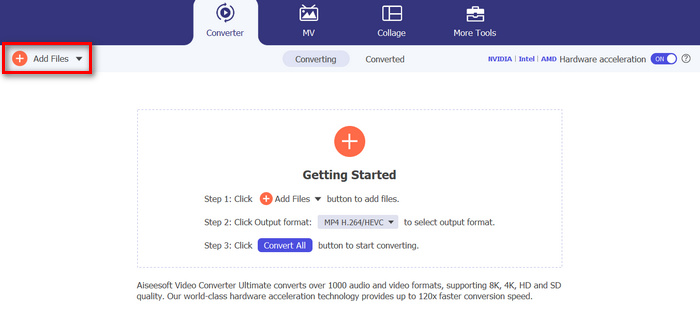
Pas 2. Per importar els fitxers WMA que vols editar, fes clic al botó Add Files.
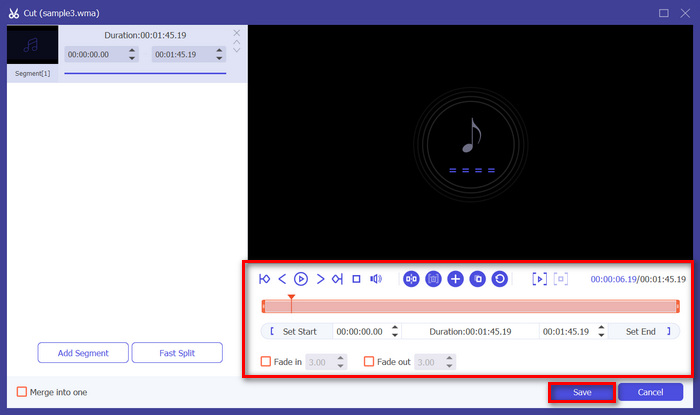
Pas 3. Després, fes clic al botó Cut. Això et portarà a una altra finestra on podràs editar fitxers WMA, com ara dividir, tallar, afegir esvaïments d’àudio i més.
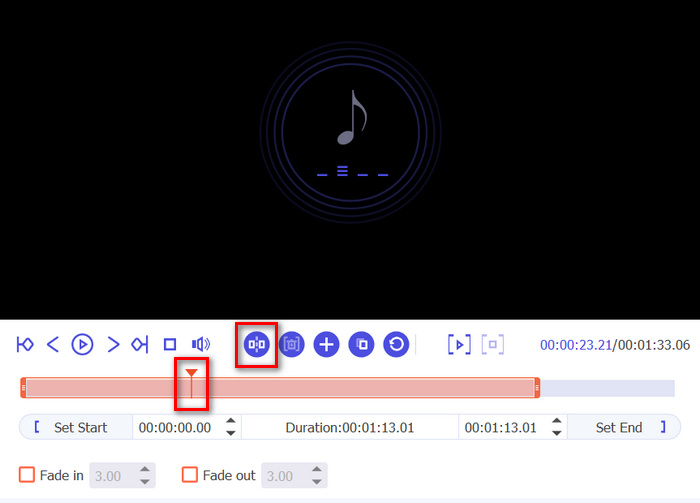
Pas 4. Si vols dividir fitxers d’àudio, simplement mou la línia vermella, col·loca-la a la part de la pista on vols fer la divisió i fes clic al botó Split. El mateix s’aplica per tallar una part d’un àudio.
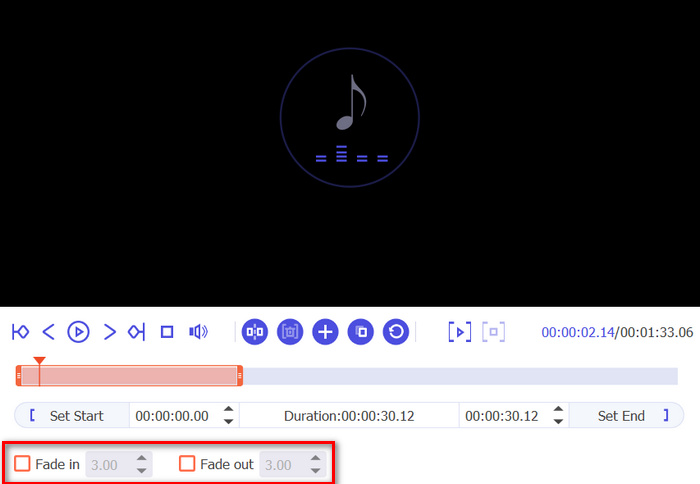
Pas 5. Igualment, si necessites esvair el teu àudio, només cal que facis clic a Fade in i Fade out, marquis la casella de sota i estableixis el temps en què vols que el teu àudio WMA entri i surti gradualment.
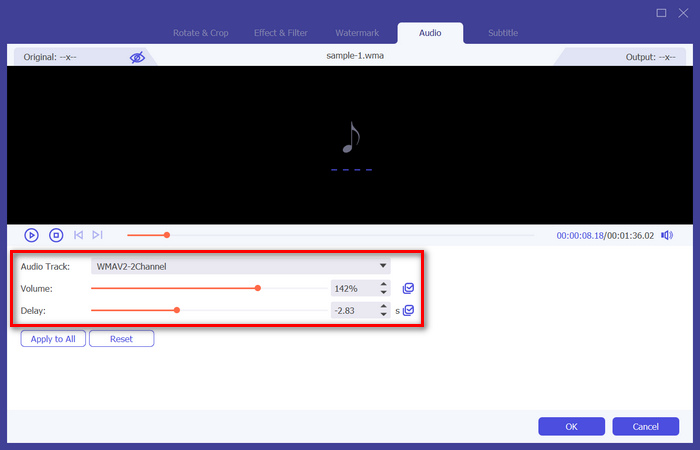
Pas 6. Mentrestant, si vols augmentar el volum i afegir retards, fes clic al botó Edit i, des d’allà, els podràs modificar ajustant-ne els nivells corresponents.
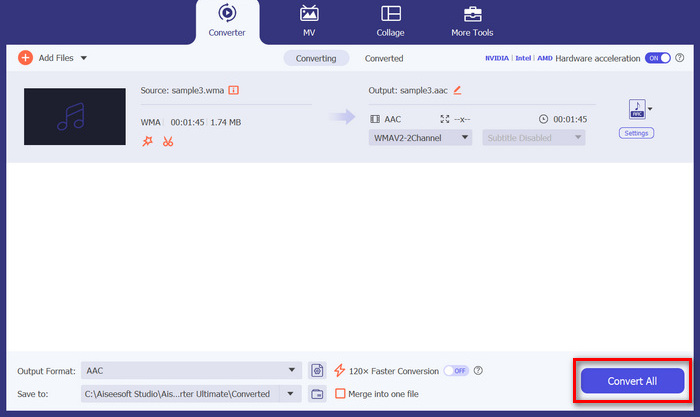
Pas 7. Quan acabis, fes clic al botó Save; després, podràs previsualitzar els teus fitxers WMA i, quan tot estigui al teu gust, fes clic al botó Convert All.
Per editar fitxers WMA, és important tenir una eina fiable que combini funcionalitat i facilitat d'ús. Video Converter Ultimate és una de les millors opcions a causa de les seves funcions d'edició completes i la sortida d'alta qualitat. La capacitat de gestionar diversos formats d'àudio garanteix la versatilitat, la qual cosa la converteix en una solució única per a totes les vostres necessitats d'edició d'àudio. A més, la seva ràpida velocitat de processament estalvia temps, mentre que la interfície intuïtiva garanteix una experiència d'edició fluida per als usuaris de tots els nivells d'habilitat. Tant si esteu realitzant edicions bàsiques com modificacions més complexes, aquesta eina ofereix una plataforma potent però senzilla per millorar els vostres fitxers WMA.
Part 2: Editeu fitxers WMA a Audacity
Audacity també és una gran eina per editar fitxers WMA. Aquesta eina és gratuïta i és tan bona com moltes eines de prepagament. Podeu utilitzar aquesta eina per editar qualsevol fitxer d'àudio tallant, fusionant i molt més. Fins i tot podeu eliminar el soroll o la veu dels vostres fitxers WMA si voleu. Tanmateix, aquesta aplicació pot ser massa complexa per a alguns usuaris, però tot i així, aquesta eina és fantàstica per gestionar fitxers WMA.
Pas 1. Primer, has d’importar els teus fitxers WMA arrossegant-los a la línia de temps de l’eina.
Pas 2. Fes clic a l’eina Editing per editar els teus fitxers WMA. Amb aquesta funció, pots dividir, tallar o fer més operacions amb els teus fitxers.
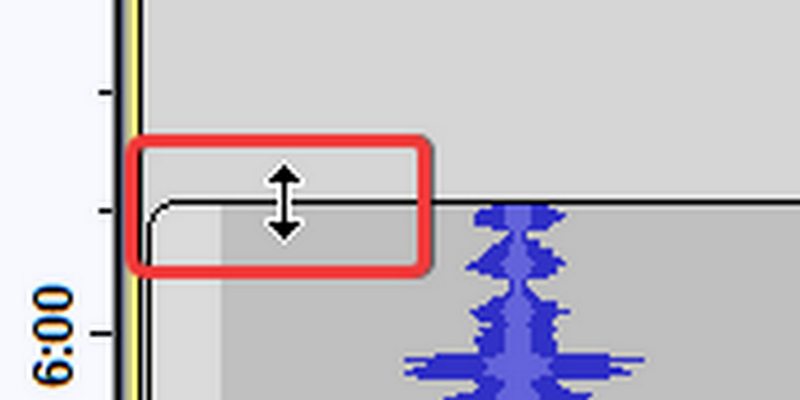
Pas 3. Per retallar fitxers WMA, situa el cursor prop del terç superior de la vora esquerra o dreta del clip.
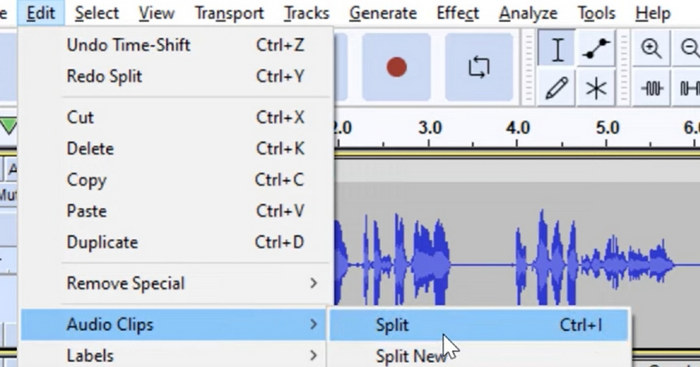
Pas 4. Mentrestant, si vols dividir els teus fitxers WMA, fes clic a la part de la pista on vols dividir el clip, fes clic amb el botó dret i selecciona Split clip.
Pas 5. Un cop hagis acabat d’editar els teus fitxers WMA, ves a la pestanya File i tria Save Project per exportar el fitxer editat.
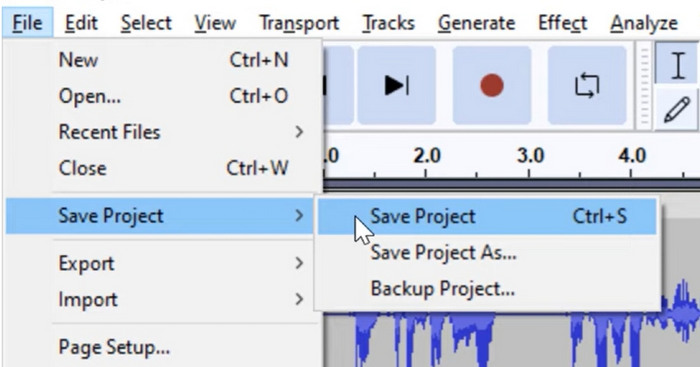
Audacity és una gran eina per editar fitxers WMA. Els únics inconvenients són la seva complexitat per als nous usuaris i el requisit del sistema per als dispositius, cosa que podria alentir el seu rendiment general en comparació amb altres eines.
Part 3: Editar fitxers WMA en línia
Apps123 és una plataforma en línia que ofereix un conjunt d'eines per editar fitxers multimèdia, inclosos fitxers WMA. Aquest servei basat en web permet als usuaris realitzar diverses tasques d'edició d'àudio directament des del seu navegador sense necessitat de descarregar o instal·lar programari. Amb aquesta eina, els usuaris poden editar fitxers WMA mitjançant funcions com ara retallar l'àudio, canviar el volum, canviar la velocitat, el to i molt més.
Per utilitzar aquesta eina:
Pas 1. Ves al seu lloc web oficial.
Pas 2. A la interfície principal, fes clic a Audio tools i tria la funció d’edició que vulguis utilitzar amb els teus fitxers WMA.
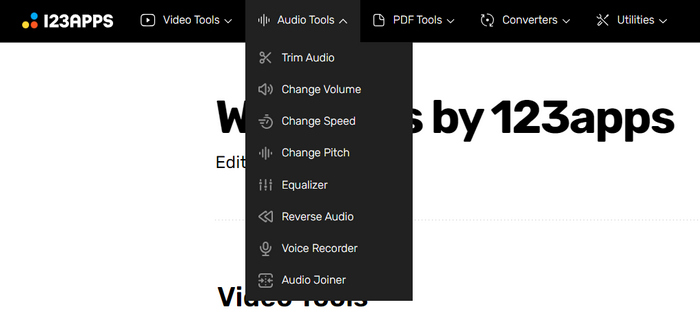
Pas 3. Des d’allà, pots triar retallar, canviar el volum, la velocitat, el to, unir l’àudio i més. Per utilitzar-les, fes clic a la funció d’edició d’àudio corresponent que vulguis fer servir i importa el fitxer WMA.
Pas 4. Després, segueix les instruccions que apareixen a la pantalla.
Pas 5. Finalment, per exportar el teu fitxer WMA editat, fes clic al botó Save.
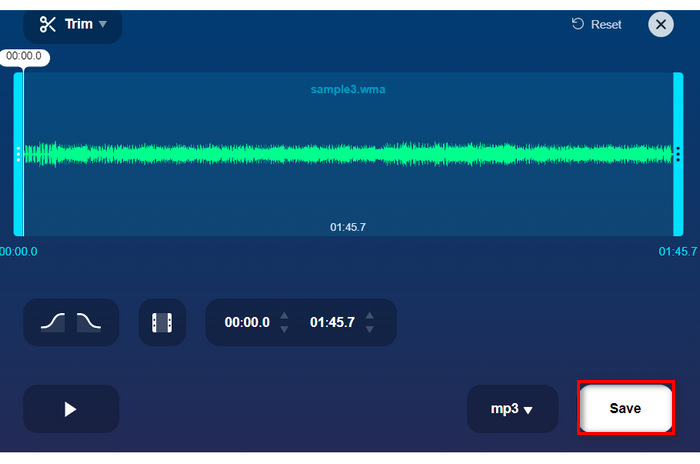
L'ús d'una eina en línia com Apps123 ofereix una manera còmoda d'editar fitxers WMA i hi ha moltes funcions per triar. Tanmateix, no podeu aplicar totes aquestes funcions d'edició alhora, ja que es van crear per separat en funció de les seves diferents funcions. A més, la velocitat d'importació i processament requereix temps. Potser per a altres, això no és una cosa, però per a alguns, la velocitat i l'eficiència compten. No obstant això, aquesta eina és una gran alternativa per als usuaris que busquen un mètode en línia per editar fitxers WMA.
Part 4: Preguntes freqüents sobre l'edició de fitxers WMA
WMA funciona amb Mac?
Sí, els fitxers WMA són compatibles amb els sistemes operatius Mac. Tanmateix, és possible que algunes aplicacions predeterminades de Mac no admetin la reproducció WMA sense connectors addicionals o programari de tercers.
Amb quin programa puc obrir fitxers WMA?
Els fitxers WMA es poden obrir amb diversos programes a diferents plataformes. Per als usuaris de Mac, aplicacions com Audacity, VLC Media Player o QuickTime amb complements addicionals poden gestionar fitxers WMA. A Windows, els programes natius com Windows Media Player poden obrir fitxers WMA, juntament amb opcions de tercers com VLC i Audacity.
Quina aplicació converteix WMA a WAV?
Hi ha diverses aplicacions disponibles per convertir WMA a WAV, com ara Video Converter Ultimate esmentat a l'article. Aquesta eina ofereix una interfície senzilla i admet la conversió per lots per comoditat.
Conclusió
En resum, la necessitat d’una eina fiable per editar WMA és essencial, ja que altres eines o plataformes no admeten aquest format de fitxer. Per tant, utilitzar qualsevol de les eines esmentades en aquest article, com ara Video Converter Ultimate, Audacity i Apps123, ofereix diferents maneres i funcions per editar fitxers WMA segons les teves preferències i necessitats. Així doncs, què esperes? Prova ara qualsevol d’aquestes eines i edita els teus fitxers sense complicacions.
-
 Els 5 millors editors de vídeo AI per perfeccionar el vostre metratge
 Coneix el cim de la tecnologia d'edició de vídeo, el nostre millor editor de vídeos d'IA. Combina creativitat i eficiència a la perfecció mentre edites vídeos amb eines impulsades per IA.
-
 Compressors d'àudio efectius per a usuaris fora de línia i en línia
 Teniu problemes amb fitxers d'àudio grans? Hi ha molts compressors de fitxers d'àudio disponibles per als usuaris fora de línia i en línia. Consulteu-los aquí.
-
 7 editors d'etiquetes de música populars a Windows, Mac i dispositius mòbils
 Les etiquetes de música són populars per organitzar la música a la biblioteca segons les dades que hi ha a l'interior. Què passa si el vols canviar? Llegiu els detalls a continuació per saber-ne més.
